Timecards are one of Aimsio’s proprietary formats for tracking costs. While Labor costs are the most common use case for Timecards, we leverage Timecards to track additional cost categories like Equipment and Materials too.
Timecards are available with Aimsio Ultimate & Performance.
Aimsio is not a payroll software, but it can help break down Employee hours and costs for export into another software using one of our supported integrations.
Timecard Pay Rules
A typical Aimsio customer will have a few employees on salary, but the majority are paid on an hourly basis + bonuses (e.g. subsistence, meals, etc.). Unions or jurisdictions can also influence how Employees are paid.
The category of Labor provides the most challenges. Labor hours are typically broken down into Regular Time (RT), Overtime (OT), Double Time (DT) or Straight Time (ST). There are additional considerations we account for, like Lump Sum Pay, Personal Vehicle allowances and Stat Holiday pay.
Aimsio takes care of producing this data and then passes it off, via an integration (or CSV export), to a payroll accounting system. Timecards also provide more accurate Job ‘Cost’ reporting. For more on this, read our Job Performance (WBS) guide.
Each account will have their own Timecard configuration to manage these rules. These settings are accessed by navigating to the Timecards page and clicking on the Configuration tab.
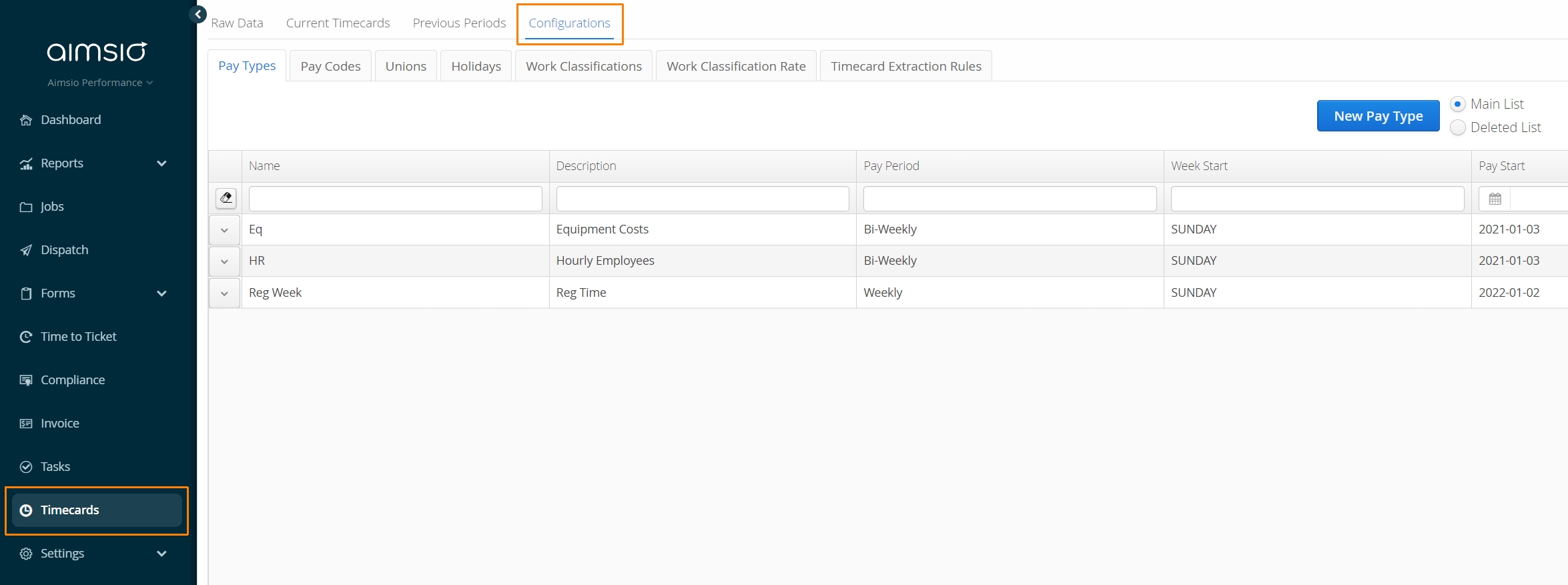
Our Professional Services team will work with each account to determine how your Employees are paid and help implement your Timecards configuration.
We do not advise making any changes to your Timecard configuration without first contacting our support team.
Pay Types
A Pay Type is the highest level of grouping costs (e.g. Hourly, Salary, Equipment). It also determines the frequency of the pay period and how Stat Pay is calculated.
We currently only support hourly Pay Types for Labor. We recommend accounts have separate Pay Types for Equipment and Material costs.
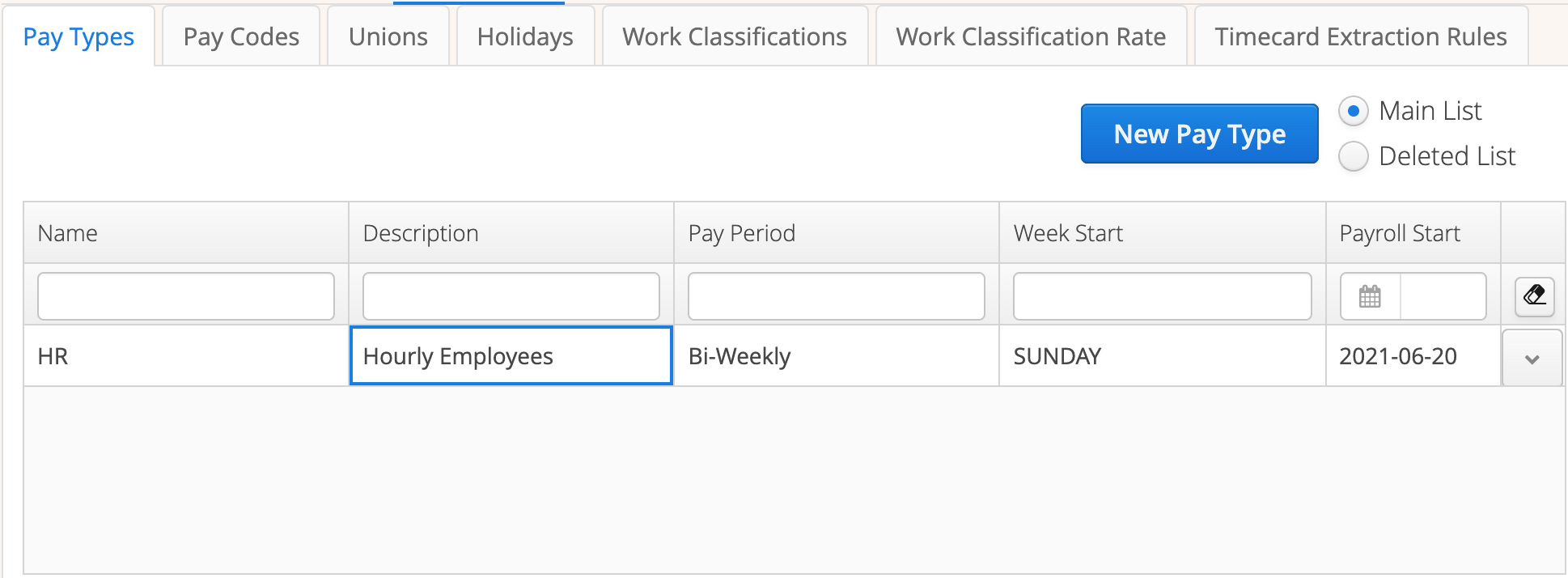
Pay Periods
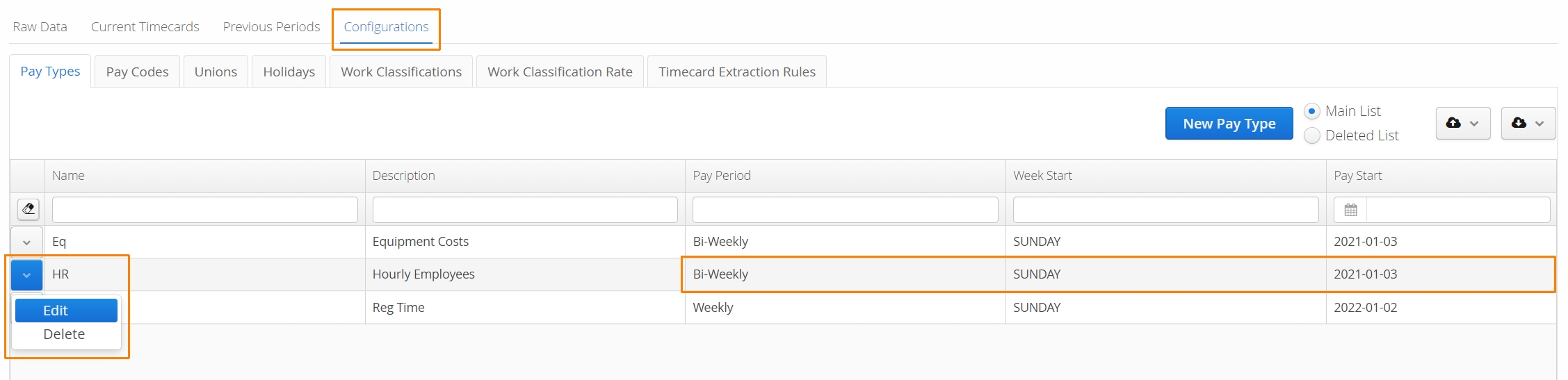
Each Pay Type stores a value called Pay Period which can be set to Weekly, Bi-Weekly, Semi-Monthly, and Monthly. To set the Pay Period, click on the Action button beside a Pay Type and select Edit.
Pay Periods cannot be adjusted after the first Pay Period has closed.
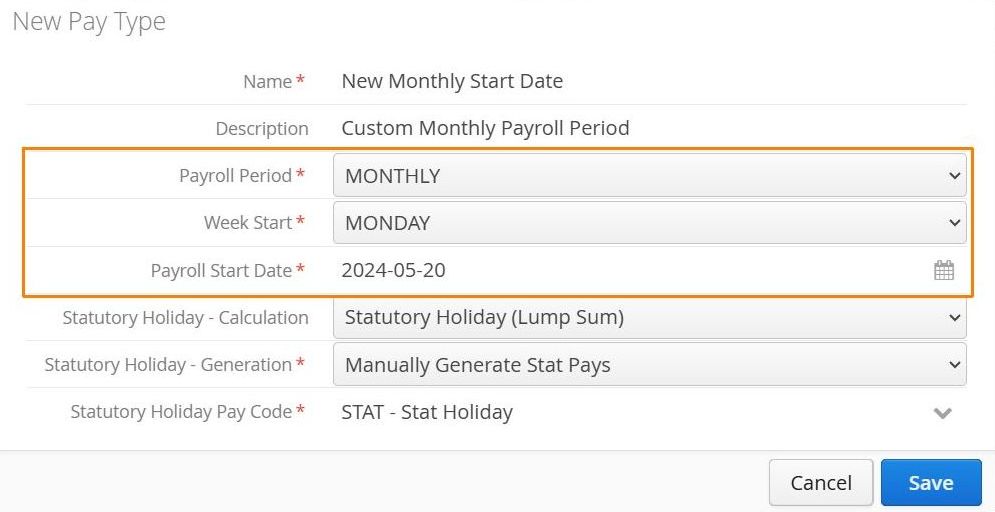
Every Pay Type is required to state the day of the week each period starts (Week Start), the Pay Period Start Date along with the Pay Period frequency (Weekly, Bi-Weekly, Semi-Monthly and Monthly).
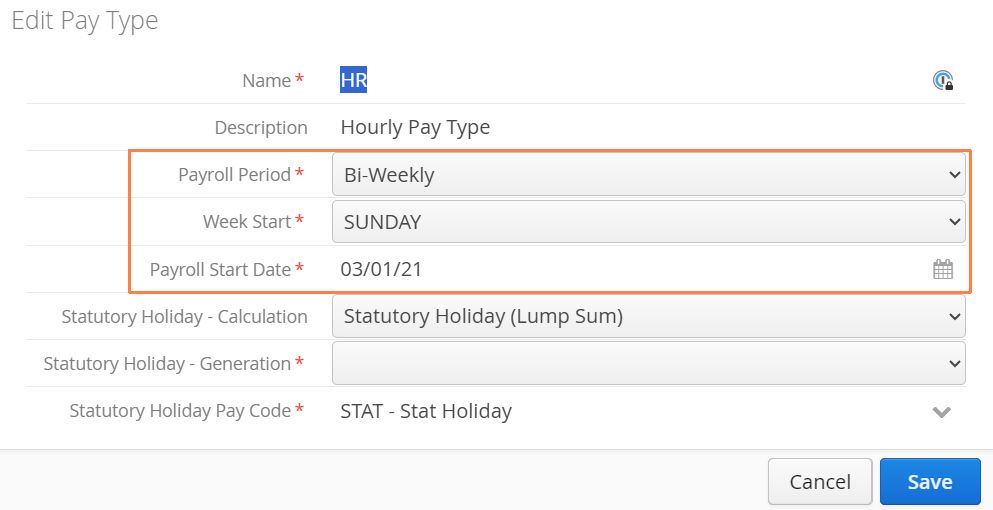
The Pay Period Start Date should land on the day of the week your Week Start value is set. Aimsio will consider the Pay Period frequency and calculate subsequent periods accordingly.
Monthly pay types work with the Pay Period Start Date. So if your ‘Pay Period Start Date’ falls on the 20th, every period will start on the 20th and end on the 19th.
This is all in effect for the very first period. If there are already existing pay periods when this is changed, the start of the next period will be the 1st of the month. Subsequent periods will follow on your new dates.
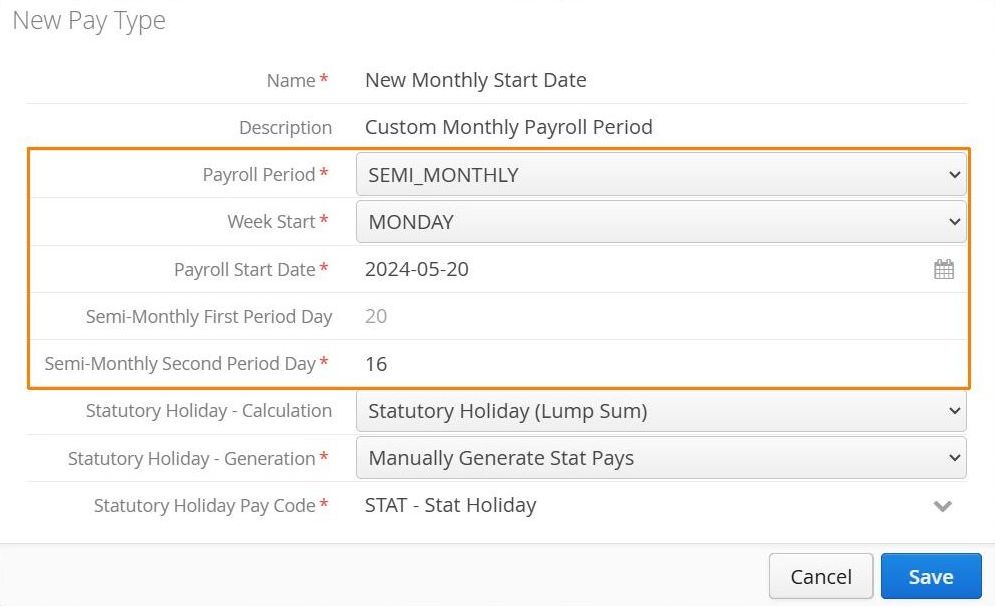
For Semi-Monthly pay types, users will need to enter 2 parameters:
-
Semi-Monthly First Period Day: Start day of the first period (which is read-only and equal to the Pay Period Start Date)
-
Semi-Monthly Second Period Day: Start day of the second period
Previous Pay Periods
Once Timecards are extracted and a pay period has concluded, an authorized user will close the current pay period. This process involves taking ‘Current Timecards’ and storing them under the Previous Periods tab.
The first time a Pay Period is closed, Aimsio will determine the Period Start date by looking at the earliest Timecard date in the ‘Current Timecards’ tab and determine the Period End based on the latest Timecard it can find.
From there, subsequent periods will start at the defined Pay Period frequency (Weekly, Bi-Weekly, etc.), regardless of what Timecards exist in the Current Timecards tab. In other words, Aimsio expects the next batch of Timecards to fall within the subsequent Pay Period.
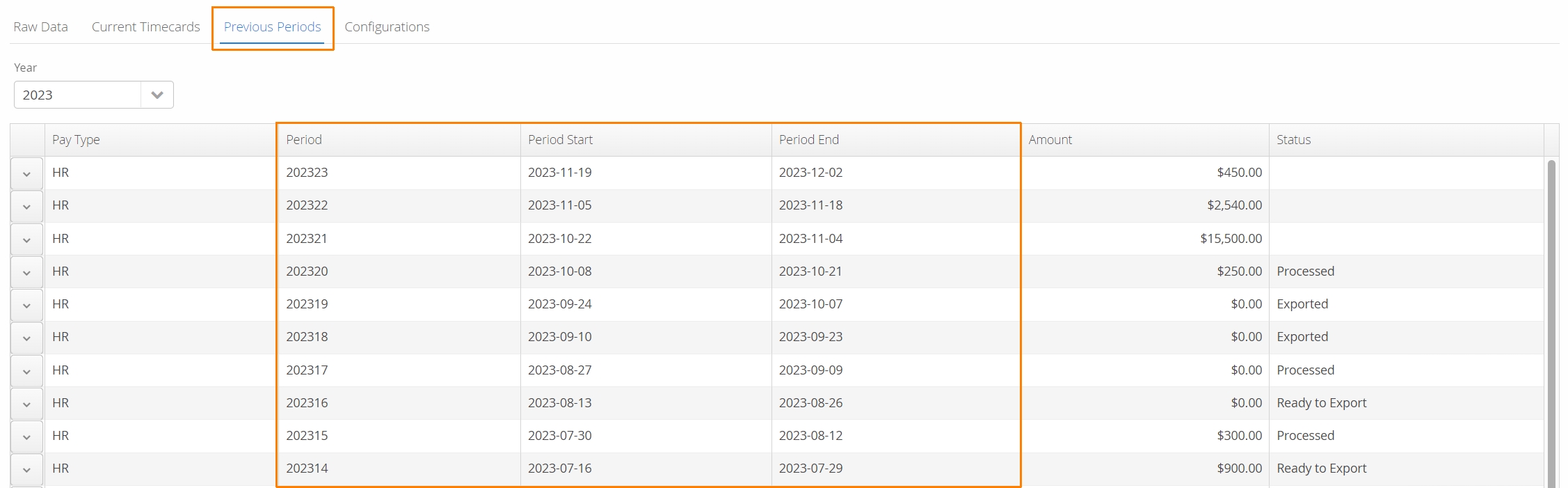
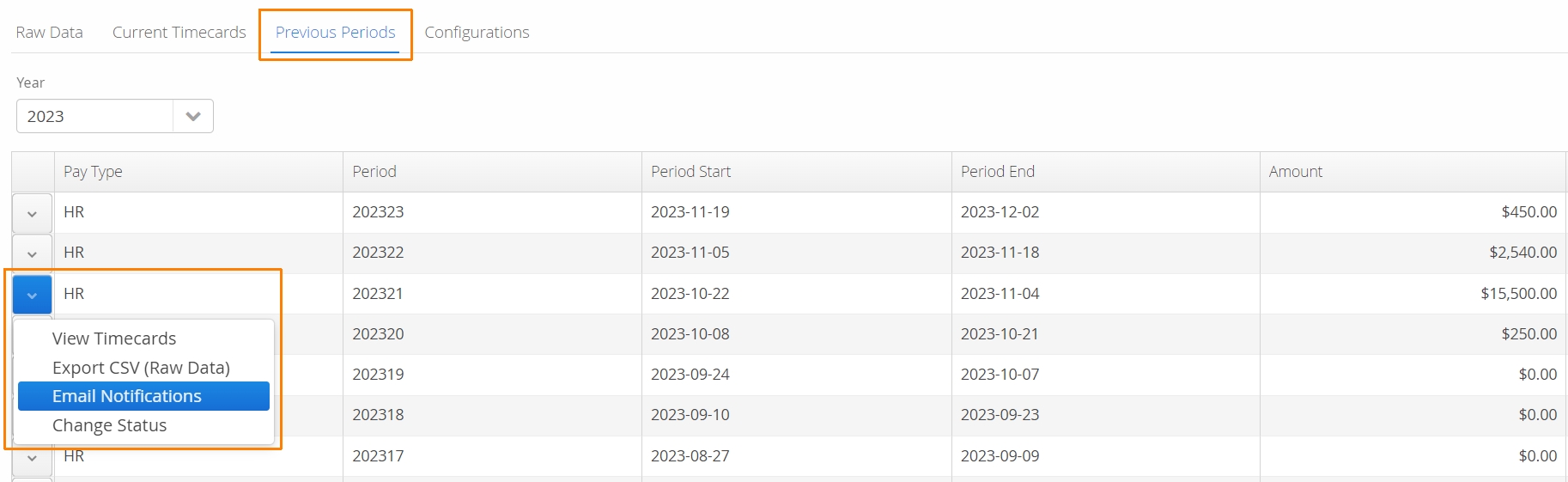
Once a pay period has closed, Timecards in that period cannot be modified. Authorized users will have read-only access to the Timecards. A summarized PDF of hours can also be emailed to employees before or after a pay period closes.
From the Previous Periods tab, use the action button beside a closed period to access these options.
For a complete walkthrough on processing Timecards in Aimsio, please see: How to Extract Timecards and Close a Pay Period.
Pay Codes
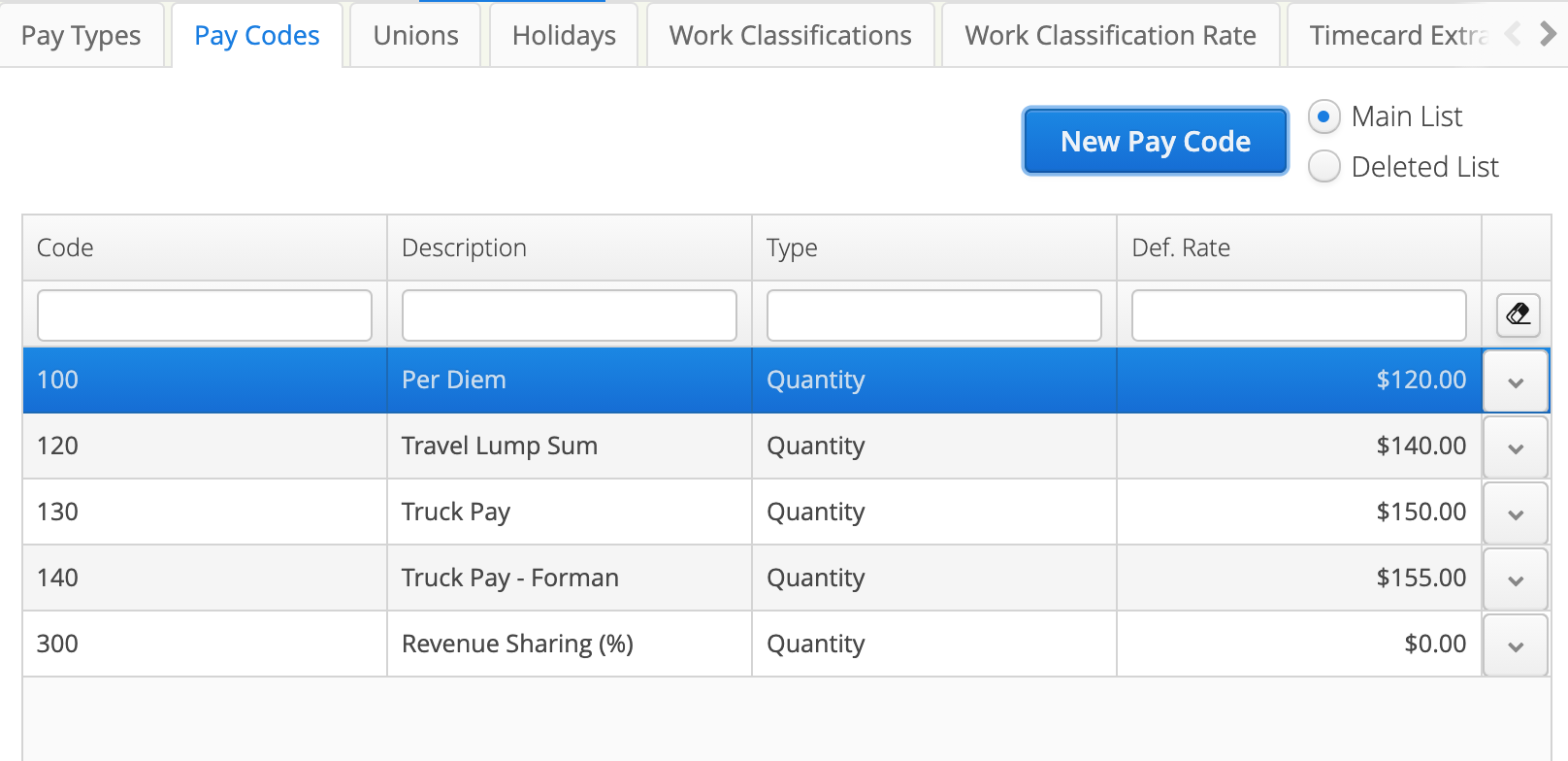
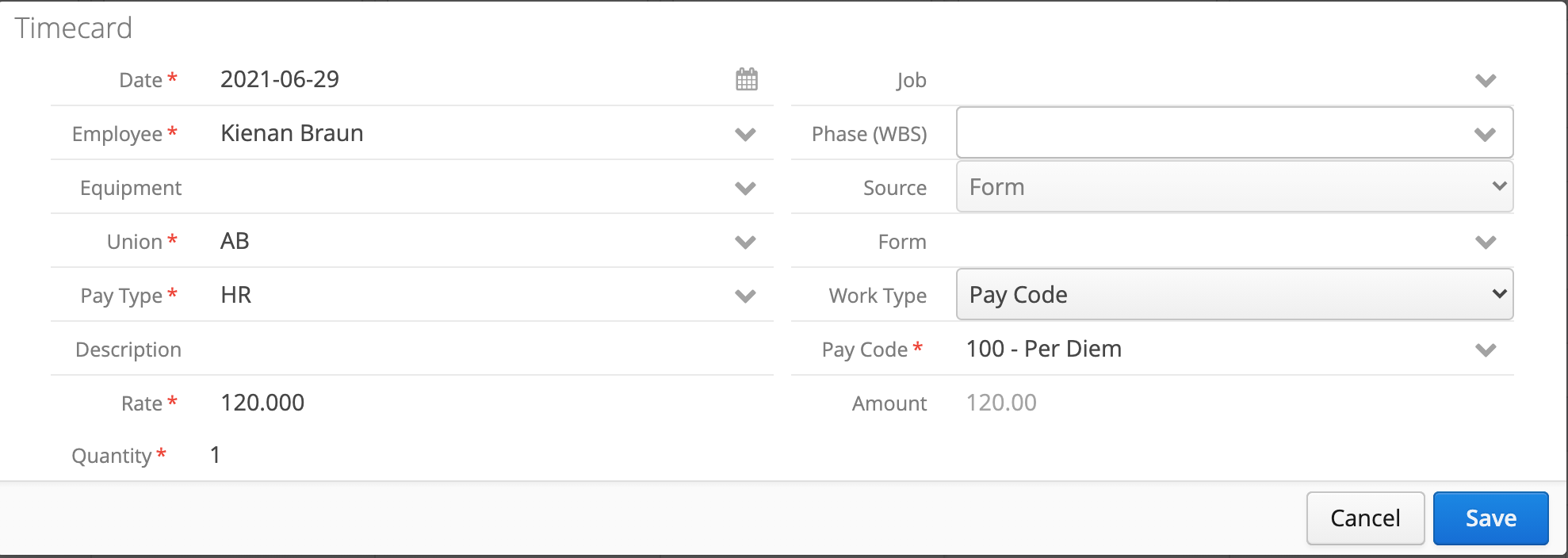
If a Timecard transaction represents a lump-sum cost (e.g. Subsistence), we define the rate as a Pay Code.
Unions
Under the Unions tab, Unions can be created. Each Union will have its own rules for handling hours, which can then be associated directly to an Employee in Master Data.
To create a Union, click on the New Union button located on the left.
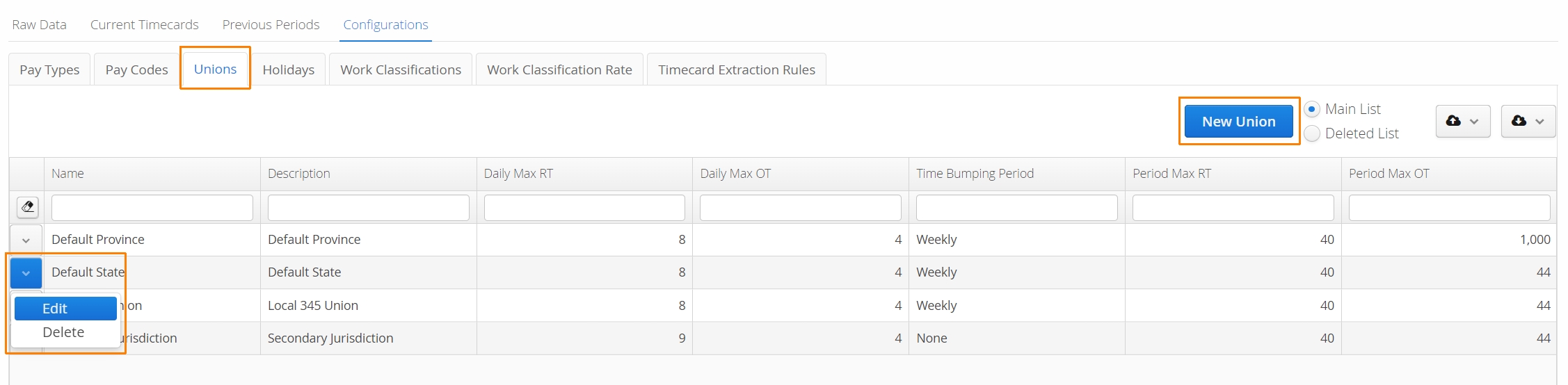
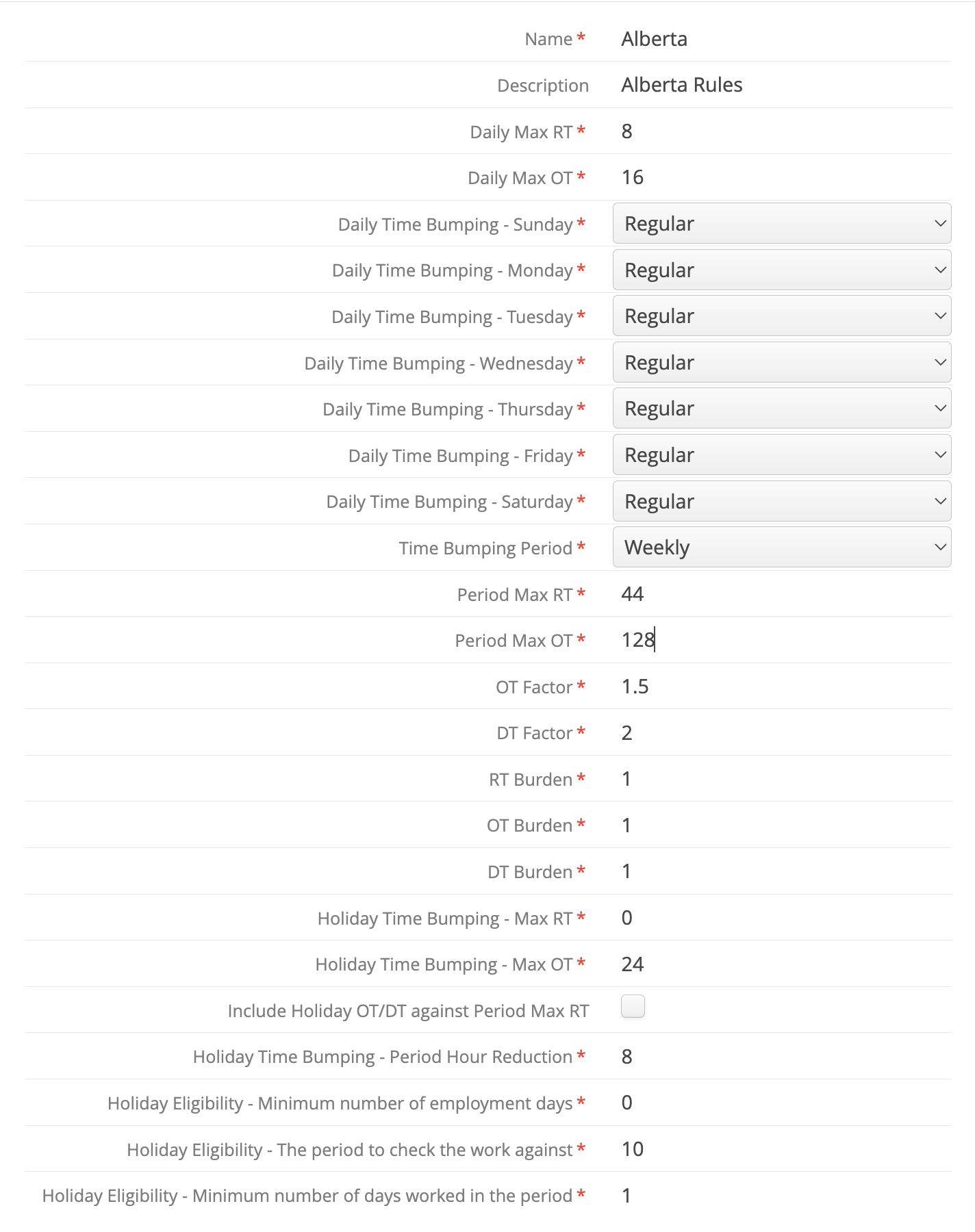
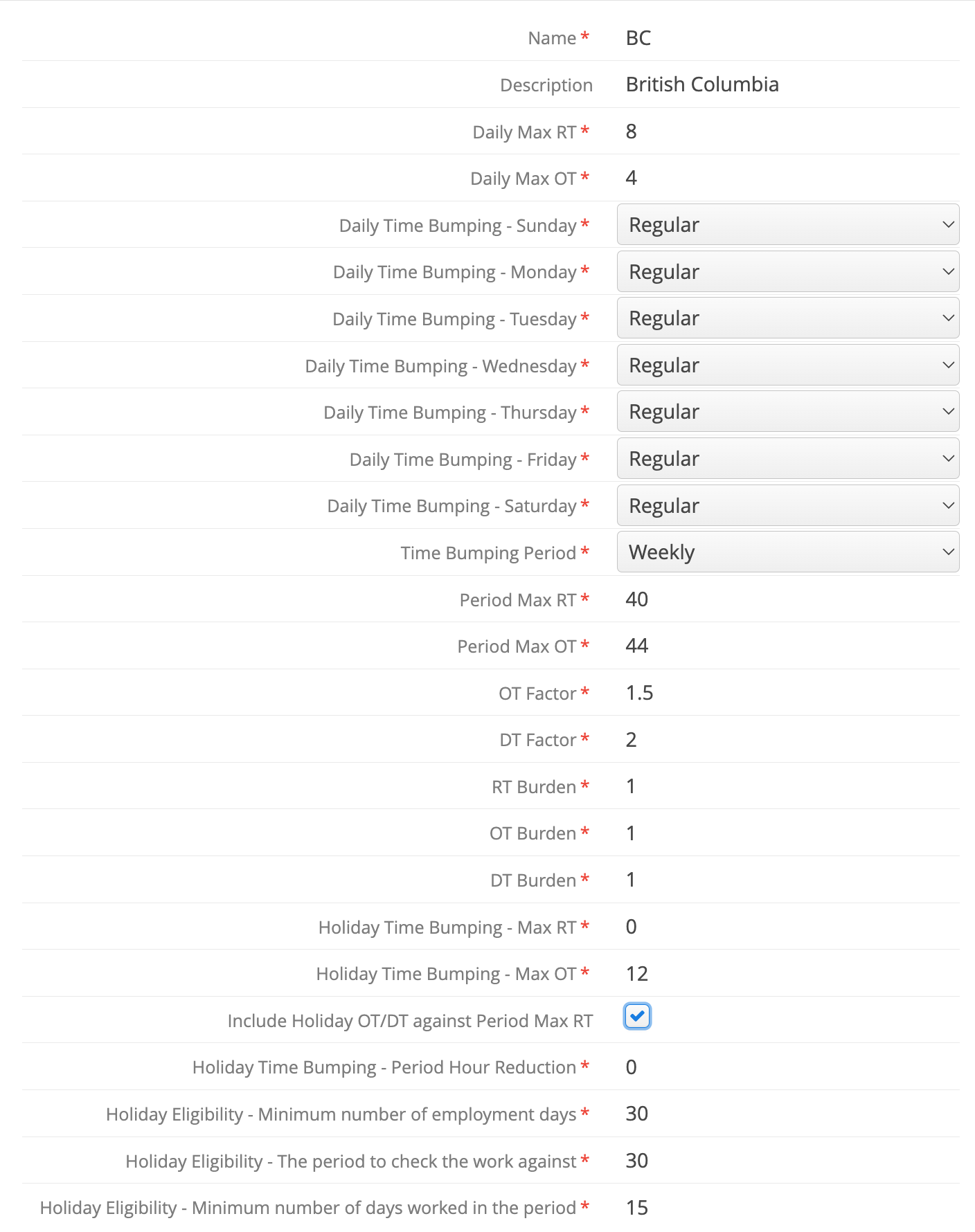
All the rules for OT/DT calculations are defined in a Union. Burdens and ‘Holiday Eligibility’ can be factored in. We’ve provided ruleset examples for both Alberta and BC.
In Alberta, all hours worked over 8 hours a day, or 44 hours a week (whichever is greater: (8/44 rule) is considered overtime. In British Columbia, standard work hours are 8 hours in a day and 40 hours in a week.
In addition, Unions can negotiate their own set of rules (e.g. all work on a Sunday is considered overtime).
-
Daily Max RT: what is the maximum number of hours to be considered as Regular Time in a day, after which all the hours will go to overtime?
-
Daily Max OT: what is the maximum number of hours to be considered as Overtime in a day, after which all the hours will go to Double-time?
Setting ‘Daily Max’ values to “0” will have our platform bypass that level and treat all hours at the next available rate (ie: Daily Max OT at “0” will bump all hours into DT).
-
Daily Time Bumping: For each day of the week, Aimsio can be directed to automatically treat any hours worked as Regular Time (RT), Overtime (OT) or Double-Time (DT).
-
Time Bumping Period: Aimsio can monitor the number of hours worked in a given period and bump all additional hours worked to the next available rate. This setting works in conjunction with the Period Max RT and Period Max OT values.
If Time Bumping Period is set to ‘Monthly’, Aimsio will always track hours from the 1st to the final day of the month. It’s not currently possible to set a custom monthly period start and end day.
Time Bumping for Semi-Monthly and Monthly Pay Periods: If your Week Start for time bumping is Sunday but the 1st of month happens on a Wednesday, some employees may have their OT paid to them in the previous pay period while others may have it in the new pay period.
In Alberta and British Columbia, the first 40 hours worked are RT. AB doesn’t leave any room for DT, while BC indicates any hours after 84 is considered DT. In other words, if somebody worked 90 hours in Alberta, they get 40/50/0 that week, while the same person in BC would receive 40/44/6.
Weekly hours are calculated and applied on the first day somebody’s hour crosses the weekly limit (and onward). Imagine someone worked 14 hours every day in BC. At the end of the week, we would have the following breakdown:
SUN | MON | TUES | WED | THU | FRI | SAT | Totals | |
|---|---|---|---|---|---|---|---|---|
Worked (Raw Data) | 14 | 14 | 14 | 14 | 14 | 14 | 14 | 98 |
RT | 8 | 8 | 8 | 8 | 8 | 40 | ||
OT | 4 | 4 | 4 | 4 | 4 | 12 | 12 | 44 |
DT | 2 | 2 | 2 | 2 | 2 | 2 | 2 | 14 |
- The same person in Alberta would have the following breakdown:
SUN | MON | TUES | WED | THU | FRI | SAT | Totals | |
|---|---|---|---|---|---|---|---|---|
Worked (Raw Data) | 14 | 14 | 14 | 14 | 14 | 14 | 14 | 98 |
RT | 8 | 8 | 8 | 8 | 8 | 40 | ||
OT | 6 | 6 | 6 | 6 | 6 | 14 | 14 | 58 |
DT |
-
OT/DT Factor: In our design, there is a base rate for RT and the rate of OT/DT is calculated by multiplying the base rate by OT/DT factor, respectively.
-
RT/OT/DT Burden: Aimsio is not a Payroll processing software and there are certain overhead costs (e.g. CPP, EI) to consider that are crucial for job costing. While Aimsio does not capture these costs, users can set burden values for every RT/OT/DT hour recorded. These averaged overhead costs are then factored in when reporting Job Performance.
-
Cross Union Work:
-
If someone worked on two or more Unions in a week, the one with more hours will be considered the base to calculate the breakdown.
-
If someone worked equal number of hours in two or more unions in a week, the one more beneficial to the employee will be considered the base to calculate the breakdown.
-
How to Add Holidays
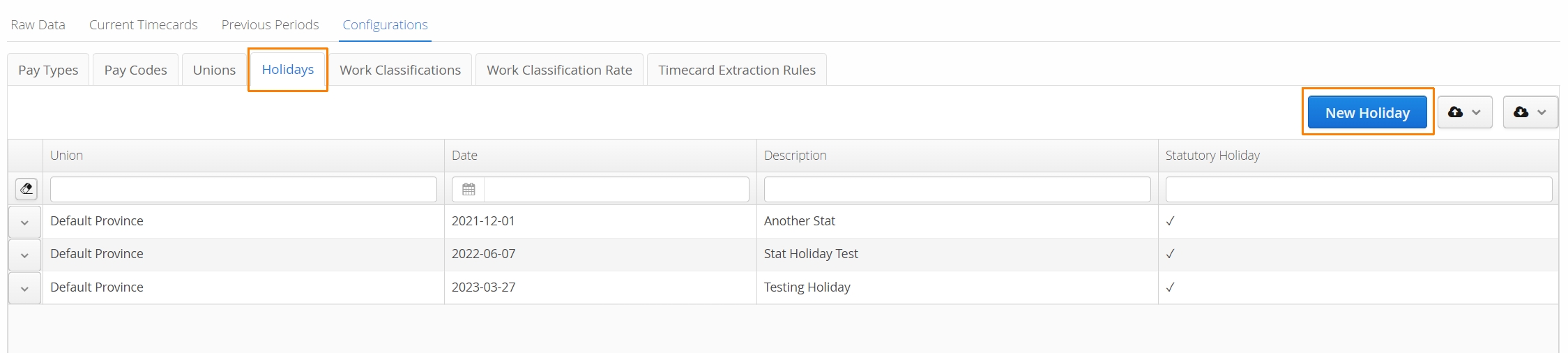
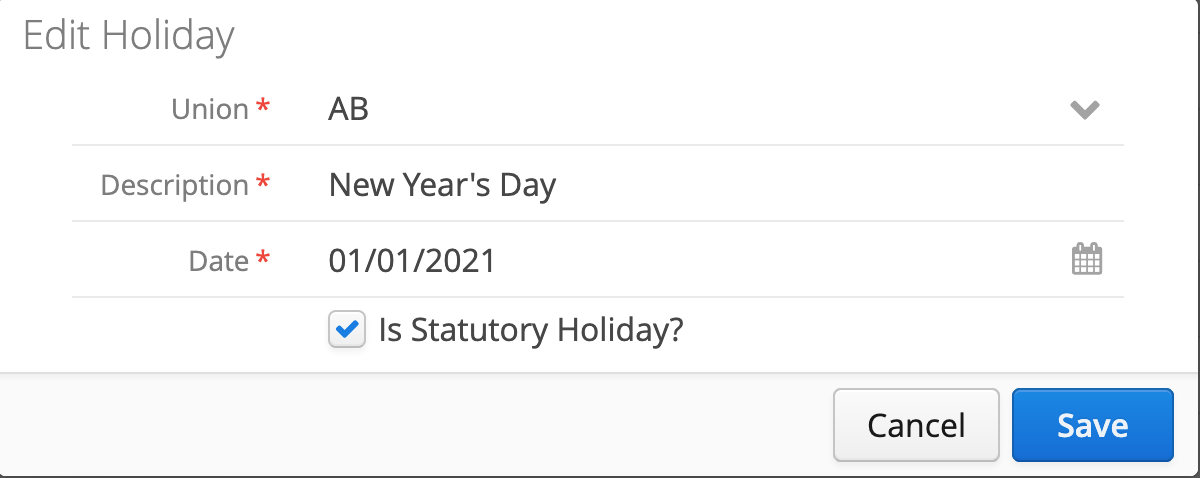
Navigate to the Timecards → Configuration → Holidays tab. Click on the New Holiday button on the right.
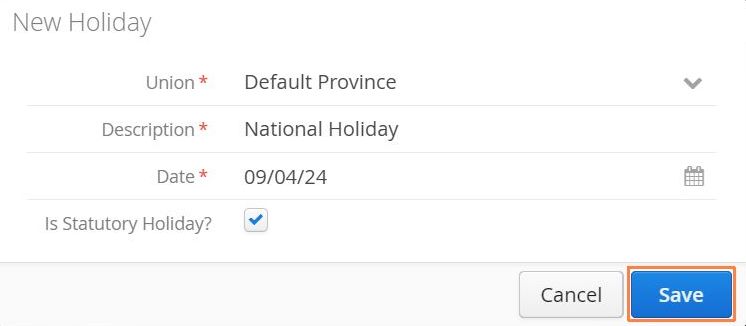
Indicate which Union the Holiday will be associated with. Include a description (name) for the Holiday, the Date and check whether Aimsio will treat this holiday as a Statutory Holiday. Once you are finished, click Save on the lower right. NOTE: You will have to duplicate holidays in all applicable Unions.
Holiday Pay Eligibility
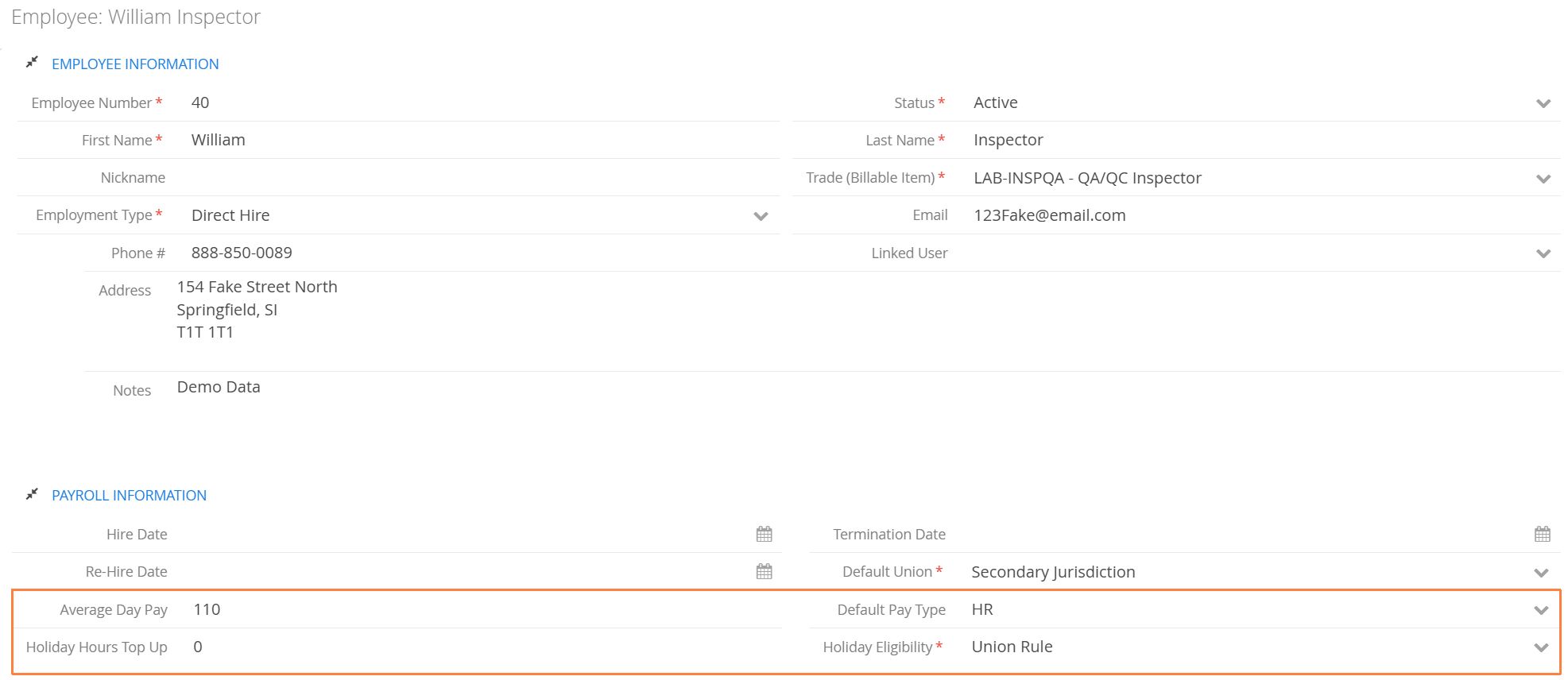
There are two ways to determine someone’s Holiday Eligibility when it comes to holiday pay, both are defined on the Employee profile:
-
Union Rule
-
5 of 9 rule
Holiday Eligibility: Union Rule
The employee is eligible based on the parameters of his/her union:
-
Minimum Number of Employment Dates: a person is eligible for a holiday pay if they have been employed for at least X number of days. The Hire Date/Re-Hire date is defined in the Employee profile under Payroll Information.
-
Period to check work against and Number of days worked in the period: a person is eligible for a holiday pay if they have worked X number of days in the past Y days prior to the holiday date.
A good example is BC Employment standards for Oil & Gas, in which an employee must have completed 30 calendar days of employment, worked at least 15 of the 30 days before the statutory holiday** and not be a manager. Another example being used is 9 / 5 rule, which requires employees to be working 5 weeks (35 days) out of the past 9 weeks (63 days) in order to be eligible.
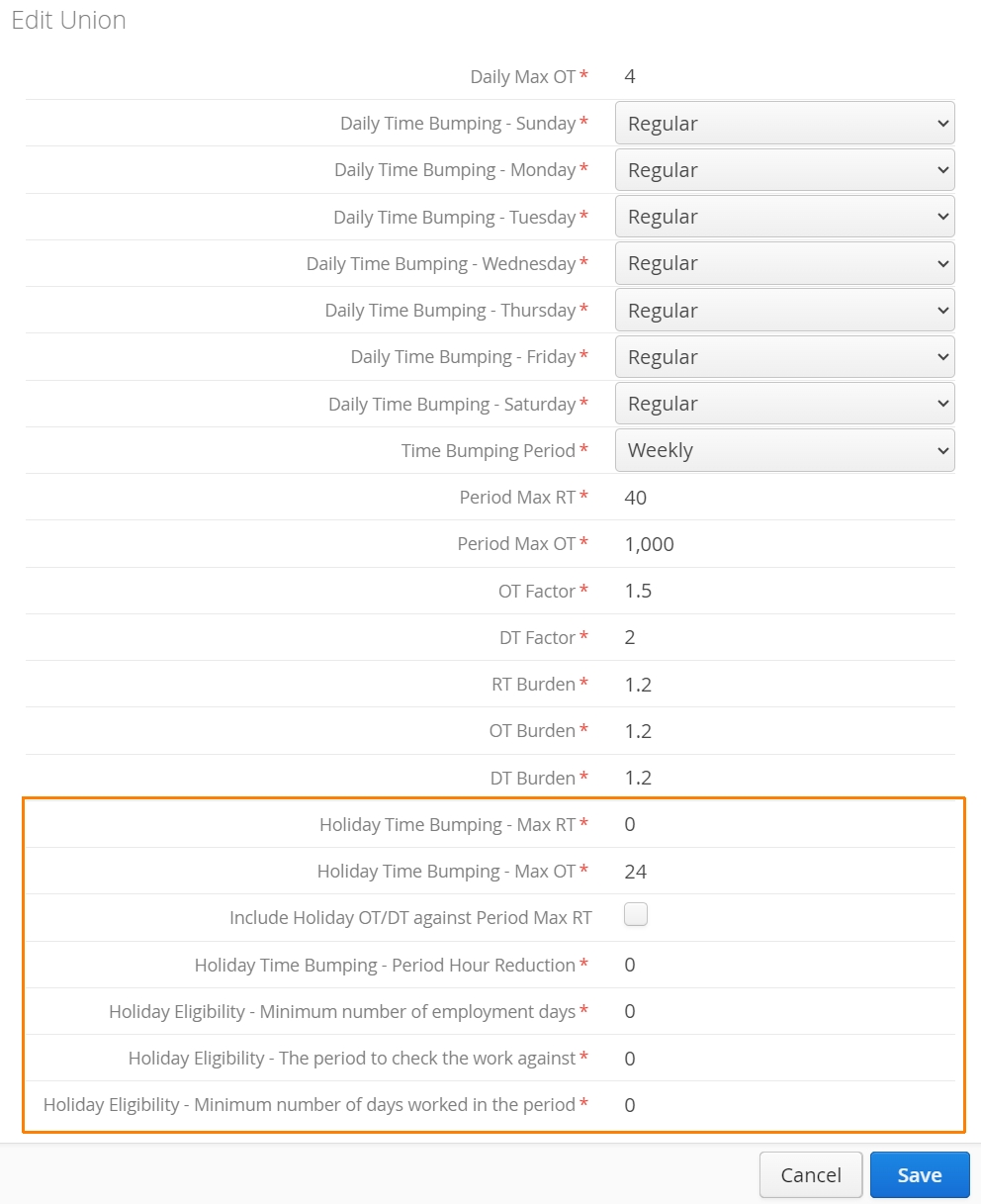
If someone works on a holiday, then Holiday Time Bumping Max RT and Holiday Time Bumping Max OT parameters decide how hours on a holiday will breakdown.
For example, if Holiday Time Bumping - Max RT is set to ‘0’, all hours worked on a holiday will immediately be treated as overtime.
Holiday Time Bumping - Period Hour Reduction: some unions might require that the weekly RT/OT limit be reduced by 8 hours or so in the presence of a holiday. For example, if a normal week for RT has 40 hours, a week with a holiday should be considered a 32 hour week for RT.
Holiday Eligibility: The 5 of 9 Rule
This is from Alberta Employment standards rules
Even if an employee works an irregular schedule, some days in their schedule may still be considered regular days of work. To see which days those are, we look at what happens the majority of the time: if in the last 9 weeks before the holiday, the employee has worked 5 of the same weekdays, then that weekday is considered a regular day of work – that is, if a holiday falls on a Monday, and the employee has worked 5 Mondays in the last 9 weeks before the holiday, then Monday is a regular day of work for them – and the rules for regular days of work apply.
How to Assign a Union to an Employee
After your Union settings have been saved. Navigate to the Master Data → Employees tab. Edit the Employee record and select the Default Union field.
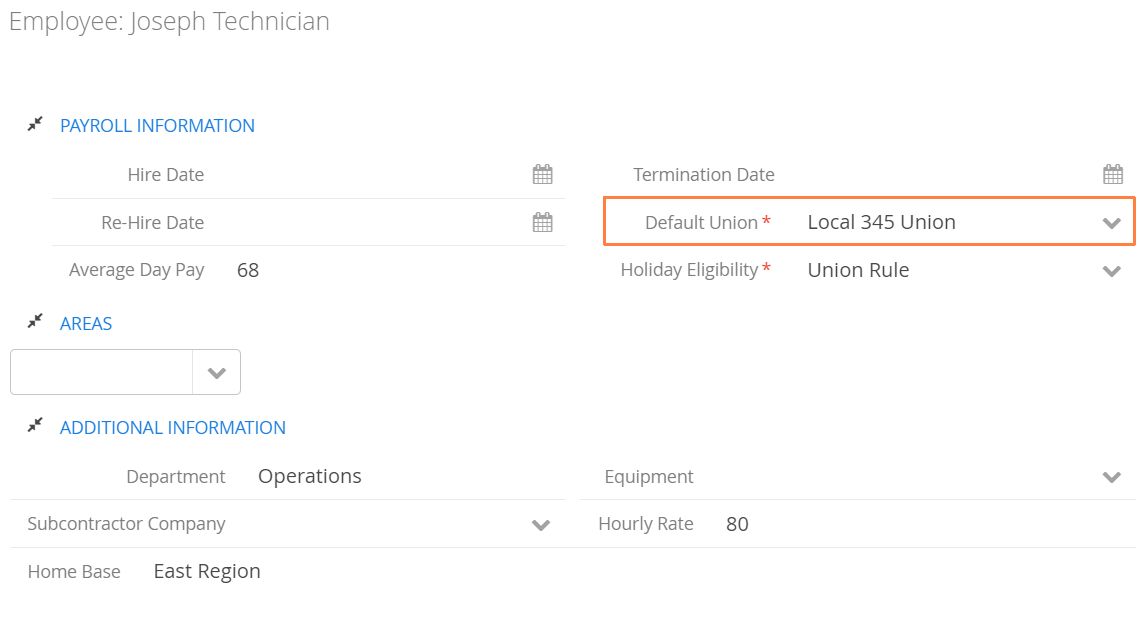
Statutory Holiday (Stat Pay)
In Canada the employer is required to pay their employees an average day pay (sometimes called ‘Holiday Pay’) whether or not they worked on a Statutory holiday.
In the US, it is based on an agreement between an employer and an employee.
How Statutory Holidays are Paid
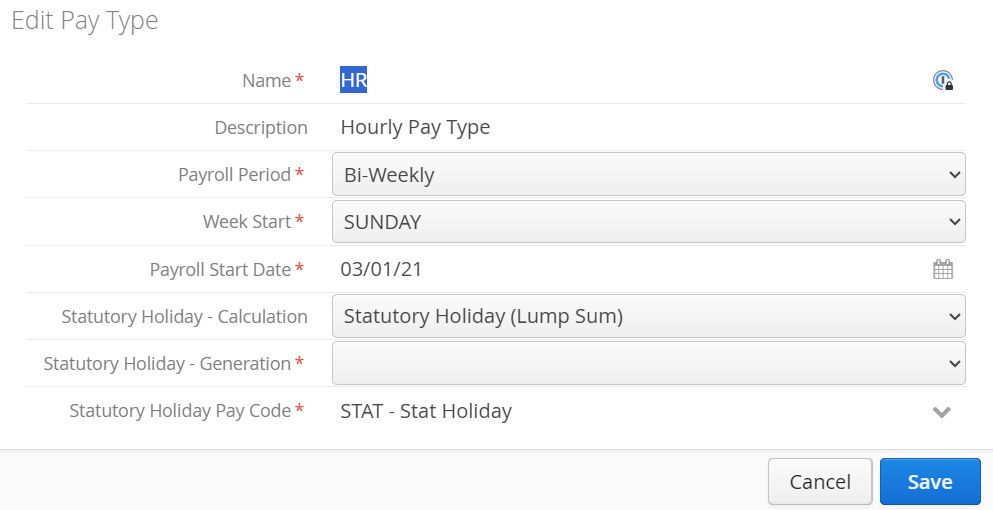
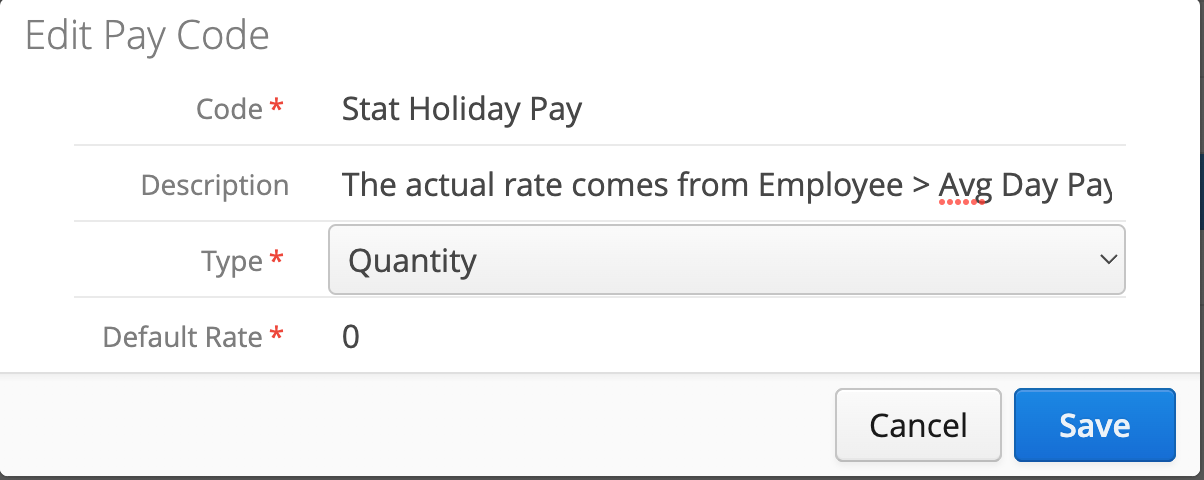
If a holiday in Aimsio is marked as a Statutory Holiday, and there is an associated Pay Code for Statutory Holiday Pay in the Pay Type, every employee (whether they worked or not on that holiday) will then get a lump sum pay Timecard, so long as they are eligible. The actual amount each person gets should be maintained in the Employee Profile (Average Day Pay) by the end-users, as the system does not automatically update the Average Day Pay.
Normally, the hours worked on a holiday are paid as OT. Because of that, they are not counted against the Weekly OT. With the Include Holiday OT/DT against Period Max RT option checked in the Union, these OT hours will be counted against the Weekly OT.
- For example, if someone is in British Columbia and they worked 8 hours on a Stat holiday, those hours are counted towards their 40-hour weekly OT. Therefore, on Friday and Saturday, they get 8 OT since they have already worked 40 hours.
SUN | MON (Stat) | TUES | WED | THU | FRI | SAT | Totals | |
|---|---|---|---|---|---|---|---|---|
Worked (Raw Data) | 8 | 8 | 8 | 8 | 8 | 8 | 8 | 56 |
RT | 8 | 0 | 8 | 8 | 8 | 0 | 0 | 32 |
OT | 0 | 8 | 0 | 0 | 0 | 8 | 8 | 24 |
- Same person if they worked in Alberta
SUN | MON (Stat) | TUES | WED | THU | FRI | SAT | Totals | |
|---|---|---|---|---|---|---|---|---|
Worked (Raw Data) | 8 | 8 | 8 | 8 | 8 | 8 | 8 | 48 |
RT | 8 | 0 | 8 | 8 | 8 | 8 | 0 | 40 |
OT | 0 | 8 | 0 | 0 | 0 | 0 | 8 | 16 |
Generating Stat Holiday Pay
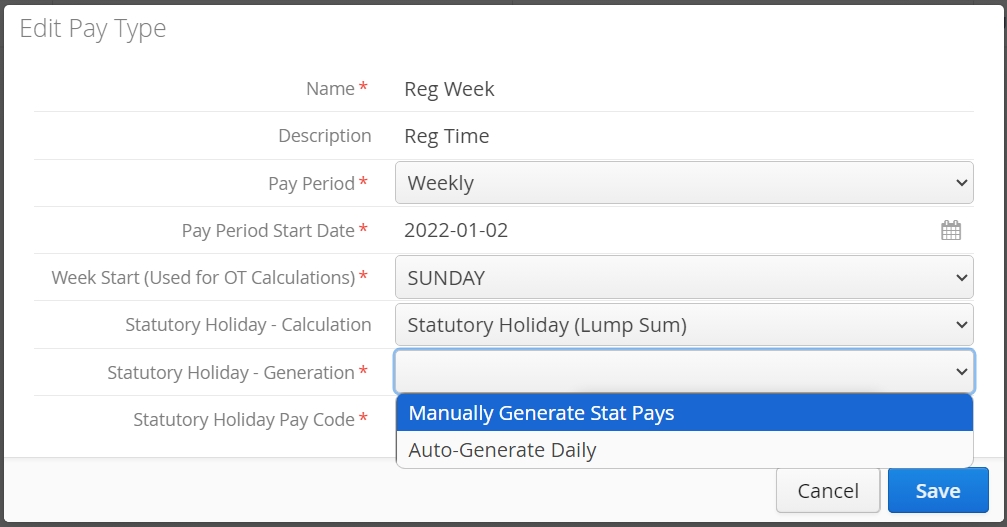
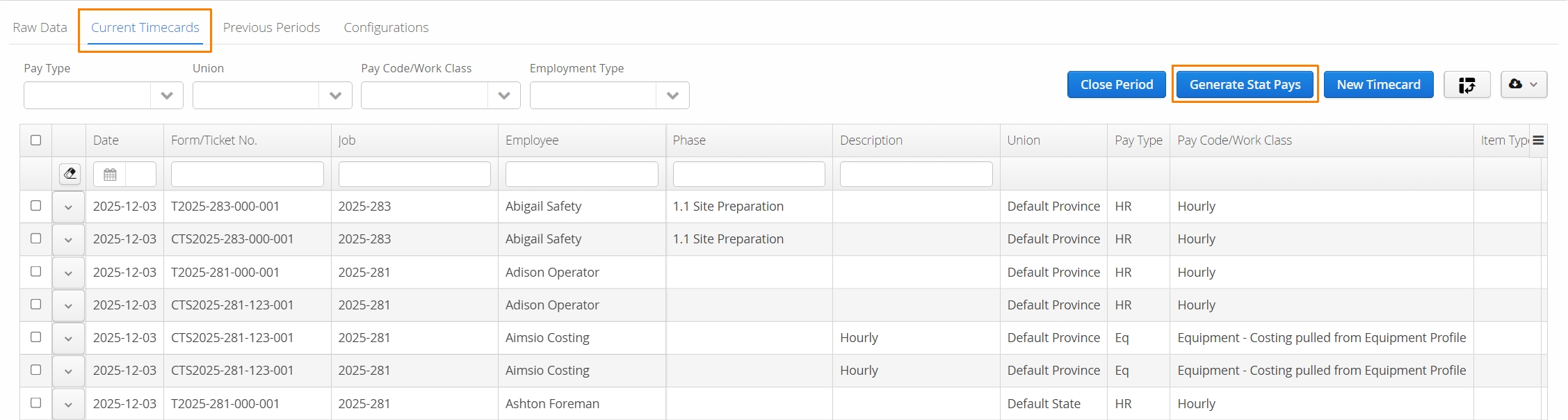
How Stat Pay gets is generated is controlled via the Pay Type in the Timecard configuration. Users can either have Stat Pay automatically generate a Timecard daily, or accounts can manually generate their stat pay from the Current Timecards tab.
Click on the Generate Stats Pay button from the Current Timecards tab.
Work Class and Work Class Rates
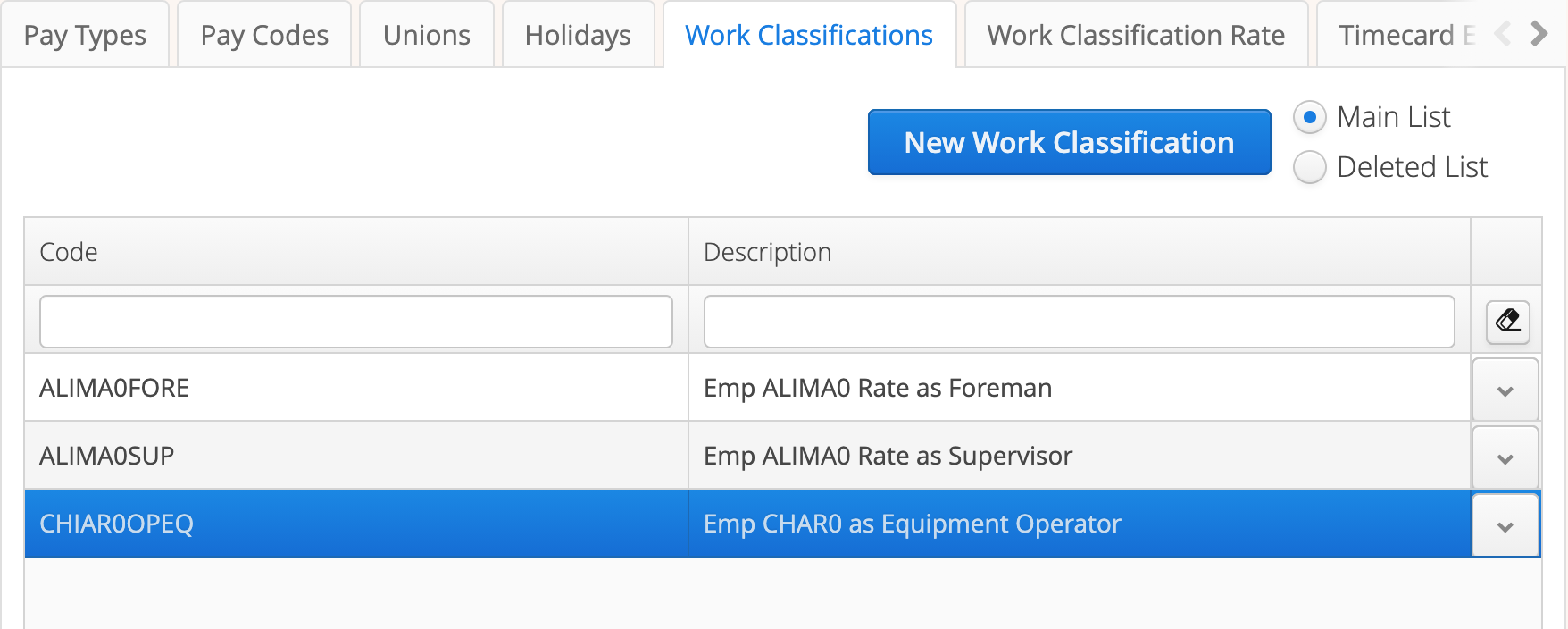
If a Timecard transaction is for hourly work (where RT/OT/DT needs to be broken down), it is posted as a Work Class. Base rates are typically defined under the Employee profile and the Union rules handle the breakdown. In most cases, accounts will only need to define one Work Class for their hourly employees.
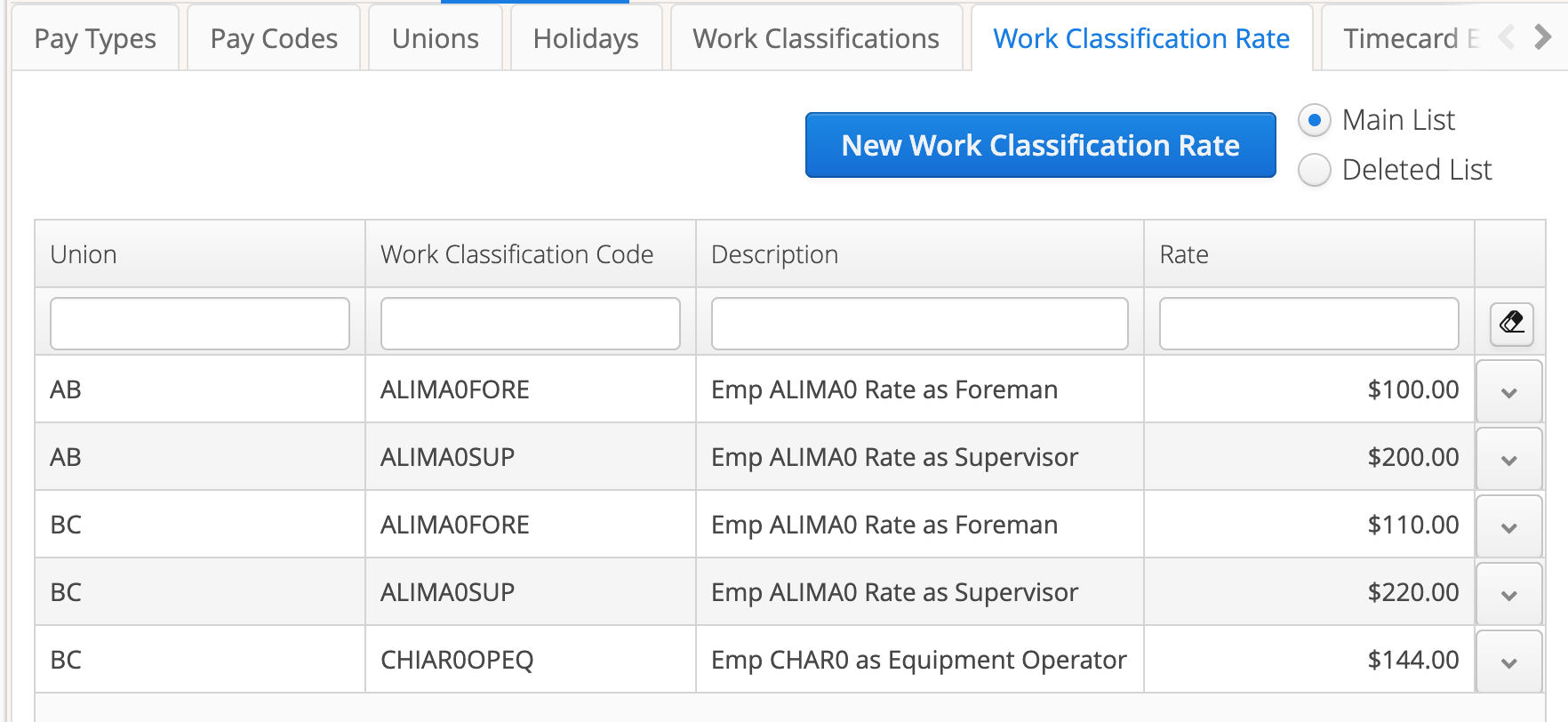
If accounts require a more complex handling of pay rates, where pay is influenced by other factors (e.g. their Trade/Shift/Job), then we need additional Work Class codes paired with their own Work Classification Rates. For example:
-
John Doe-Foreman-Day
-
John Doe-Supervisor-Day
-
John Doe-Foreman-Night
-
John Doe-Supervisor-Night.
Timecards
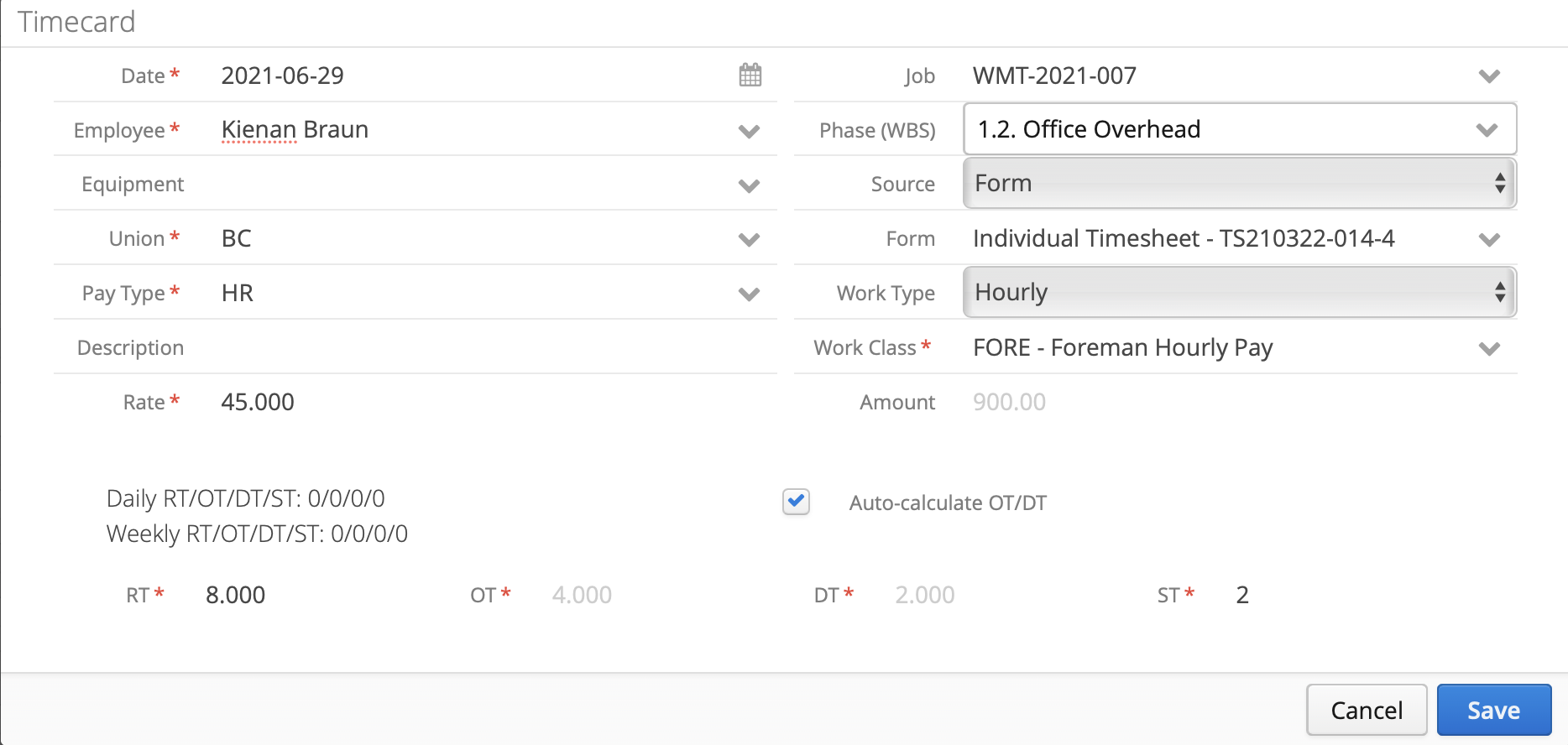
A single Timecard has links to an Employee, piece of Equipment, Union, Pay Type, Job, Phase, etc.
-
A Timecard has to be linked to either a Pay Code or Work Class. When entering hours, you can let the system automatically break down your RT/OT/DT, or you can override the system suggestion. You can further adjust the rate if needed.
-
In addition to RT/OT/DT, some hours can go into a different bucket called Straight Time or ST.
- Any ST hour is still paid to the employee but won’t participate in the OT/DT breakdown. Companies may pay their employees Travel Time based on Travel Hours but they don’t want these hours to be included when calculating OT/DT.
How to Extract Timecards and Close a Pay Period
Now, with an understanding of how our Timecards module can be configured, review the following: