Aimsio for Android offers a robust ticketing and timesheet solution, the ability to complete tasks delegated from the office, an array of form creation tools and simplified document sharing capabilities.
We recommend devices with a minimum of 16GB of available storage and to keep automatic updates enabled.
Logging In
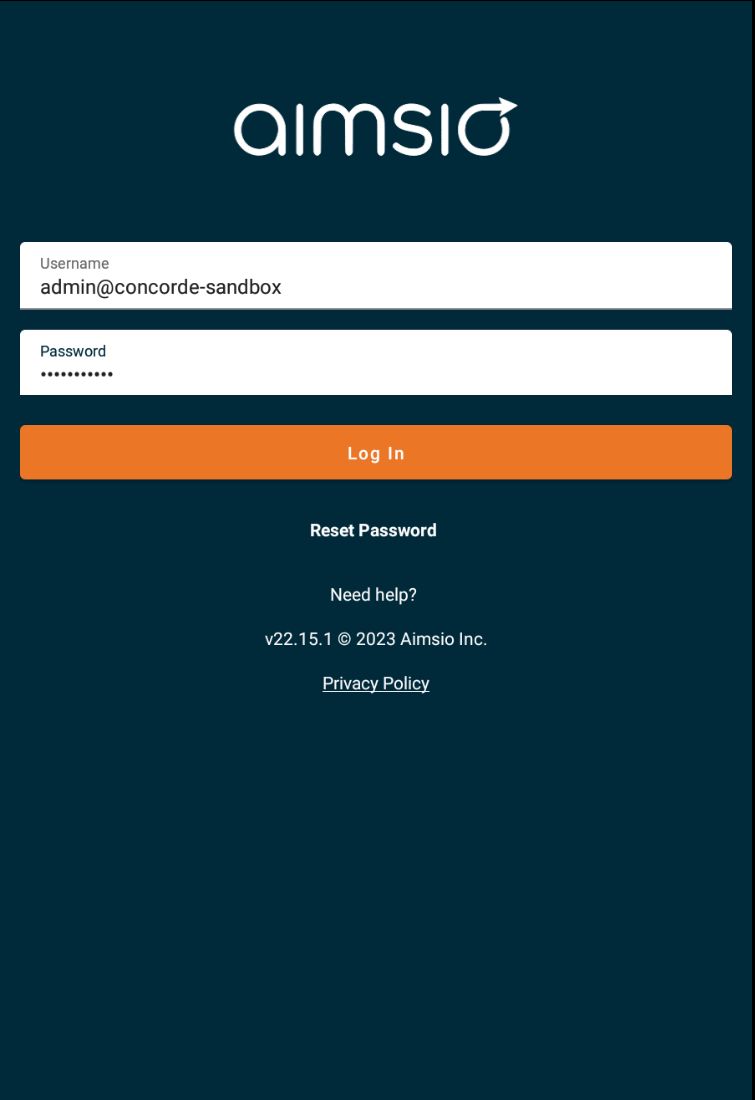
After opening the app, users are brought to a login screen where they can input their username and password to login.
- If logging into your Sandbox account, append a -sandbox to the end of your username. Users require a separate user account to log into their company’s sandbox account. Reach out to your account administrator if you are having trouble logging in.
Syncing
The ability to share data between the office and the field is through a process we call a sync. We automate the syncing process through a variety of actions to ensure field users have the most up to date job information available. Syncing can also be used to allow office users to view work in progress.
A sync is automatically triggered when:
-
A Form is submitted
-
A Task is completed
-
Each time a user logs into the app (if the user is online)
A sync is not automatically triggered when:
-
A form that is in progress is changed
-
Any action that occurs on the web
Sync Icon
- It’s possible to prompt Aimsio to perform a manual sync by tapping the Sync Icon located at the top right hand side of the app.

Working Offline
Aimsio for Android can function offline, if no available network connection is available. All changes will be stored on the device and will need to be synced once a network connection becomes available.
-
Users MUST log in while connected to an online network (wifi or cellular) at least once every 14 days. After logging in, the app will allow users to continue to use the app for 2 weeks before requiring to log in.
-
If users are working in an environment that occasionally provides online access, periodically hit the sync icon once you are back online. Aimsio will attempt to sync when completing a form or each time you login.
Navigation
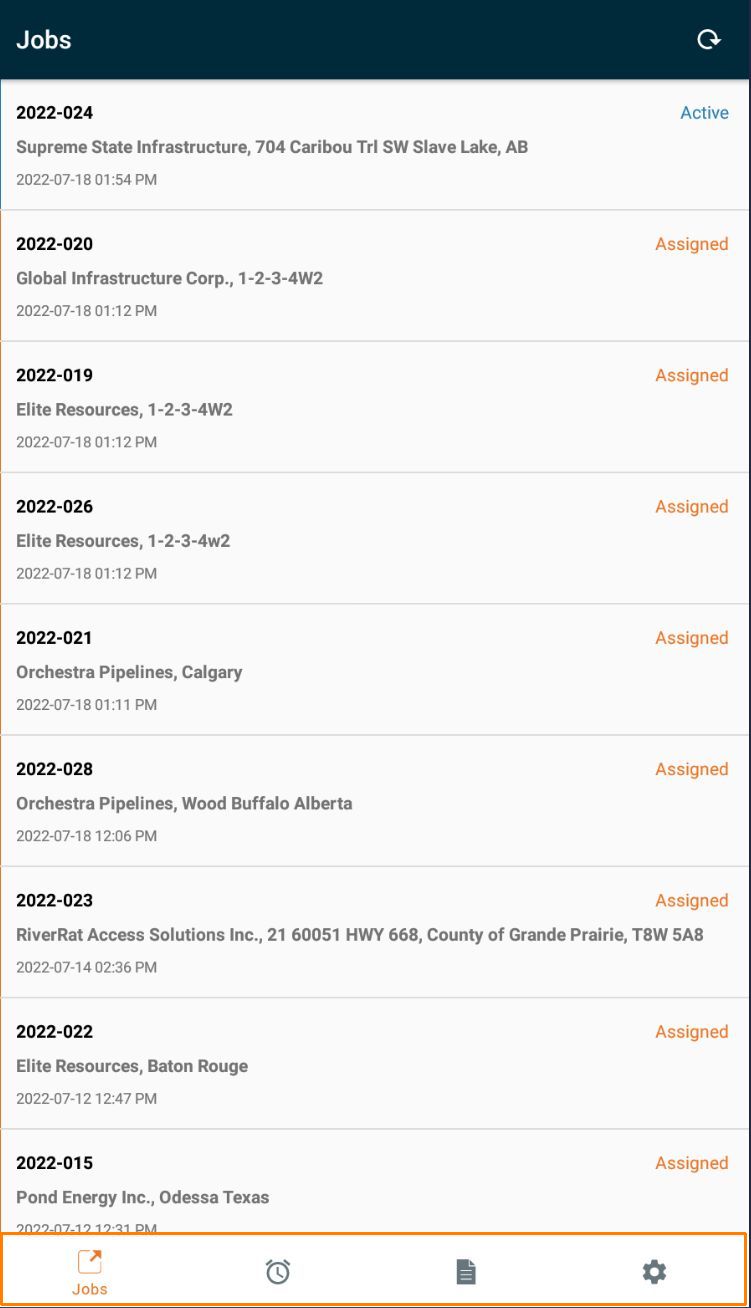
Navigate to each section: Jobs, Tasks, Forms and Settings by using the icons placed at the footer of the app.
Jobs Tab
The Jobs screen presents a list of jobs that you have either been assigned to, or have been provided access to see.
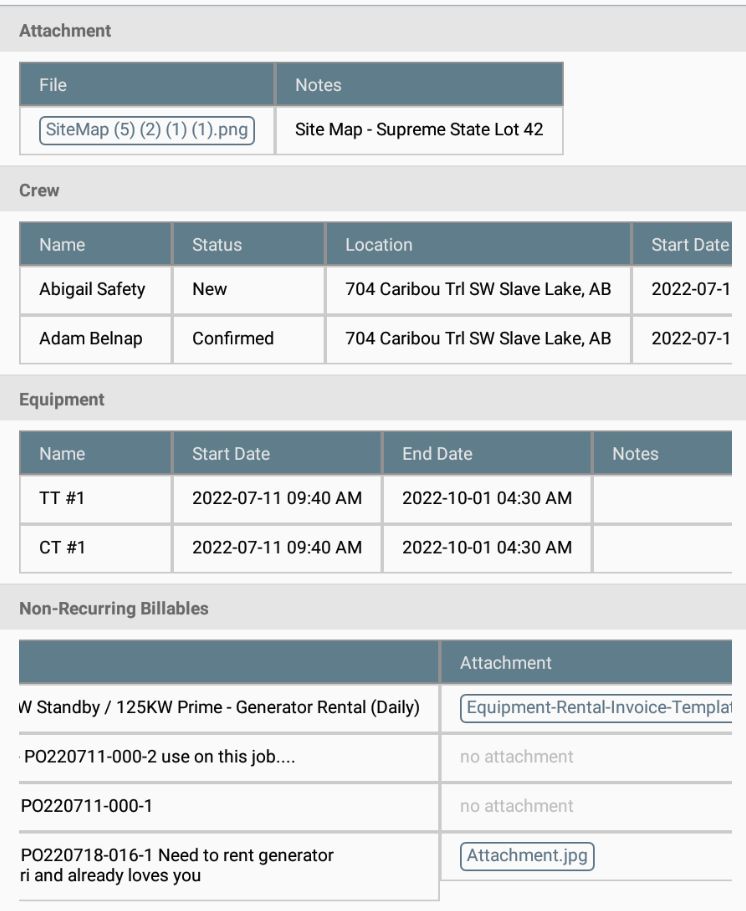
- By tapping on any job you’ll be presented with information, including Client contact details, Job Location and Description of work. Aimsio can work with your firm to ensure any additional information can be displayed here.
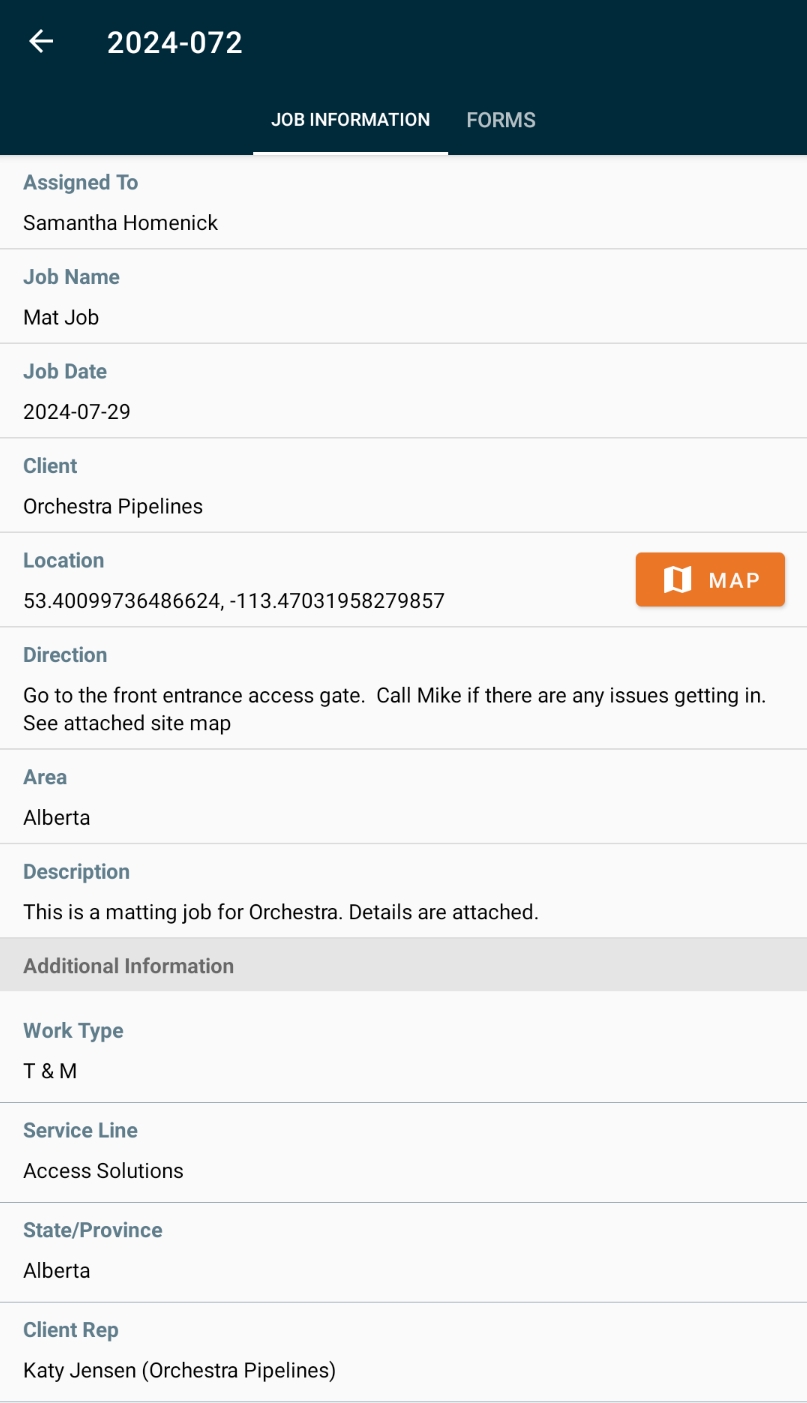
- By scrolling down you’ll be have access view Crew Resources, Non-recurring Billables (Purchase Orders) or document attachments (such as safety certifications)
Job Forms
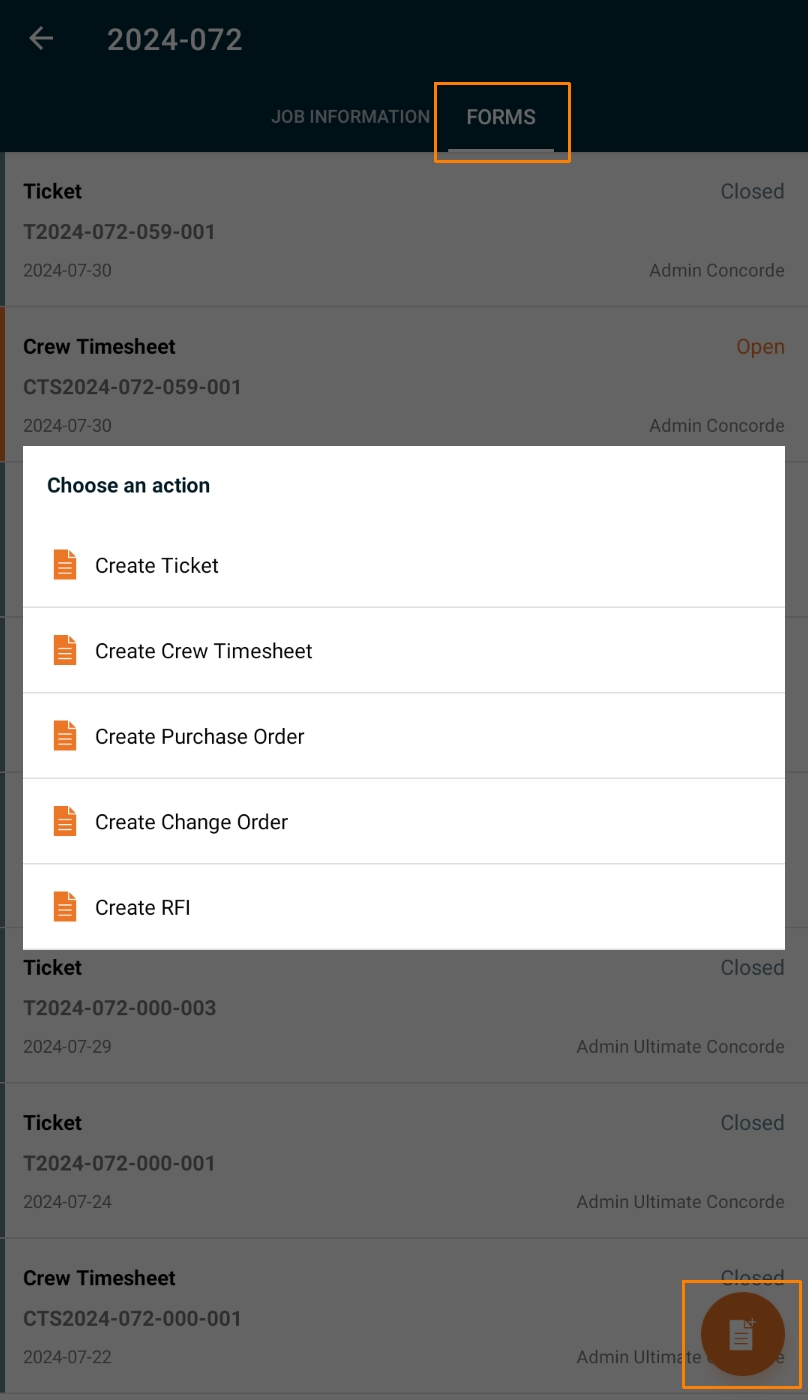
The Forms tab on a Job will contain any open, or submitted forms that have been completed on the device you’re using. This including Purchase Orders, Crew Timesheets and Tickets.
- To begin completing a Job Form, tap on the New File icon located on the lower right hand side of the Forms tab and select the form you need to complete.
-
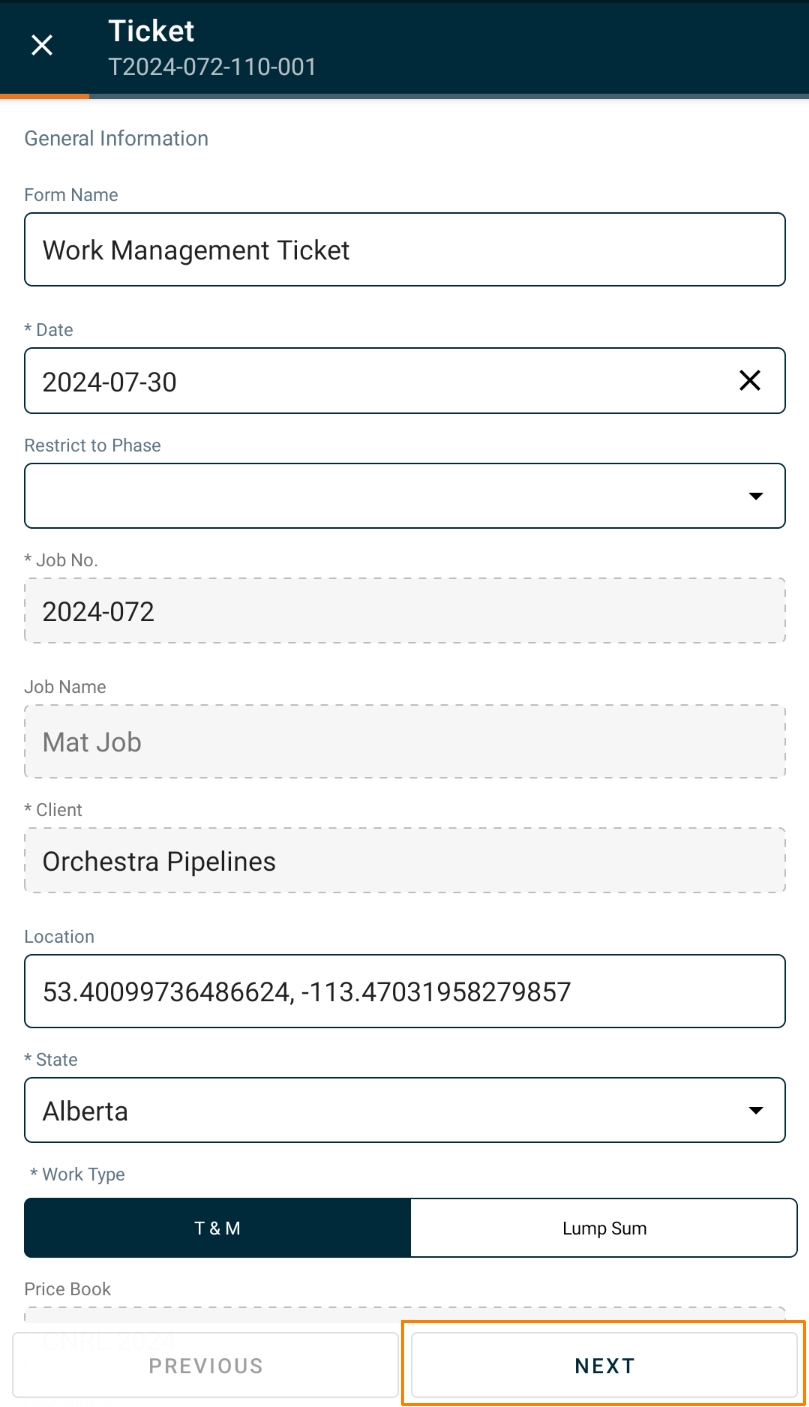
Filling out a form on Aimsio’s Android app is relatively straight forward. You’ll be presented with a number of fields related to the form, some of which may be required in order to proceed.
-
Once you have completed each section, tap the Next button on the lower right hand side of the app.
-
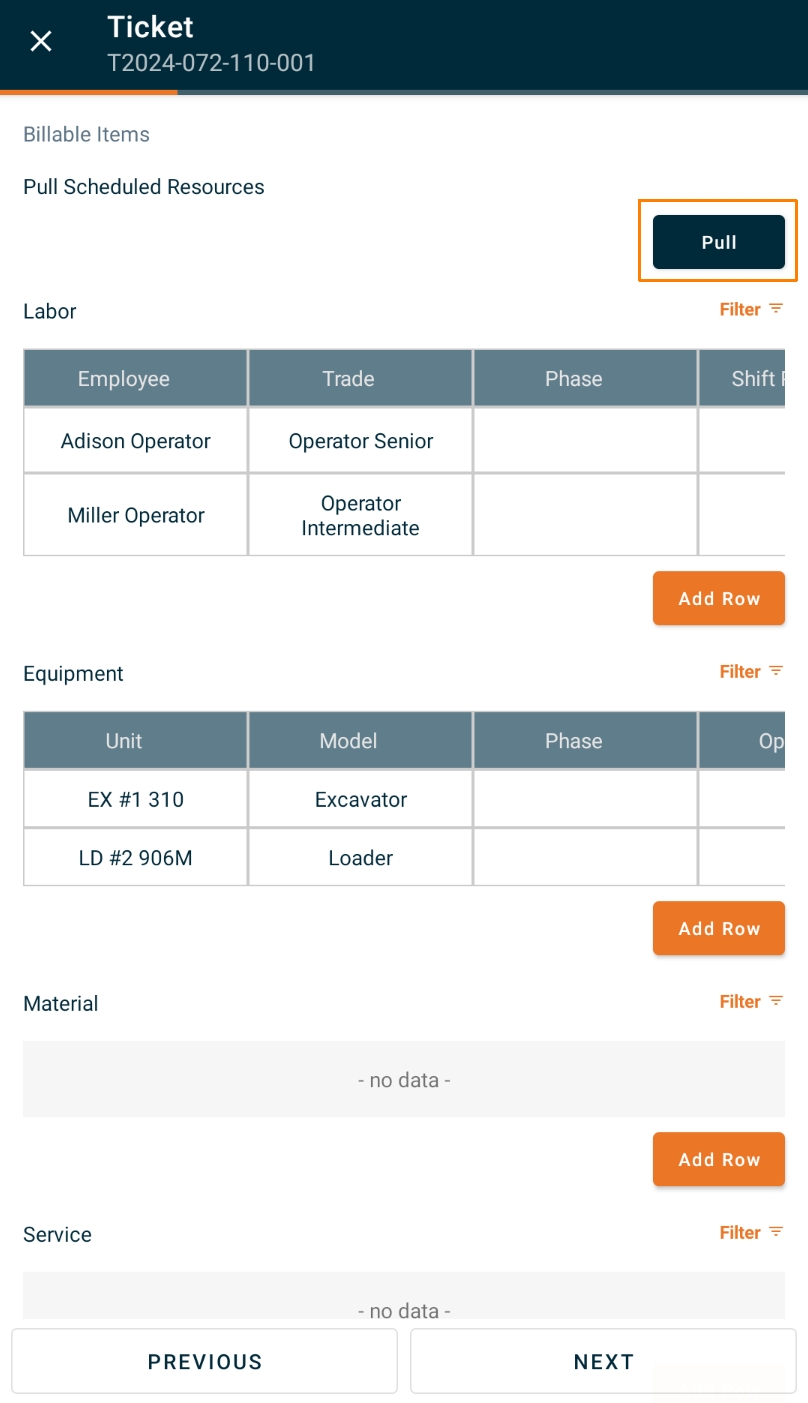
You’ll notice an orange progress bar along the top of the app, indicating your progress meter. On a Ticket, you’ll be provided with the ability to Pull dispatched resources directly onto the form.
-
Add additional Billable Items (Labor, Equipment, Materials, etc) by tapping on the Add Row option under each table.
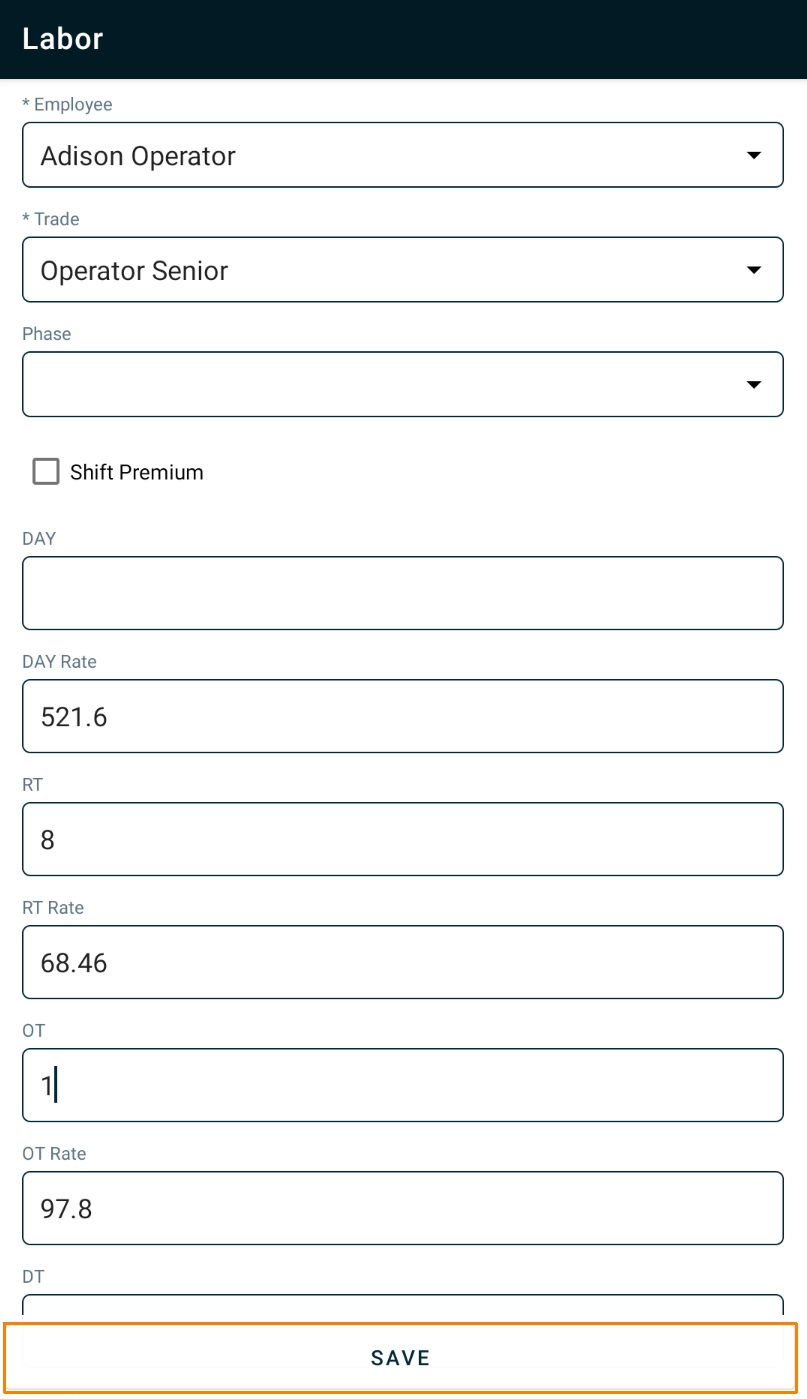
- Add, or edit a row by tapping on it. A new screen will appear, allowing you to fill out additional details on the billable item, including trade, labor hours and Per Diem allotments. Once you are finished, tap Save along the bottom.
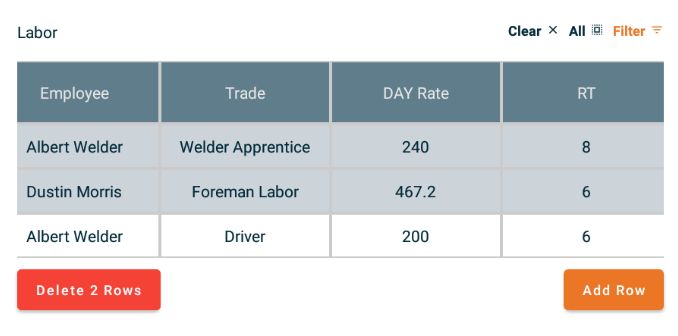
- Tap and hold on any row to select and delete.
- This functionality is a standard offering on Aimsio for Android and will apply to every type of form available on the app.
Signing a Document
Depending on the type of form you’re filling out, you’ll be presented with the option to either have a supervisor sign their work, or get a signature from a client (if they are with you on site).
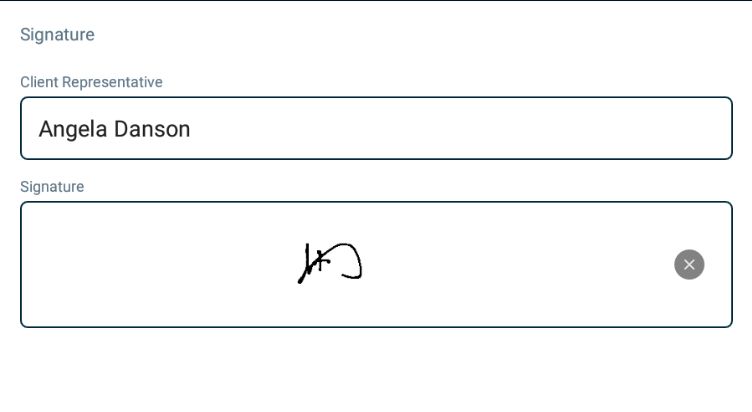
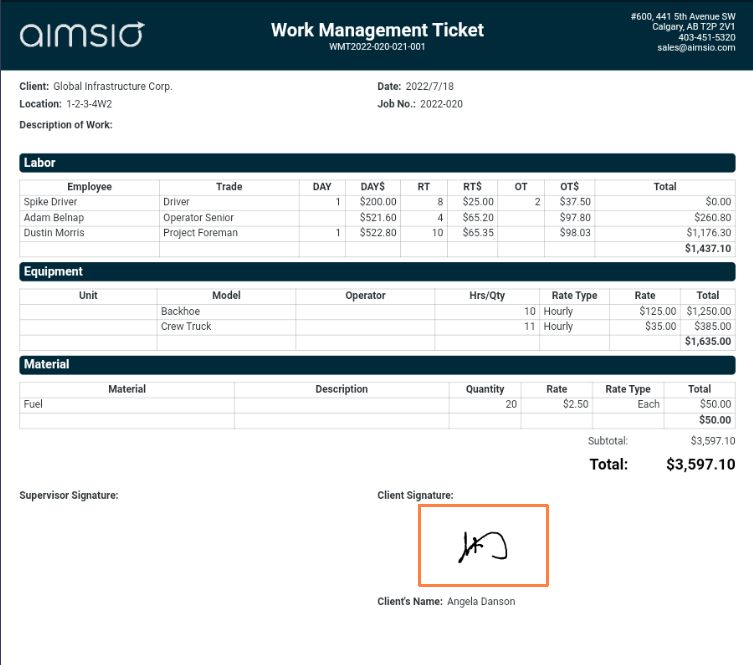
- Tap the signature box and have the individual draw their signature directly on screen. This signature will be automatically appended to the completed form, in PDF format.
Sharing Documents
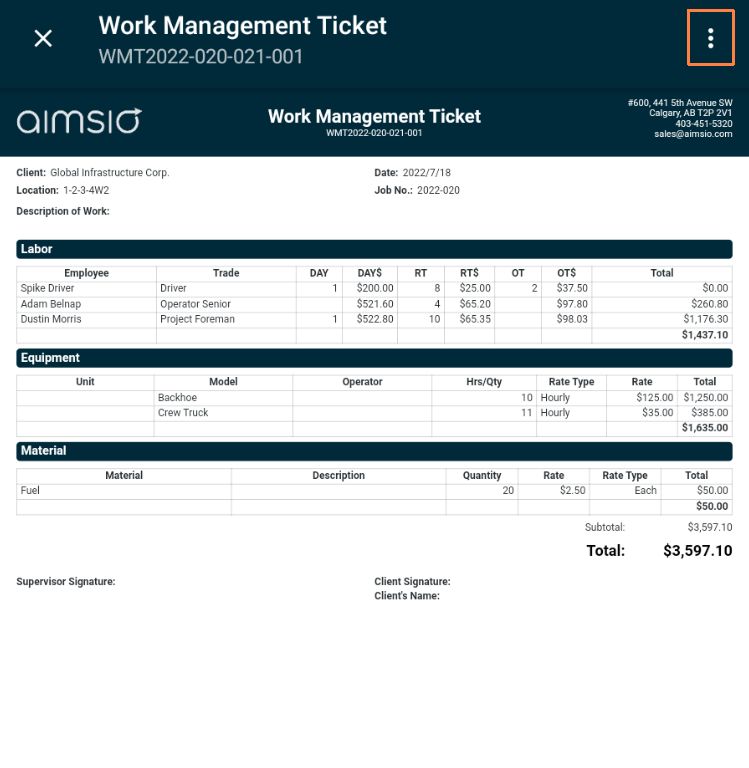
You can share any completed form/PDF quickly and easily by tapping the vertical dots located on the top right hand side of the app.
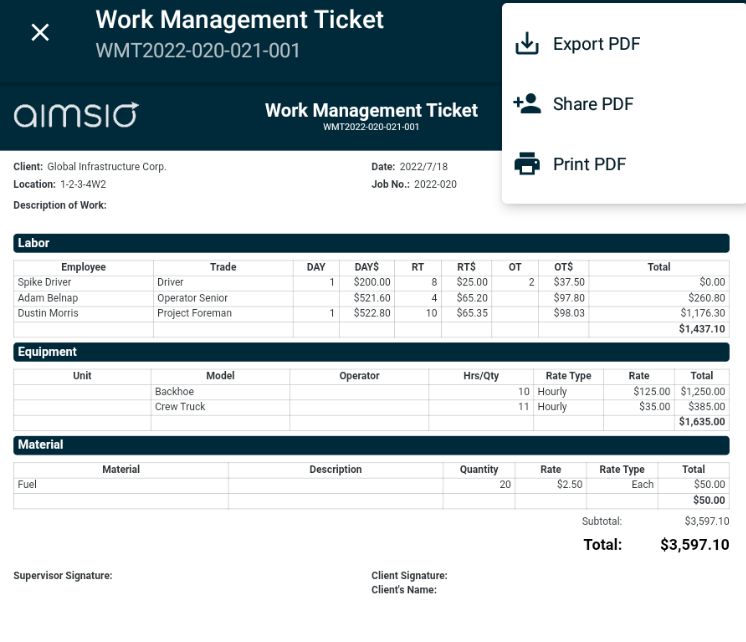
- You’ll have the ability to download (Export) the PDF, Share it using the device’s available supported applications (ie: Email, instant message, chat), or Print. Printing will require access to a printer over WiFi or Bluetooth connection.
Deleting or Duplicating Job Attachments
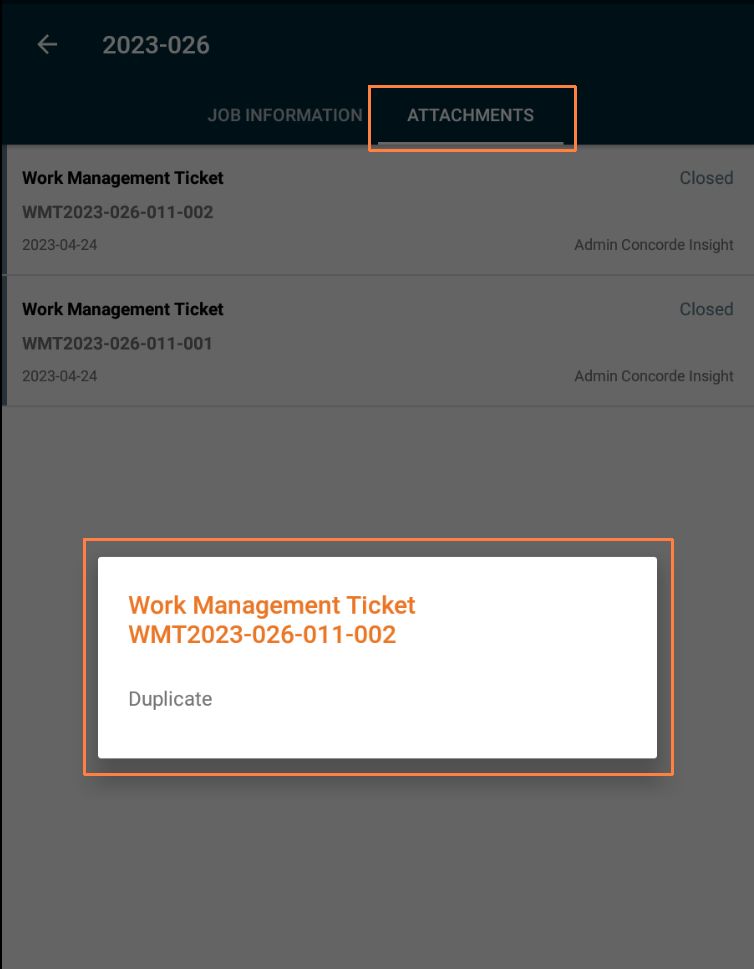
From the Attachments tab, tap and hold any completed attachment to duplicate it.
Forms Tab
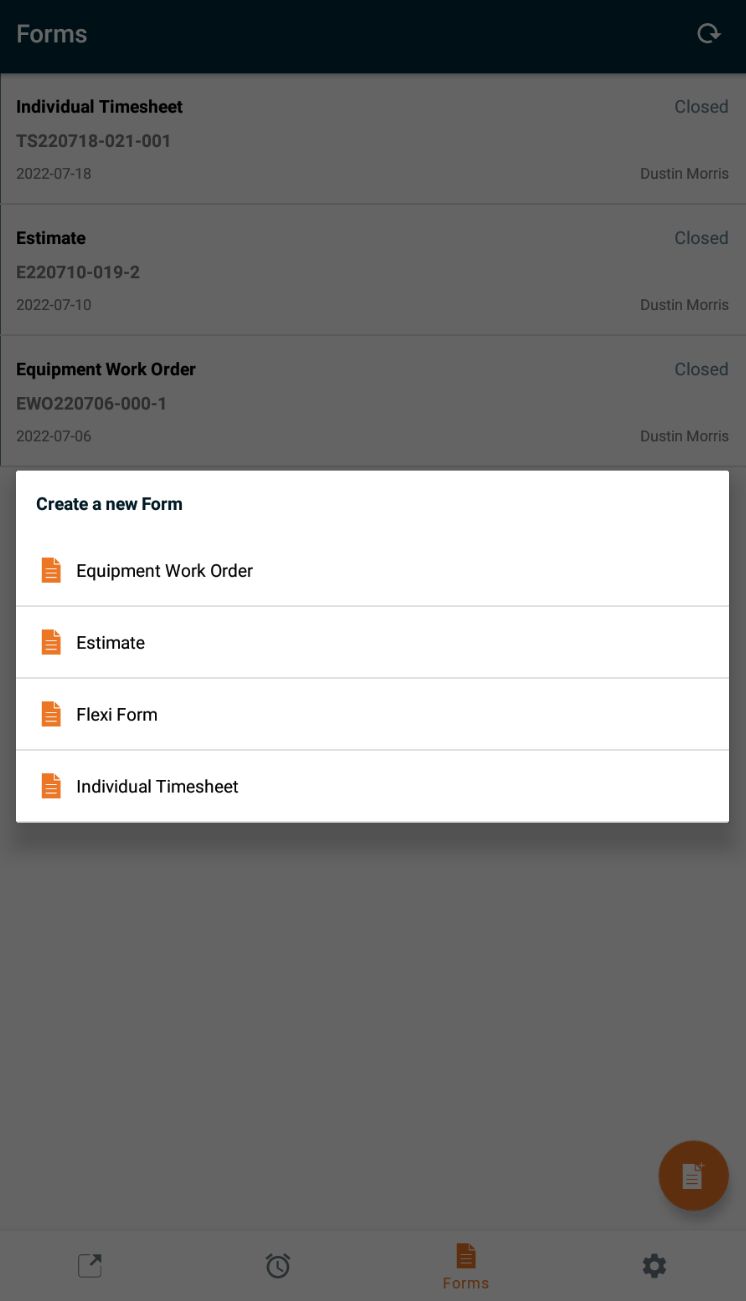
Some forms exist at the Job level, while others are available on the Forms Tab including: Estimates, Equipment Work Orders, or Individual Timesheet.
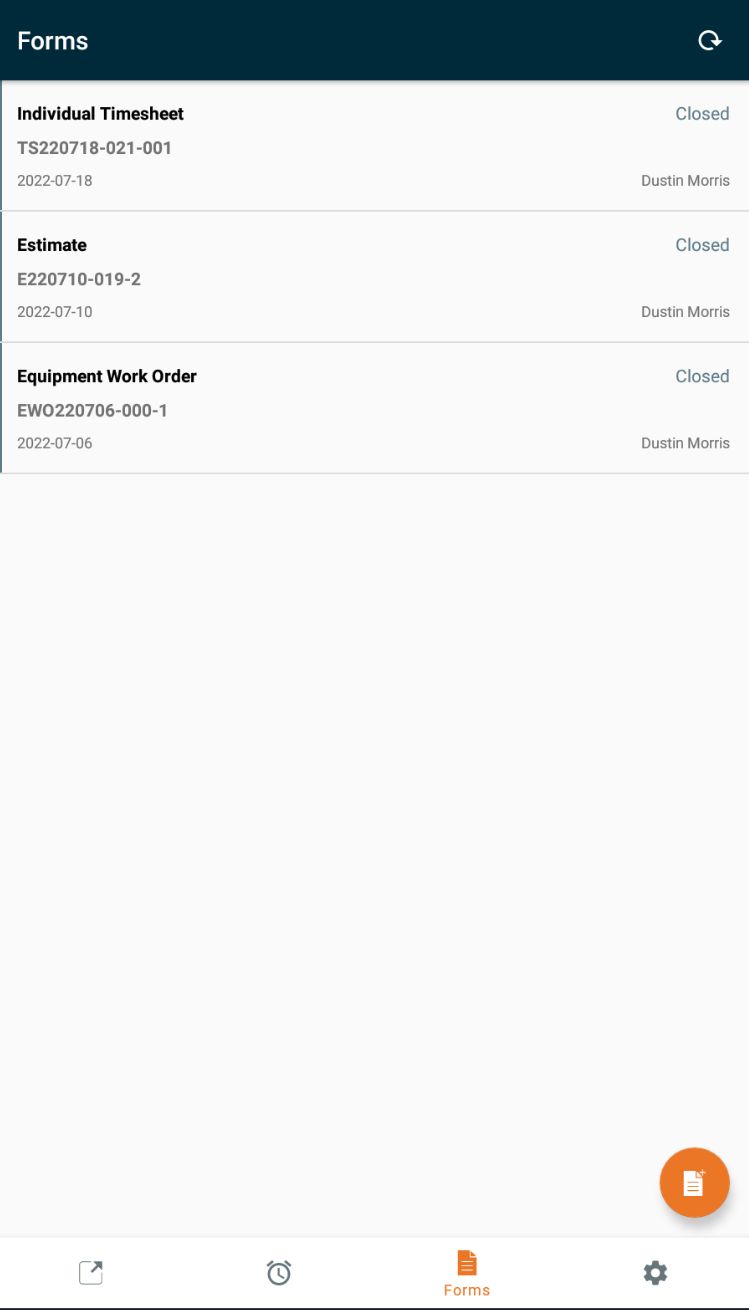
- To complete an available form, head to the Forms tab and tap the New File icon on the lower right.
Deleting or Duplicating a Form
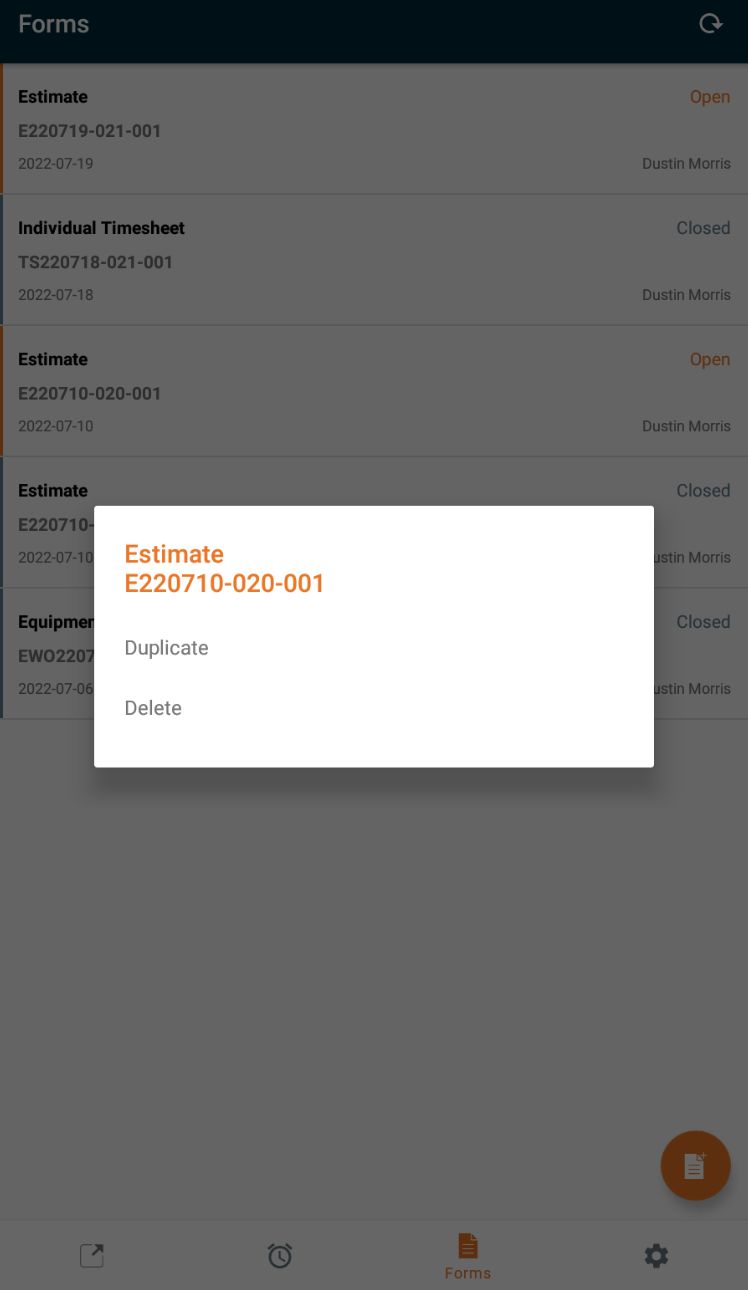
Quickly duplicate, or delete a previously completed, or open form. Tap and Hold on the form and select from the available options.
Tasks
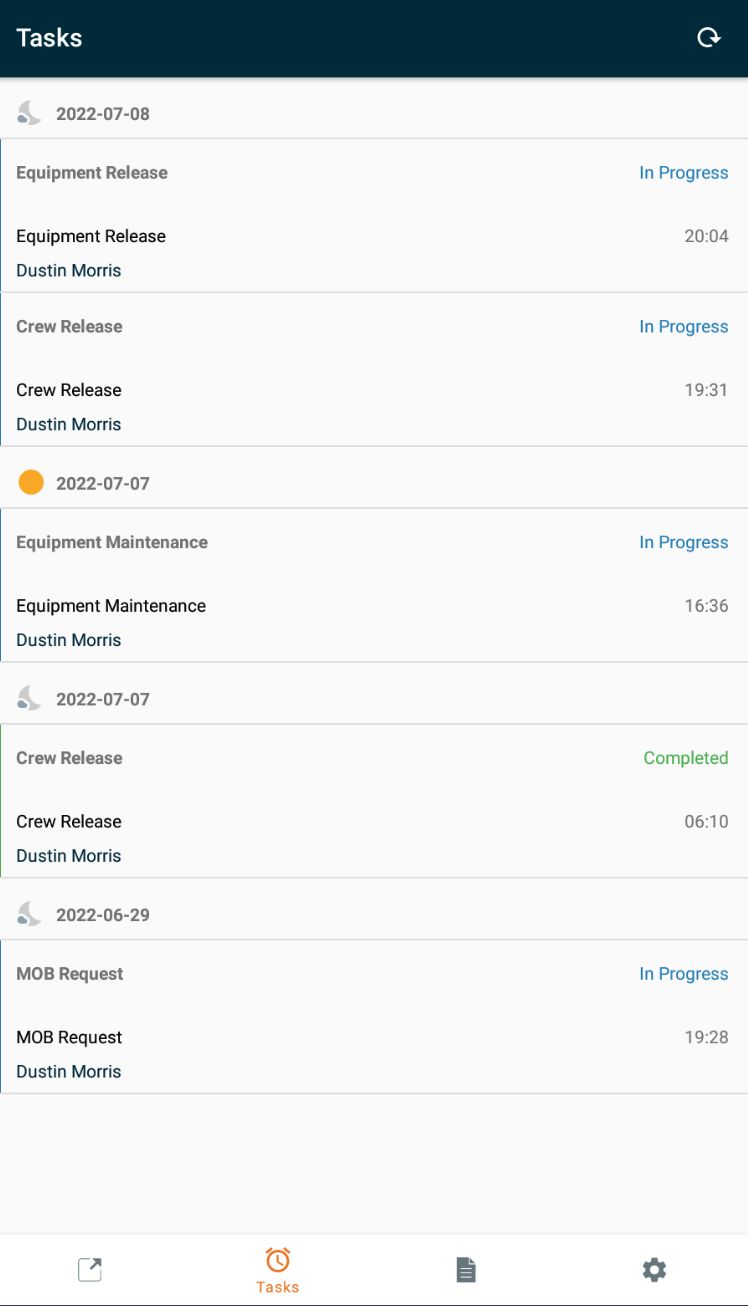
The Tasks screen provides access to all tasks you’ve been assigned. It allows you to view, accept, edit and complete tasks. View additional information and mark tasks that have been assigned to you as complete.
Adding Crew or Equipment to Jobs
While viewing a Job, tap the Crew or Equipment tab to manually select resources to assign to the Job.
After syncing, these resources will be accessible from Aimsio’s Dispatch page. Start and End Dates can be included with each assignment, making it possible to accurately schedule resources, like accounts would while using our Dispatch tools. This makes it much easier for authorized users to give access to Jobs, without requiring Aimsio’s web portal or Dispatch page.
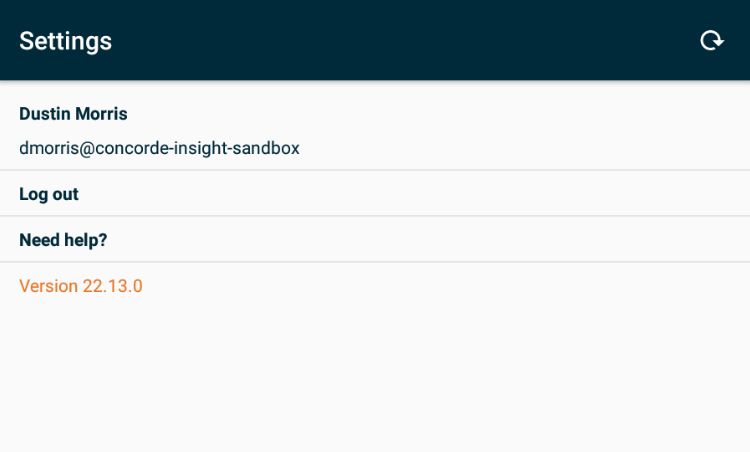
How to Log Out or Contact Support (Android)
To contact our technical support team while using our Android app, tap on the Settings icon (located on the lower right of the app navigation bar) and select Need Help? Emailing Aimsio at support@aimsio.com will create a ticket and someone will be in touch as soon as possible.
- To log out of the app at anytime, tap Log Out.