Aimsio’s Request for Information solution enables accounts to create and submit a formal document in anticipation of pending changes required for an active Job. An RFI form can outline the issue, contain supporting attachments and include suggestions of potential solutions, or requests for further clarification.
RFIs are available with Aimsio Ultimate.
How to Create a RFI
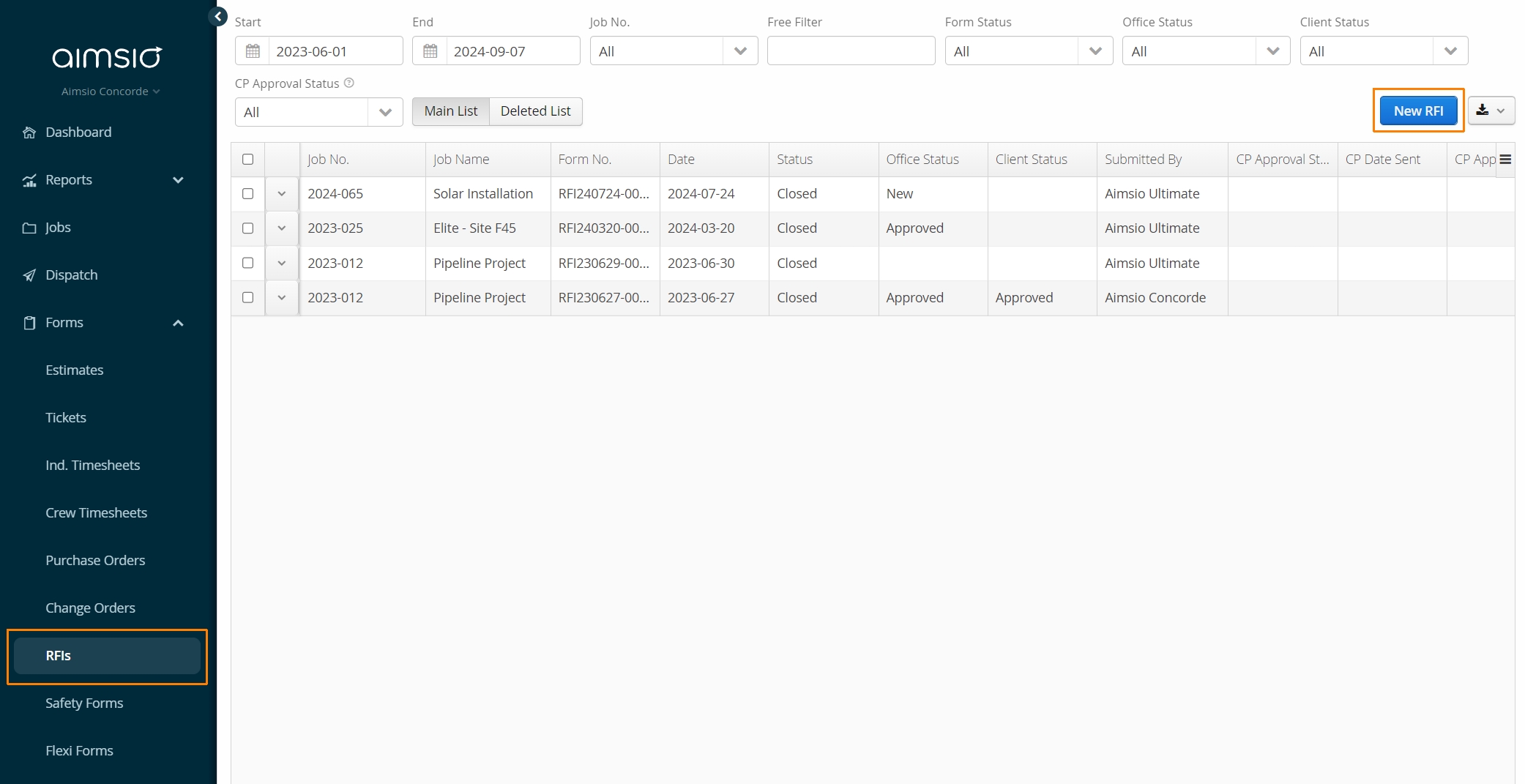
Navigate to RFIs on Aimsio’s left menu and select New RFI on the top right.
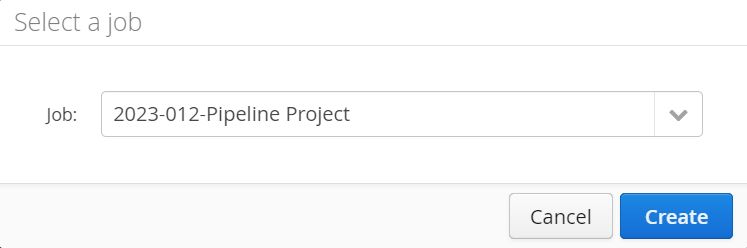
- Select an active Job the RFI pertains to and click Create.
RFI General Information
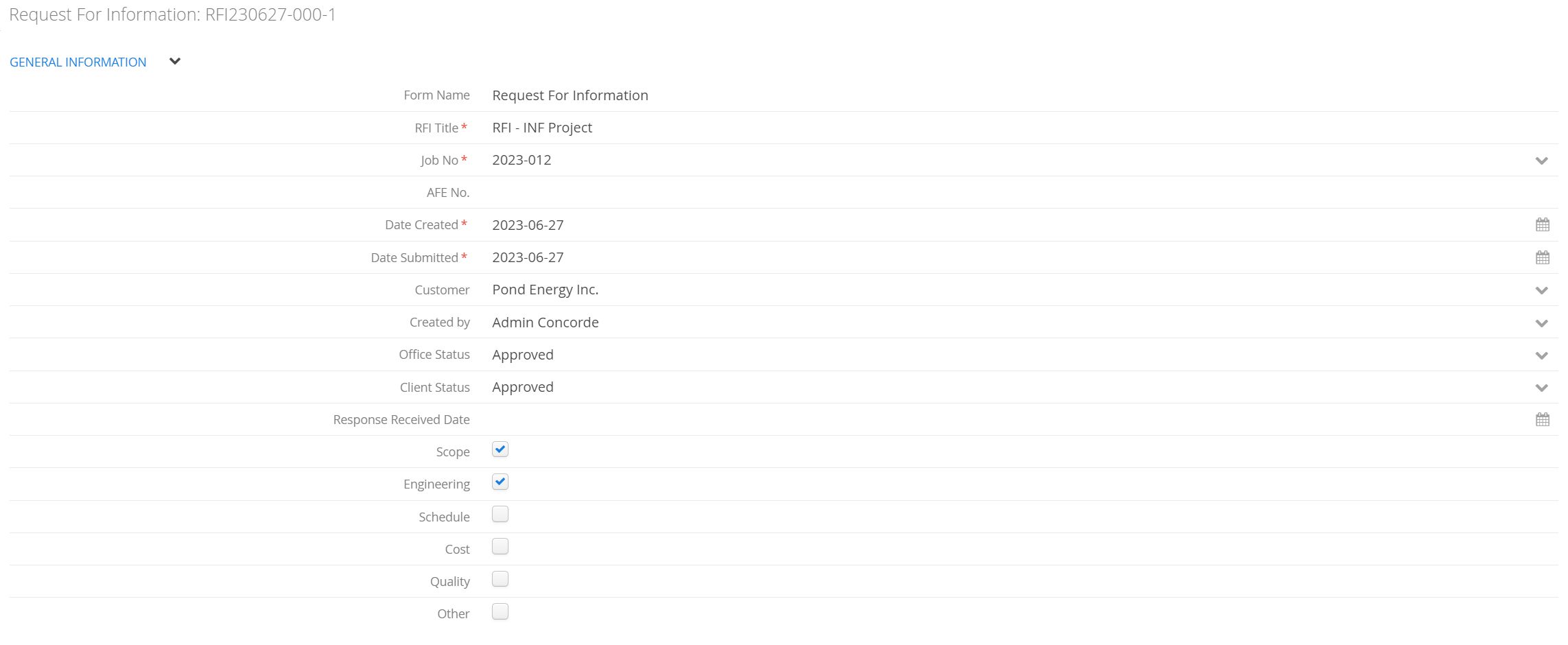
The RFI will contain checkboxes allowing a user to indicate whether the proposed changed is related to project scope, schedule, cost, quality or engineering.
-
Use the Form Name field to provide an alternative name for the RFI on the PDF version of the form.
-
Provide a RFI Title and indicate Date Created and Date Submitted.
-
Office Status and Client Status can be adjusted here or from the RFI listing page at a later date.
RFI Additional Information
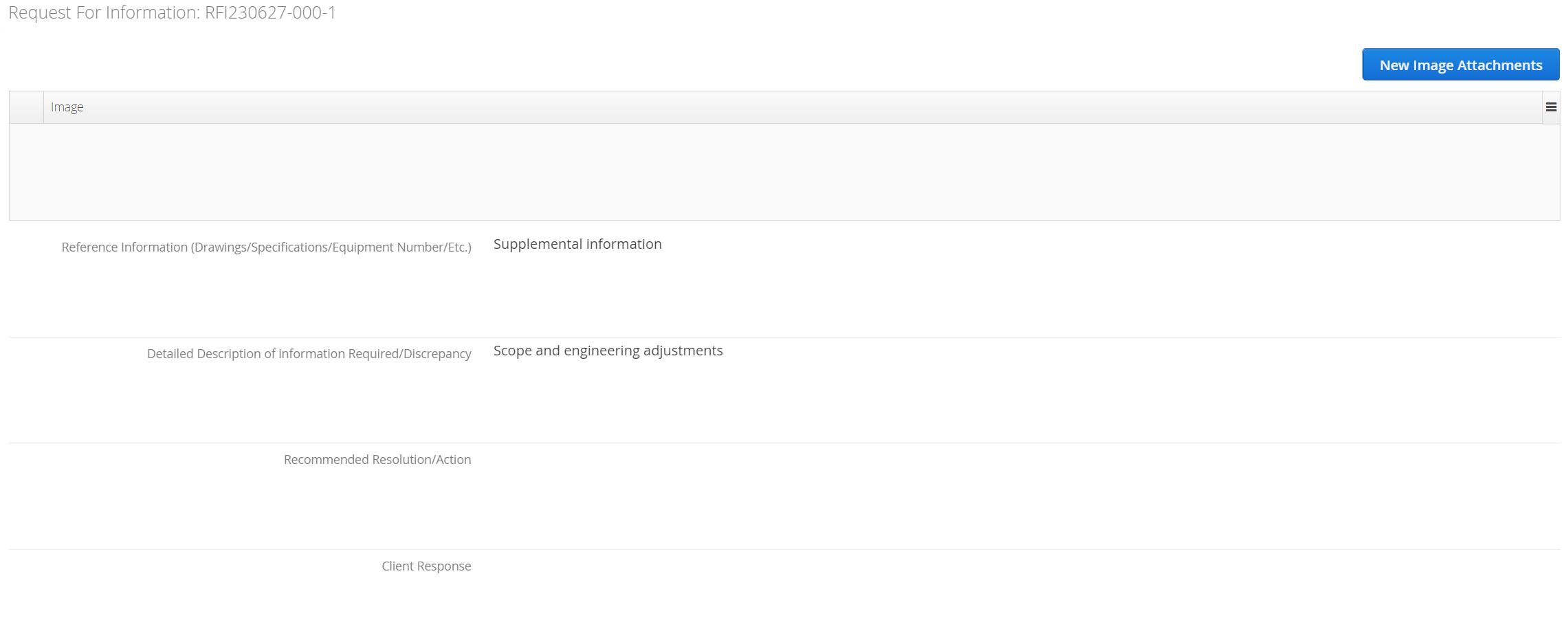
In the Additional Information section of the form, users can outline the issue by providing Reference Information, Detailed Description, Recommended Resolution and Client Response. PDF and Image attachments can be included in the table above.
Submitting a RFI
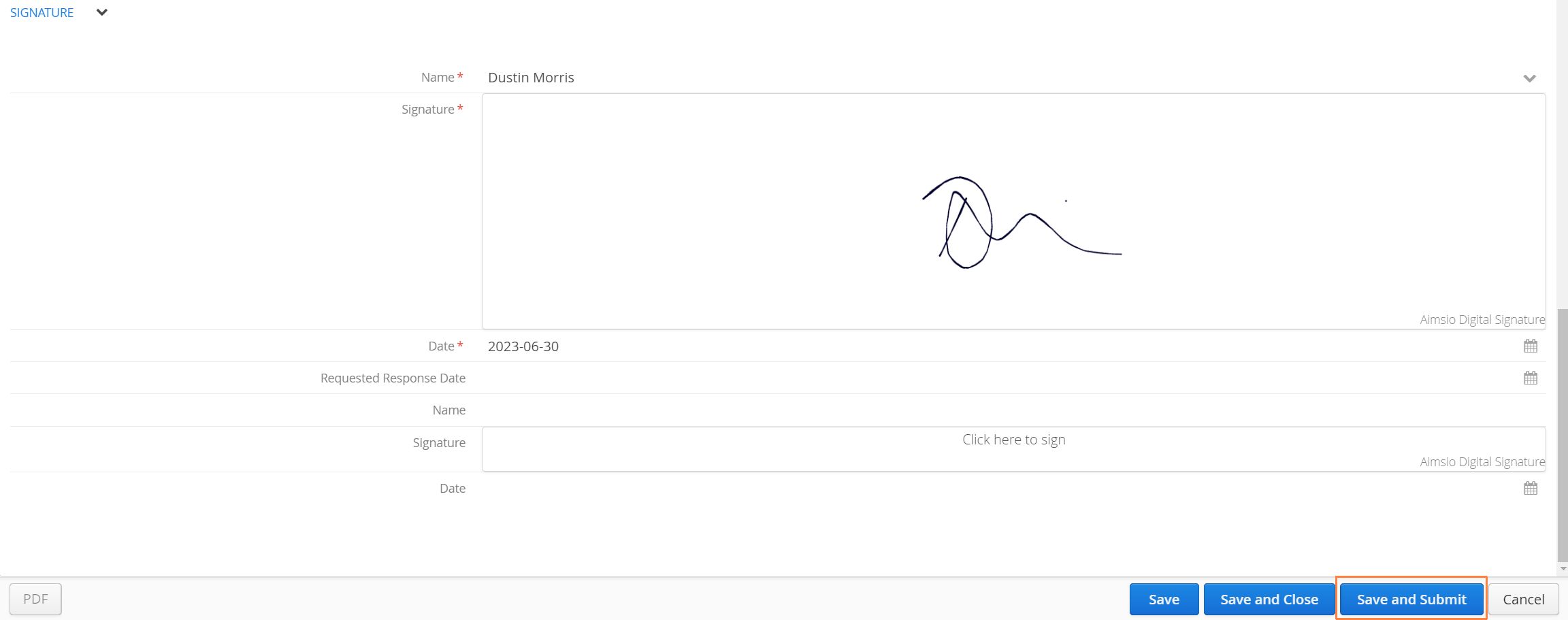
- The user responsible for completing the form will be required to sign their name and include a date. Once finished, click on the Save and Submit button to generate the PDF copy of the form.
How to Edit, Duplicate a RFI
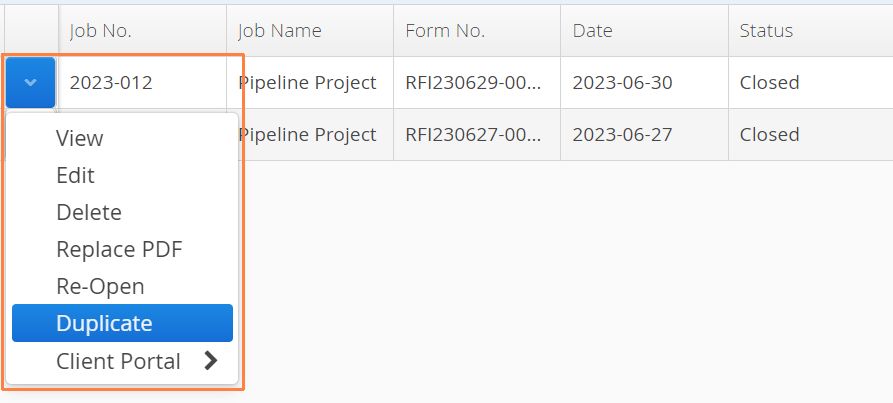
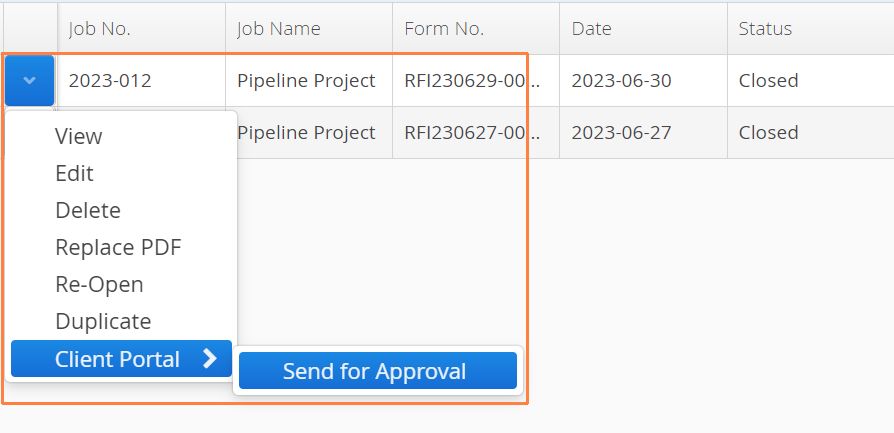
It is also possible to Edit, or Duplicate an existing RFI by clicking on the action button on left of any RFI and selecting the relevant option.
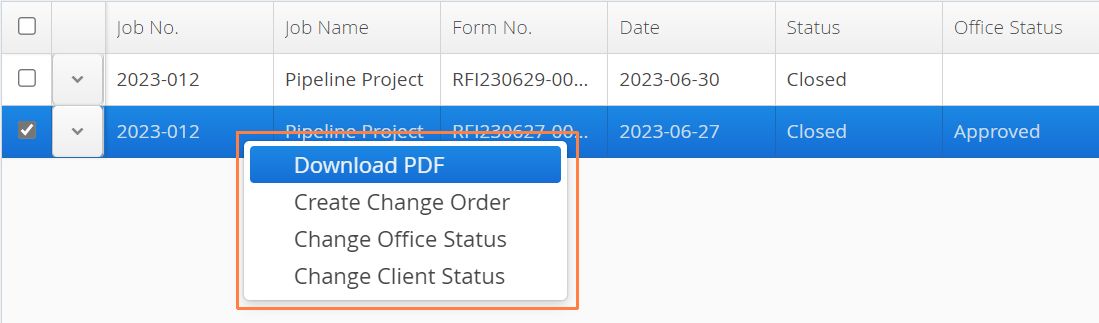
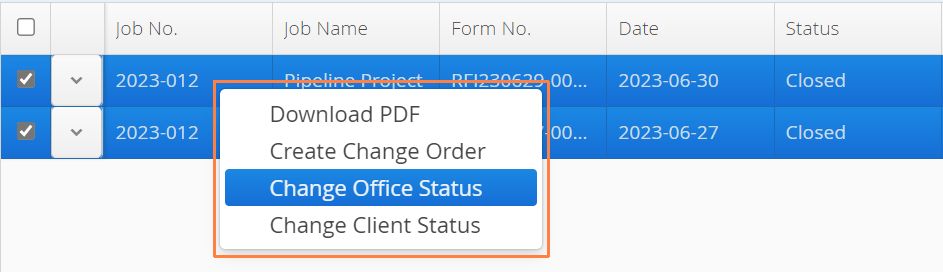
Once a RFI has been saved and submitted, from the RFI listing page users can select the form they’d like to download, right click and select Download PDF.
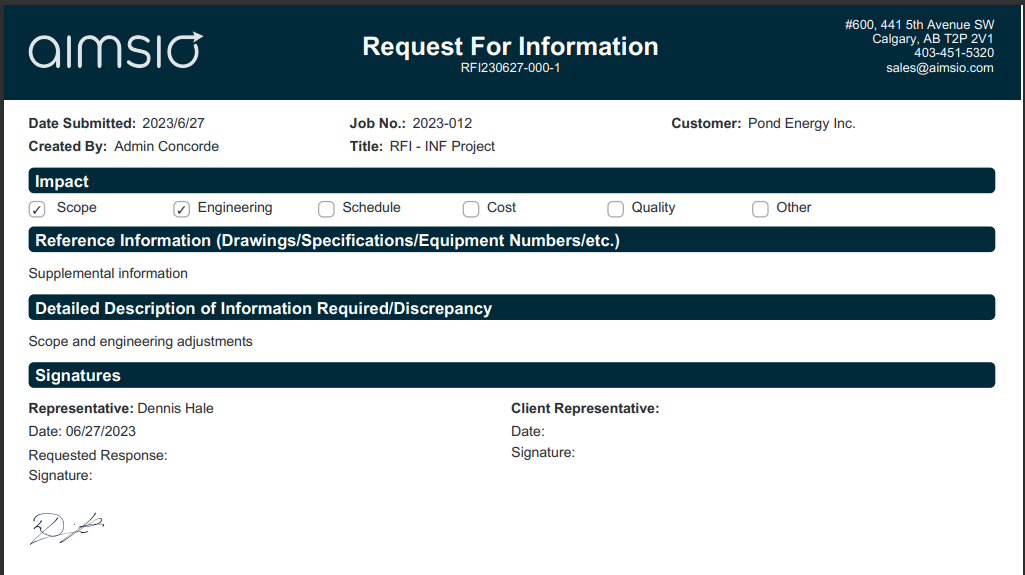
The process of editing, downloading, duplicating an approving a RFI is similar to other web forms in Aimsio. If you haven’t yet, see our Form Fundamentals guide.
Getting RFI Approval
RFIs are compatible with Aimsio’s Client Portal. For more information on getting a digital signature from your clients see: Aimsio - Client Portal
- Users can also change the Status of a RFI by selecting the form, right click and select Download PDF.
Linking RFIs to Change Orders
Once a RFI has been approved, users can use the same RFI to kickstart a Change Order. Aimsio will pull in the relevant information over and users can begin entering the required billing information related to the RFI.
- Select one or more RFIs from the RFI page, right-click and choose Create Change Order

For more information on working with Change Orders see the following Product Guide article: Aimsio Change Orders