When you sign up, you’ll be asked to complete the Master Data Playbook. The goal of the playbook is to help you take your existing data (ie: Employees, Clients and billing items) and format it for the Aimsio platform.
Instructions
The playbook is provided in the form of five Excel sheets that must be completed in the order in which they appear. A set of guidelines are included as well, notating which information is required, which should be unique and what to expect if information is inputted incorrectly.
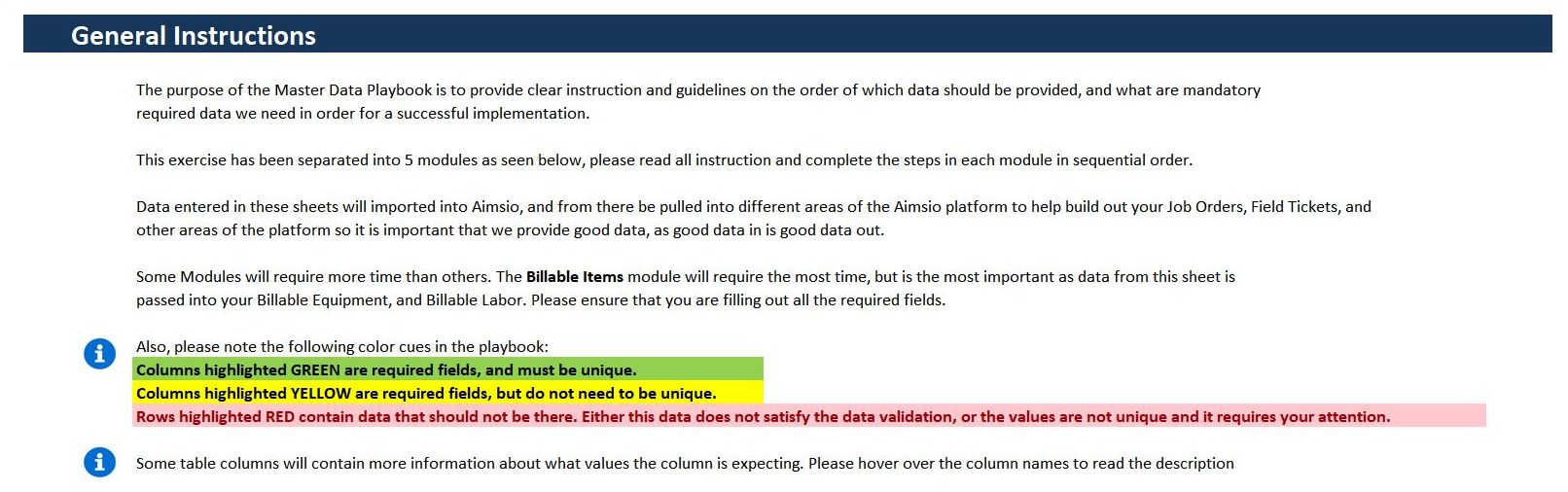
Start with each section (in order), complete it, then return to the instructions page for guidance on the next section. Steps 4 & 5 includes automation that will help streamline the process of adding your Equipment and Employee information.
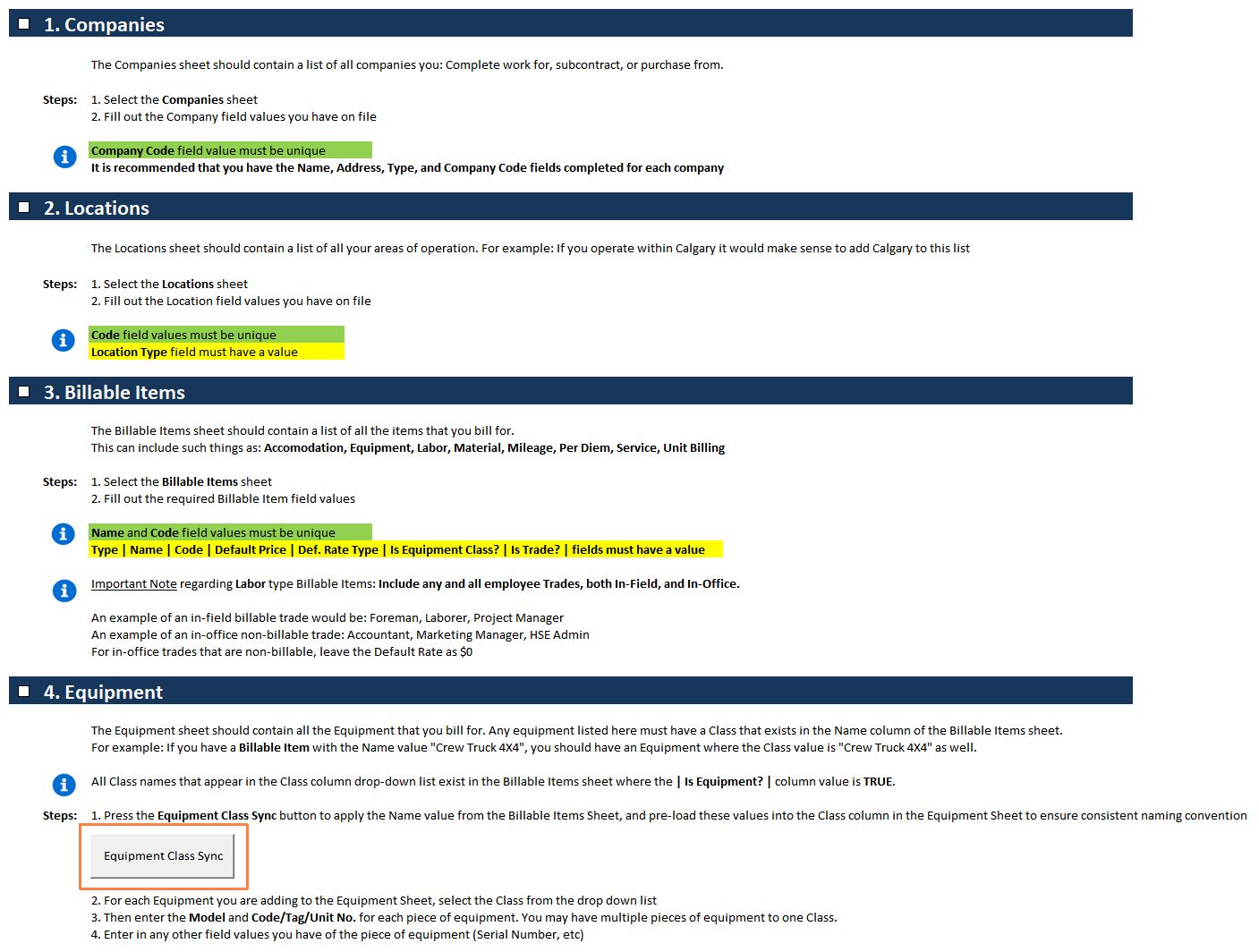
Billable Items Overview
The most important section of the playbook: Billable Items. It’s best to think of your billable items as what your clients understand they are being billed for on a Ticket, or Invoice.
You may charge your clients a day rate, or an hourly rate, for a piece of Equipment. The Billable Item would be how you title the charge for that equipment (ie: your rates for a Crew Truck), not the specific piece of equipment (Ford F-150 #2).
Approach Labor the same way. You aren’t charging clients the work of employee John Doe, you’re charging the cost of a Foreman. Your ‘Labor’ Billable Item would be ‘Foreman’.
In Aimsio, we have 8 categories of Billable Items (we call them Types): Equipment, Labor, Material, Accommodation, Mileage, Per Diem, Service and Unit Billing. These categories are hard coded into the Aimsio platform and cannot be changed. Therefore, we ask that you do your best to organize these items into the most appropriate type.
Required Fields
Each of the five sections in the playbook will have a set of columns that are Required, while others are required and must also be Unique. Always include as much information as possible, as the process of importing this data in bulk is generally more efficient than piecemealing your missing info on a per-item basis inside Aimsio.
- In each section you’ll be asked for both the Name of the item and the Code. A code in Aimsio represents the unique identifier for the item, as possibly referenced in your accounting software.
Companies (Step 1)
- Name and Type are the only required fields. Typically this would at least include a list of your clients, but other types of companies you might include are Vendor and Subcontractor.

Locations (Step 2)
- The playbook will come prebuilt with four different location types to choose from: Rental Yard, Shop, State/Province/Warehouse. Choose what fits best for the time being, we can provide additional location types later, or rename the categories once we’ve imported your data.

Billable Items (Step 3)
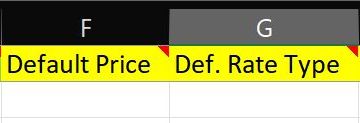
Default Price, Default Rate Type
- We require at least one rate to be included with each Billable Item. The default price represents the rate, while the default rate type would represent the unit of measurement (eg: Hourly, Day, Each).
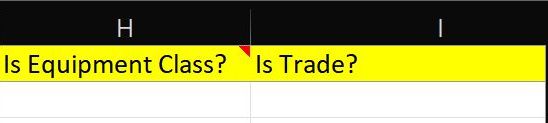
Is Equipment Class? Is Trade?
-
If a billable item is a reference to a charge for a piece of equipment, you would include TRUE in the Is Equipment Class? column. You may have 10 individual Crew Trucks in your equipment list. They would adopt the billable item class of “Crew Truck” for the purposes of charging out to your client.
-
A labor trade works the same way. The billable item may be a Foreman, or a Swamper, for example. These are trades, therefore we would mark the billable item Is Trade? as TRUE.
-
If you are adding a billable item that is neither labor or equipment, you can leave these rows empty.
Equipment & Employees (Step 4 & 5)
- As mentioned at the top of this article, we’ve prepared some handy automation to assist with these two steps. Back on the Instructions sheet, you’ll find two buttons labelled Equipment Class Sync and Employee Trade Sync.
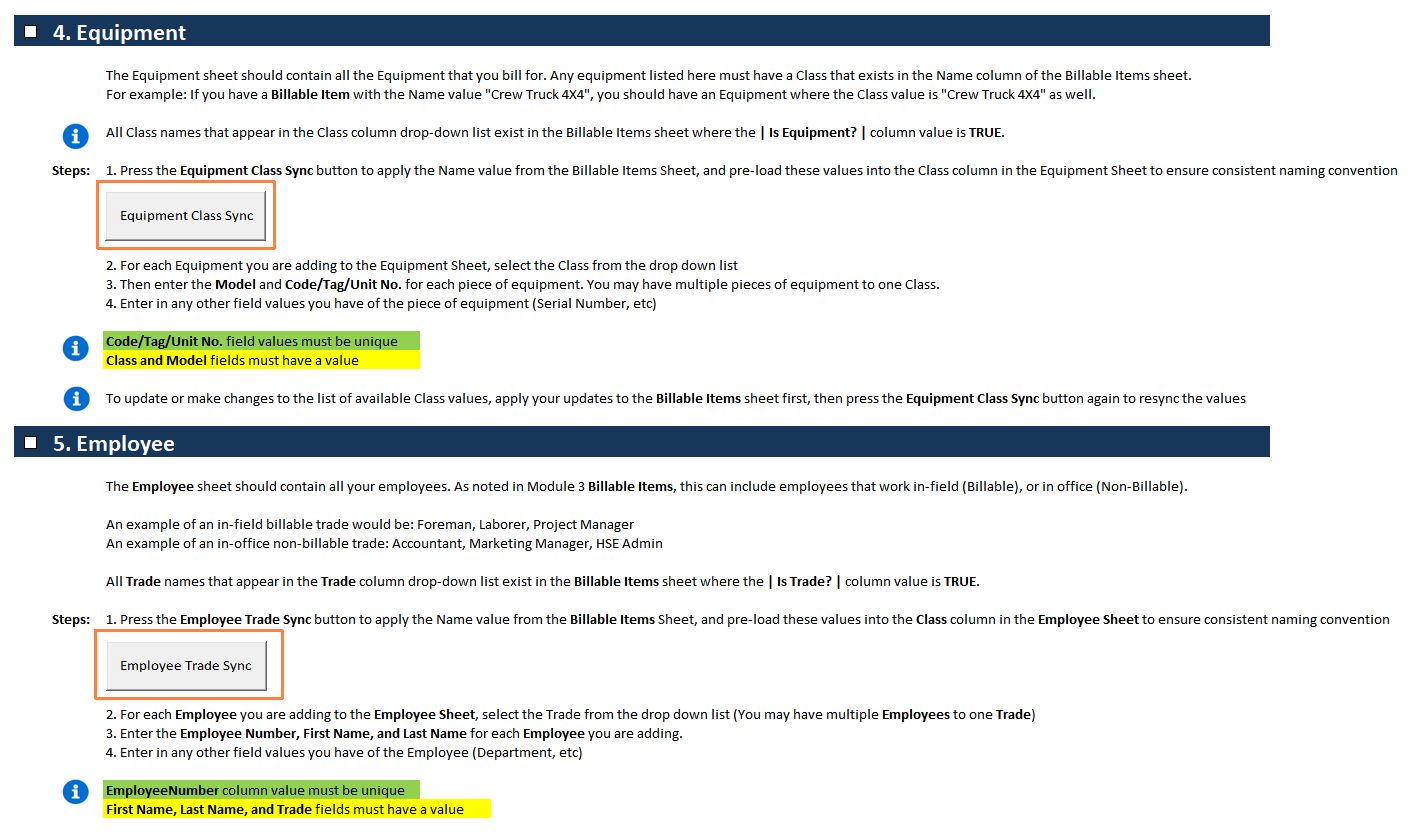
- These buttons will scan your billable item classes and pre-load them into each respective sheet. This ensures that when you are attributing the Class/Trade to your individual Equipment and Employee items, you’ll only be presented with the information relevant to your rate sheet.
I’ve filled out the playbook, what’s next?
Hand it back to your Project Manager, we’ll get that imported for you and review it all at your next meeting!