Line items on an invoice can be grouped and presented in a number of ways using our PDF Template Editor. There are currently no limits on the number of templates you can create in your account.
Invoice PDF Templates are not compatible with legacy Invoice Types. Invoices that have been specifically customized for your account will require our Support team to service.
Creating a New Template
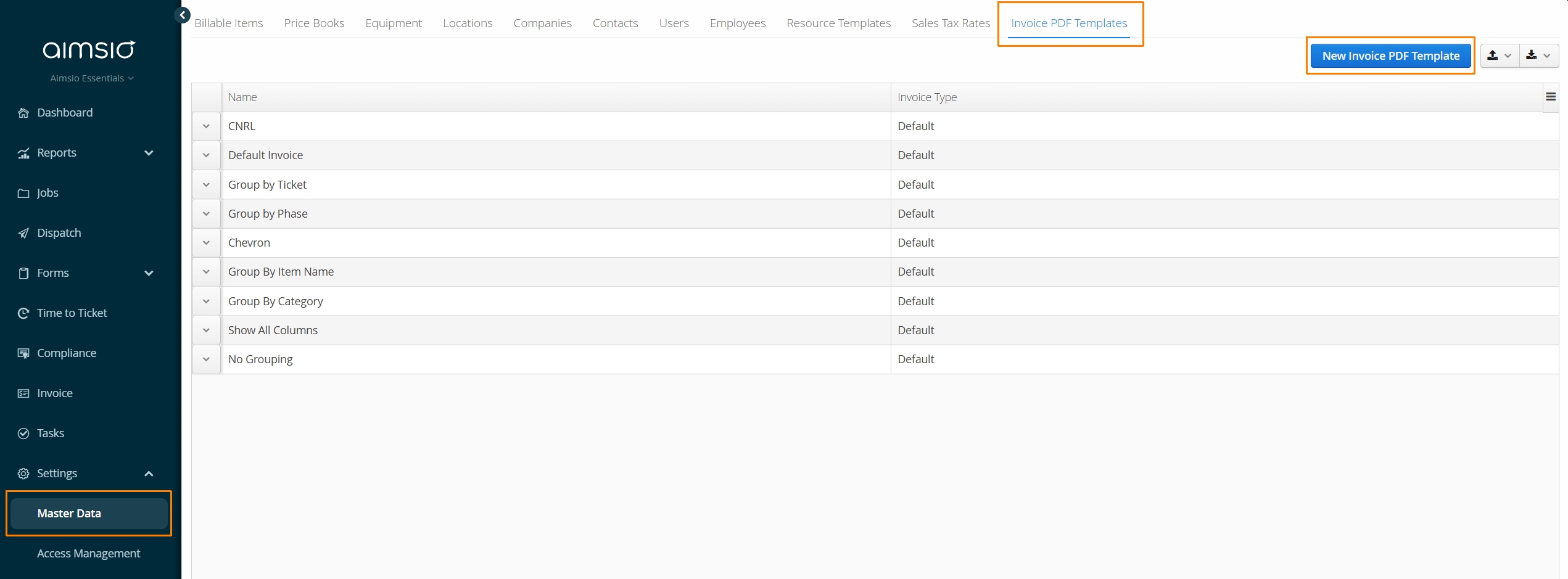
Navigate to Master data > Invoice PDF Templates tab and click on the New Invoice PDF Template button.
Column Name & Caption
Aimsio will present a default order for all columns, which can be adjusted using the arrows on the left. The top of the order represents the furthest left column on the PDF.
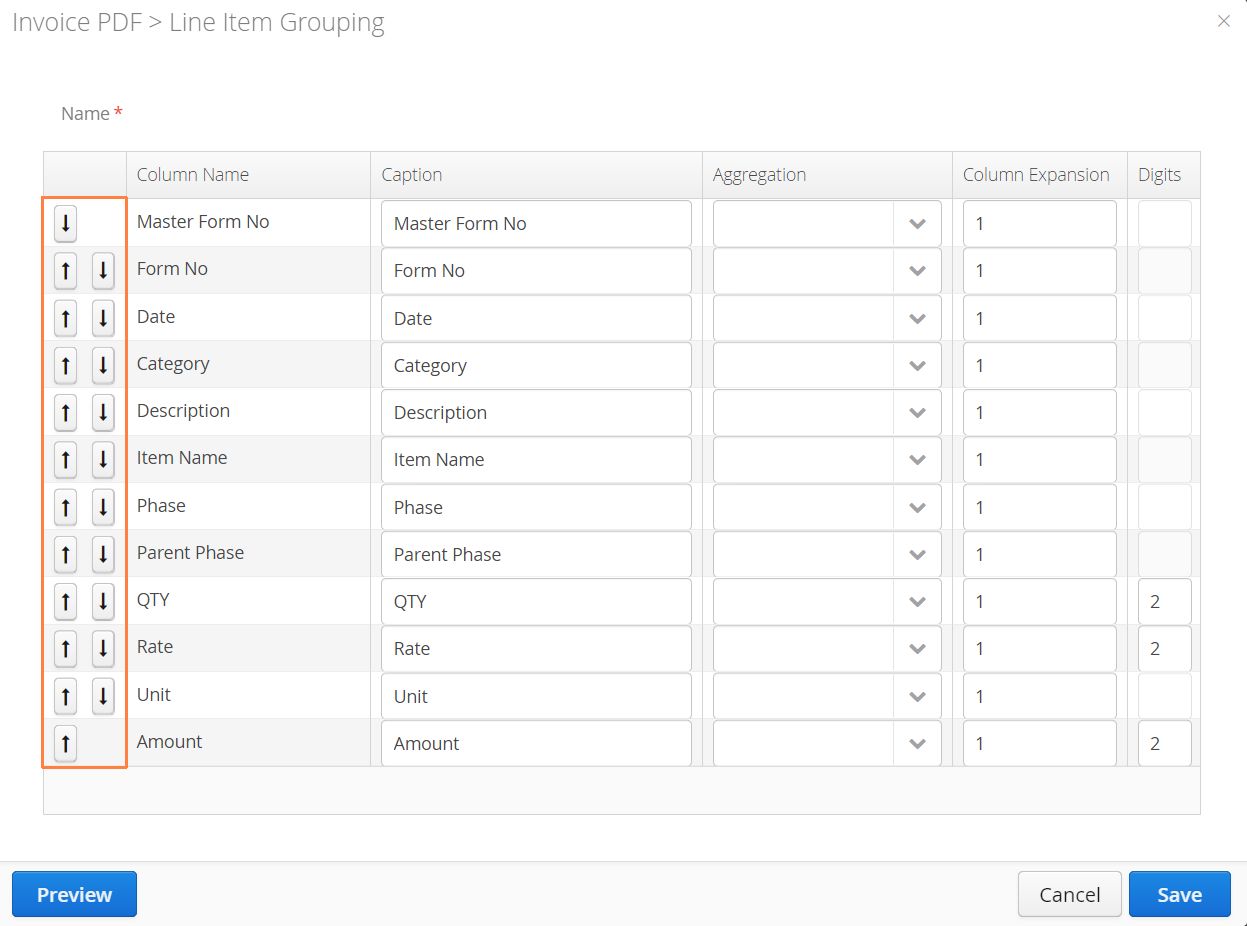
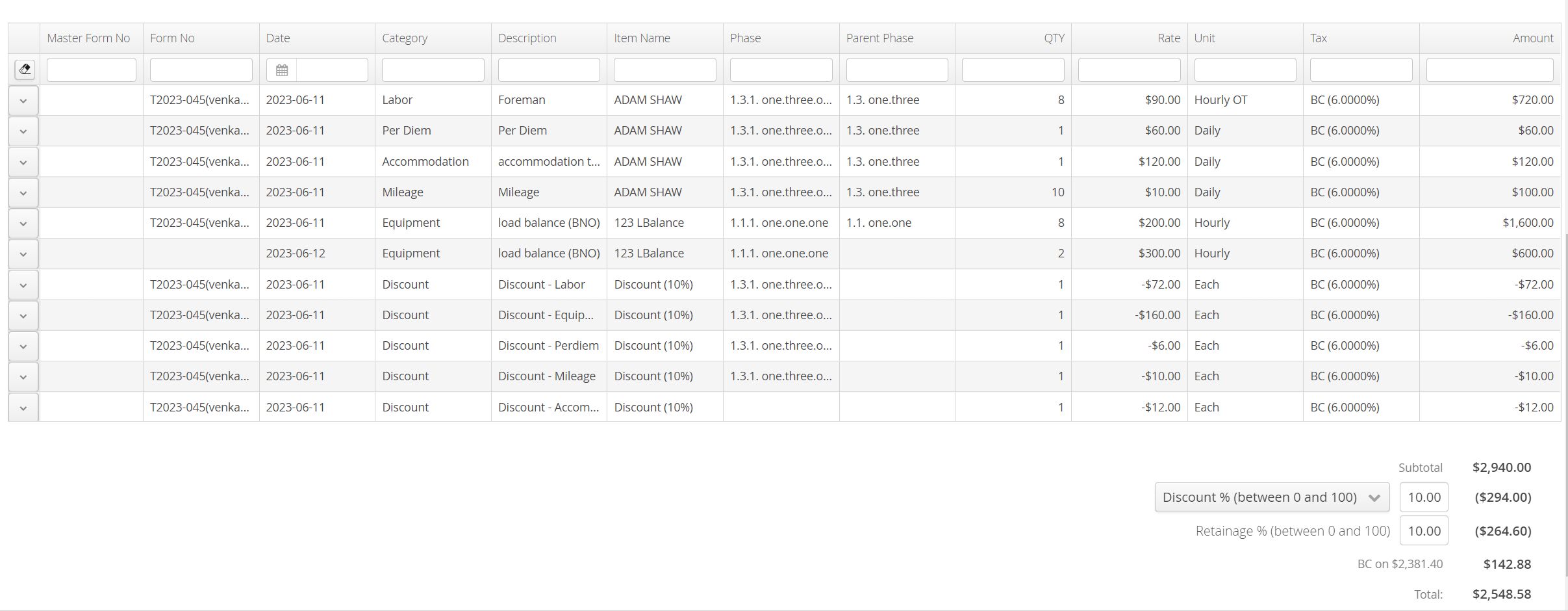
- Column Names are sourced from the line item listing in your Aimsio invoice. The order of these columns cannot be changed when viewing an invoice from Aimsio, but templates control how these items are displayed on the PDF.
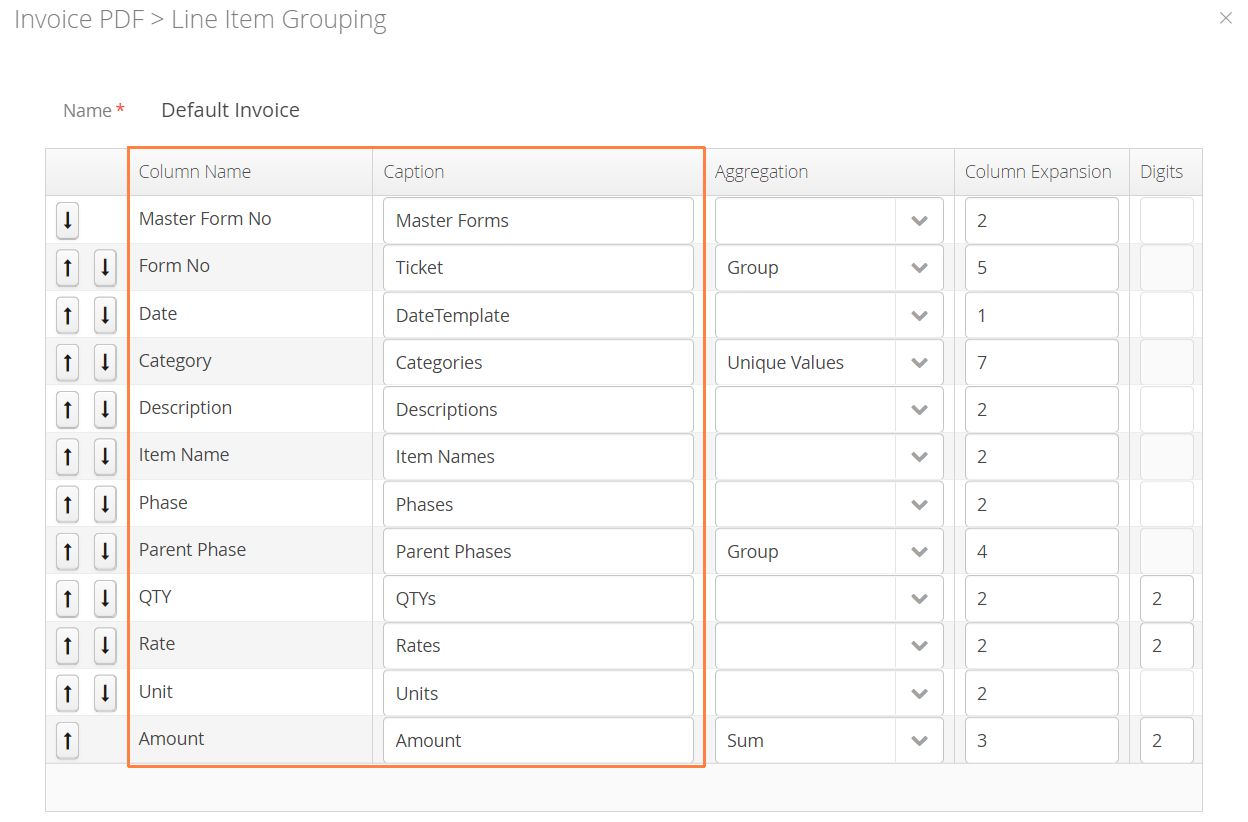
- The Caption column allows you to rename these columns as they appear on the PDF. You can present different column captions depending on your client requirements.
Aggregation
Aggregation controls how the values in each column are presented. Leaving the selection blank will hide the column on the PDF.
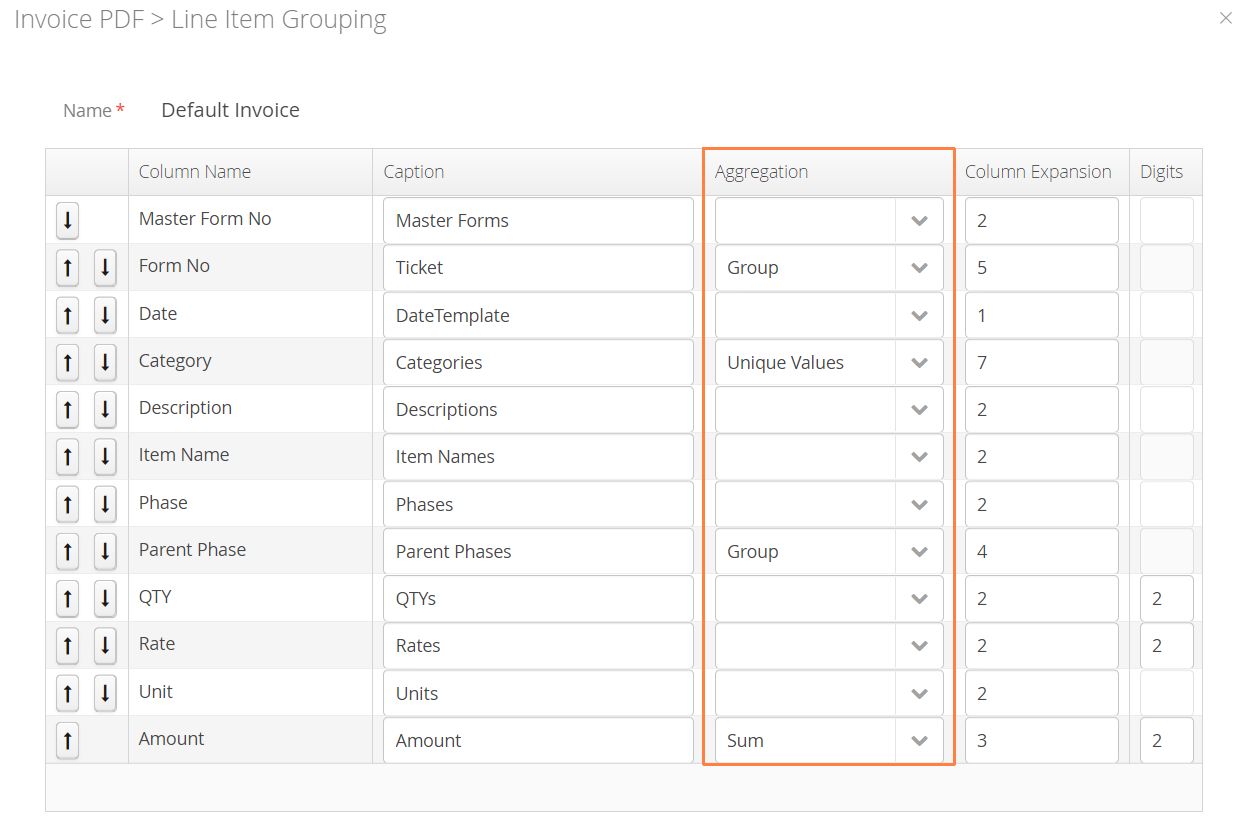
-
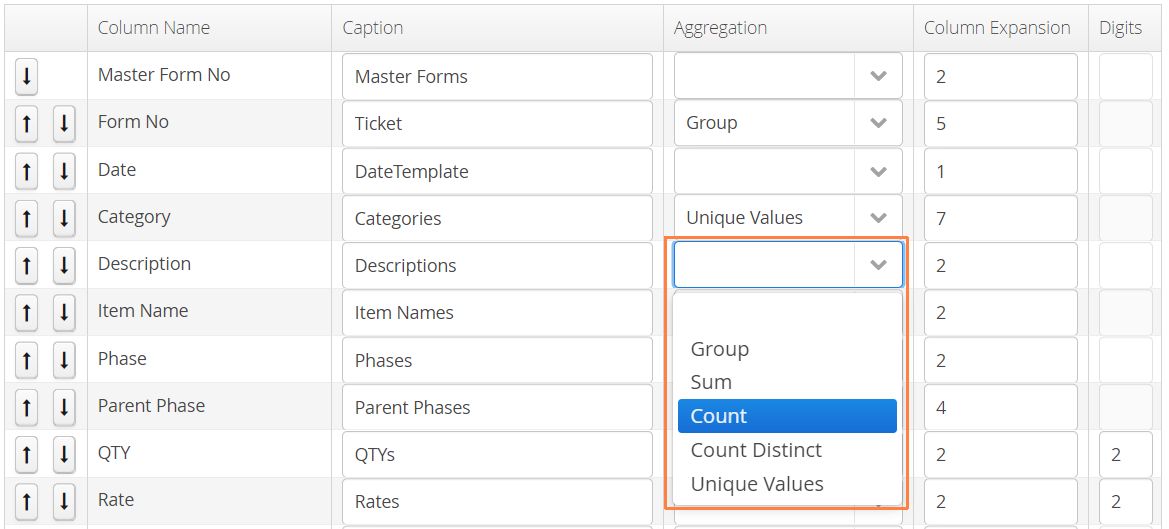
To display any column, select from the following:
-
Group - Group and display any available line items under this column (default).
-
Sum - Display the sum of the included line items (when applicable).
-
Count - Display the count of each item.
-
Count Distinct - Display the distinct number of counts of each item (when applicable).
-
Unique Values - Display the unique values of each line item.
-
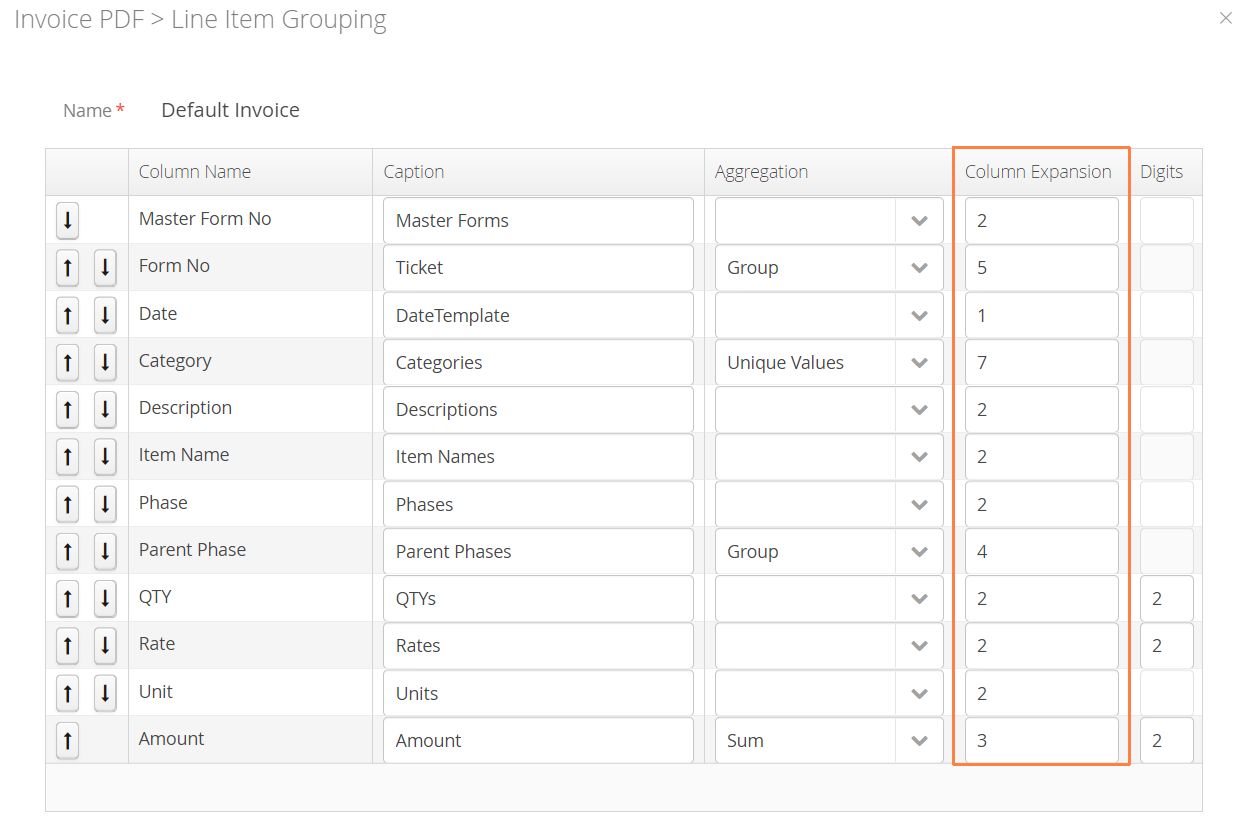
Column Expansion
Column Expansion controls how the ratio of available PDF screen estate is delegated for each column. PDF templates always present themselves in portrait orientation, therefore the more columns you display on the PDF, the tighter the fit will be. Choose a higher column expansion value for columns that need to present more information (ie: Description).
How to Preview an Invoice Template
To preview changes as they’re made, Aimsio provides a Preview button on the bottom left of the template editor.
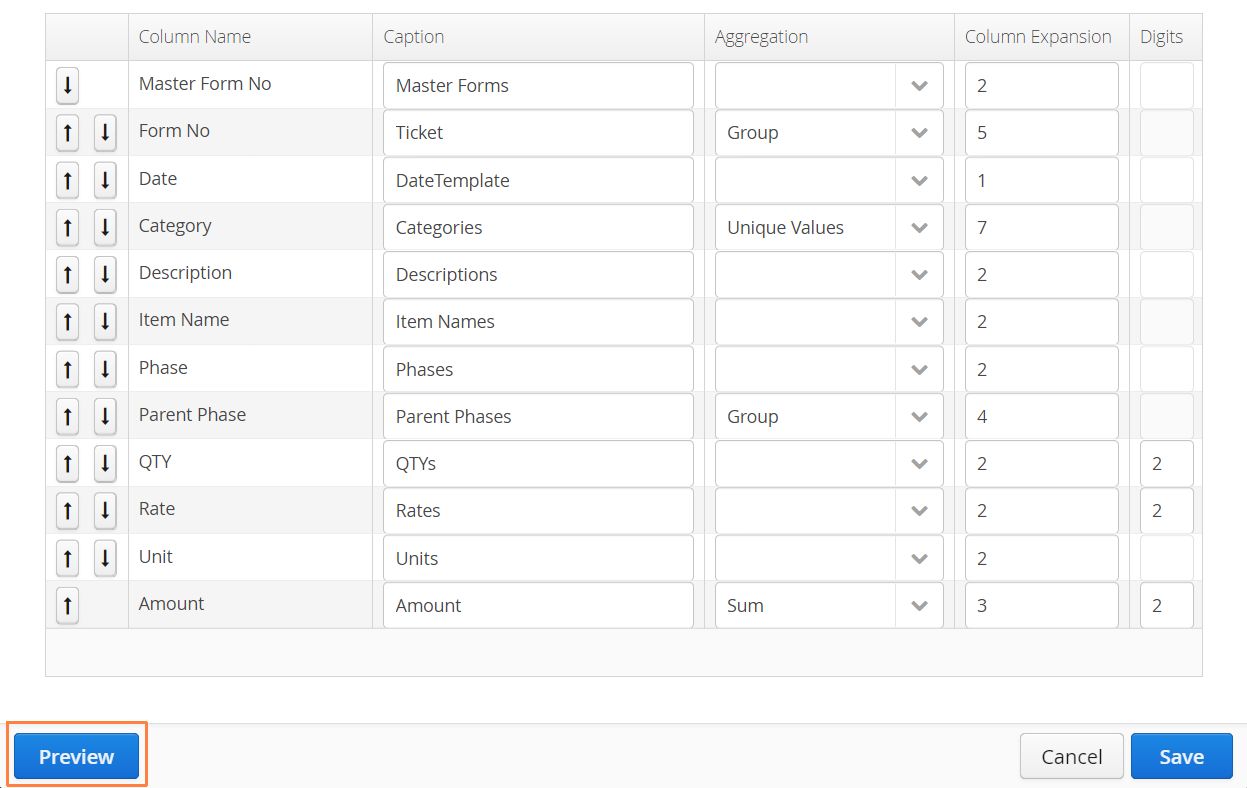
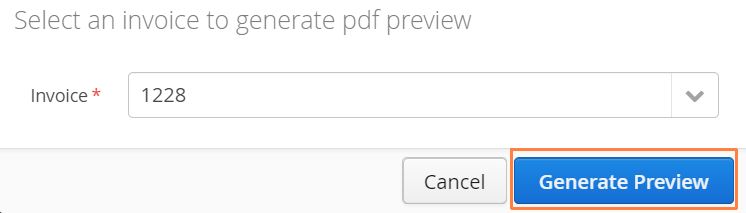
- You must first have an invoice created in your account in order to use the preview function. Select any invoice and click Generate Preview.
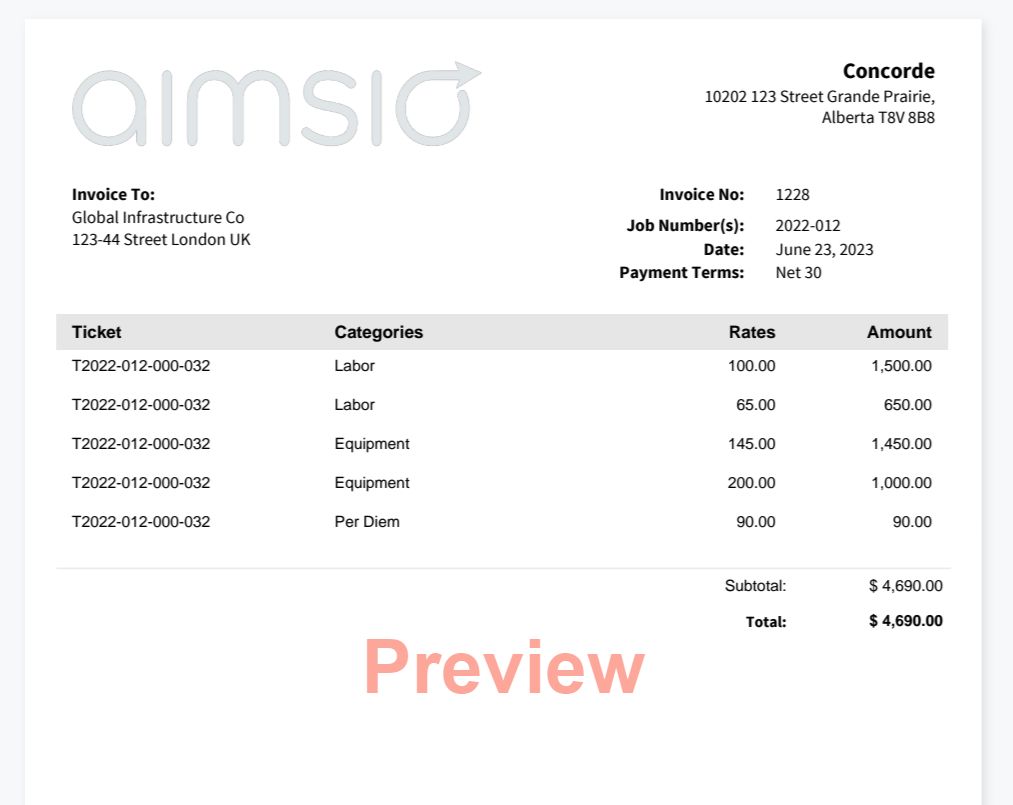
- Template previews provide a seamless way to test and settle on a preferred layout. Continue to make adjustments then Save.
How to Use an Invoice Template
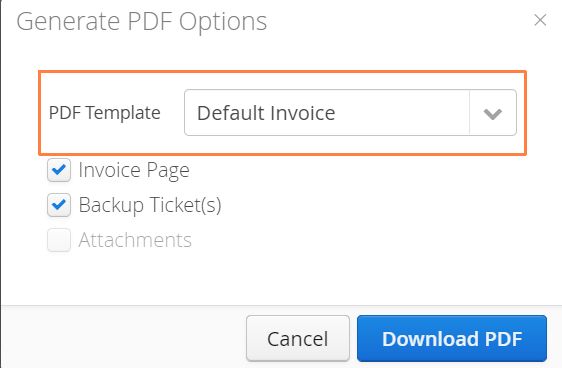
After Invoice PDF Templates have been created in your account’s Master Data settings, they can be selected at the time an invoice PDF is generated.
For more information on working with invoices please see our Invoices Product Guide.
How to Edit an Invoice Template
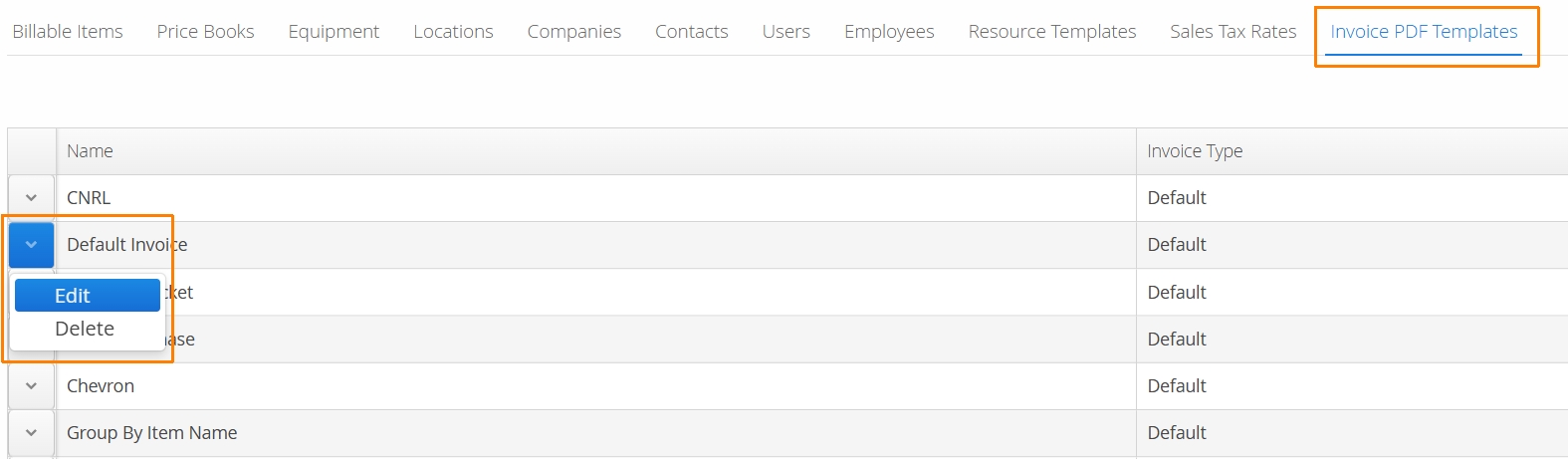
Previously created templates can be adjusted from the template editor tab by clicking the action button the left and selecting Edit. Make your changes and be sure to Save.
How to Export and Import PDF Templates
Existing templates can be exported and imported into another Aimsio account. For example, you can transfer templates from your Sandbox account to your Production account.
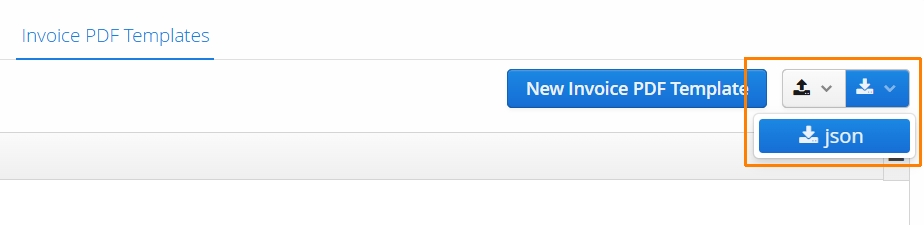
- From the PDF Template Editor tab, click on the download button to grab a .json file containing your templates.
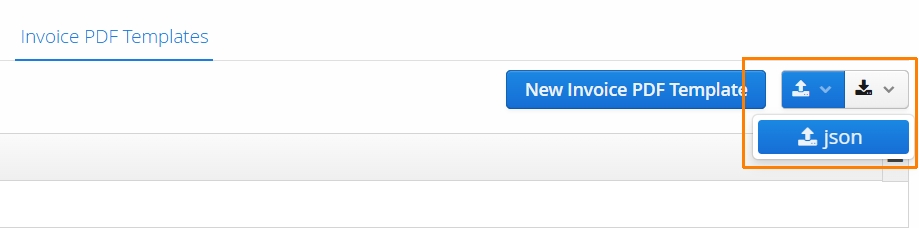
- To import templates, click on the import button and select json.
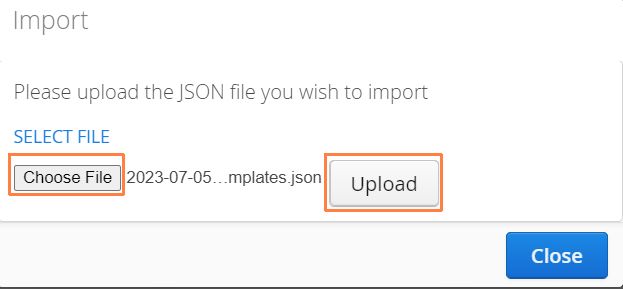
- Select Choose File, find the .json file on your computer and click on the Upload button.
We generally don’t recommend editing the .json file on your own, unless you are familiar with the file format. If you encounter an error, please get in touch with our support team.