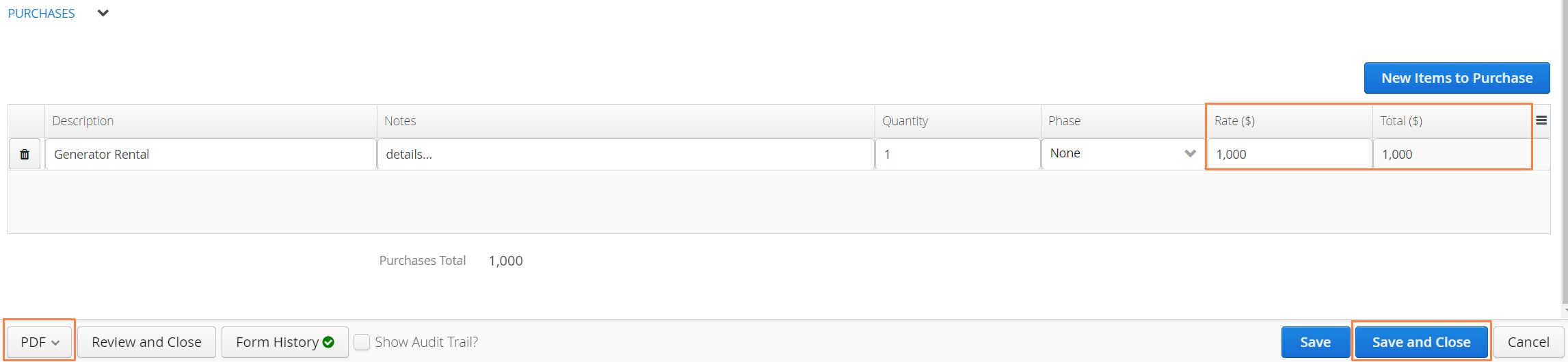
Non-Recurring Billable Items (NRBs) are Aimsio’s proprietary format for tracking and charging third-party expenses. One-off third-party costs are typically associated with a Vendor and may be required to complete a job.
NRBs can be created once a Purchase Order has been approved by receiving against the order. They can also be created as a standalone item, without the requirement of a Purchase Order. NRBs are recorded and tracked as ‘Cost’ in your Job Performance report and can be billed back to your customer at a markup.
Consider reviewing Purchase Orders before proceeding.
How to Locate Non-Recurring Billable Items
Non-Recurring Billables are stored on the Job that the Purchase Order pertains to.
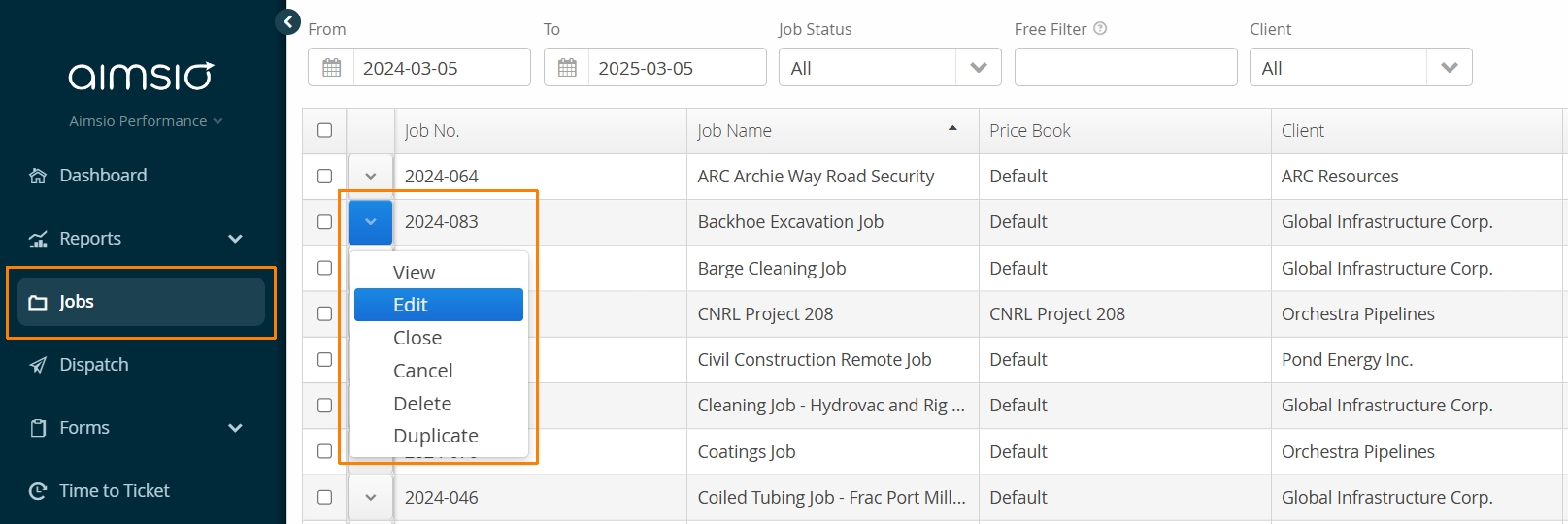
- Navigate to the Jobs page, locate the job and use the Edit action.
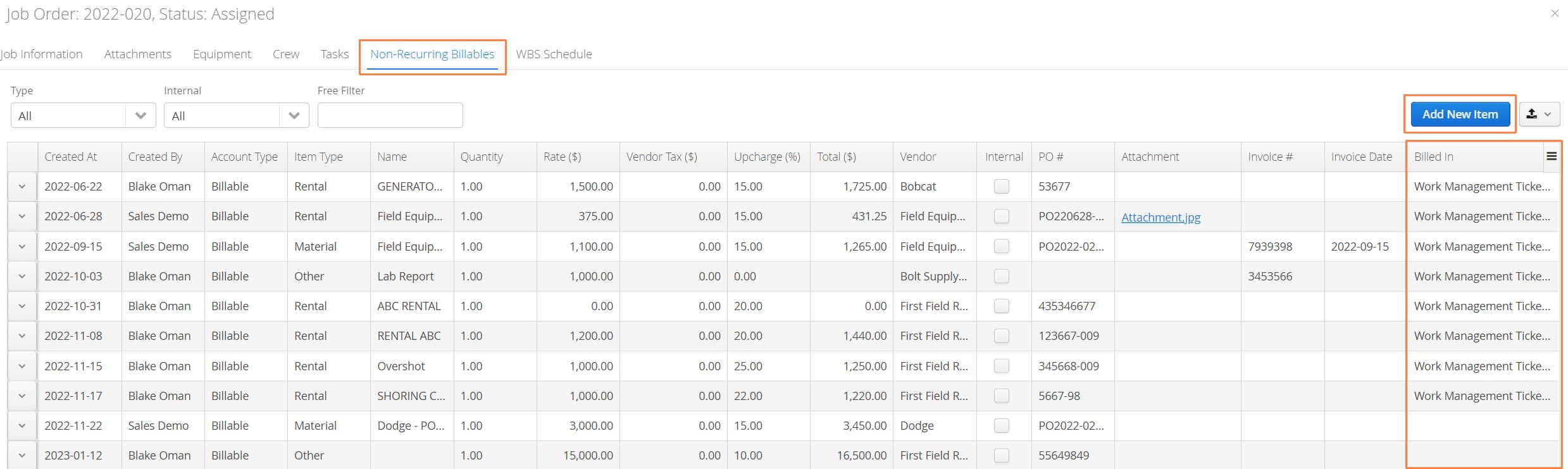
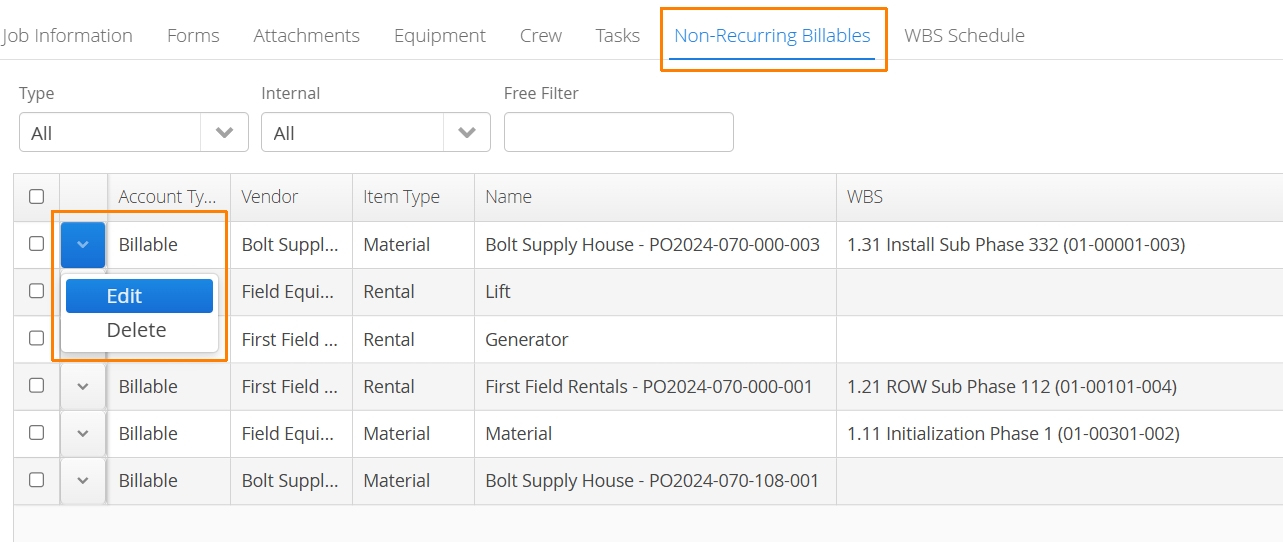
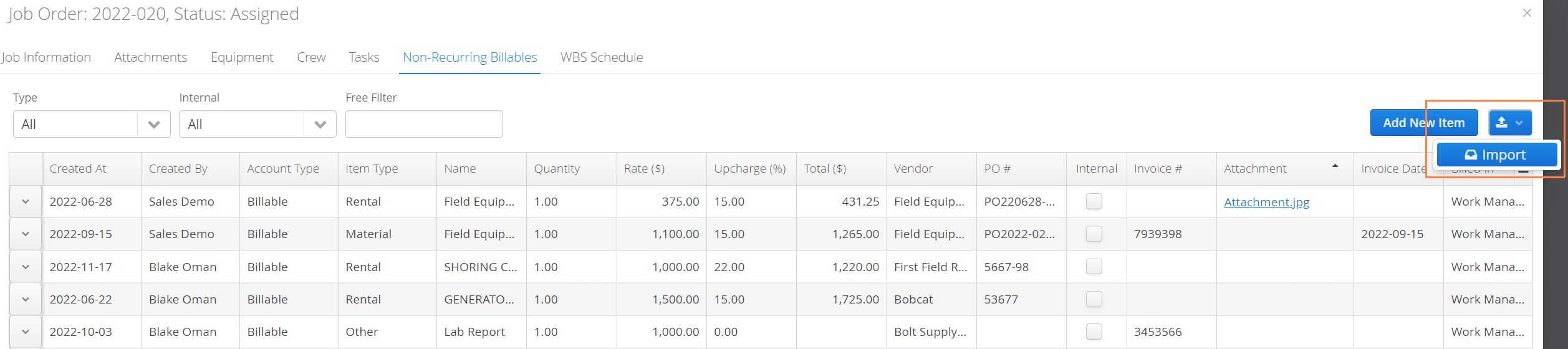
From the Job window, navigate to the Non-Recurring Billables tab. Once Purchase Orders have been received, the items are stored here. Authorized users have the ability bypass the Purchase Order process and add a new NRB directly by using the Add New Item button.
- This tab will display a Billed In column, indicating whether the NRB has been billed on a field ticket / LEM.
NRBs can also be viewed from the Purchase Orders page by clicking the action button to the left of the Purchase Order and selecting View Non-Recurring Billables (NRBs).
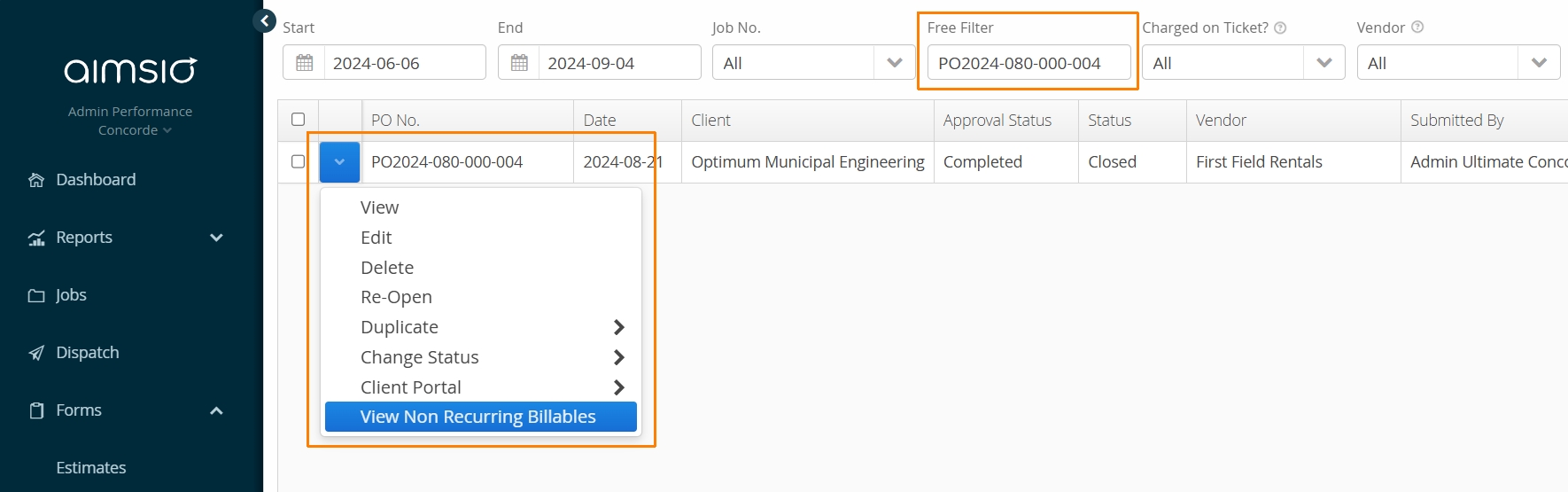
A Job’s Non-Recurring Billables tab will display all NRBs received for every Purchase Order created. The View NRBs action will only display NRBs received for that specific Purchase Order.
Creating or Receiving a New Non-Recurring Billable Item
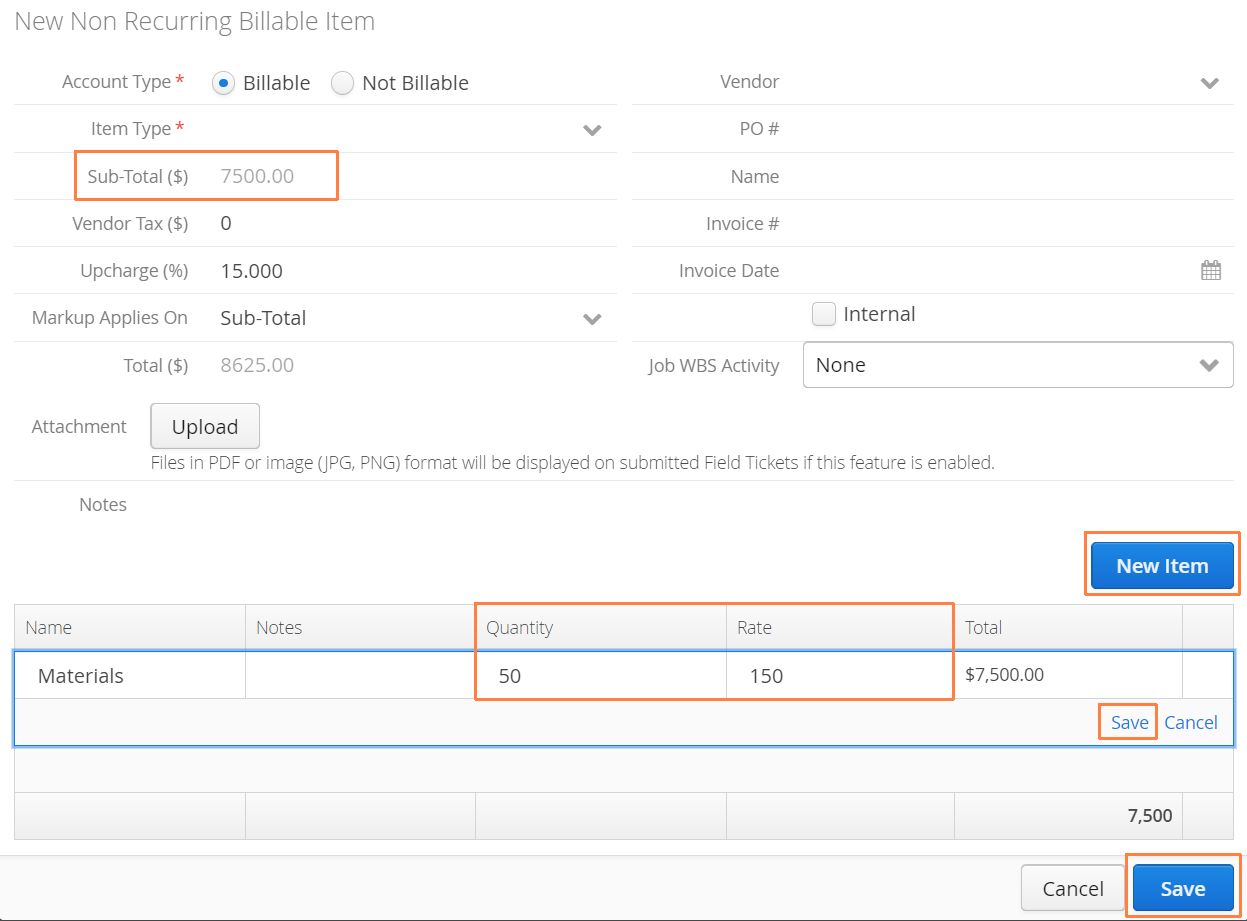
NRBs can consist of multiple line items, but only a single description and charge out rate will be visible on Tickets. Every NRB consolidates all line-items when calculating the NRB Sub-Total.
-
Double Click the line item to edit Name, Notes, Quantity and Rate. Click Save located on the lower right of the line item you are currently editing.
-
If the NRB contains multiple line items, they all must be attributed to the same WBS Activity.
-
Upcharge % will attempt to pull a default value directly from the Job. This can be manually adjusted if required. Users can indicate whether they want the markup to apply on the Subtotal, or the total including Vendor Tax.
Account Type
NRBs can have an Account Type of Billable or Non-Billable. When a NRB created, it can be charged back to a customer and recorded as either Billable $ or Non-Billable $.
When a NRB is marked as Non-Billable, it will be automatically tracked as Non-Billable $ in your Job Performance report. If the NRB is charged to a Ticket, Aimsio will not double count the revenue.
Internal NRBs
NRBs that have the Internal checkbox checked will not show up on a Ticket to be charged. These items can be recorded simply for Cost purposes, if there is no intention to expose them to a client.
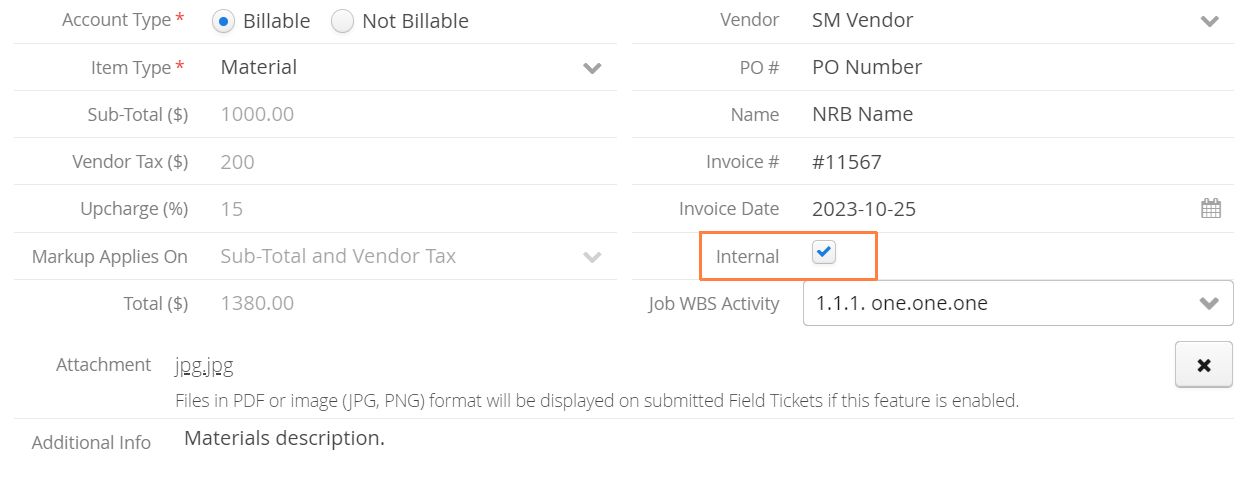
Internal NRBs will not appear on Tickets and cannot be charged back to customers. Internal NRBs will still be tracked as Cost $ in your Job Performance report.
How to Charge NRBs
Once Non-Recurring Billables are received, both web and mobile users can charge them back on a Ticket via the a Non-Recurring Billables table.
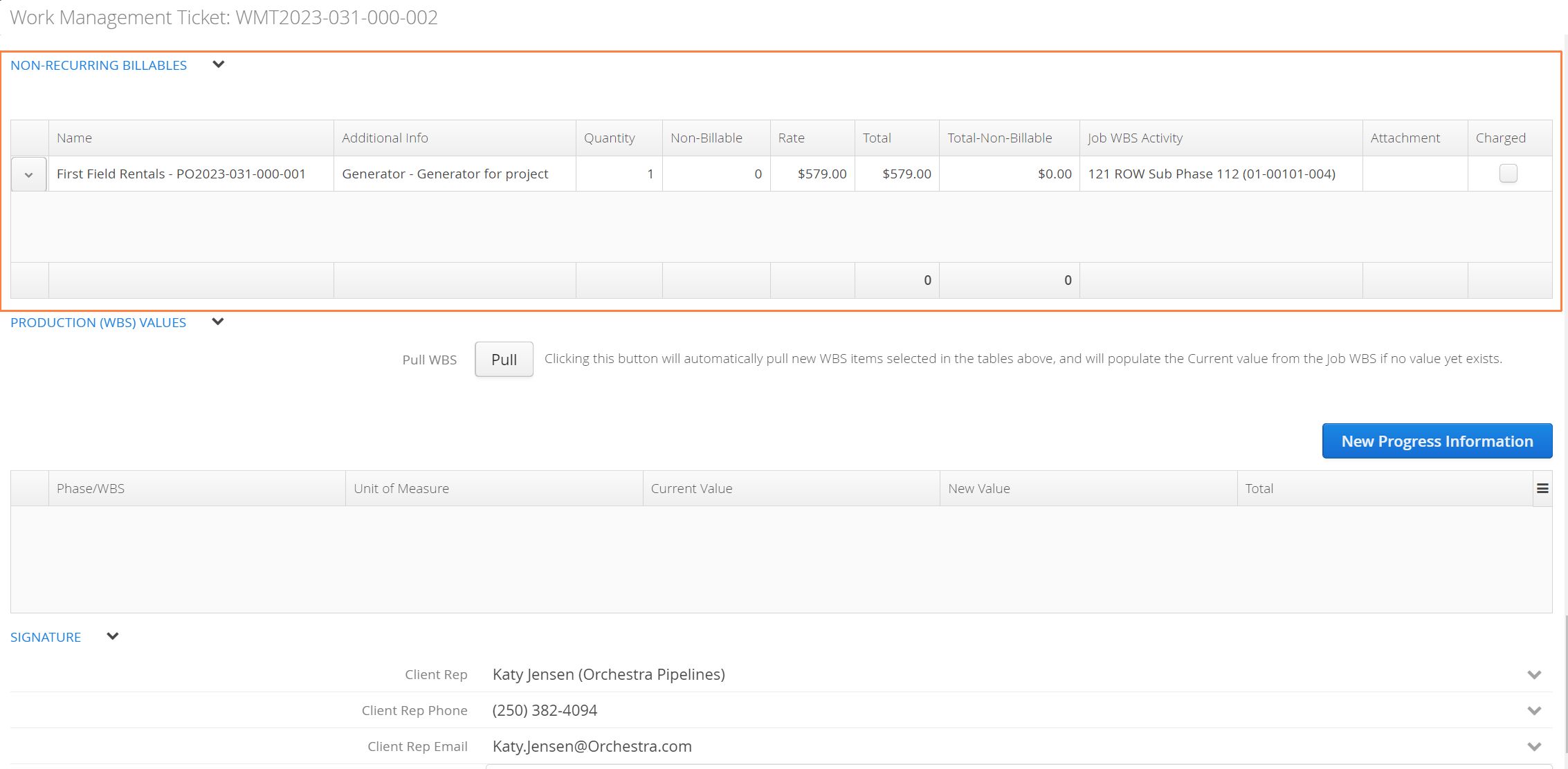
Any items that haven’t be billed back will automatically appear on this table with the received quantity. Click on the action button to the left of the item and select Charge.

A window will pop-up and allow a user make any final edits before charging. If there is a WBS Schedule enabled, Non-Recurring Billables can be attributed to a specific Job WBS Activity.
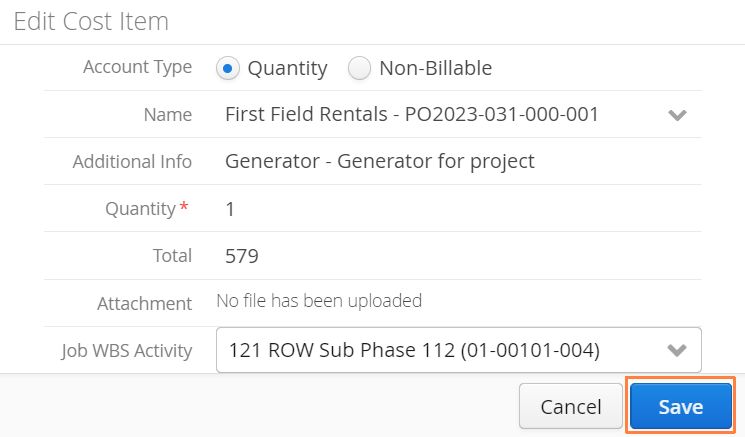
After clicking “Save”, users will see the item is now marked as “Charged” on the table. Charged items will be included on the PDF version of the Ticket. When an invoice is created, this charge will be listed as a line item too.

How to Edit or Delete a Non-Recurring Billable Item
From the Non-Recurring Billables tab, use the action button beside the item you would like to edit or delete.
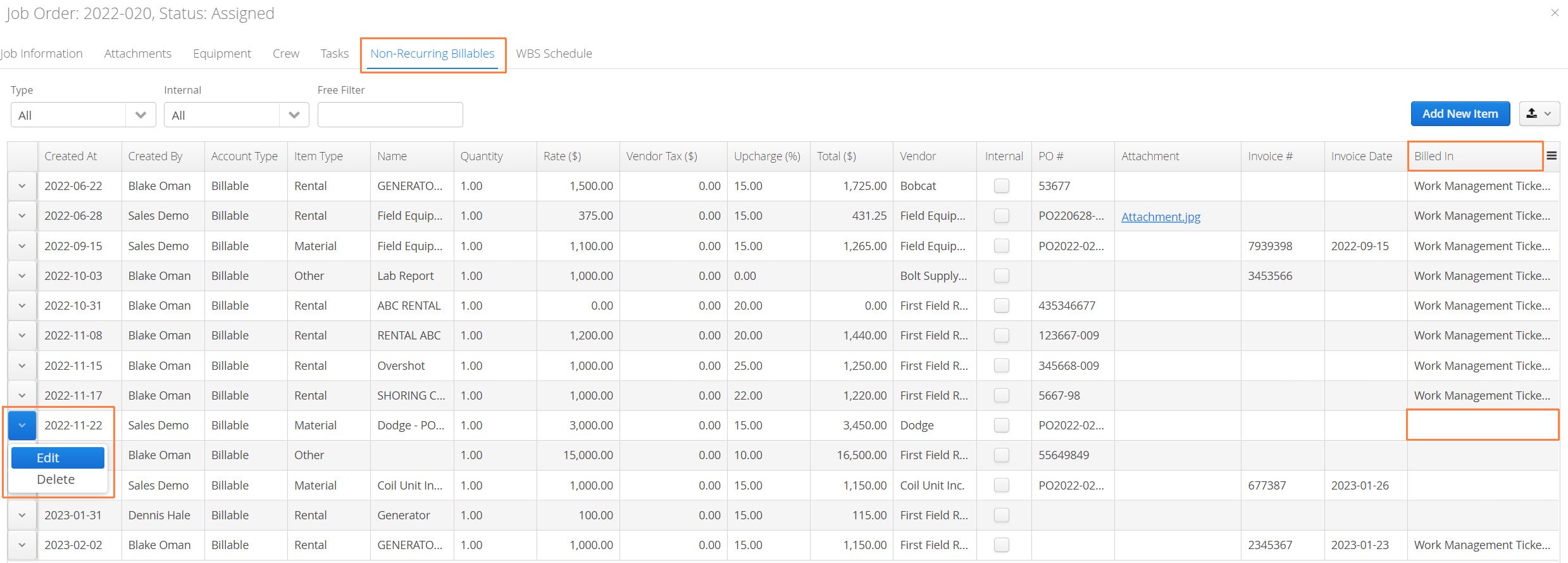
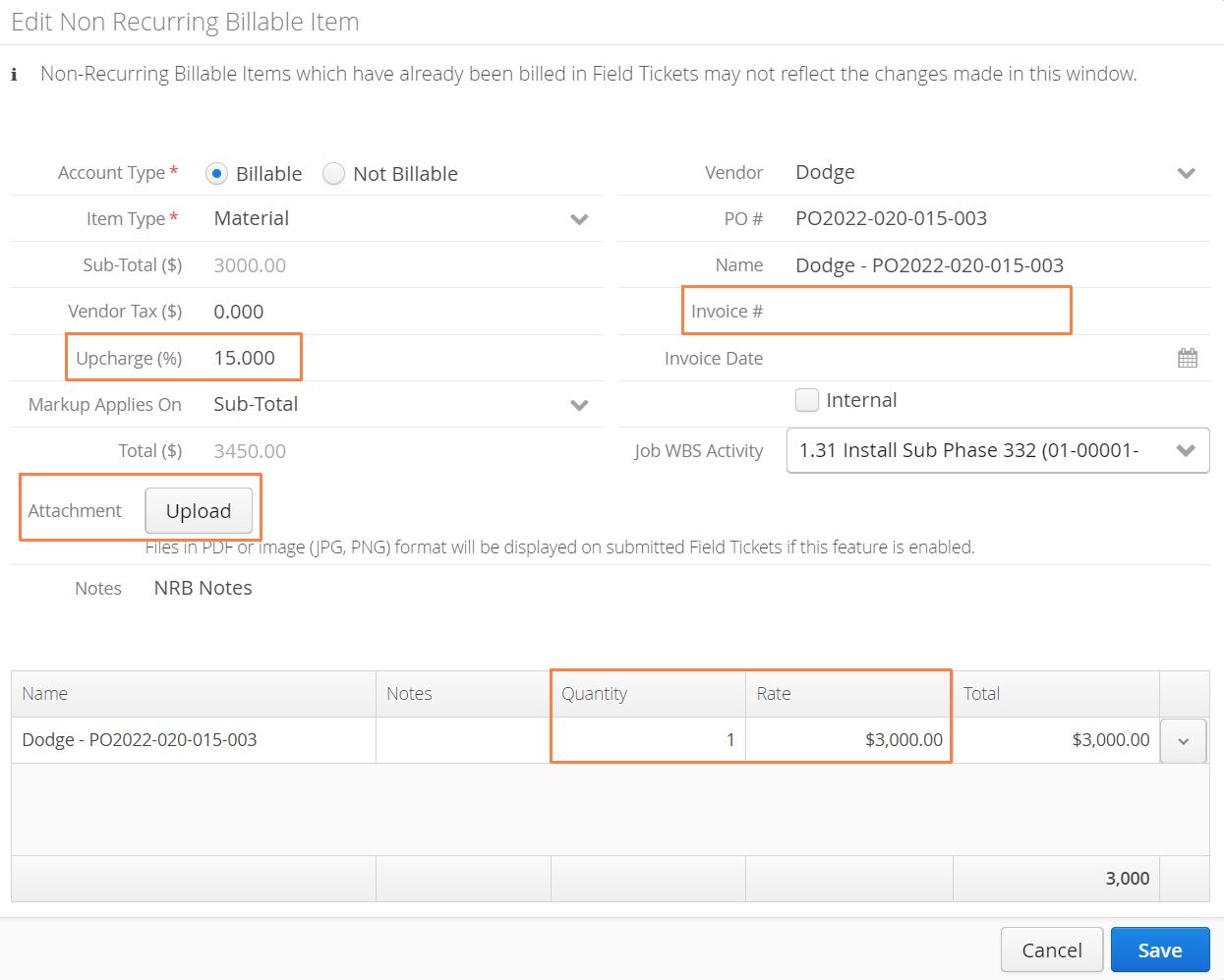
It’s only possible to edit certain information for on a Non-Recurring Billable if it hasn’t been billed to a Ticket. Charged NRBs cannot be deleted, they must be removed from the Ticket first.
While the Quantity, Rate and Upcharge (%) (markup) fields will determine the amount to be billed back on a Ticket, it’s possible to add additional information, including the Vendor, Vendor Tax and Invoice #.
- If an image or PDF Attachment was not included at the time the item was created, users will have the ability to upload one here, which will appear alongside the field ticket that the item is billed on.
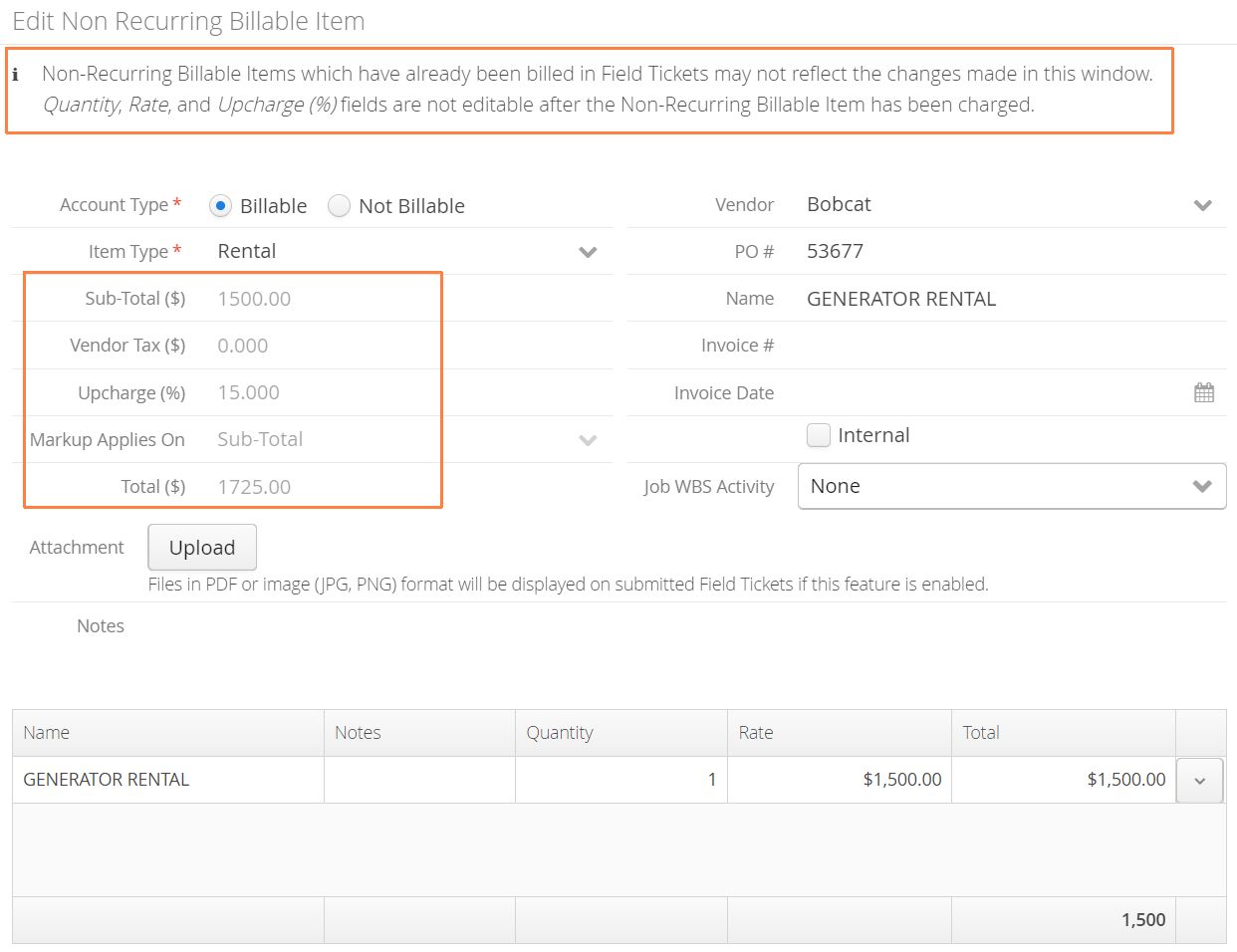
If attempting to Edit a Non-Recurring Billable Item that has been billed on a ticket, you’ll notice that the majority of the fields are locked.
- It’s still possible to make changes to a NRB item after its billed, but you’ll need to edit the Ticket / LEM.
How to Edit a NRB that Has Been Previously Billed
From a Job’s Non-Recurring Billables tab, make note of the Ticket # that the NRB has been Billed In.
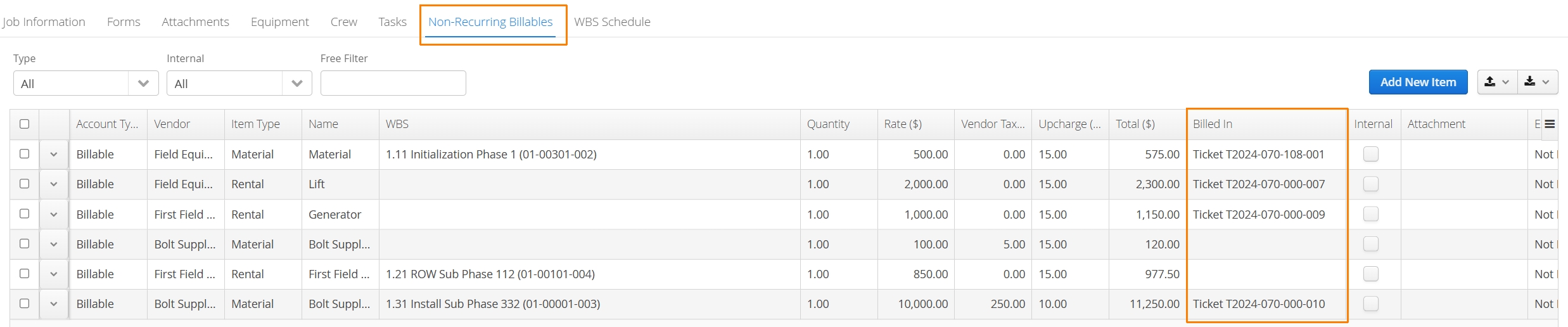
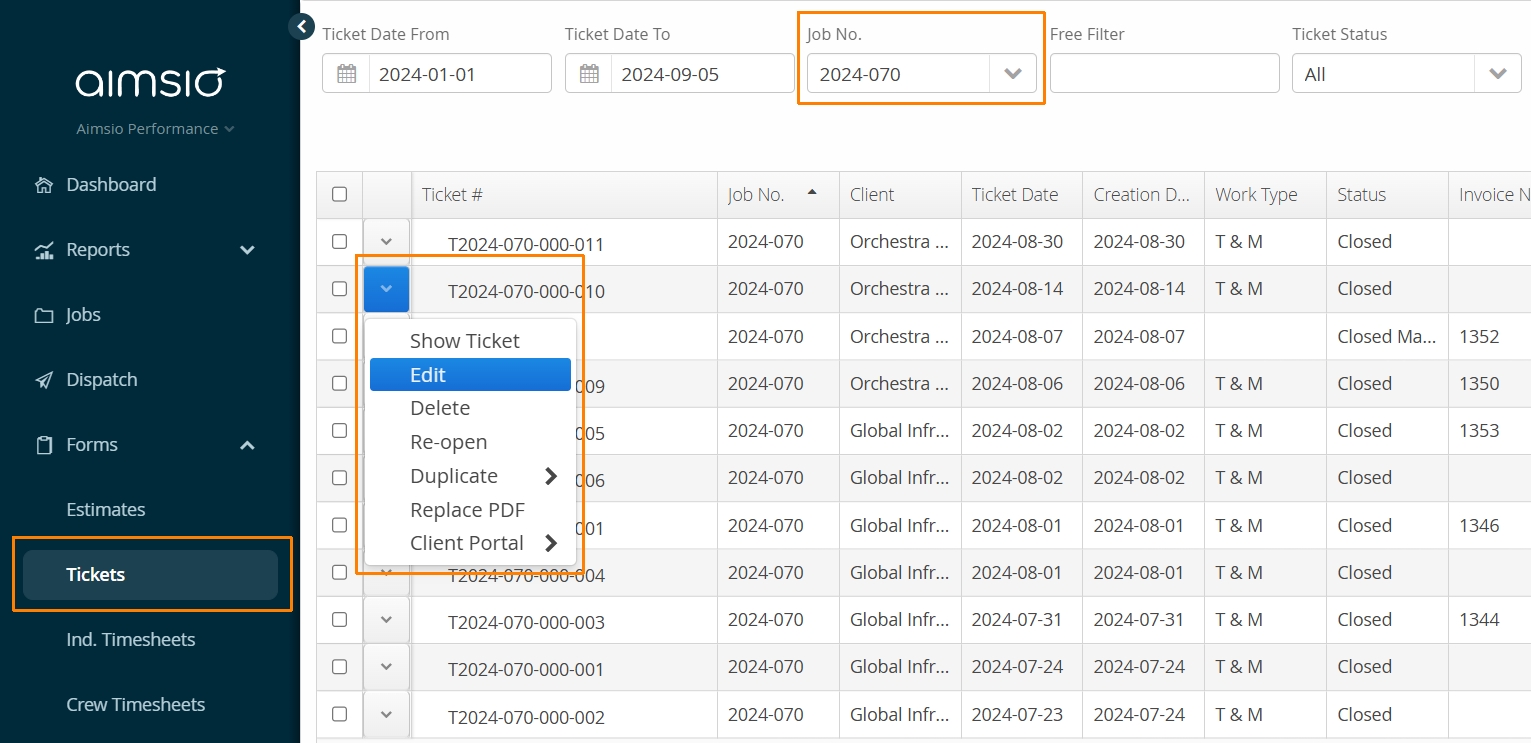
- Navigate to your Tickets page and locate the Ticket #. Use the Job, Date and Free filters to aid in your search, then use the Edit action to the left of the Ticket.
Tickets that have been invoiced cannot be edited. The invoice will have to be deleted first, before any changes can take place.
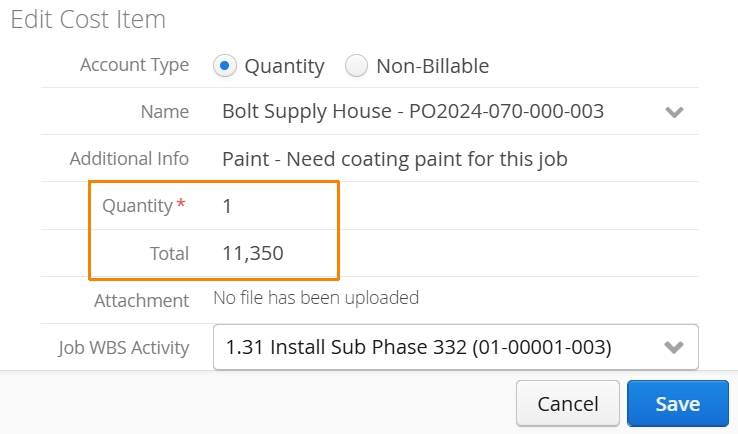
- Scroll down on the ticket form until you’ve reached the Non-Recurring Billables table. Use the action button and select Edit beside the item you want to adjust. Alternatively, you could use the Remove Charge action if you need to edit additional fields (like Upcharge %) before charging again.

- Editing an NRB on a Ticket will allow users to adjust the Quantity or Rate of the item that has been billed.
If a NRB charge has been removed from a Ticket, it can be edited from the NRB window under a Job or PO.
How to Export and Import NRBs
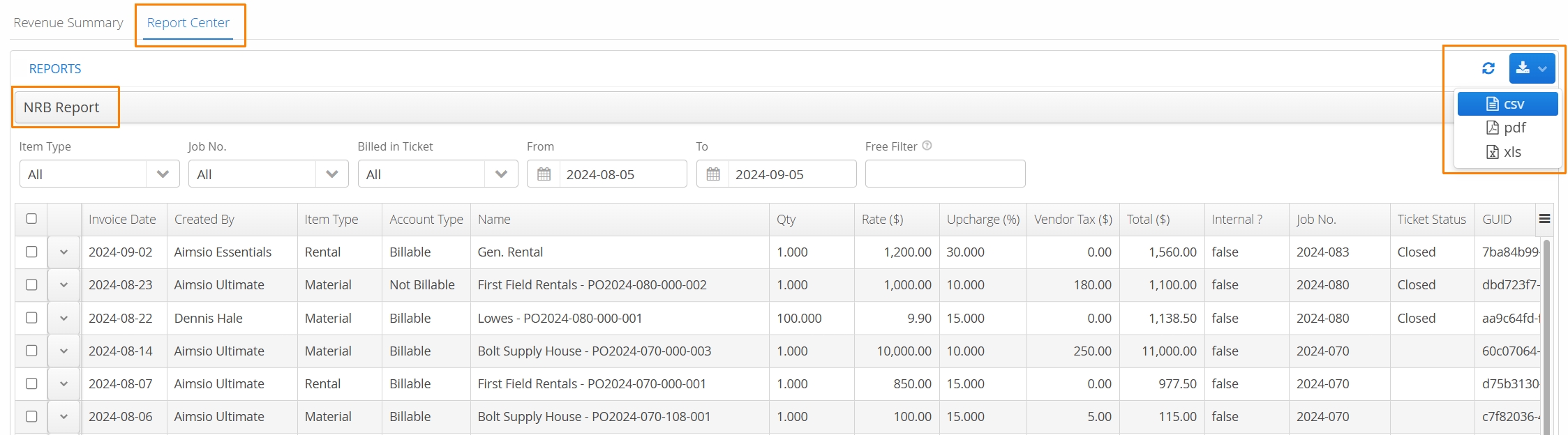
If required, it’s possible to make changes to NRBs in bulk by exporting them. Navigate to Aimsio’s Report Center and select the NRB Report. You’ll find the export button located on the far right of the report. Select CSV, download the provided file and make your changes in Excel.
It will be possible to change Quantity, Rate and Upcharge % to previously billed items this way, but doing so will not affect the ticket the NRB item was billed in. Use caution when making bulk changes as this can create discrepancies in reporting.
Once you’ve made your changes, save the CSV file on your computer, navigate back to the Non-Recurring Billables tab at the job level and use the Import action located on the far right.
If your CSV includes NRB items for other Jobs, Aimsio will update all NRBs across all Jobs when performing an import.
Adjusting the initial Purchase Order
Purchase Orders and NRBs are independent entities. In other words, if you make changes to NRBs after they’re received against a PO, the original Purchase Order line items will not be adjusted.
To ensure you have accurate Purchase Order records, users should consider adjusting the original Purchase Order after edited a NRB.
- Locate the relevant Purchase Order from the Forms under a Job or by navigating to the Purchase Orders page using Aimsio’s left sidebar.
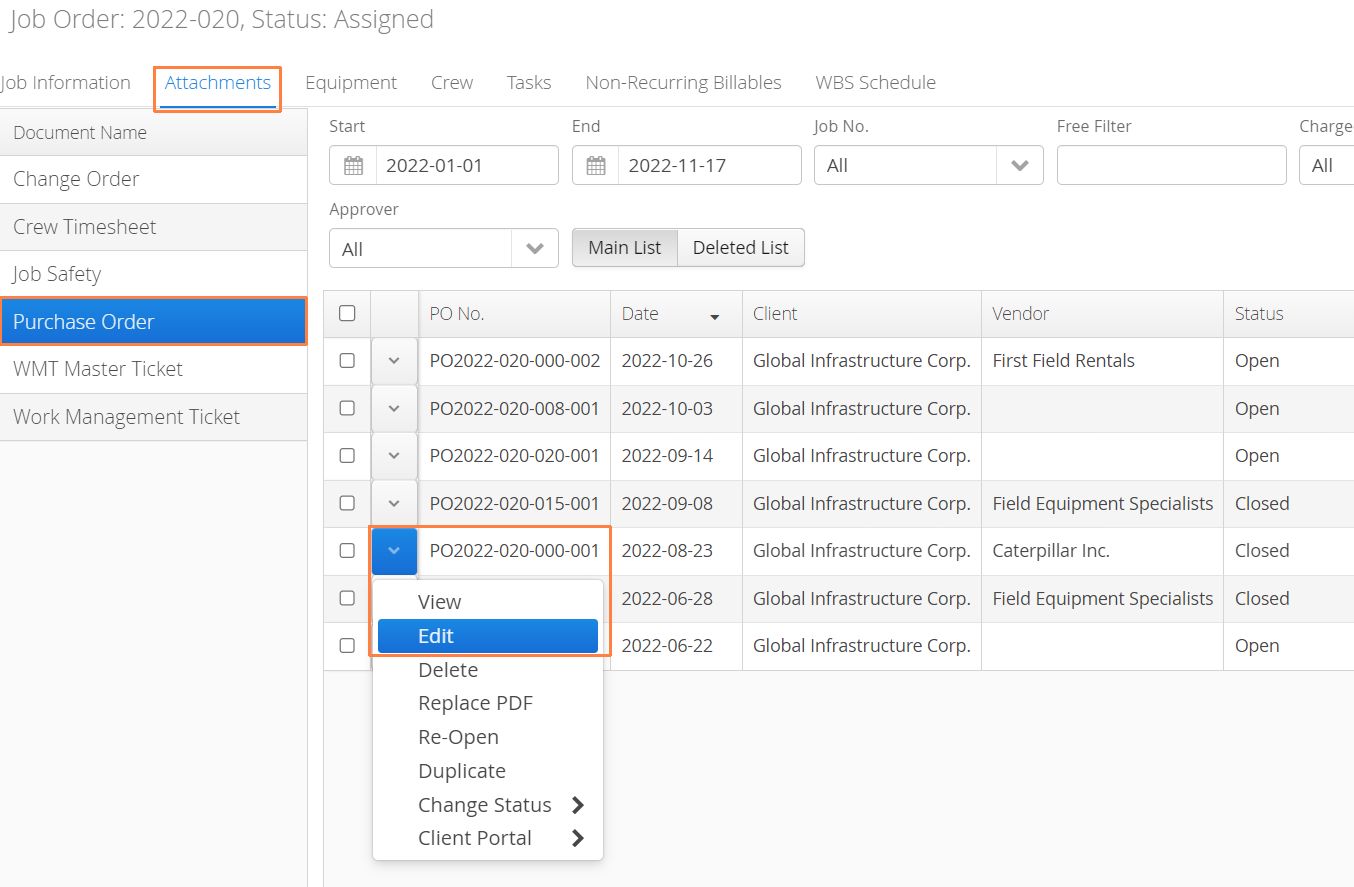
- Edit the Purchase Order form as required and generate a new PDF.