Aimsio Tasks are primarily centered around dispatch and field-related duties, but can also be created for any purpose. Users or Roles that have been assigned a task will receive a SMS notification, making Tasks a useful utility for team communication.
Tasks can be created on the web and assigned to users of our mobile app. Mobile app users can accept and complete tasks, which will update the Task’s status on the web.
Currently, only iOS supports the creation of Tasks on mobile. For completing tasks in the field, please review our mobile documentation:
How to Create a Task
To start using Tasks, navigate to the Tasks page using the Aimsio sidebar. Click on the New Task button on the top right.
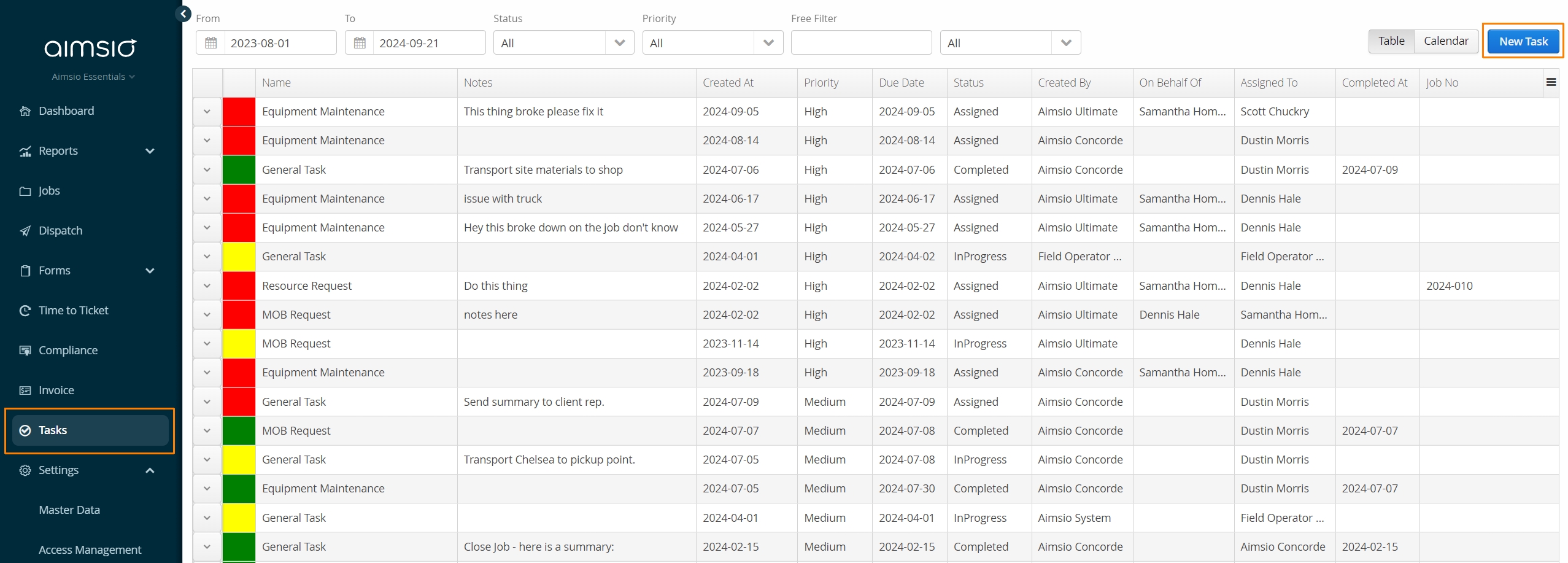
A series of filters along the top allow you to view tasks of a particular status, priority, or assignee.
-
Task Colors are a reference to the current Task Status.
-
Red indicates that an assigned task has not been Accepted.
-
Yellow indicates a task is In Progress.
-
Green indicates the task has been marked as Complete.
-
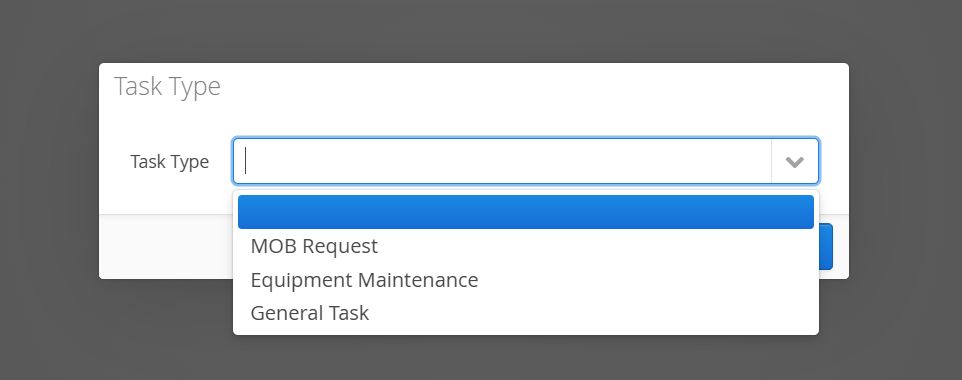
Task Types
The following Tasks can be created in Aimsio:
-
Mobilization (MOB) Request
-
Equipment Maintenance
-
General Task
Task Assignments
Each task will have a default set of fields to complete, including when the task is due, who it’s assigned to and which job it relates to.
-
A SMS notification will be sent to the user who is responsible for the Task when a Task is assigned. When a Task Watcher is assigned, they will receive a notification when the status of has been marked as Complete. For more information see: What Notifications Can Aimsio Send?
-
A Priority of Low, Medium and High must be attributed to any task.
Tasks can be assigned to either a User or a Role. If it’s assigned to a Role, then any users who have been associated with that role can accept and complete the Task. Once a user has accepted the task, they will be assigned to the Task and no other users may complete it.
Mobilization Requests
When an Equipment resource needs to be transferred from one Job site to another, or to another location within the same Job, a ‘mobilization request’ task can be created.
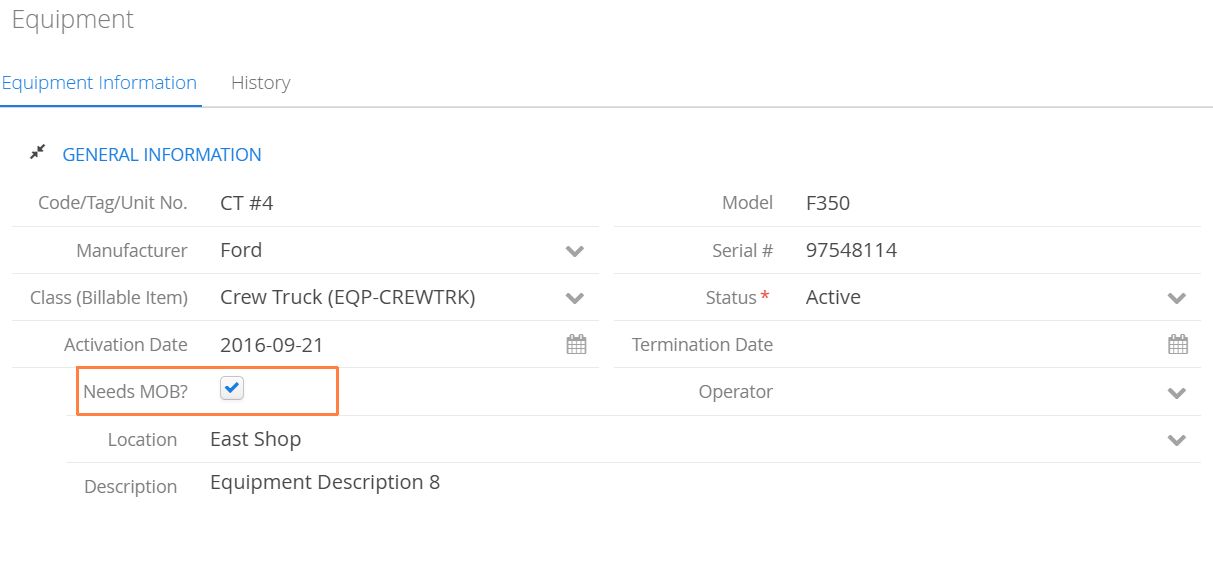
- A mobilization request can only be created for an equipment resource that has been specified in your Master Data settings as requiring mobilization (Needs MOB?).
MOB Requests provide the ability to indicate which Job and location the equipment resource will be picked up, and which job and location the resource will be dropped off.
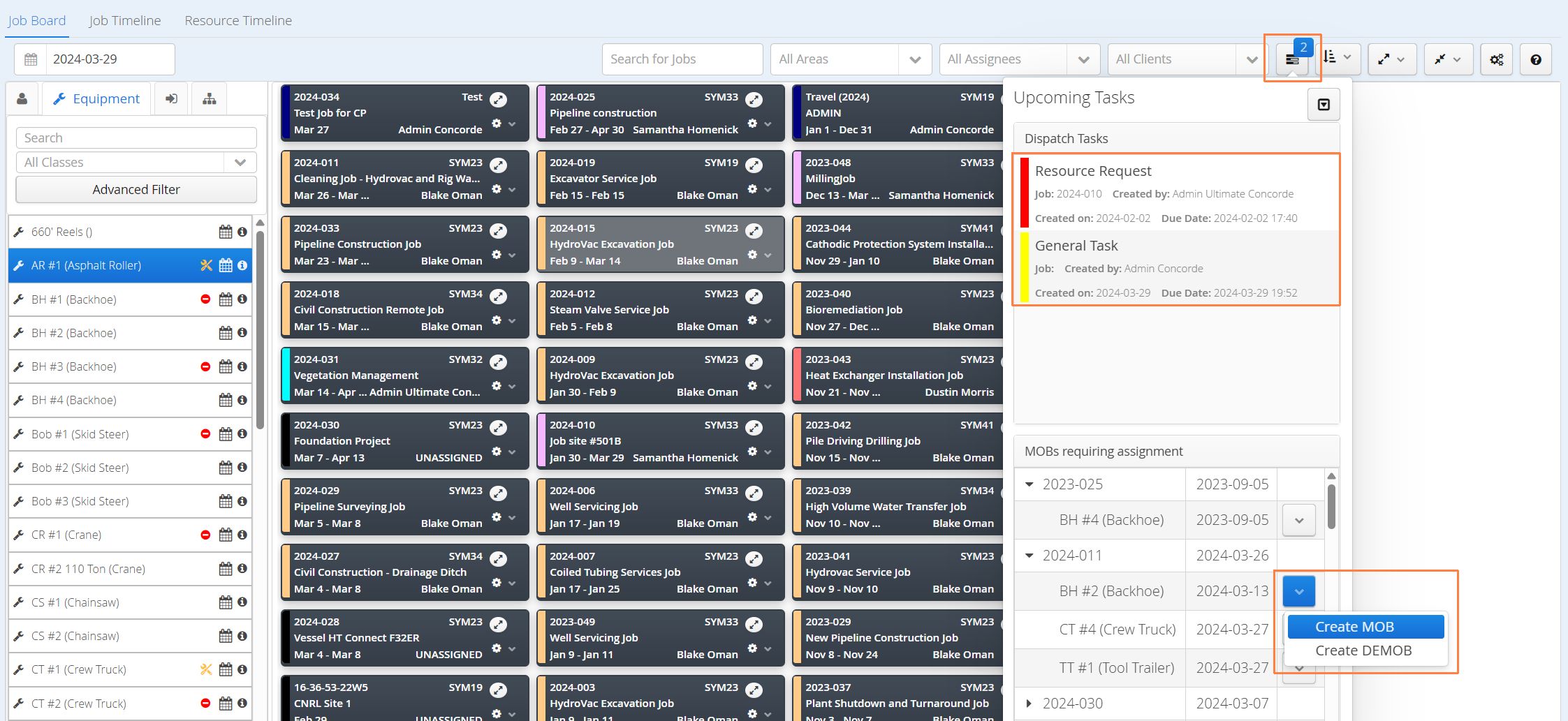
A MOB Request can also be created from the Dispatch Job Board.
General Task
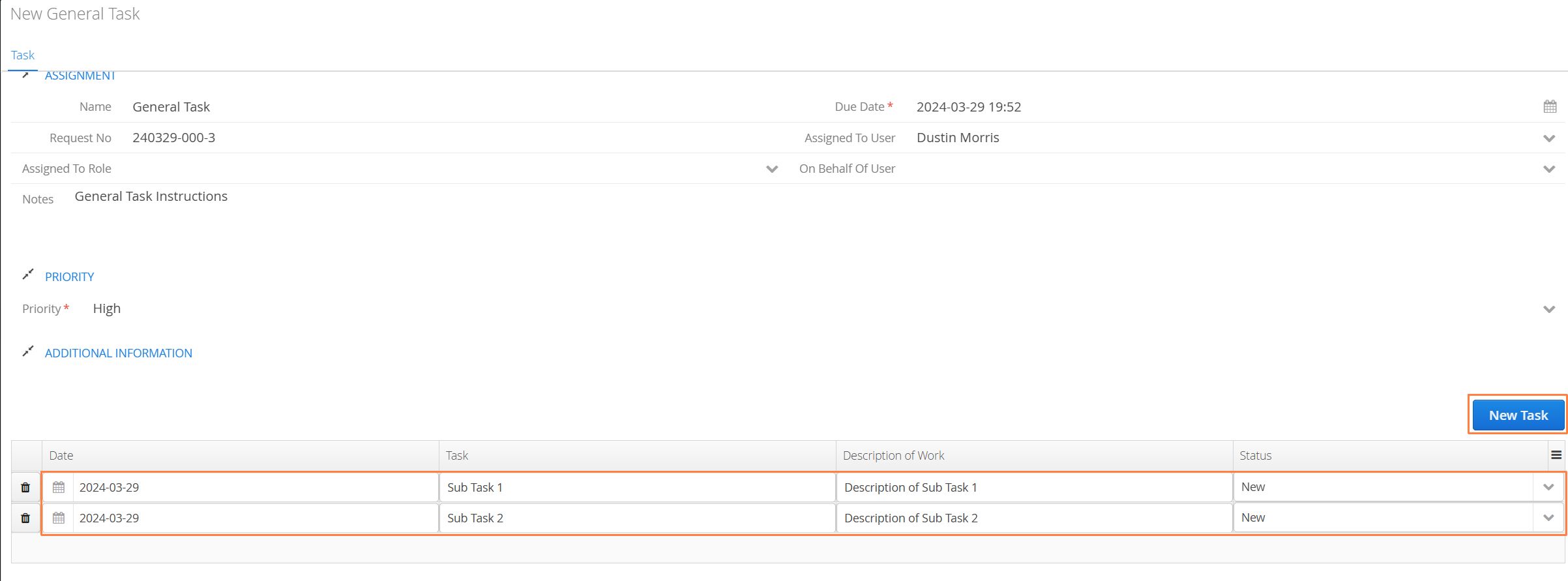
General Tasks are an open task type that allows them to be assigned to any user or role, for any purpose. General Tasks support including a list of sub tasks, if the Task creator wants to breakdown the Task into multiple steps.
- To add one or more sub tasks, click on the New Task button on the right while creating a new General Task. Each sub task can have it’s own Date, Task title, Description and Status.
Equipment Maintenance
Equipment Maintenance tasks allow assignees to be notified that an Equipment item requires repairs. Users assigned to this task can mark the task as complete to signify whether the resource has been repaired or collected and moved off the job-site.
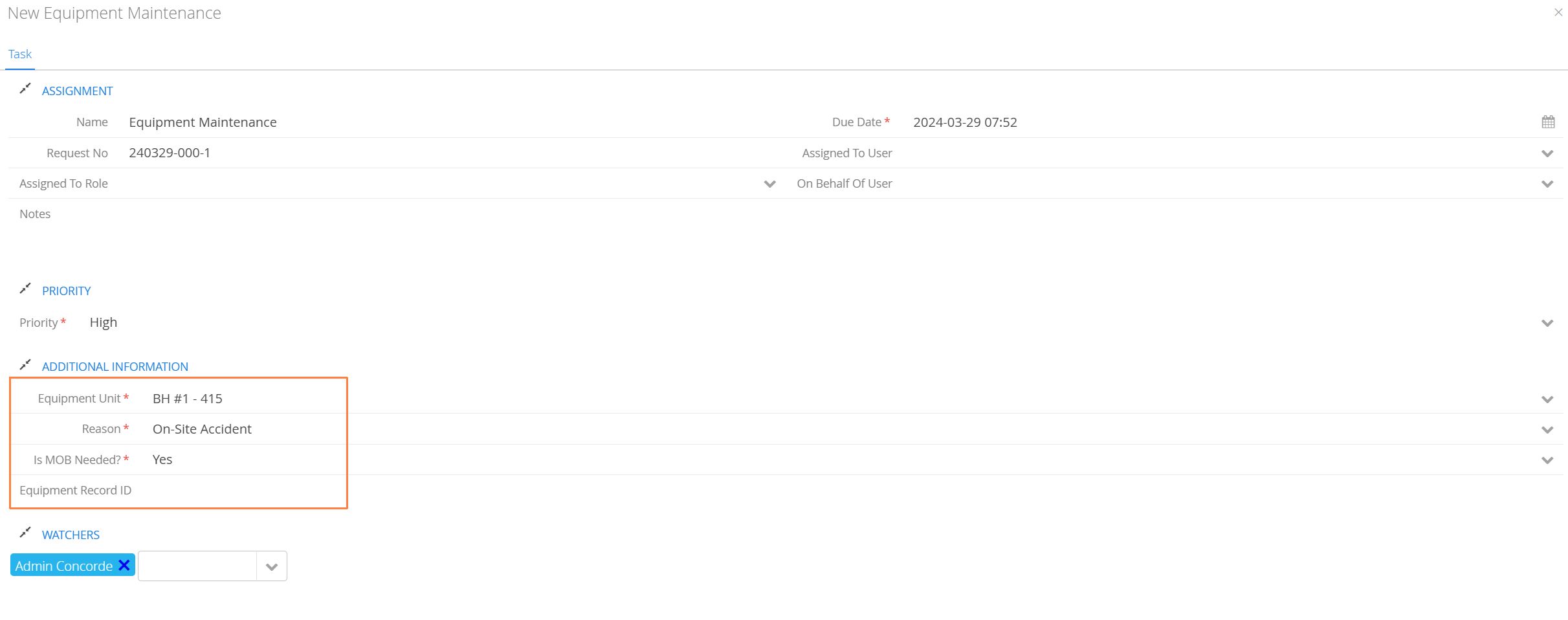
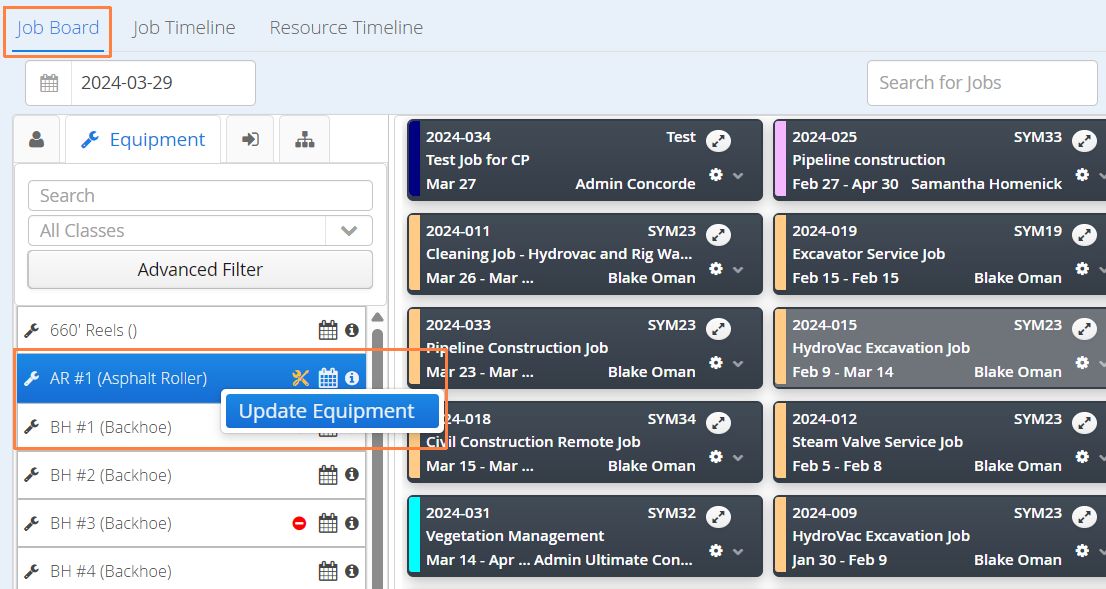
Currently, Equipment Maintenance tasks do not directly update the status of a particular resource. In other words, if an Equipment item is listed as requiring maintenance, via a Task, it it will still be the responsibility of a user who has access to Aimsio’s Dispatch Job Board or the Master Data > Equipment list to locate the Equipment and update the status of the resource.
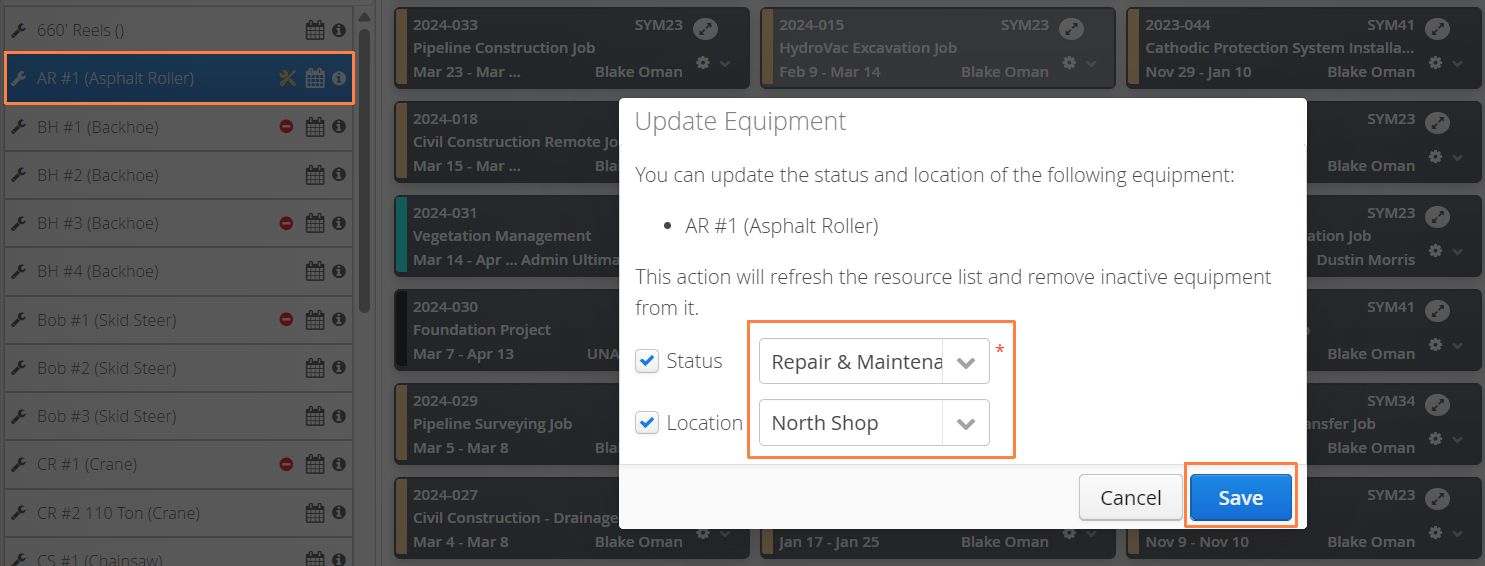
- This can be done by navigating to the Job Board, locating the equipment and using the right-click action to Update Equipment.
- The Status and Location (optional) of the Equipment can be updated from this window.
- Status of the Equipment can also be updated via an Equipment profile, which authorized users can access by clicking on the wrench icon to the left of the Equipment while on the Job Board, or the Master Data > Equipment list.
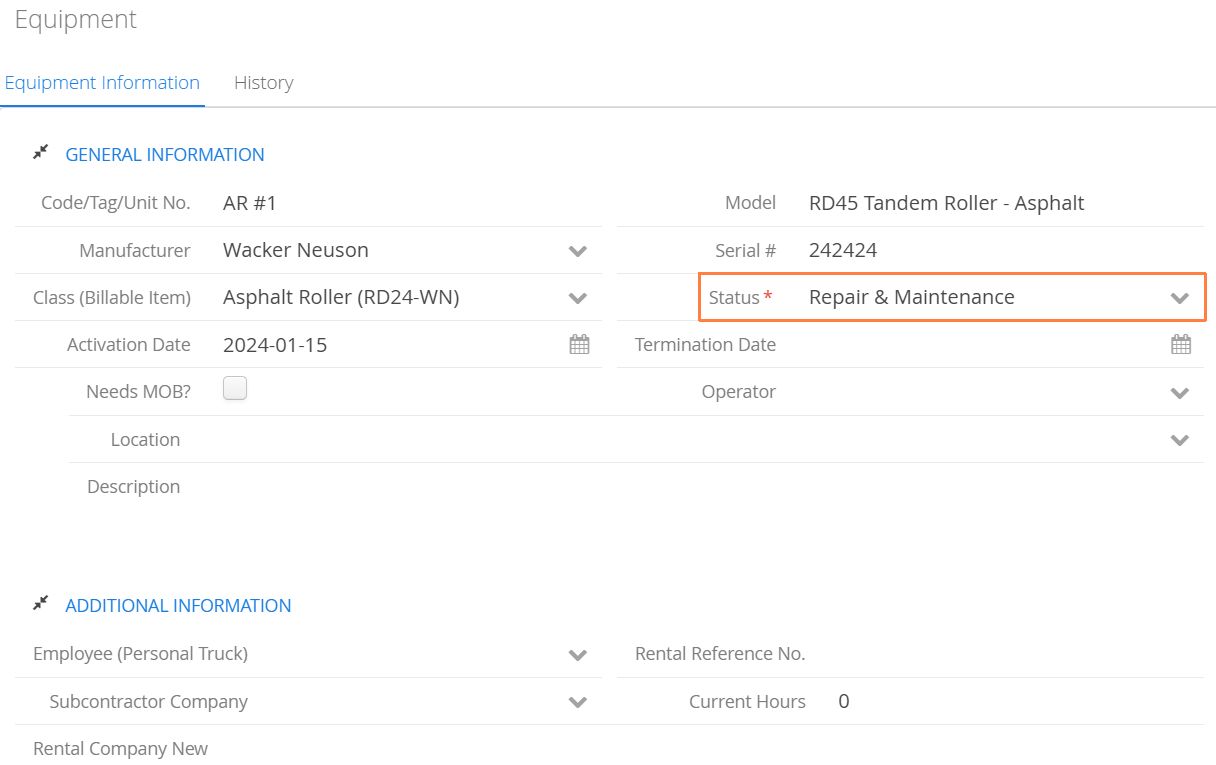
How to Add Task Watchers
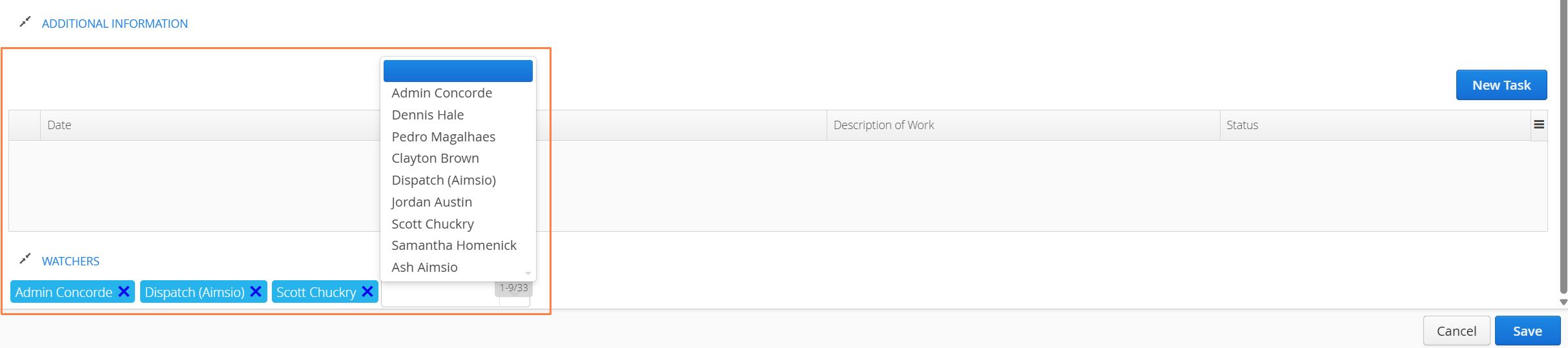
Task Watchers will receive an SMS notification when a Task has been marked as Complete. To add Task Watchers, scroll down to the Watchers section at the footer of any task and use the drop-down menu to select either a User or Role.
How to Manage Tasks in Dispatch
From Aimsio’s Dispatch Job Board, it’s possible to view a running list of tasks that you’ve been assigned to by clicking on the Tasks icon located on the top left. The number of pending tasks will be indicated by an icon badge. The Tasks menu will expand to surface any Jobs that require MOB assignment too.
- Click on any Task to view its details and perform a Task action (Accept or Complete). Expand any Job by clicking on the arrow to the left of a Job to display a list of Equipment requiring a MOB or DEMOB task.