Maintaining a list of Employees enables accounts to schedule staff on jobs, track when the work was done on Timesheets or Tickets, record hours for Timecards and report on labor costs.
While it’s not a requirement for an employee to have a user account, anyone needing to access Aimsio, including employees who intend to track their own time, will require one.
How to Add or Edit Employees
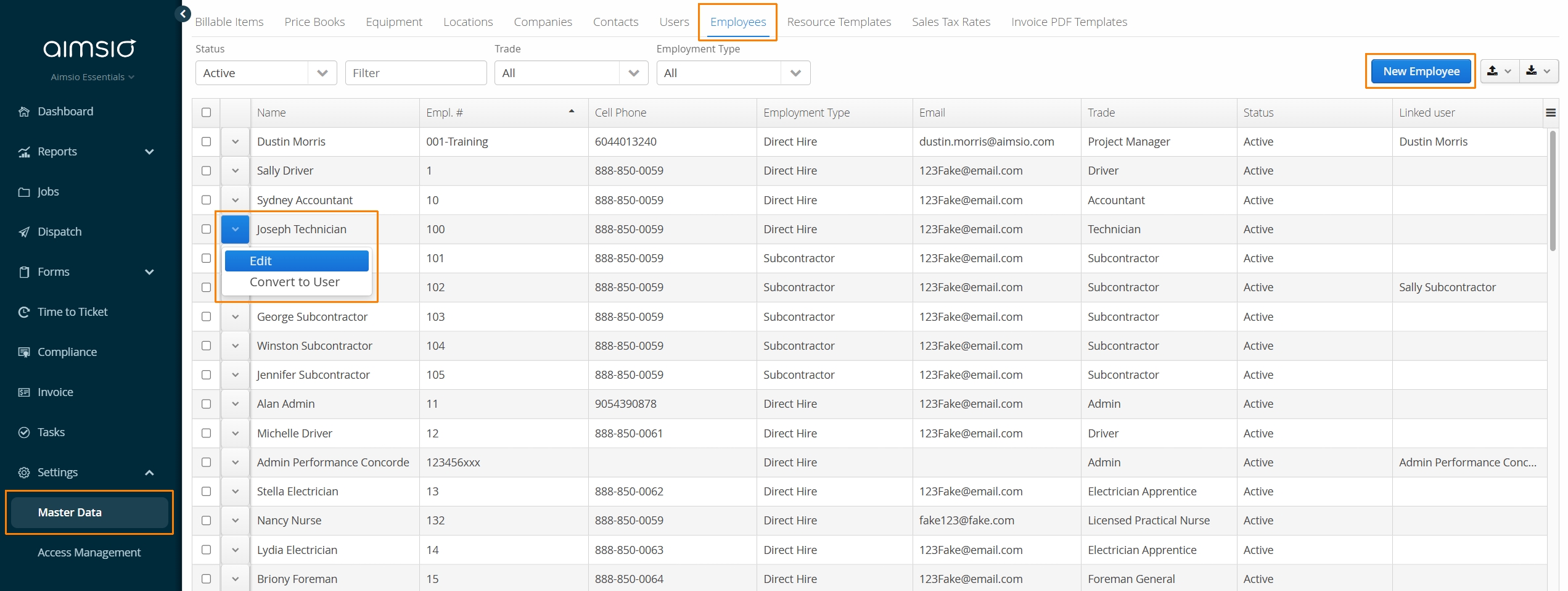
Navigate to the Master Data → Employees tab.
-
Use the New Employee button on the right to add a new Employee.
-
Edit an employee profile, or Convert an employee to a User using the Action button on the left.
Employee Required Fields
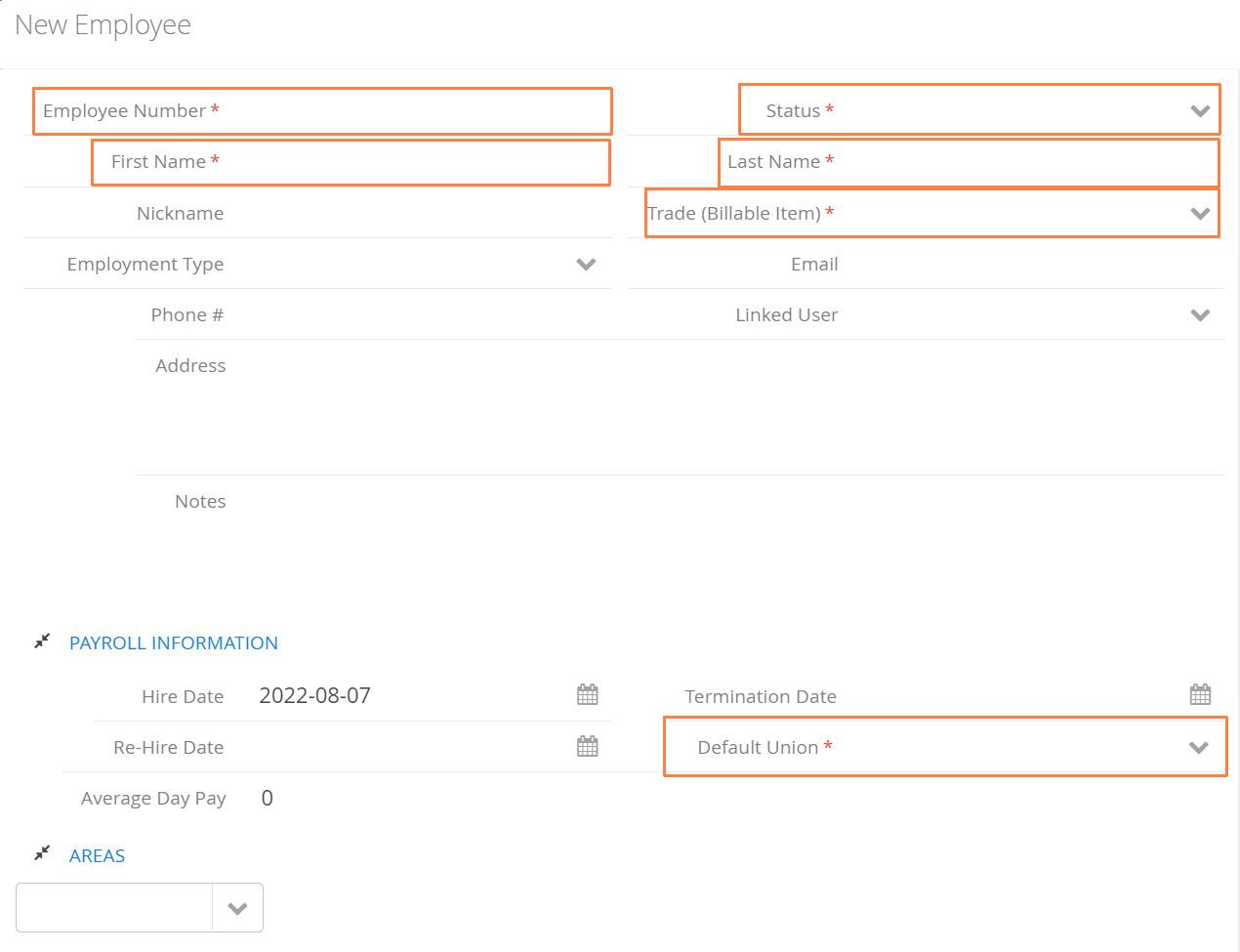
All Employees must have an Employee Number, First Name, Last Name, Status, a default Trade (Billable Item) and a Default Union.
-
Trades control the billing rate recorded on Tickets. If an employee has multiple Trades, choose the most common. Trades can be adjusted on a Ticket or Timesheet, or have their default trade adjusted when using our dispatch tool. The Trade must exist in a Job’s Price Book.
-
Unions control how the employees hours and holiday pay are calculated in Payroll.
-
Employees must have an Active status to be available in Aimsio’s Dispatch module.
Optional Fields
-
Nickname: Employee common name.
-
Phone #: Employee phone number.
Employee contact information (Email & Phone #) can be used to send text messages and emails notifications. For more information see: Aimsio Notifications.
-
Address: Employee’s mailing address.
-
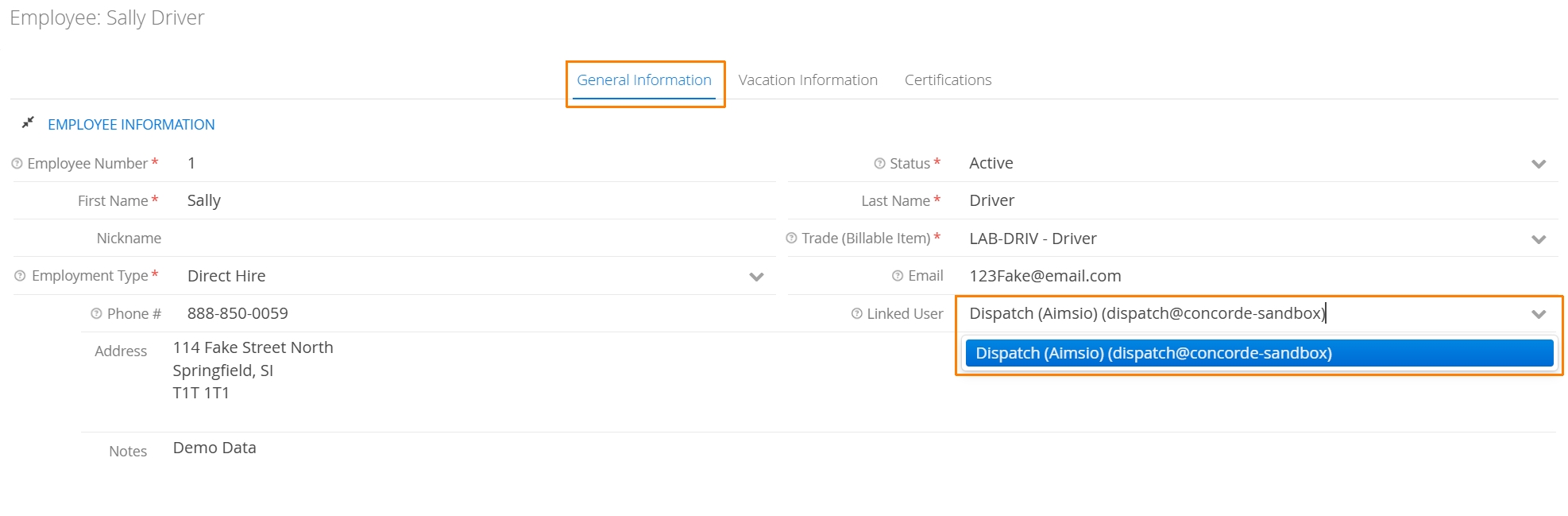
Linked User: An employee can be associated to the User account they use to log into Aimsio. Linking employees to their user account can also enable Aimsio to ensure that employees only view jobs to which they are assigned or dispatched to.
- Instructions are covered later this this article.
-
Notes: Any miscellaneous information can be stored in the notes field of an employee profile.
How to Delete Employees (Employee Status)
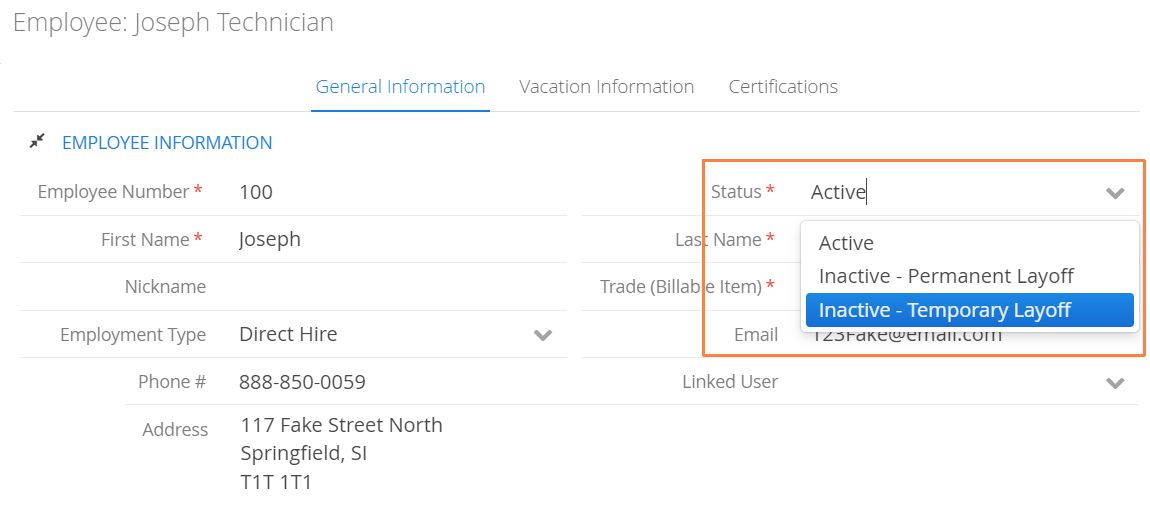
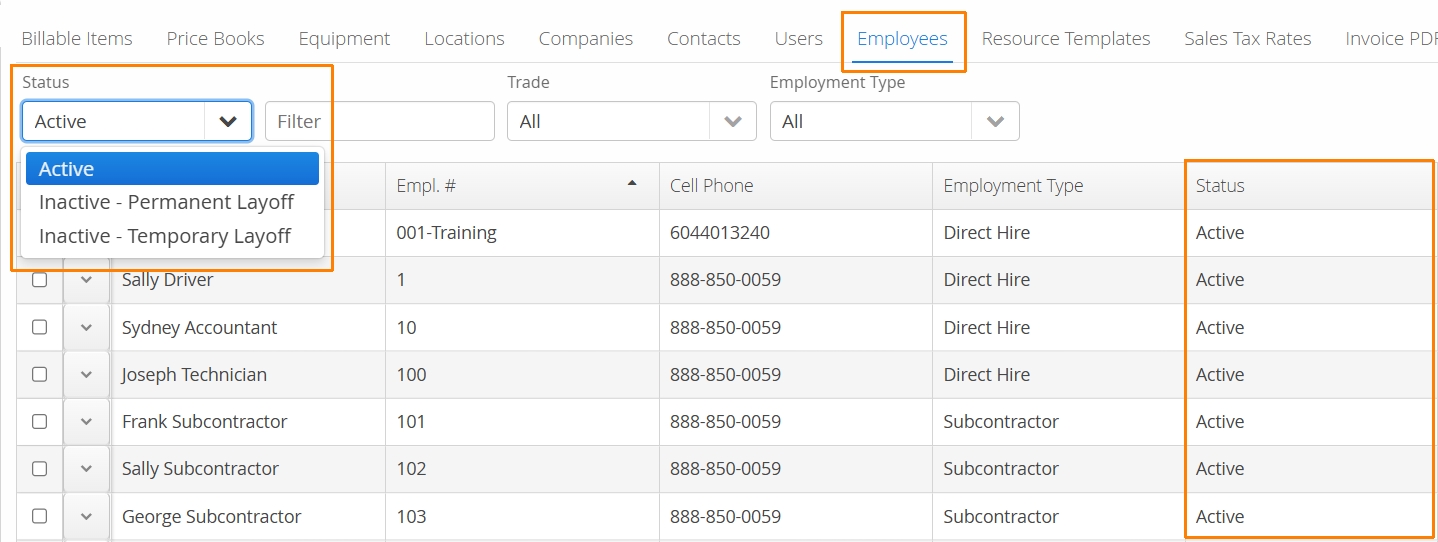
Aimsio does not currently support the deletion of employees. Instead, authorized users can change an Employee Status to one of the following:
-
Inactive - Permanent Layoff
-
Inactive - Temporary Layoff
Inactive Employee statuses will prevent Employees from showing up on any Ticket or Timesheet lists, they’ll also be excluded from Dispatch. Employee status can be changed if they work seasonally. Information relating to an Inactive Employee, such as previously recorded hours, will still be accessible in the system.
If an Employee is made Inactive, and has a Linked User account, the user account will need to be deactivated separately. Click here to learn about deactivating Users.
If accounts require more Employee statuses they can reach out to our Support team.
Filtering by Employee Status
To filter a list of Employees by status, use the Status dropdown menu on the main Employees page.
How to Convert an Existing Employee to a User
If an Employee account has not been linked to a user yet, you’ll have the option to quickly create an account using their Employee info.
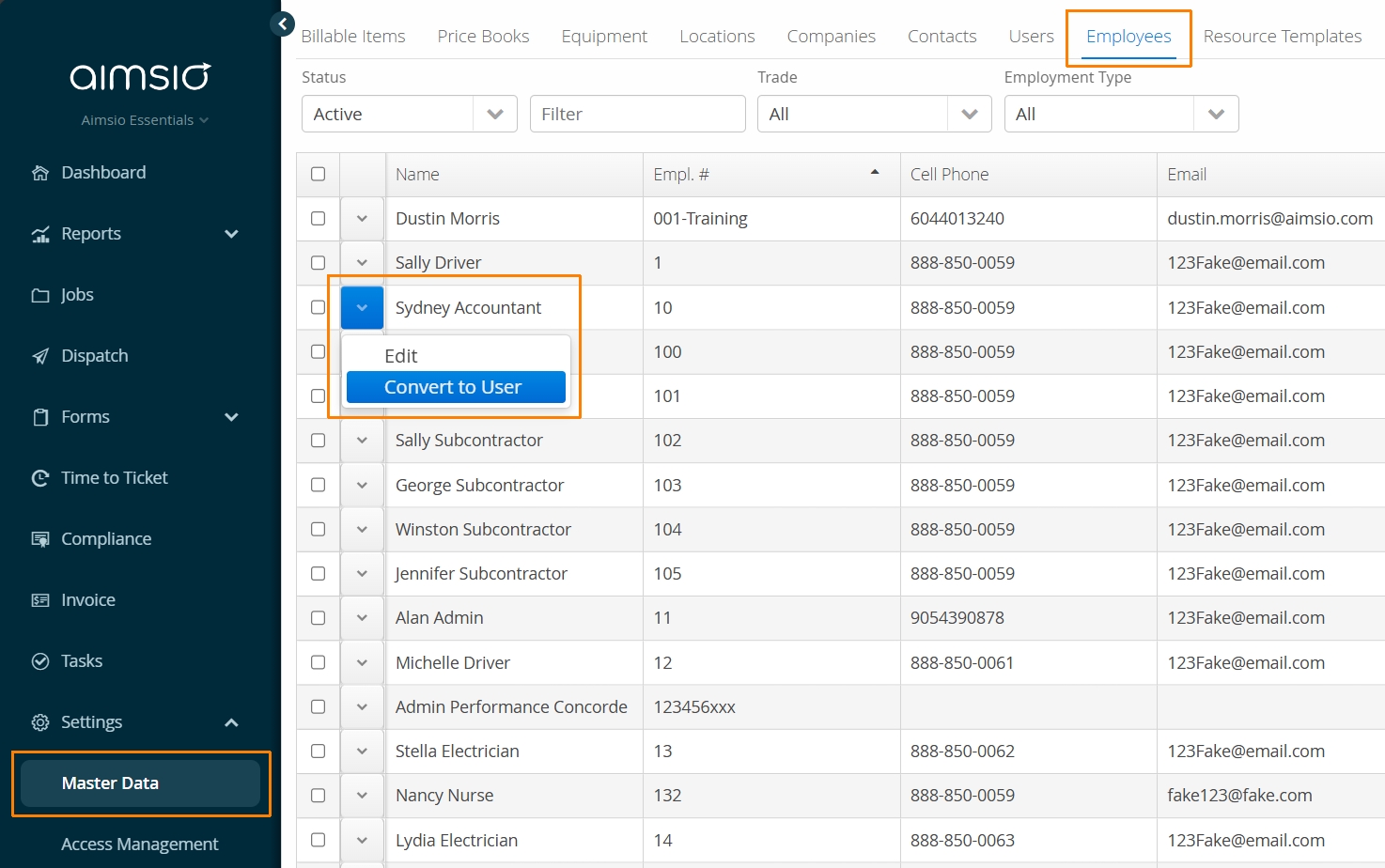
- Find the Employee you’d like to convert. Use the action button on the left and select Convert to User.
-
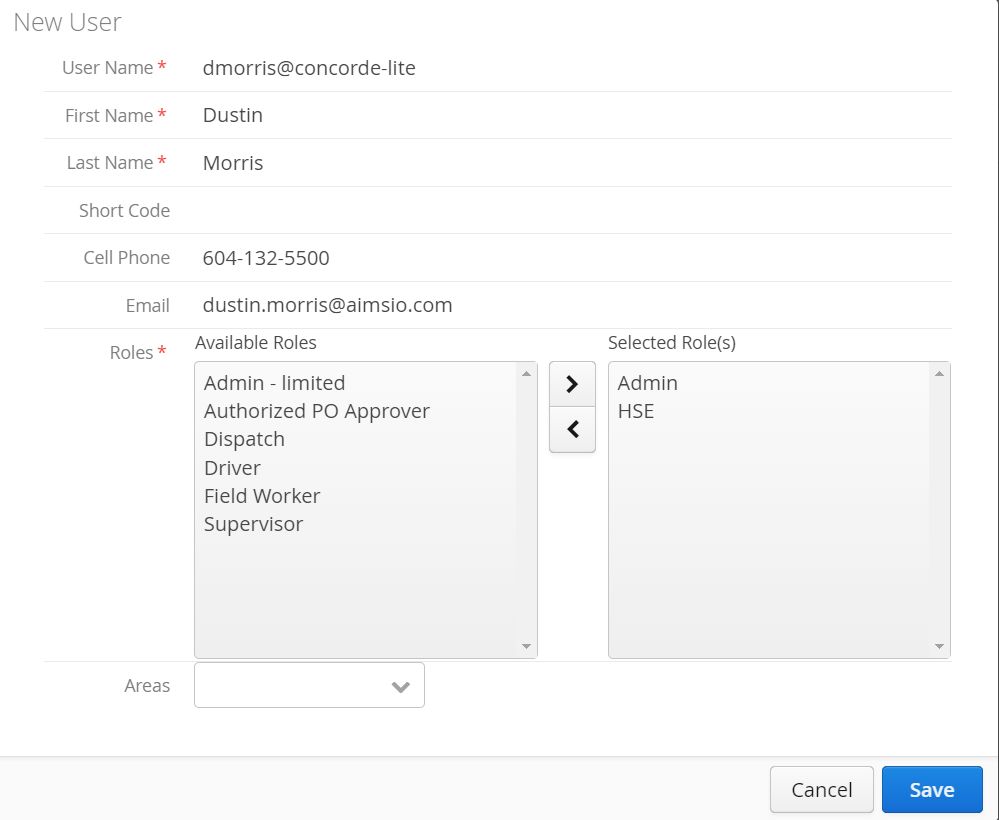
Fill out all relevant fields, assign at least one Role and click Save.
-
You are required to create a temporary password when adding a new user.
New users will be able to change their own password. See: How to Reset Your Password
How to Link an Employee to an Pre-Existing User Account
Navigate to the Employees tab, find the Employee you’d like to convert. Use the action button on the left and select Edit.
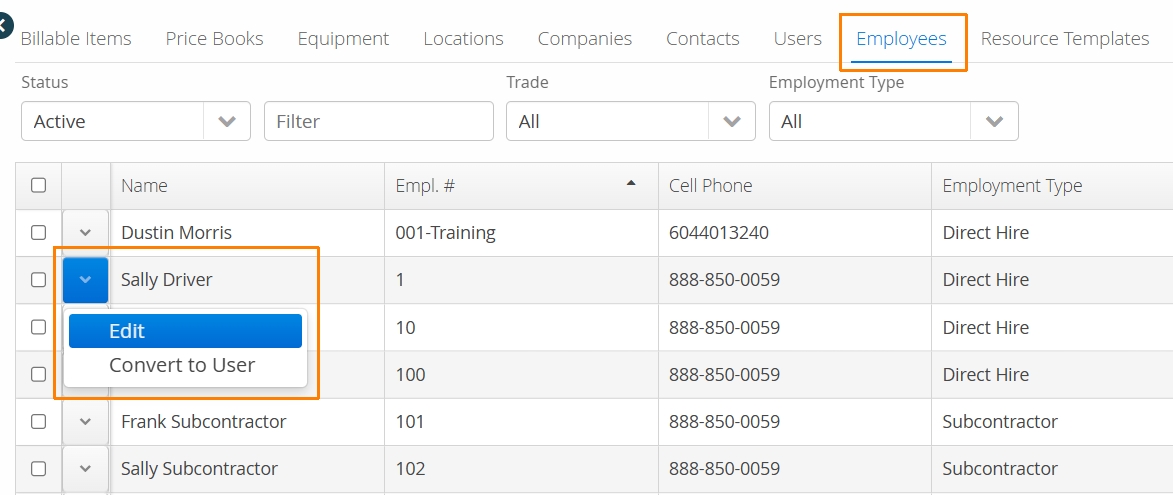
- User the Linked User drop-down menu and select the existing user account you’d like to link. Once finished, select Save and Close.
How to Add Employee Areas
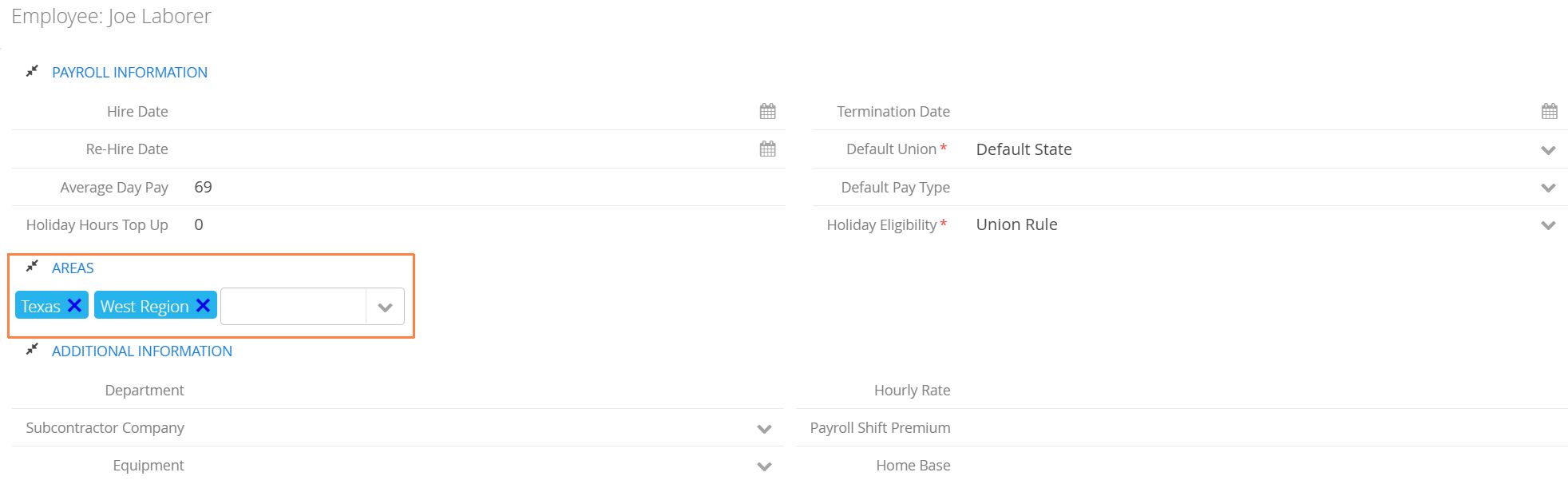
Employees can be associated to one or more ‘Areas’. Under the Areas table on the Employee profile, use the dropdown menu to select the available areas.
- Areas are managed via the Master Data > Locations tab.
There are typically two main benefits for including an Employee Area tag:
-
Employees can be filtered (along with Jobs) on the Dispatch Job Board to their relevant area.
-
Employees can be targeted by our Compliance module for specialized certifications they might need relating to their area.
How to Add Employee Vacation Information
Vacation details can be stored and used by Aimsio’s Dispatch module to automatically set employees as busy or unavailable.
-
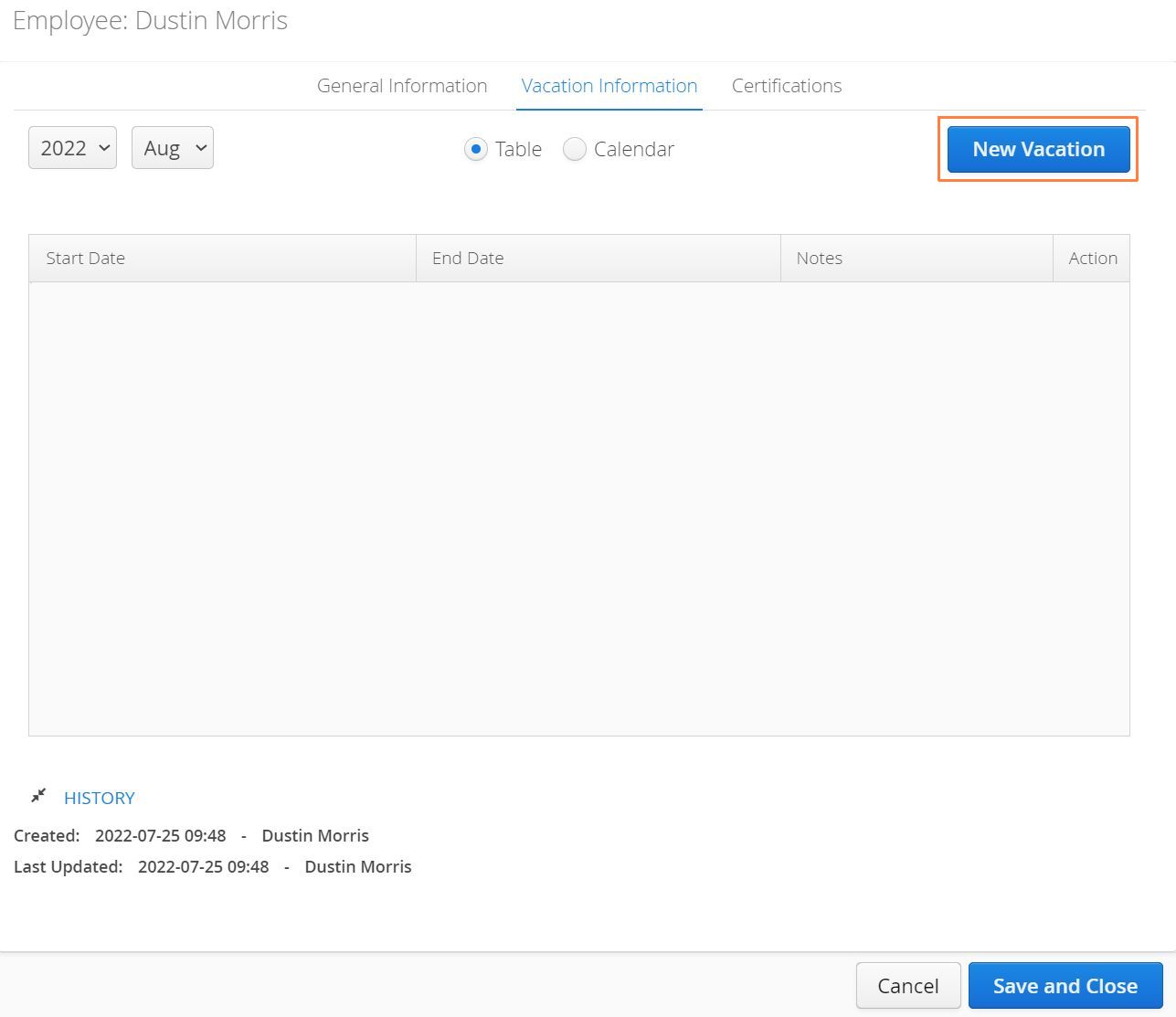
First, Edit and existing Employee and navigate to the Vacation Information tab.
-
Use the New Vacation button to input vacation records.
Employee Certifications
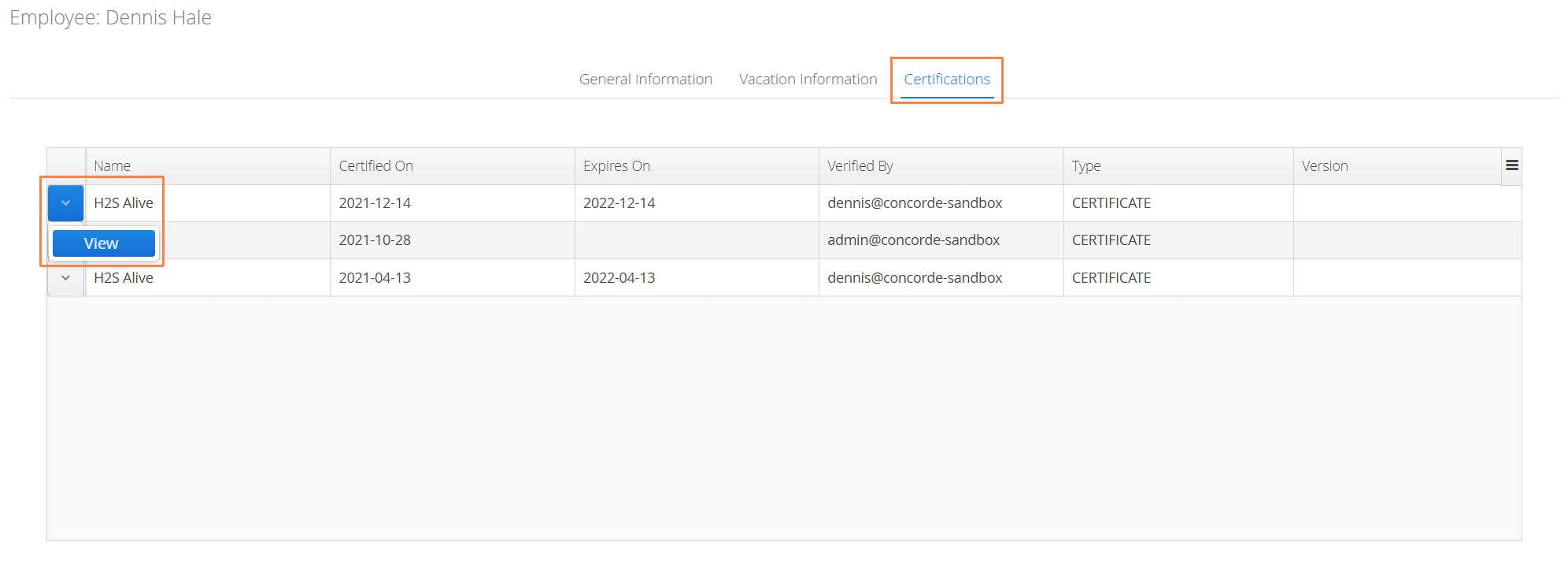
Aimsio will store all approved certifications (via Aimsio’s Compliance Module) on an Employees file under the Certifications tab.
- Use the View action beside a certificate to see the proof of certification and when the certification expires.