Crew Timesheets are typically used by supervisors to record hours on behalf of their crew (Employees). Crew Timesheets can only link to one Job at a time and will not display billing rates.
This article covers working with Crew Timesheets via Aimsio’s web portal. For information on creating Crew Timesheets on mobile, please see:
How to Create a Crew Timesheet
Aimsio supports two ways to create a Crew Timesheet on the web:
While viewing or editing a Job.
From the Crew Timesheets form page.
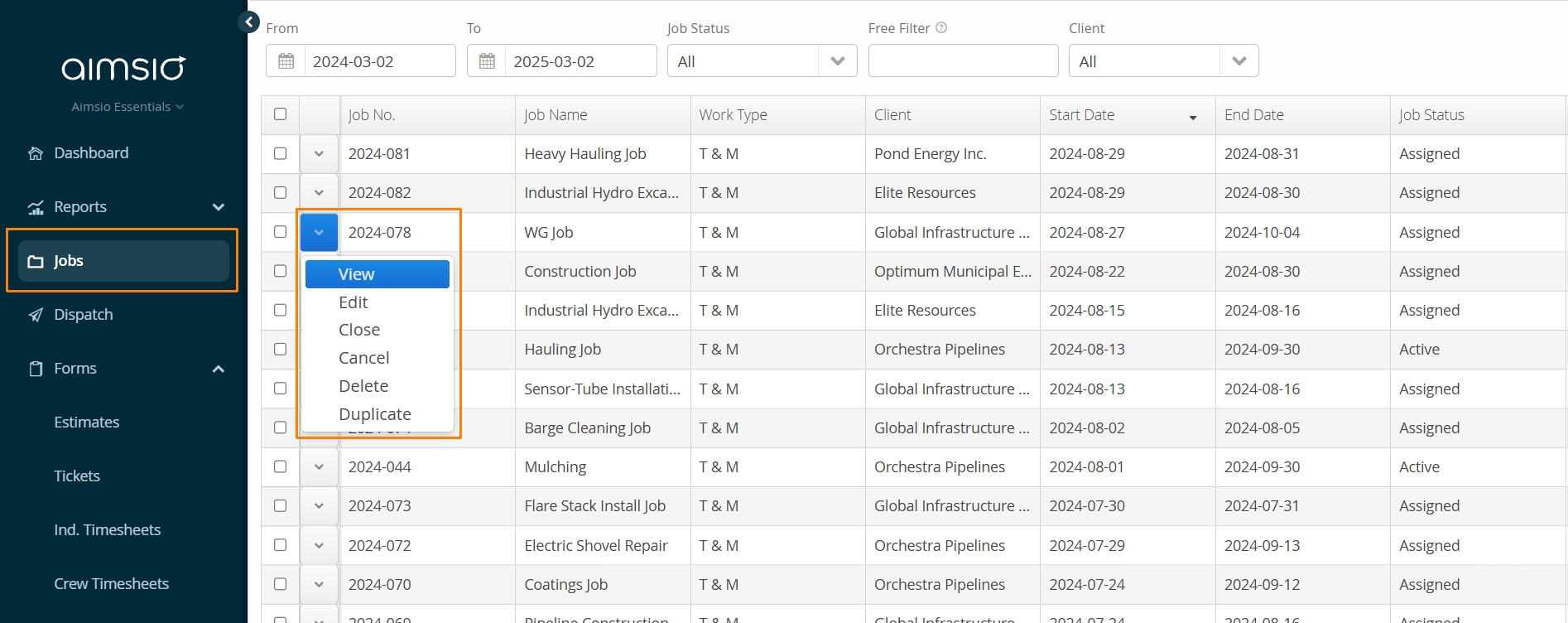
From the Jobs page, locate the Job you’d like to create a Crew Timesheet for.
- Use the action button to the left of the Job and select View or Edit.
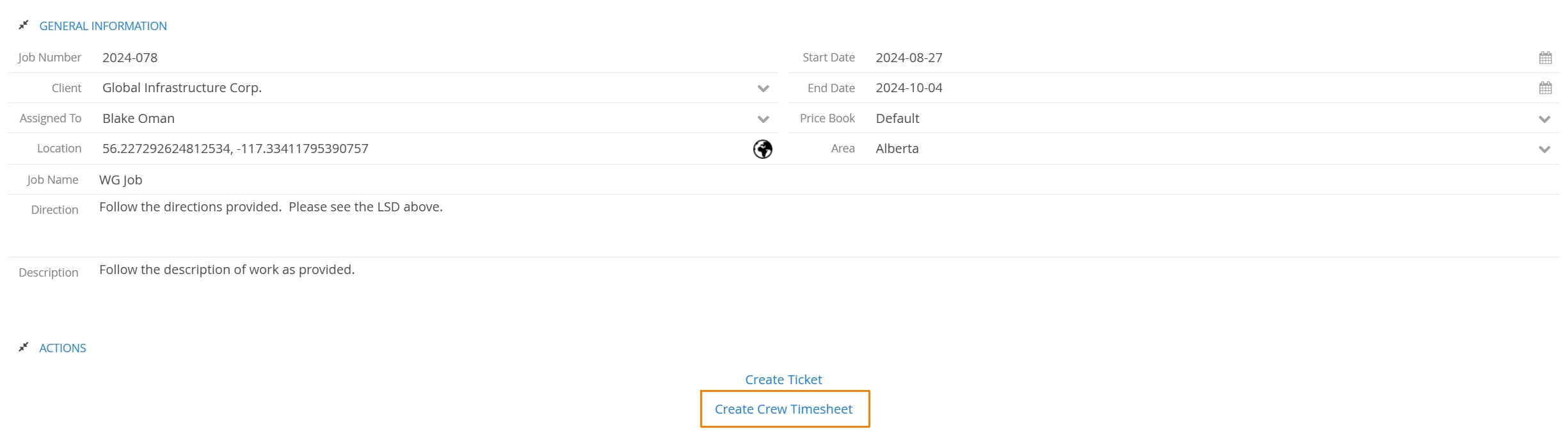
- After the Job form is open, select Create Crew Timesheet under the Actions table.
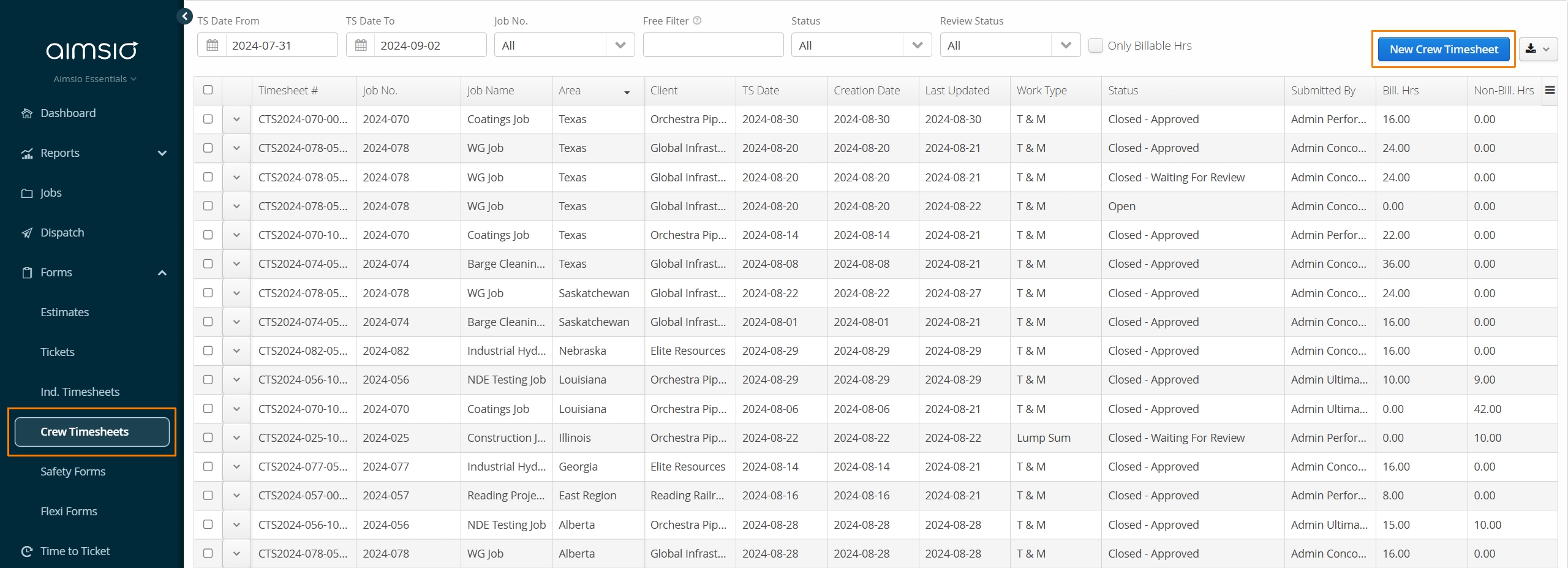
Alternatively, users can navigate to the Crew Timesheets page using Aimsio’s left sidebar.
- Select New Crew Timesheet button located on the top right.
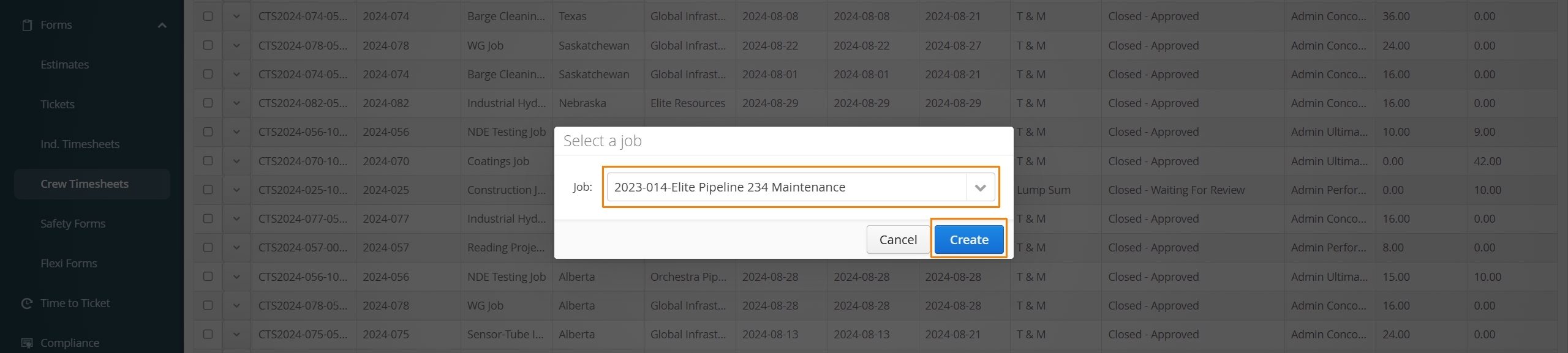
- Select the Job you’d like to create a Crew Timesheet for and click Create.
How to Complete a Crew Timesheet
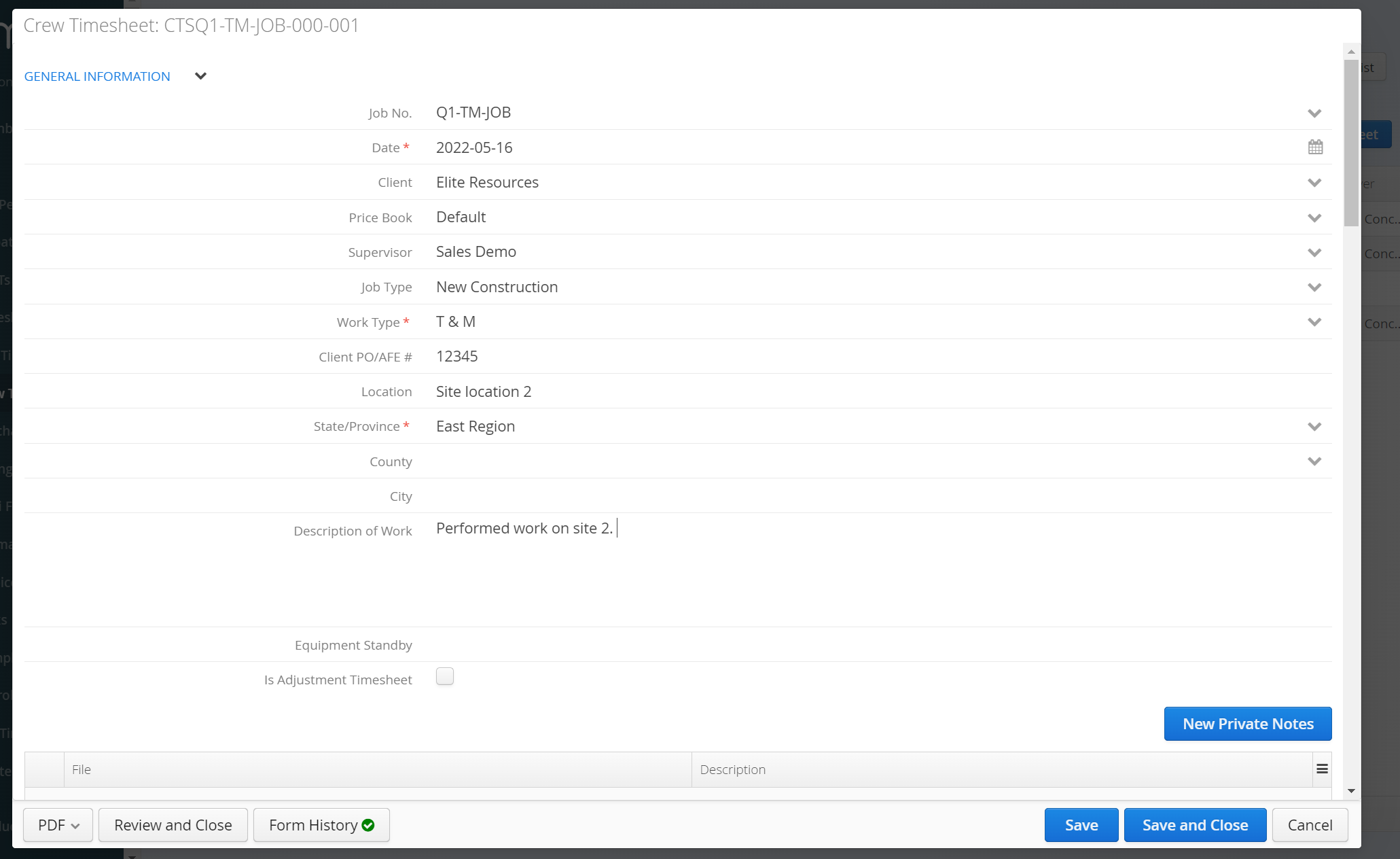
A Crew Timesheet’s ‘General Information’ section will pre-populate with some of the information from the Job. Users will still need to fill out the ‘Work Description**’** and any other required field.
Add new labor hours by selecting the New Labor button. You’ll notice a line item populate in the labor table. Fill in the labor hours and continue to select New Labor anytime you want to add an additional line item.
A red accent around the box means the field is mandatory.
To delete a line item, select the trash can icon to the left of the Employee name.
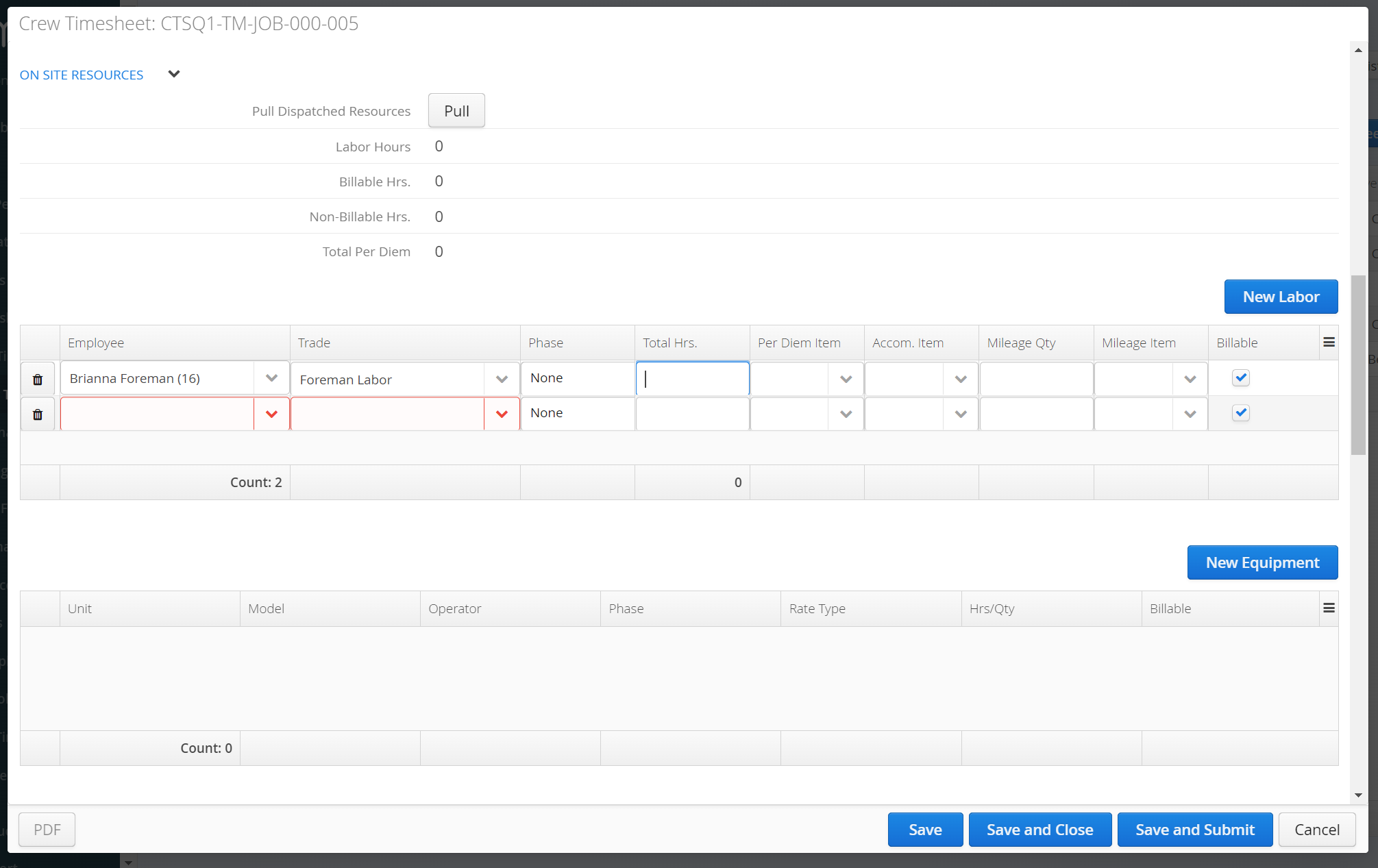
More information on the Labor table columns:
-
Employee: Pulls the employee name from Employees under Master Data.
-
Trade: Once an Employee is selected on a Timesheet, the employee’s ‘default’ Trade will pre-populate. If the employee worked as another Trade, manually select it from the list of Trades. The list of Trades is controlled via the Price Book on the Job.
-
Phase: Pulls from the WBS Activities created for the Job_._
-
Total Hours: Foreman will enter their crew’s total labor hours here.
-
Per Diem Item: Pulls from the Price Book selected on the Job.
-
Accom. Item: Pulls from the Price Book selected on the Job.
-
Mileage Qty: Input the Kilometers or miles travelled.
-
Mileage Item: Pulls from the Price Book selected on the Job.
-
Billable: The ‘Billable’ box is checked by default when a new Timesheet line item is created. This checkbox will influence whether hours transferred to a Ticket will be recorded as Billable or Non-Billable.
Add new equipment hours by selecting the New Equipment button. You’ll notice a new line item populates in the equipment table. Fill in the equipment hours and continue to select New Equipment anytime you want to add additional line items.
- The ‘Unit’ list does not filter by Model. It is recommended that users select the Unit first to pre-populate the Model (also known as the Equipment Class).
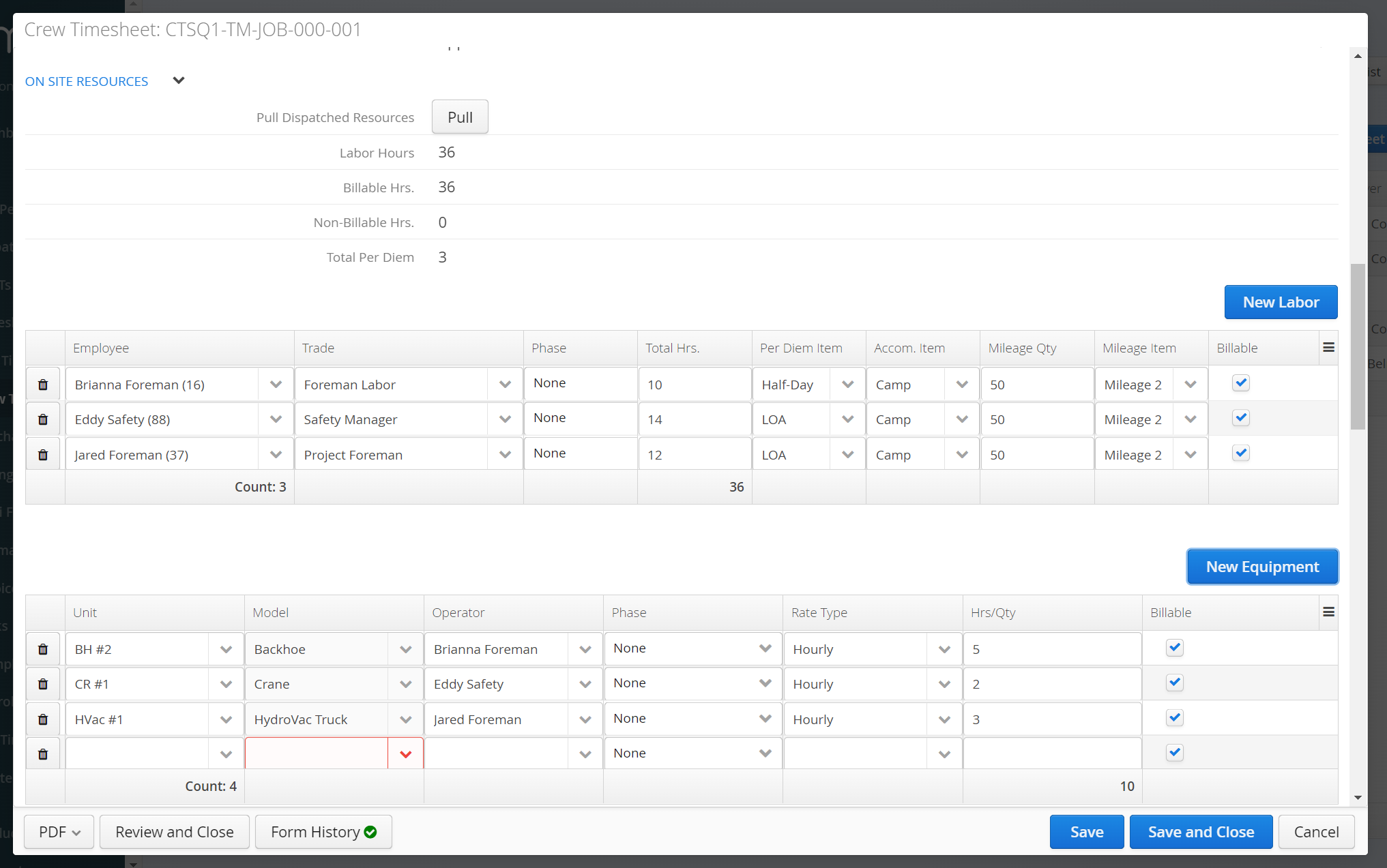
More information on the Equipment table columns:
-
Unit: Displays a list of equipment codes from Equipment under Master Data.
-
Model: Displays a list of equipment classes from the Price Book.
-
Operator: Pulls a list of employees from Employees under Master Data.
-
Phase: Phase: Pulls from the WBS activities created on the Job.
-
Rate Type: Pulls the equipment’s default rate type from the Price Book.
-
Hrs/Qty: Supervisors will enter their crew’s total equipment hours here.
-
Billable: The ‘Billable’ box is checked by default when a new Timesheet line item is created. This checkbox will influence whether hours transferred to a Ticket will be recorded as Billable or Non-Billable.
How to Save or Download a Crew Timesheet
The process of saving and downloading a Crew Timesheet on the web is similar to other forms in Aimsio.
If you haven’t yet, review our Form Fundamentals guide.
How to Review and Approve Timesheets
Supervisors or office admins should read our dedicated guide on reviewing and approving Timesheets.
How to Edit or Re-open a Timesheet
Editing or re-opening a Timesheet can impact hours that have been transferred to Tickets.
For best practices, please review the following: