Updating a Billable Item’s rate will not automatically reflect in the Price Books that contain those items. Follow the steps below to ensure that if users are changing rates, those changes are reflected in the correct Price Books.
If I update a Price Book, will that change the rates of any currently billed items?
The steps bellow will not retroactively update currently billed items on any Ticket or Invoice. Any changes to Price Book rates will take place strictly when billing the same items moving forward.
How to Update Price Book Rates for a Single Item
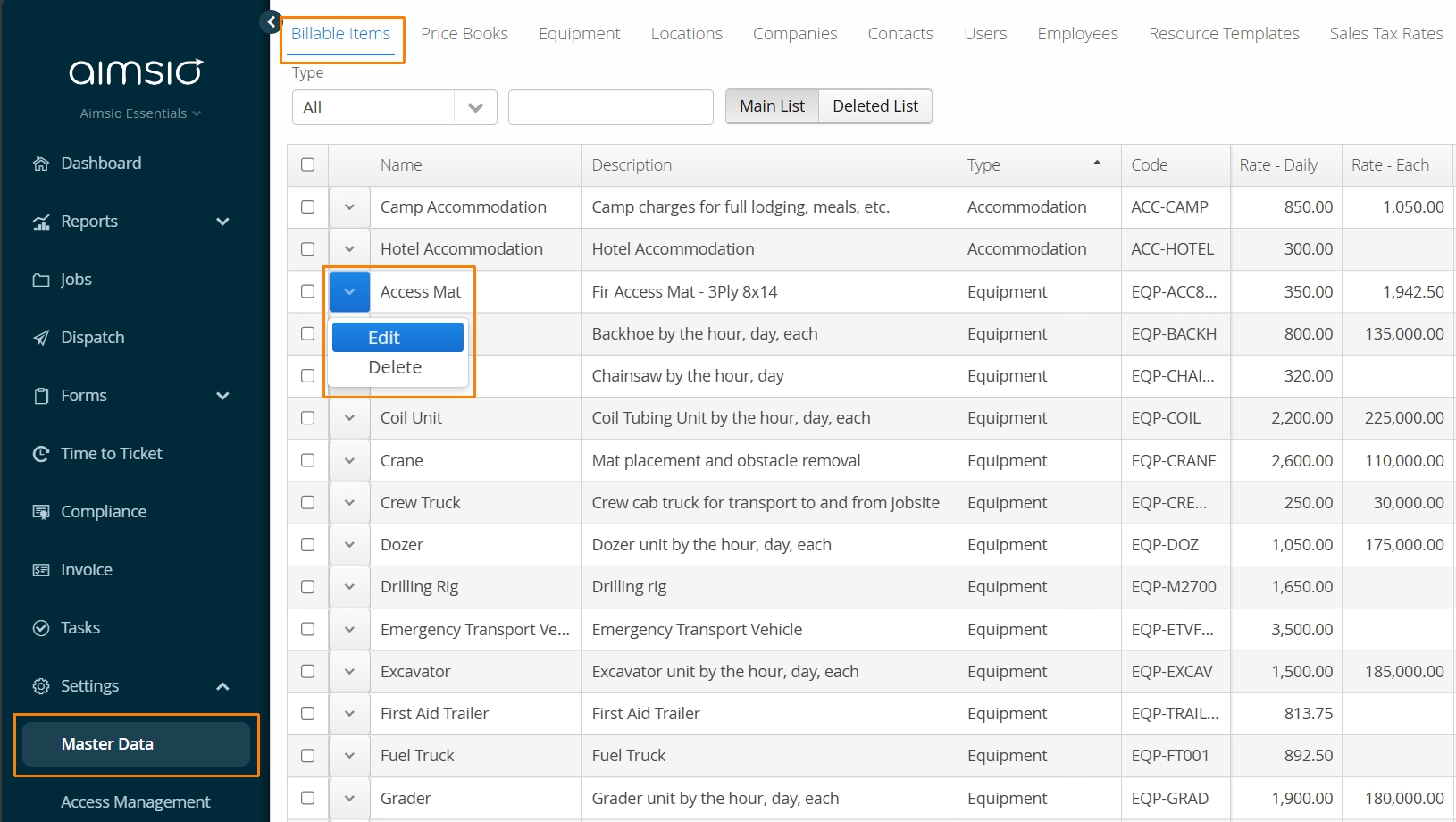
Navigate to your Master Data → Billable Items list. Locate the item you’d like to change. Use the Action button located on left and select Edit.
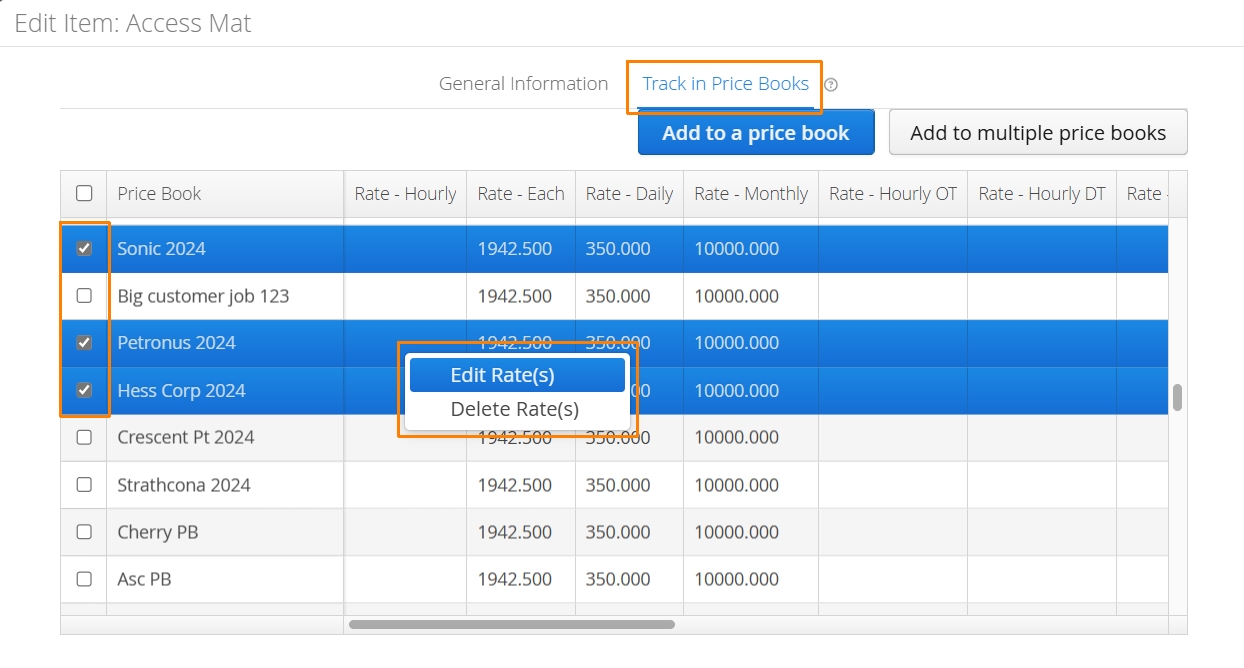
Click on the Track in Price Books tab. Select the checkbox beside each Price Book you would like to update. Once you have your Price Books selected, right click and select Edit Rates(s).
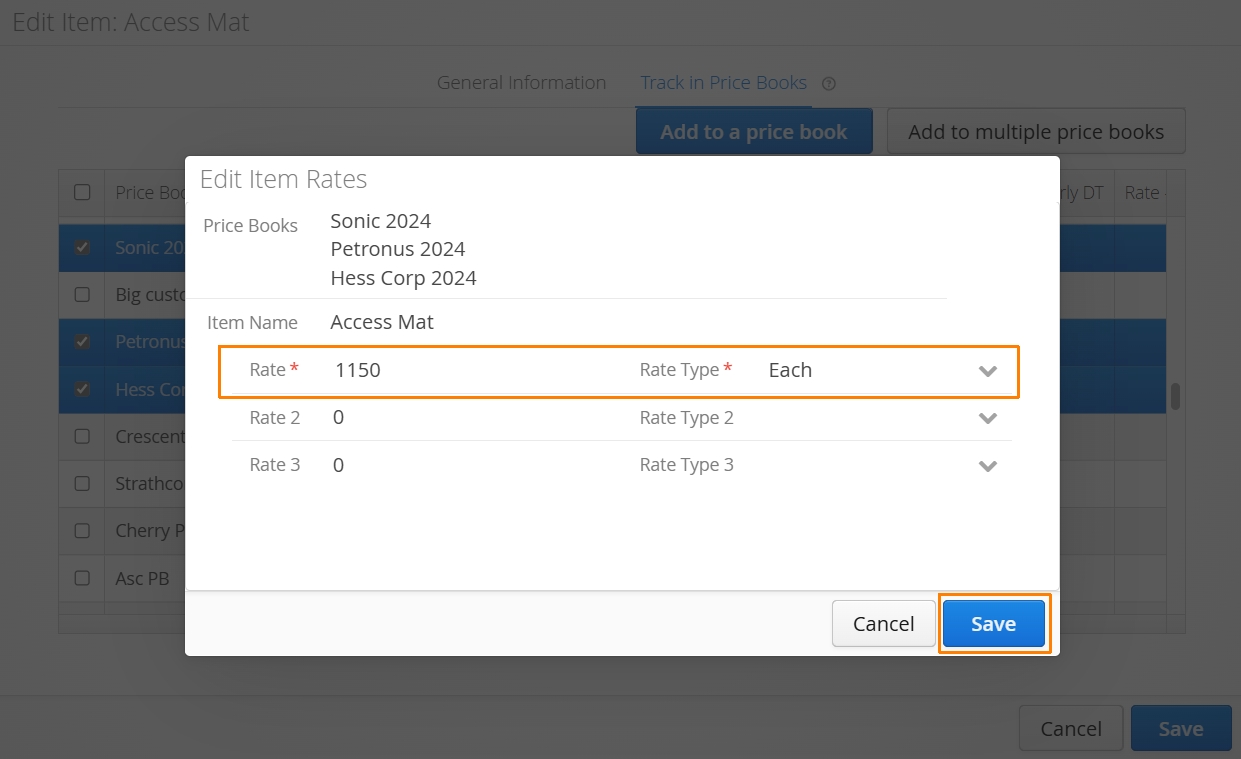
The following window will provide a clean slate of rate values, which you are welcome to update as you see fit. Once you are finished, click Save.
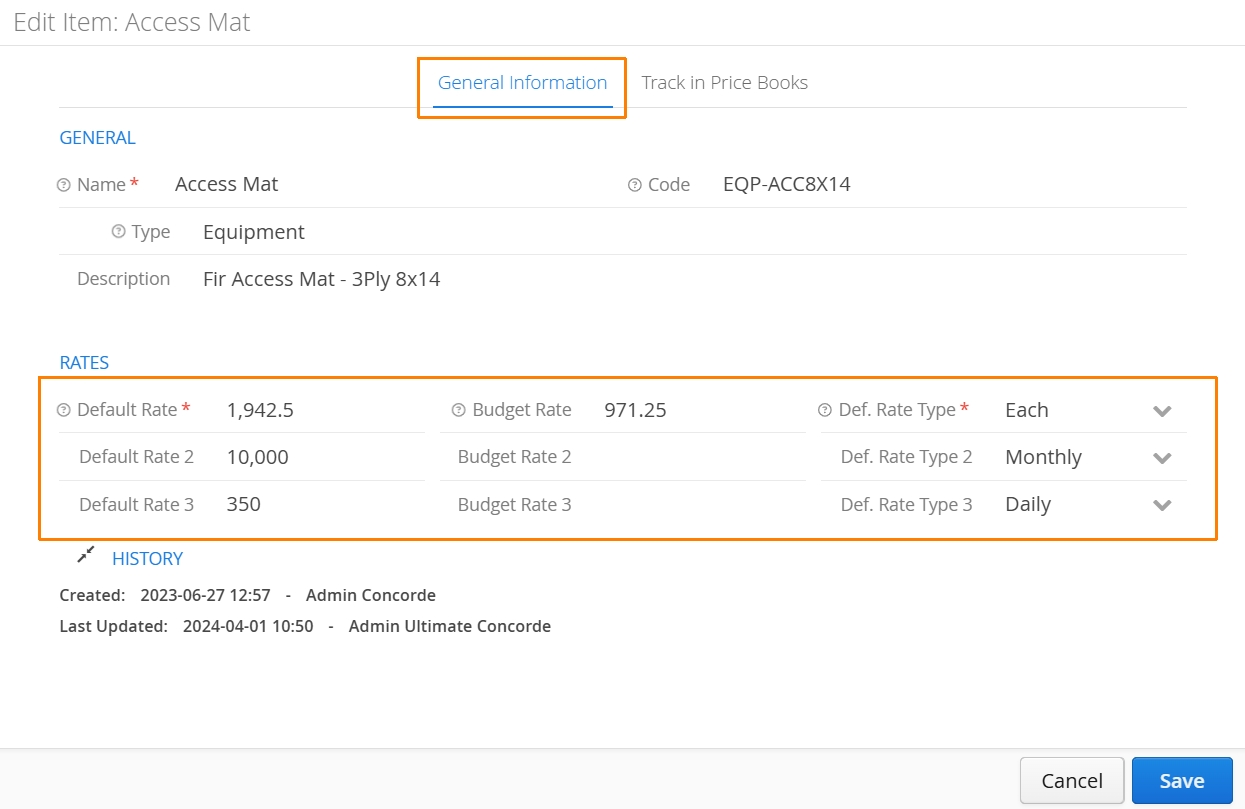
Updating the rates for multiple Price Books will not affect the base rate of your Billable Item. If you’d like to accurately reflect your updated base rate, be sure to navigate back to the General Information tab on the item edit window and update your rates there too.
How to Change Rates for Multiple Billable Items
To update rates for multiple items, we recommend exporting your Billable Items list to csv, making your changes, then reimporting your updated csv file. Aimsio will then prompt you to select which Price Books you’d like these new rates to be reflected in. Follow the steps below.
-
Navigate to the Master Data → Billable Items page.
-
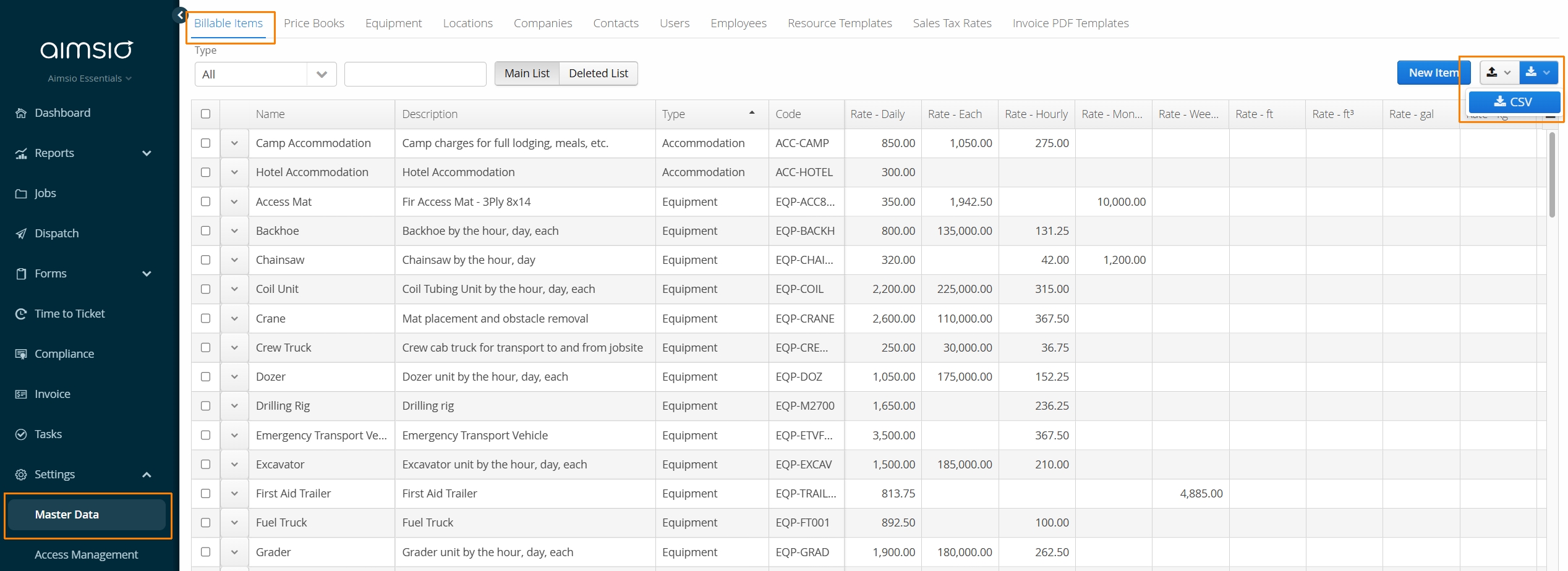
Export your Billable Items .csv from Master Data on the far right by clicking the download icon.
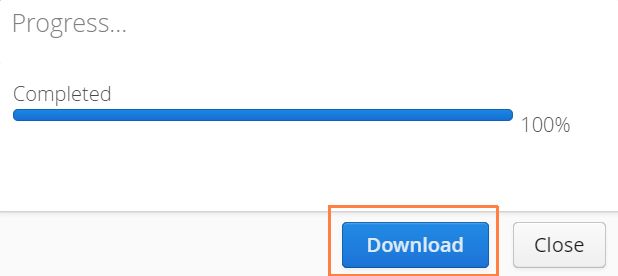
- Once Aimsio has prepared the .csv file, select Download.
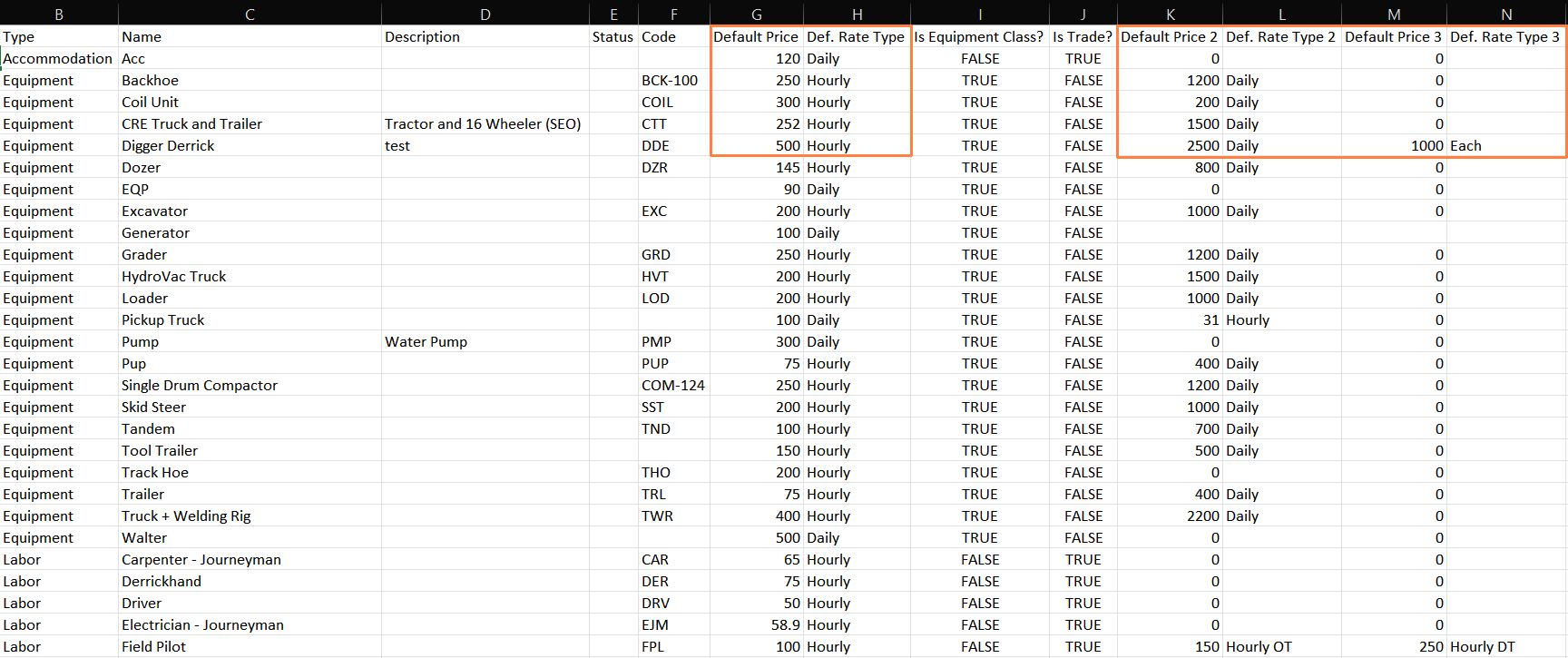
- Locate the file on your computer and open it in Excel (or your spreadsheet software of choice). Locate the Default Price and Def. Rate Type columns and make adjustments for as many items as required.
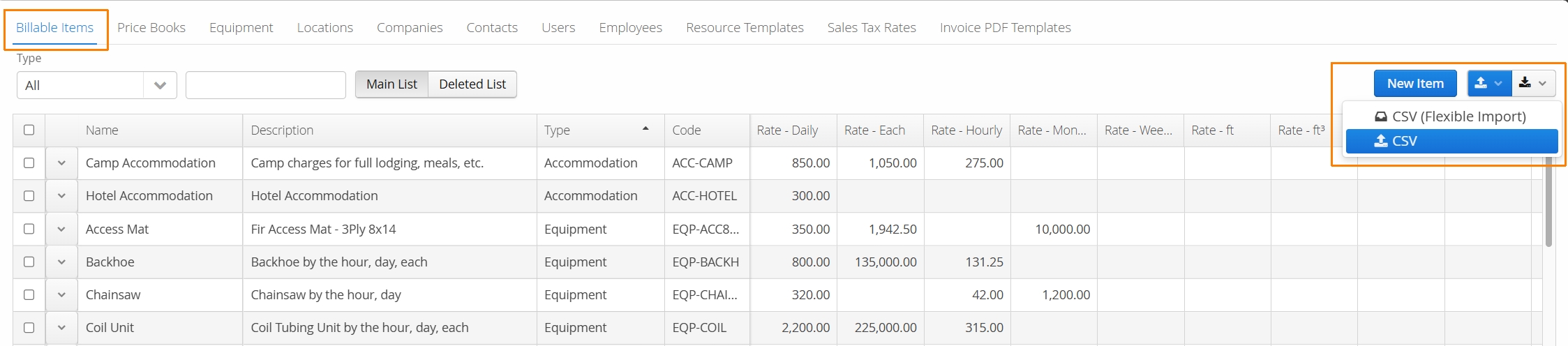
- Once you are finished, save a copy and rename the file to ensure you know which rate sheet to upload back to Aimsio. Back in Aimsio, navigate to the Master Data → Billable Items page, select the cloud upload button and choose csv.
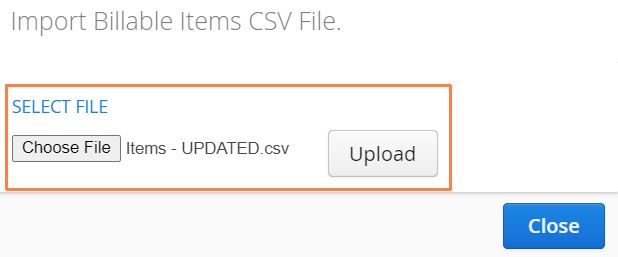
- Choose File, find the new rate sheet to upload back to Aimsio and select Upload.
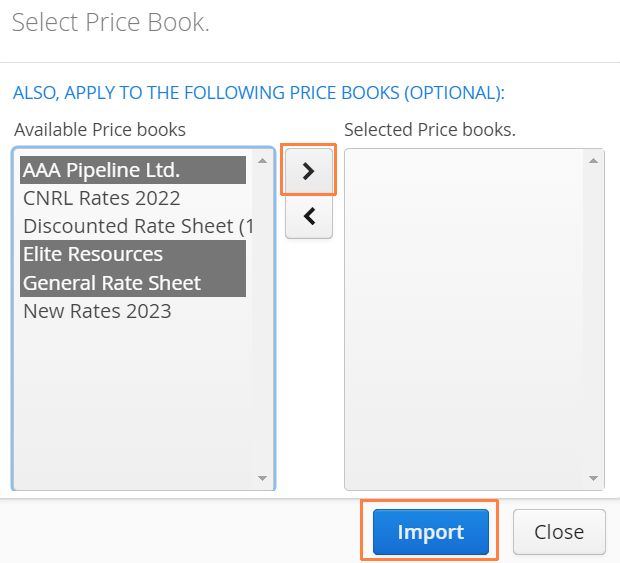
- When the import is successful, Aimsio will provide a list of all the current Price Books in your account. Select which Price Books you would like to update with your new rates and select the > button to move them to the Selected Price Books column. When you are finished, select Import.