Authorized users have the ability to make changes to Timesheets on behalf of an Employee or notify the Employee to update their Timesheets on their device.
If a Timesheet has been approved, its approval status will not change after editing the form. Adjusted hours will automatically be updated on the Time to Ticket page as long as the form status is Approved and Closed.
If Timesheet hours have already been linked to a Ticket, the Ticket must be updated manually or have authorized users delete the Ticket to surface the adjusted hours on the Timesheet to Ticket page.
Additional considerations should be made if a user is adjusting employee hours during a payroll period. For more information please see: How to Adjust Hours During a Pay Period.
How to Edit a Closed Timesheet
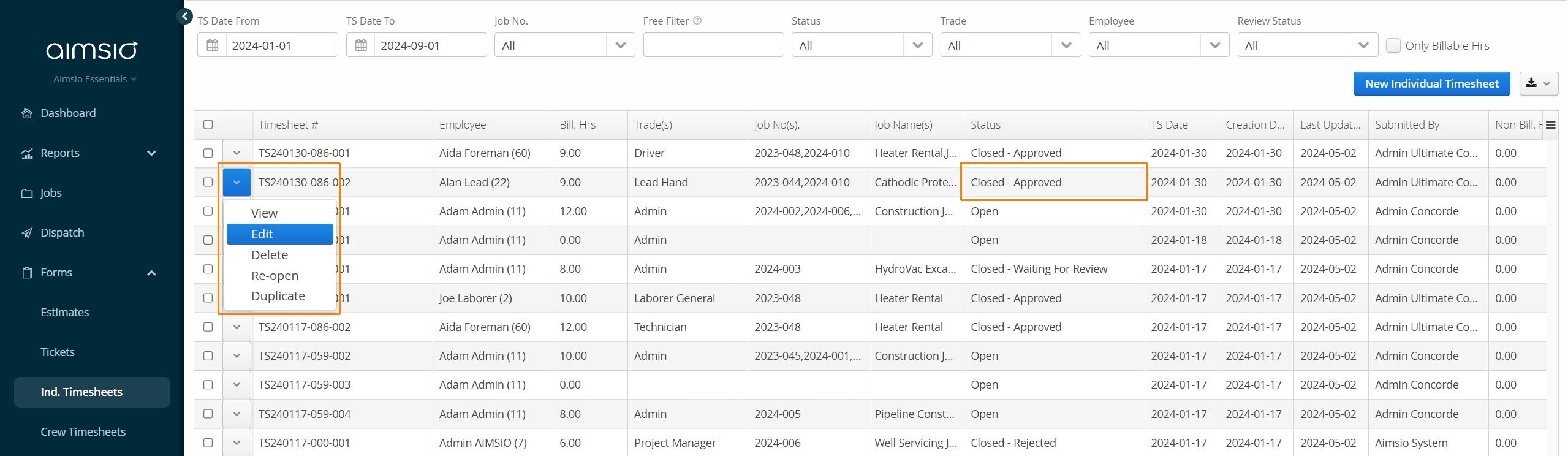
Navigate to the Timesheets page and locate a Timesheet with a Closed status.
Use the Free Filter on the top of the page to search by Timesheet number or use the Employee filter to search by Employee. Ensure the date range filters are set appropriately for the date of the Timesheet you are looking for.
- Use the Action button to the left of the Timesheet and select Edit.
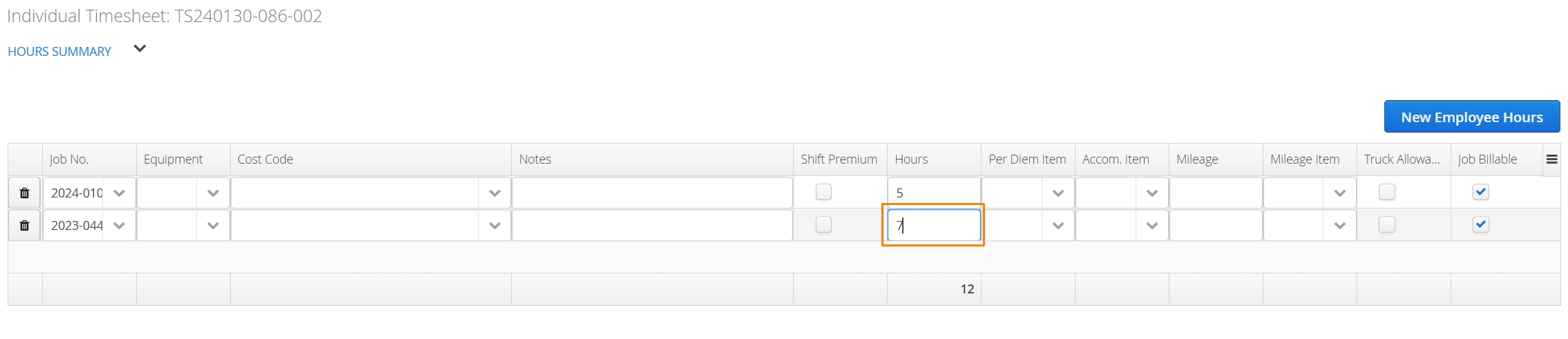
- Change the employee hours as needed. When finished, Save the form.
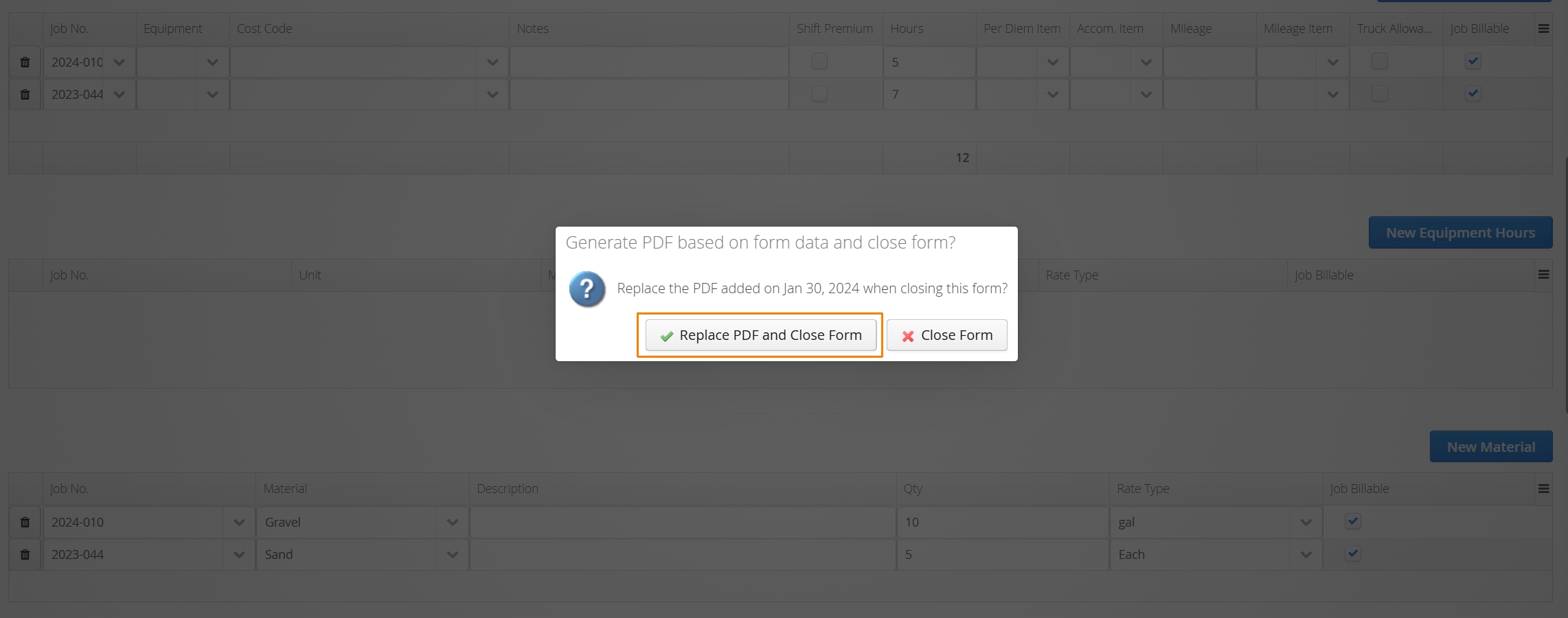
- Users will be prompted to regenerate the PDF version of the form if required.
How to Re-Open a Timesheet
Authorized users can notify employees to update their Timesheet on their device.
- To re-open a Timesheet, navigate to the Timesheet page and locate a Timesheet with a Closed status. Click the action button to the left of the Timesheet and select Re-open.
Use the Free Filter on the top of the page to search by Timesheet number or use the Employee filter to search by Employee. Ensure the date range filters are set appropriately for the date of the Timesheet you are looking for.
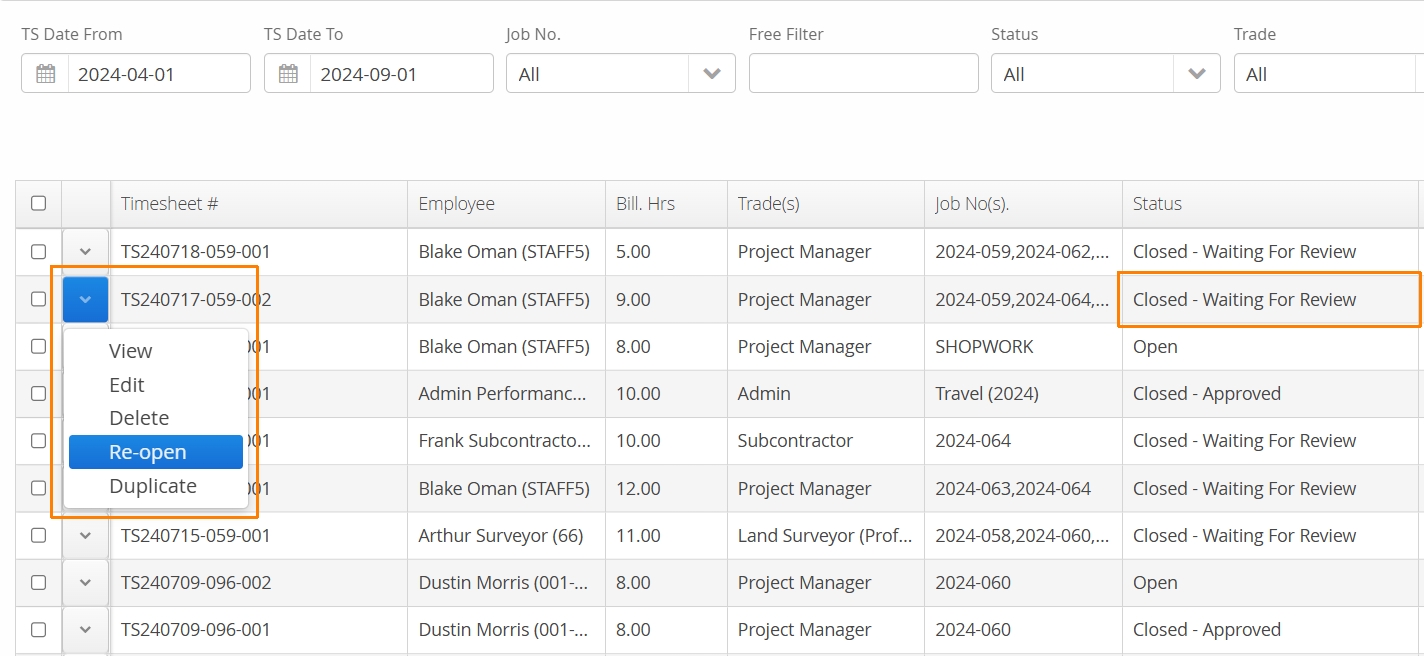
- Users will be prompted to confirm the request to re-open the form.
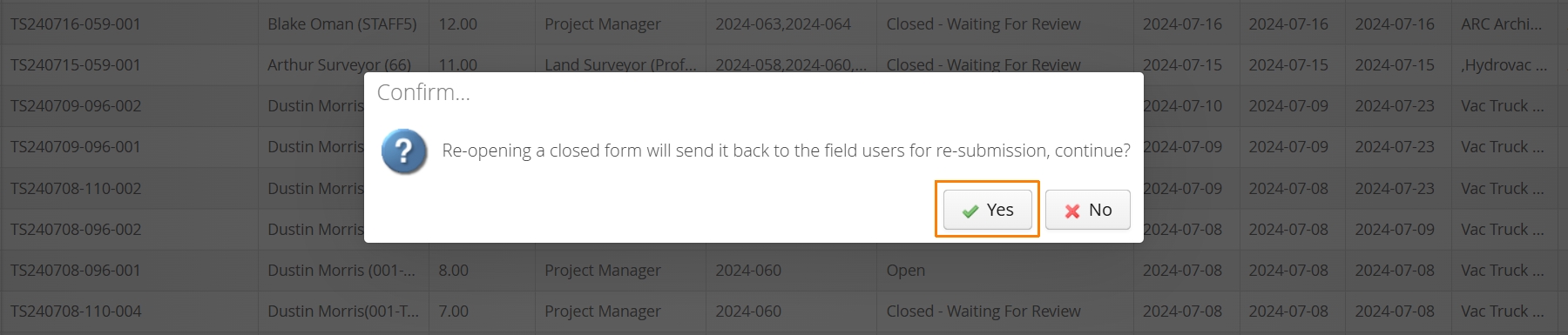
- Once Yes is selected, Aimsio will prompt users to type out a reason for the re-open request. Use this as an opportunity to inform the Employee why the form is being re-opened or what changes to make. This message will be included in the SMS notification they will receive. Click Save to continue.
Users must have a valid phone number on file to receive SMS notifications. For more information please read: Aimsio Notifications

- A confirmation will appear indicating the re-open operation has been completed.

The user who created the Timesheet will receive an SMS notification. This also reverts the Timesheet’s ‘Form Status’ back to Open. When a form’s status is Open, users will have the ability to access the original form and make changes. When they resubmit the Timesheet, the status of the form will change to Closed and they will no longer have the ability to make changes.
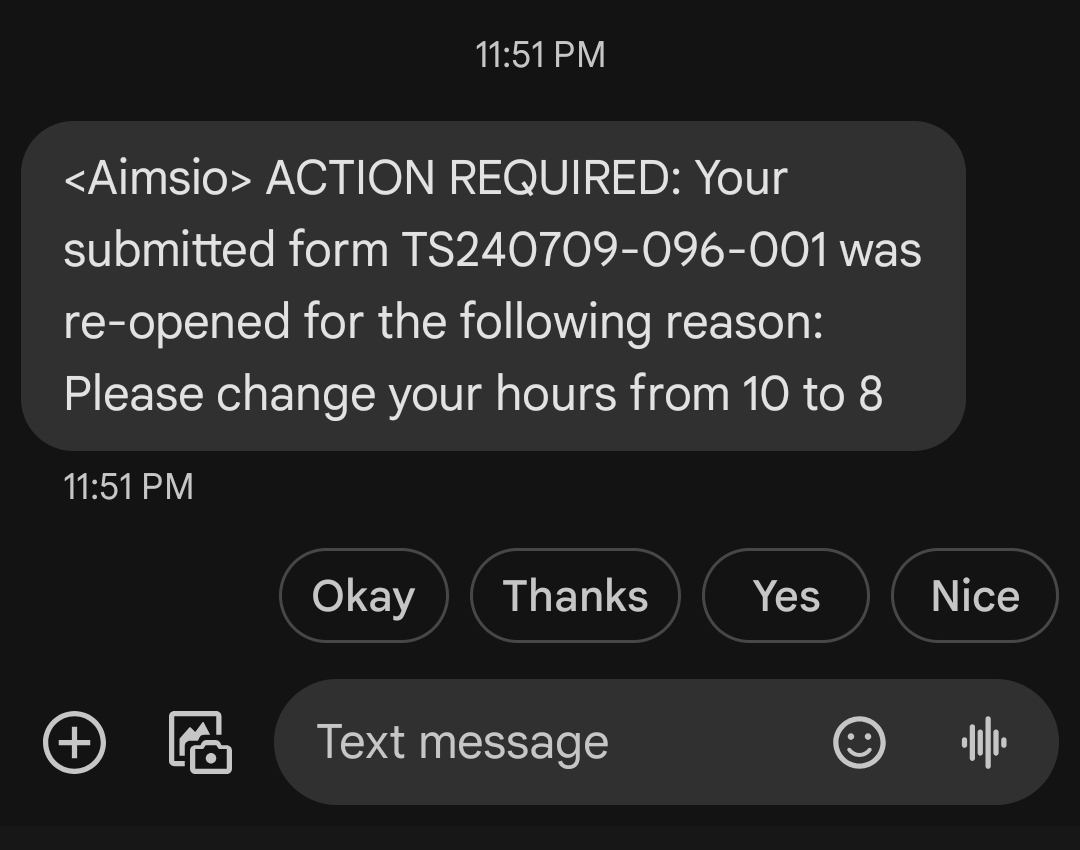
When a Timesheet has been re-opened and is submitted again, Aimsio does not send a notification to the user who re-opened the Timesheet.
Monitor the status of the Timesheet and proceed with the review process outlined here: How to Review and Approve a Timesheet