There are a handful of scenarios where Aimsio can store documents. Whether its for a Job, Ticket, Invoice, Employee or Equipment, this article will cover the primary uses for the Attachment Upload feature for web users in Aimsio.
How to Add Form Attachments
Most Aimsio forms support image and PDF uploads. We dedicate separate tables for each type of attachment:
-
New Image Attachments (.jpg and .png file formats supported)
-
New PDF Attachments
-
New Internal Attachments
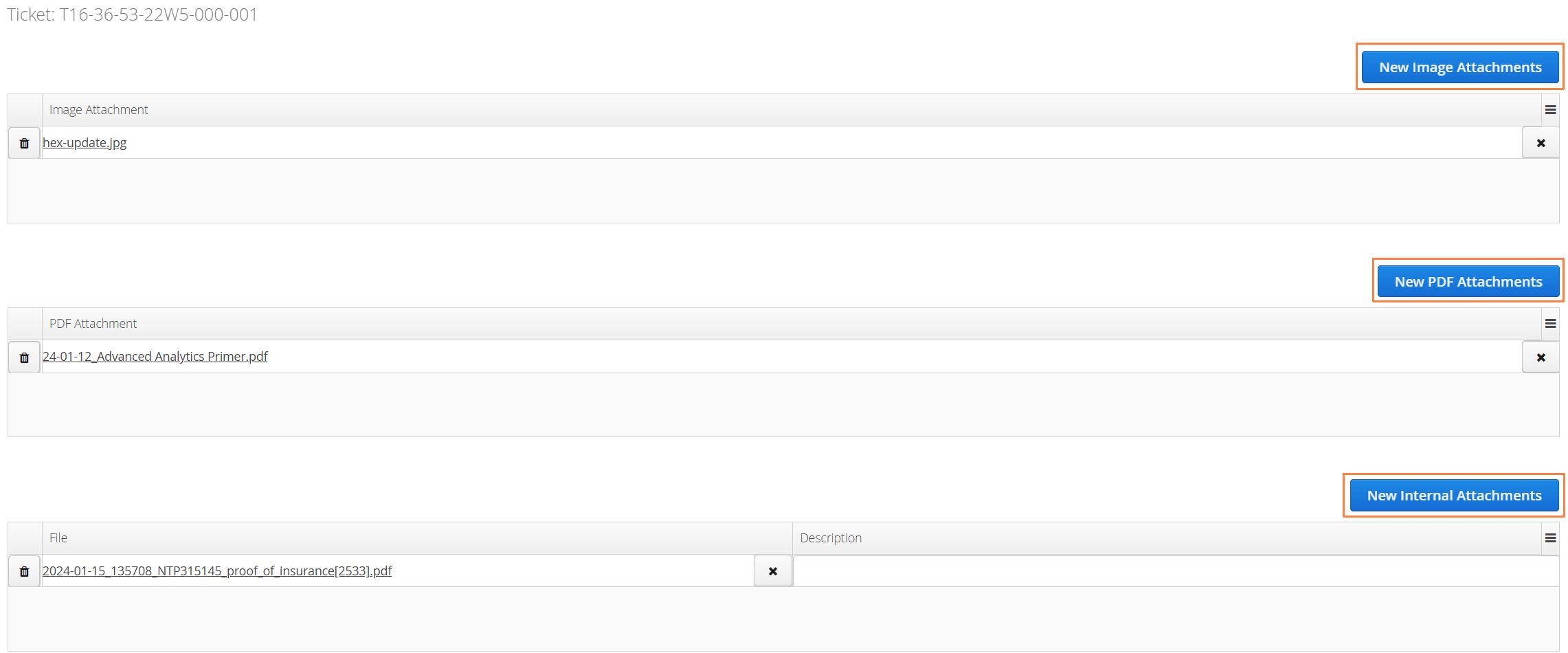
To upload documents to a form, click one of the new attachment buttons and select Upload to find the relevant file format on your device.

Documents uploaded to the Internal Attachments table will not be visible on the Aimsio PDF version of the form.
How to Find and Download Form Attachments
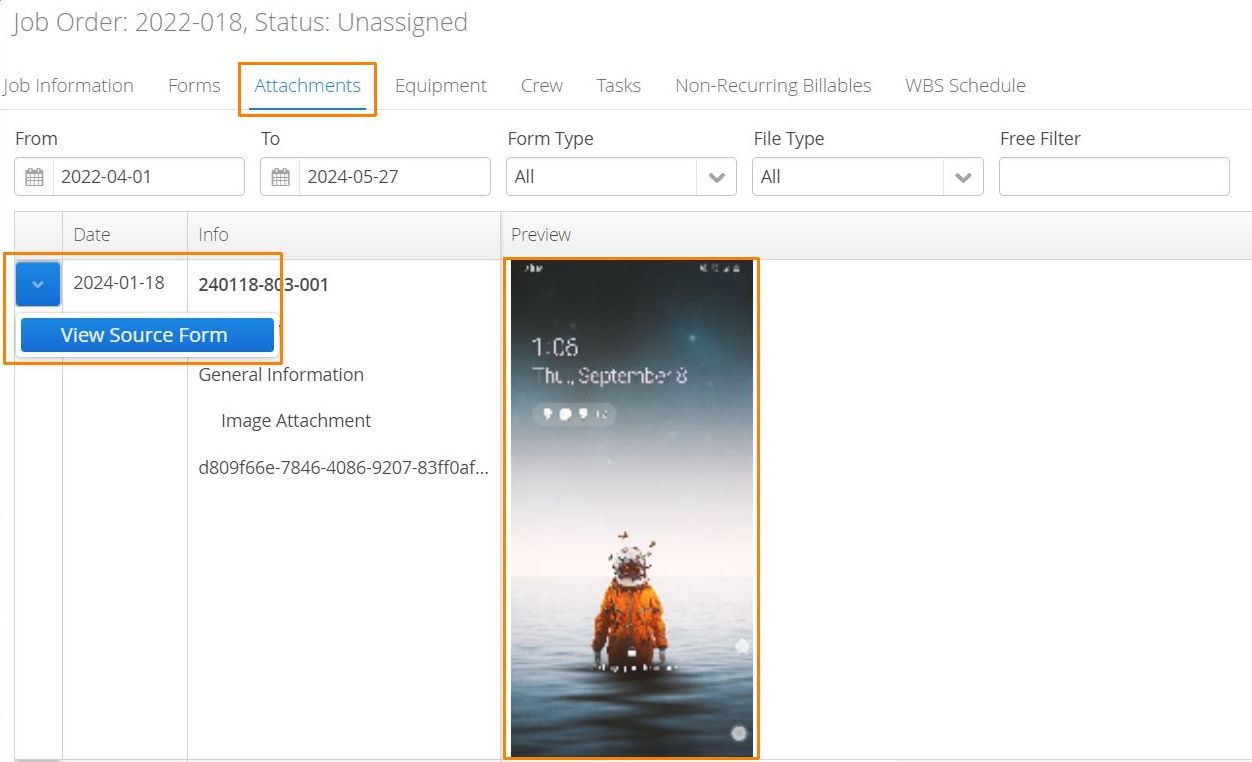
Any Image (.JPG or .PNG) or PDF attachment included on a Job-related form will be accessible via the Attachments tab while viewing a Job.
Users can filter for specific Form Types or File Types and use the action button to access the original source form where the image was uploaded.
The ‘Attachments’ tab does not include attachments that have been uploaded directly to an Invoice, Job or Non-Recurring Billable (NRB).
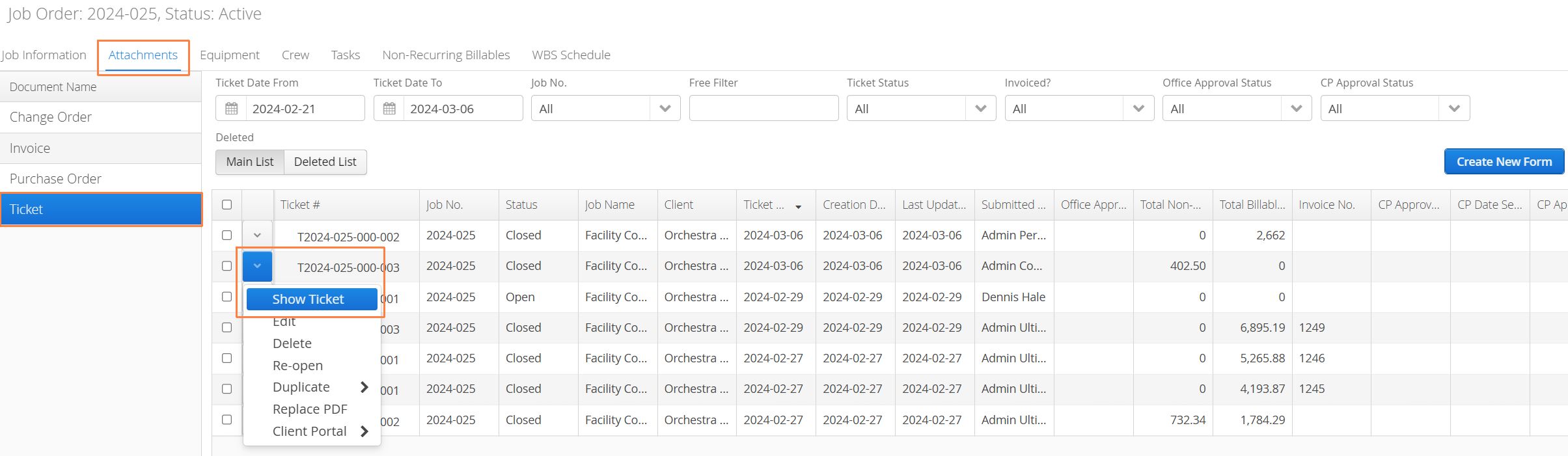
Alternatively, users can simply locate a form from any listing page and use the View option to open that form and locate the attachment.
How to Add Non-Recurring Billable Attachments
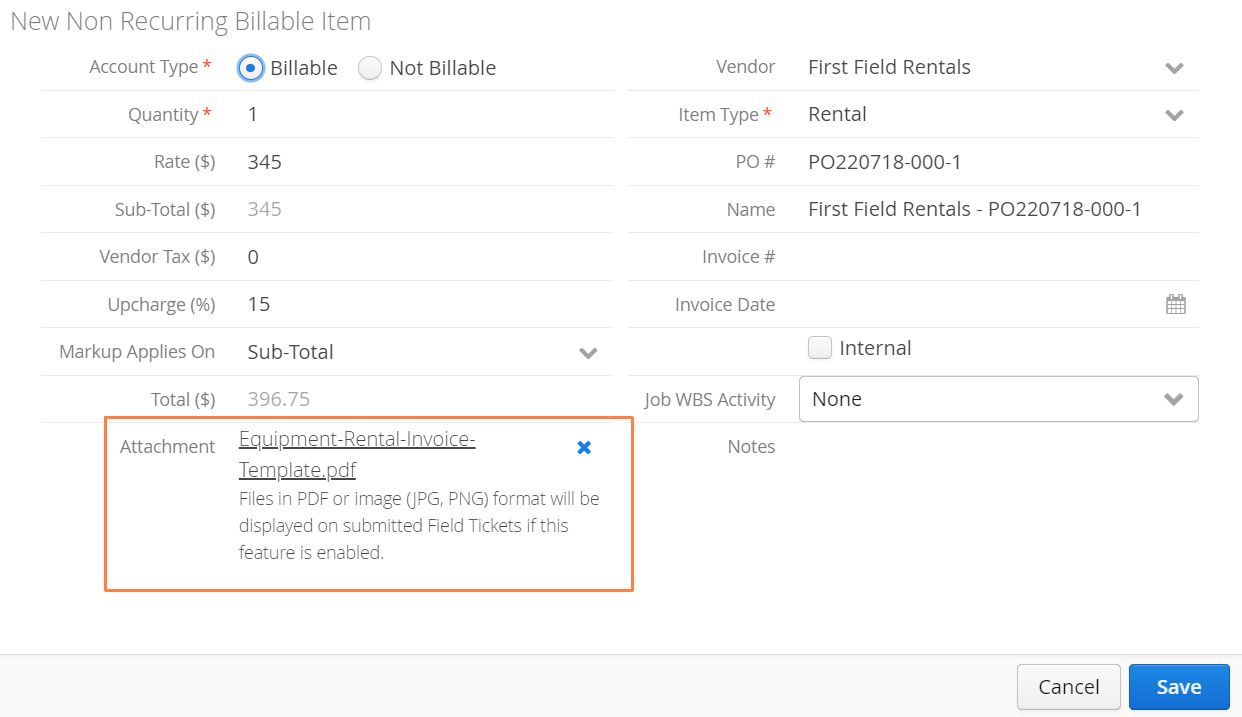
Third-party quotes or receipts of delivery often need to be presented alongside a billable ticket or invoice. This is typically done when Purchase Order items (NRBs) are being marked as received. For more information see our Purchase Orders documentation.
- Image (.JPG, .PNG) and PDF attachments on Purchase Orders items will be visible on the PDF version of the PO, the corresponding field ticket, and invoice.
How to Add Job Attachments
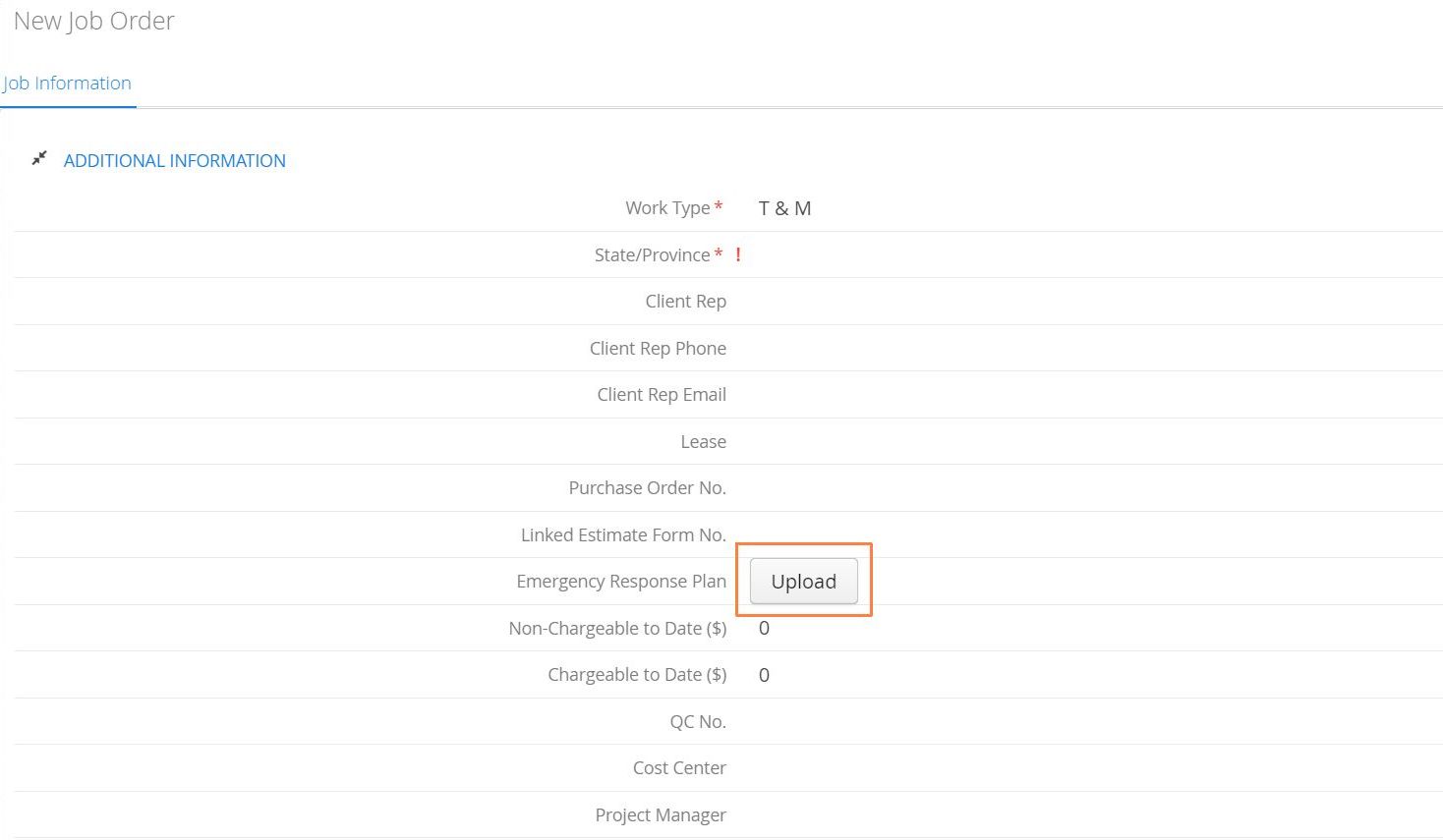
Attaching documents at the Job level, like a Job Safety Plan or worksite map, will ensure those in the field have access to vital information. Job attachments are accessible via both Aimsio’s web portal and mobile app when viewing a job.
- There are currently no file size limitations imposed on file uploads, though its encouraged to consider the limited bandwidth some on-site field workers may have access to when retrieving documents.

How to Add Master Data Attachments
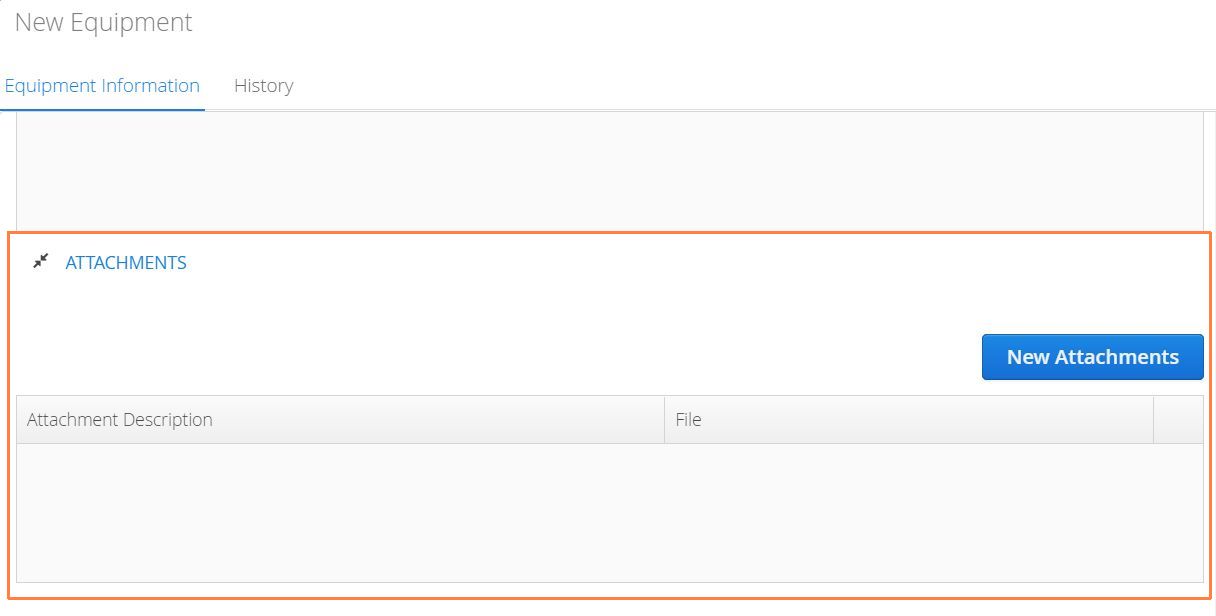
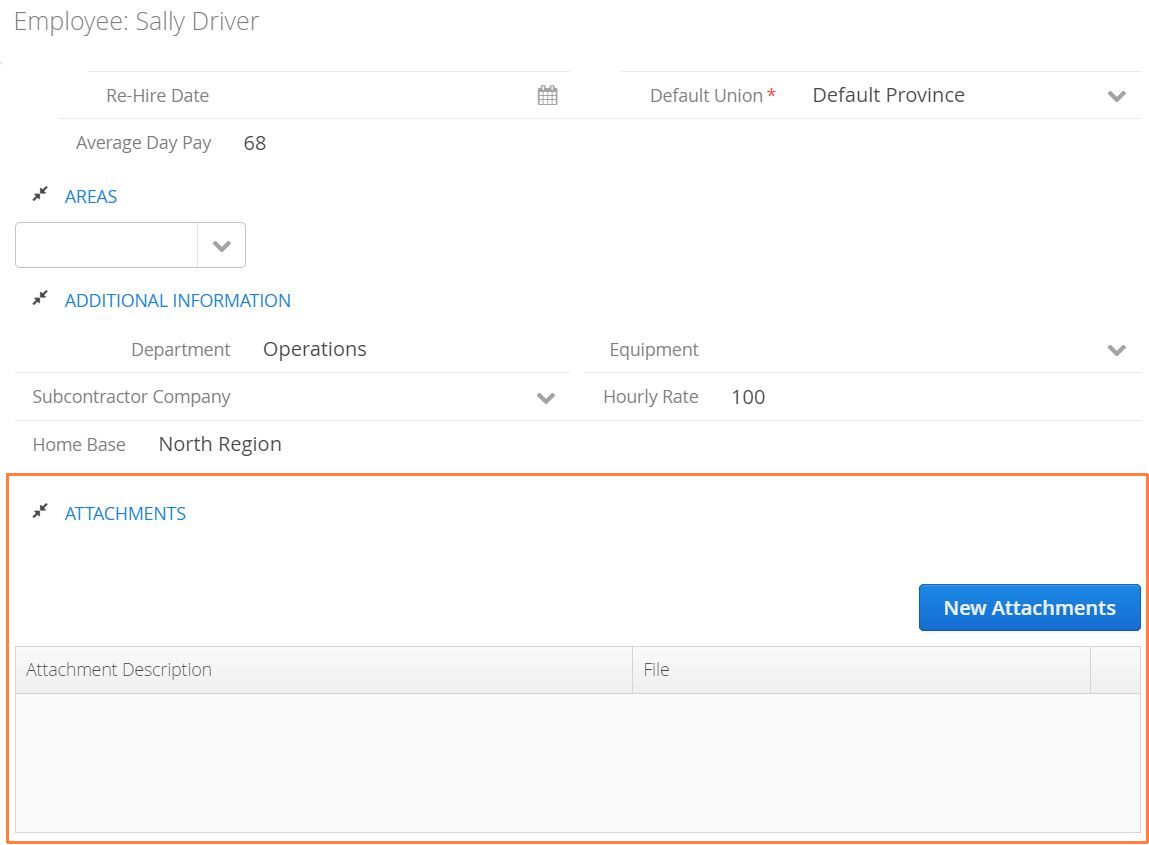
Equipment service records or employee documents can all be held at the Master Data level. When editing an resource, Aimsio provides a dedicate Attachments section. These attachments are also accessible via the Employee or Equipment profile while using Aimsio’s Dispatch Job Board.
How to Add Invoice Attachments
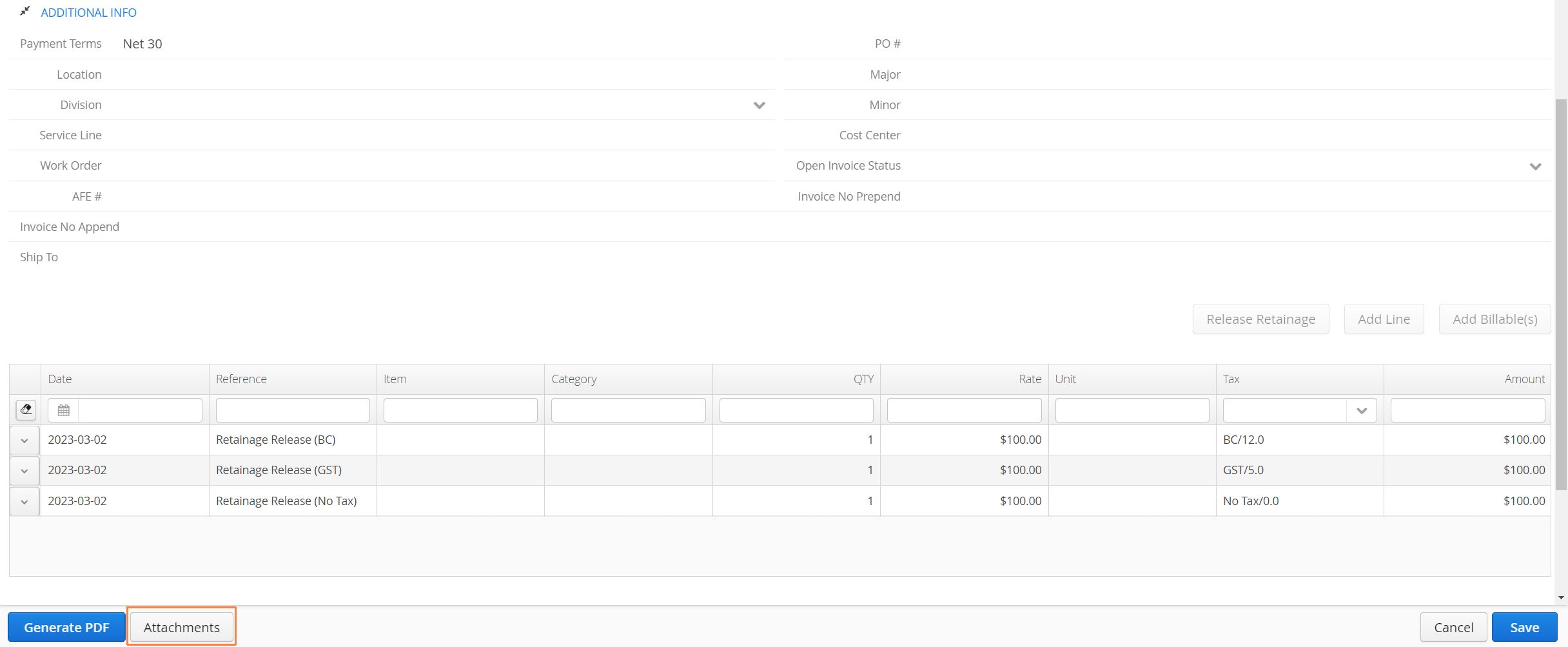
Users can attach PDF files to an invoice by clicking on the “Attachments” button located at the bottom left when viewing or editing an invoice. Aimsio will display how many attachments are currently uploaded (when applicable).
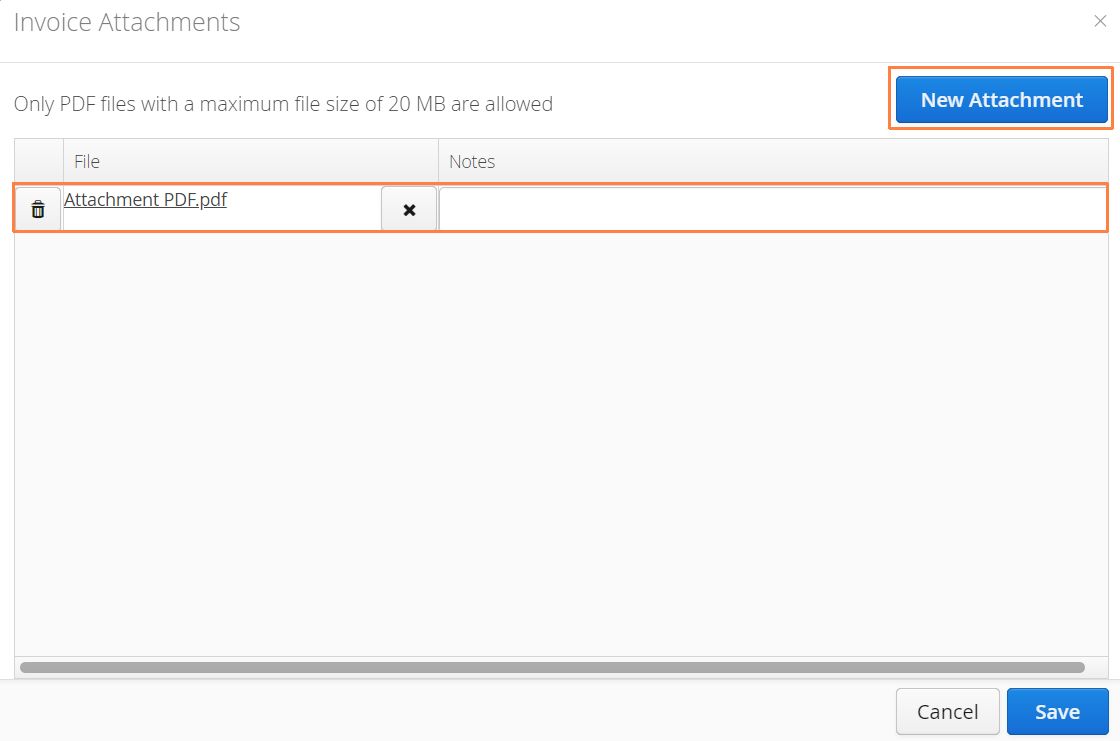
The attachments table will let users upload multiple PDF attachments. Click on the New Attachment button on the left. Note that there is a file size limit of 20MB per attachment, but no limit on the number of attachments.
- Click on the Upload button to select a PDF from your device. Users can reorder attachments by click, holding and dragging the line item up or down. The order of your attachments will dictate the order they appear on subsequent pages on the invoice.
How to Add Compliance Attachments
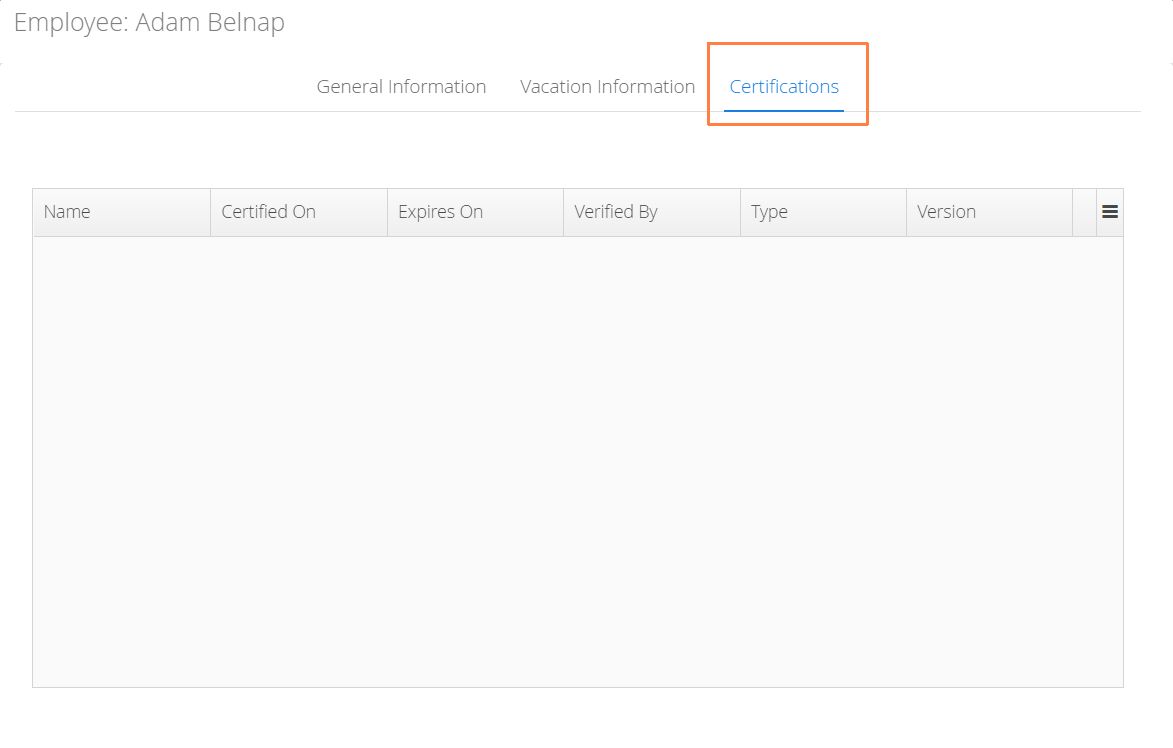
Our Compliance module provides a file upload feature for employees (or subcontractors) to provide proof of certification. For more information see our Compliance documentation.
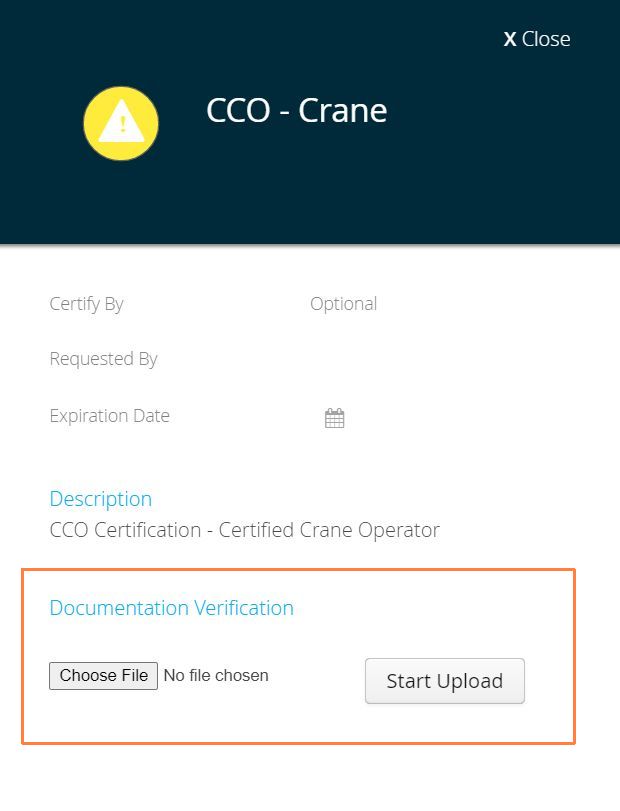
Approved certifications will be visible on the Employee profile (Master Data)