Price Books allow the rates of your Billable Items to be changed without affecting their original base rate. Think of a Price Book like a standalone rate sheet used for a specific Job or Client. There are no limits on the number of Price Books that can be created.
Before any Billable Item can be charged, it must be added to a Price Book. At least one Price Book is required before a Job can be created in Aimsio. Only one Price Book can be selected per Job. It’s not possible to change the Price Book during the creation of a Ticket or Timesheet.
How to Create a Price Book
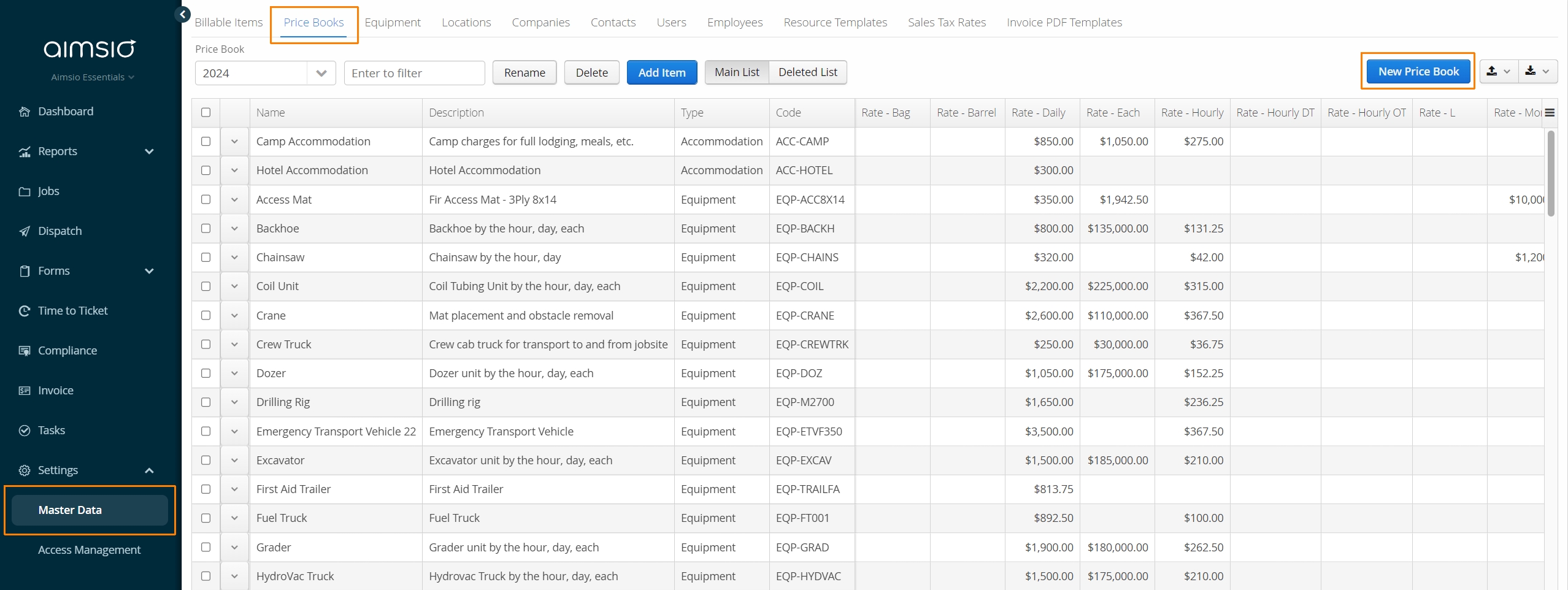
Navigate to the Master Data → Price Books tab and select the New Price Book button on the far right.
Price books can be created in a few ways:
-
As a Blank price book (users will add each Billable Item separately).
-
Based on the default values of the Billable Items: Aimsio will copy all currently existing Billable Items to this new Price Book, with their default rates. Rates can then be edited, as needed, after the Price Book is created.
-
Based on another Price Book (with an optional multiplier): As long as at least one Price Book is created, users can make a copy of it as a separate Price Book. Additionally, users can quickly markup or discount all rates by using the Multiply By field.
- For example, to markup all rates by 20% set the multiplier to 1.2. For a discount, multiple by .9 (10%), .8 (20%) etc.
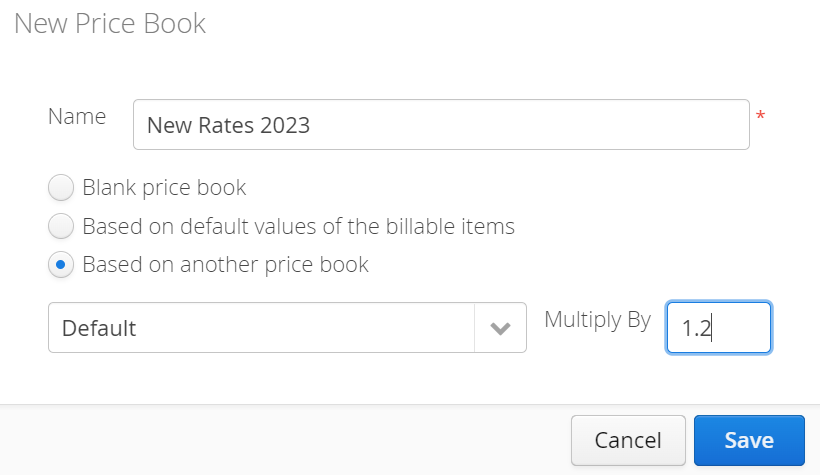
Markups or Discounts can only be applied at the time a Price Book is created. After a Price Book has been created, item rates will need to be managed independently.
How to Manage Price Books
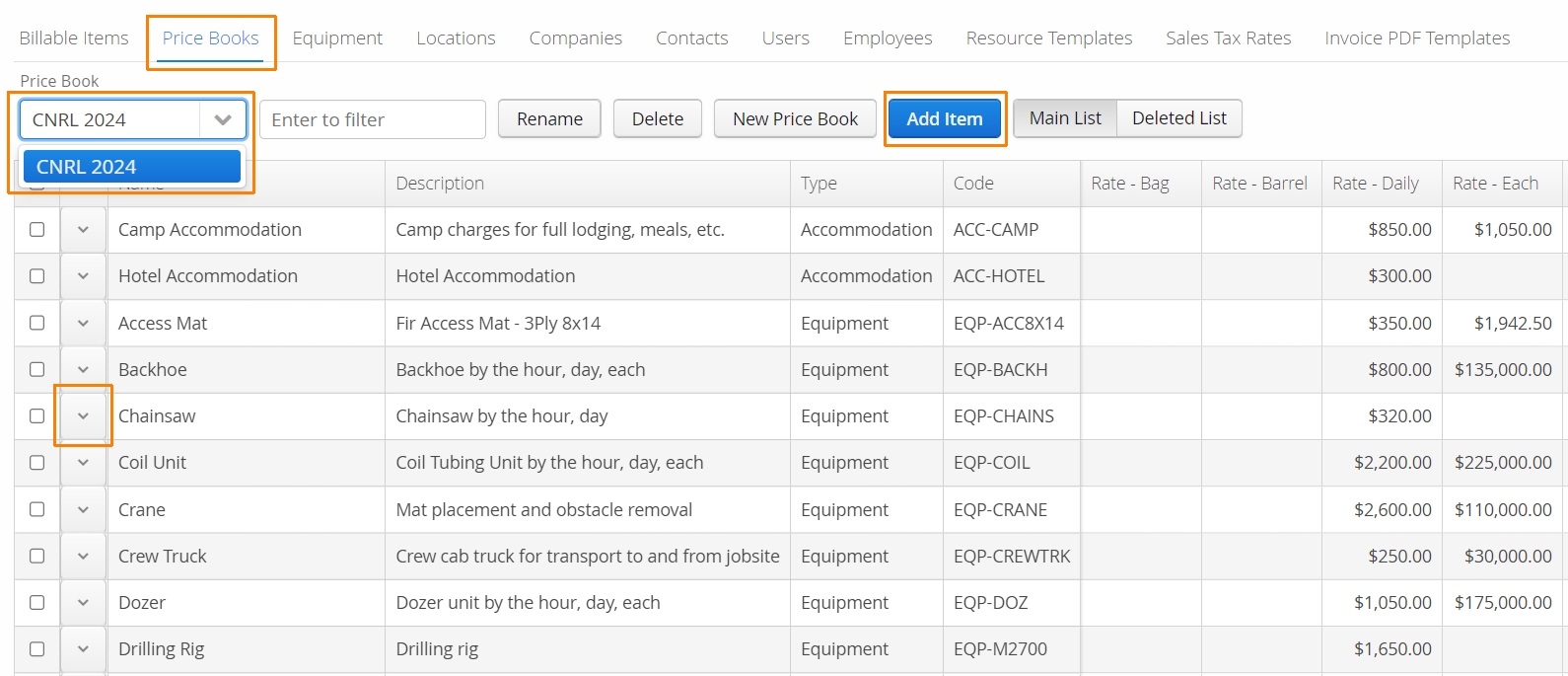
From the Price Books tab, users can use the Price Book dropdown menu to see/review/export any selected Price Books. Only one Price Book can be selected at a time.
-
Use the Add Item button to add a Billable Item that does not exist in the selected Price Book.
-
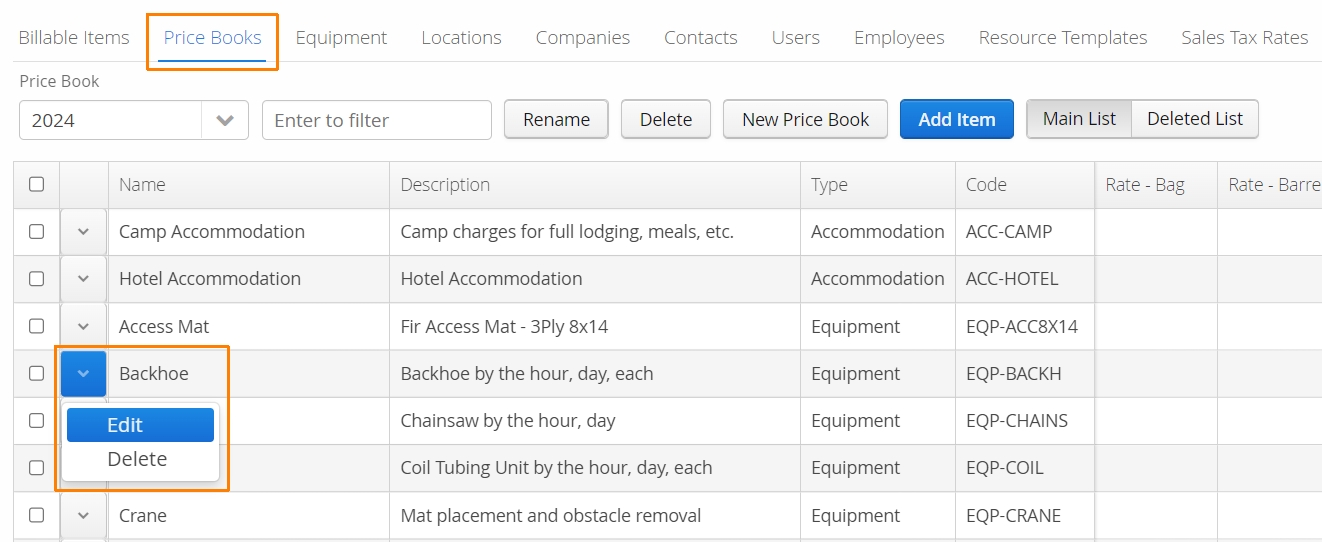
To Edit or Delete an item in a Price Book, use the Action button located on the left.
How to Edit Price Book Item Rates
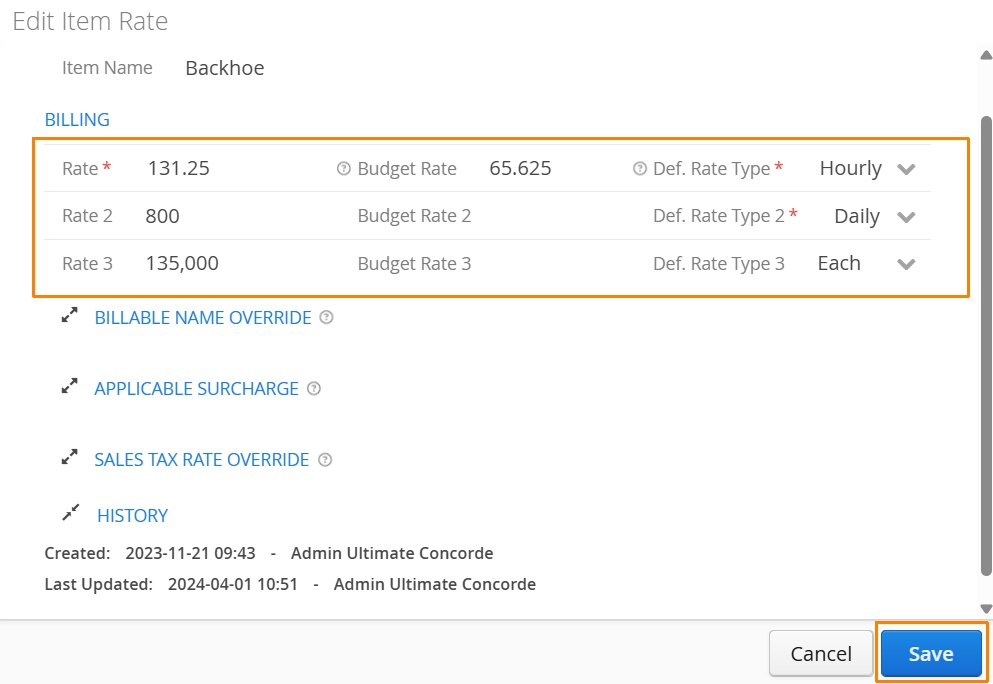
A Billable Item in a Price Book can have up to 3 rates. If more than 3 rates are required, a second Billable Item can be created and added to the same Price Book.
There are two approaches to editing the rate of a Billable Item in a Price Book. The first takes place on the Master Data → Price Book tab.
- First, ensure you have the correct Price Book selected. Locate the item on the Price Books page, click the Action button to the left of the item and select Edit.
- Make changes to the current rate(s) and click Save on the bottom right when finished.
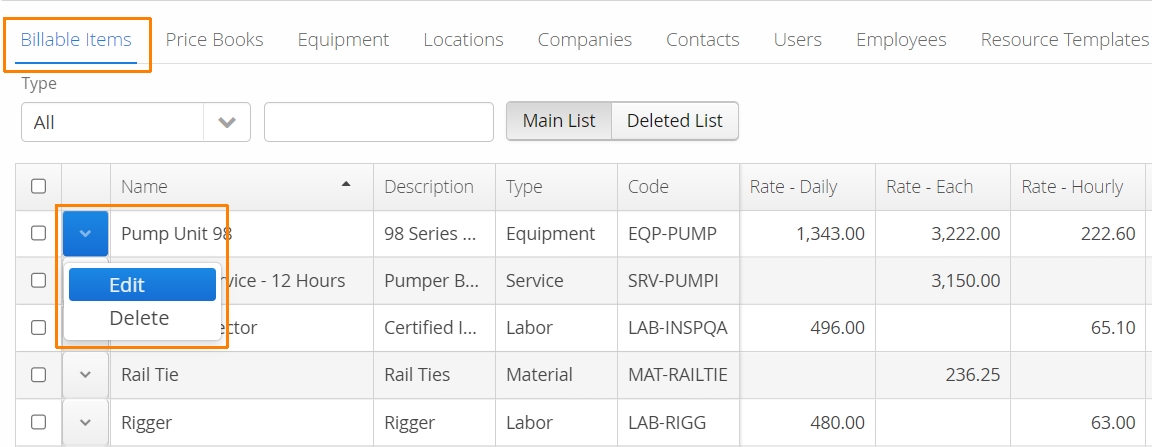
Alternatively, it’s possible to edit rates from the Master Data → Billable Items page.
- Locate the Billable Item, click the Action button and select Edit.
When editing an existing Billable Item, you’ll see a tab named Track in Price Books. This tab lists which Price Books the Billable Item currently belongs to.
- Select and right-click any Price Book in the list to edit or delete the rates included on that Price Book.
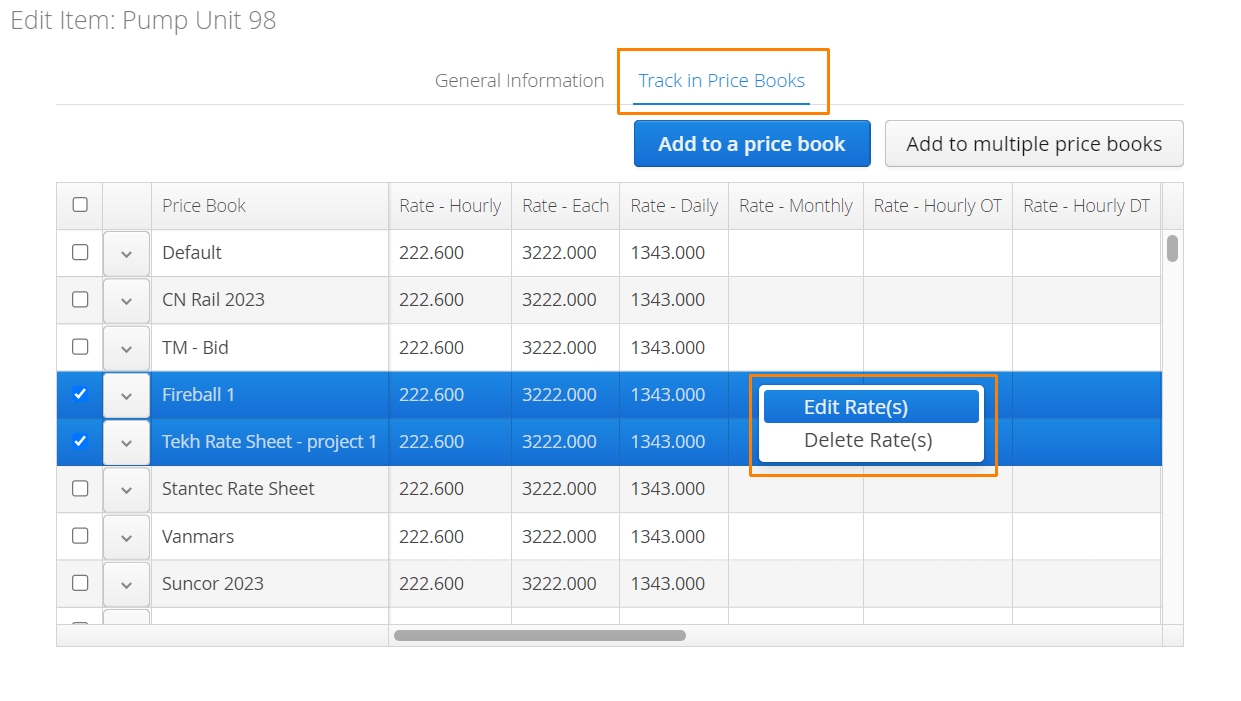
If multiple Price Books are selected, updating the rates will apply to all Price Books.
Billable Name Override
If a Billable Item requires a different name to appear on Forms, the Billable Name Override field allows users to leverage the same Billable Item (and rate) under a unique name.
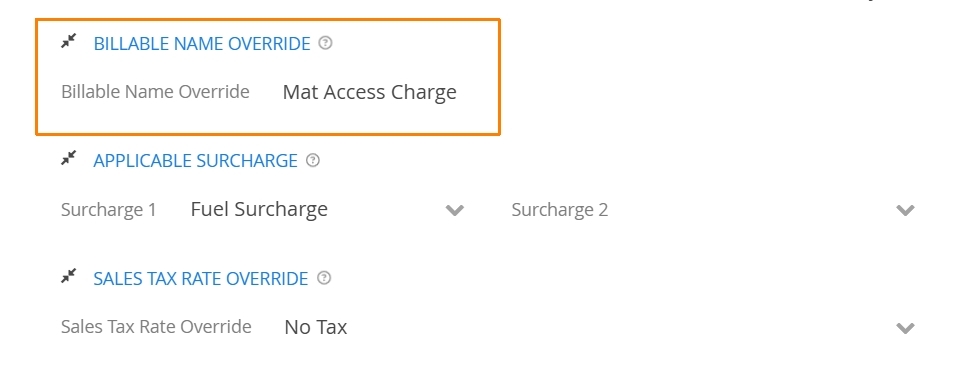
This change will only appear for the item the corresponding Price Book is used.
Charge Type Override
Accounts can set the default ‘Charge Type’ of an item in a Price Book. This option is located under the ‘Charge Type Override’ section when adding or editing a Price Book item.
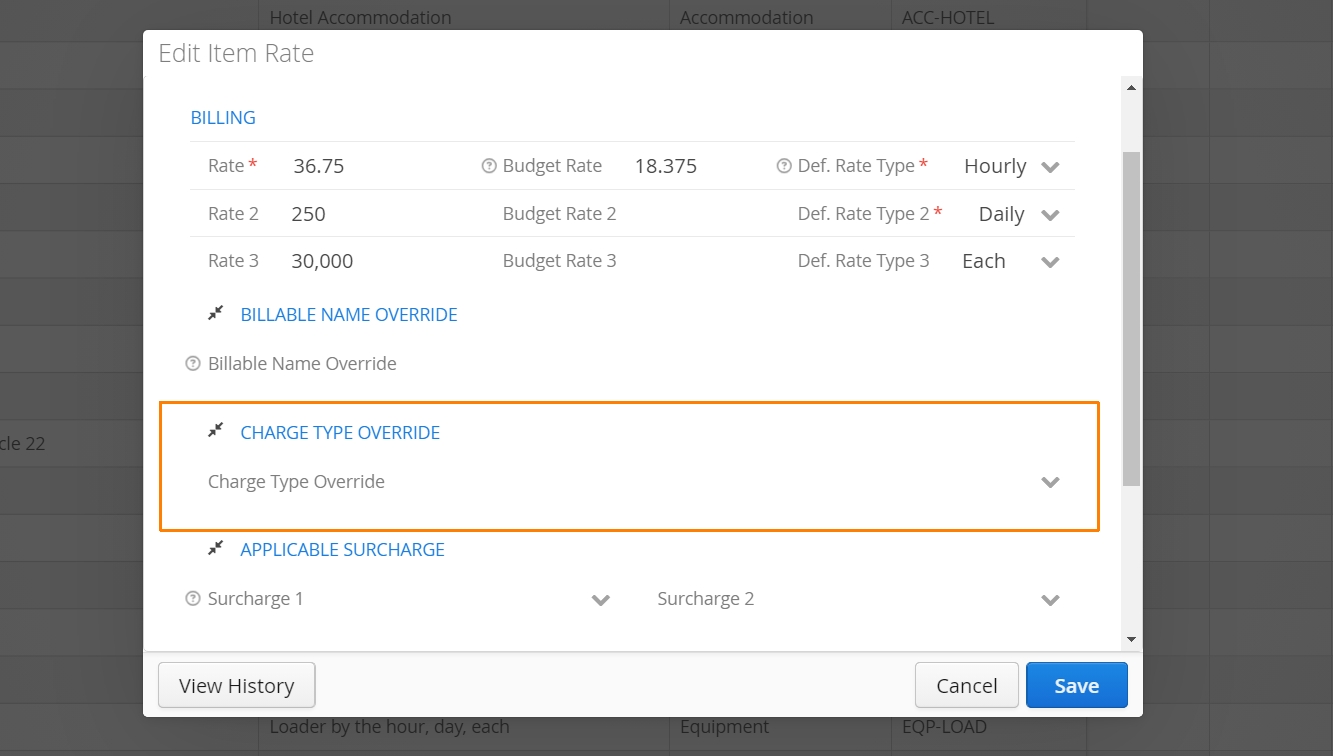
Charge Type Override let’s items always appear as Billable or Non-Billable when added to a form.
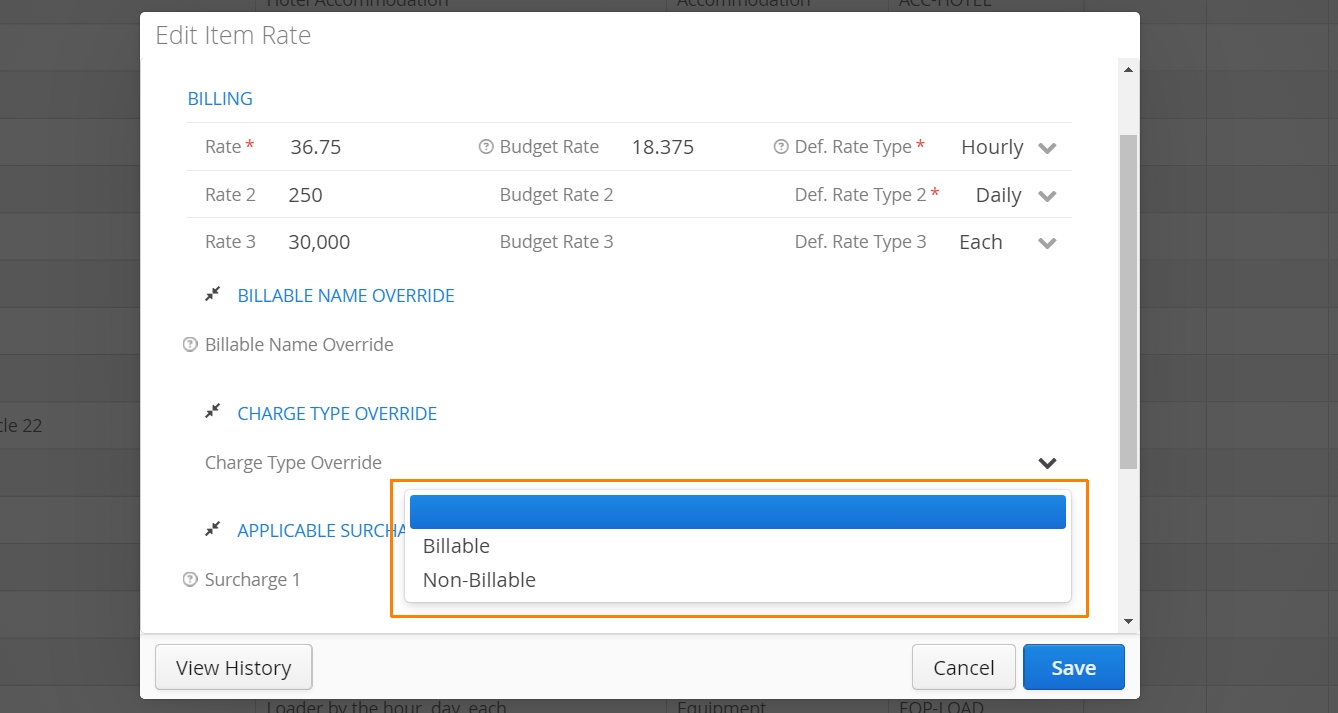
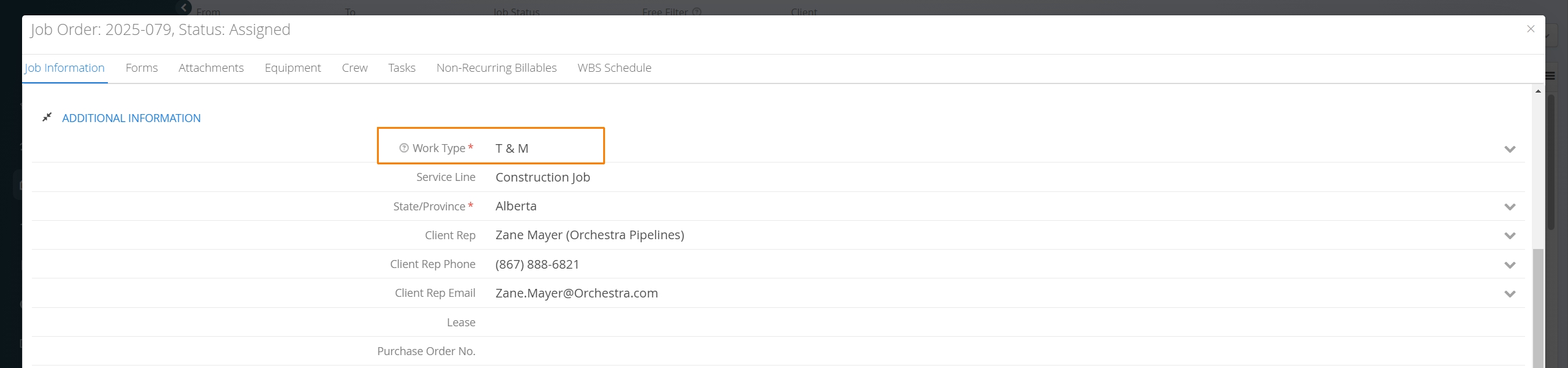
By default, Aimsio will use a Job’s Work Type (T&M or Lump Sum) to determine whether certain items appear as Billable or Non-billable on forms. This will continue to be the case, unless otherwise stated on the Price Book.
Applicable Surcharge
Surcharges, like a Fuel Surcharge, Environmental Surcharge or any charge applied in the form of a percentage on top of your billing rates.
The process involves creating a new Surcharge Billable Item type, then adding that Surcharge item to a Price Book. Once the Surcharge Billable Item is added to a Price Book, users will indicate which items on that Price Book the surcharge applies to.
The Applicable Surcharge fields are how Price Book items are associated with a Surcharge. Once the Price Book item is charged on a form, accounts will have the option to include the Surcharge on top of the billing rate. Each Price Book item will need edited to ensure the correct surcharge is applied.
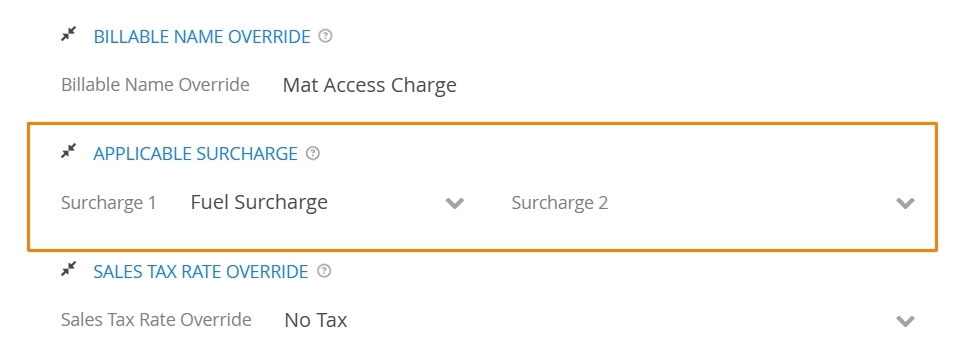
Click here for a detailed walkthrough on how to add Surcharges in Aimsio.
Sales Tax Rate Override
The Sales Tax Rate Override field allows Price Book items to inherit a specific Sales Tax Rate in your account. If a specific tax rate is assigned to a Price Book item, this tax rate will take precedent when the item in invoiced.
Users can create a 0% Sales Tax Rate for a ‘No Tax’ option to exempt this item from having any tax applied.
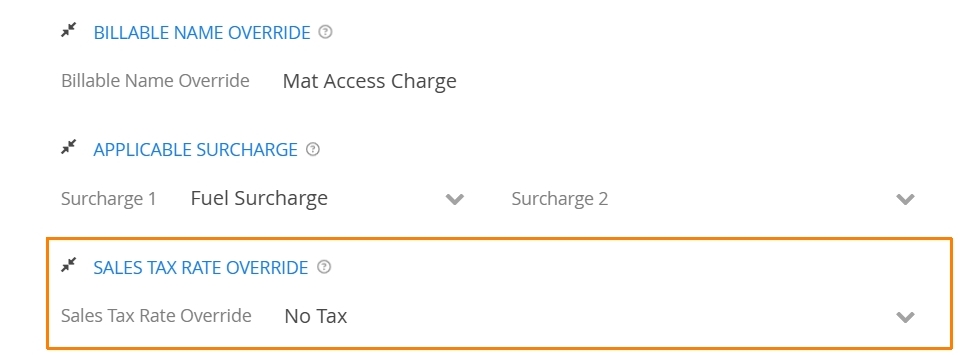
Click here to learn more about managing Sales Tax Rates in your account.
How to Export and Import a Price Book
New Price Books cannot be created with an import, but existing Price Book rates can be edited in bulk by exporting the Price Book to csv first.
If accounts would like to import new Price Books, users will need to create blank Price Books first before using the import action. Aimsio will only accept properly formatted csv files for import. For more information please read: How to Export and Import the Data in your Account
To export a Price Book, use the download csv button on the far right of the Price Book tab.
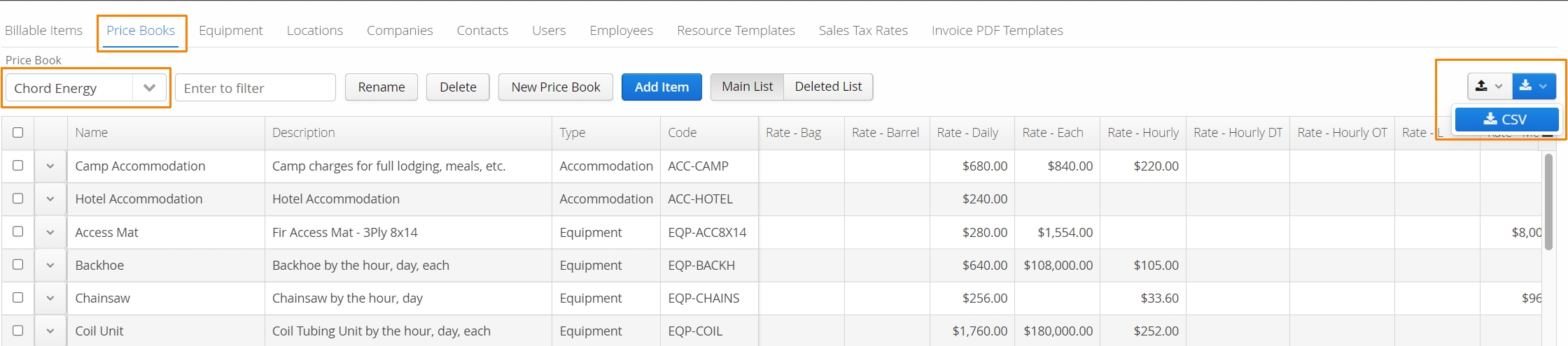
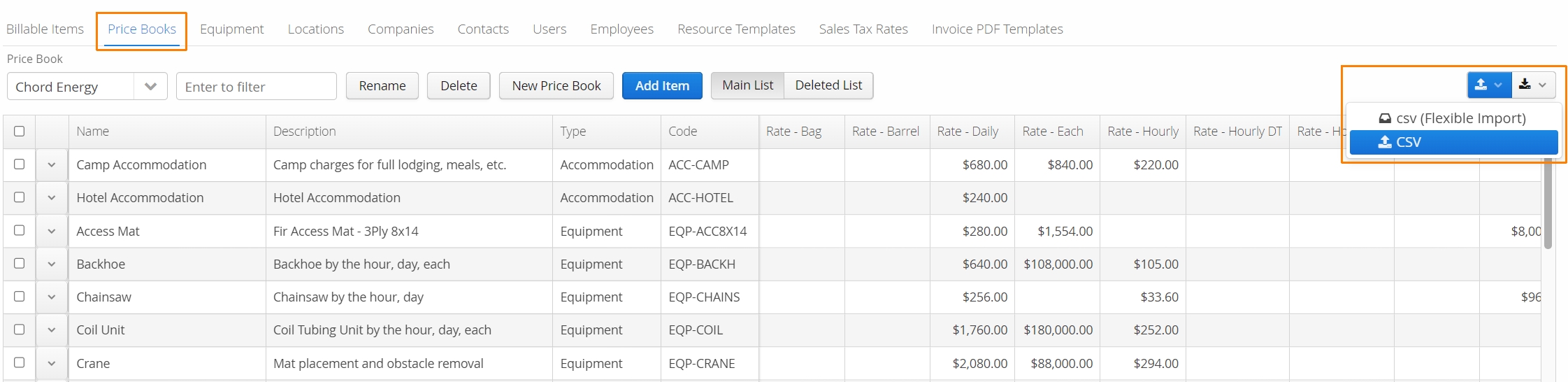
Changes can be made in Excel, then re-uploaded back into Aimsio. Use the upload button on the right and select csv (Flexible Import) or csv.
Always ensure you have the right Price Book selected before performing an import. Users should also review the following article: How to Update Billable Item Rates for Multiple Price Books
Missing Billable Items
To quickly identify Billable Items that are missing from a Price Book, users can click the export button on the right on the Price Books tab and use the option ‘CSV (Missing Billable Items)’.
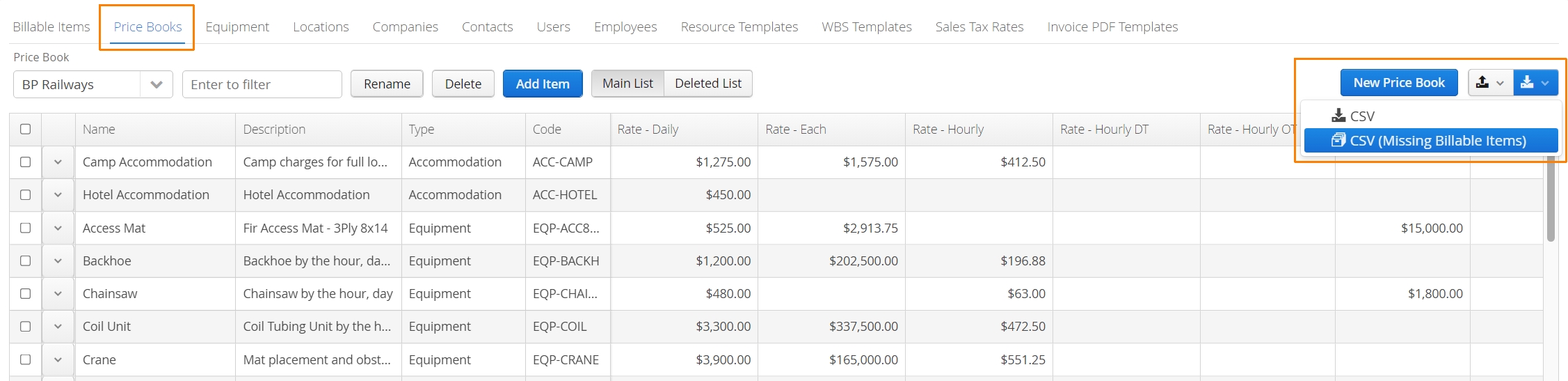
Accounts can open this csv file in Excel to identify which Billable Items were missing from the selected Price Book. Rates can be reviewed or adjusted before being imported back into Aimsio for the same Price Book.
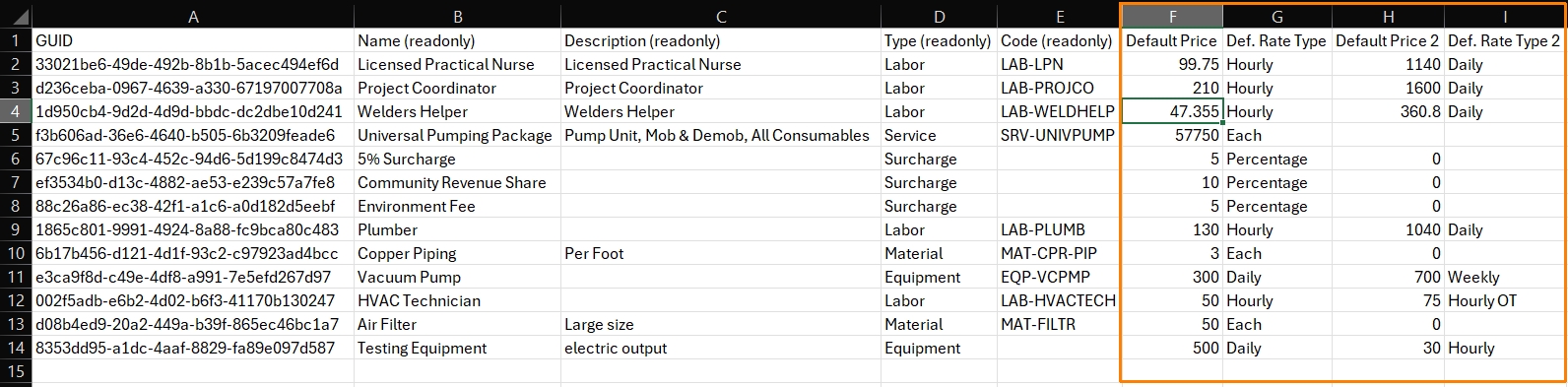
When users are importing, ensure the correct Price Book is selected first. Click the import button and select CSV.

What is the difference between a CSV upload and a Flexible Import?
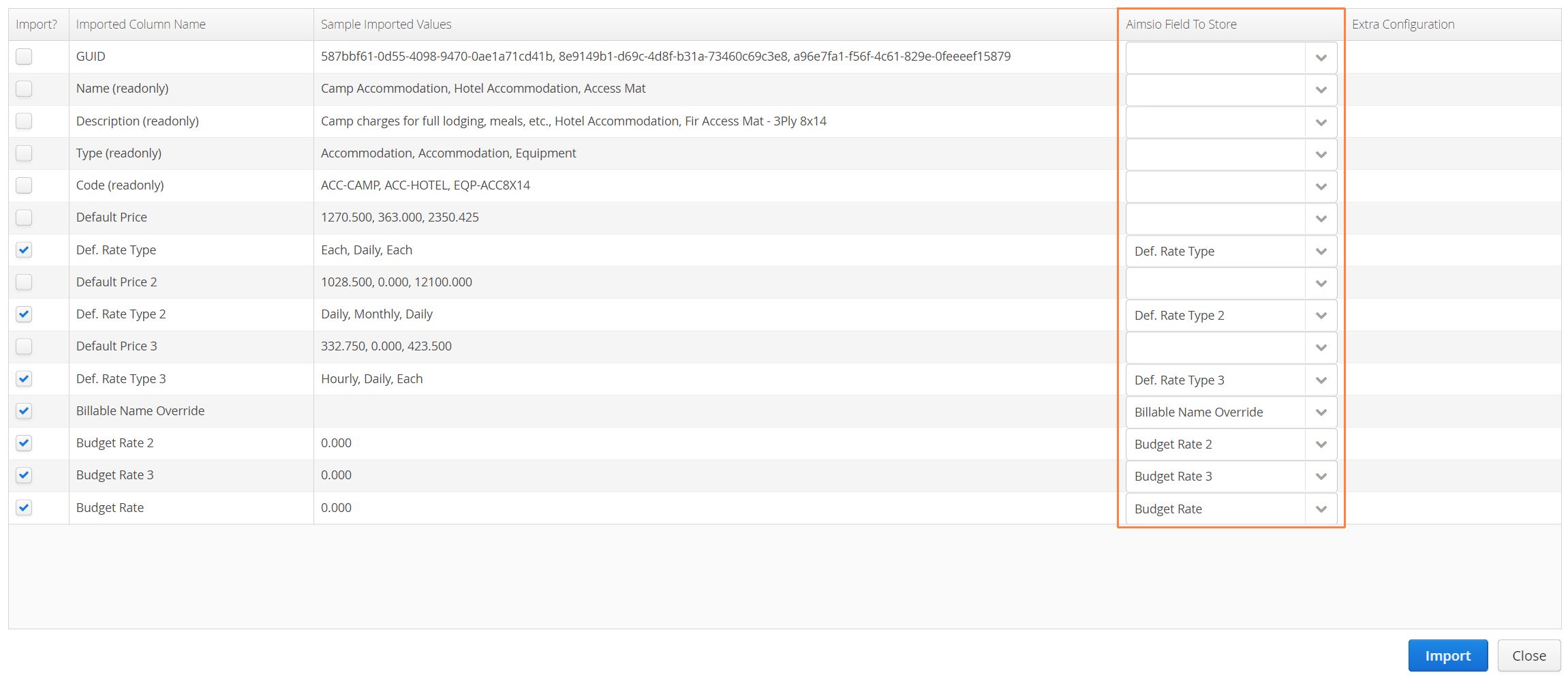
A Flexible Import allows an uploaded file to be manually mapped to Aimsio fields. This can be useful when working with a file that has not originally been generated by Aimsio and users are looking to only bring in specific values.
We typically recommend always using a Flexible Import, even when a file has been downloaded from Aimsio. This provides users the ability to quickly review their file before importing.
How to Delete a Price Book
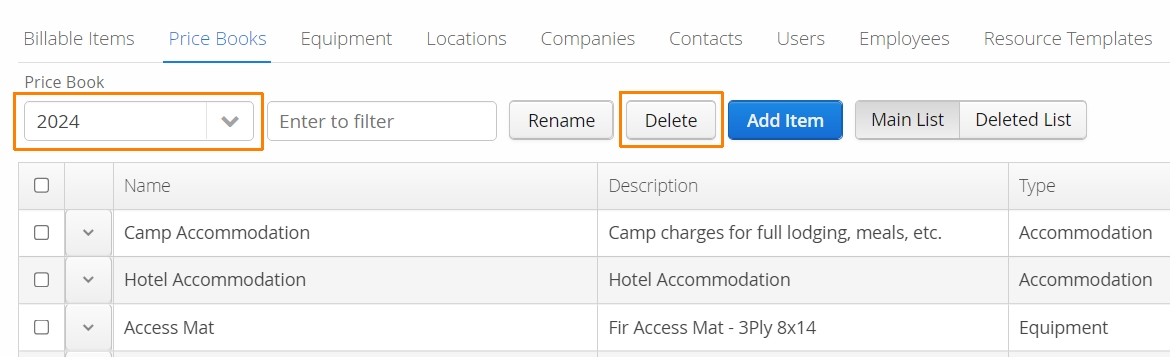
Only authorized users, with access to your account’s Master Data settings, can delete a Price Book. Navigate to the Master Data > Price Books tab and make sure the correct Price Book is being displayed. Use the Delete button to the left of the ‘Add Item’ button.
Only one Price Book can be deleted at a time.