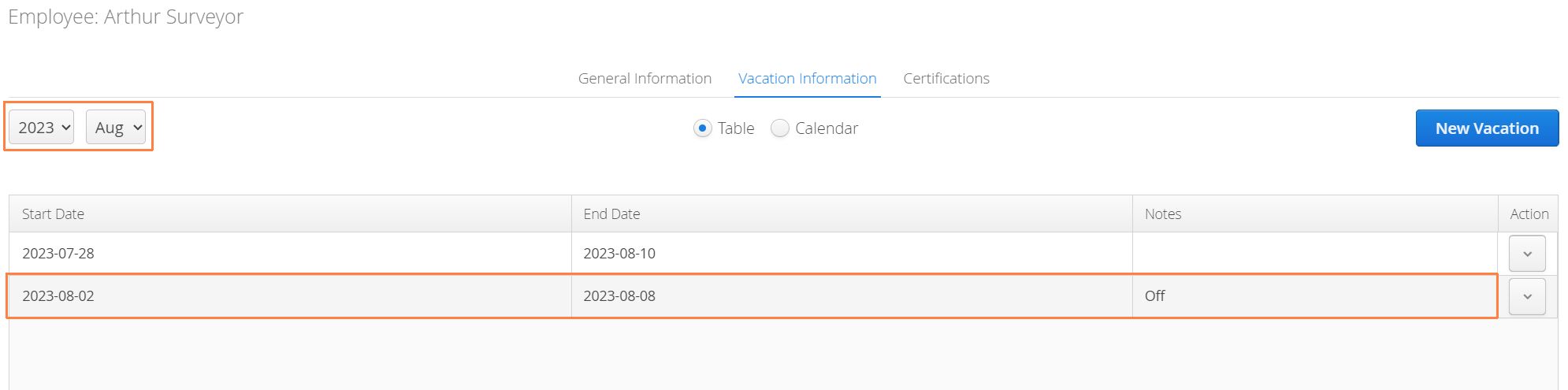
Aimsio provides the ability to store vacation records to an Employee profile. Users that have authorized access to Master Data can input vacation records on behalf of an employee. Vacation Records are especially useful when using Aimsio’s Dispatch tools, as employee calendars will reflect their unavailability when being dispatched to a Job.
How to Add Vacation Records to an Employee
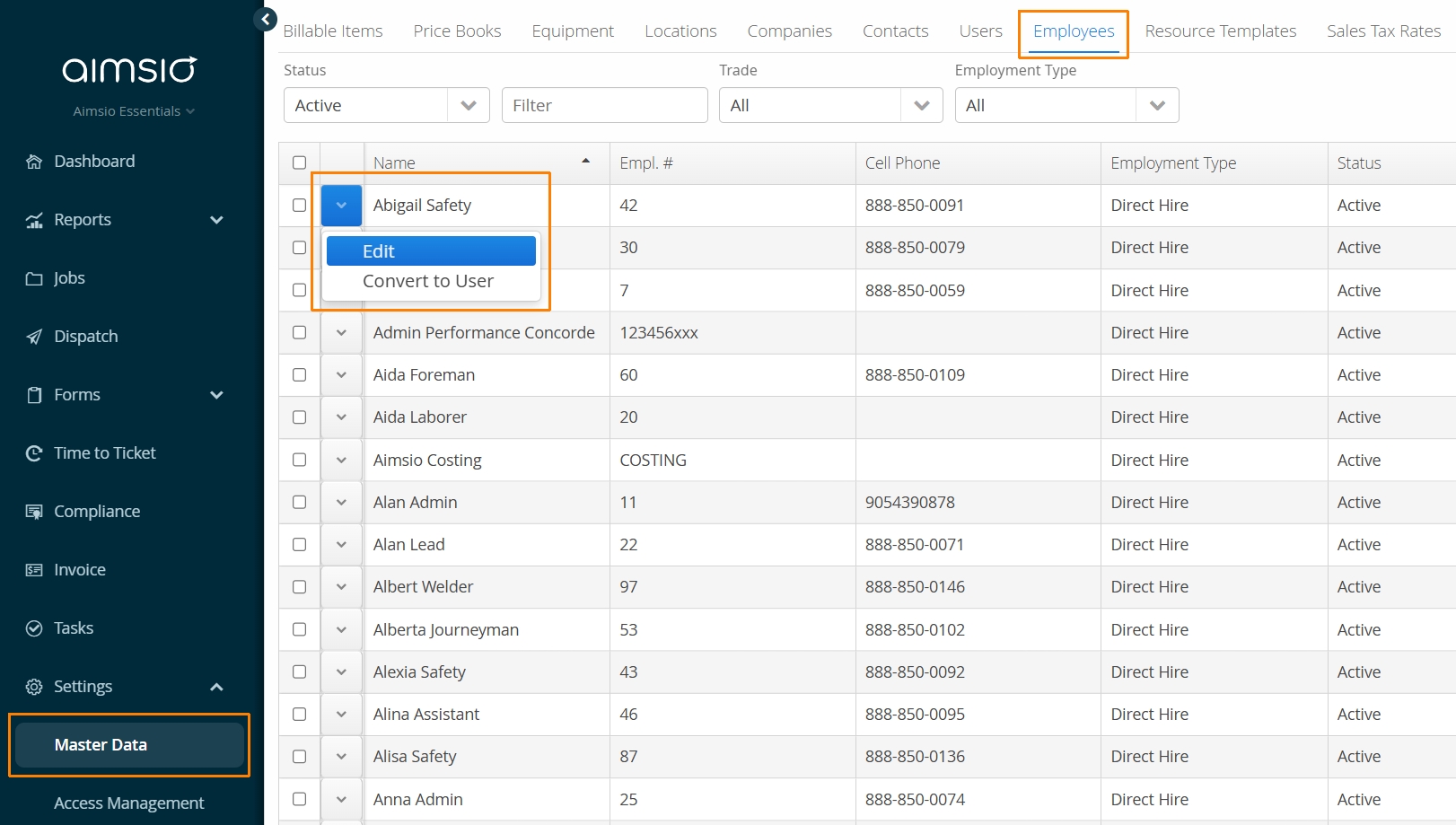
- Navigate to Master Data > Employees. Locate the employee requiring vacation and click Edit using the action menu on the left.
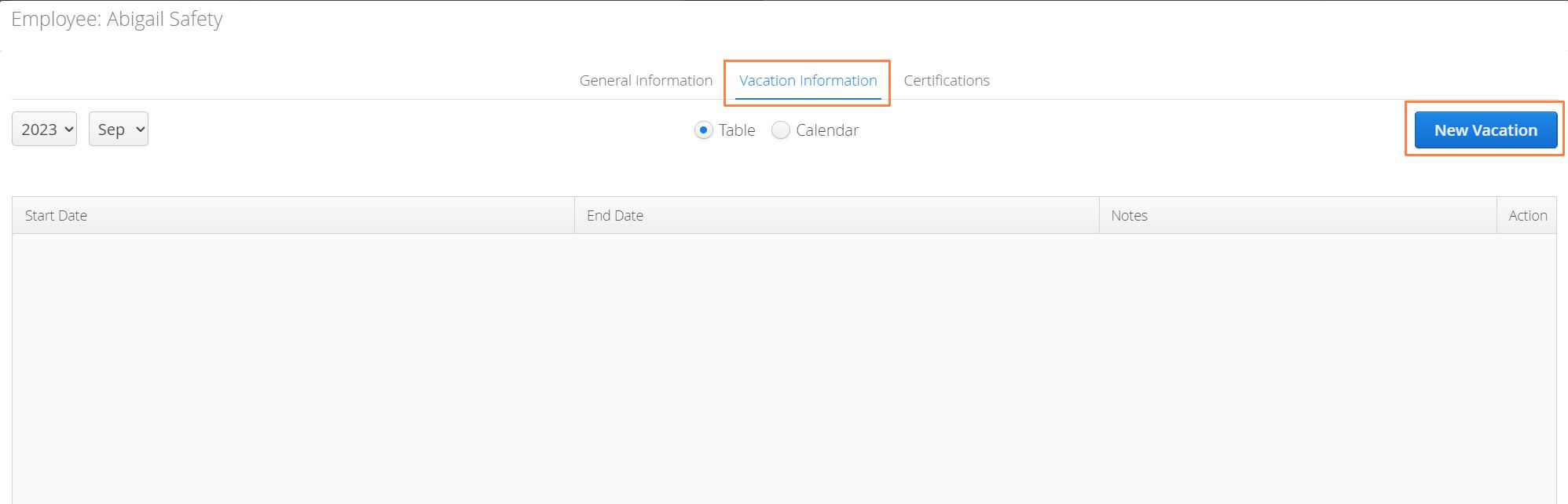
- Navigate to the Vacation Information tab and select the New Vacation button on the right.
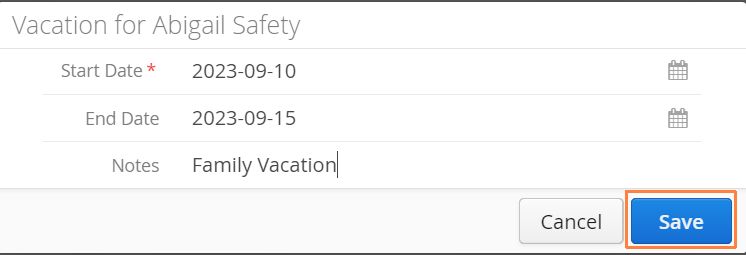
- Input the vacation dates and use the Notes field to specific additional information regarding the absence.
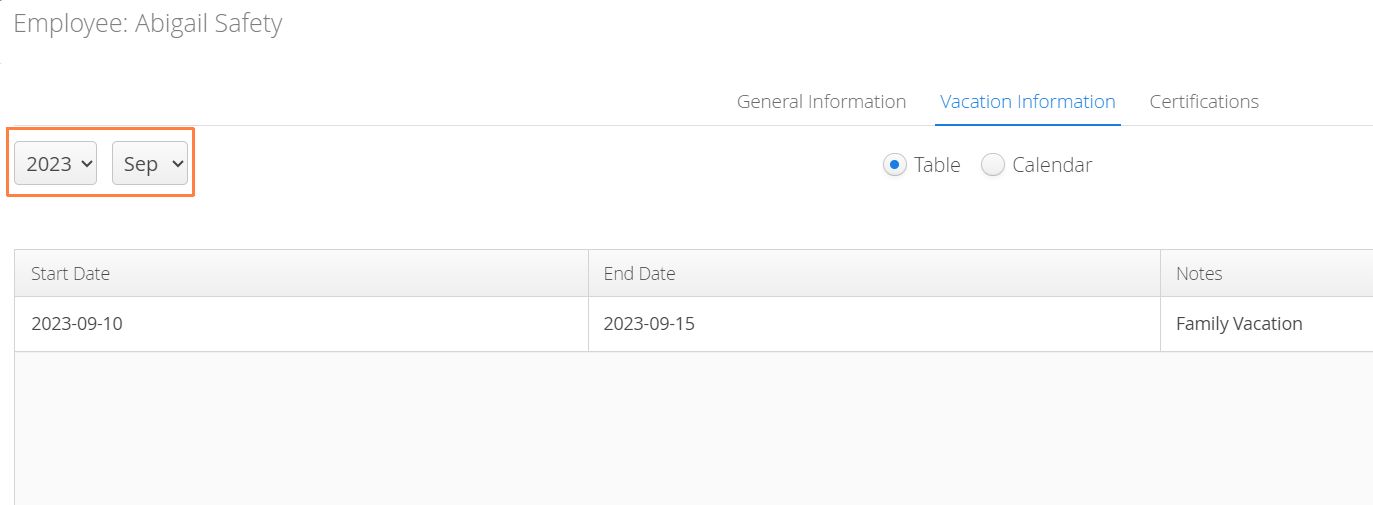
- Use the date filters on the left side of the employee profile to cycle through previous or upcoming vacation dates.
How to Edit Vacation Records in Bulk
For users requiring a more efficient way of inputting or editing vacation records, Aimsio provides the ability to export and import a CSV file that can be edited in Excel.
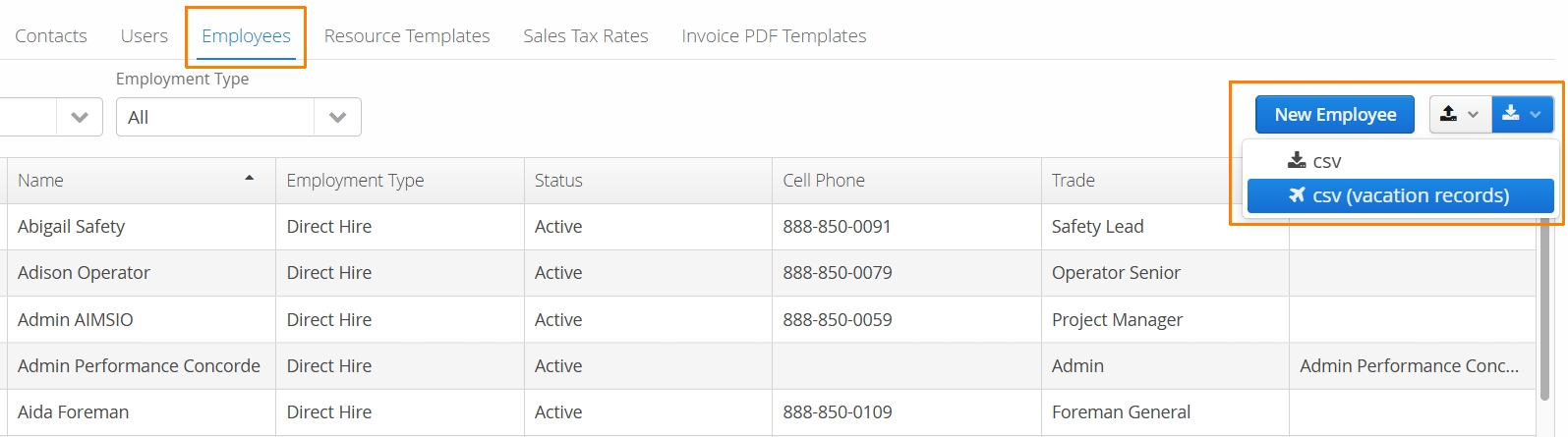
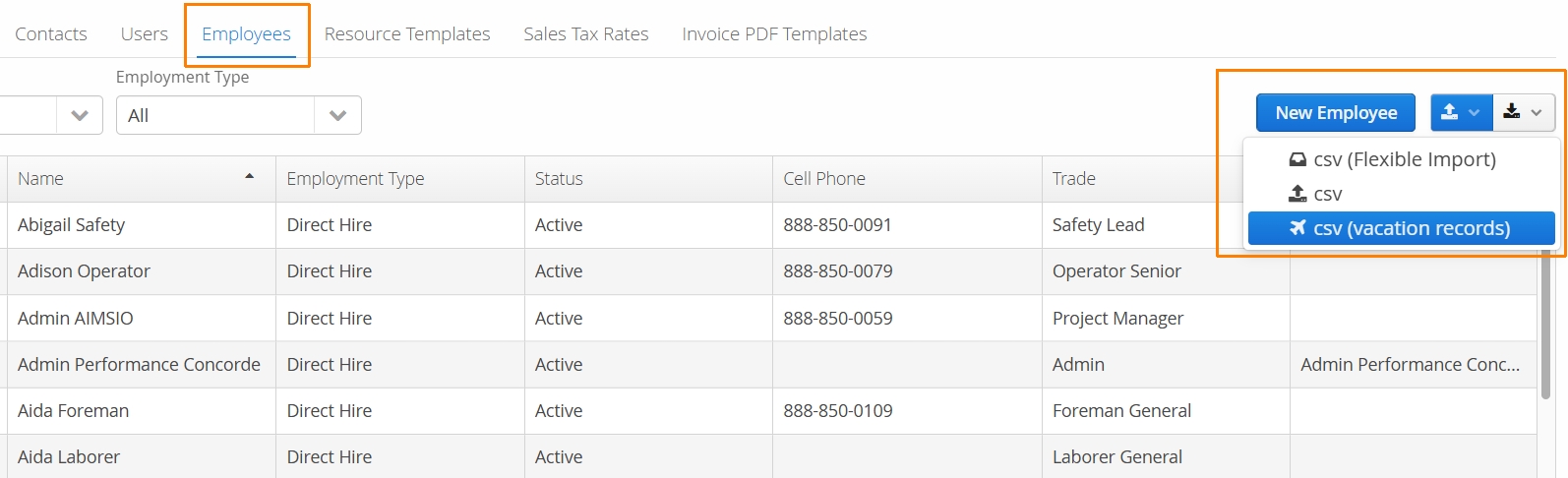
- From the Employees tab in Master Data, locate the export button on the far right and select csv (vacation records).
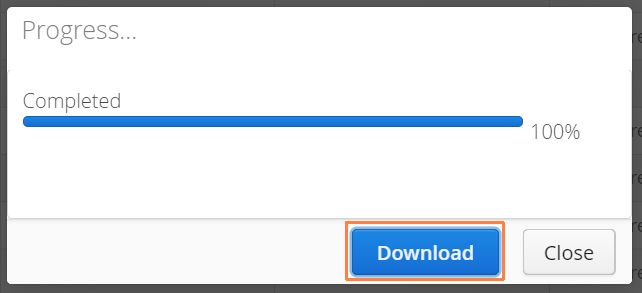
- Once the download is prepared, click the Download button to bring the file onto your computer.
- Locate the file on your device and open it in Excel (or any compatible sheets editor).
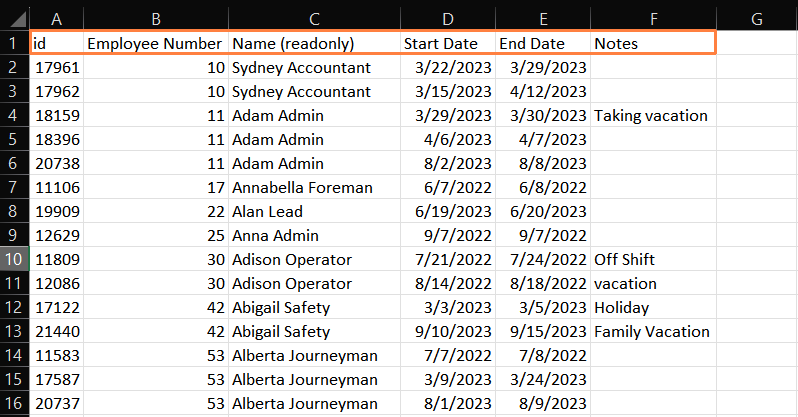
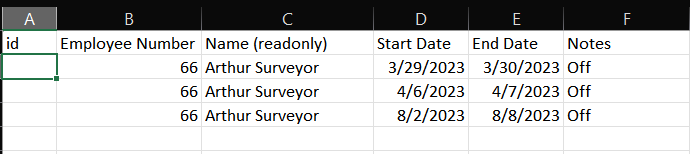
Note the following column headers in the csv:
-
id
-
Employee Number
-
Name (readonly)
-
Start Date
-
End Date
-
Notes
When adding new vacation records to this file:
-
Ensure the Employee Number and Employee Name match with an employee that already exists in Aimsio.
-
The id column must be left blank. Aimsio will assign a new id for each vacation record. A new row must be created for each vacation record added. Ids relate to an existing record. If editing an existing record, ensure the originally assigned id remains.
-
Once finished editing the csv, save a new copy onto your device. Keep the originally exported file as a backup in the event a mistake is made.
-
Navigate back to Aimsio and locate the import option on the Employee page and select csv (vacation records).
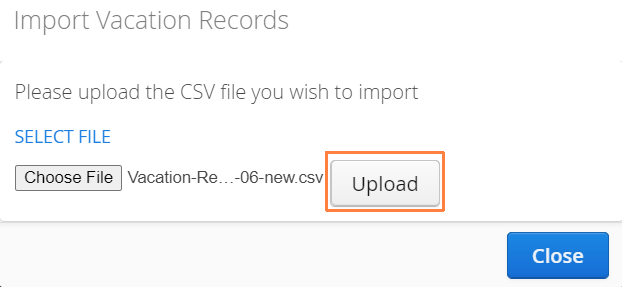
- Locate the file on your device, click Upload. Select Close on the bottom right once the upload is complete.
- Verify the records have been uploading by opening up the employee profile.