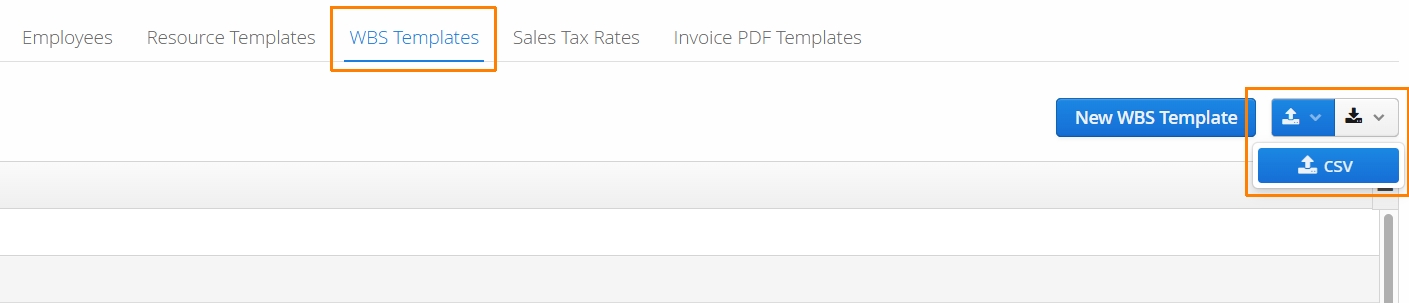
WBS Templates enable authorized users to prepare sets of job related activities/deliverables in advance. This saves teams a significant amount of time getting a project setup in Aimsio. Templates are useful in instances where Job related services follow a similar structure, so they can be seamlessly imported when creating a WBS Schedule.
WBS Templates are available for Ultimate & Performance customers.
How to Create a WBS Template
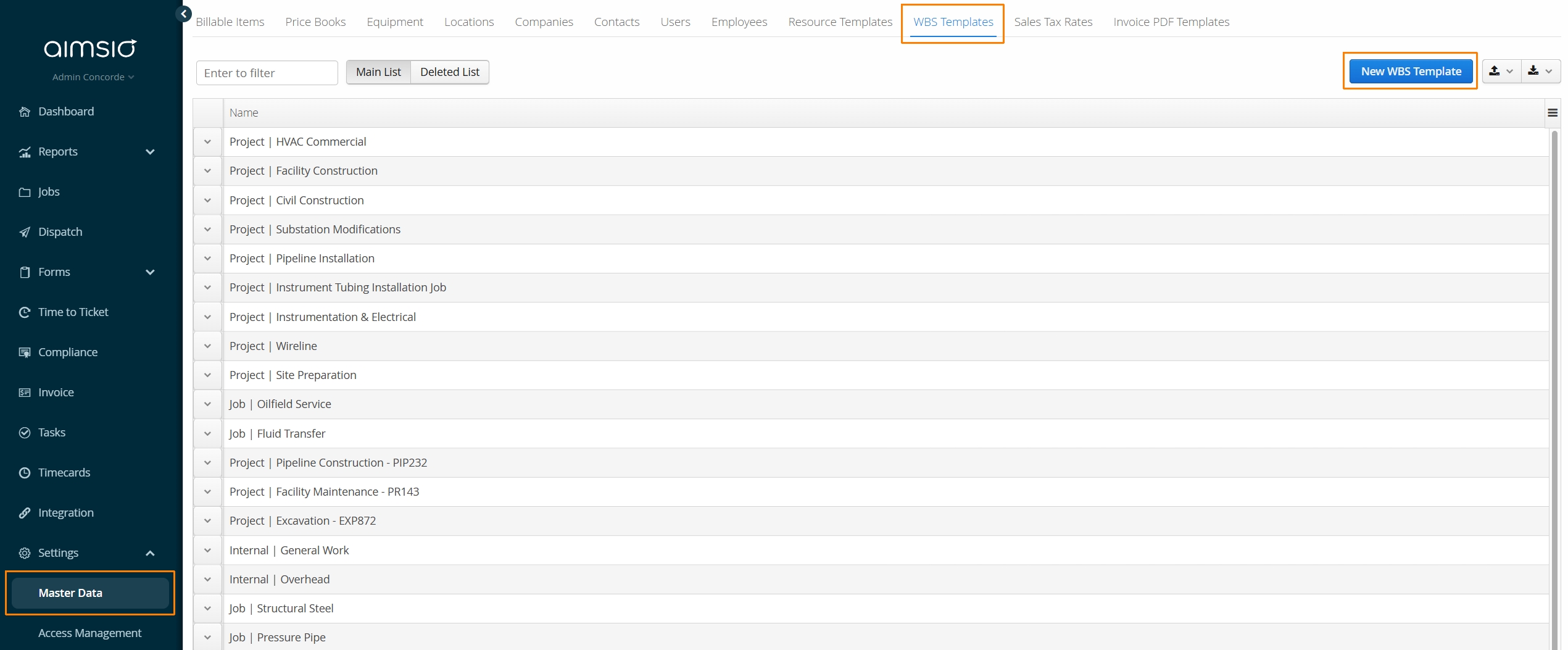
Navigate to Master Data > WBS Templates and click on the New WBS Template button.
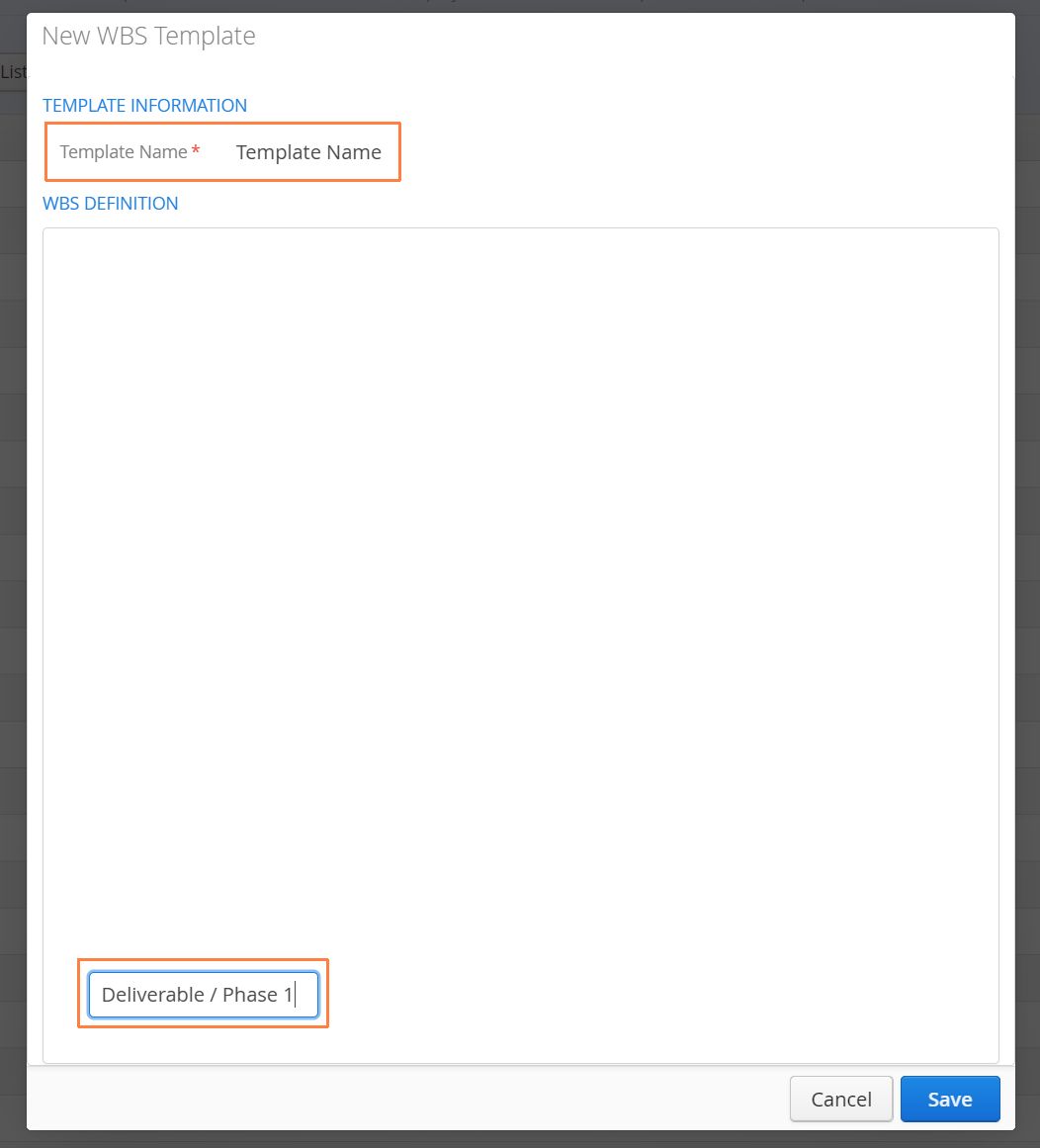
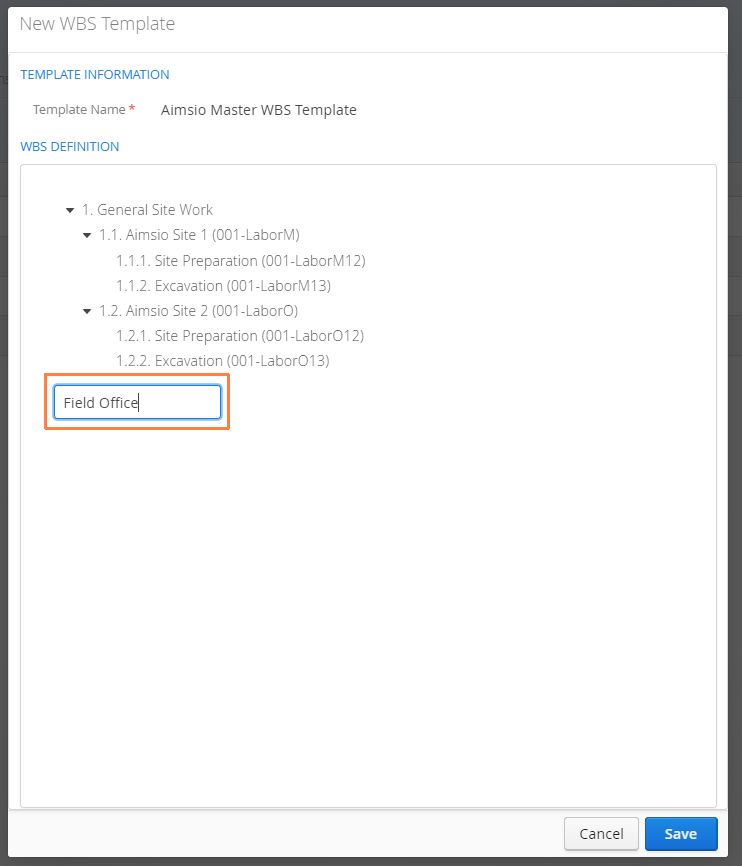
- Input the Template Name. From there, enter a name for one of the top deliverables. By default, Aimsio will always make the Job Name / Job Number the top of the hierarchy, so it’s not required to include that as a deliverable. The first deliverable will always considered a Parent. Every deliverable nested under it will be considered a Child.
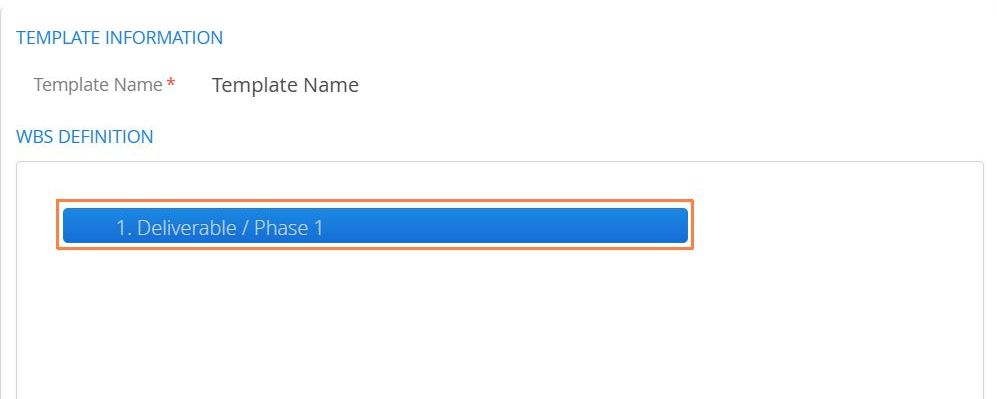
- Press Enter on your keyboard. Your first deliverable will be highlighted. It’s now possible to start nesting additional deliverables under it.
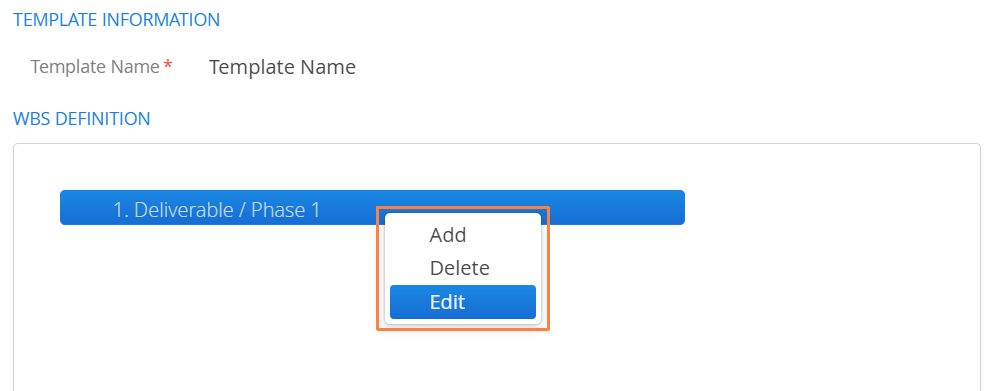
- Start by inputting the metadata information related to the deliverable by right-clicking and selecting Edit.
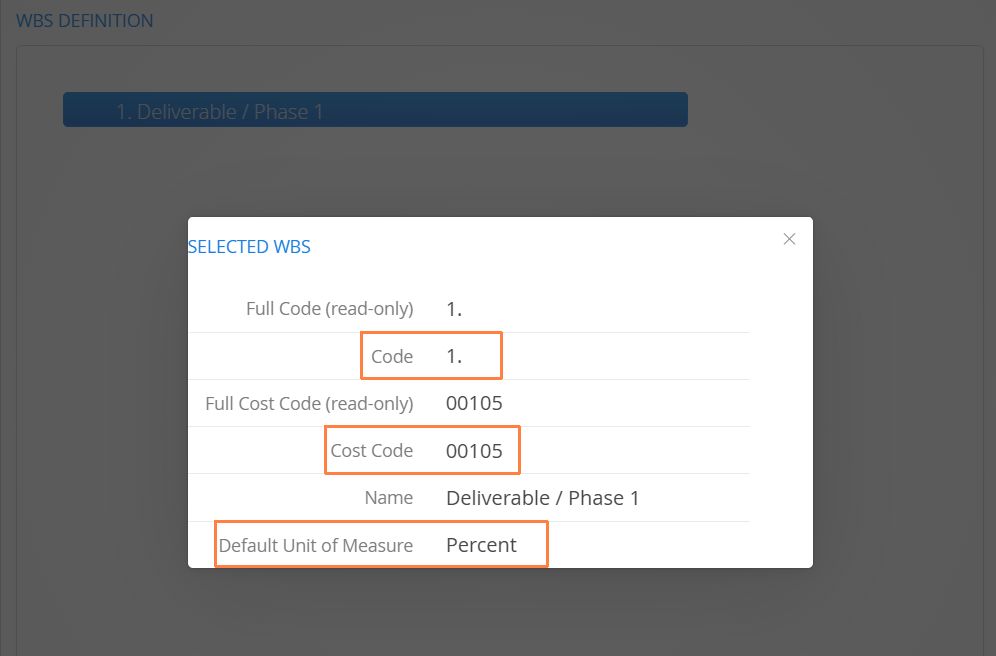
- Input the deliverable’s Activity Code, Cost Code and define the Default Unit of Measure (this is used for measuring the physical progress of the deliverable). When you’re done filling in the details, press Enter on your keyboard.
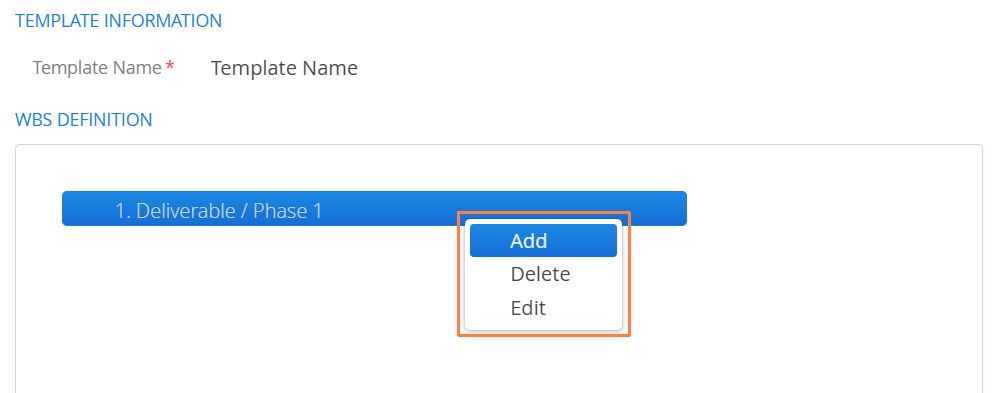
- To begin adding child deliverables, ensure the parent is selected and use the right-click action to select Add.
- Nested deliverables will appear under the parent. When work is being recorded against these deliverables, users attributing their hours will be forced to select one of the child deliverables. Parent deliverables cannot be selected and recorded against. Keep this in mind as you build out your structure.
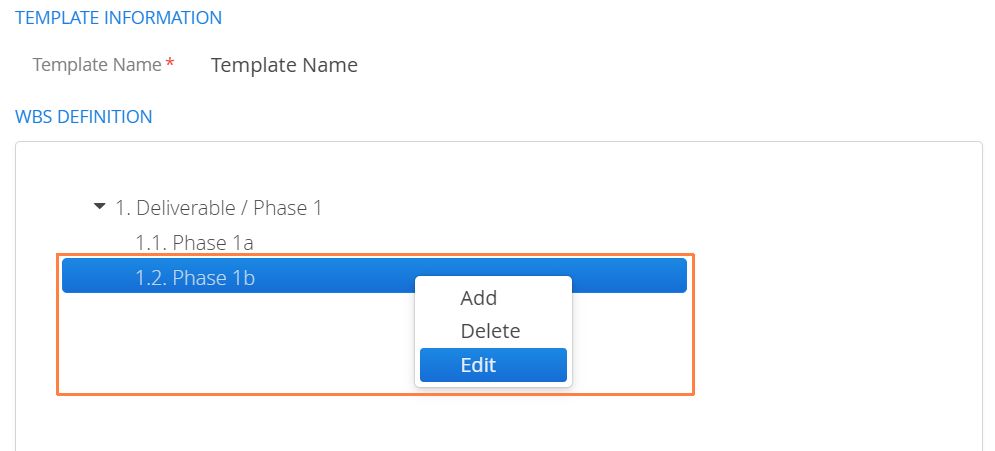
Additional child deliverables can be nested under these deliverables too, select any child and repeat the steps above**.** You can continue to grow your phase family tree by adding as many child deliverables as required.
Users can step back a level anytime and by selecting the original parent before your next action. Additionally, new top-level deliverables can be created by entering a name in the Add 1st level WBS field and pressing Enter on your keyboard.
How to Edit or Duplicate a WBS Template
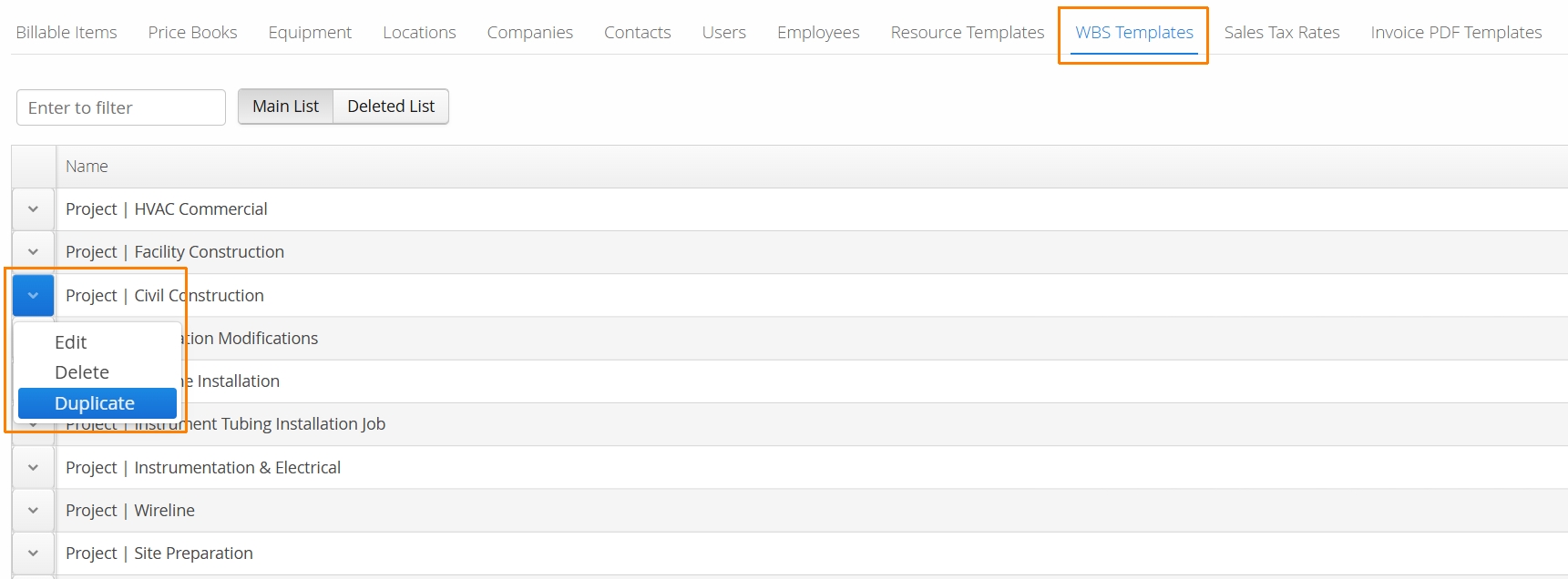
After WBS Templates have been created, users can Edit or Duplicate the template from the WBS Templates tab in Master Data. Locate a template and use the action button located on the left.
How to Add a WBS Template to a Job
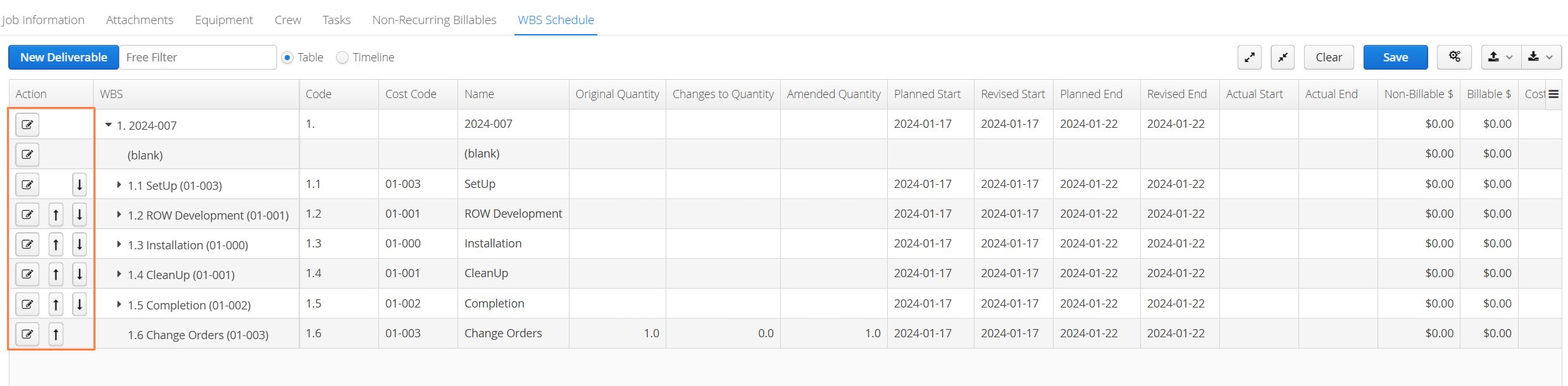
- Open/Edit a Job, navigate to the WBS Schedule tab and click on Create.

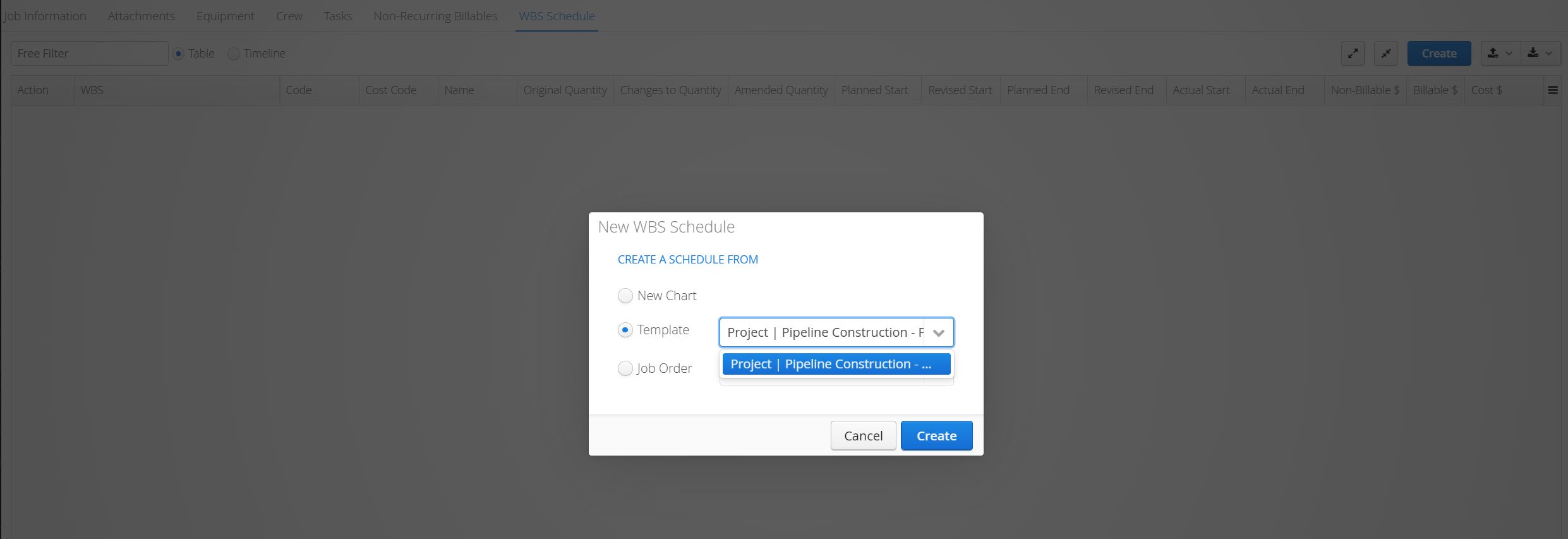
- Choose the Template option, select one your account’s premade WBS Templates and click Create.
- Review/Verify this is the set of deliverables you would like to add to the job and click Create.
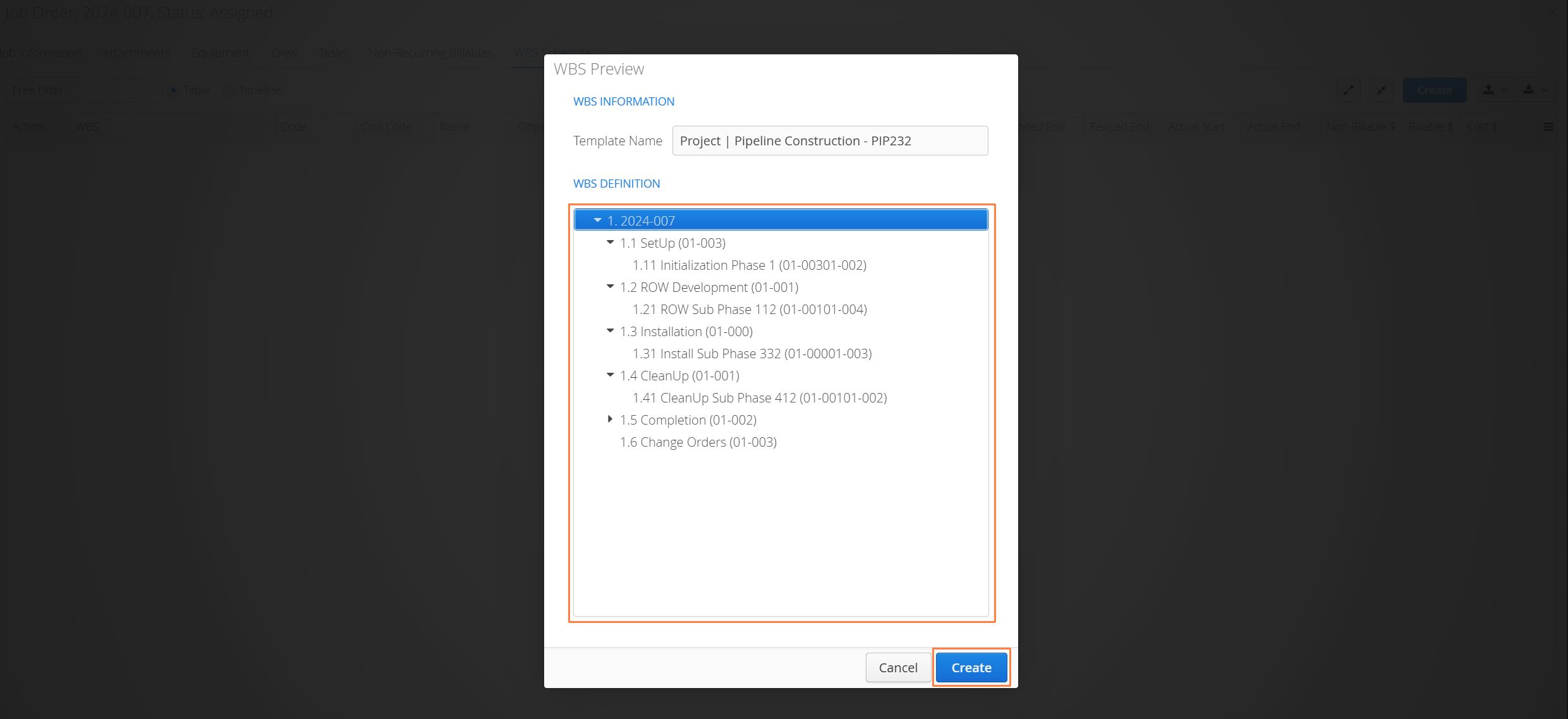
- Once your template is added to a job, you’ll be able to make adjustments to the imported deliverables, as well as add any new deliverables without affecting the original template.
Exporting and Importing WBS Schedule Templates
Bulk editing WBS Templates is possible by exporting a csv file from Aimsio and editing it in Excel. It’s strongly recommended to create at least one template first before exporting, which will provide users a framework for working with the .csv file that Aimsio provides.
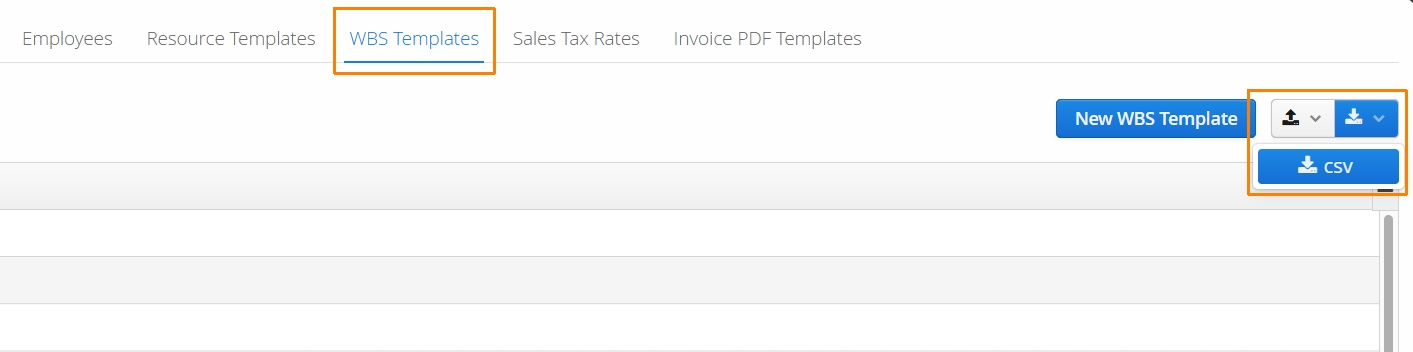
- From the WBS Templates tab, select the download icon on the far right and export csv.
- The csv file will contain fields that are not visible in Aimsio. The Template GUID and Element GUID are automatically created and assigned when a template or deliverable is created inside Aimsio.
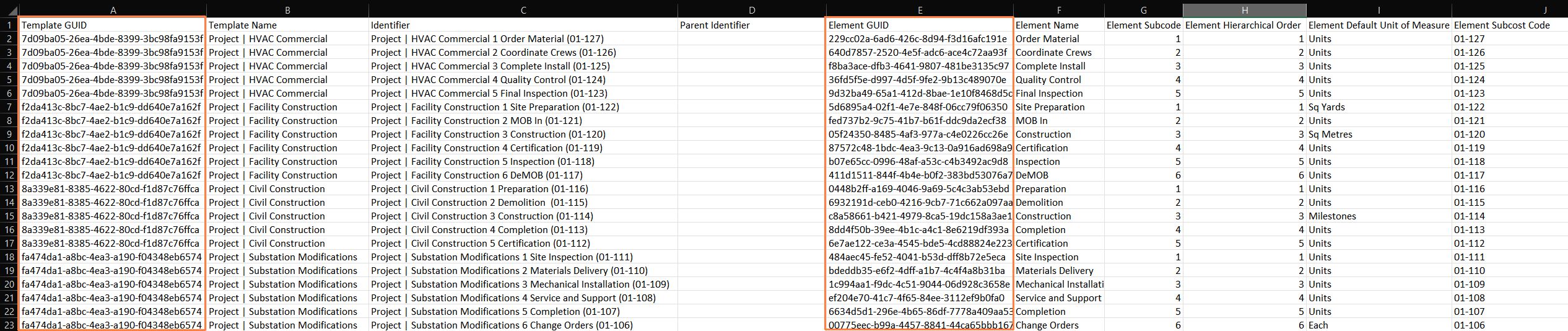
- If you’re creating new templates or adding additional deliverables to your .csv file, these values must be left blank for any new entry. Aimsio will automatically assign a new GUID on import.

All additional columns are required for a successful import.
- The Template Name relates to the name of the template inside Aimsio and the Element Name refers to the name of a deliverable.
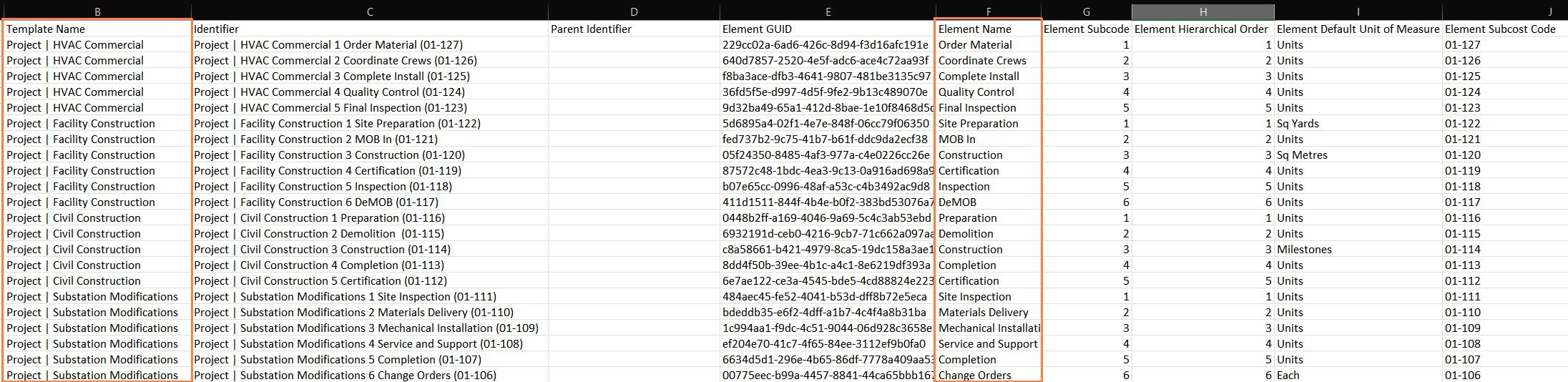
- Element Subcode refers to the Code / Activity Code associated with the deliverable. Element Default Unit of Measure and Element Subcost Code refer to the same metadata fields for each deliverable.
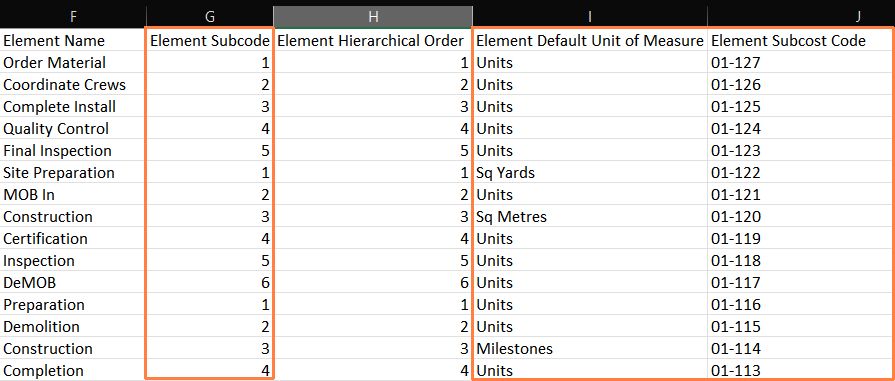
Templates and their deliverables are bound by their Identifier and Hierarchical Order. Aimsio automatically creates Identifiers when deliverables are manually created inside your account.
-
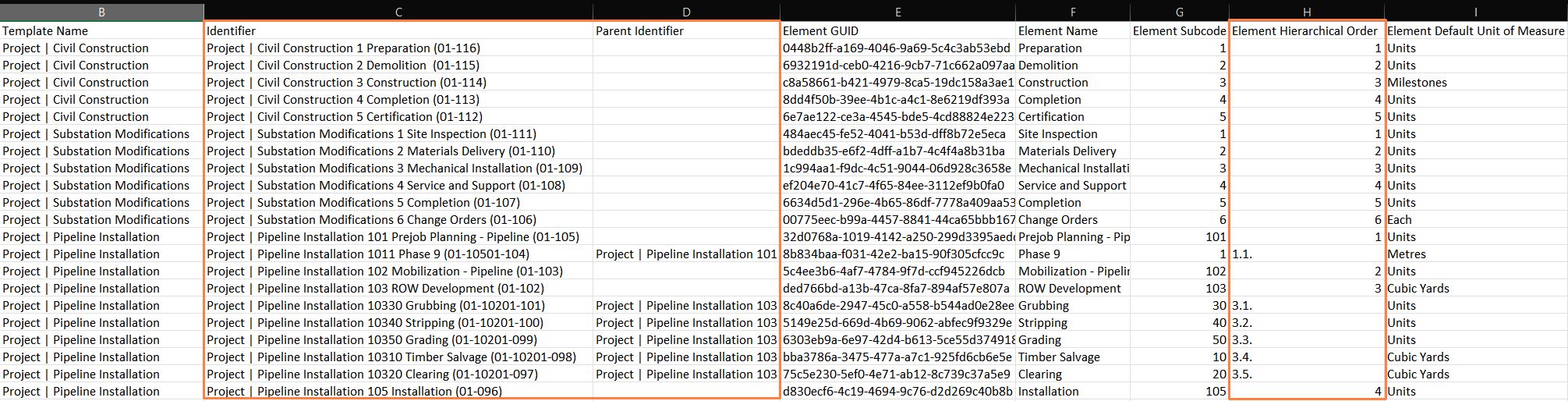
If you’re creating new entries in your Excel file, you must establish an Identifier for each row. It can be anything, but it’s generally encouraged to reference information that relates to the deliverable. In the example below, Aimsio uses a concatenation of the Template Name, Element Name, Element Subcode and Subcost Code.
-
The Hierarchical Order relates to the positioning of this deliverable in your structure. Whole numbers indicate that this deliverable is at the top of the hierarchy, while decimals can indicate that it’s a child of a specified parent. Child deliverables must also be associated to their parent by using the Parent Identifier column. The Parent Identifier value must stay consistent for every child relating to the same parent.
- Once you’re finished editing your .csv file, navigate back to Aimsio and use the import function located on the far right. Select the .csv file on your computer and upload.