When using the Quickbooks Online integration, users can encounter errors that prevent them from updating data in Aimsio or exporting transactions to Quickbooks. Here’s the list of the most common error messages, and how to troubleshoot them:
-
Cannot find the Item Reference in Quickbooks Online for [item name]
-
Explanation: The integration is not able to find the Products & Services entry in QBO with [Item Name]
-
Troubleshooting:
-
Check if the item exists in Quickbooks, and is also available as a Billable Item in Quickbooks. If it does, make sure the name matches with the name in Aimsio.
-
If the item exists in Quickbooks, but not in Aimsio as a Billable Item: There’s an issue with the integration configuration. Please contact our support/integration team for further assistance.
-
-
Common spelling details to check for when reviewing names:
Extra white space characters at the start/end of entry name (“CNRL” vs “CNRL “)
Abbreviation and punctuation marks (Inc. vs Inc vs Incorporated, CNRL vs Canada Natural Resources Limited)
Capitalization (Suncor vs SUNCOR)
-
Cannot find the Customer/Vendor Reference in Quickbooks Online for [company name]
-
Explanation: The integration is not able to find the Customer/Vendor entry in QBO with [Customer Name]
-
Troubleshooting:
- Check if the customer/vendor exists in Quickbooks. If it does, make sure the name matches with the name in Aimsio.
-
-
Cannot find the Customer Reference in Quickbooks Online for [company name]:[job number job name]
-
Explanation: The integration is enabled to export Job Orders from Aimsio to QBO as Sub-customer, but the system is not able to find the entry in QBO in the format of [job number job name]
-
Troubleshooting:
-
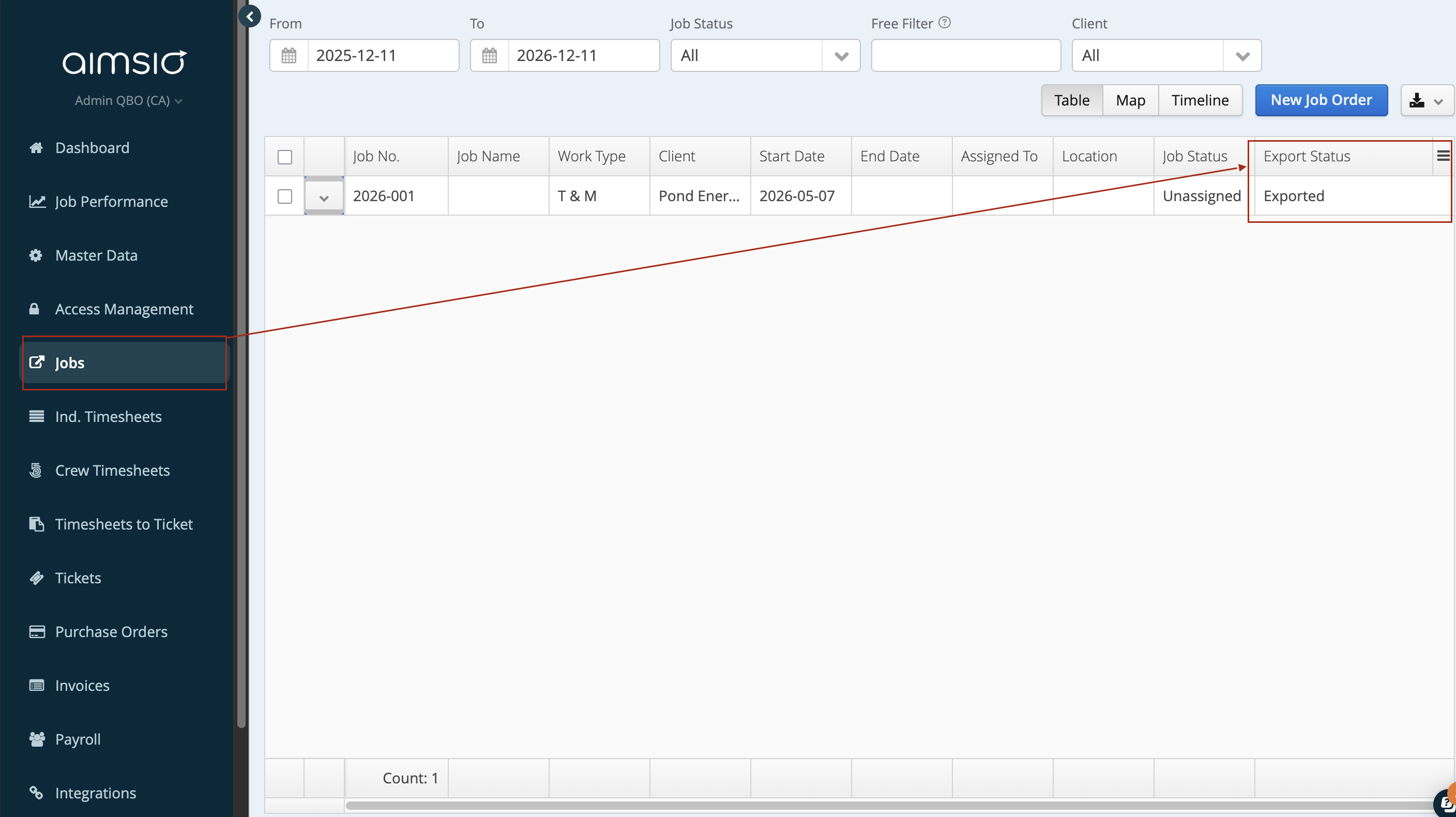
Check if the Job Order entry is exported to Quickbooks. You can check for this in the Job Order menu → Export Status column.
-
-
-
No connected integration record was found. Go to Integration > Authentication to connect your instance first.
-
Alternatively: Integration returned status code 401
-
Explanation: Your Aimsio account is not yet connected with Quickbooks Online, or the authentication was disconnected.
-
Troubleshooting:
-
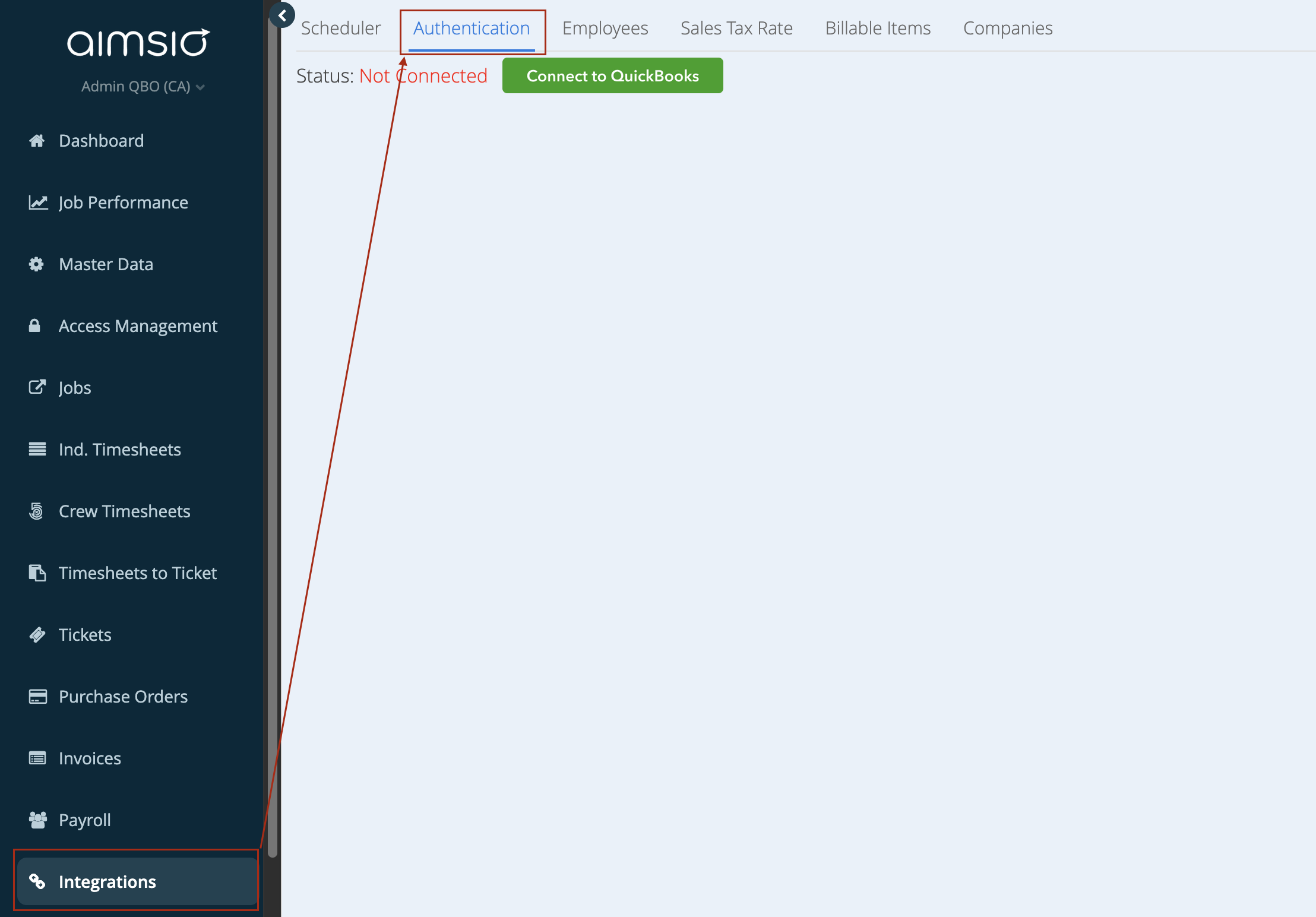
Go to Integration menu > Authentication and select “Connect to Quickbooks”. You will need to be an Admin user for your Quickbooks account to be able to authenticate Aimsio.
-
-
-
Invalid Reference ID: Product/Service assigned to this transaction has been deleted. Before you can modify this transaction, you must restore [Item Name]
-
Explanation: The Product/Service entry Aimsio references in the export is deleted/made inactive in Quickbooks.
-
Troubleshooting: Restore the inactive item in Quickbooks.
- If the item already exists, or if there is a new entry with the same name in QBO, please contact our support/integration team for further assistance.
-
-
Item reference in QBO could not be found (either default or the line item > billable item)
-
Explanation: The Purchase Order module is not set up with the required configuration to export to Quickbooks.
-
Troubleshooting: Please contact our support/integration team for further assistance.
-
-
Vendor code cannot be blank
-
Explanation: The Vendor entry for the current Purchase Order is missing the company code for export. This can happen if the entry was created manually or was edited after being imported.
-
Troubleshooting:
-
Please contact our support/integration team for further assistance.
-
To prevent this issue from recurring, avoid creating manual data entry if possible and always use the import function.
-
-
-
This purchase order is already exported: [link to transaction]
-
Explanation: The purchase order is already exported.
-
Troubleshooting: No further action needed.
-
-
There must be a linked purchase order that is already exported!
-
Explanation: The exporting NRB is linked to a purchase order that is not exported. Our system requires the POs to always be exported before an NRB to ensure the integration works properly.
-
Troubleshooting: Export the source PO of the NRB to Quickbooks first. If your account doesn’t have a Purchase Order module, please contact our support/integration team for further assistance.
-