Anyone requiring access to Aimsio, including Employees tracking their time on Timesheets, will require a user account.
How to Add a New User to Your Account
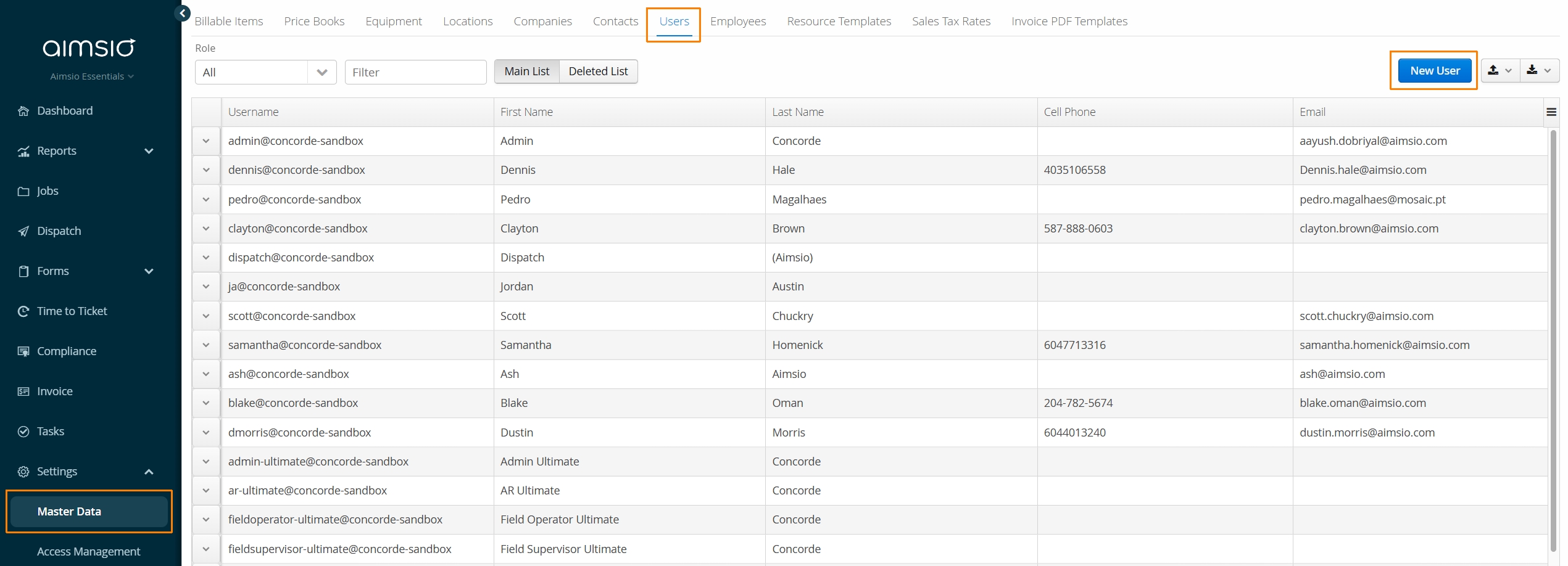
Navigate to the Master Data page using Aimsio’s left menu. Click on the Users tab and select New User.
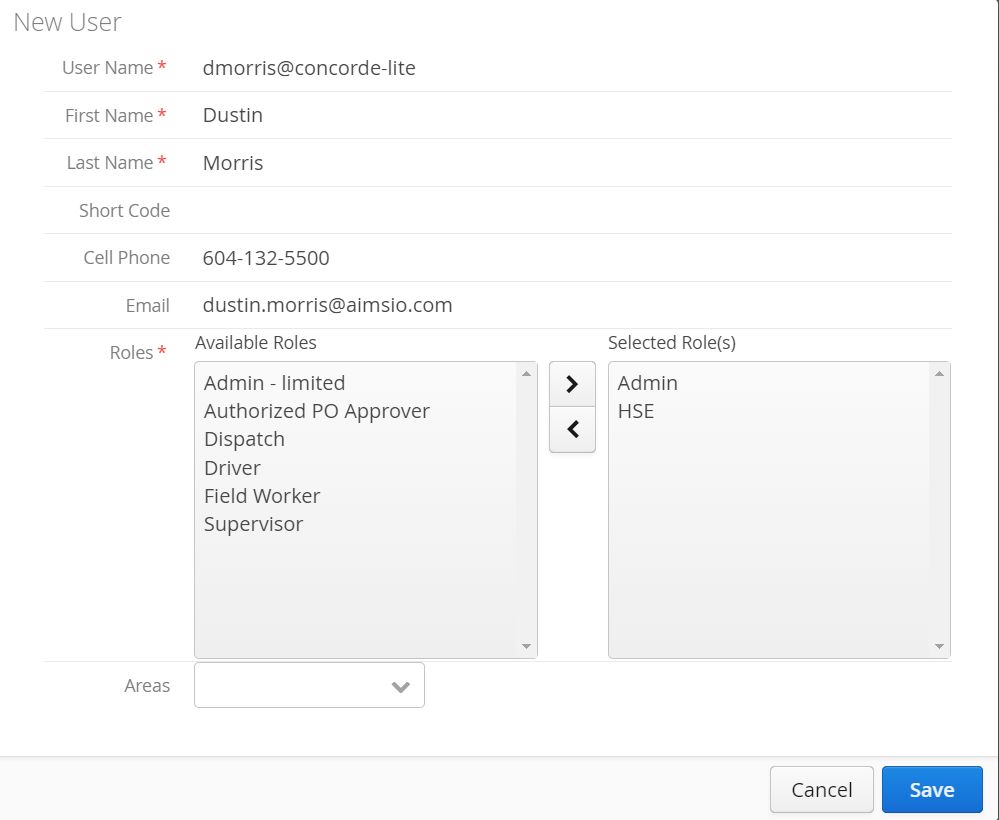
User Name, First Name, Last Name and Role are required when setting up a new user.
Include a Cell Phone and Email for available notifications. For more information see: Aimsio Notifications
User Names are not an email address. Do not include a top-level domain (.com, .ca).
If the user is being created for a Sandbox account, append a “-sandbox” to the end of the user name.
Aimsio provides a set of default roles, each with their own relative functions. A user can have more than one role. For more information review our Access Management documentation.
-
Fill out all required fields, assign at least one Role and click Save.
-
You are required to create a temporary password when adding a new user.
New users will be able to change their own password. For more information: How to Reset Your Password
How to Notify New Users
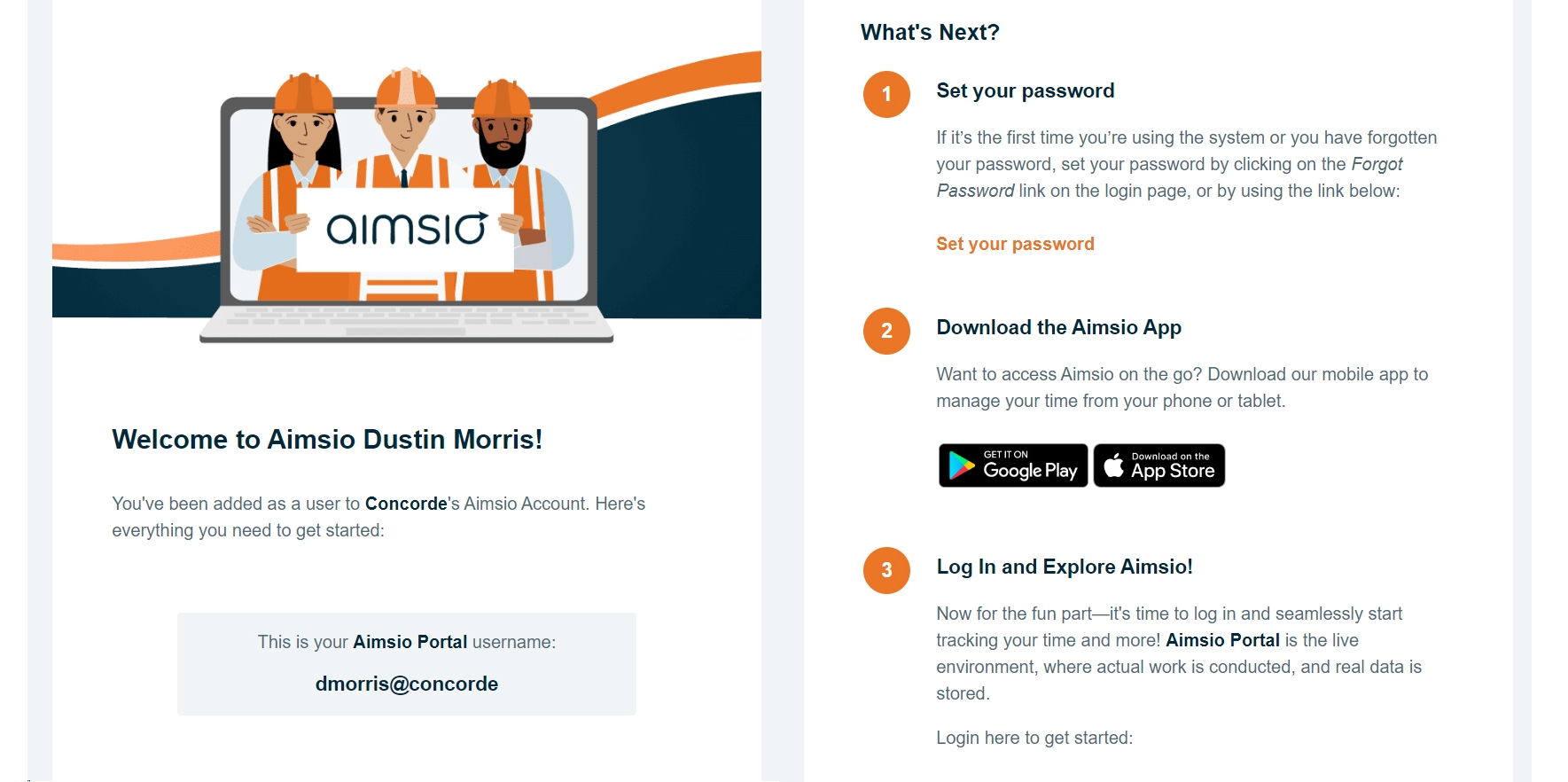
Accounts have the option to deliver login instructions directly to new Users. An email notification can be sent to each user with instructions on how to download Aimsio’s mobile app and log into their Aimsio account. We provide multiple ways to initiate this notification:
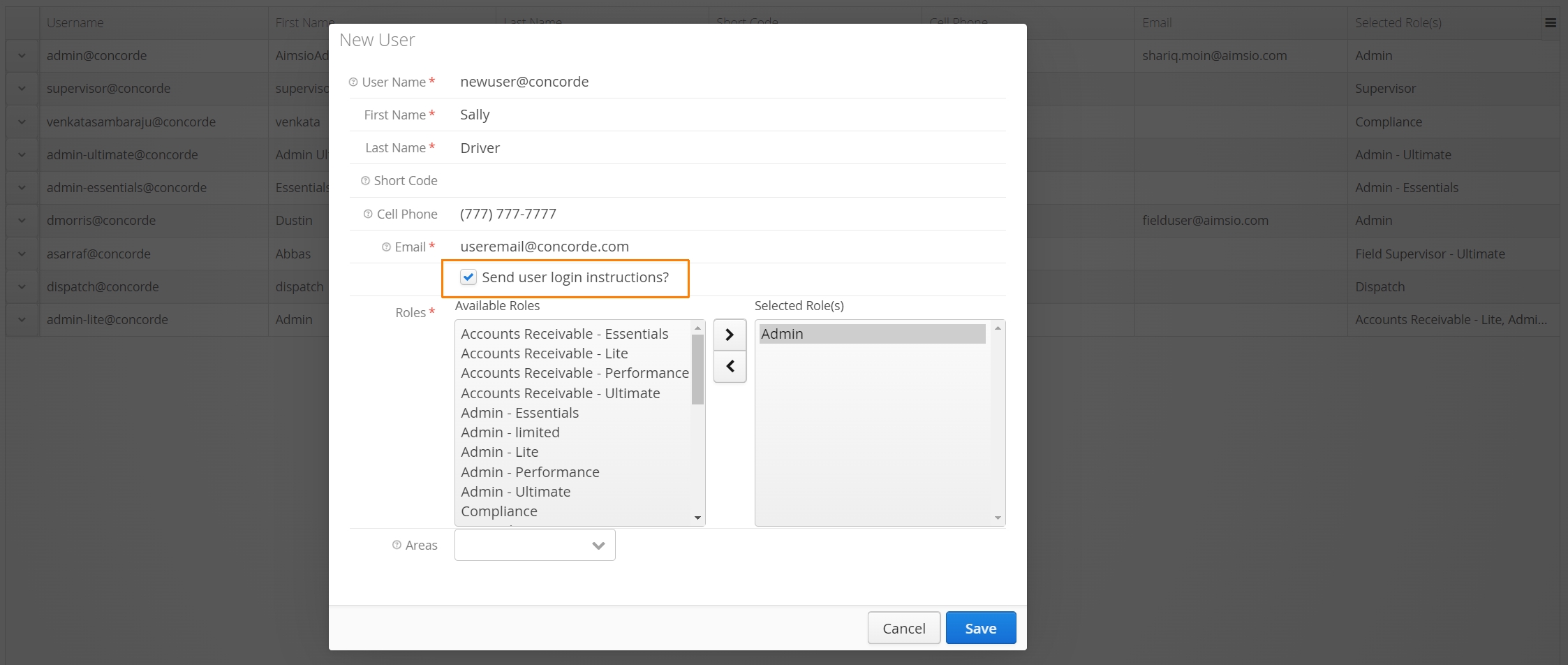
From the Master Data > Users tab, accounts will have the option to send this notification at the time a new user is being created.
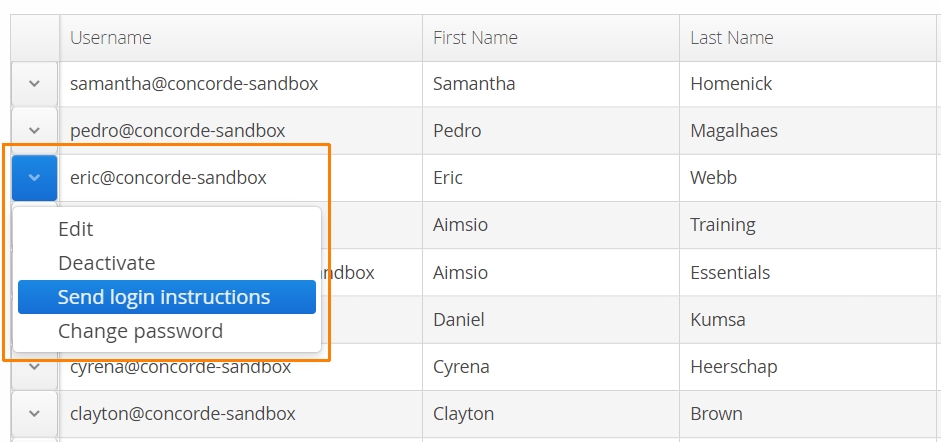
Administrators will also have the ability to send instructions to a previously created user by clicking on the action button to the left of a user.
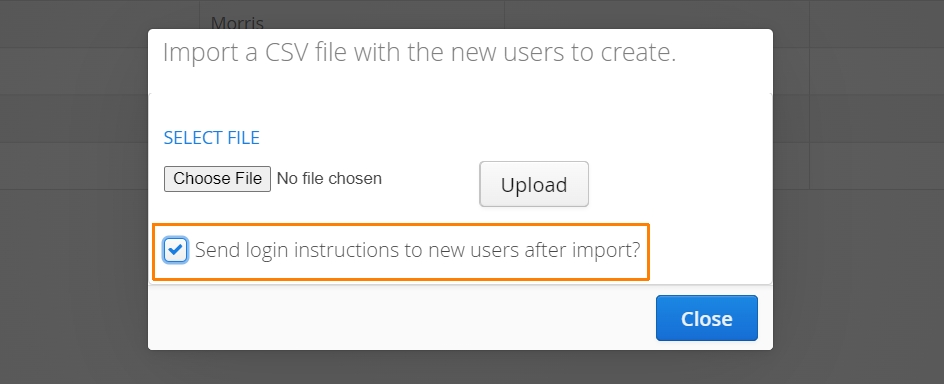
Multiple users can be sent instructions when importing a compatible csv file for new users.
Users must have a valid email address to receive this notification.
How to Update or Edit an Existing User
Authorized users can navigate to the Users tab in Master Data and locate the user requiring an update. Use the Action button located to the left of the user and select Edit.
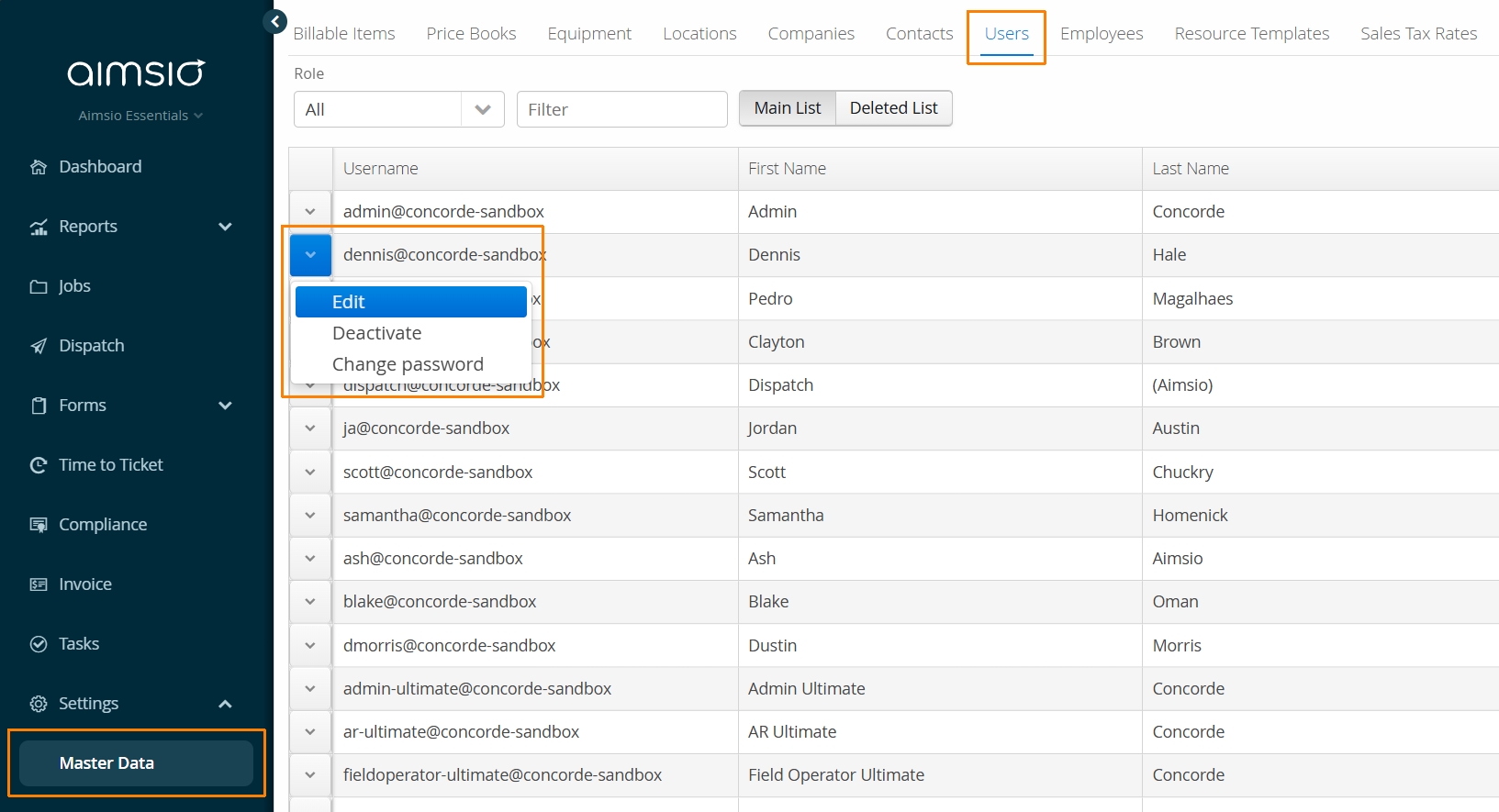
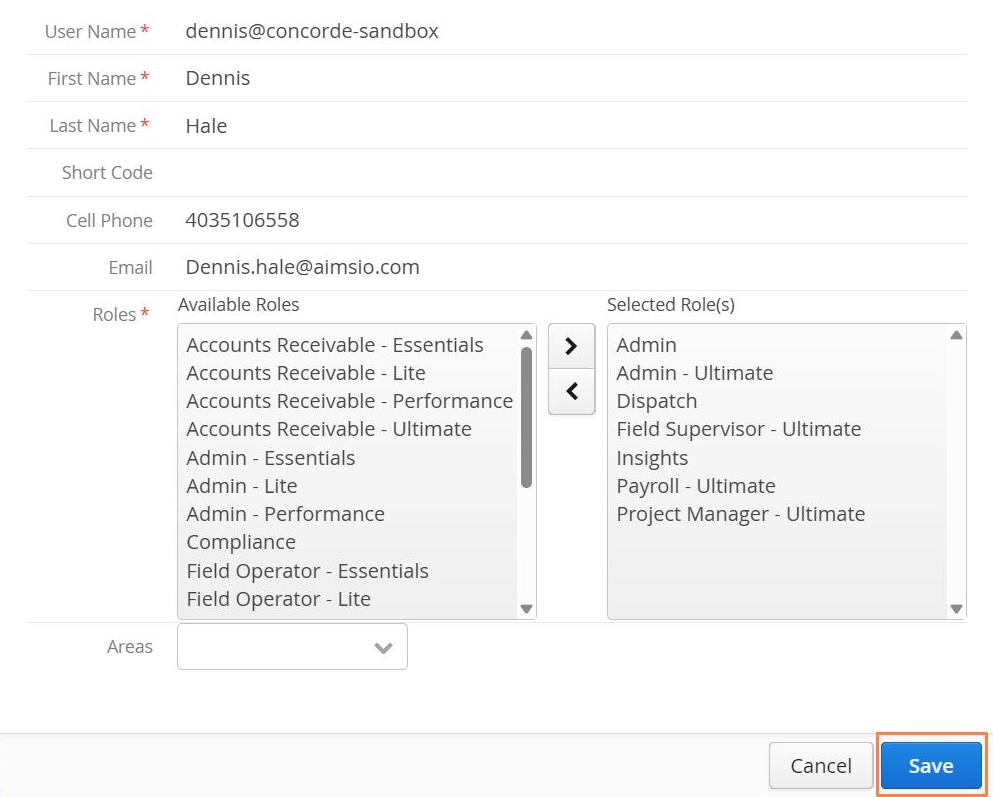
- Make your changes and click Save when finished.
How to Add Areas to Users
Users can be associated to one or more Areas. Use the dropdown menu to select one or more of the available areas from the ‘Areas’ field.
- Areas are managed via the Master Data > Locations tab.
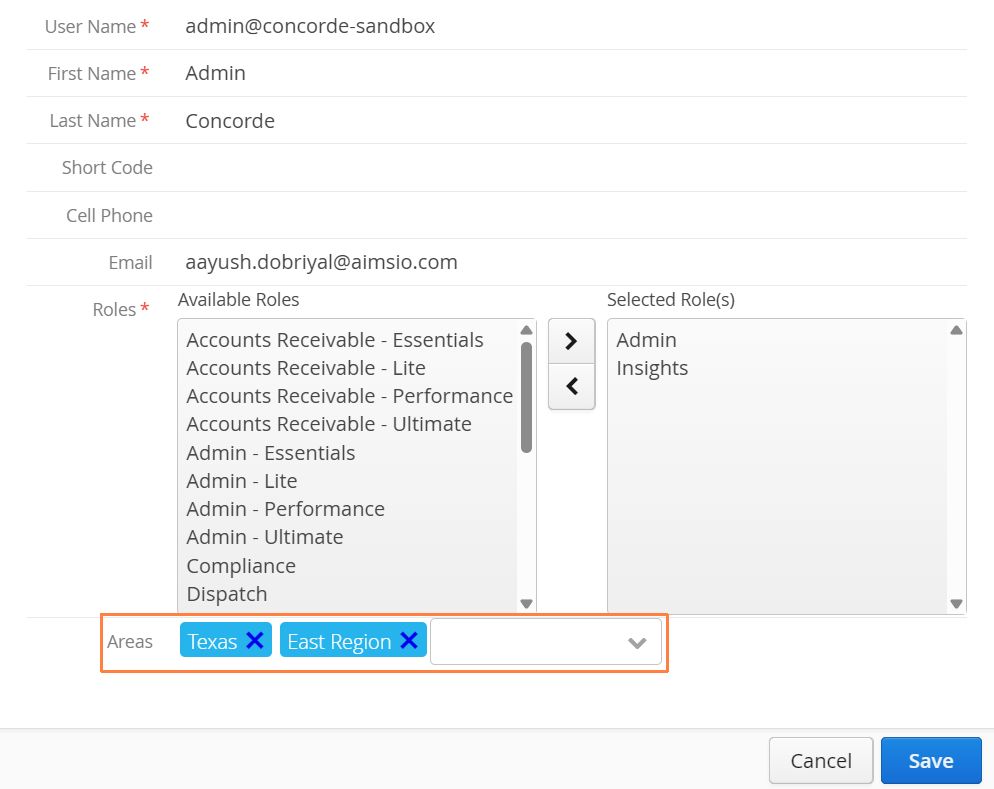
A User’s ‘Area’ can influence which data they have the ability to access, typically as it relates to what Job’s exist in the account. User Areas can be leveraged to only show Jobs that they have been dispatched or assigned to (in the same area), they can also have resources in Dispatch restricted to their area.
A User’s Area tag is a fundamental setting for accounts managing multiple divisions.
How to Convert an Existing Employee to a User
If an Employee exists first, it’s possible to quickly convert that Employee to a User.
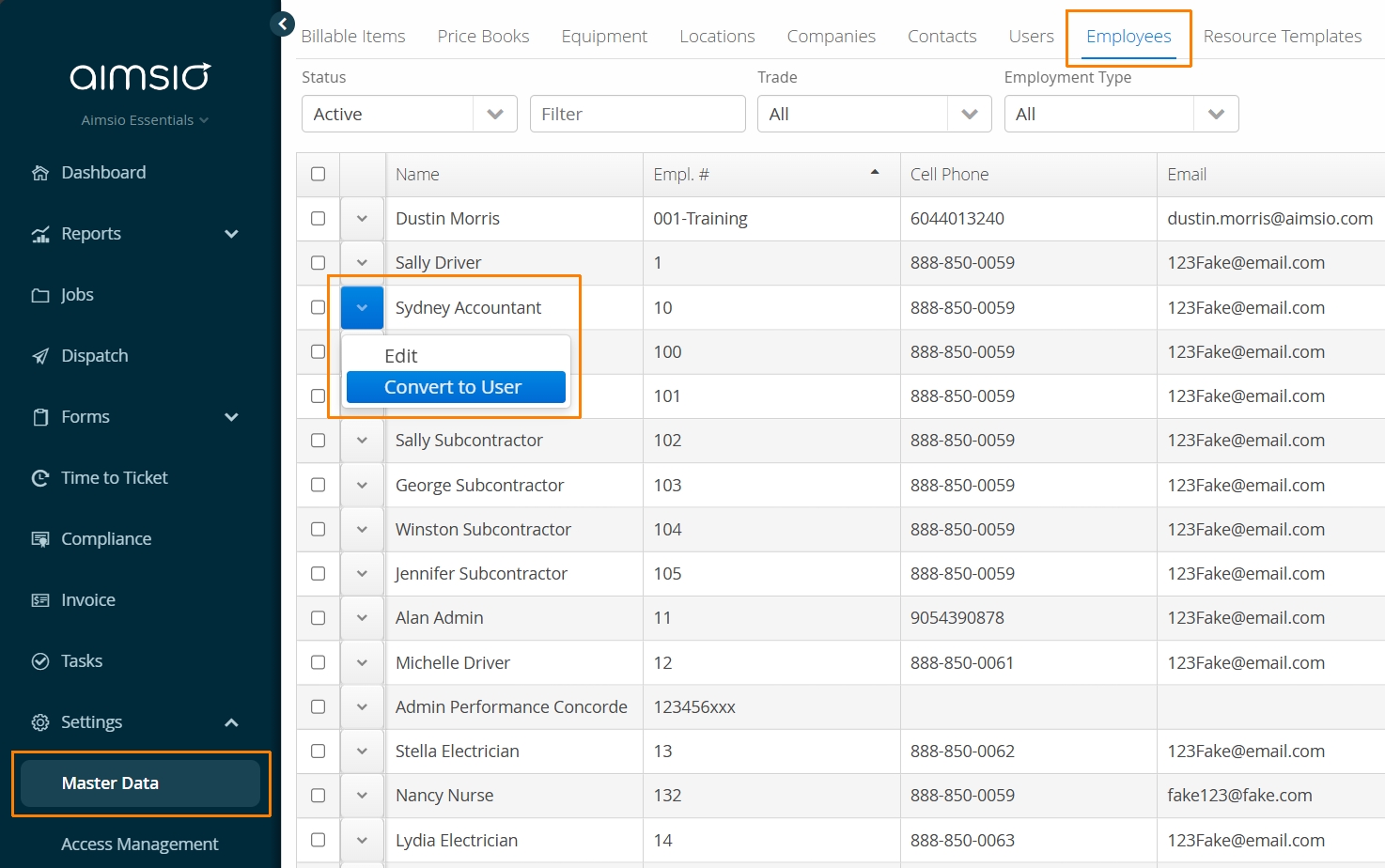
- Select Master Data from the left menu. Navigate to the Employees tab, find the Employee you’d like to convert. Use the action button on the and select Convert to User.
Linking an Employee to an Pre-Existing User Account
If a User is created prior to an Employee be created, we recommend linking those two records together.
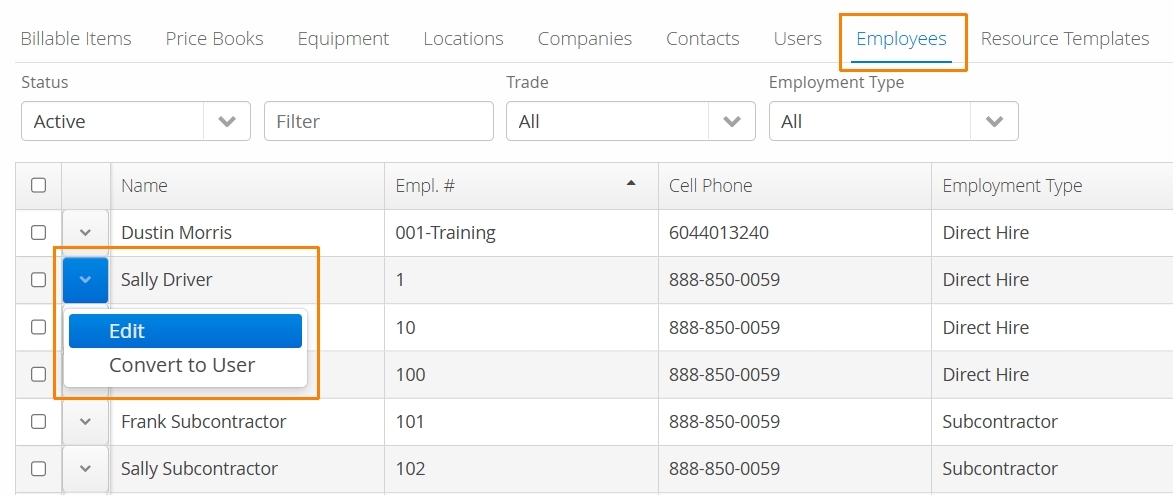
- Navigate to the Employees tab, find the Employee you’d like to convert. Use the action button on the left and select Edit.
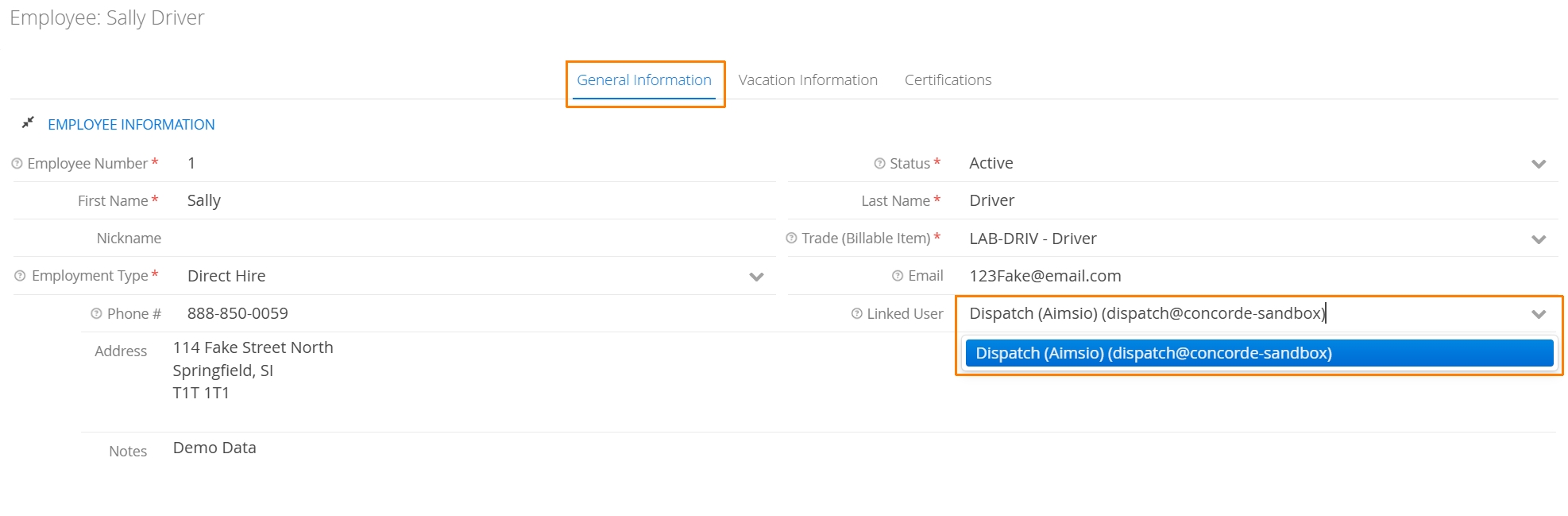
- User the Linked User drop-down menu and select the existing user account you’d like to link. Once finished, select Save and Close.
Deactivating Users
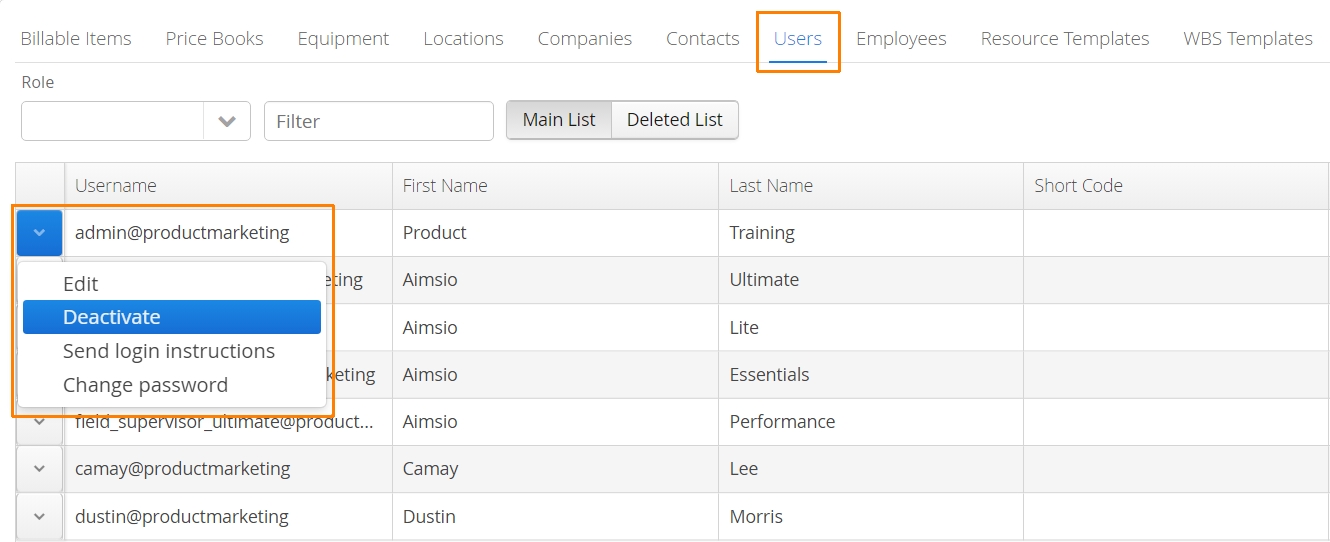
User accounts can’t be deleted, but they can be Deactivated and Reactivated from the Master Data > Users page. Click the action button beside any user and select Deactivate. Navigate to the Deleted List to locate and Reactivate Users.
Linked Employees will still be active if a User account is Deactivated. To prevent Employees from showing up on new forms, change the status of the Employee to Inactive.
Deactivating Compliance Users
When a User is deactivated in Aimsio, any approved certifications linked to the Employee associated with that User will be deleted. If the User is reactivated, Employees will need to submit their certification records again and have them approved.