Aimsio provides accounts with the ability to manage a list of equipment assets. Maintaining a list of equipment is a requirement if you intend to Dispatch these resources to a Job, but there are reporting benefits too, such as tracking equipment costs and logging total service hours.
How to Add, Edit or Update Equipment
-
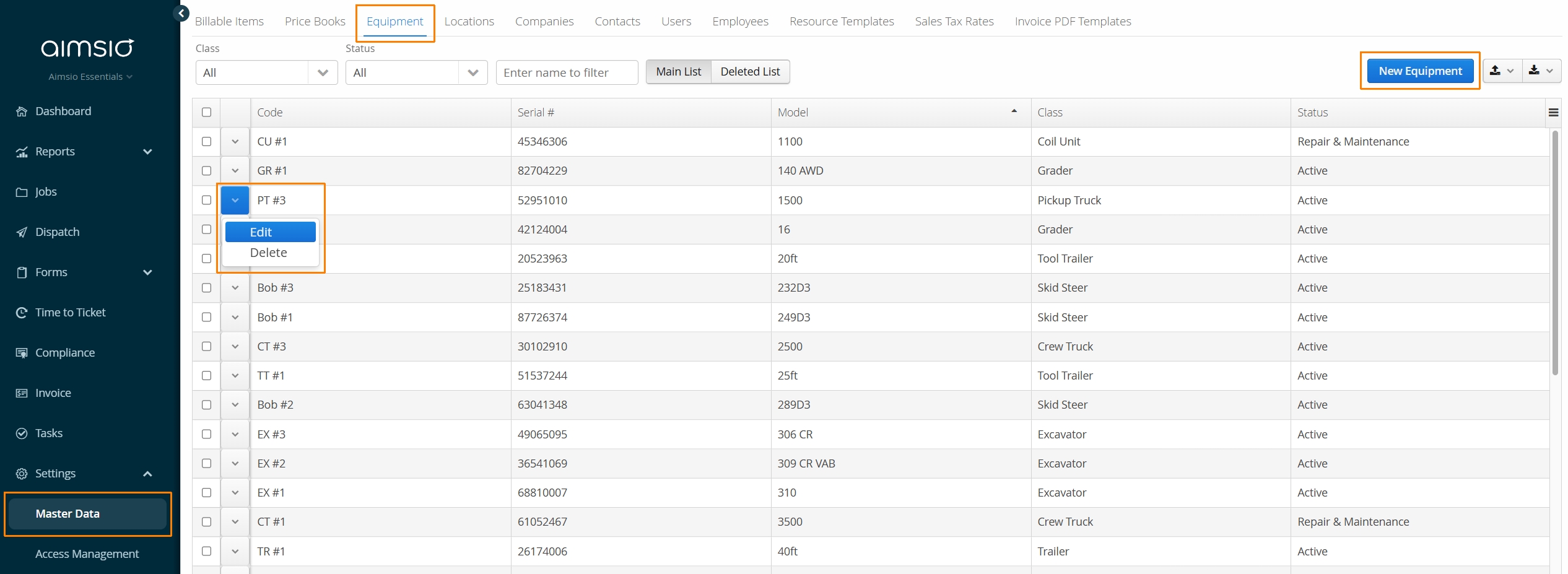
Navigate to the Master Data → Equipment tab.
-
Use the New Equipment button on the right to add a new equipment asset.
-
Use the Action button to the left of any Equipment item to Edit or Delete the record.
Equipment Fields
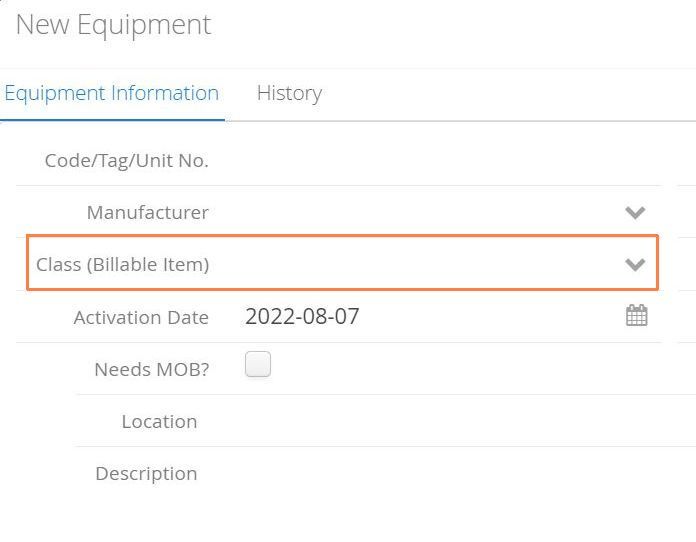
All Equipment assets should be associated with a Class (Billable Item) in order for a default rate (ie: Hourly/Daily) to be applied when billing their usage on a Ticket. This list is managed via the Master Data > Billable Items list (Billable Item Type: Equipment).
Optional Equipment Fields
-
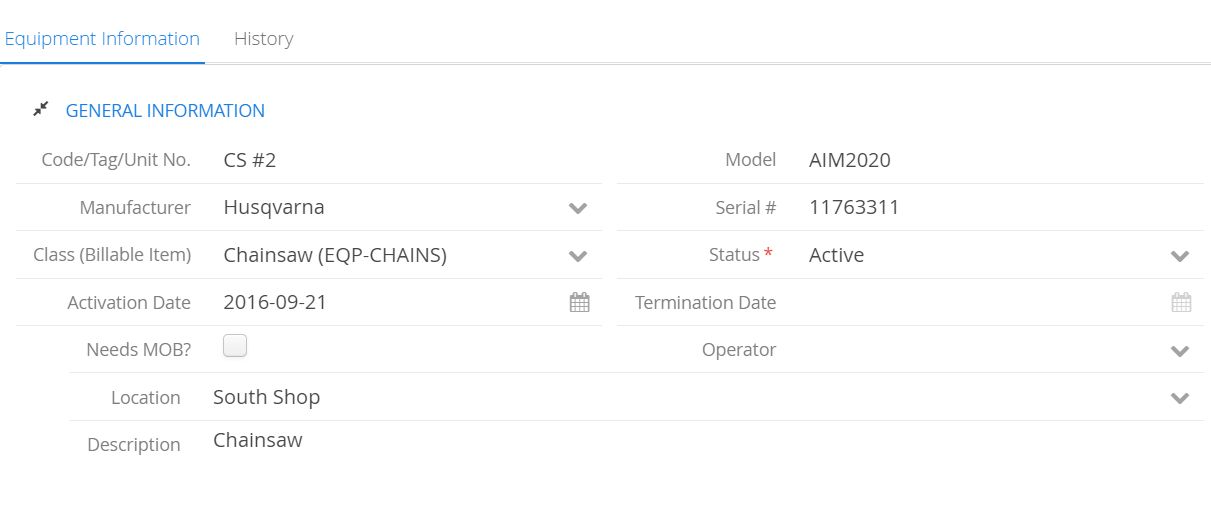
Code/Tag/Unit No: Used for an internal code or tracking number, or used to describe the asset.
-
Model: Equipment model, used to describe equipment
-
Manufacturer: Taken from the list of Vendors, maintained in Companies (Master Data).
-
Serial #: Equipment Serial Number, used to describe equipment
-
Activation date: Equipment must be have a Status of Active to be associated with Jobs.
- Activation Date will default to the day any new equipment asset is being added.
-
Termination Date: If equipment is going out of service, ensure it is given a status of Inactive.
- Once an equipment item has been Deleted, authorized users will be able to edit the deleted item and log a termination date.
-
Location: Taken from the list of Locations (Master Data), the standard location it resides at.
Aimsio does not currently support sub-categories, or more than 1 category for equipment. We recommend that you use the Description field to delegate sub-categories, or we can create an additional field for you within an equipment item. Please reach out to our support team for assistance.
Equipment Statuses
A Status is required before saving a new equipment record. Equipment have the following statuses:
- Active will ensure the Equipment is visible on Dispatch
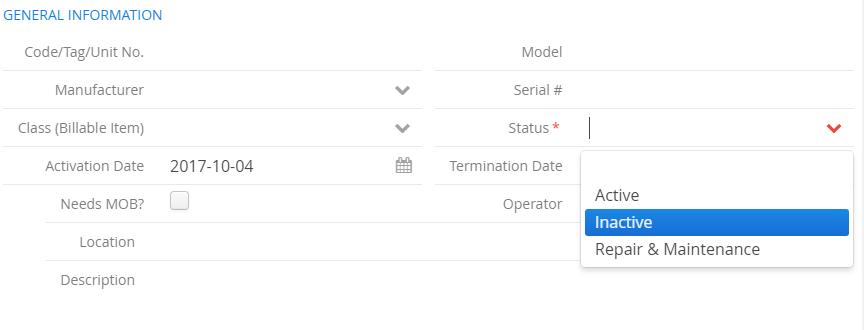
- Repair and Maintenance will display an icon beside the asset on the Dispatch Job Board - indicating it may not be available for use.

- Inactive will hide the individual asset from Dispatch.
Equipment Status can also be changed on the Dispatch Job Board by clicking the wrench icon to the left of the equipment item.
How to Manage Equipment Mobilization (MOB / DEMOB)
Before Equipment mobilization can be tracked in Aimsio, it first must be marked as requiring mobilization by checking the Needs MOB? checkbox on the Equipment profile.
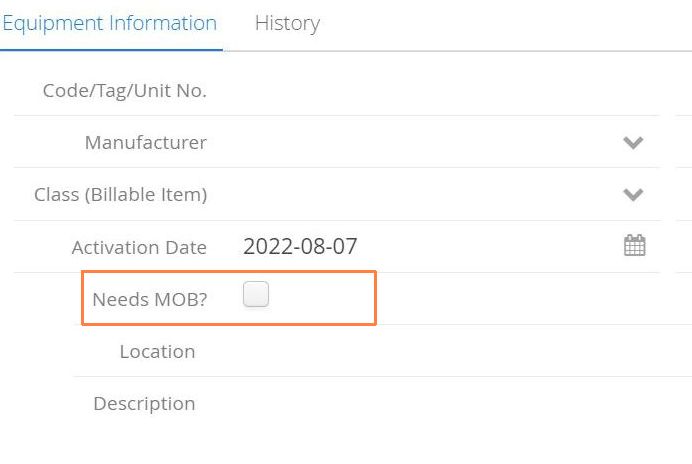
MOB and DEMOB is tracked using Aimsio Tasks. Authorized users that have permission can create MOB and DEMOB tasks. These tasks are typically managed by users of our Dispatch tool. A task, indicating which Job the equipment should be mobilized to or from, will be assigned to a specific user. That user will mark the task as complete, once finished. For more information please read our article on Tasks.
If any dispatched equipment is marked as requiring mobilization, a Task will be required and its completion will be mandatory before a Job can be removed from the Dispatch Job Board. For more information please see: How to Remove a Job from the Dispatch Job Board
How to Manage Equipment Costs
Aimsio can track the cost of your equipment by leveraging the rates recorded in the Company-Owned Equipment Costing table under an Equipment profile. By default, Aimsio will monitor Billable and Non-billable hours recorded on Tickets for these Equipment items.
When a particular rate is used to bill that Equipment (Hourly, Daily, Weekly, etc.), Aimsio will extract the hours and to create a ‘cost’ Timecard when Payroll is run. If a WBS Schedule is enabled and hours are recorded against WBS Activities, additional reporting benefits are available.
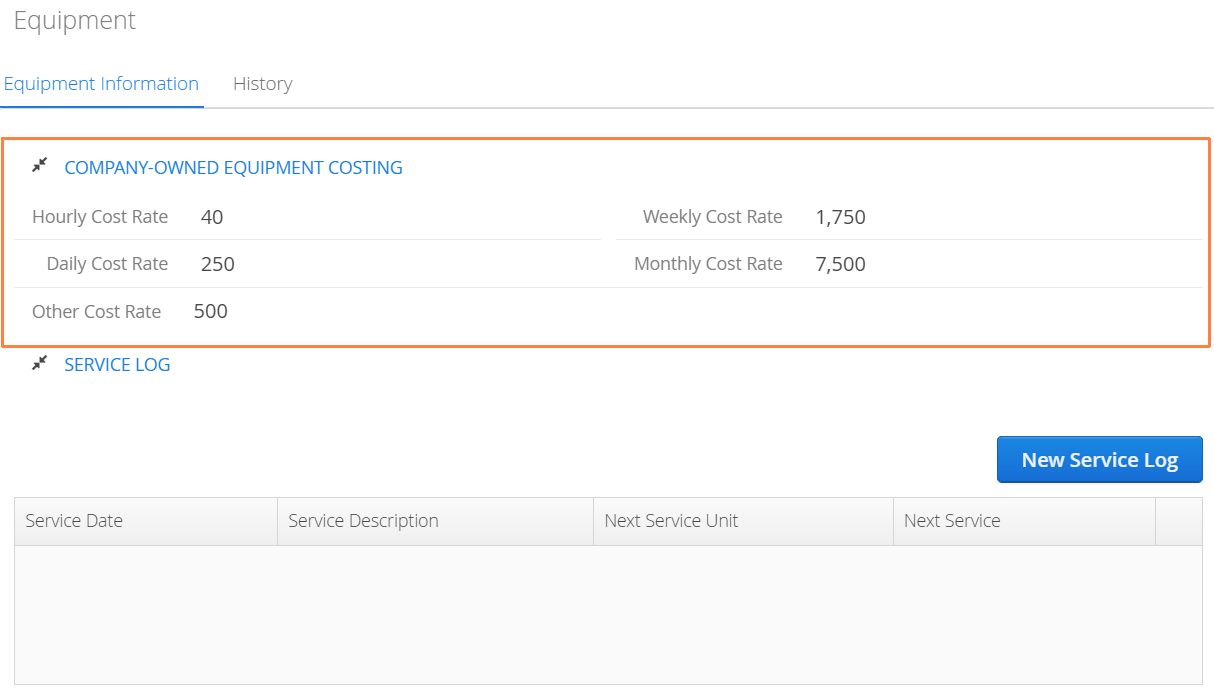
If Equipment Costing is not enabled in your account, it will require the assistance of our Professional Services team. Please reach out support for assistance.
How to Add Equipment Service Logs
Optional Service Logs can be recorded on an equipment profile, indicating what service took place and when the next service is due. Click on the New Service Log button under an Equipment profile.
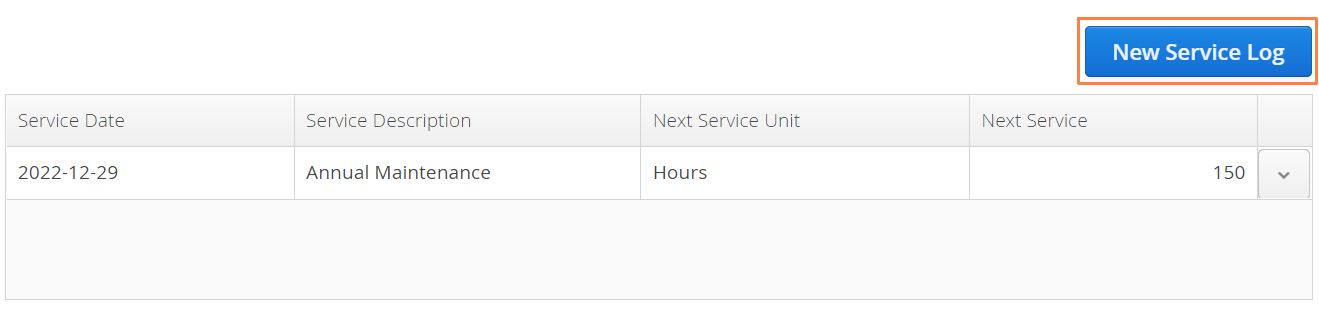
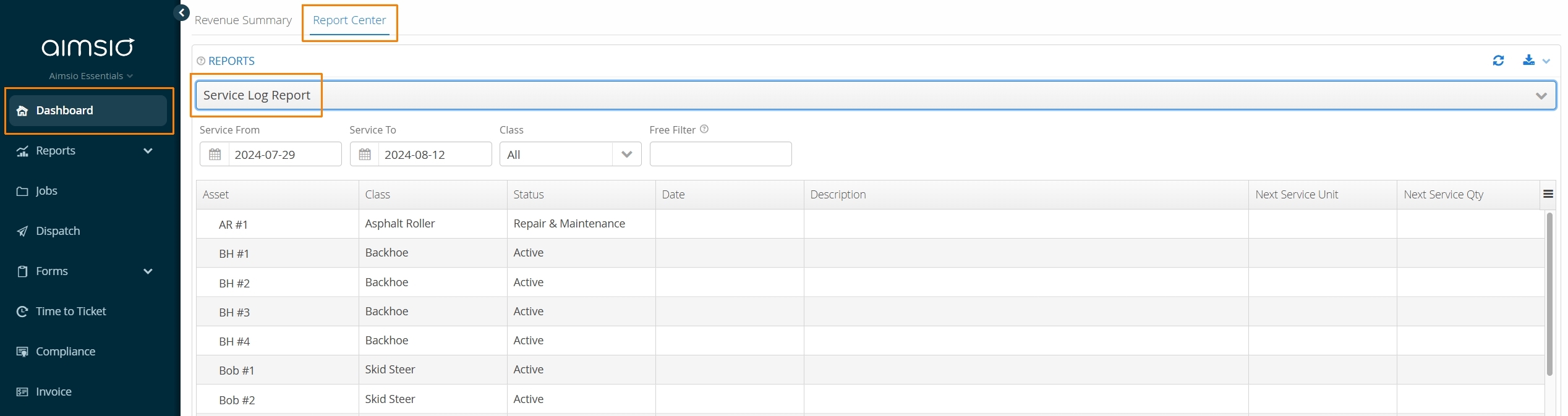
- All recorded service logs can be accessed by using Aimsio’s Service Log Report, available in our Report Center.
How to Access Equipment Profiles from Dispatch
If a user’s account has been given access to Master Data they can quickly access an equipment profile, update status and log service records by clicking the wrench icon to the left of the asset on the Dispatch Job Board.
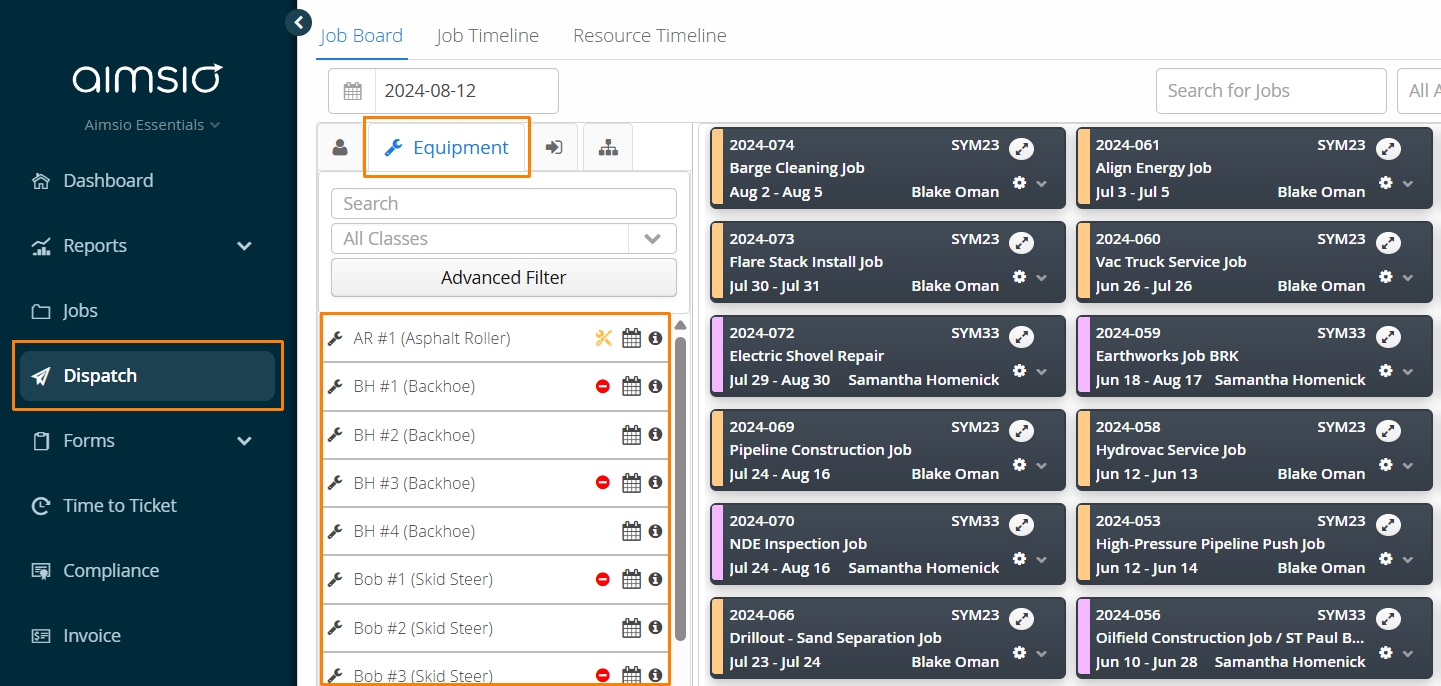
Click here for more information on using our Dispatch tool.