Aimsio’s WBS Schedule supports the inclusion of user-defined metrics that are designed to help accounts measure the completion of their Jobs. We refer to this as Physical WBS Progress, a collection of calculated fields that are influenced by the actual (physical) work taking place in the field.
Accounts determine their own Unit of Measurement for each deliverable and have their teams record Quantities, which Aimsio uses to calculate that deliverable’s completion. As work is completed, Aimsio delivers insight into your Job Performance report by providing metrics that look at your projected costs and earned value to date.
Accounts that are using Aimsio for ‘progress billing’ should adopt Physical WBS Progress to monitor the completion of their Jobs before proceeding with Lump Sum billing.
Physical WBS Progress Metrics
Accounts that use Physical WBS Progress will have access to the following metrics in their WBS Schedule:
Metric | Definition | Tier |
|---|---|---|
% Complete | The percentage complete in relation to the Physical WBS Progress for each WBS Activity. | PERFORMANCE |
Cost Unit Rate $ | Calculated by dividing Cost $ by Amended Quantity, only for terminal (leaf) WBS Activities. | PERFORMANCE |
Revenue Unit Rate $ | Calculated by dividing Billable $ by Amended Quantity, only for terminal (leaf) WBS Activities. | PERFORMANCE |
Earned Value $ | Calculated by multiplying Budget $ and % Complete. | ULTIMATE |
Earned Revenue $ | Calculated by multiplying Amended Contract $ and % Complete. | ULTIMATE |
EAC $ | Estimate at Completion is used in forecasting the final cost given the current cost and progress of the project. By Default, Aimsio uses a ‘Trend-Based’ formula for EAC. This is calculated by dividing Amended Budget by CPI. Additional options for calculating EAC are available by editing any child WBS Activity that allows the manual entry of CPI or ETC $ (Estimate to Completion). | ULTIMATE |
Remaining Spend $ | Calculated by subtracting Cost $ from EAC. | ULTIMATE |
CPI | Cost Performance Index, calculated by dividing Earned Value $ by Cost $. Click here to read more about Cost Performance Index. | ULTIMATE |
Contract Unit Rate $ | Calculated by dividing Amended Contract $ by Amended Quantity only for terminal (leaf) WBS items. | ULTIMATE |
Planned Unit Cost | Calculated by dividing Budget $ by Amended Quantity, only for terminal (leaf) WBS items. | ULTIMATE |
For a complete list of all Job Performance reporting metrics, review our Job Performance page.
How to Setup Physical WBS Progress
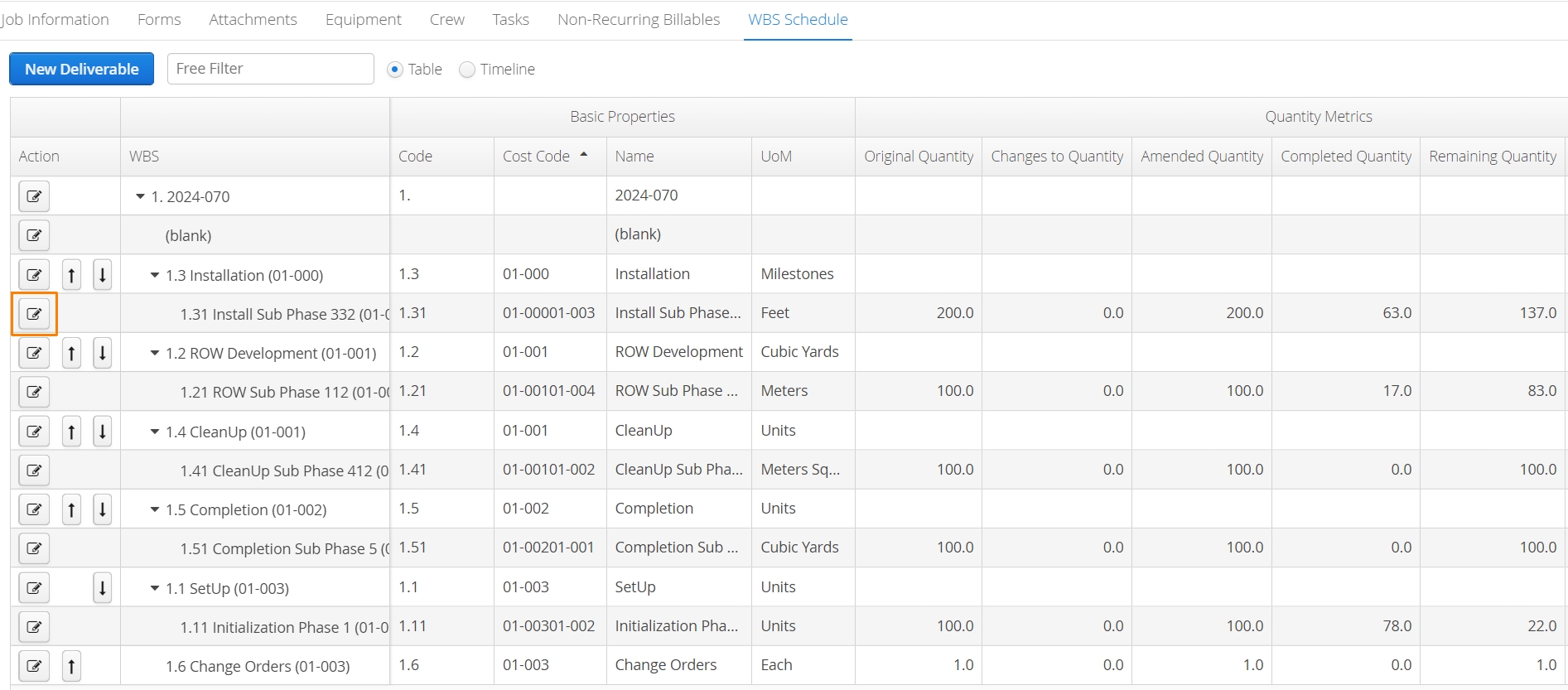
To setup physical progress reporting, a WBS Schedule must be created first. Physical WBS Progress is accessed by editing any child WBS activity. Click the edit button to the left of a WBS deliverable.
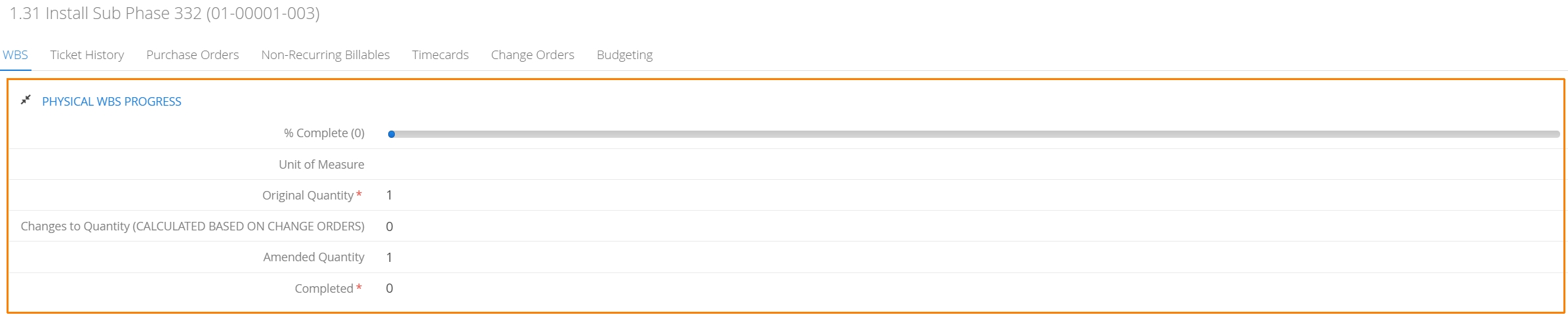
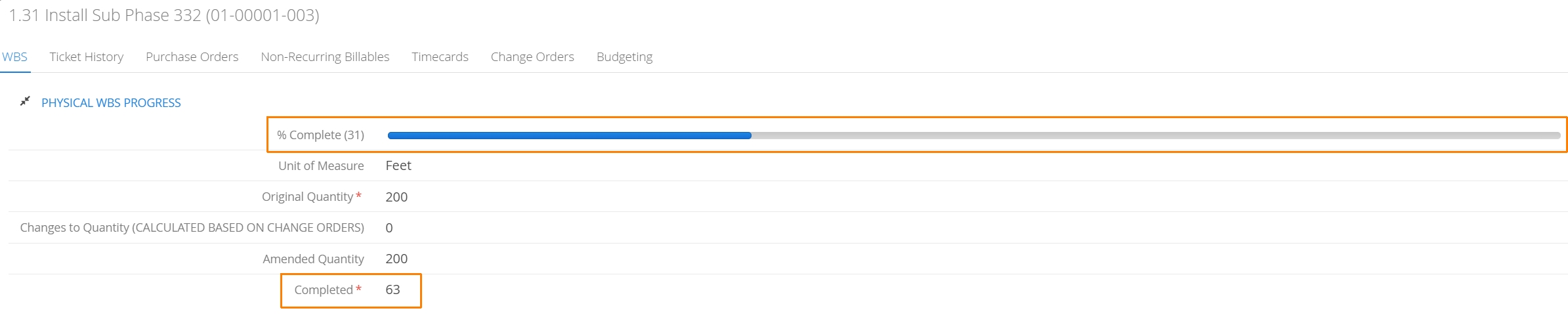
Locate the Physical WBS Progress table. This section will keep a running tally of the completed progress of the current deliverable. Users will need to indicate how they intend to measure progress. This is done by indicating a Unit of Measure.
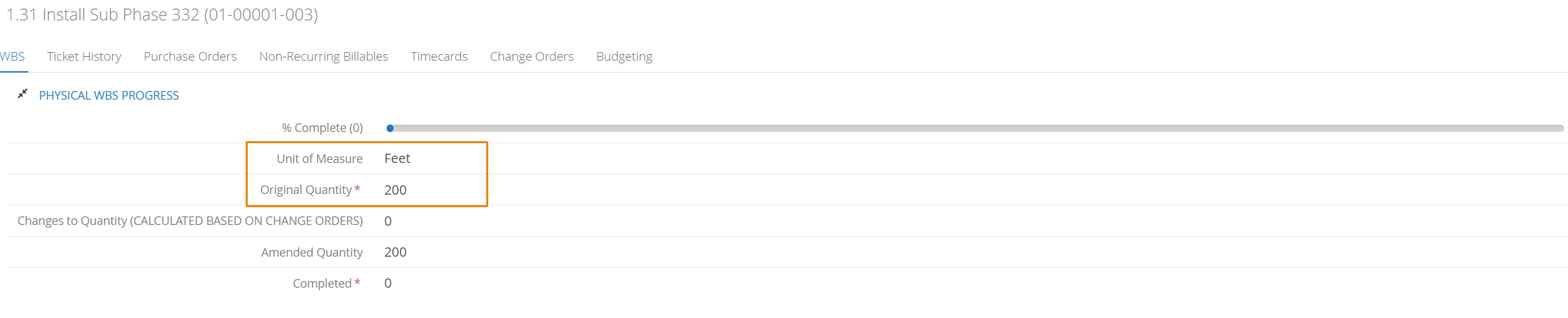
Unit of Measure is a free-text field and can technically represent any unit of measurement a user wants. In this example, we’ll be using ‘Feet’.
The Original Quantity field represents the final planned total quantity at completion. In the current example, 200 Feet will represent 100% completion of this deliverable.
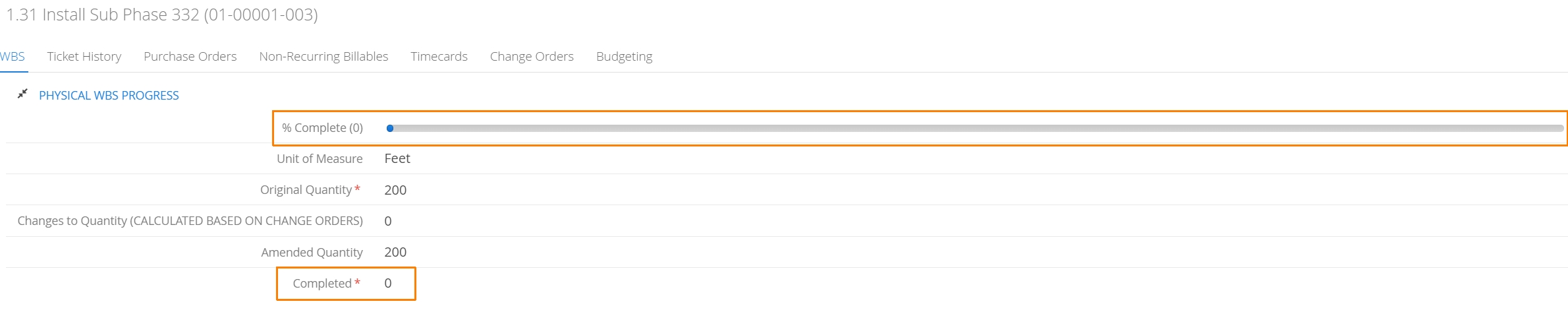
Currently, no work has taken place for this deliverable yet. So the Completed field shows a quantity of 0 and the % Complete slider has not moved.
When progress is recorded against this deliverable (either via the completion of forms, or by manually adjusting these totals using the Progress Transactions tab), Aimsio will track the quantities and overall completion of this deliverable.
When users navigate to Progress Transactions, they’ll find a history of previously recorded physical progress milestones. Manual entries can be created by clicking on the New Progress Transaction button.

Manual Progress Transactions will be date stamped and can include custom notes. Users can input updated quantities in the Completed Quantity field.

Physical Progress that has been recorded on a Crew Timesheet or Ticket will also appear under the Progress Transactions tab.
Estimate at Completion
Accounts will have the following EAC options available under a child WBS Activity:
-
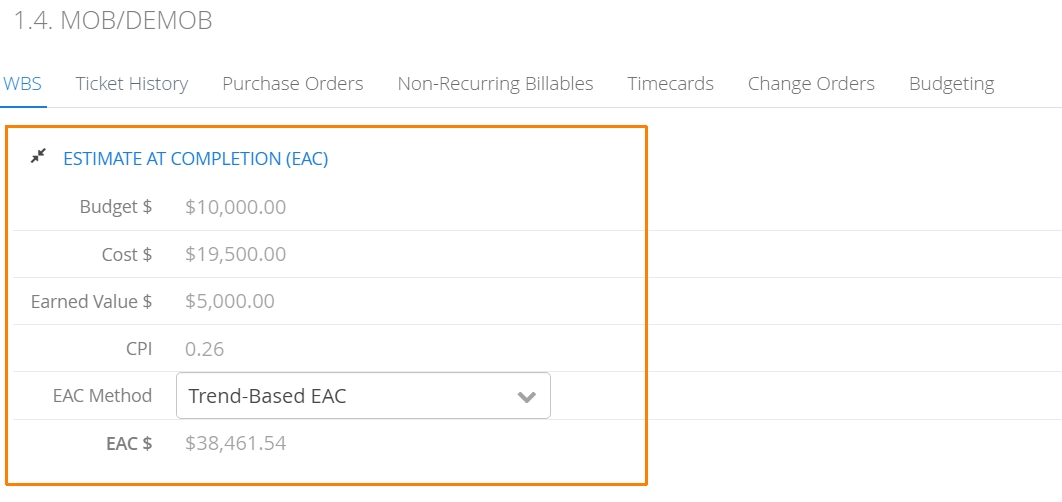
Trend-Based EAC (Default)
-
Calculated by dividing Amended Budget by CPI
-
Assumes that past (latest recorded) cost performance (CPI) will continue.
-
-
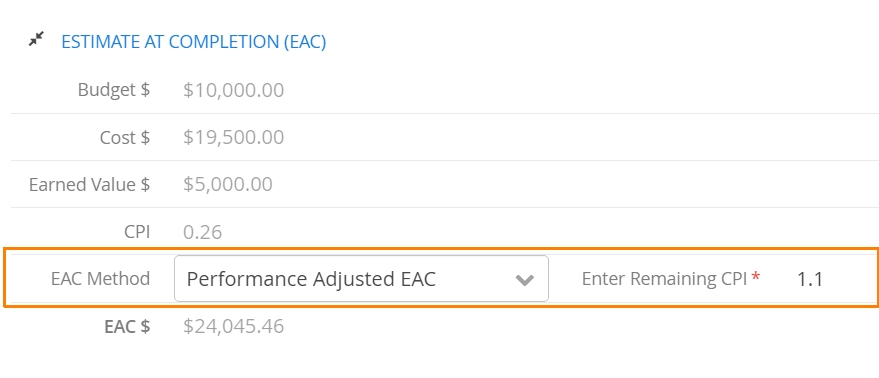
Performance Adjusted EAC
-
Calculated by taking Actual Cost + (Amended Budget - Earned Value) and dividing that by Forecasted Remaining CPI (manually entered).
-
This option is suitable for projects that need to account for deviations from historical performance, allowing for a manually adjusted CPI.
-
-
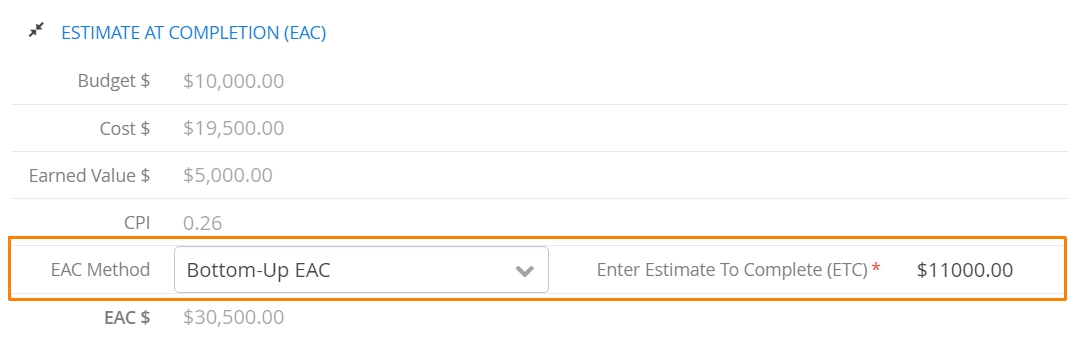
Bottom-Up EAC
-
Calculated by adding Actual Cost and Estimate To Completion (ETC)
-
We introduce a field (ETC) to allow for a strict dollar amount to be entered. This approach provides Project Managers the ability to factor in their own calculations by manual forecasting their remaining cost.
-
How to Record Physical WBS Progress
While it’s possible for authorized users to manually adjust quantities while viewing a WBS Schedule, most Physical WBS Progress updates are recorded while completing Crew Timesheets or Tickets. Users will find a table entitled Production (WBS) Values near the end of the form where they can update quantities completed to date.

The process of recording Physical WBS Progress quantities is separate to that of recording work hours.
Users can use the Pull WBS or New Progress Information buttons to start updating quantities for a specific deliverable. If work hours have been recorded against WBS Activities elsewhere on the form, using the Pull WBS button will automatically populate those deliverables into this table.

Users input updated quantities using the New Value column.

Once the form is saved, quantities entered in the New Value column will be reflected in the WBS Schedule and the progress of those Job deliverables (% Complete) will be updated as well. Any subsequent form that is created will start by using the latest recorded quantities.
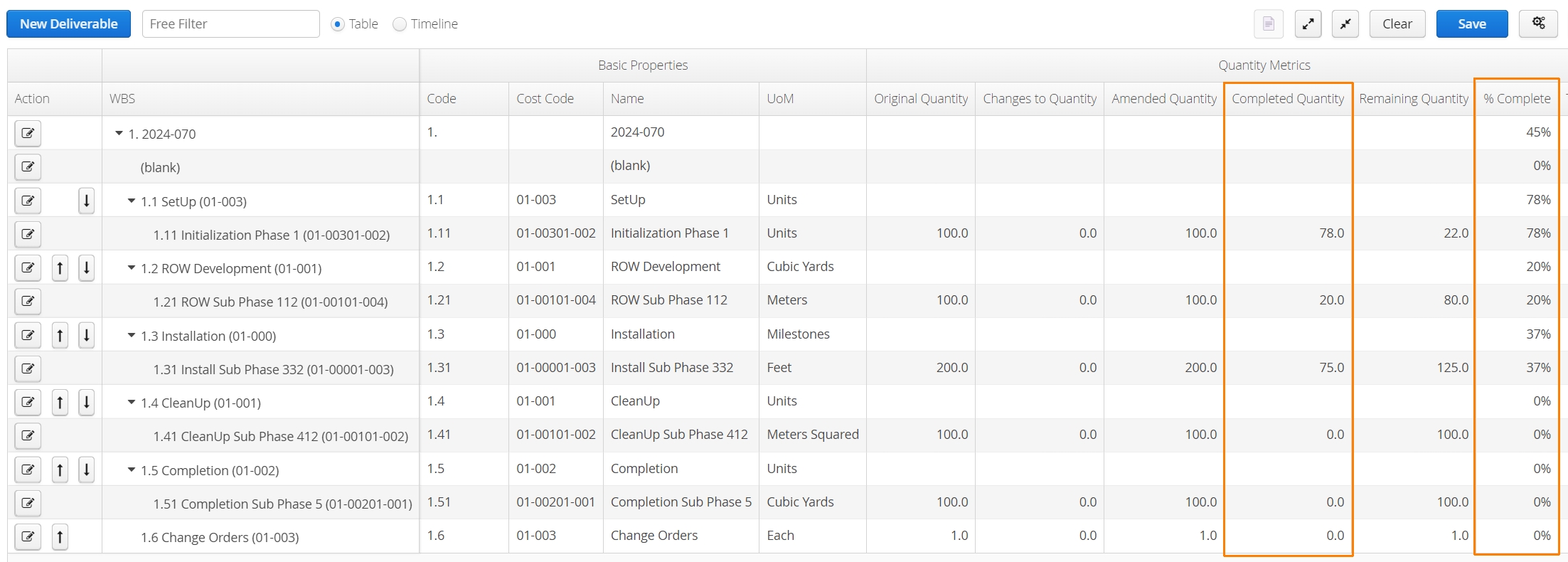
How to Make Changes to Previously Recorded Physical Progress
By default, Aimsio will always reflect the recorded quantities on the latest form as the current value when Physical WBS Progress is entered. This is generally preferred, as our Physical WBS Progress reporting is designed to preserve the accuracy of your reporting by ignoring changes made to previously submitted forms.
However, there will be times when users want form edits to take precedent over anything that has been previously recorded. For that purpose, users can ensure the Apply Changes checkboxes are checked.

These checkboxes are set to true each time a new form is started, but they will be unchecked the moment a form is submitted.
Weighting the Completion of Job Deliverables
Businesses understand that when 100% of the work is done, the Job is 100% complete, but WBS Schedules need to account for whether each deliverable represents an equal portion of the work. By default, Aimsio determines this breakdown for you, by looking at the number of deliverables in WBS Schedule and calculating its ‘weight’ in relation to the total project.
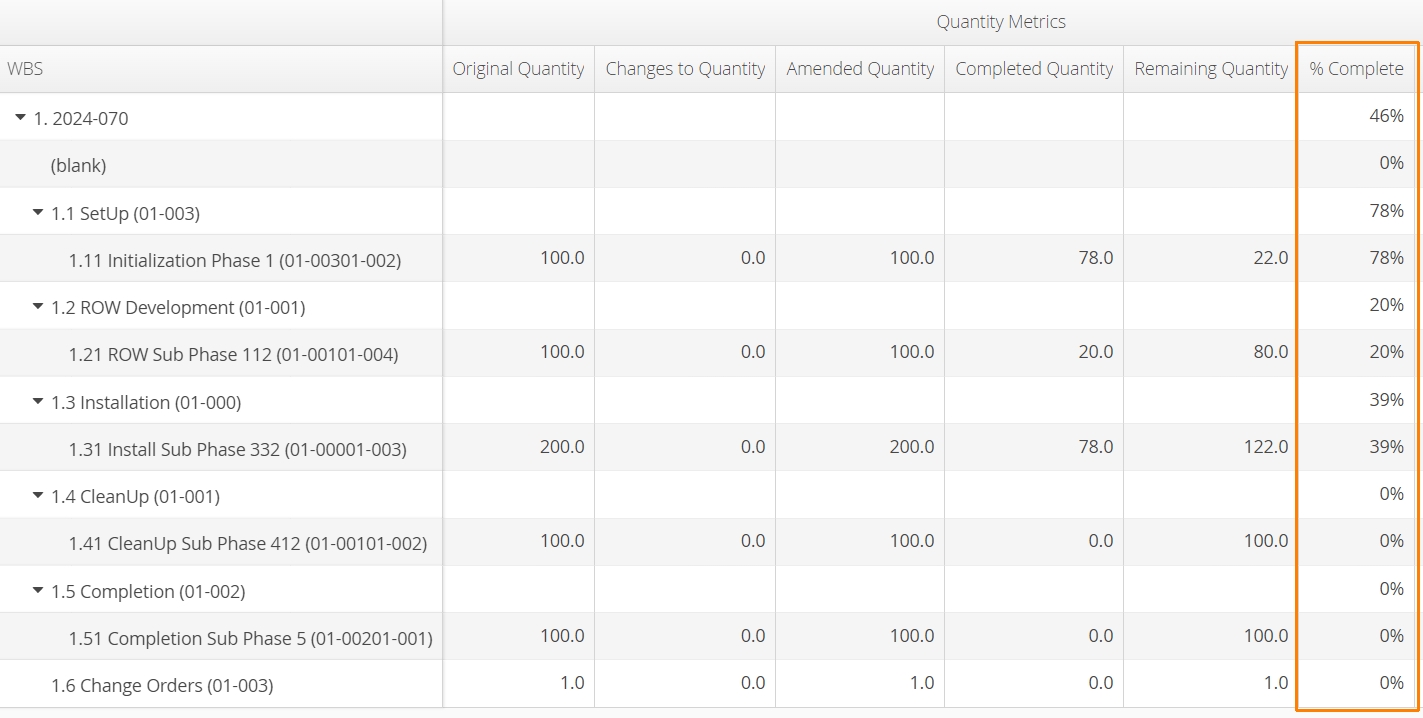
When Auto Calculate Weights is checked, Aimsio will initially split the weight evenly by the number of deliverables in the Job, then look at the allocated financials. If users want more control, they can uncheck this option in their WBS Configuration.
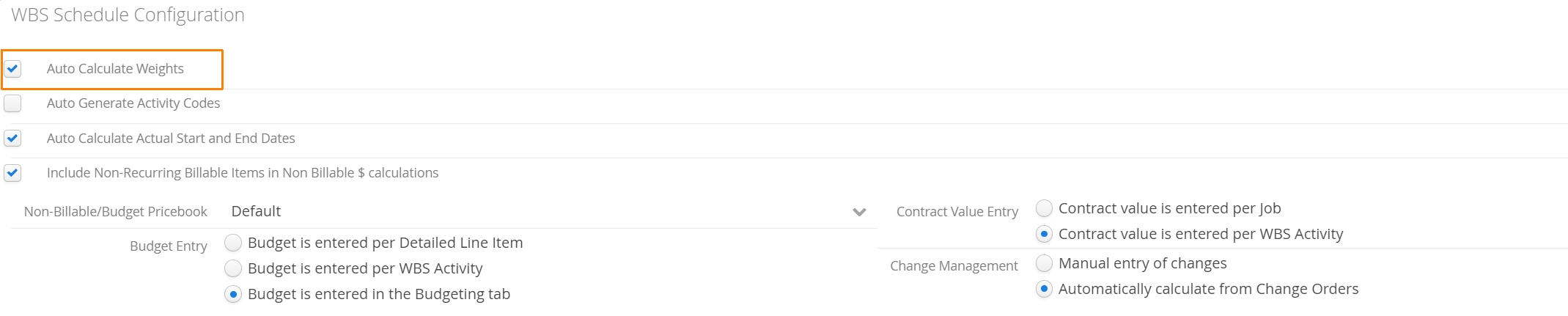
For more information see How to Create a WBS Schedule.
While editing a deliverable, users will find a Weight slider. The weight represents a percentage of the total work, once the deliverable is 100% complete. Note that it’s possible to set the weight of both parent and child deliverables.
Setting the weight on a parent influences the its percentage relative to the overall Job. Setting the weight on a child represents its percentage relative to its parent.
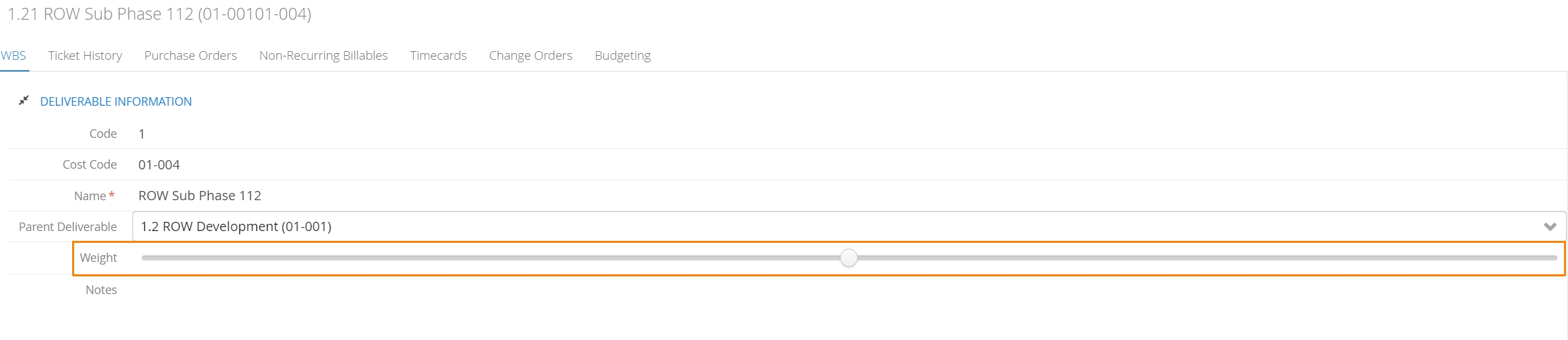
Distributing weights can have a significant impact on the accuracy of your reporting, especially if the majority of your resources are being allocated to only a few deliverables.