Aimsio’s compliance solution can identify employees that require certification, store certification records, track whether certifications are up-to-date and provide an optional process for your staff to submit electronically. Certifications can be linked Jobs, providing a convenient filter of qualified staff when using our Dispatch tool.
Compliance Dashboard
Aimsio’s Compliance dashboard gives supervisors and administrators a high-level picture of the compliance level of their organization.
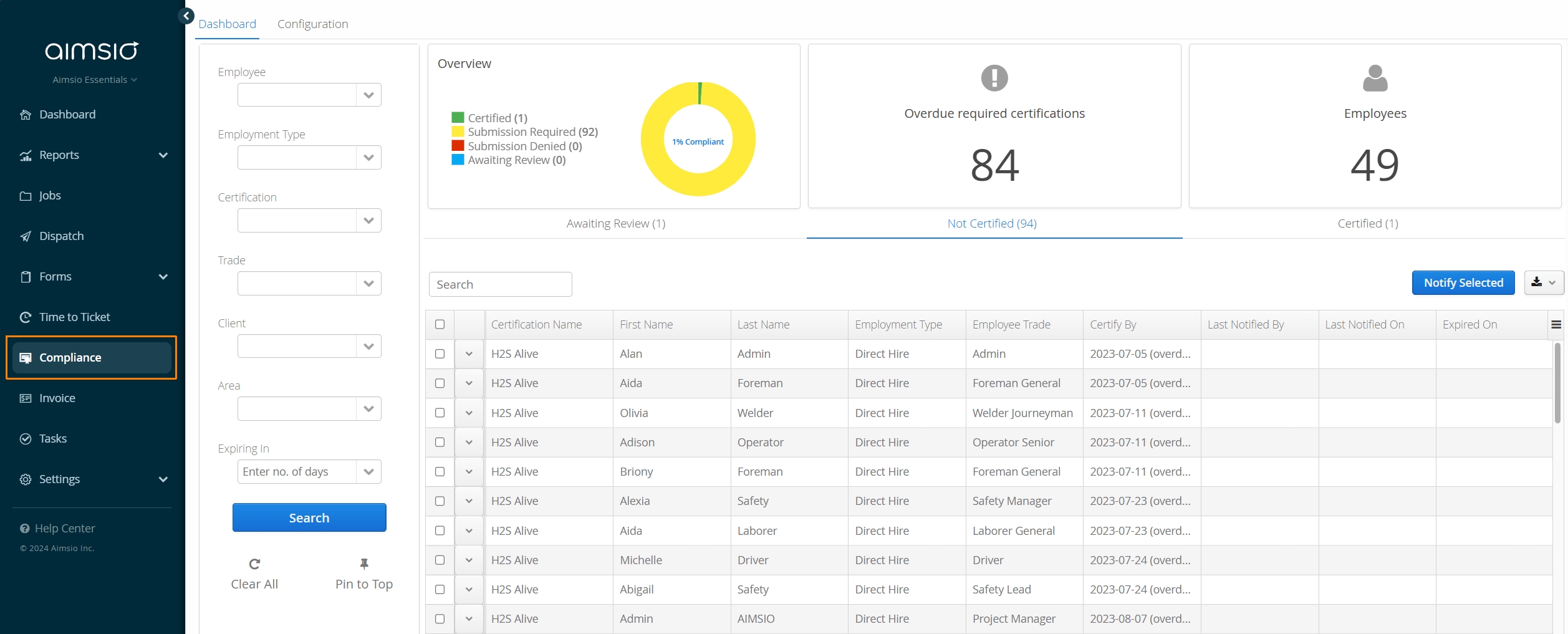
Employees are categorized using 3 status tabs on your dashboard:
Awaiting Review: Employees that require their compliance submission to be approved, if they’ve submitted electronically through Aimsio.
Not Certified: Employees that have been tagged as requiring certification based on the setup requirements of each certification. Employees here have either never had their certification approved (acknowledged) in Aimsio, or their certification has expired. Authorized users can approve certifications from this tab on behalf of an Employee.
Certified: Employees with approved certifications. Employees will stay in the Certified tab until their certification expires.
Filters are available on the left of the dashboard can help users identify specific employees or certification types.
The filters will apply to whichever status tab the user has selected.
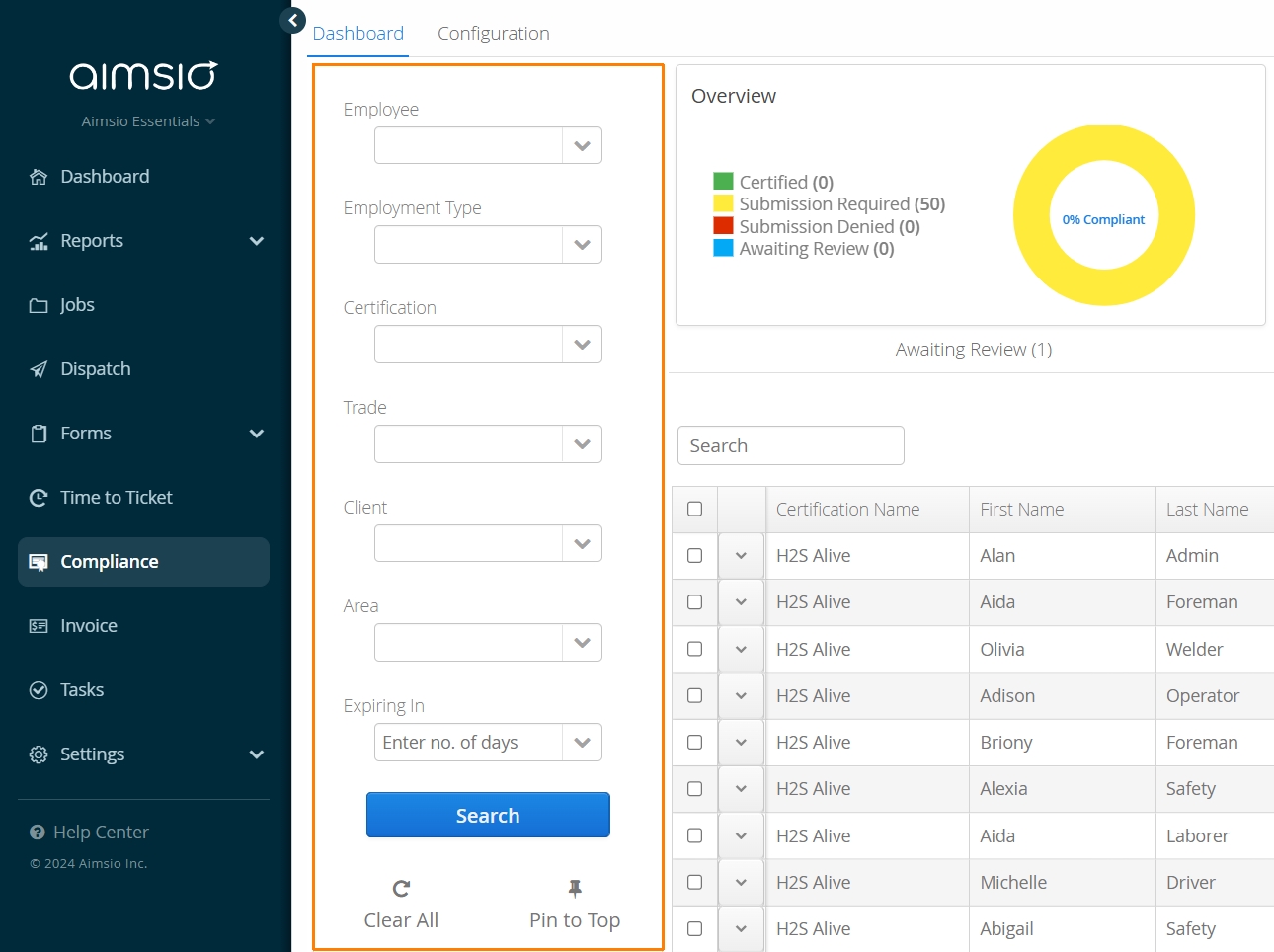
Pin to Top any filter settings that you use frequently.
How to Add New Certifications
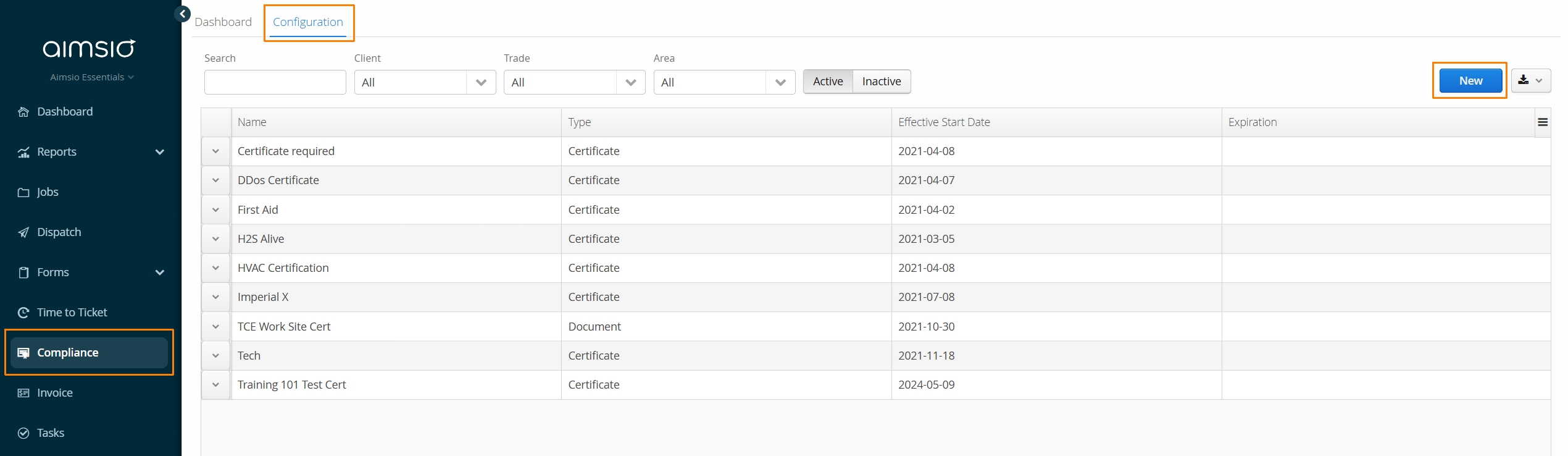
New certifications can be created from the Configuration tab on the top left of the Compliance page. Certifications are created by clicking the New button on the far right.
New Certification Details
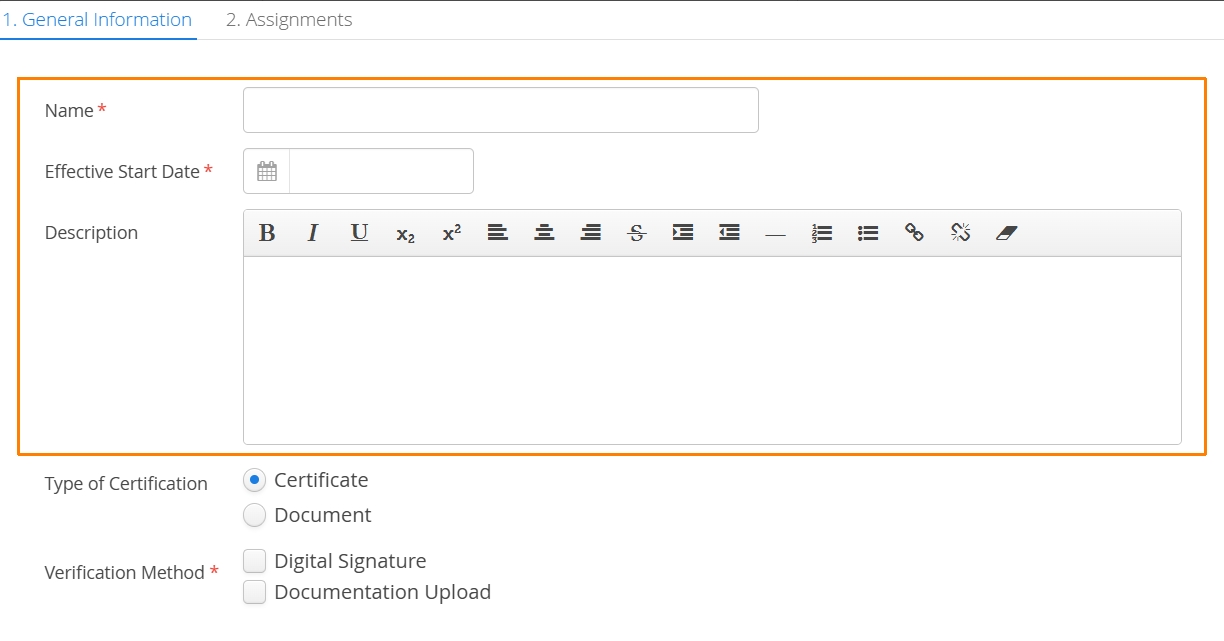
When a new certification is being created, users will need to input details about the certificate including:
-
Effective Start Date - The date Aimsio starts tagging Employees as Not Certified. The system doesn’t rely on this date when calculating expiring certifications and is for internal use only. It must be present day or a date in the future.
-
Description - Can be used to provide detailed information about the certification. The description is visible to Employees.
Certification Types
Before users save a new certification, they should indicate the certification type and verification method for approval.
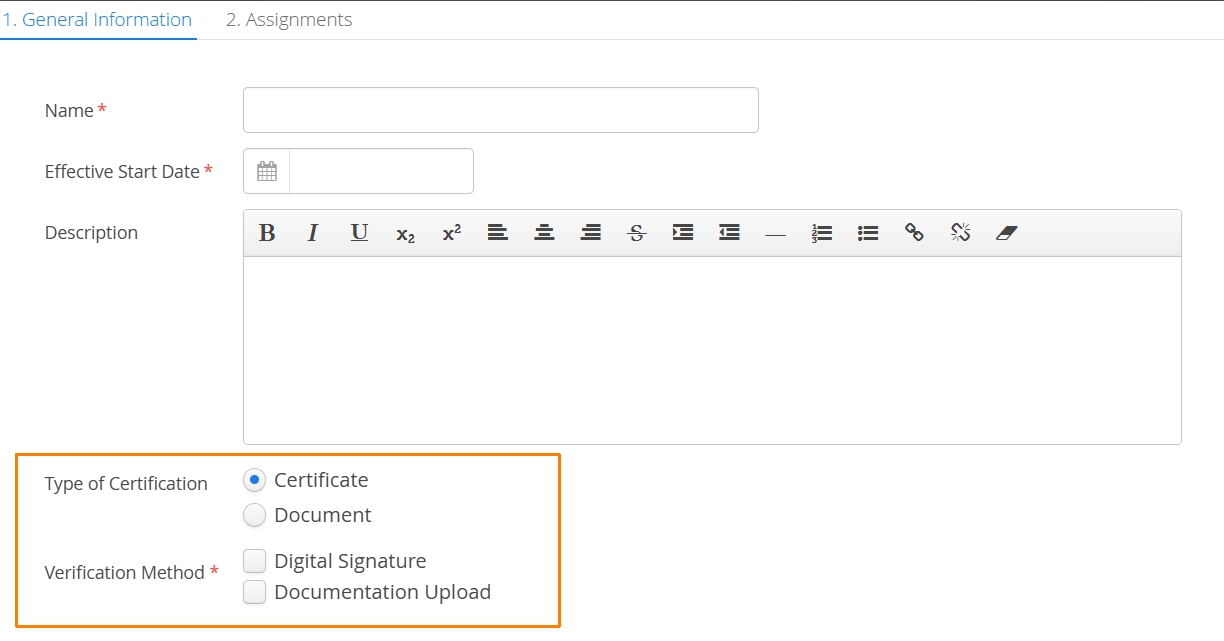
Type of Certification
-
Certificate: Any document (ie: image, PDF) representing certification approval that will be uploaded into Aimsio. Suitable for any third-party or specialty certification that Employees earn off-site.
-
Document: If accounts are directly providing the source material to review, they would upload the document directly into Aimsio with the expectation that Employees would fetch and review the document themselves electronically. Accounts can track the Version of a document and force currently certified Employees to recertify if a new version is uploaded and the Needs Recertification checkbox is checked.
Verification Method
-
Digital Signature: The user has to sign using a mouse or finger on a touch-screen device.
-
Documentation Upload: The user has to upload a copy of a certification, or any other supporting documentation.
For most accounts, keeping the type of certification set to ‘Certificate’ and verifying by ‘Documentation Upload’ will suffice. This approach involves having your employees send you proof of their certification outside of Aimsio, while an authorized user (e.g. safety officer) uploads that information into Aimsio and approves the certification on their behalf.
If your employees are planning to engage with the Aimsio platform directly to upload their certification records, Aimsio can provide a type of certification called Document, that allows accounts to upload a file that users will need to retrieve by logging in.
Type of Certification cannot be changed once it is created.
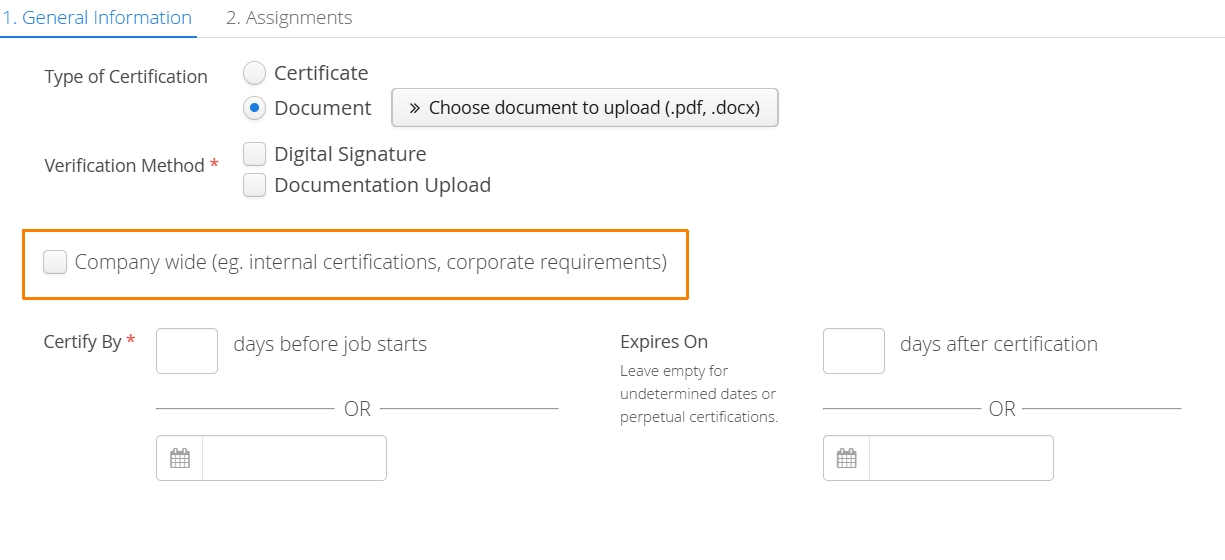
What are Company-wide Certifications
If the certification is required by all employees, regardless of their Trade or Area, accounts can mark it as Company wide. This option will bypass the ‘Assignments’ tab (covered below) and all employees must be approved before they can be considered compliant for a job.
Certification Dates and Expiry
These dates determine when an employee will be shown as compliant with a particular certification. The Certify By date is used to show due dates for certification submission.
-
When “X days before job starts” is selected, Aimsio checks a crew member’s particular assignment date on the Job Board to calculate the certify by deadline.
-
When the employee is the assignee of a job and not just a crew member, the deadline is the earliest of their crew record’s start date and the job’s start date.
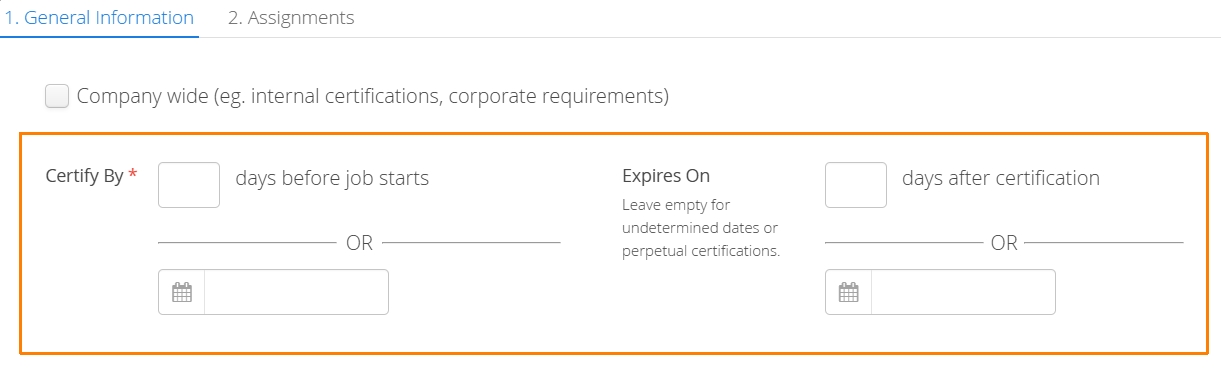
When a certification is being approved, Reviewers can manually set the ‘Expires On’ date for each Employee. It’s understood that the same certification may have different expiry dates, dependent on when the Employee was actually certified.
Certification Reviewers
Before any certification can be approved, at least one Reviewer must be assigned to the certificate. Reviewers are a list of staff who can approve and reject compliance submissions and submit a certification on an employee’s behalf.
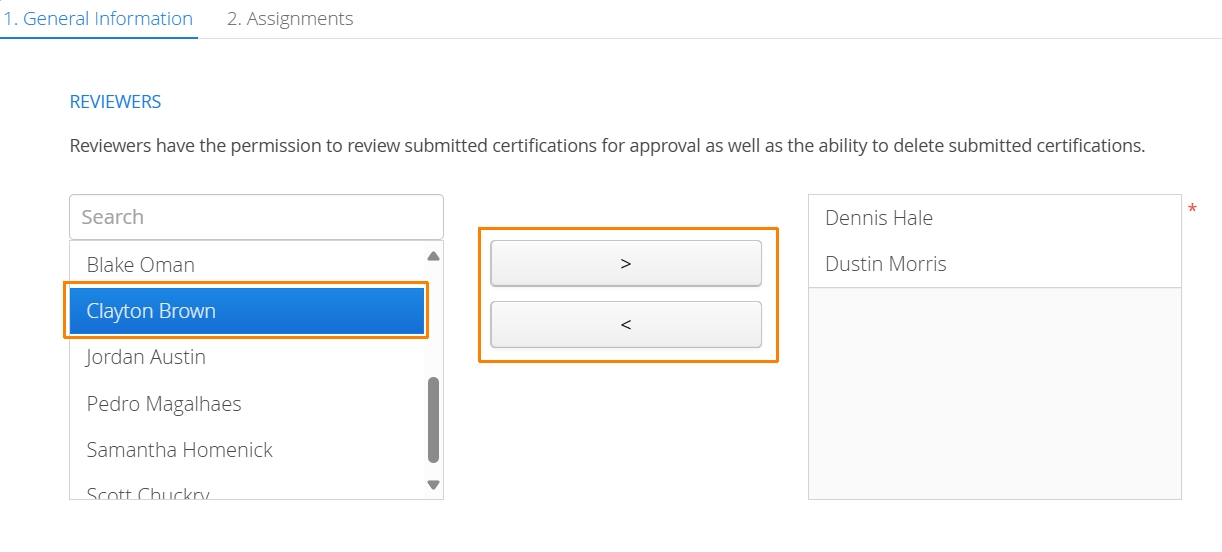
Select one or more names from the list on the left and use the arrow buttons to move them into the authorized list on the right.
How to Add Certification Reminders
Aimsio can deliver a SMS notification to remind employees that their certificate (once it has been reviewed and acknowledged) is due to expire. Aimsio will look at the date the certificate is set to expire and count back by the number of days indicated in this section.
Ensure both the User and linked Employee profiles contain a valid phone number. Click here for more information on Aimsio Notifications.
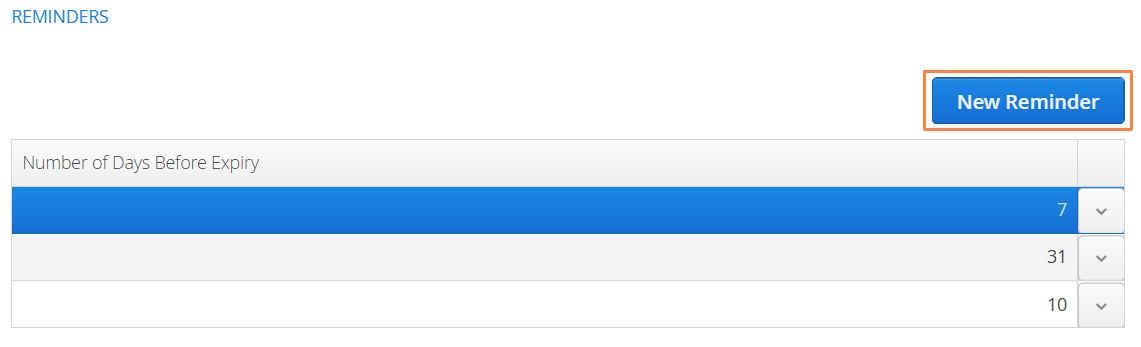
Click on the New Reminder button and input the number days prior to expiry. More than one reminder can be issued for the same certificate.
How to Assign Certification Requirements to Employees
Certifications are assignable by leveraging the Trades, Clients, or Areas that exist in your account. Once created, certifications will be available to assign at the Job level and can also be used as a filter when dispatching crew resources.
Any certificate that is not marked Company-wide will provide an administrator the ability to set a number of parameters to determine which employees require the certification. Aimsio can determine eligibility based on employee’s default Trade, a Job’s Client, or their assigned Area.
- The certification administrator will be given the option to match ANY or ALL of the criteria found on the assignments tab.
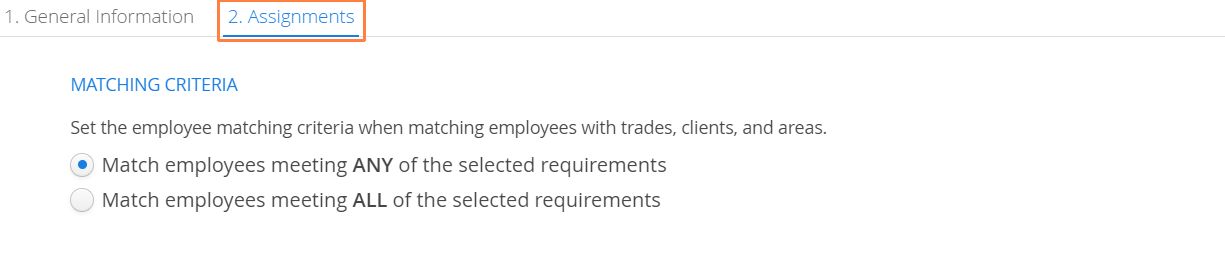
How to Assign Trades to a Certification
To assign one or more trades to a Certification, select them from the list on the left and use the arrow buttons to move the trade into the required box on the right.
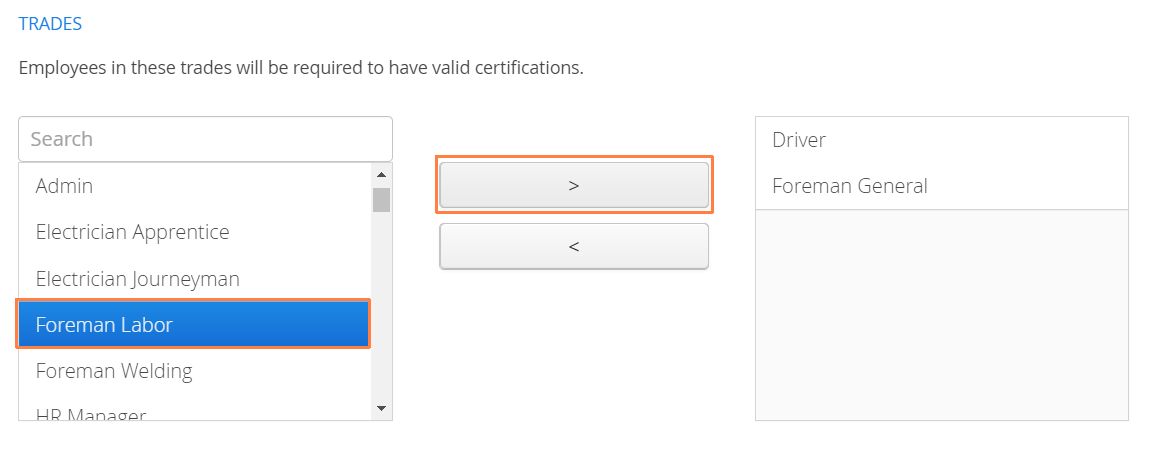
While it is possible to select multiple trades when determining certification requirements, it’s only possible to assign one trade to an Employee. Multiple trade requirements are generally used to target multiple employees at the same time.
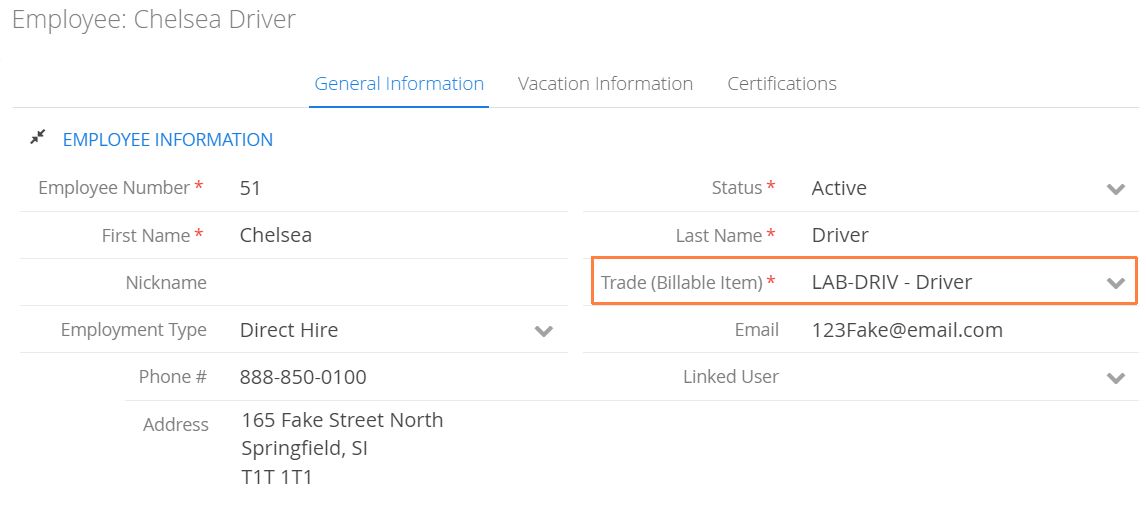
How to Assign Clients to a Certification
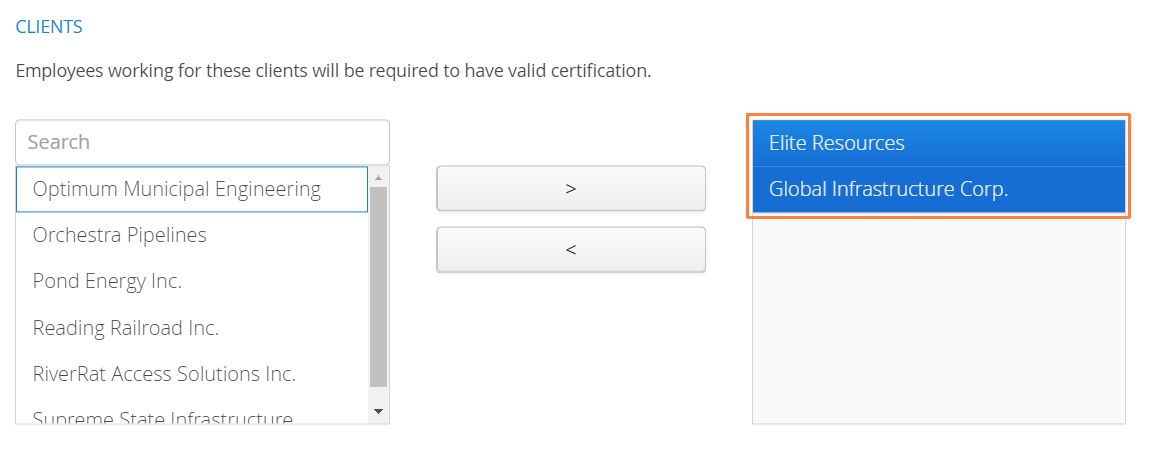
Client-level requirements determine whether an Employee needs the certification based on the Job they have already been dispatched to. This criteria is a way to retroactively assess your currently working Employees so you can quickly identify those that need the certification.
-
Each Job in Aimsio requires a Client. If Aimsio has identified Employees as requiring this certification, they will not appear as compliant when using Aimsio’s Dispatch compliance filter, even if they have other certifications required for the job. Employees will need this certification to appear as comlpiant, even if they intend to work on a different Job for another Client.
-
If a certification has more than one Client requirement, Employees would need to be dispatched to a Job for either Client, or both Clients (depending on your ‘Matching Criteria’ settings)
For more information please see: Using Aimsio’s Compliance with Dispatch
How to Assign Areas to a Certification
Area criteria can be used to group sets of employees together that may not be related by Trade or the Client they work for.
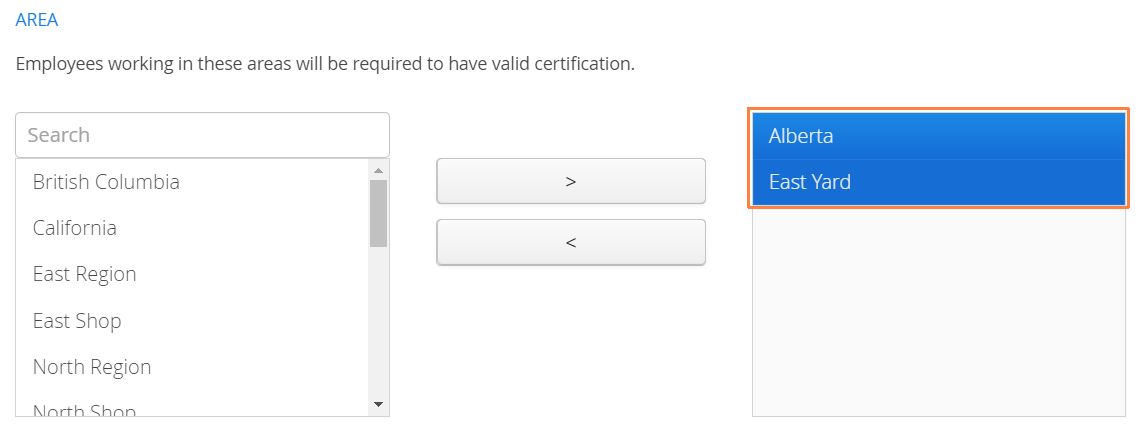
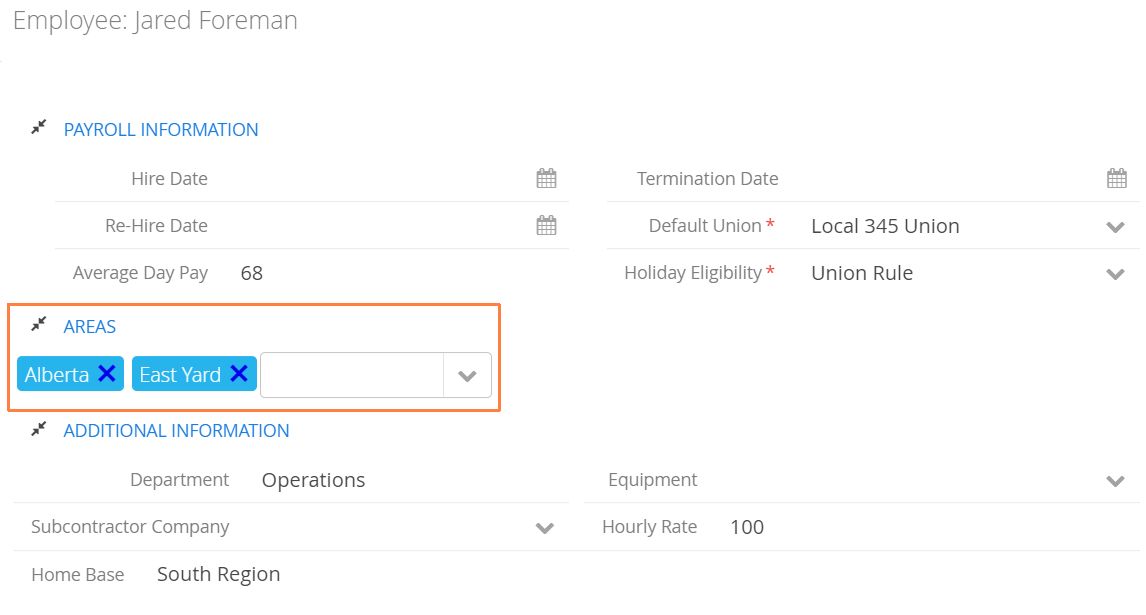
- Unlike Trades, it is possible to assign multiple areas to an Employee profile.
How to Certify Employees
User accounts are required and must be linked to an Employee to store certification records. Whether a user is submitting documents themselves, or an administrator is acknowledging a certification on their behalf, employees must have a linked user account (even if they never intend to log in).
For a walkthrough on having users submit their own certifications, please see the following: How to Submit Compliance Certifications as an Aimsio User
A compliance administrator has the ability to certify a user on their behalf.
- First, Locate the employee you would like to certify in the Not Certified tab, use the action button to the left of the employee’s name and select Acknowledge.
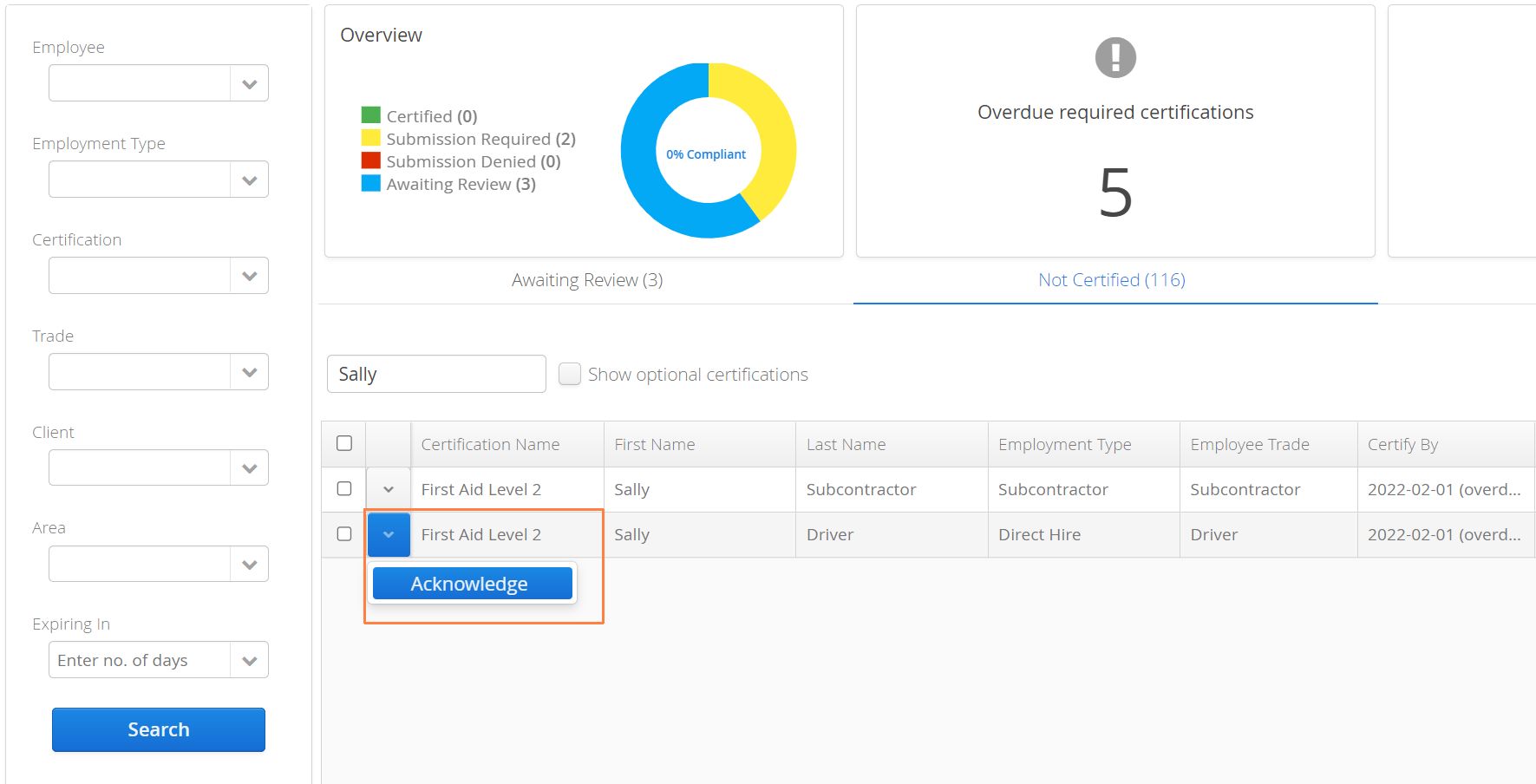
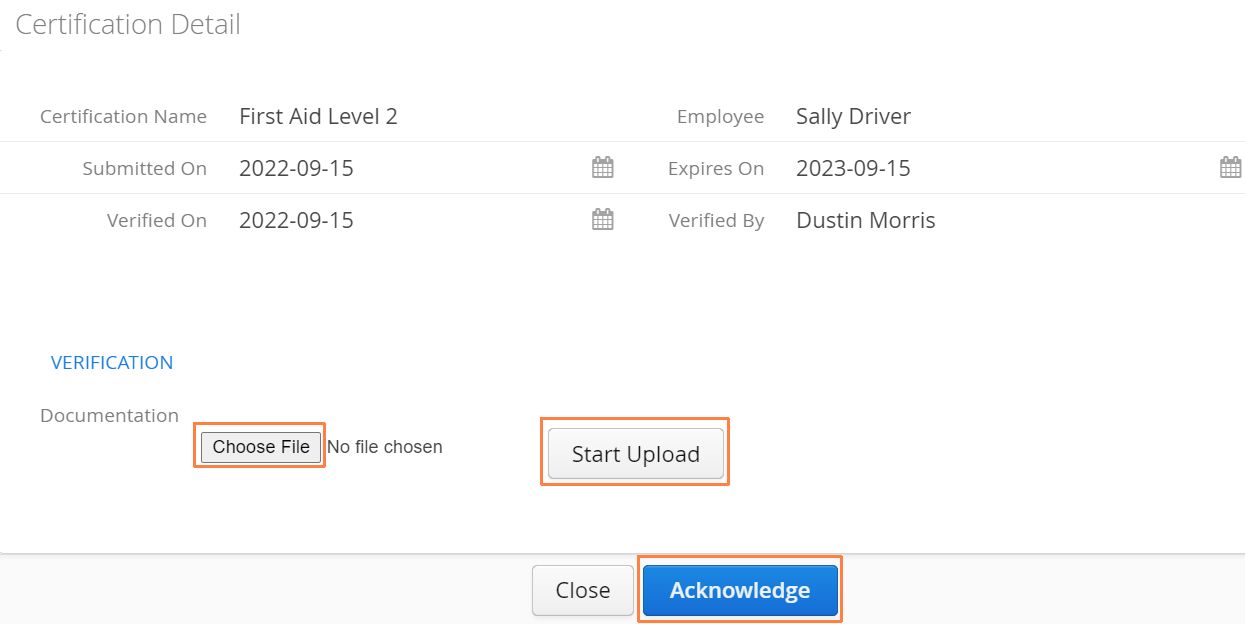
- A window will popup allowing you to select a relevant certification file from your computer. Once the file is selected, click Upload. Once the upload has finished, select Acknowledge.
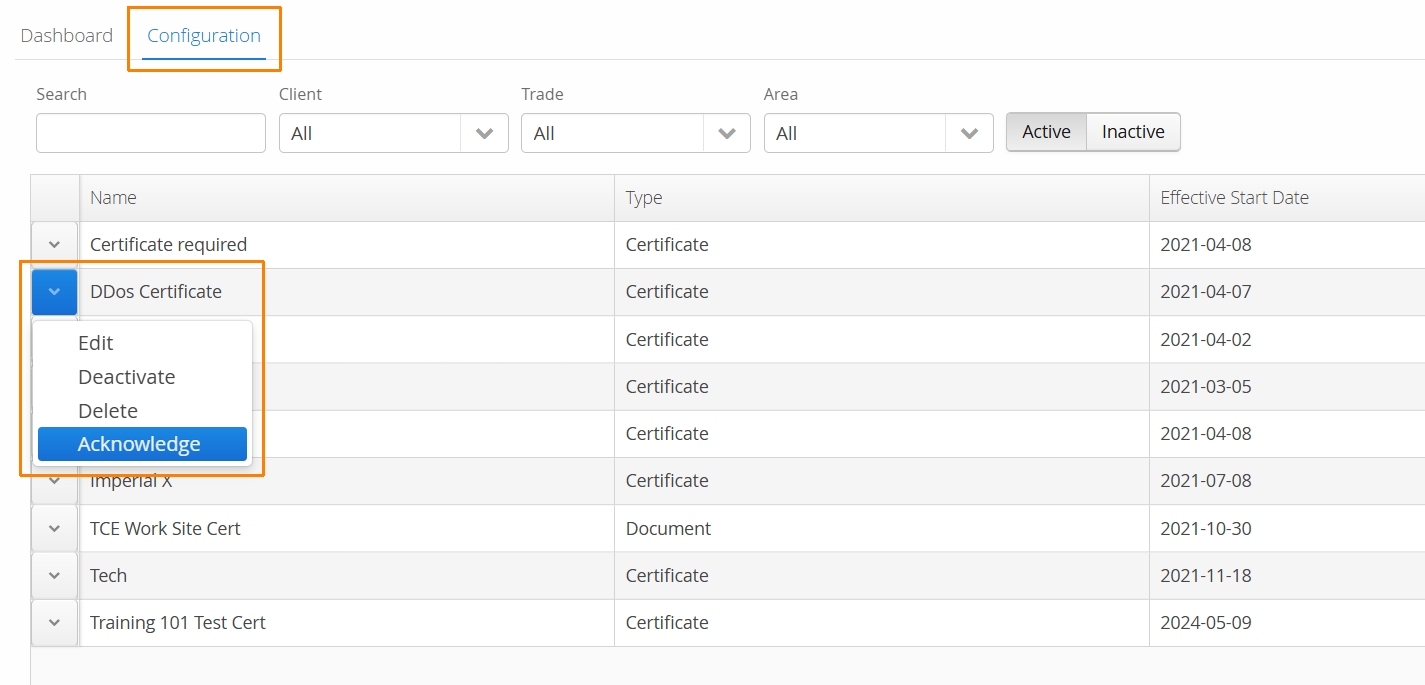
- Alternatively, navigate to the Configuration tab, locate the relevant certification, use the action button and choose Acknowledge.
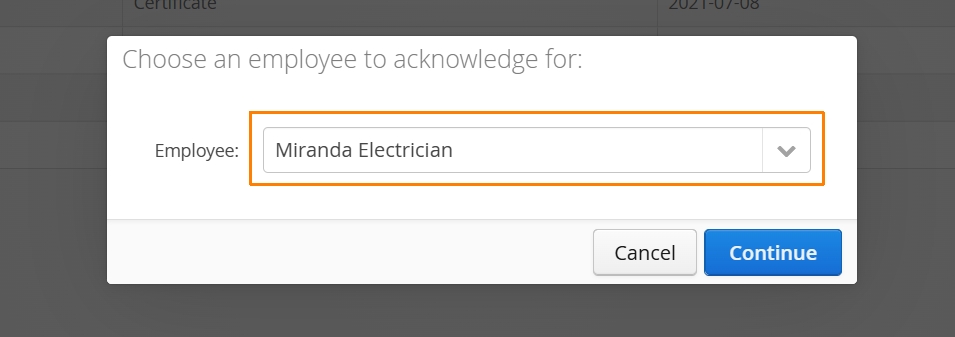
- Reviewers can then select the Employee to be certified.
How to Edit Certifications
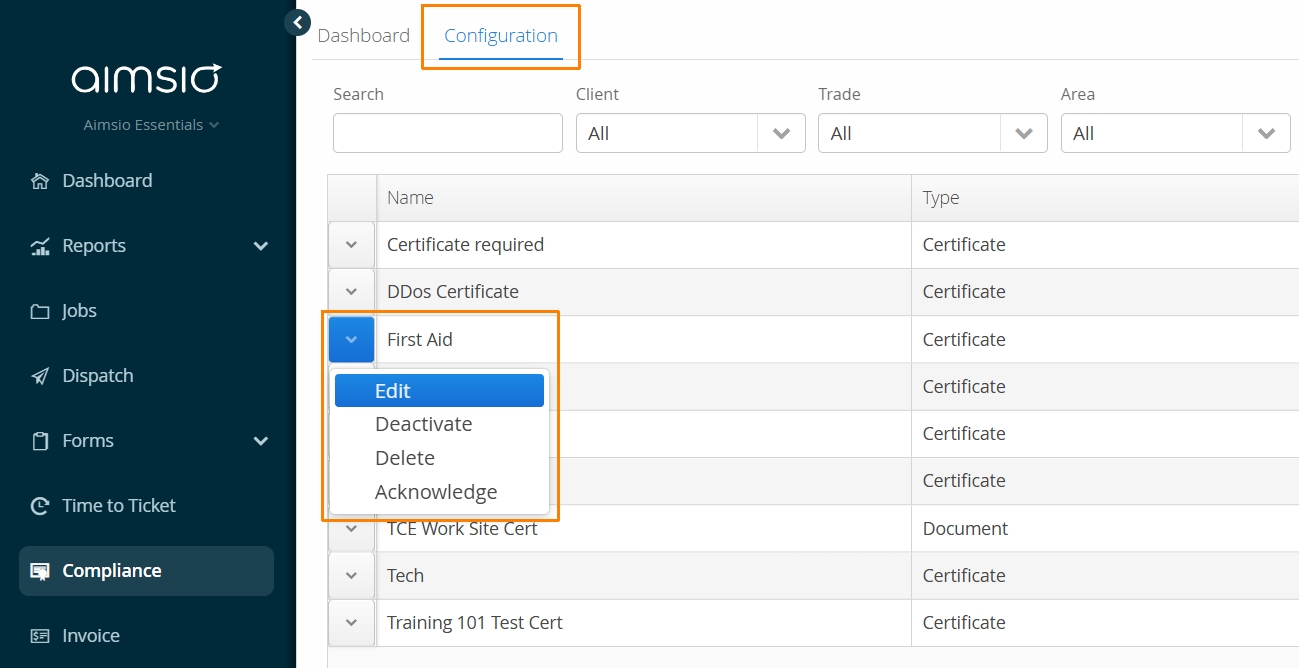
Certifications can be edited from the Configuration tab by clicking on the action button to the left of the certificate and selecting Edit.
Editing a certification allows users to change the same fields configured when creating a new certification. The one exception is the Type of Certification, which can only be set during creation.
For Document-based certification types, a third tab is shown that displays a history of the documents that were required for review along with that certification type. These documents can be downloaded, but cannot be deleted.
Deactivating Compliance Users
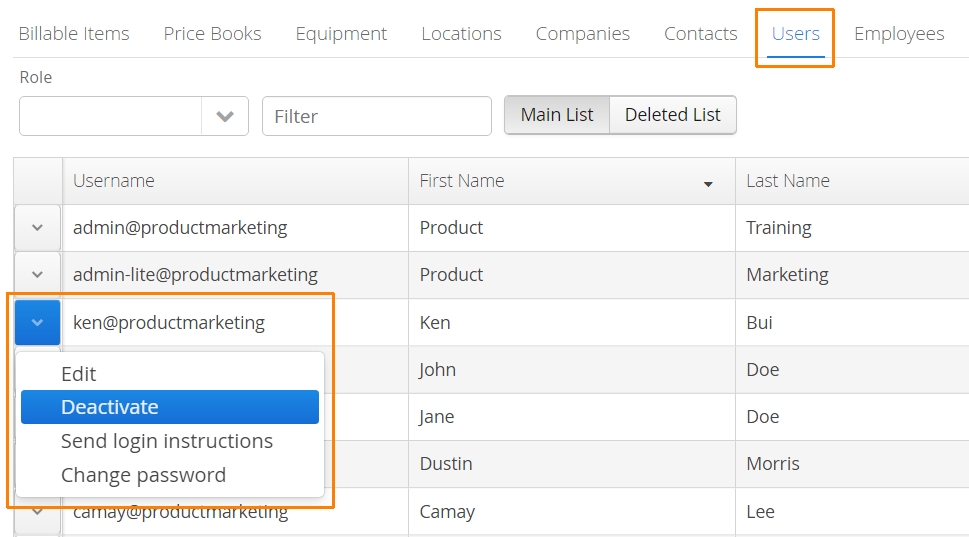
When a User is deactivated in Aimsio, any approved certifications linked to the Employee associated with that User will be deleted. If the User is reactivated, Employees will need to submit their certification records again and have them approved.
Filtering by Compliant Crew when Dispatching
Aimsio’s Dispatch module can leverage your Compliance configuration to ensure fully certified employees will be available to select for assignment.
For more information see: Using Aimsio’s Compliance Module when Dispatching
Compliance Reviews on iOS
Supervisors can monitor the status of their crew’s certification via a compliance tab available on iOS.
To learn more about this, visit the Aimsio for iOS product guide.