Aimsio provides a digital signing solution that reduces the time and friction of getting your Tickets, Estimates and Change Orders approved.
Customers using an Aimsio account to review documents should also review our Approval Portal documentation.
Client Portal Columns
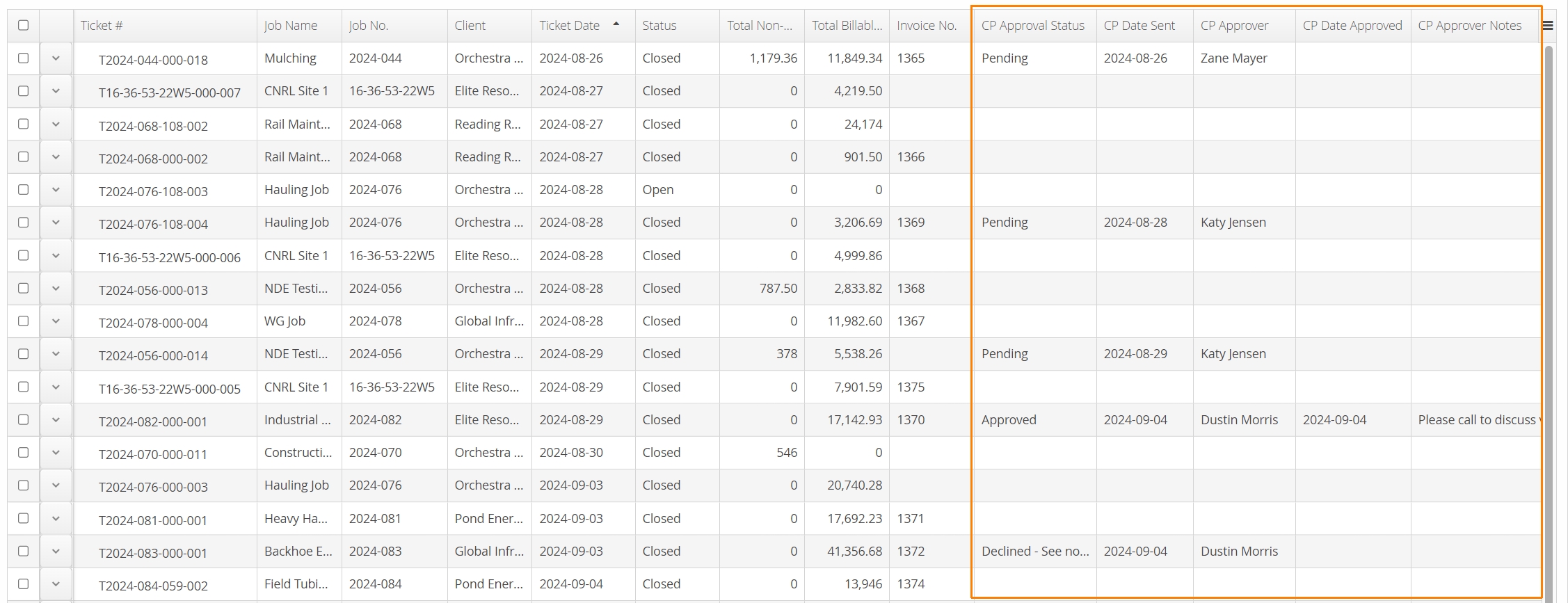
When Aimsio’s Client Portal is enabled in your account, supported form pages will contain the following columns:
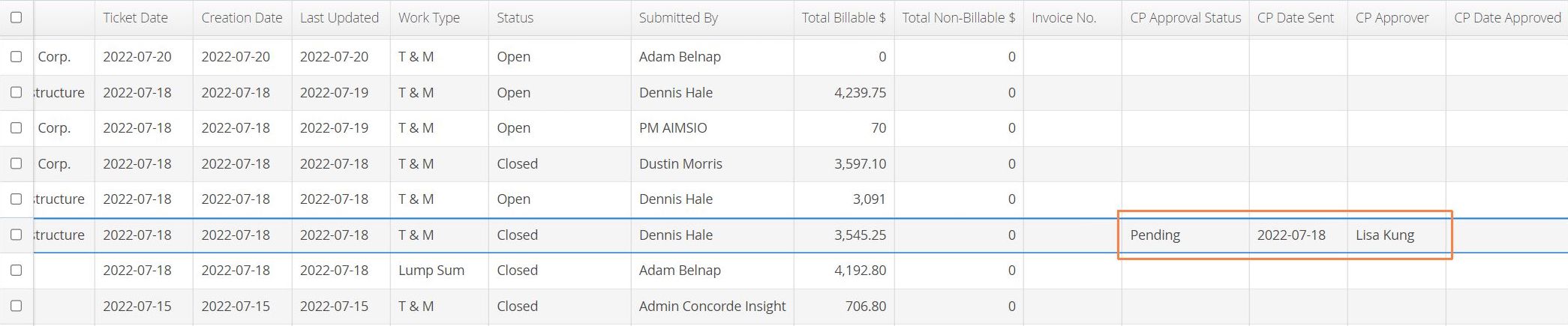
CP Approval Status will indicate whether the form is:
Pending signature
Fully Approved (signed)
Partially Approved (signed by a portion of approvers)
Declined or Expired (client failed to sign the form in the allotted time provided).
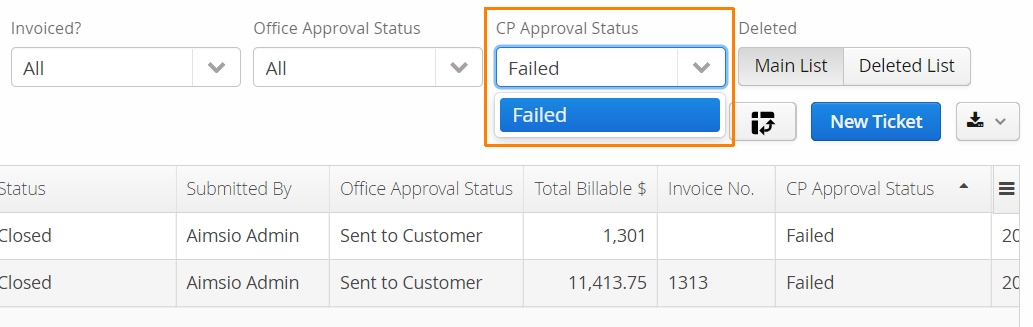
Failed (approval request was not delivered to the specified email address)
Void (approval request has been cancelled)
CP Date Sent indicates the date a form approval or reminder is sent.
CP Approver will list the names of each approver, after the form is signed.
CP Date Approved will date stamp the field once the form has been fully approved.
CP Approver Notes will display any feedback left under the Notes field when approving a form.
How to Send a Form for Signature (Approval)
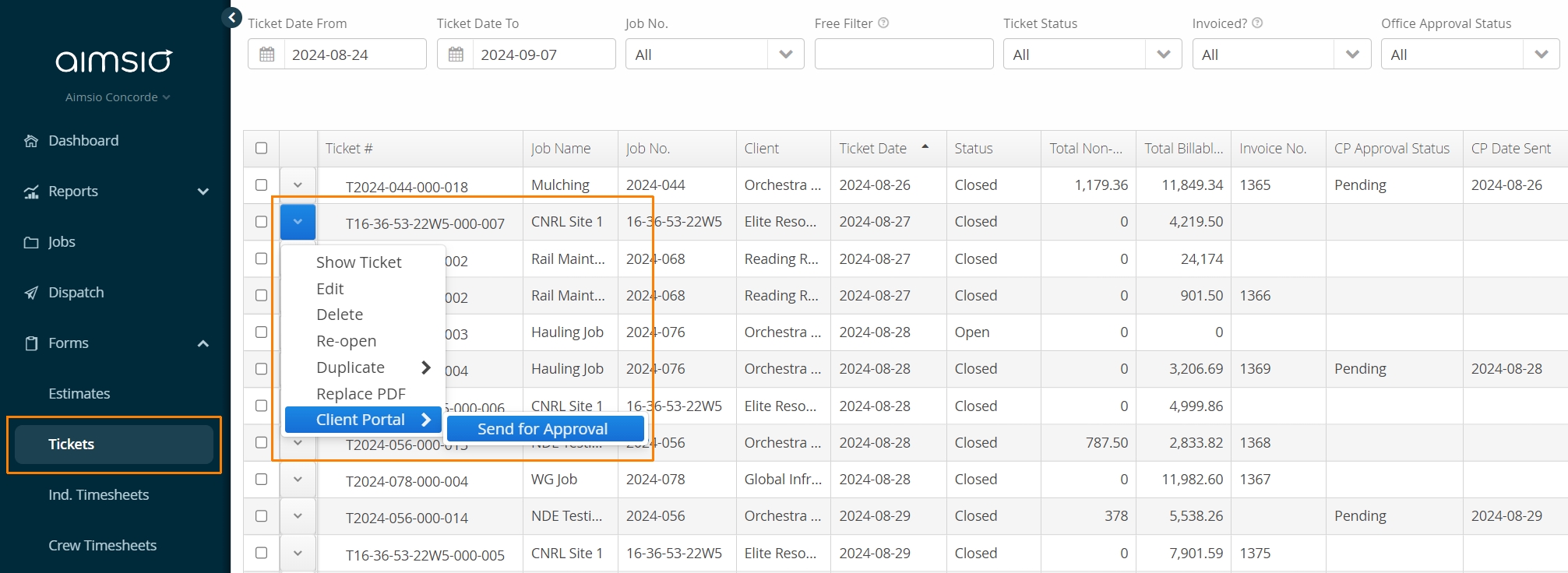
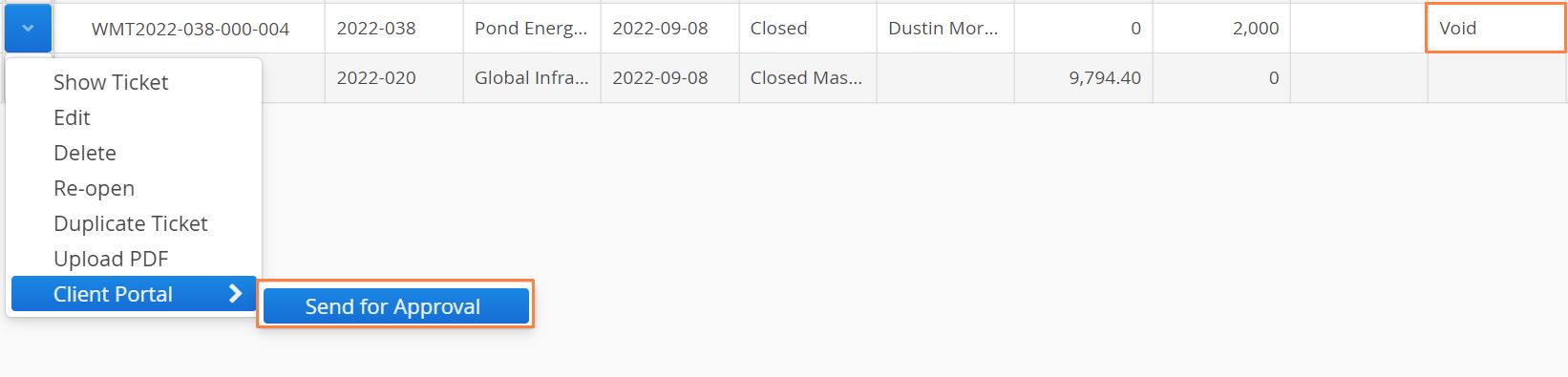
Locate a form you’d like to send for approval. Use the action button to the left of the form and select Client Portal > Send for Approval.
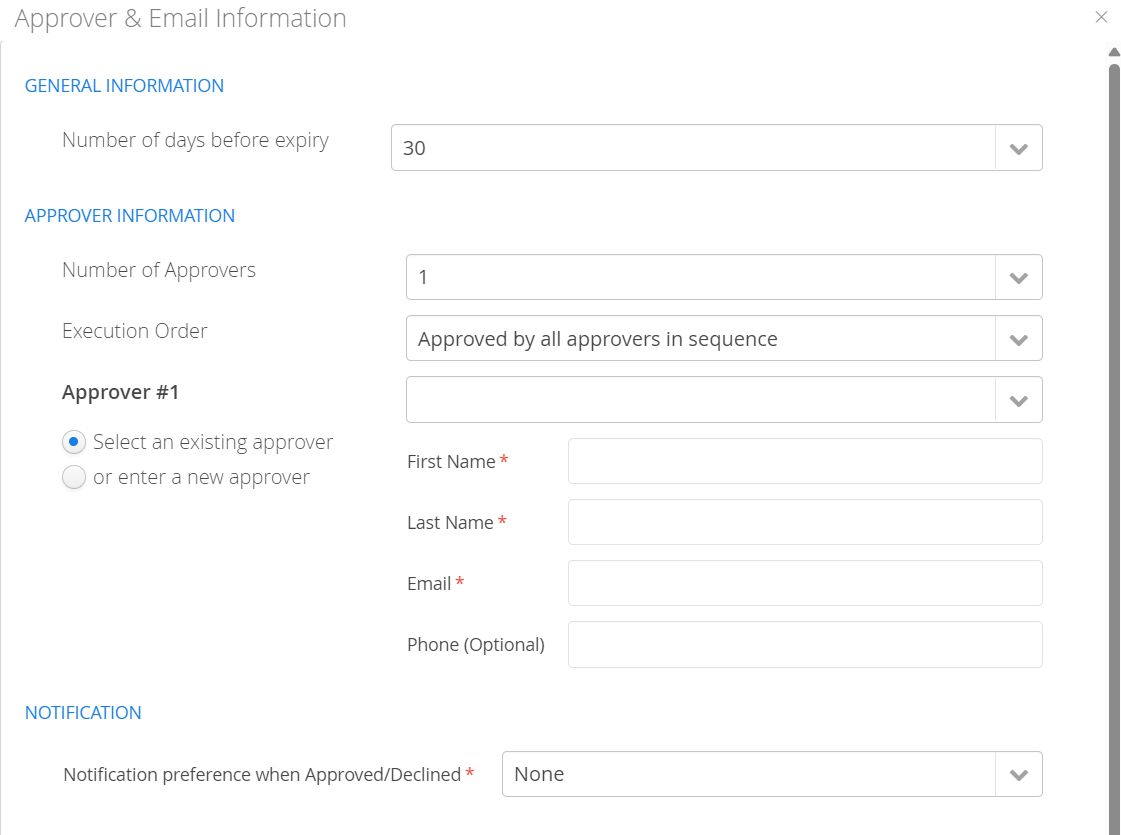
A window will appear and provide the following options:
-
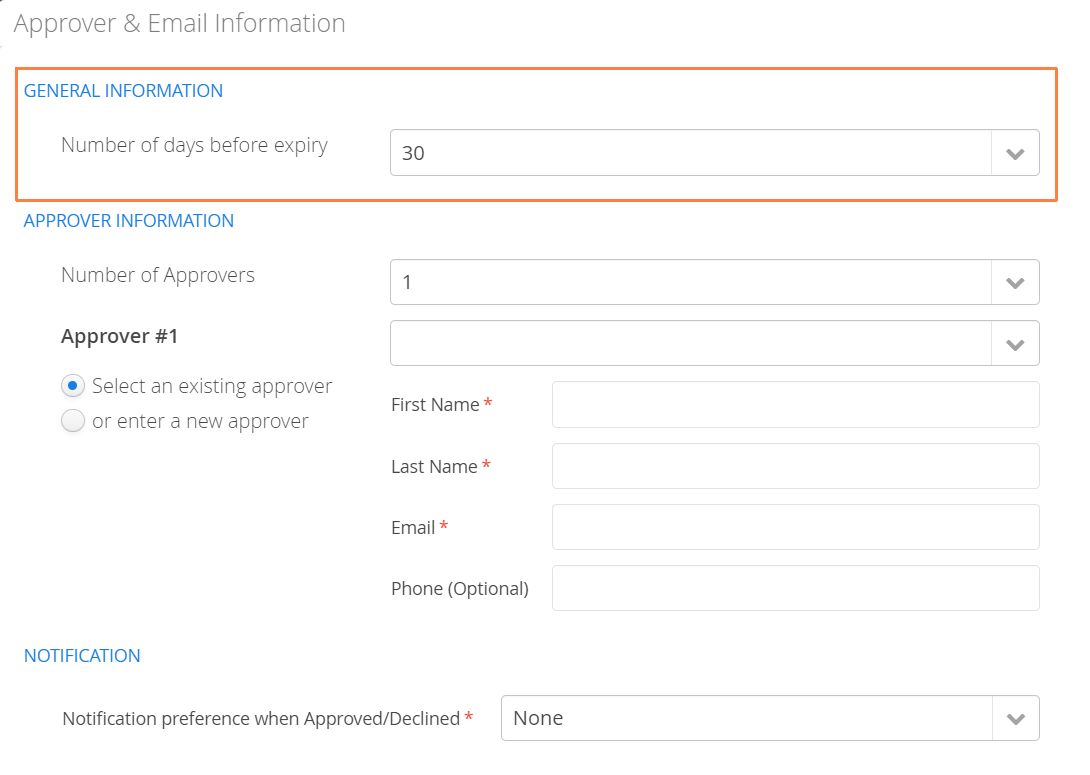
Number of days before expiry
-
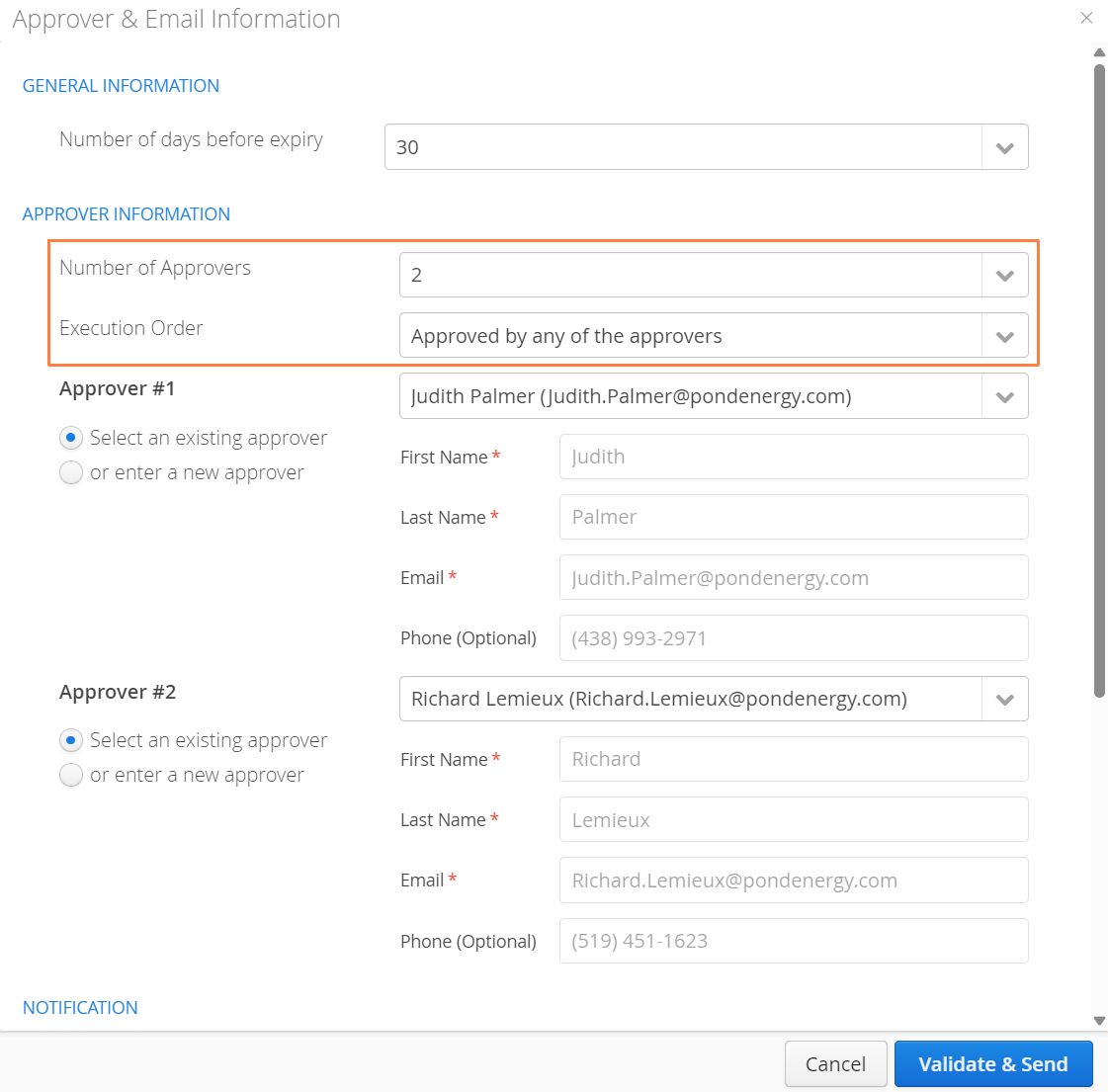
Number of Approvers (up to 5)
-
Execution Order
-
Approver Information
-
Notification preferences
Number of Days Before Expiry
Users can set the number of days before a document approval request is set to expire. Select options from ranging from 1 to 180 days, or never. Expiration days count down from the day after the document was sent for approval (current day + number of days before expiry).
- Once a document approval request has exceeded its number of days, it will inherit a status of Expired and a new request must be sent.
How to Send a Document to Multiple Approvers
Aimsio supports signatures from up to 5 approvers. There are two options for how an approval request is handled using multiple approvers. This is declared using the Execution Order field.
Users can choose one of the following:
-
Approved by all approvers in sequence
-
Each approver will receive a signature request in succession (in order from 1 to 5) after the previous approver has signed/approved the document.
-
A document’s approval status will remain Partially Approved until each approver has signed.
-
-
Approved by any of the approvers
- Selecting this option will deliver the document to all approvers, but only one will be required to sign.
Approver Information
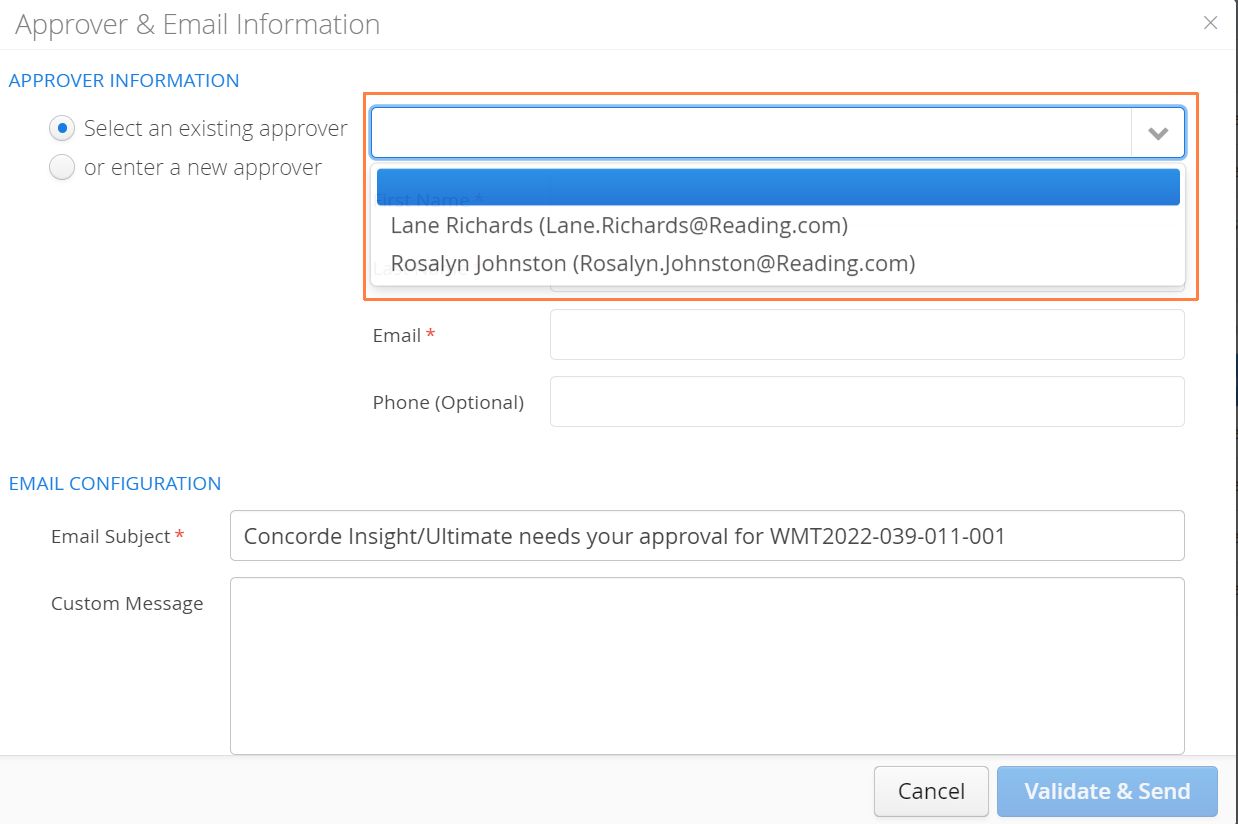
- When sending a form for signature, Aimsio will automatically search for a list of all associated contacts with the Job’s Client. If you need to add a new contact, use the Enter a new approver field.
Authorized users can associate any Contact in Master Data with a Company. For more information please visit our Companies & Contacts guide.
How to Enter a New Approver
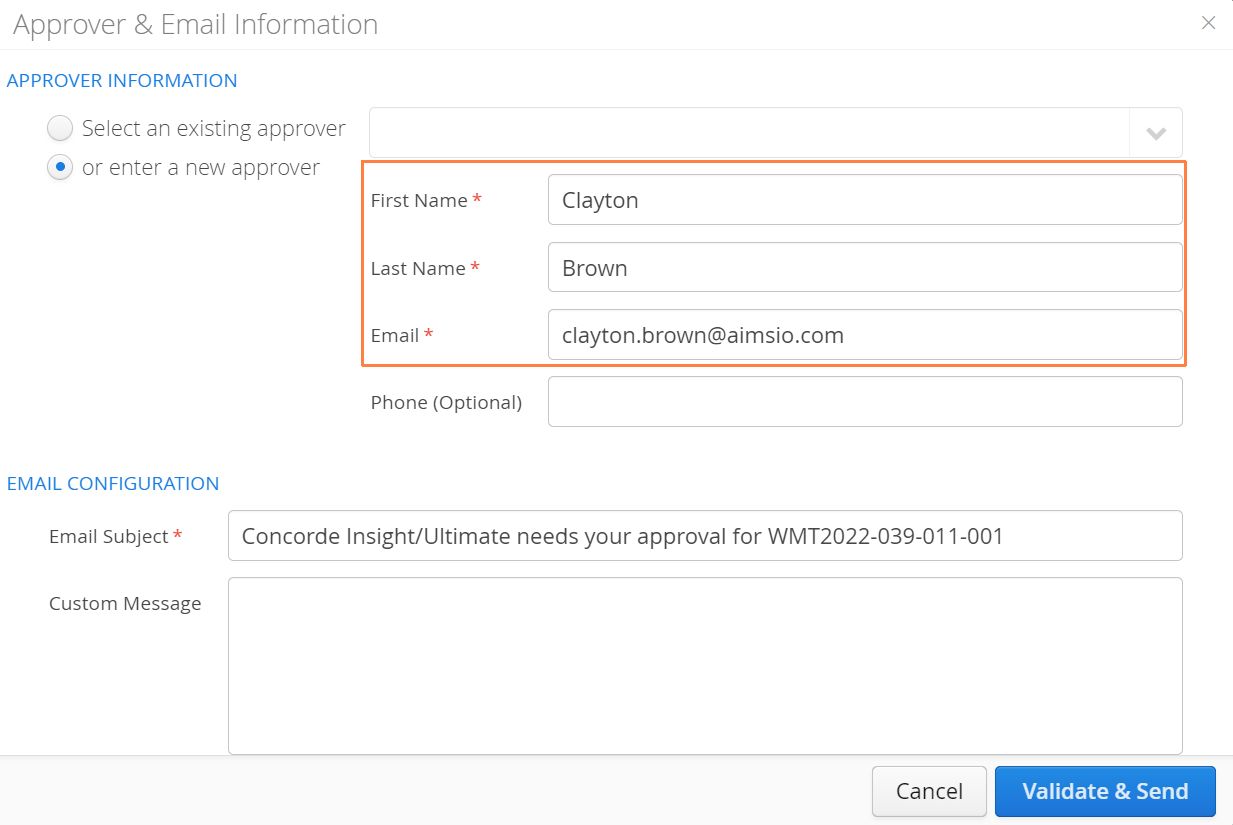
If the Contact does not currently exist in your account, add them as a new approver. Once a new approver has been entered, the Contact will be automatically saved and linked to the Client (Company). The Contact will be available from the Select an existing approver list moving forward.
New approvers require a First Name, Last Name and Email address before they can receive requests.
Client Portal Notifications
It is possible to receive both SMS and Email notifications once a document is signed. These notifications are sent solely to the user requesting the signature.
Notifications will only be sent once a document is fully approved. If multiple approvers are used, the Execution Order will influence when a document is considered approved in Aimsio.

Email Configuration
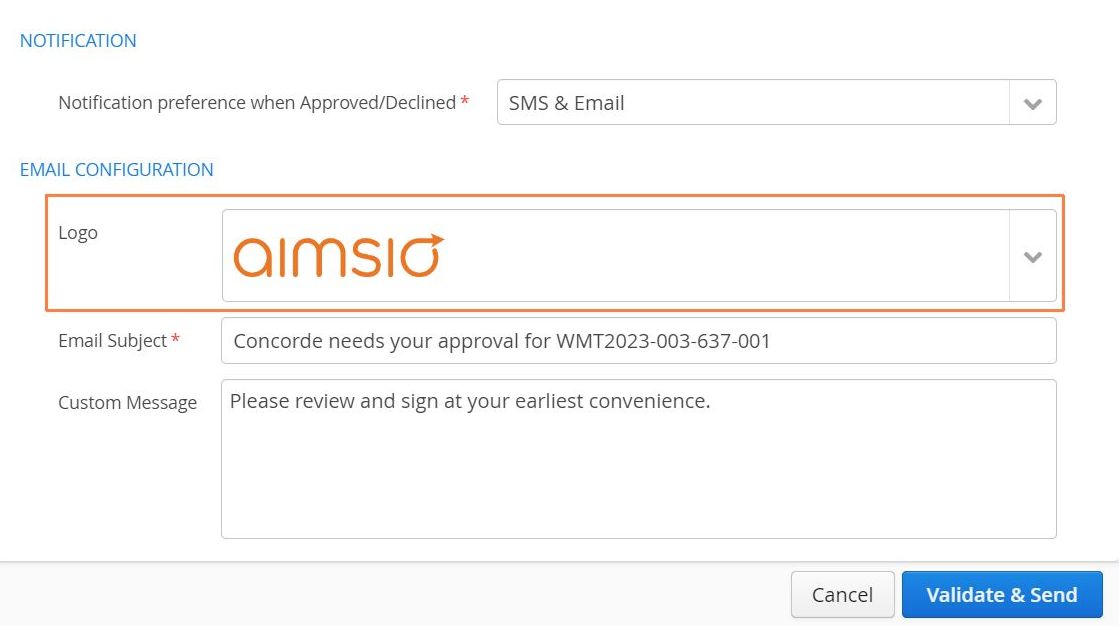
It is possible to select a Logo, change the Email Subject and include a Custom Message in the email sent to approvers.
If you have multiple divisions in your account, users will have the ability to select which logo relates best to the document they are sending. Default selections can be configured to look at the Area associated to the Job any document relates to.
What Happens Once an Approval Request is Sent?
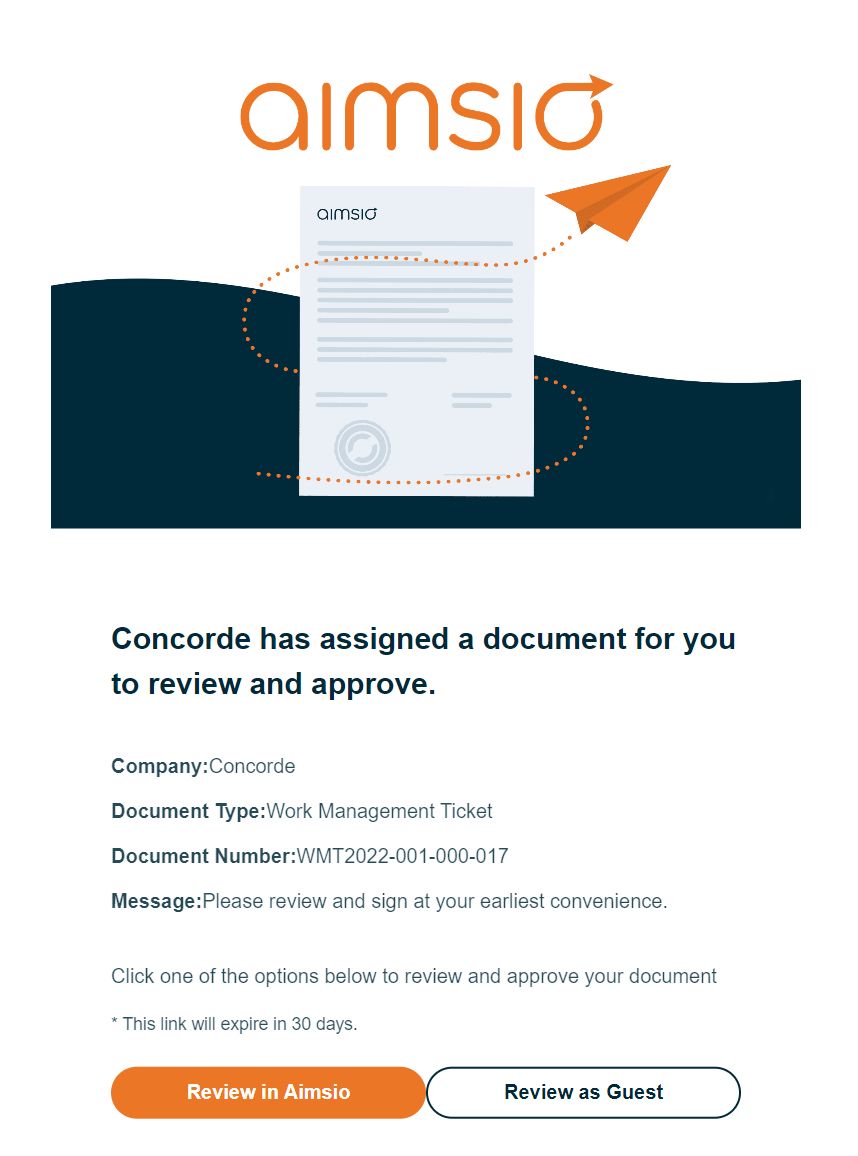
Once the email is sent, the approver will have the declared number of days to sign the document before the request expires. The email your customer receives will provide them with two options:
Review in Aimsio - Recipients of the email will be invited to sign up for a free Aimsio account to review the document and access all of historical records from a secure web portal.
Review as Guest - Recipients will be directed to our signing page through their web browser and given the ability to download a single document after approving.
For more information on creating a free account to approve forms, see our Approver Portal walkthrough.
- After the notification is sent to the approver, CP Approval Status, CP Date Sent and CP Approver will be updated.
What Do Approvers See?
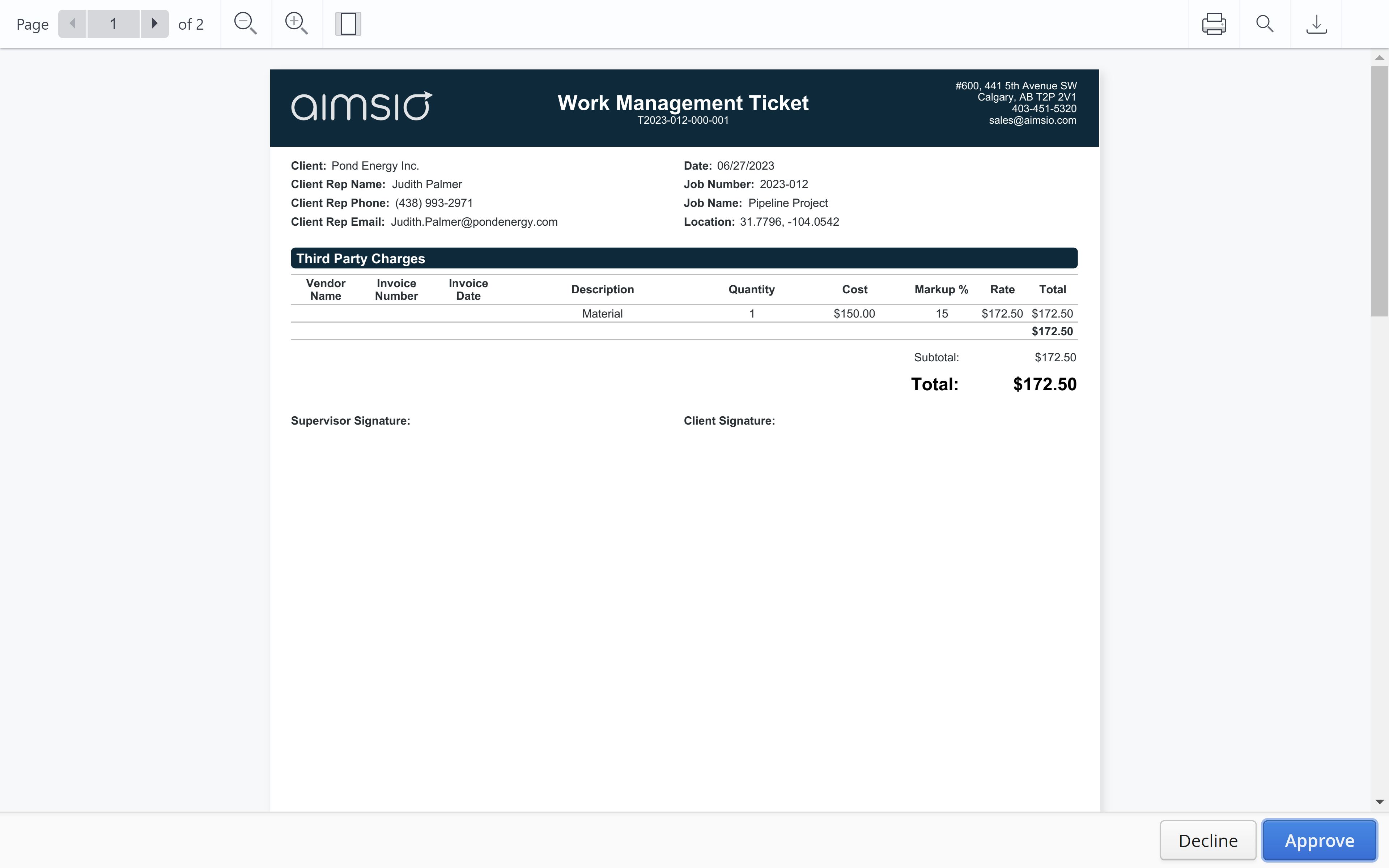
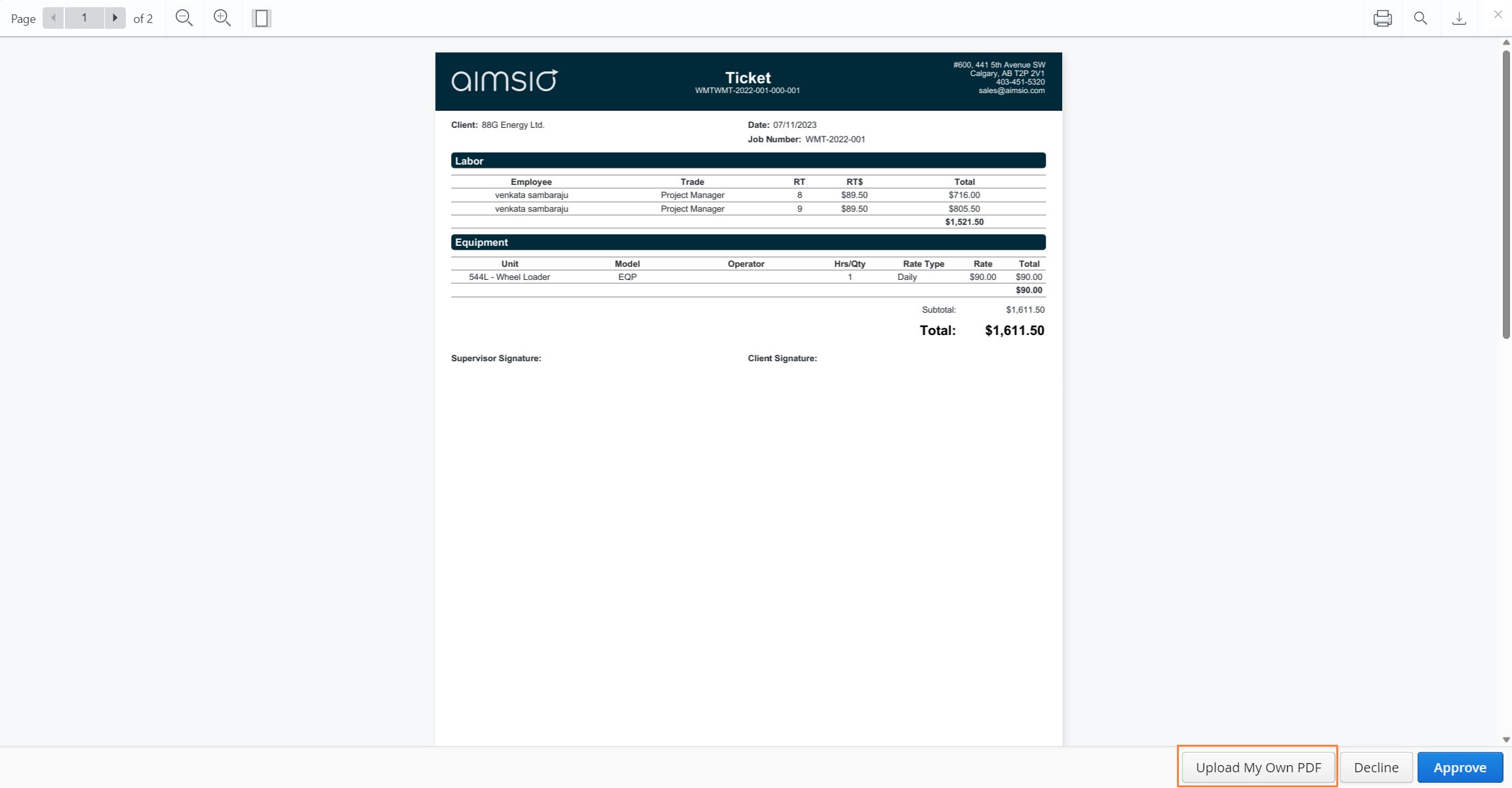
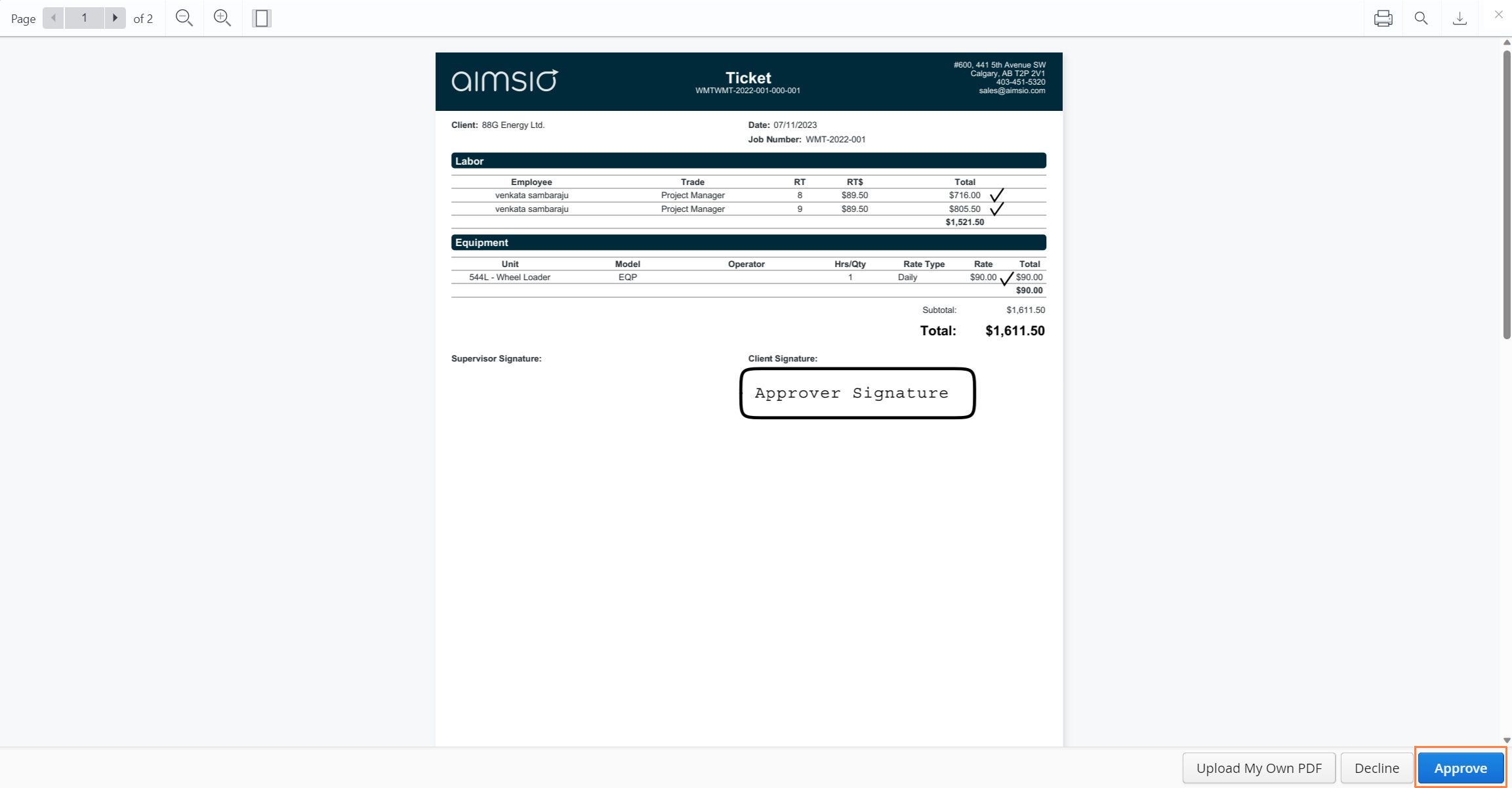
Approvers will be presented with the PDF version of the document for their review.
-
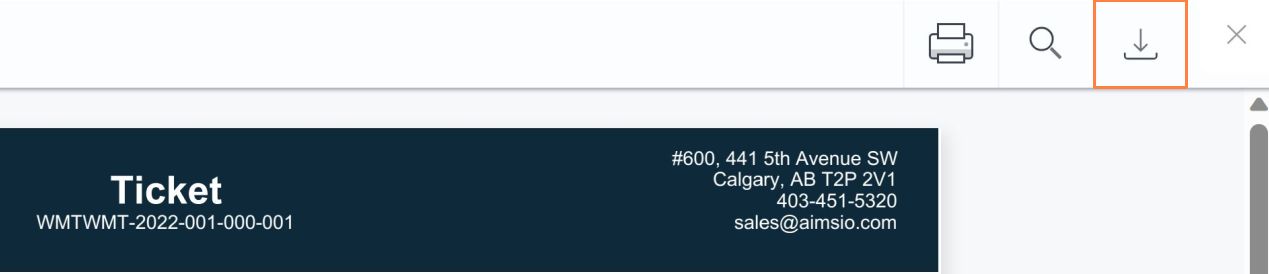
There will be options to Zoom, Print or Download on the top navigation bar.
-
There will also be an option to Upload Your Own PDF if the approver wants to sign the document externally first.
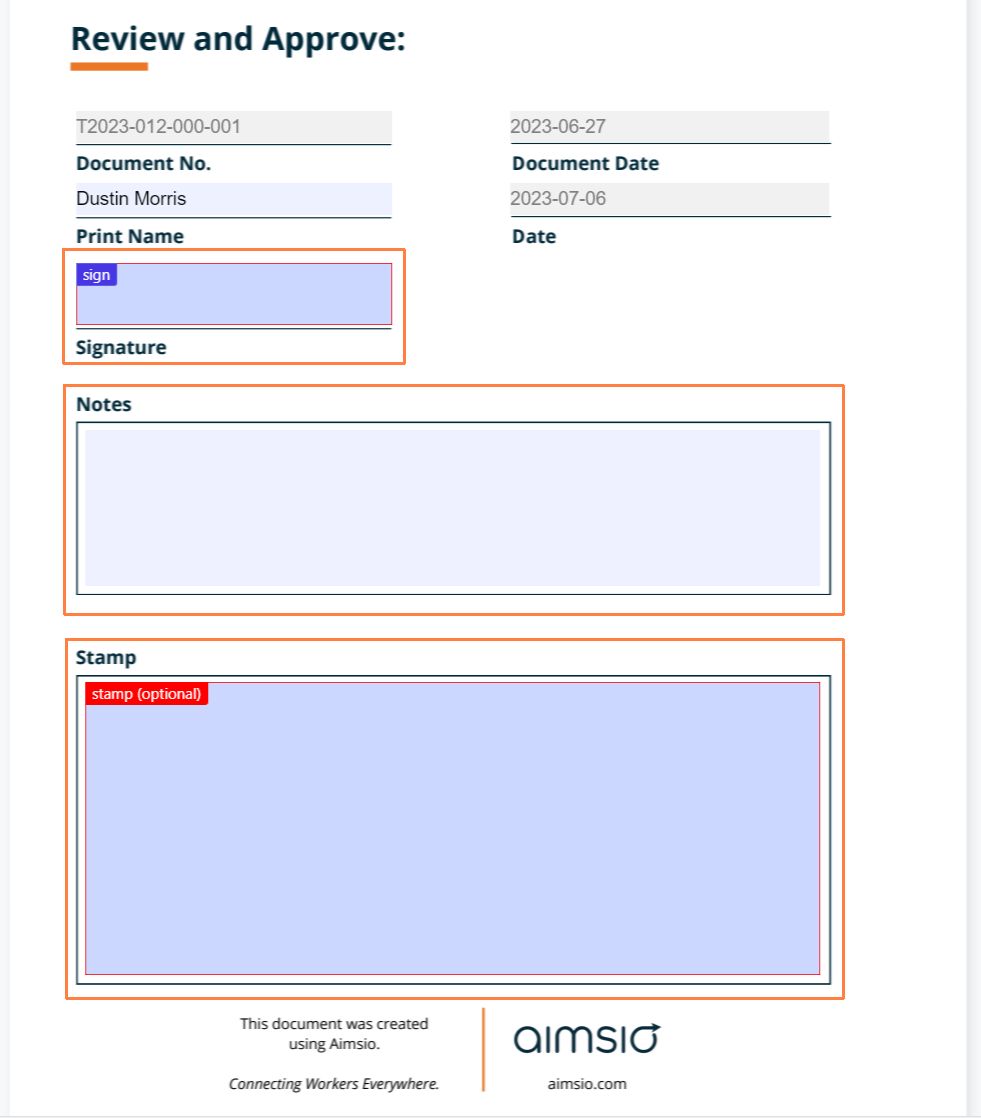
On the final page of the document, the approver will see 4 pre-populated fields:
-
Document No. (form number)
-
Document Date
-
Print Name
-
Date (date of receipt)
These are followed by 3 fillable fields: Signature, Notes, Stamp. The approver can choose to sign and/or stamp, and add any notes that they would like to add. Notes will be included in the updated PDF that is sent back to Aimsio.
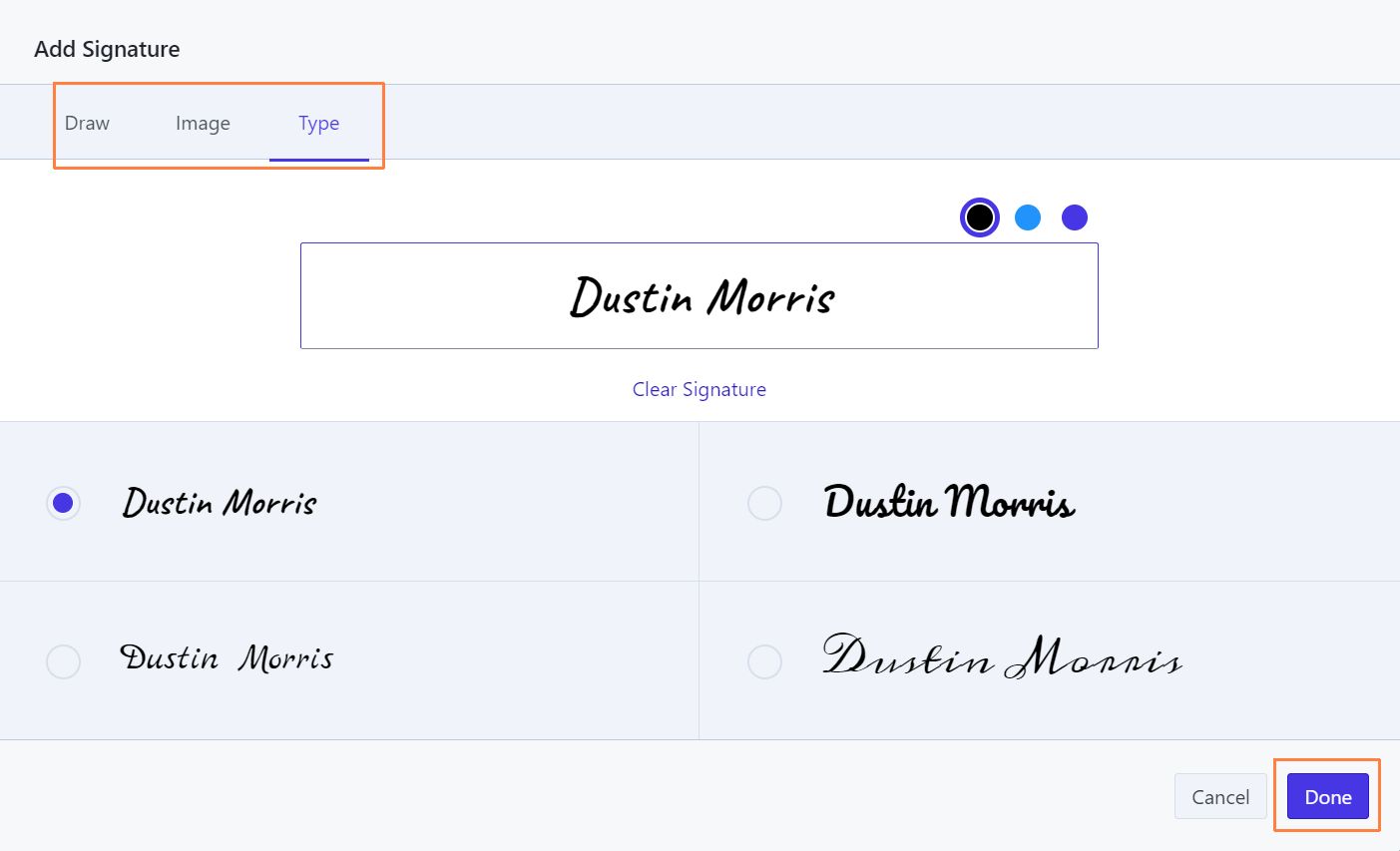
- Much like other digital signature apps (e.g. DocuSign), approvers will be able to select the style/etc. of their signature.
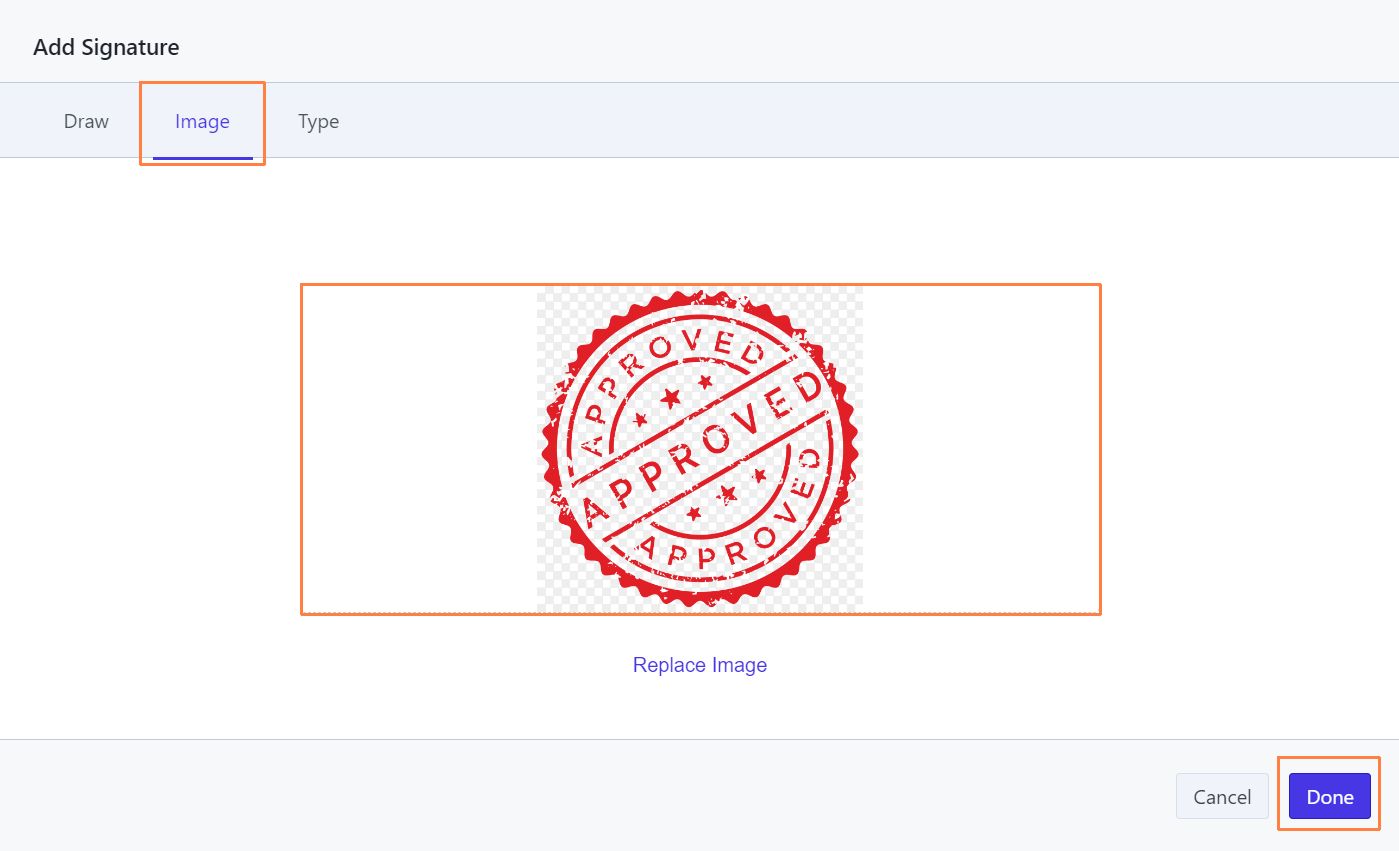
- If they choose to include a Stamp (Image), approvers can upload a .JPG or .PNG file.
- Once all pertinent fields are completed, the final product would look like this:
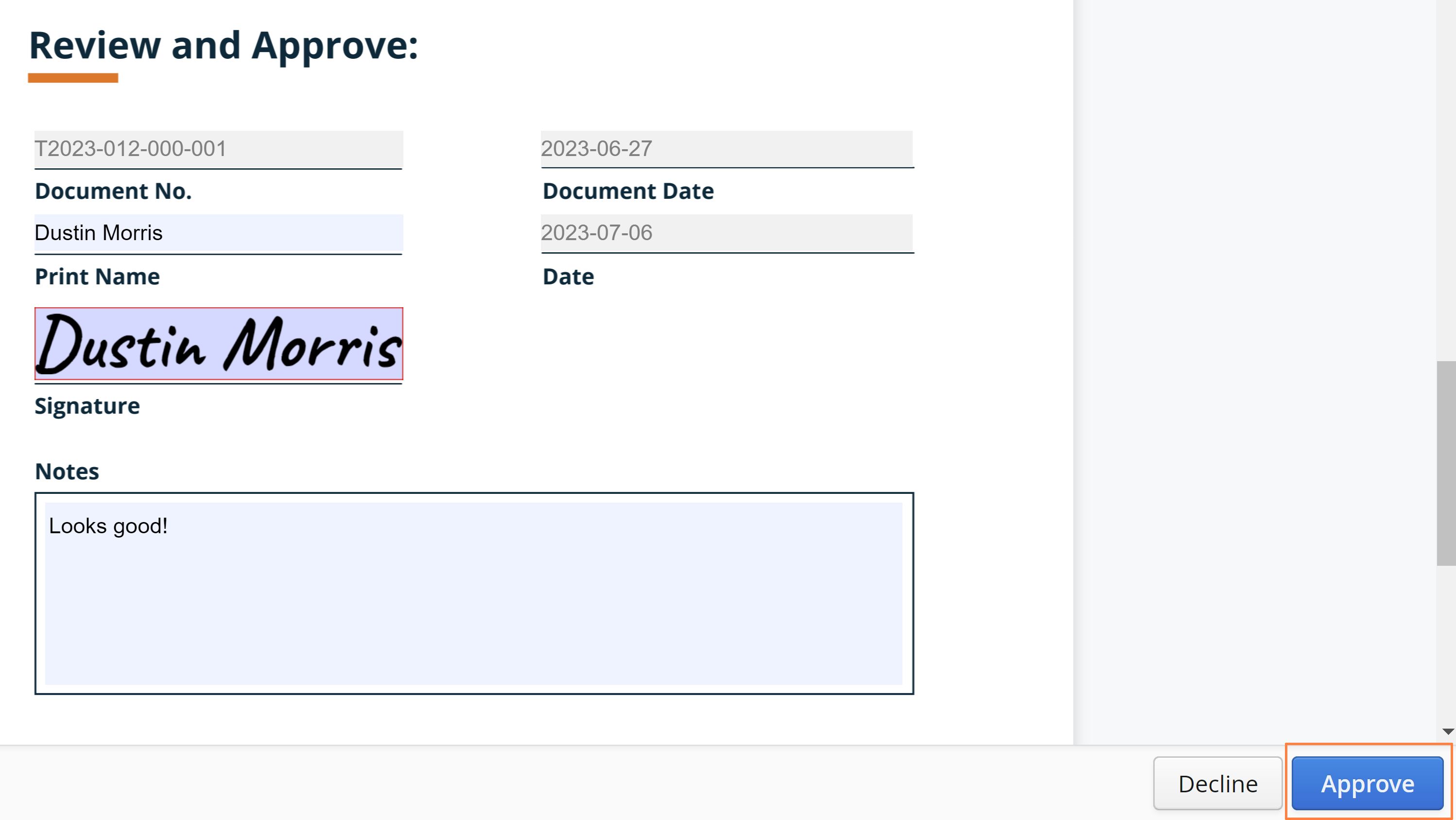
The approver then hits Approve and the ticket will be finalized and delivered back into the Aimsio system.
- The approver will have the option to download a version of the signed document as well for their own records.
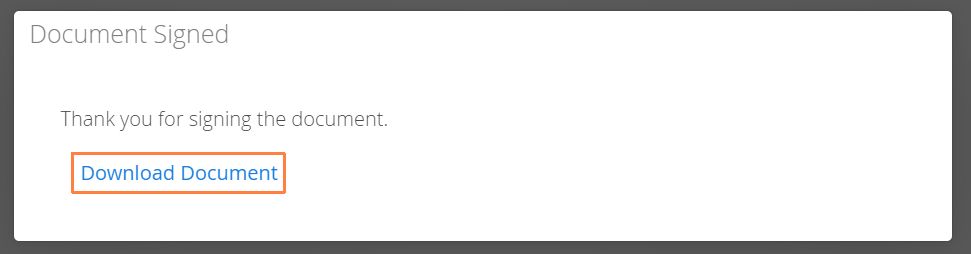
Approvers can ‘Decline’ a document approval request. This is covered later in the article.
How to Upload an Externally Signed PDF
For approvers using an external application (ie: Adobe Acrobat, Blue Beam, etc.) to mark up and sign documents, approvers can use the Upload My Own PDF button on the lower right when viewing a document.
- Users must download the document first, using the download button located on the top right hand corner when viewing the document.
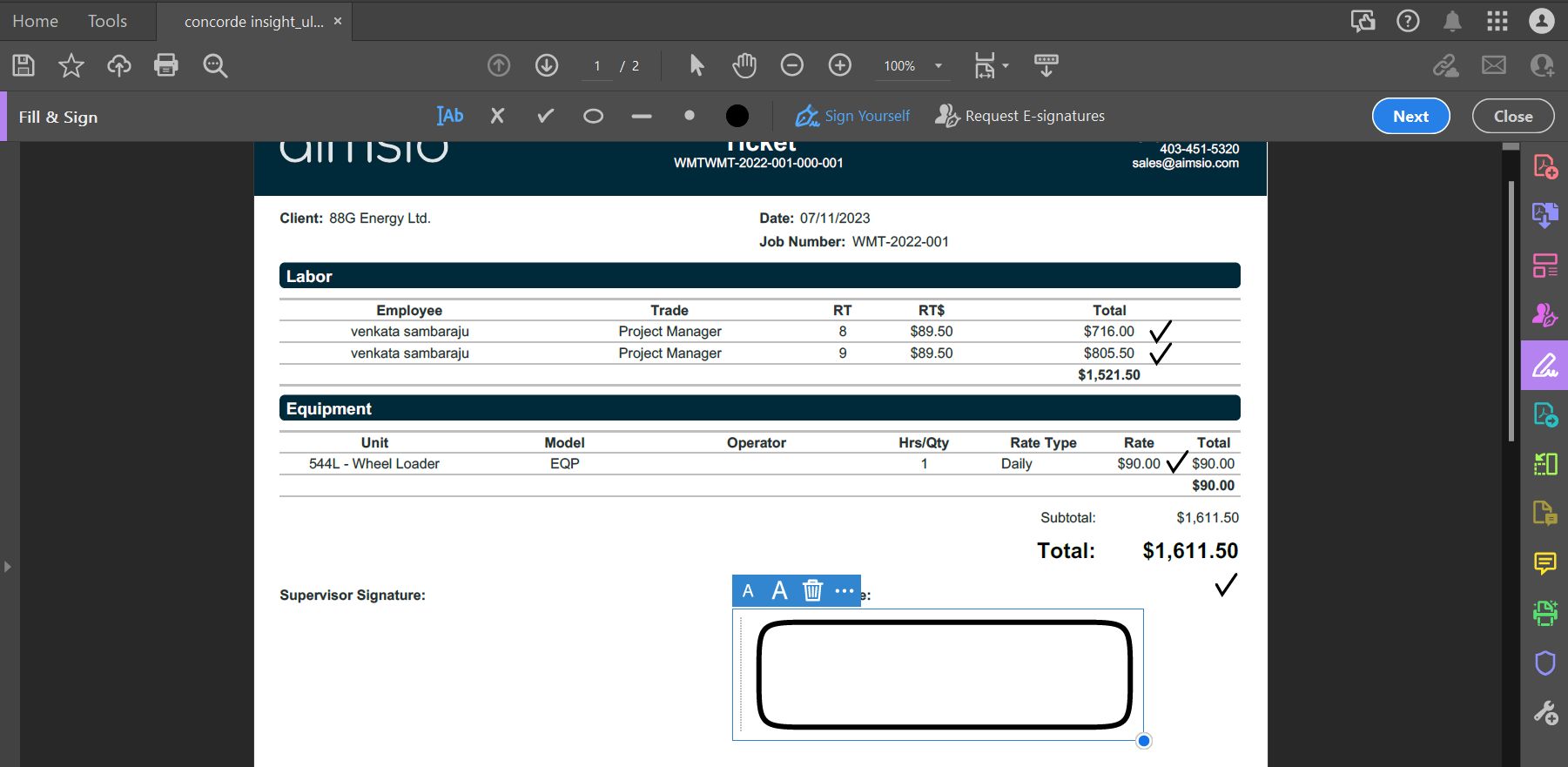
- The PDF is then signed and noted with an external application.
- Back in Aimsio, users will click on the Upload My Own PDF button, find the file on their device and click Upload.
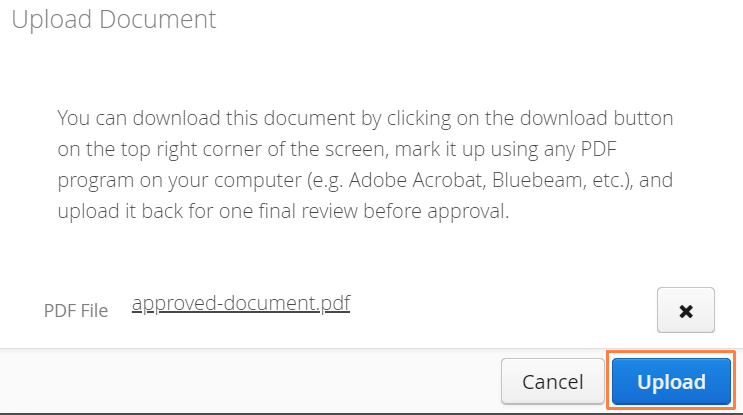
- Approvers will have one final opportunity to review the uploaded PDF. By clicking Approve on the lower right, the document will be replaced and uploaded back to sender’s account.
What happens after a document is approved?
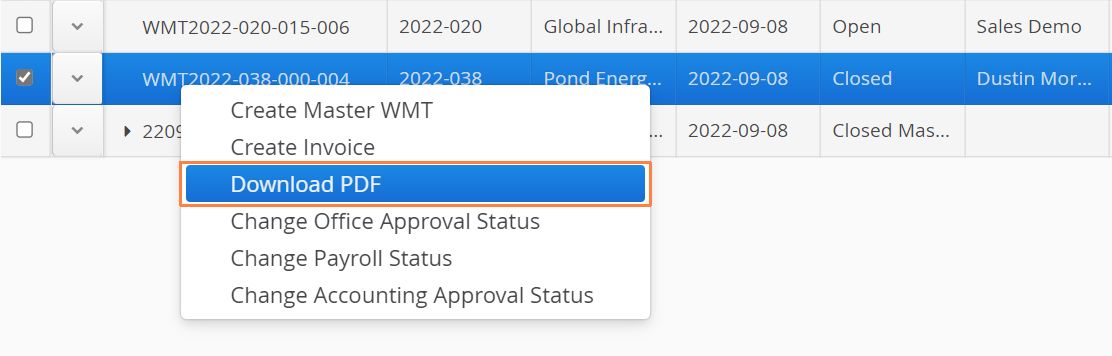
Once a document has been approved, the status of the document will be updated automatically and the newly signed PDF will be available in your account.

- To review/download the updated PDF, select the document, right click and Download PDF.
How to Send an Approval Reminder
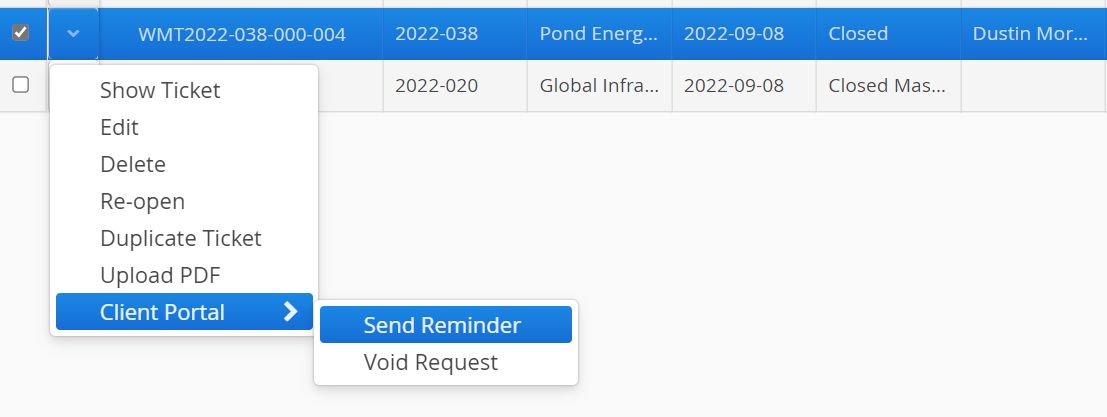
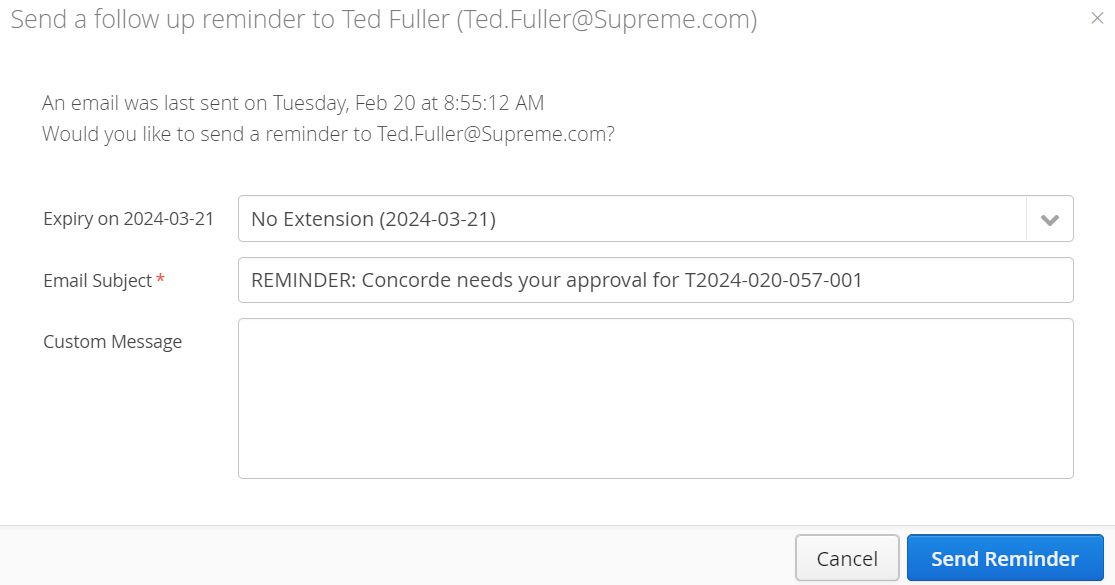
An approver may need a little nudge to get them to finalize signing of the document. Aimsio provides the option to give them a reminder email to complete.
-
The reminder email will append “REMINDER: “ to the subject line. Users can also type Custom Message.
-
Users will also have the ability to extend the expiry of a request when sending a reminder.
What Happens if a User Makes a Change to a Form after it’s been Approved?
When a form has been approved, the signature page is appended to the original PDF generated in Aimsio. If changes are made to a form, after it’s been approved, regenerating the PDF in Aimsio will override the signature page and a new Client Portal request will need to be sent.
Accounts should limit the number of users who have the ability to edit a Closed form. Changes to an approved form can result in altering billing information, including hours billed or changes to rates. Since a customer approval is relevant only on original form sent, Aimsio will not apply a new signature after changes are made.
Users can Void the original request and resend the form for approval. Accounts should consider locking edits to a form after it has been approved. Please reach out to our support team for assistance.
Can You Edit a Form That Has Been Sent for Approval?
Broadly speaking, forms are intended to be locked for editing when an approval is pending. Authorized users can contact Aimsio support to determine what works best for their operations.
How to Void an Approval Request
If a correction to a document is required, users can select ‘Client Portal > Void Request’ by clicking the action button beside a form from the main form page.
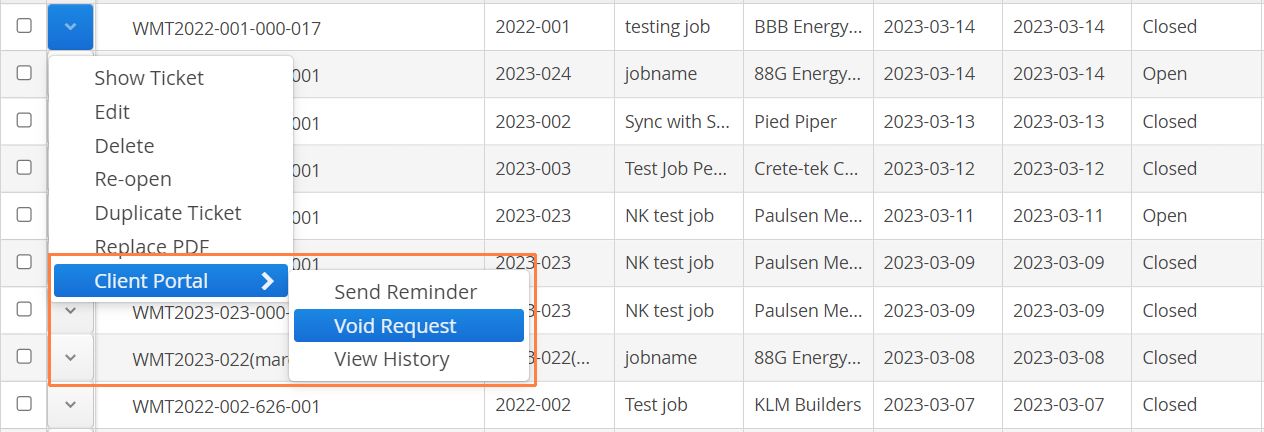
- Users will have the option to decide whether approvers will receive an email notification of the void request.
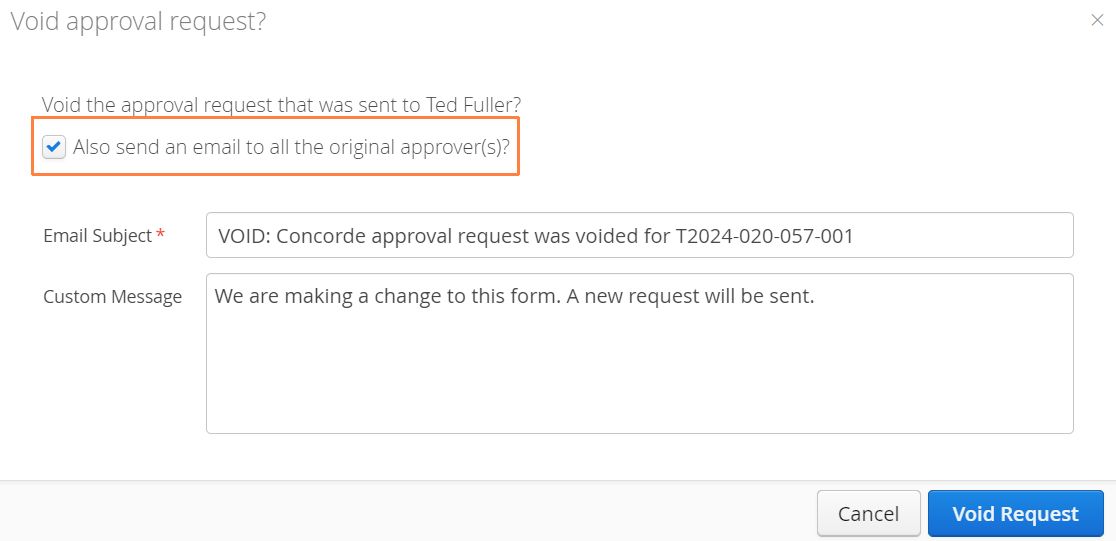
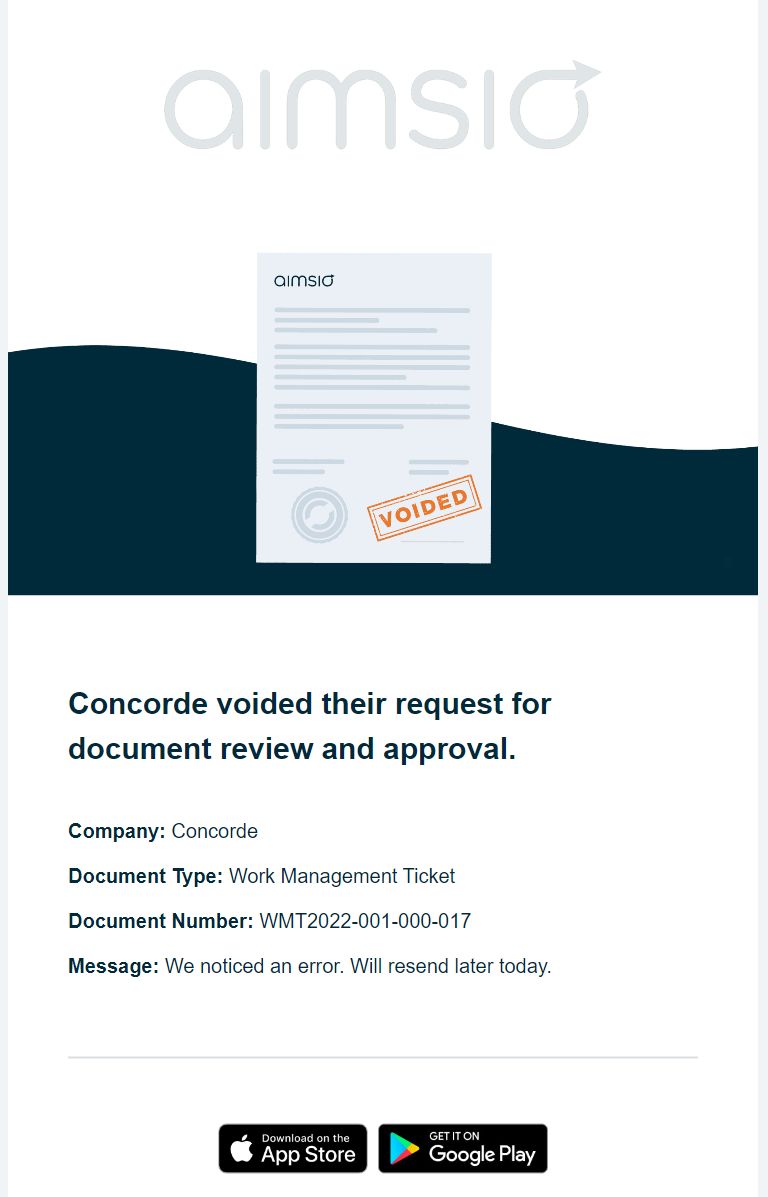
- If the option is checked, approvers will receive an email indicating the request has been voided.
-
The “CP Status” will also be updated to “Void” and you’ll be able to resend the approval when ready.
How to Decline an Approval Request
It’s possible that the assigned approver(s) will receive the document and decide there is an issue with it and can press the Decline button while viewing the document.
Document approvers will be required to input the reason they’ve declined the approval. Aimsio will not store any notes included on a document if the approval is declined.
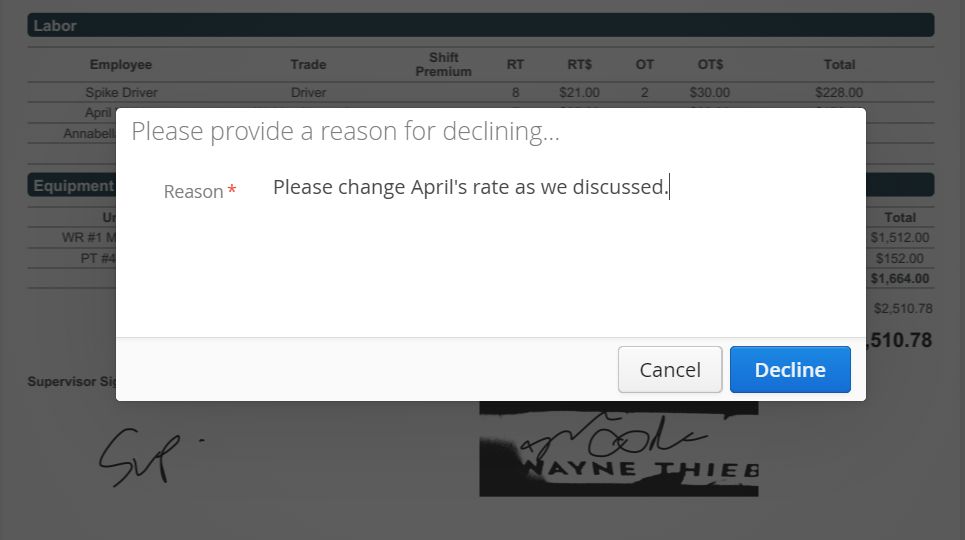
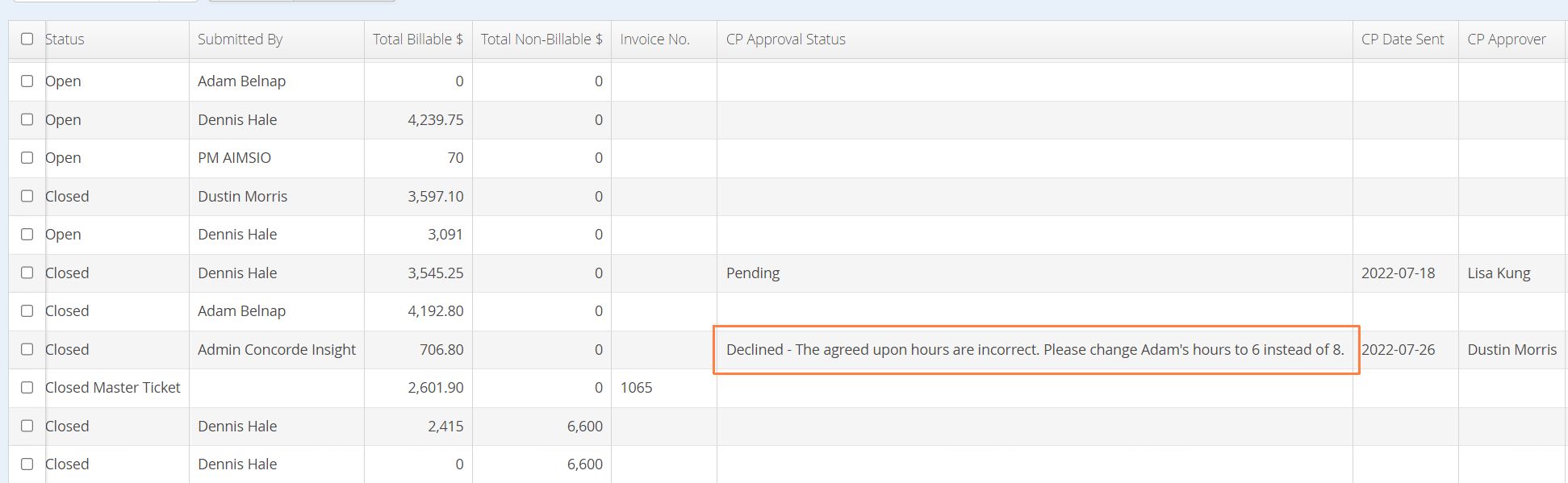
Aimsio will update the “CP Status” set to “Declined” along with the reason under the CP Approver Notes column. A Ticket that’s been declined is able to be sent for signature again, once any changes to the document are made.
Failed Approval Requests
If approval requests sent via our Client Portal fail (due to an undelivered email), the CP Approval Status column will automatically update to ‘Failed’ an hour after the attempt to deliver.
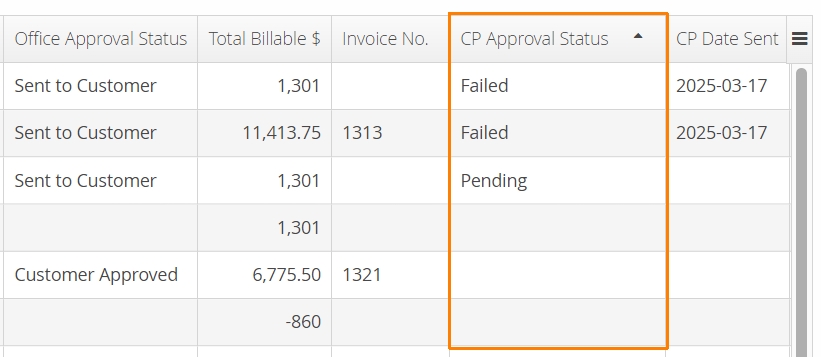
Aimsio will notify accounts when attempting to send another request to an email address that previously failed.

To quickly isolate failed requests. Use the CP Approval Status filter at the top of any form page that supports our Client Portal.