Accounts that create Time and Material Estimates for upcoming Jobs can send them for approval using our Client Portal and convert rates into Estimate-specific Price Books.
-
Quickly create packages by applying discounts or markups to items. T&M Estimates can be created on Aimsio’s web or mobile apps.
-
Estimates can be sent for customer approval using Aimsio’s Client Portal.
-
Save rates by converting an Estimate to a Price Book and automatically apply it to a newly created Job.
T&M Estimates are not intended to be used for detailed bids. Aimsio’s enhanced budgeting features, available with Aimsio Ultimate, are better suited for this purpose. For additional information please see: WBS Budgeting
How to Create an Estimate
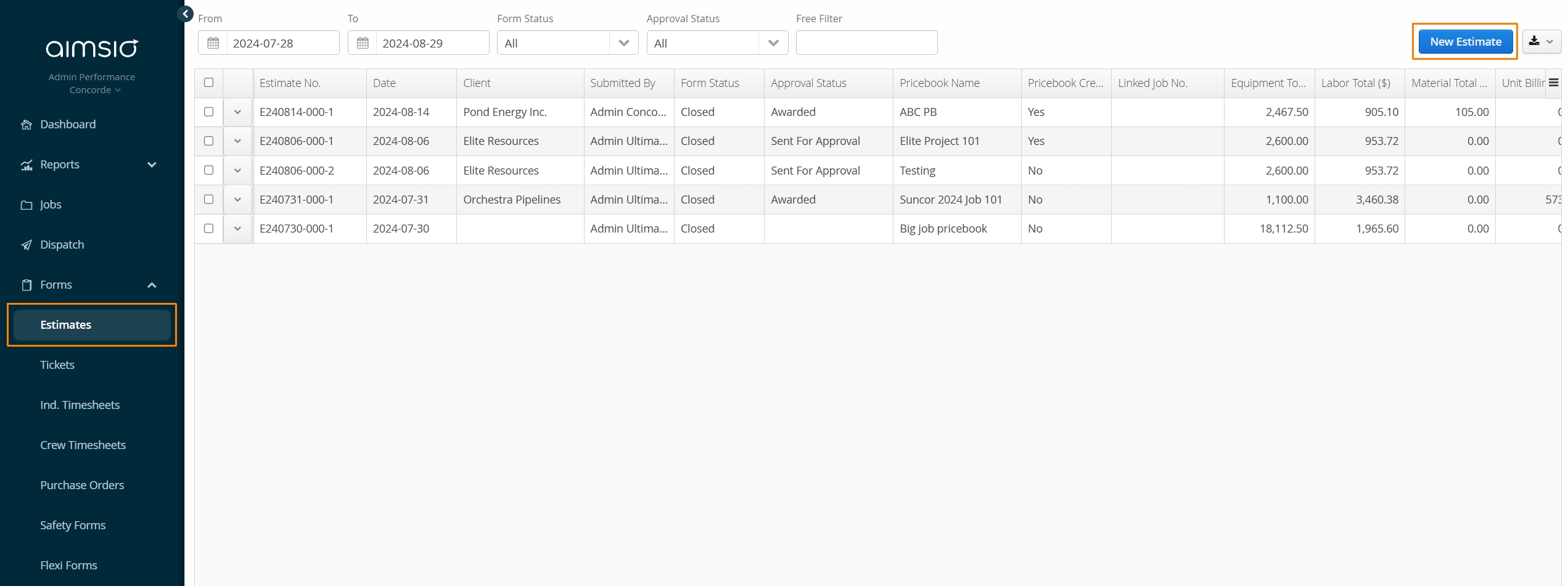
Navigate to the Estimates page using Aimsio’s left sidebar and select the New Estimate button on the top right.
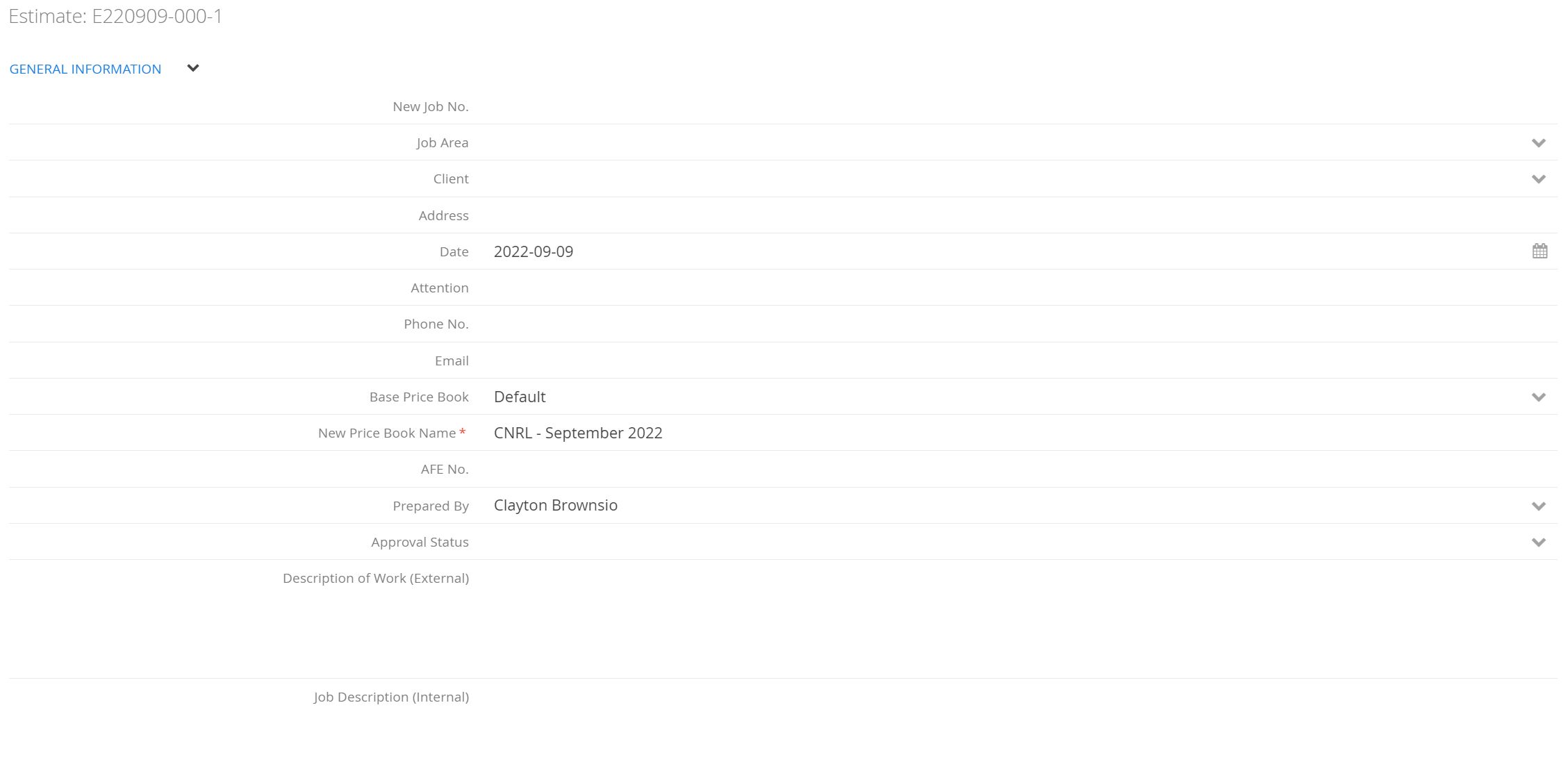
Fill out all the required fields in the ‘General Information’ section before continuing. Most fields in this form should be self-explanatory, such as selecting the Client the estimate is for. Clients are managed in the Companies > Clients tab in Master Data.
-
Some fields, like the “Attention”, “Phone No.”, “Email” are deliberately free-text entries, as an estimate might be created before a contact has been formally entered into your account.
-
It may occur that formal Estimates are “Prepared By” by an admin/supervisor, while the “Sales Representative” might be the one assigned to a customer to follow up.
What is a Base Price Book?
By default, Aimsio will make your full list of Billable Items and their associated rates available when creating an Estimate. If required, users can select a different Base Price Book and Aimsio will use an alternative set of rates as your starting point.

Selecting an alternative Base Price Book will adjust any rates for items included on an Estimate, but any items not included as part of the alternate Base Price Book may still be available, as they are part of your ‘master’ Billable Items list.
New Price Book Name
Aimsio permits users to take the items and rates used on an Estimate to create a new Price Book. If your Base Price Book has 100 items and your Estimate only possesses 50, you can create a new Price Book that will only contain those 50 items. The New Price Book Name field indicates what the new Price Book would be titled.
New Price Book Name is a required field, but the Price Book is not automatically created when saving the Estimate. An action is required first before that Price Book is created. This action is covered later in the article.
Learn the relationship between Rates, Billable Items and Price Books
When building a T&M Estimate, each Billable Item table will present the full list for that item ‘Type’ (e.g. Labor, Equipment, Material). If your Master Data Billable Item list has 25 Labor items, you will still be able to select any item from that list, even if a Base Price Book only has 5 Labor items.
Aimsio functions this way for a couple of reasons:
-
It lets users start with the original pricing when building an Estimate and new Price Book (optional).
-
Users can add items from the account’s Billable Items list that may not be present in the Base Price Book selected.
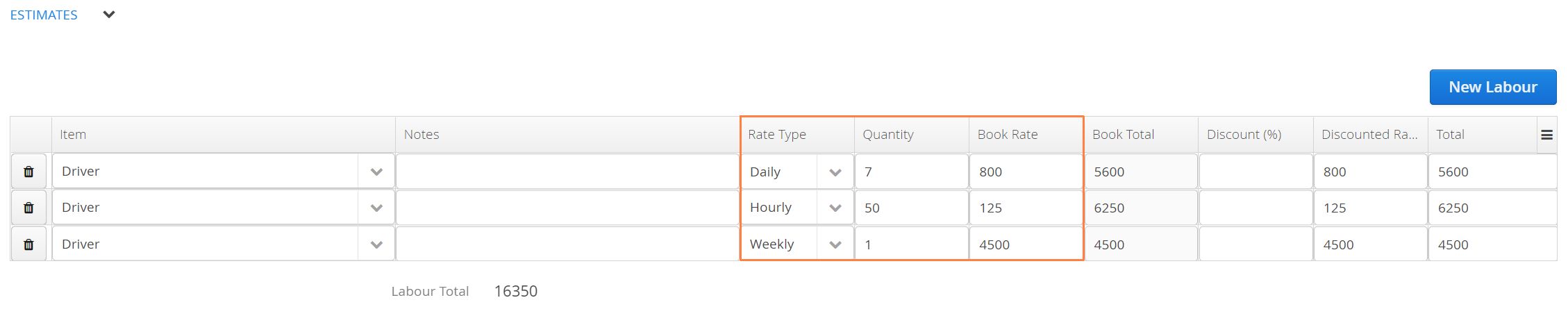
Whenever users select an item in an Estimate, Timesheet, or Ticket, the system looks at the Billable Item’s “Rate Type” and uses the Billable Item Default Rate type.
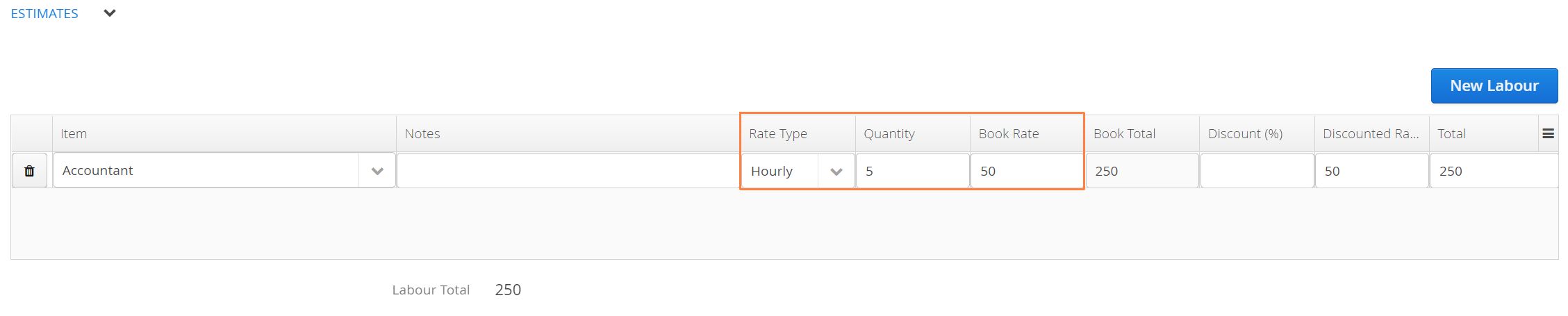
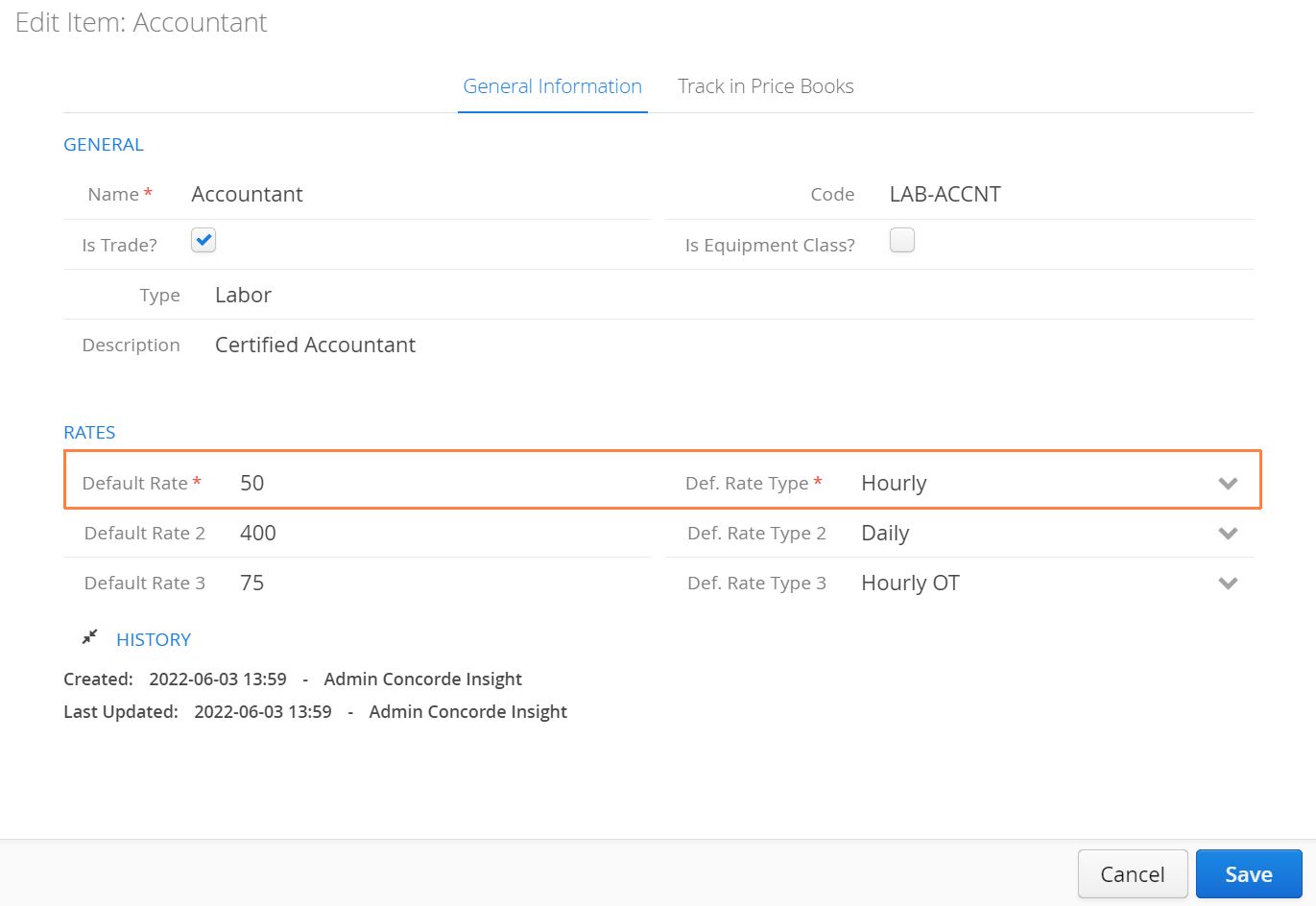
- If the Price Book finds an associated rate type for the Billable Item selected, it will pull that Book Rate (Price Book Rate) into the Estimate_._ Users can select any alternative “Rate Type” exists for that Billable Item and will either use the Base Price Book rate or the rate of your ‘master’ Billable Items list (if no Base Price Book has been selected).
How to Complete an Estimate
Adding items to an Estimate is as easy as adding them to other Aimsio forms. First, navigate to the desired section and select New (Billable Item Type) to add a new line.
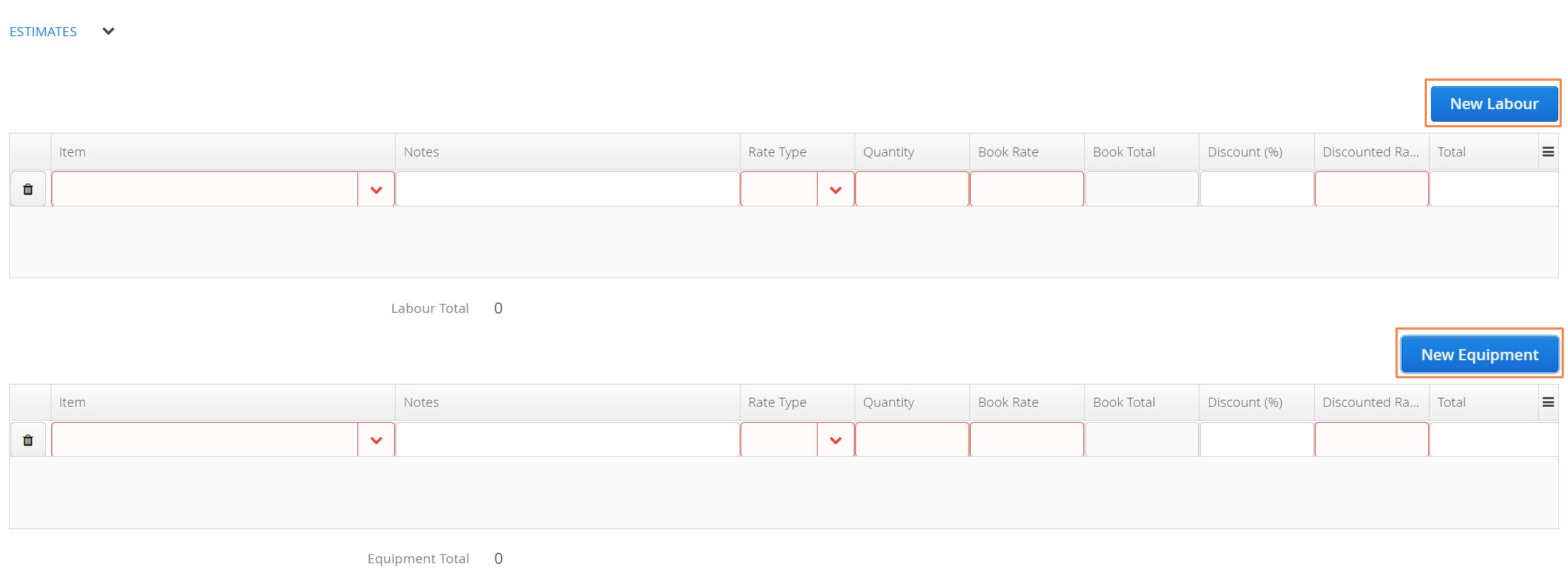
- The areas highlighted in red are required fields, and remember that your “Item” list is your full Billable Items for that Type (ie: Labor). Select the item you would like to add, include any “Notes” about that specific line-item, select the desired Rate Type, Quantity, and Book Rate.
Discount (%)
The Discount field on an Estimate provides the flexibility to adjust line-item pricing for an Estimate and any (potential) Price Books created from it. Discounts can be applied by simply adjusting the Book Rate or by including a discount percentage. The benefit of using the Discount (%) column is the ability to present the applied discount on the PDF version of the Estimate.

Comments and Customer Signatures
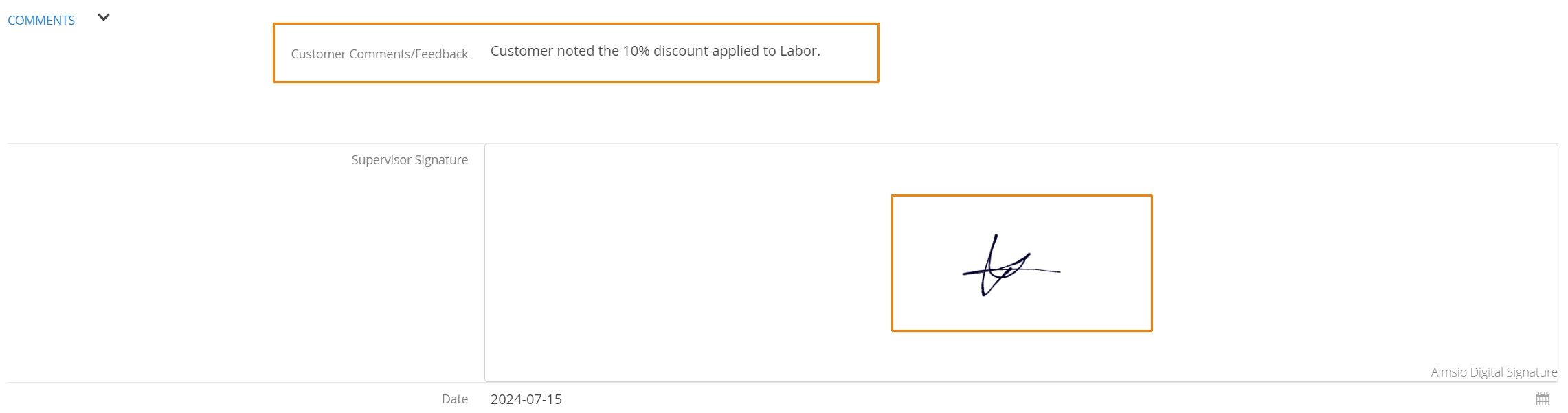
During the completion of an Estimate, users have the option to leave customer feedback in the Comments section. Beneath that is the section for the creator (or Sales Rep) to sign off on the proposal.
How to Hide Estimate Line Item Pricing
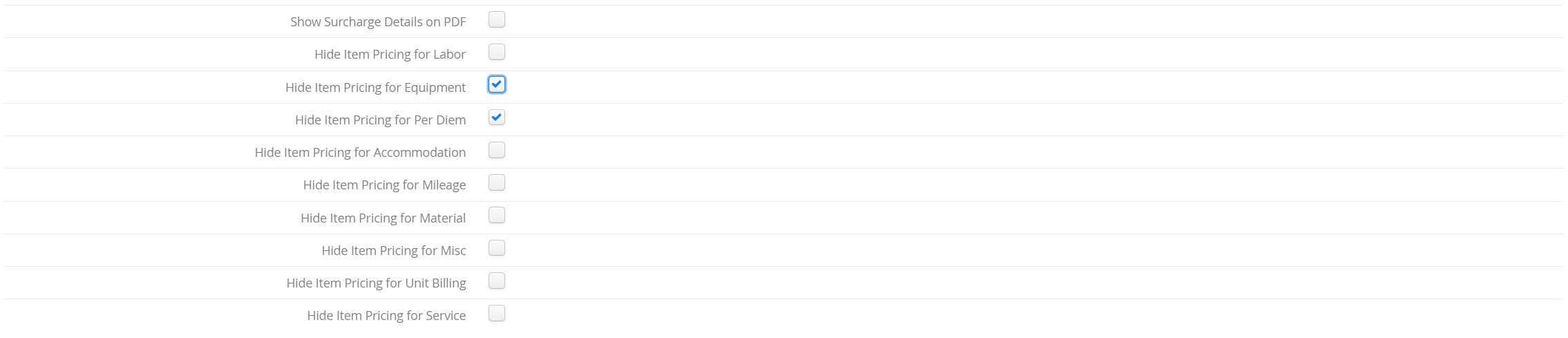
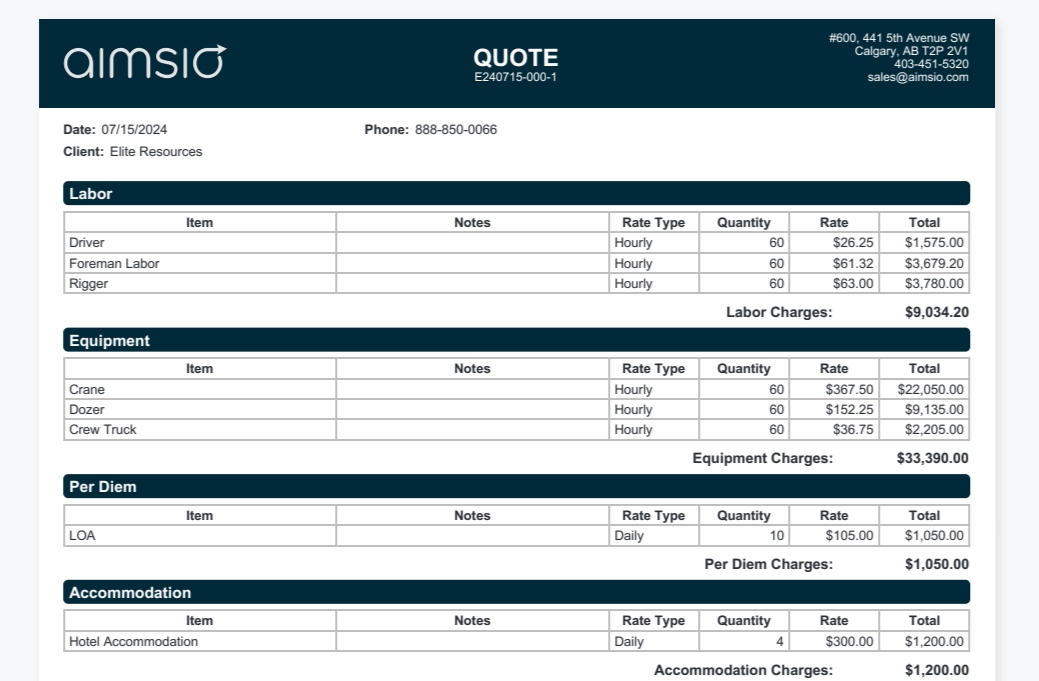
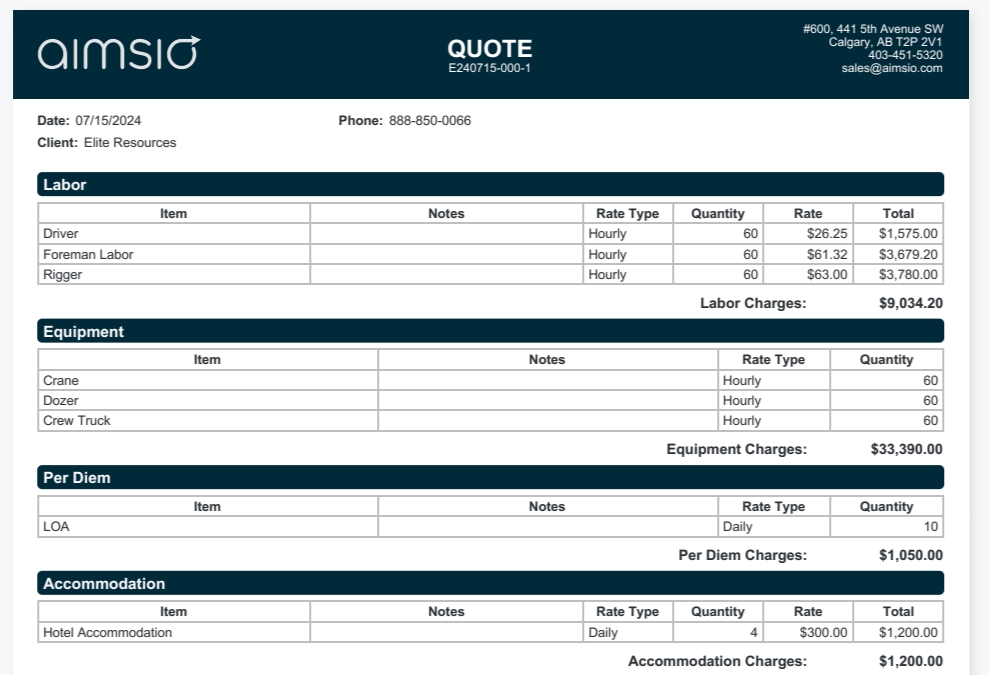
The last step before completing the Estimate will provide options to hide individual line item price on the PDF version of the Estimate. Checking any of these boxes will simply total the estimated amounts for each billable category (ie: Labor, Equipment).
Here is an example of the PDF with no hiding, where Rate Type, Quantity, and Rate are all presented.
And if we choose to hide pricing on these BI types, it will look like this, with the Quantity and Rate not presented.
How to Save an Estimate
Users can select Save and Submit on the bottom right to generate a PDF version of the Estimate. Save and Close will keep the Estimate’s ‘Form Status’ Open. Save will save all changes and keep the form window open.
For more information on saving forms please read our Form Fundamentals guide.

Form Status does not reflect whether the Estimate was approved by your customer or not. If a form is “Closed”, users can adjust the Approval Status manually or by using our Client Portal to send the Estimate digitally to your customer.
How to Edit, Download or Approve an Estimate
The process of editing, approving or downloading an Estimate is similar to other forms in Aimsio.
If you haven’t yet, review our Form Fundamentals guide for more information.
How to Generate a Price Book from an Estimate
Authorized users can create a Price Book using the rates included on the Estimate by using the action button to the left of the form on the Estimates page and selecting Generate or Update PriceBook.
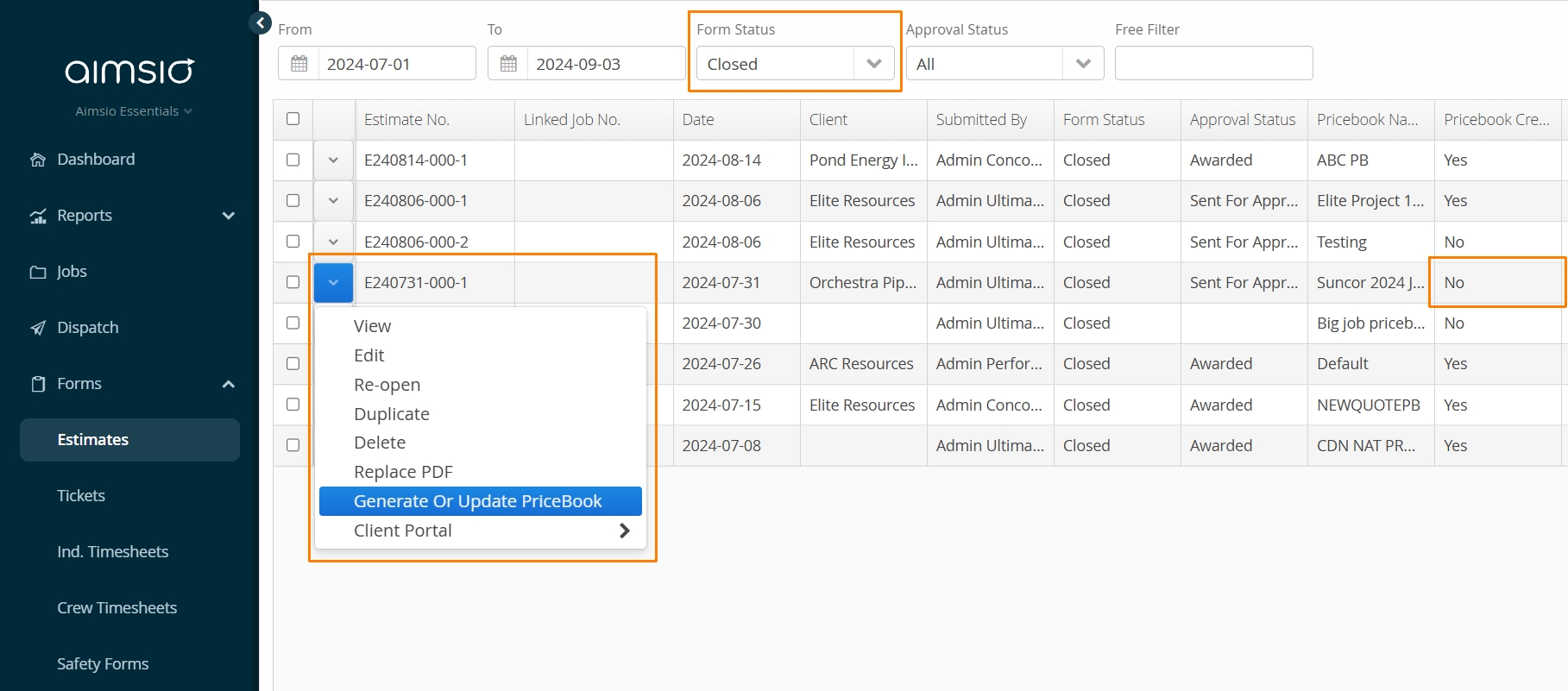
- This is where the “New Pricebook Name” field from the form becomes relevant. It will take the various line-items from each section, the rate type(s) and pricing, and generate a new Pricebook using the value of this field to name it.

If any changes are made to an Estimate, after a Price Book has been created, the Price Book will need to be updated to ensure Job charge-out rates remain accurate.
How to Create a New Job from an Estimate
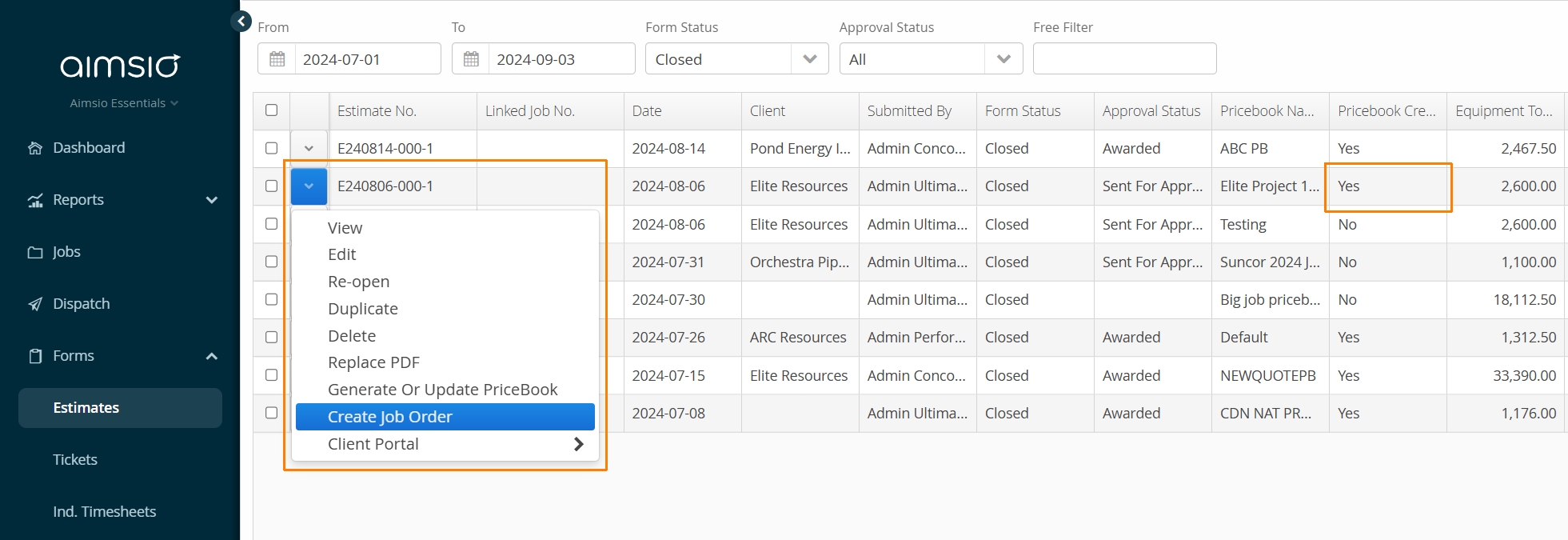
To create a new Job using a completed or approved Estimate, use the action menu to the left of an Estimate and select Create Job Order. This will create a new Job and automatically include information from the Estimate, including the Client details and Price Book.
The Create Job Order action will only be available if a Price Book already exists for the Estimate. If a Price Book doesn’t exist, users can use the Generate or Update PriceBook action to create it.
Creating Estimates on iOS or Android
This article covers the creation of Estimates on the web. Aimsio Estimates can be created on both iOS and Android devices too. Changing the approval status of an estimate, or sending it for approval, would still need to take place on Aimsio’s web portal.
For more information see: