Aimsio ships with a standardized reporting framework we call Job Performance. We provide a number of valuable metrics to help Project Managers track the health of their operation. Accounts that leverage these tools will understand their profitability, whether they service short hourly jobs or long running projects.
Job Performance does not report on standard profit/loss down to the penny. Instead, it provides a real-time approximation of cost compared to revenue. As many of these calculations happen in real-time, Project Managers have the ability to proactively address issues before it is too late.
Job Performance is available with Aimsio Ultimate & Performance.
Job Performance Page
When users navigate to the Job Performance page using Aimsio’s left sidebar, they will be brought to a high-level overview of all Jobs that have this reporting enabled.
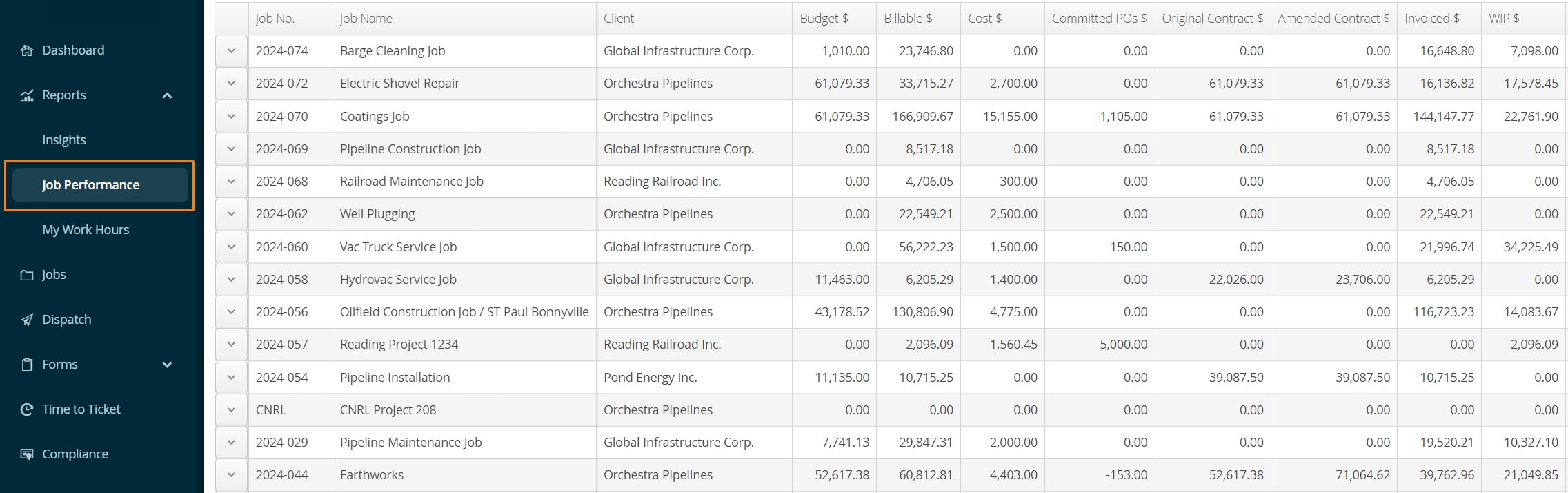
A WBS Schedule must be enabled to view these metrics.
Job Performance is directly tied to the WBS Schedule under a job. At any time, authorized users can click on the action button beside a Job to View or Edit the WBS Schedule.
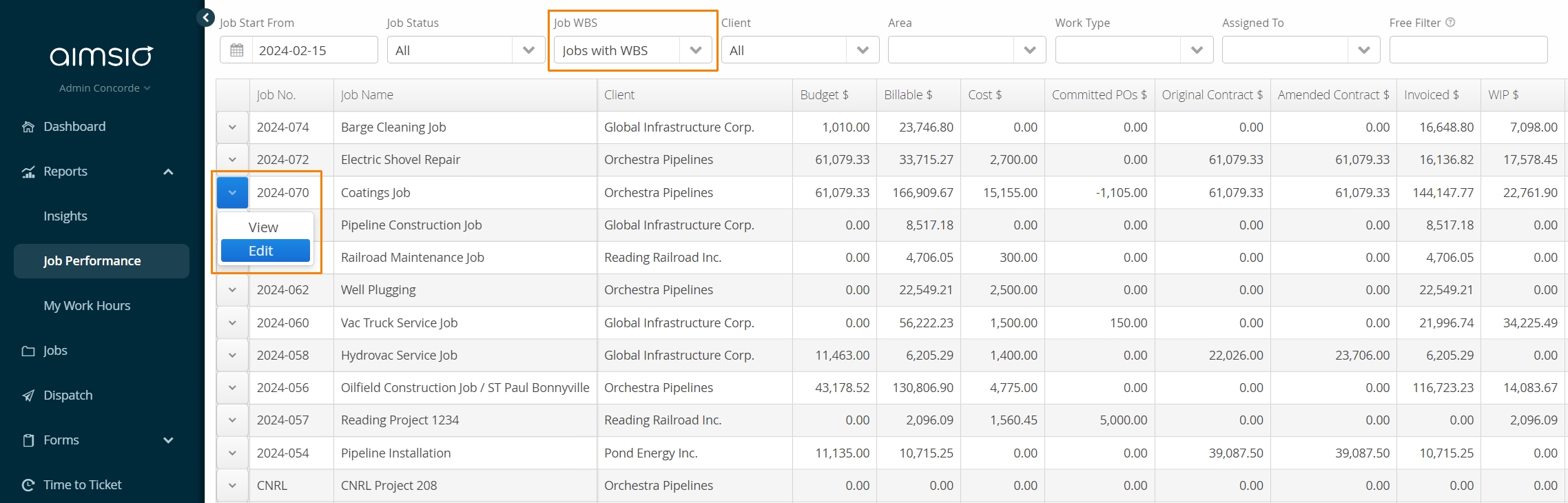
Navigate to the WBS Schedule tab under a Job to access the WBS report.
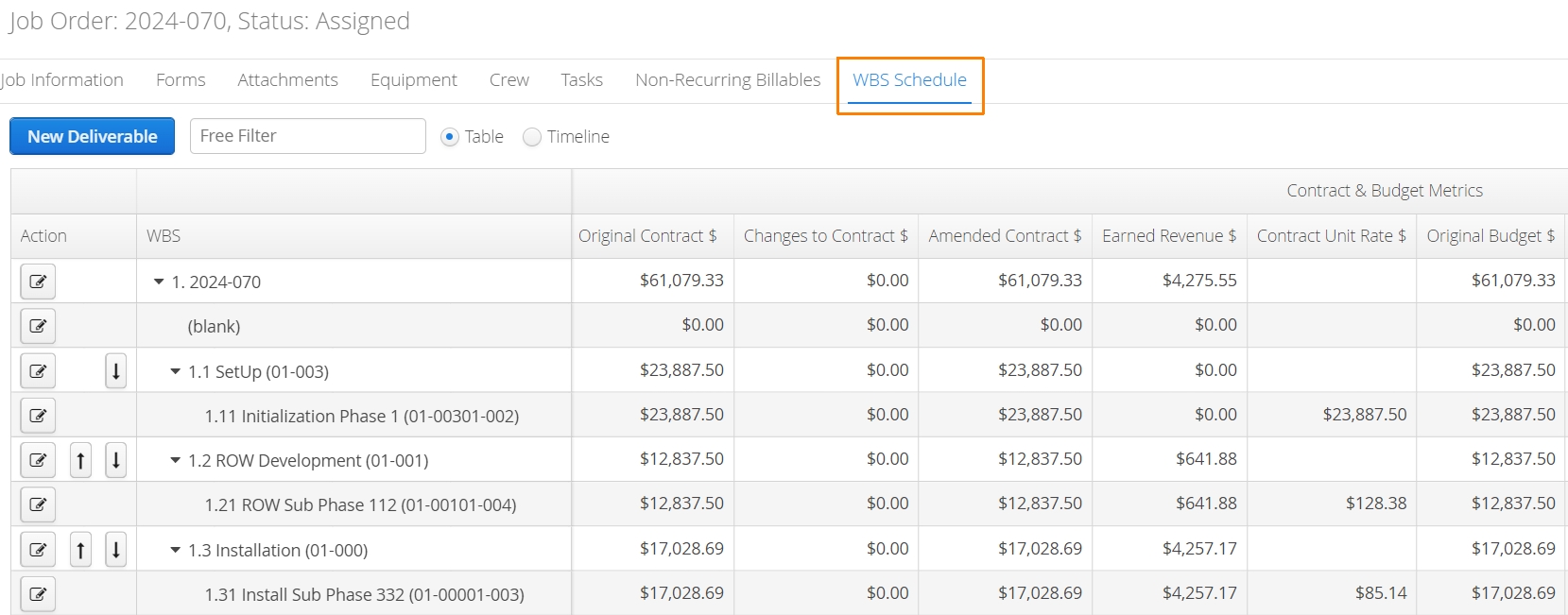
If accounts do not intend to leverage the full suite of WBS features available, it is still necessary to activate a WBS Schedule to track revenue, cost and resource hours.
Click here for a detailed walkthrough on how to create a WBS Schedule.
The Anatomy of a Work Breakdown Schedule
A Work Breakdown Structure will contain a set of deliverables, tasks or budget categories related to any job. Depending on the size of the project, a WBS Schedule may include a handful of phases or represent a large cascading list of activities and financial projections.
Users will start by creating the ‘structure’ of the Job, indicating what deliverables/activities they plan to track. Every WBS Schedule will have at least one ‘parent’ activity and can include multiple ‘child’ activities nested under the parent. Each child activity can have their own children too. There is no hard limit on the levels of hierarchy in Aimsio’s WBS schedule.
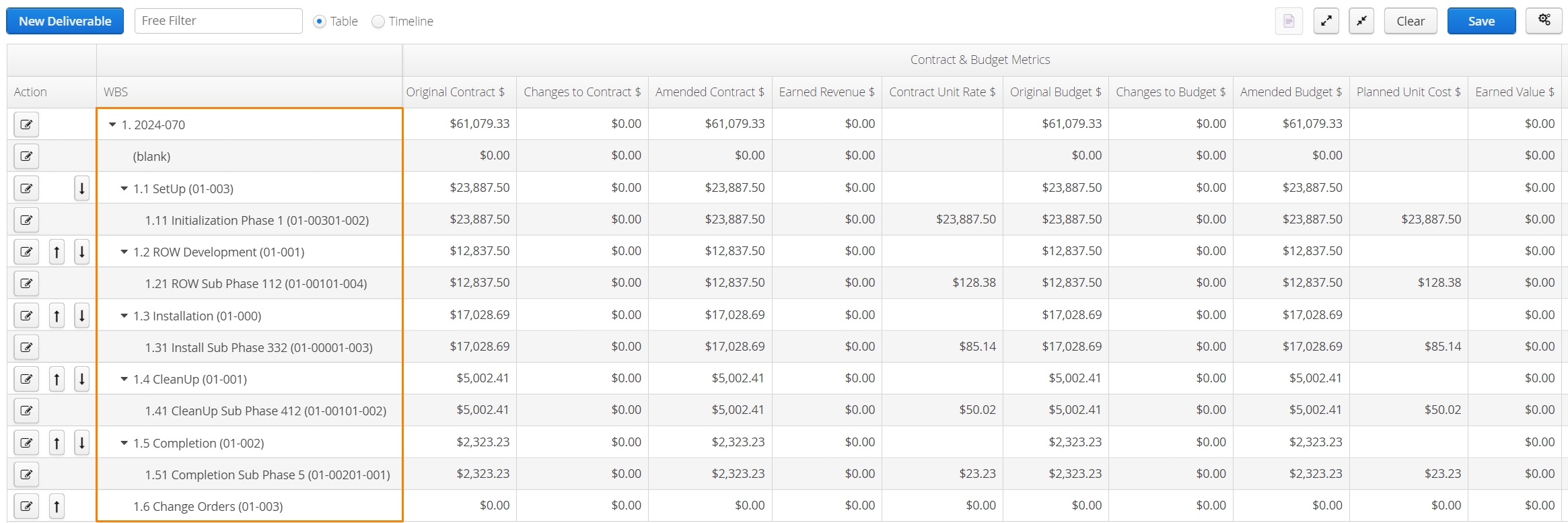
After the structure is created, users will input information related to each activity, including scheduled dates, metrics used to measure the completion of the work, planned financials (budget and contract values) and which business resources (labor, equipment, materials) will be allocated.
Read our step-by-step guide: How to Create a WBS Schedule
Job Performance Calculations
Aimsio uses the following metrics to monitor Job Performance:
Metric | Definition | Tier |
|---|---|---|
Billable $ | How much ‘Billable’ work has been captured on a Ticket. Any line item in a field ticket that is marked as Billable will contribute to this calculated field. Lump sum billing can be captured too, under the Unit Billing or Service table on a Ticket in a Lump Sum/Bid job. Any revenue that will be invoiced needs to flow through a Ticket to be considered Billable under a Job. | PERFORMANCE |
Non-Billable $ | Anything charged as ‘Non-billable’ on a Ticket. On fixed price / lump sum projects, Labor and Equipment usage is tracked, but typically not billed back to the client. This value can represent ‘missed’ revenue opportunities when comparing it to Billable $. | PERFORMANCE |
Cost $ | How much does Labor, Equipment and Materials cost? We track these amounts the moment Timecards are created. Non-recurring Billable Items (Third-party expenditures) are also tracked as Cost. | PERFORMANCE |
Committed POs $ | Committed POs are a commitment of cost that will incur in future. When a Purchase Order is ‘Approved’, the total value of that PO will appear in the WBS Schedule under the 'Committed POs' column. As the PO is received, either partially or completely, the value of the Committed PO column will transition to Cost, relative to the value of the NRB created. If NRB values do not align with the original Purchase Order price, the Committed PO value may sit above or below 0 by the end of a Job. | PERFORMANCE |
% Complete | The percentage complete in relation to the Physical WBS Progress for each WBS Activity. For more see: Physical WBS Progress | PERFORMANCE |
Margin $ | Calculated by taking all Billable $ and subtracting Cost $. | PERFORMANCE |
Margin % | Calculated by subtracting Billable $ and Cost $ then dividing by Billable $. | PERFORMANCE |
WIP $ | Stands for Work In Progress. Calculated by subtracting Billable $ by Invoiced $ | PERFORMANCE |
Invoiced $ | Calculated using the sum of all invoice line items (pro-rated for retainage/discount), excluding tax. | PERFORMANCE |
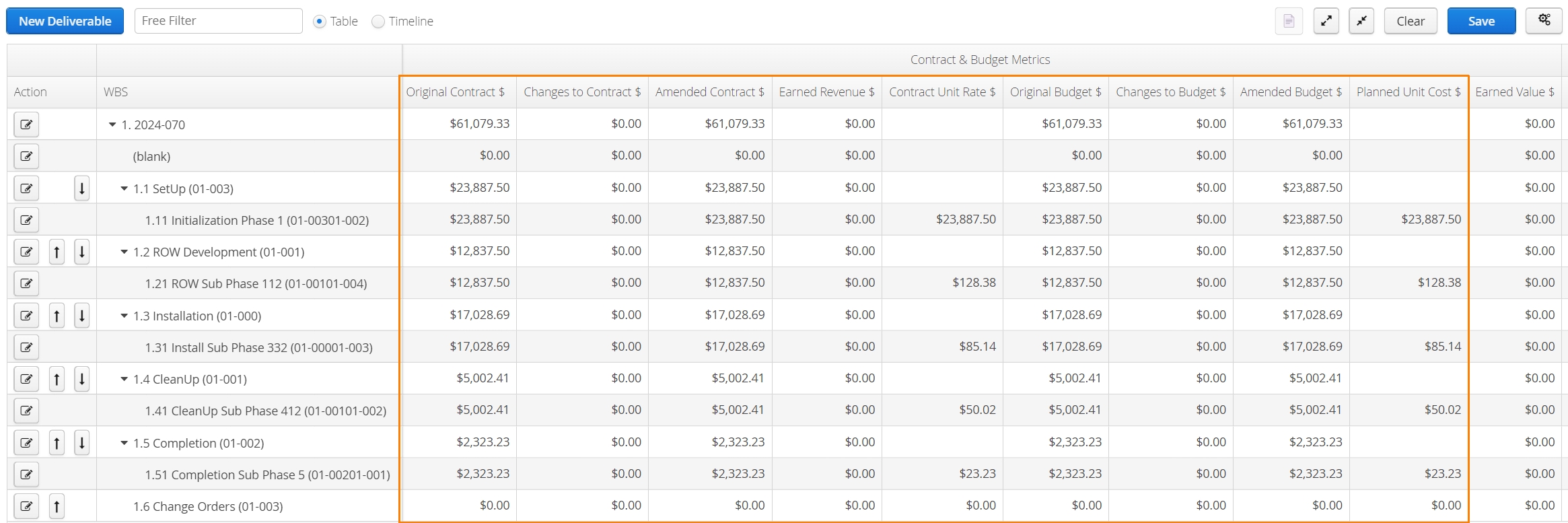
Contract Value $ | Total planned Billable revenue | ULTIMATE |
Budget $ | Value of all Planned expenditures | ULTIMATE |
Planned Margin % | Calculated by taking the value of Amended Contract $ minus Budget $, then dividing that by Amended Contract $. | ULTIMATE |
Earned Value $ | Calculated by multiplying Budget $ and % Complete. | ULTIMATE |
Earned Revenue $ | Calculated by multiplying Amended Contract $ and % Complete. | ULTIMATE |
EAC $ | Estimate at Completion is used in forecasting the final cost given the current cost and progress of the project. By Default, Aimsio uses a ‘Trend-Based’ formula for EAC. This is calculated by dividing Amended Budget by CPI. Additional options for calculating EAC are available by editing any child WBS Activity that allows a manual entry. Visit Physical WBS Progress for more information. | ULTIMATE |
Remaining Budget $ | Calculated by subtracting Budget $ minus Cost $. | ULTIMATE |
Remaining Spend $ | calculated by subtracting Cost $ from EAC. | ULTIMATE |
Budget Spent % | Calculated by dividing Cost $ by Amended Budget $ | ULTIMATE |
Remaining Contract $ | Calculated by subtracting Billable $ from Amended Contract $ | ULTIMATE |
Realized Contract % | Calculated by taking dividing Billable $ by Amended Contract $ | ULTIMATE |
CPI | Cost Performance Index, calculated by dividing Earned Value $ by Cost $. Read more about Cost Performance Index. | ULTIMATE |
RPI | Revenue Performance Index, calculated by dividing Earned Revenue by Billable $ | ULTIMATE |
Cost Unit Rate $ | Calculated by dividing Cost $ by Amended Quantity, only for terminal (leaf) WBS items. | PERFORMANCE |
Revenue Unit Rate $ | Calculated by dividing Billable $ by Amended Quantity, only for terminal (leaf) WBS items. | PERFORMANCE |
Contract Unit Rate $ | Calculated by dividing Amended Contract $ by Amended Quantity only for terminal (leaf) WBS items. | ULTIMATE |
Planned Unit Cost | Calculated by dividing Budget $ by Amended Quantity, only for terminal (leaf) WBS items. | ULTIMATE |
Job Performance Metric Categories
When viewing a WBS Schedule, chart metrics will be grouped by the following categories.
WBS Parent Group | Columns |
|---|---|
Basic Properties |
|
Quantity Metrics |
|
Schedule Metrics |
|
Contract & Budget Metrics |
|
Cost & Financial Metrics |
|
Revenue & Profitability Metrics |
|
Job Performance Data Flow
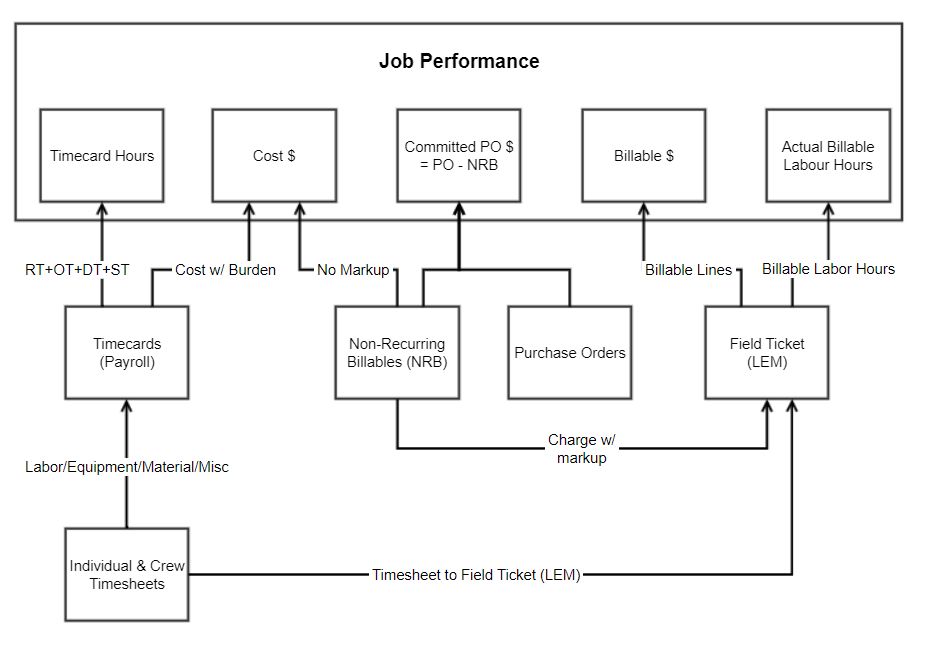
Some values in the Job Performance report are initially set in the WBS Schedule by the user, while others are automatically calculated each time a Ticket/Purchase Order/Timecard is saved.
The diagram below shows how information flows from transactional data into Job Performance. There are three fields in the Job Performance Report that are always auto-calculated whenever there is a new transaction: Cost $, Committed PO, and Billable $.
Committed POs $
One of the reasons projects go over budget is a lack of oversight on Purchase Orders. If the job budget is $100,000, the physical completion is 100% and the cost is $98,000, we cannot say much about the health of this project. We need to know if there are still Purchase Order commitments for which we will eventually receive an AP Invoice.
When a Purchase Order for $1,000 is ‘Approved’, it will increase Committed PO $ by $1,000. If the vendor delivers against the PO partially and submits their AP Invoice for $200, users receive the PO partially in Aimsio and creates a Non-Recurring Billable Item (NRB). At this moment, the cost of $200 is incurred and Committed POs $ will be $800. This process repeats until there is no more Committed POs $.
Understanding the Source of Cost $
The Cost $ column is a result of two variables:
-
Any Non-recurring Billable Items (NRB) added to a Job. Cost value is calculated prior to any markup applied when charging back to a client.
-
A Timecard coming out of our Timecards module. A burden factor can be applied on RT/OT/DT/ST separately to have a more accurate representation of real cost by baking in overhead (CPP, EI, etc.). For more information see our Timecards documentation.
- Additionally, a Timecard can represent an employee lump sum pay (e.g. Truck bonus or Subsistence) or Equipment/Material costs. In essence, any line item in an Individual Timesheet or Crew Timesheet can be extracted into multiple Timecards that can represent costs against the job.
If required, we can configure our Timecards module to capture other costs like Materials, as long they are captured on a Ticket. Consumables are a good example, where the quantity and rate of a consumable can be accurately captured on a ticket.
Currently, all costs are consolidated into a Total Cost $. We do not breakdown Labor, Equipment and NRB costs separately in Job Performance at this time, but these totals can be extracted from our Timecards module and NRB report.
The rules as to what is RT vs OT and how much Subsistence is paid are defined by the end-user in the Timecards module. Aimsio does not calculate certain components of Payroll like CPP/EI. However, a burden value can still be factored in to amount for all the overhead added to the cost.
The charge out rates are determined in the Price Book of the Job, and, by default, there is no correlation between how Labor is paid vs. how the customer is charged for the work your employees have done. This is a very powerful concept in Aimsio, in that even though the source of information is the same for Billing and Payroll, the revenue and cost implication are handled by two different modules: Tickets and Timecards.
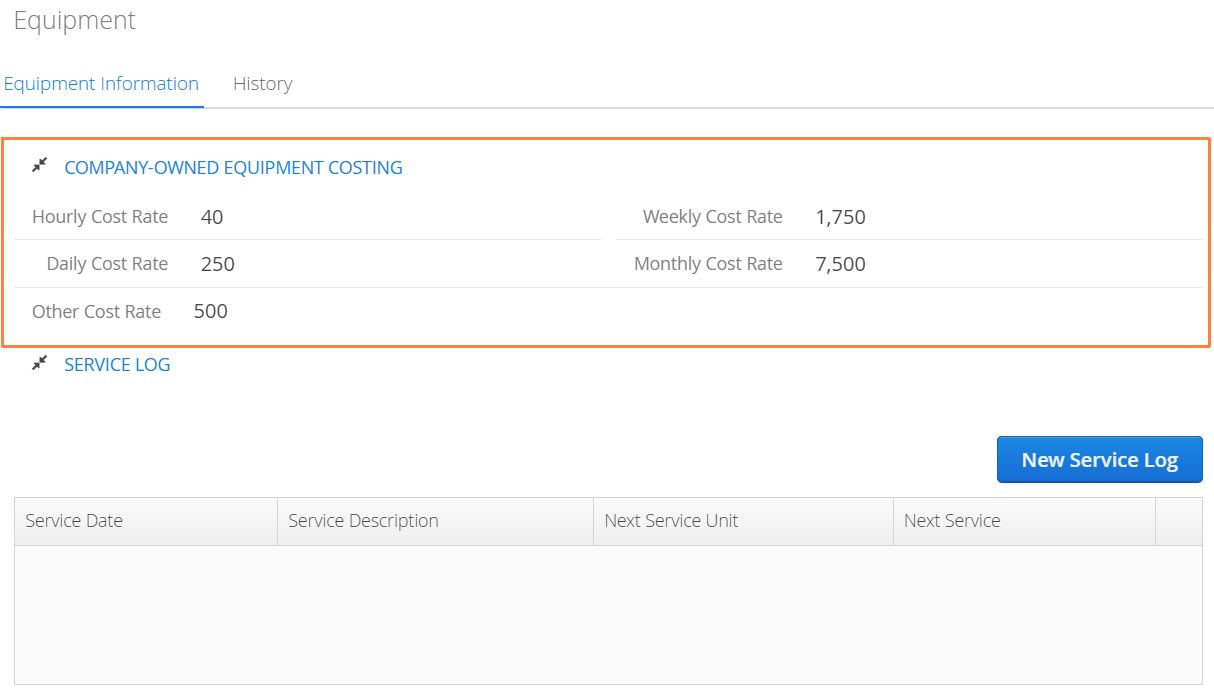
Costs for the Equipment that you own can also be extracted in the form of a Timecard, much like we handle Labor costs. Aimsio leverages the rates recorded in the Company-Owned Equipment Costing table under an Equipment profile. By default, Aimsio will monitor Billable and Non-billable hours recorded on Tickets for these Equipment items.
When a particular rate is used to bill that Equipment (Hourly, Daily, Weekly, etc.), Aimsio will extract the hours and to create a ‘cost’ Timecard. If a WBS Schedule is enabled and hours are recorded against WBS Activities, additional reporting benefits are available.
If Equipment Costing is not enabled in your account, it will require the assistance of our Professional Services team. Please reach out support for assistance.
WBS Budgeting (Planned Costs)
Aimsio provides a comprehensive set of budgeting features that can scale to meet the needs of most heavy industrial projects. Used in conjunction with Aimsio’s Job Performance reporting, project managers can set cost projections and prepare detailed bids that breakdown the individual line item costs of every category of billing.
- For more information see: WBS Budgeting
Creating a WBS Schedule
Now that we’ve covered how values on a Job performance report are calculated, let’s cover how to setup WBS.