How you approach making changes to Timecard hours will be dependent on whether your Pay Period is still open.
This article requires an understanding of how to edit Aimsio forms and create Timecards. Before proceeding, review the following:
Aimsio is not a payroll software, but it can help break down Employee hours and costs for export into another software using one of our supported integrations.
How to Adjust Hours After a Pay Period has Closed
It is not possible to adjust a Timecard after a period is closed. Any adjustments made to a Timesheet or Ticket will have no effect on a ‘closed’ Timecard.
We recommend the following:
-
An hours adjustment will need to be made by using a new Timesheet (or Ticket) for the next pay period.
-
Double check your dates when performing a Raw Data search for the adjusted hours during your next pay period. Use the Has Timecard? filter to isolate any forms that do not already have a corresponding Timecard.
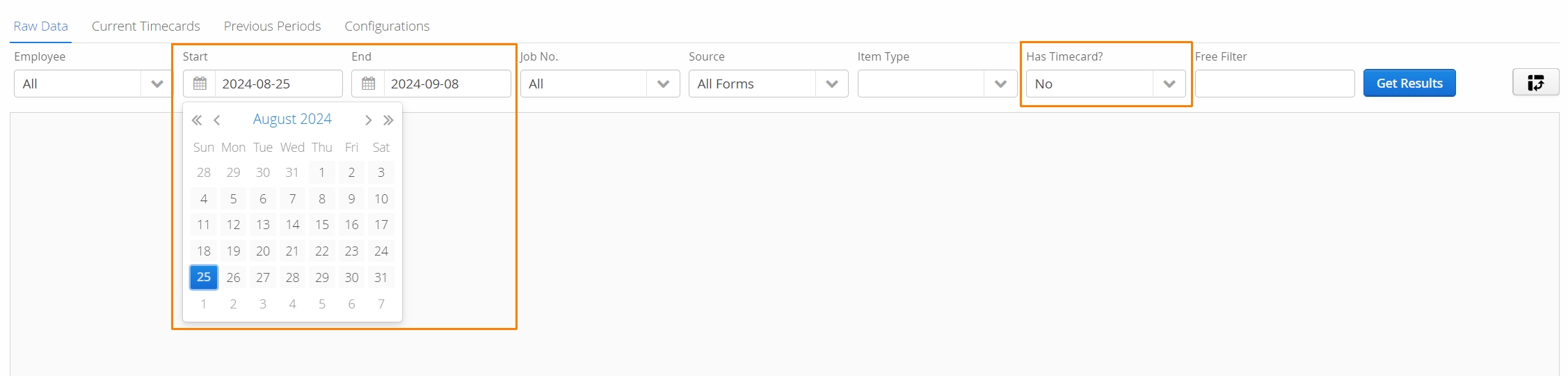
If accounts make changes to forms after a pay period has closed, it can cause a discrepancy between Billable $ & Non-Billable $ vs Cost in your Job Performance reporting.
How to Adjust Hours When a Pay Period is Open
If you haven’t closed your pay period, you’ll have one of the following options:
-
Edit the current Timecard and make the correction. Edit the corresponding Timesheet or Ticket separately.
-
Delete the current Timecard. Make the correction to the original Timesheet or Ticket. Extract a new Timecard with the updated hours.
If hours have been logged to the wrong Job, a new Timesheet or Ticket should be created under the correct Job first. Once the new Timesheet has been created, delete the current Timecard and fetch the updated hours from the Timecards > Raw Data tab.
During an active pay period, Timecards can be accessible from the Current Timecards tab on Aimsio’s Timecards page. Make note of the Form/Ticket No. associated with the Timecard that needs adjusting.
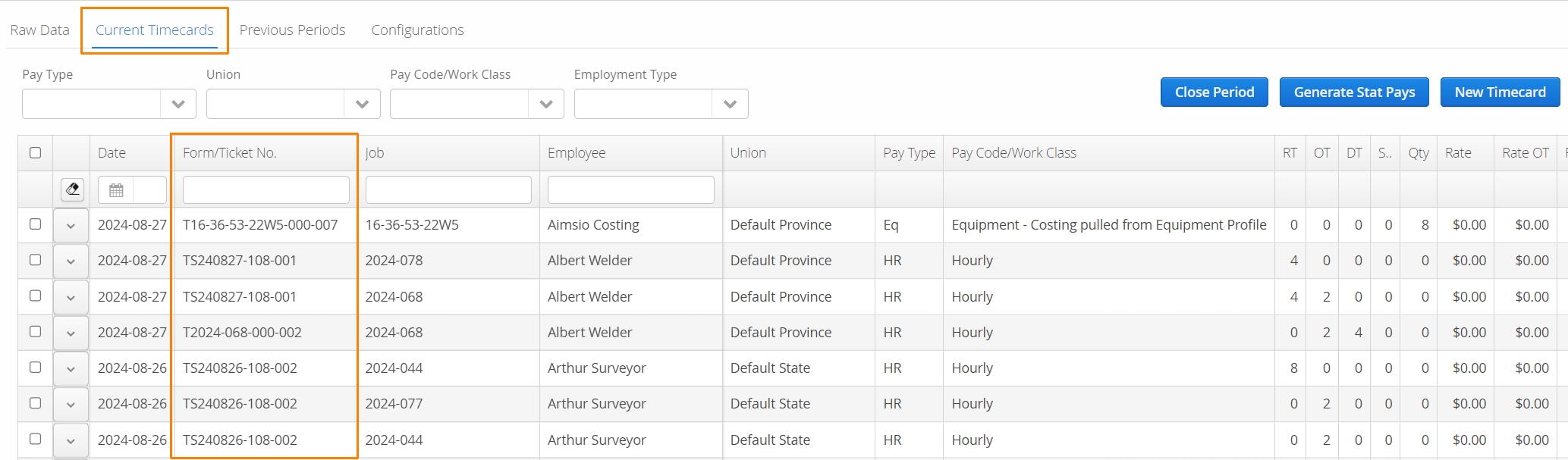
Use that information to locate the source form in Aimsio, make the changes first, then follow these steps:
- Once the original form has been updated, navigate back to the Timecards > Current Timecards tab and Edit the current Timecard.
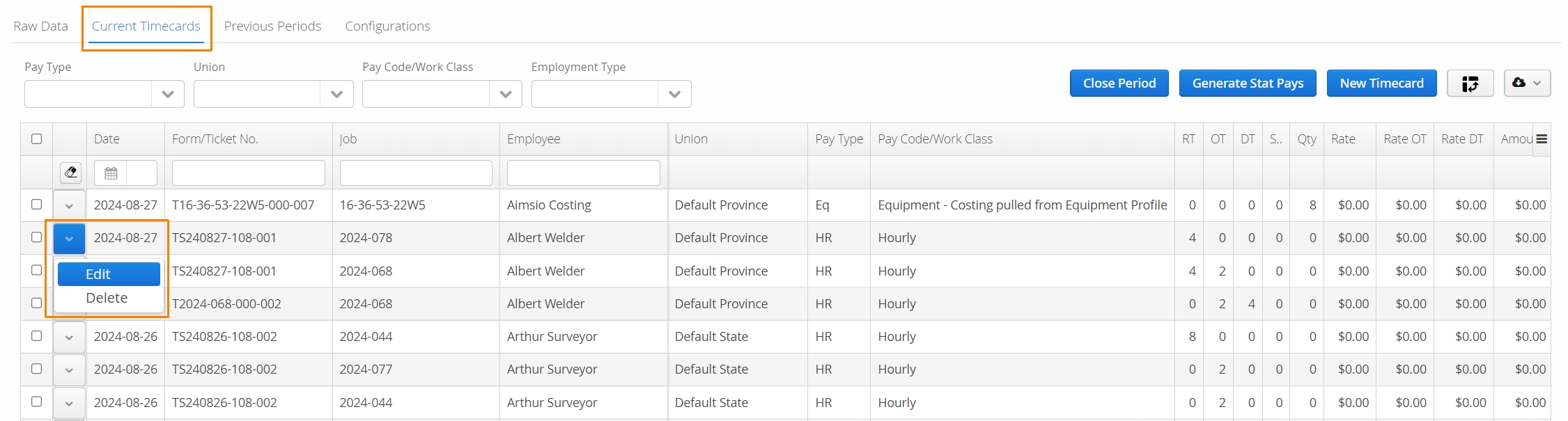
- When editing a Timecard, you’ll find the hours located along the bottom. Once you’re done making changes click Save on the lower right.
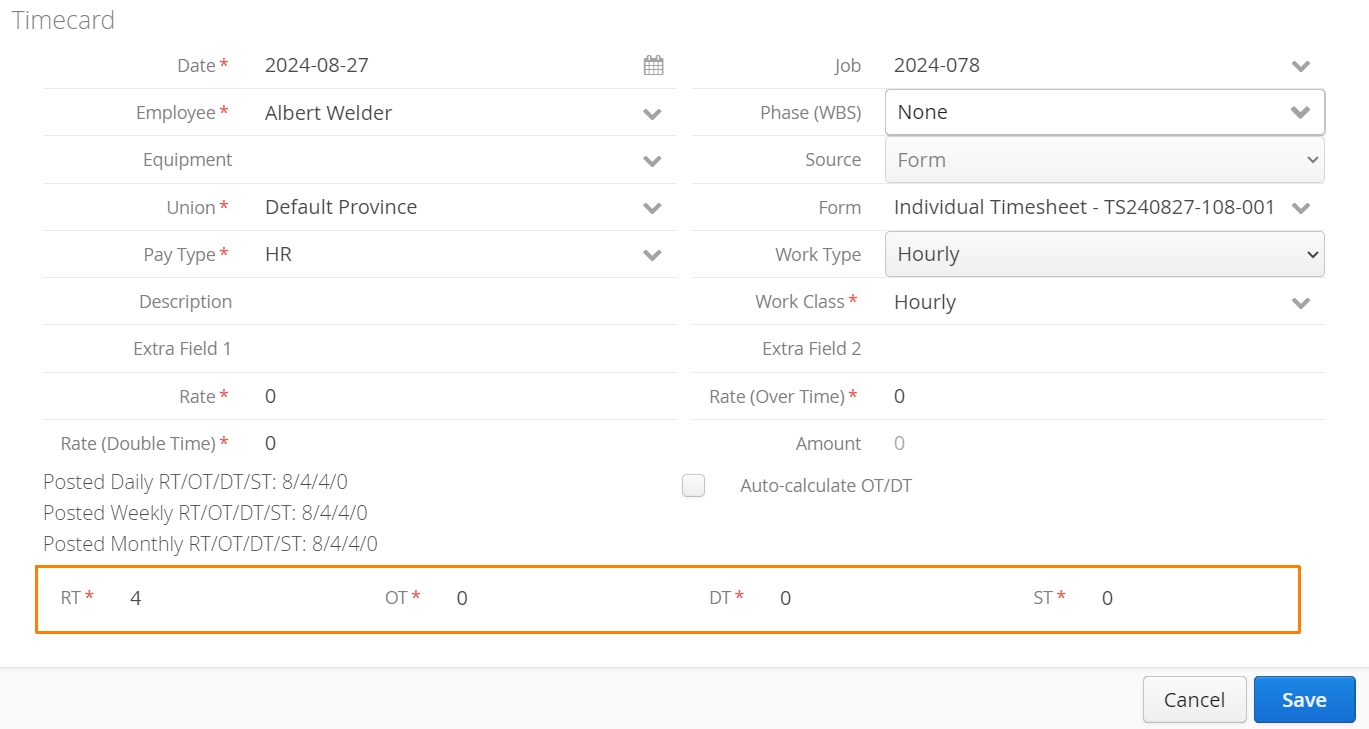
Alternatively, users can choose to ‘Delete’ the incorrect Timecard and extract a new one after the original form (Timesheet / Ticket) has been adjusted.
- From the Current Timecards tab, locate the incorrect Timecard, use the action button on the left and select Delete.
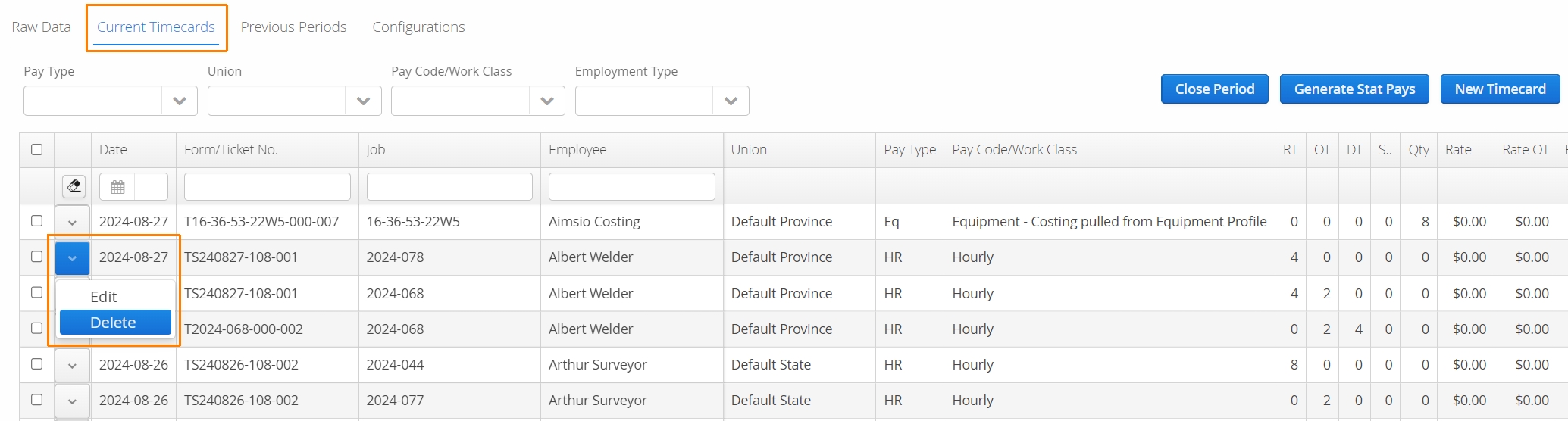
- Navigate back to the Raw Data tab, filter by the selected Employee and confirm the date range of your search. Click on the Get Results button to locate the updated hours. From here, extract a new Timecard.

How to Manually Create a New Timecard
If you’ve deleted a previously incorrect Timecard, you actually have two options to create a new one:
-
Run a search for the updated hours in the Timecards > Raw Data tab and extract a new Timecard.
-
Manually create a new timecard by navigating to the Timecards > Current Timecards tab and select New Timecard.
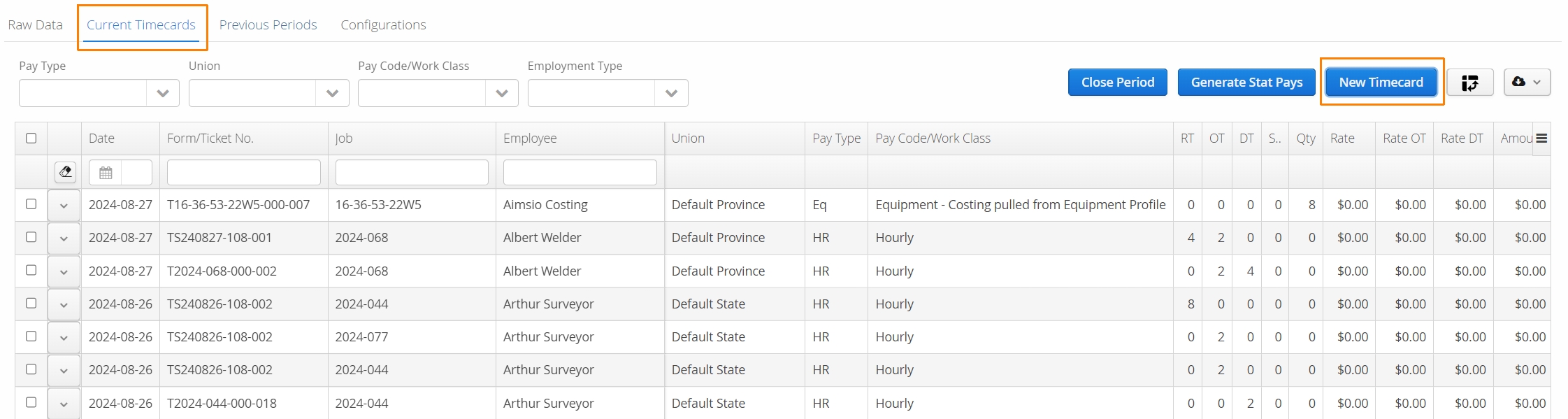
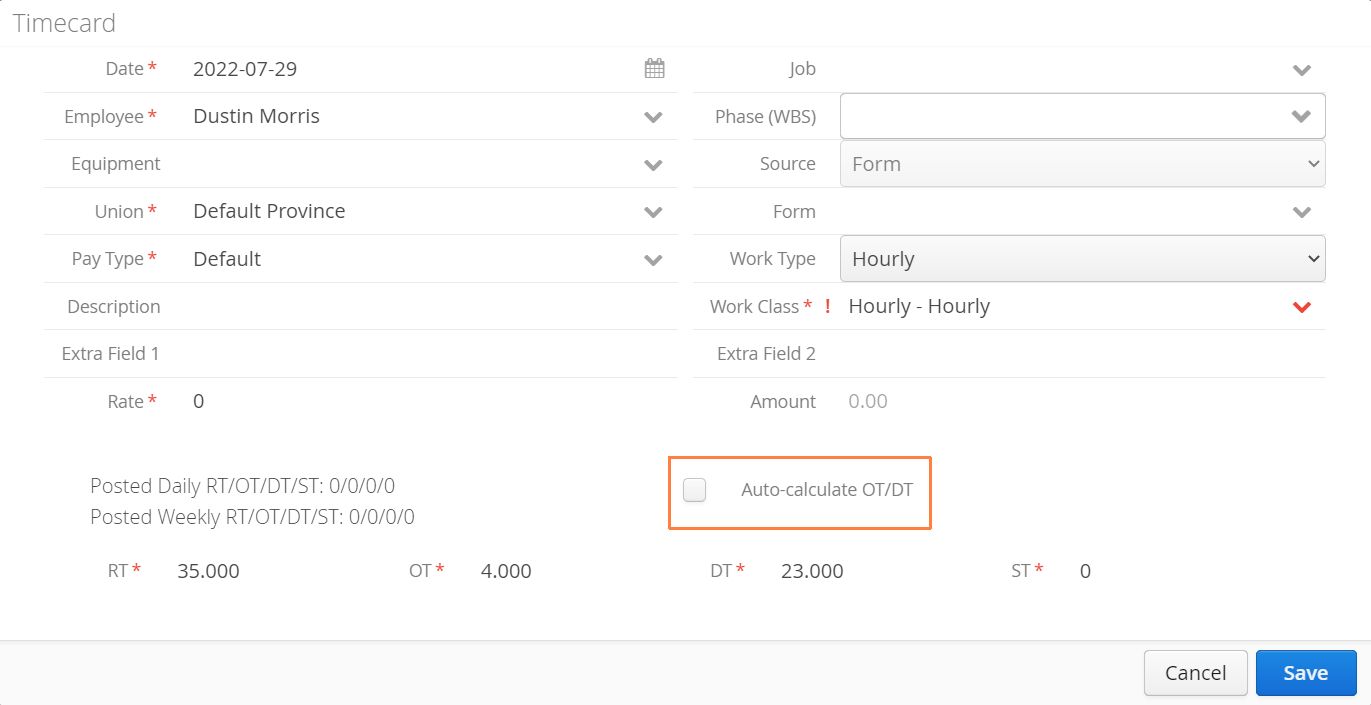
- Select a Date, Employee, Union and Pay Type. Uncheck the option Auto-calculate OT/DT and manually input the RT / OT / DT / ST hours.
How to Adjust Hours Sourced from Tickets
Tickets come with the additional complexity of whether or not it has been forwarded to a client for approval. Your clients are likely not concerned with your payroll, but adjusted hours may correlate to a billable amount they’ve previously signed off on.
If the Ticket has been submitted, but not yet sent to the client, follow Aimsio’s standard form Edit, or Re-open process. See our Form Fundamentals guide for more information.
If your client has been sent a ticket for approval before the mistake was caught, we recommend one of the following:
-
If our Client Portal was used, your client would be provided the option to Decline approval. If they haven’t signed the ticket yet, Void the approval request. Re-open the Ticket, make the adjustment, generate a new PDF and resend it to the client.
-
If the Ticket has been signed before the mistake was found, we recommend creating a new Ticket with the adjustment and informing the client the next time they approve.