Aimsio Timesheets can have their billable and non-billable hours transferred to a Ticket. This process streamlines your account’s billing and Job Performance tracking without interrupting Payroll / Timecard capture.
Time to Ticket Page
Aimsio’s Time to Ticket page is only available through the web. Access to the module is based on the Access Management settings in your account. If you have permission to use this module, you’ll see it on Aimsio’s left sidebar.
Timesheet hours can only be converted to a Ticket if they are tied to a Job. Crew Timesheet hours will always be linked to a Job. Users can technically create Individual Timesheets without selecting a Job, but this is typically done for payroll purposes and not client billing.
Timesheets will need to have both a ‘Closed’ and ‘Approved’ status. Once Timesheets have been approved, they’ll appear on the Timesheets to Tickets page. ‘Open’ Timesheets will not appear.
For a walkthrough on how to review and approve Timesheets, please review the following: How to Review and Approve a Timesheet
How to Convert Timesheets to Tickets
Navigate to the Timesheets to Ticket page using Aimsio’s left sidebar. Use the filters along the top of the page to sort hours by Date, Job and Form Type (Timesheet Type).
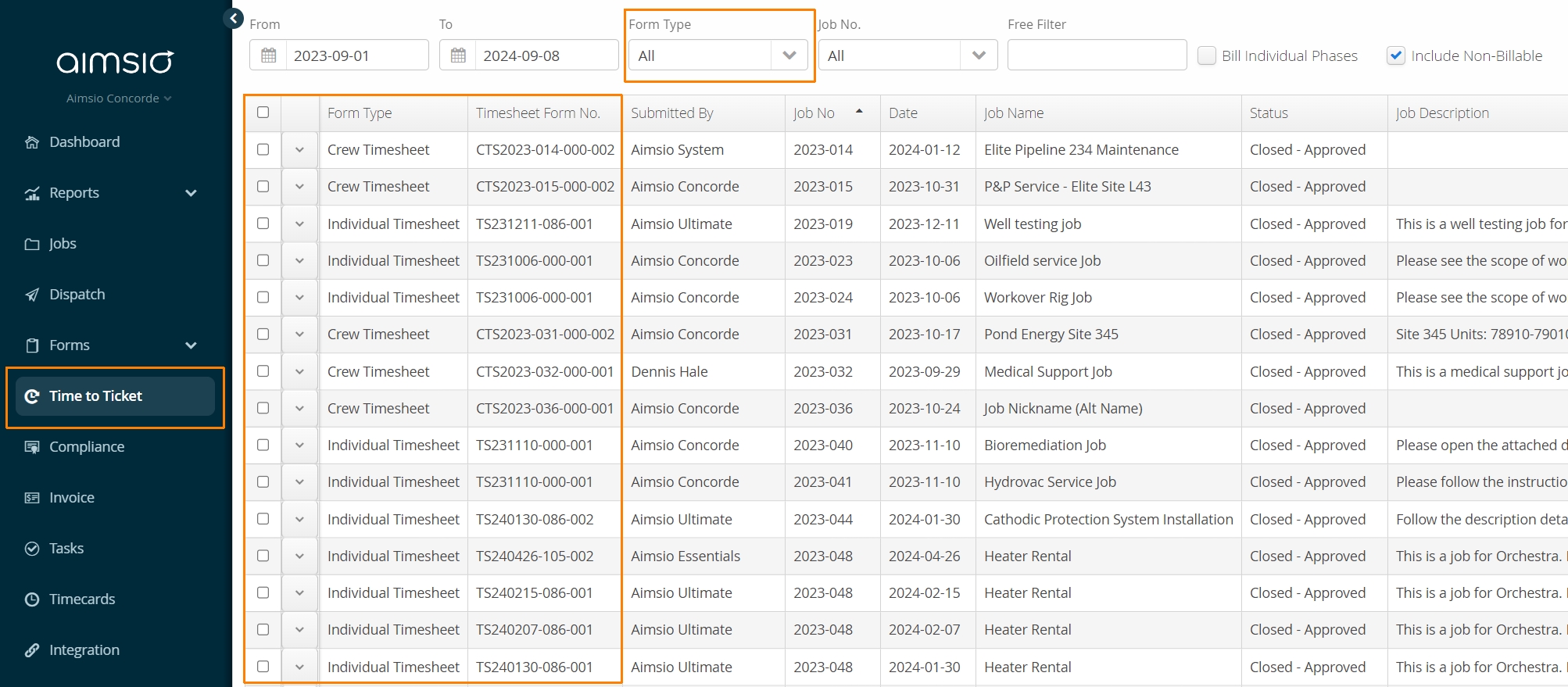
- Use the checkbox on the left to select which Timesheet hours you’d like to convert. Right-click and select Create Ticket.
Users can convert Individuals Timesheets and Crew Timesheets at the same time. Hours can be transferred to a Ticket as long as they are all for the same Job number on the same day.
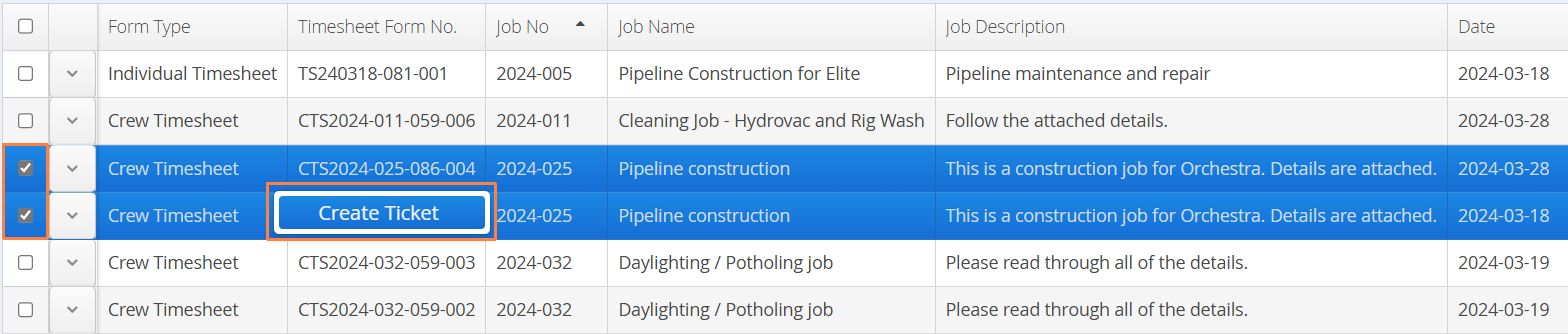
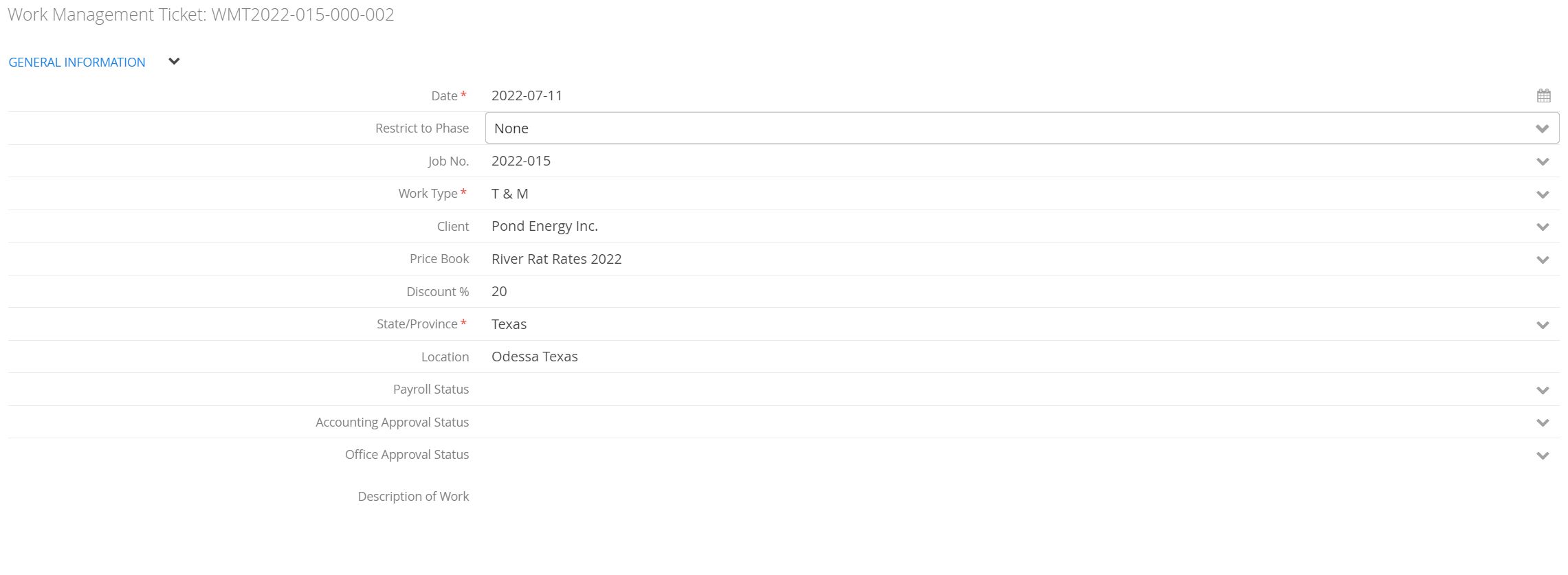
- This action will start a new Ticket form. Proceed to fill out all required fields.
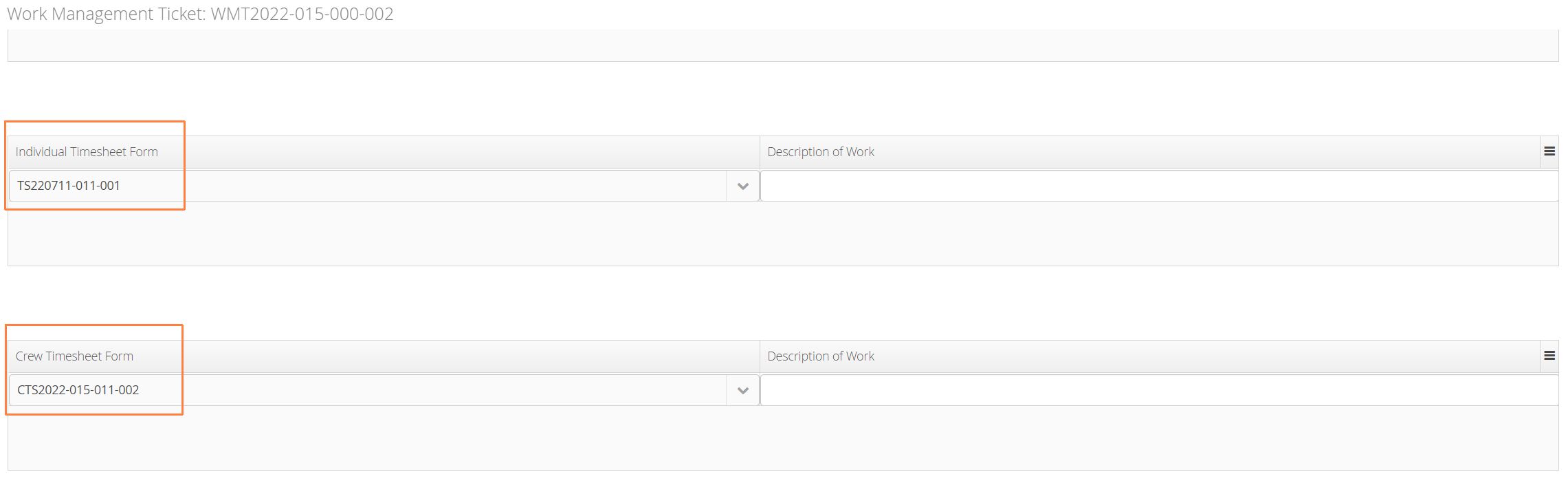
- Scroll down in the form to verify that the Timesheets you’ve attached to the Ticket are visible. Look for the Individual Timesheet Form and Crew Timesheet Form tables.
- To import hours to a Ticket, scroll down to the Billable Items section on the form. Locate the Update from Timesheets action and click Update. Aimsio will import all billable and non-billable line items onto the form.
Values on this form can be edited, but the original source Timesheet will not change. If line items are removed at the time a Ticket is being created, those line items will remain in the Time to Ticket page and can be transferred to a new Ticket.
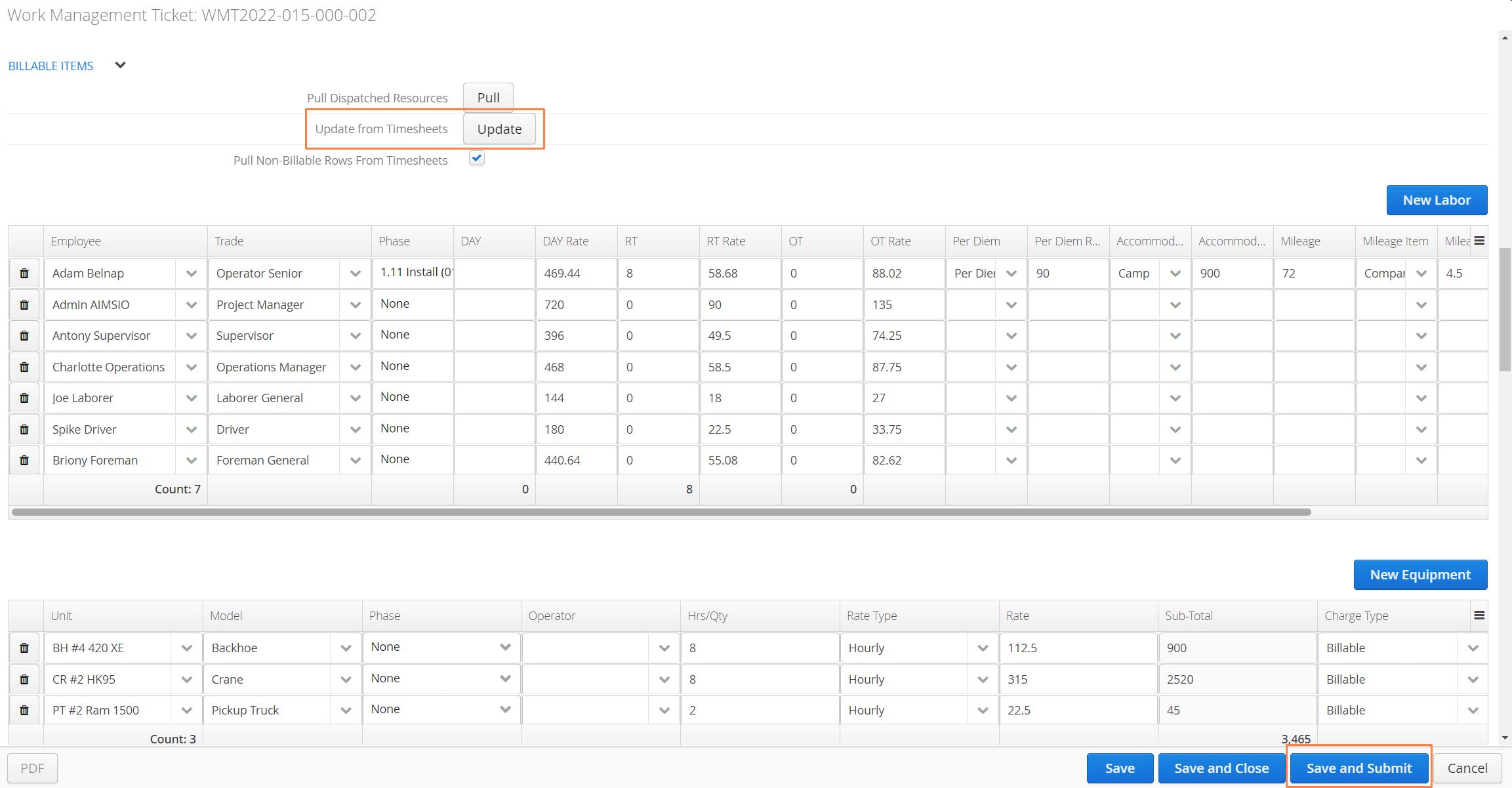
- Once you’ve finished, click Save and Submit on the bottom right to create the Ticket. If you aren’t ready to submit the ticket, click on Save and Close to come back to it later.
Once Timesheet hours are linked to a Ticket, the Ticket and Timesheet remain separate entities. While it’s discouraged, editing Timesheets after values have been transferred to a Ticket is still possible. Moving forward, edits need to be made on the Timesheet and Ticket separately.
If new line items are added to a Timesheet after its hours have been linked, Aimsio surface the new hours on the Time to Ticket page.
It is not possible to add Timesheet hours to a previously created Ticket. Users will need to delete the initial ticket if all Timesheet hours have appear on the same Ticket.
Bill Individual Phases
By default, Aimsio consolidates daily hours for each Employee to a single line on the Time to Ticket page, making it faster to select hours and transfer them. Employee hours on can be linked to more than one WBS Activity (or Phase), for the same day, by using multiple lines on a Timesheet.

If the Bill Individual Phases checkbox is checked, Aimsio will split hours by each WBS Activity recorded on a Timesheet. This can result in multiple lines for the same Employee on the same day.