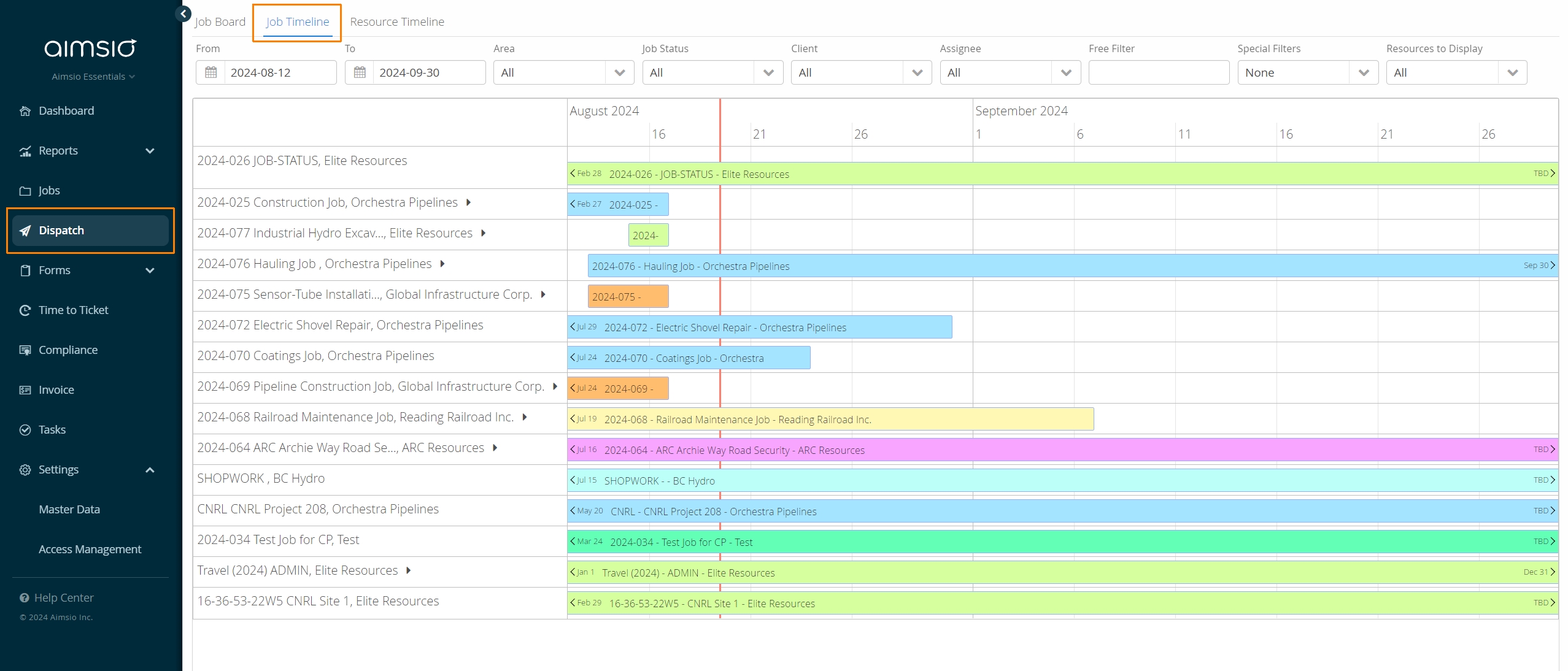
For users preferring to manage their resources using a ranged date search, the Job Timeline provides the convenience of viewing Job activity on a Gantt chart.
Job Timeline Overview
The Job Timeline functions similar to the Job Board, as you’re able to add Employees or Equipment in bulk, but it provides users with the ability to set additional parameters at the point of scheduling, like the start and end dates of the assignment, Employee Trade and their group (if a group exists).
Bulk editing of resources assignments is currently not currently supported on the Job Timeline.
Job Timeline Filters
Like the Job Board, filters can be used to control which Jobs and resources are visible.

There are two unique filters on the Job Timeline page, including Special Filters that allow users to show Jobs without resource assignments (No Records) or Jobs that have resources that have been double booked.
It’s also possible to use the Resources to Display filter to display strictly the Placeholders under a Job that need to be filled.
Additional filters:
-
Select a Date Range for listed jobs (From / To)
-
Filter Job Status: Unassigned, Assigned, Active, Finished, Cancelled
-
Filter by Client Name
-
Filter by Job Assignee (Supervisor)
-
Free Filter: Search the Job Timeline using freeform text
How to Show or Hide all Job Timeline Assignments
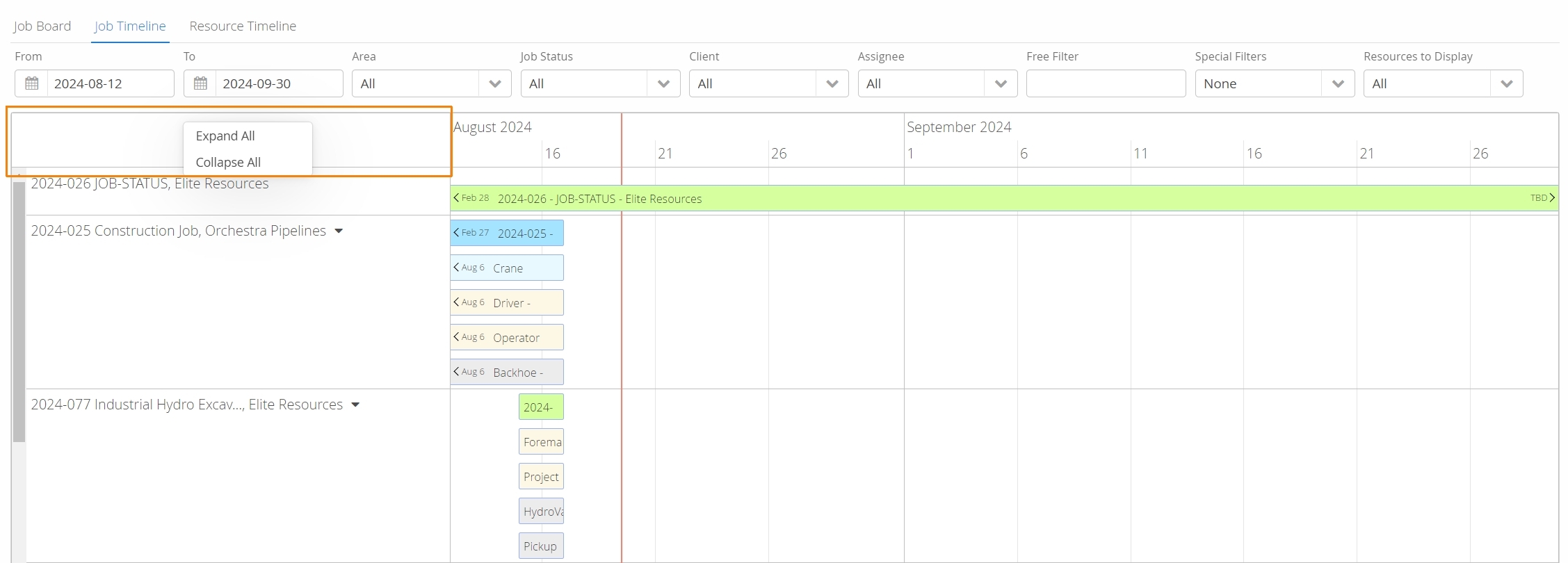
To expand or collapse all Jobs and their resources, right-click on the top left corner of the Job Timeline and select Expand All or Collapse All. This is a quick way to view the current schedules.
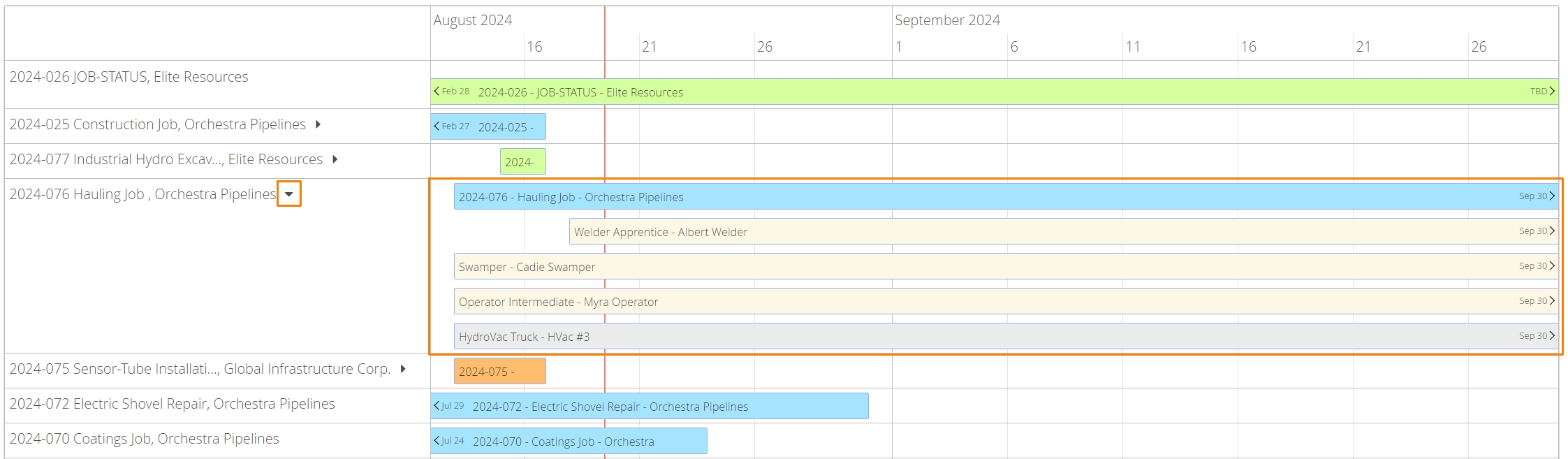
Alternatively, individual Jobs can be expanded or collapsed by click on the black arrow directly to the right of a Job.
How to Schedule Crew or Equipment using the Job Timeline
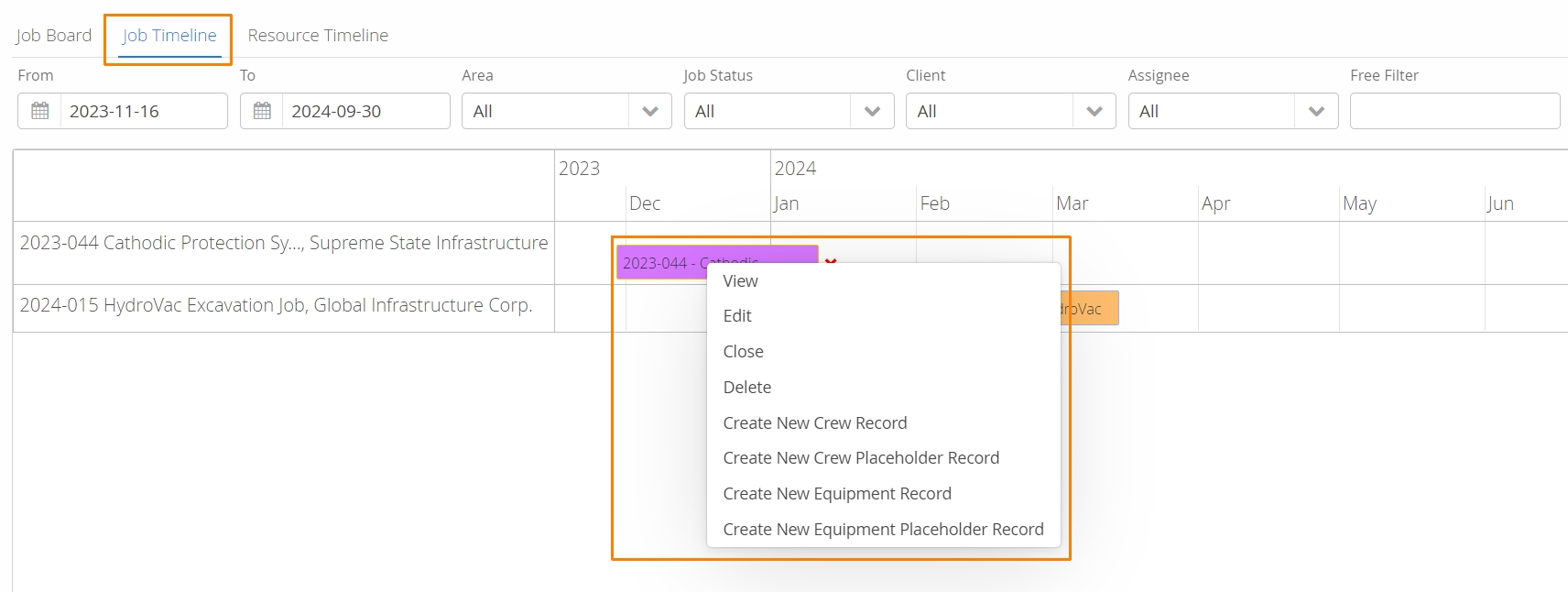
To add a crew or equipment resource using the Job Timeline, hover your mouse over a Job, right-click and select Create New Crew Record or Equipment Record
A window will popup providing a list of your account’s active resources.
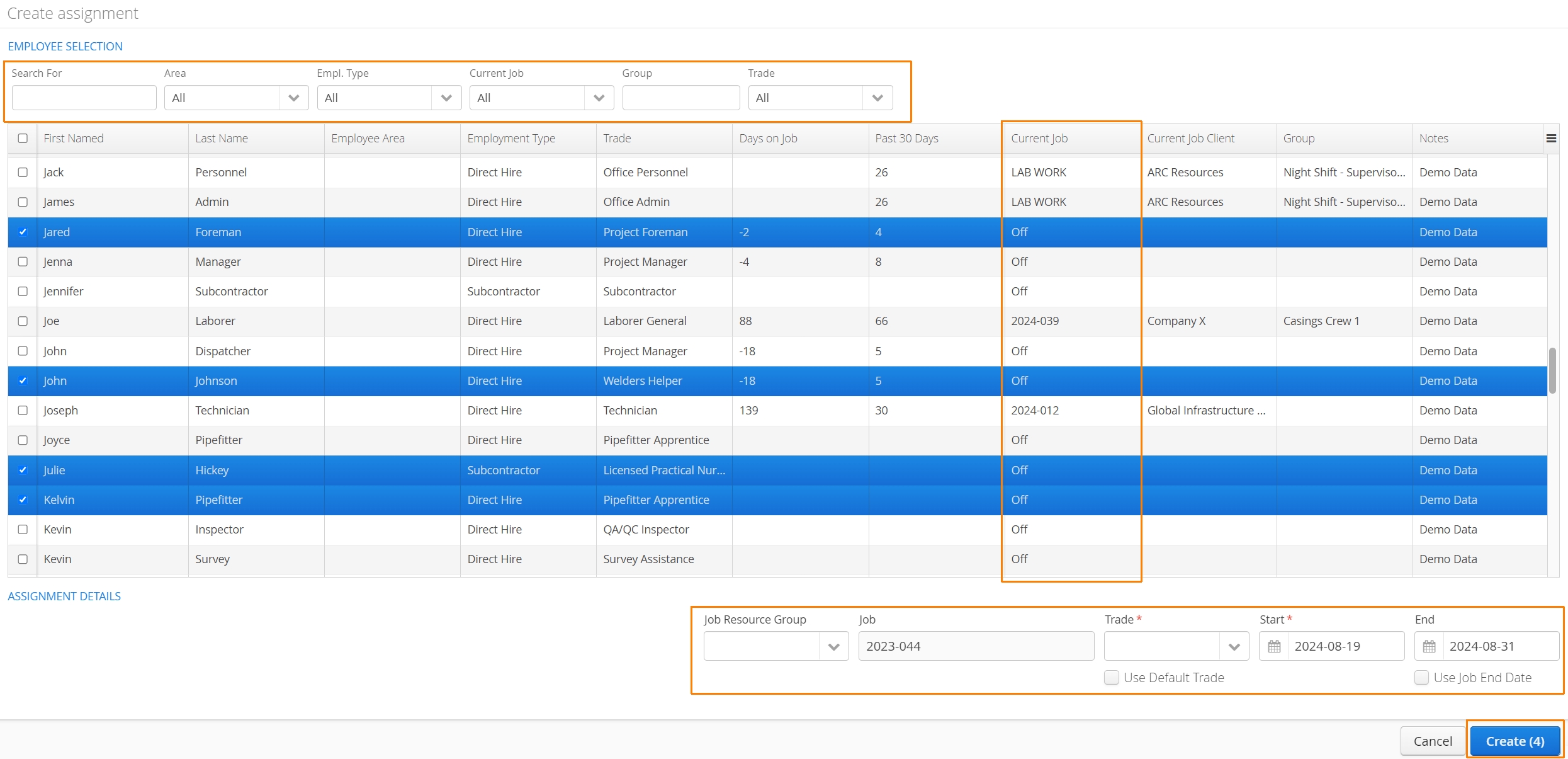
A series of filters are available to isolate the specific resources you might be looking for, including a specific Trade (if searching for Crew) or Class (if searching for Equipment).
Select each resource(s) using the checkbox on the left
When adding Crew to a job, you’ll have the ability to use their default Trade, or override all by selecting a specific Trade.
Confirm the Start / End date of the assignment
When finished, click on Create to add the selected resources to the job
How to Send a Crew Message using the Job Timeline
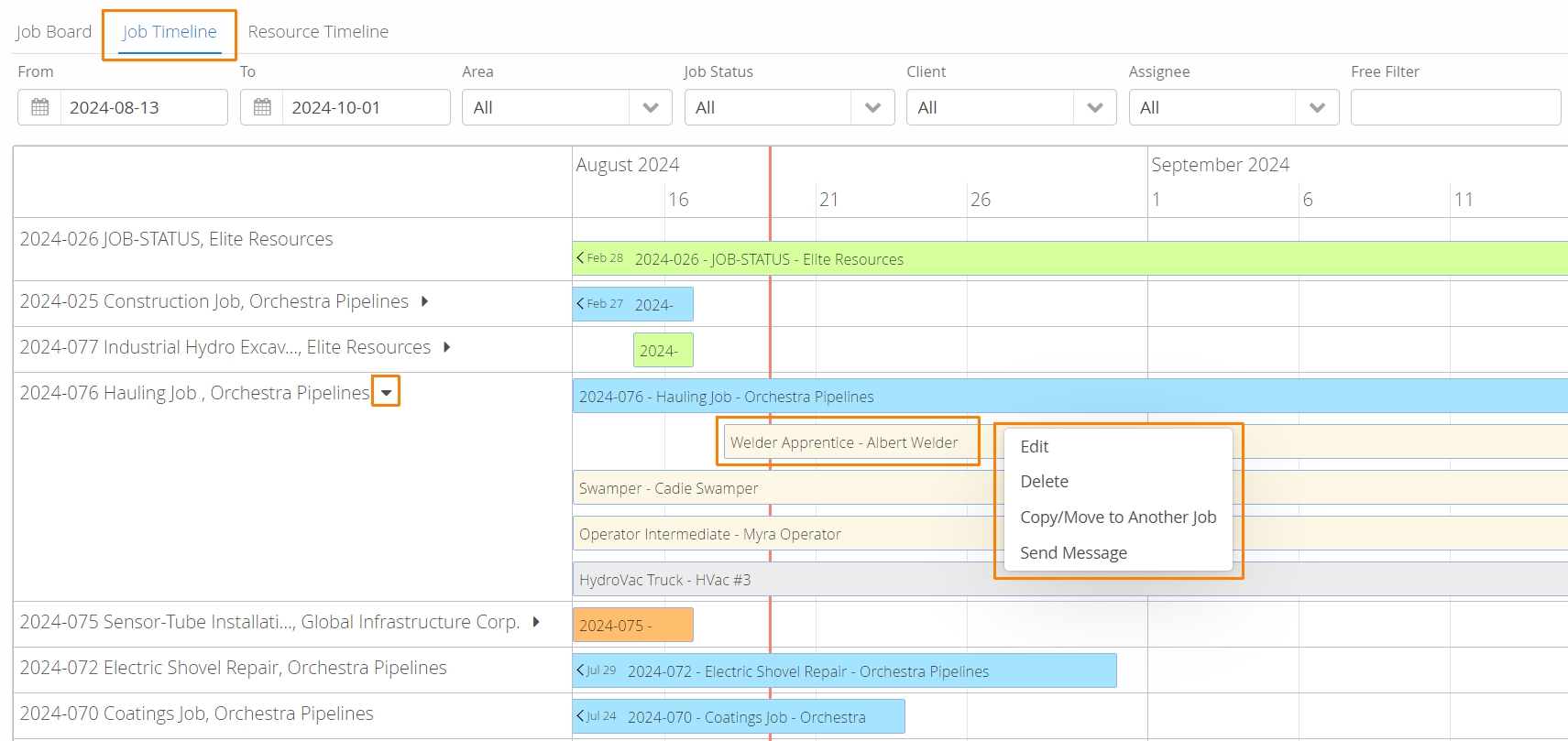
Email and SMS notifications are possible via the Job Timeline view by clicking on the ⌄ icon beside the job name to display the full list of assigned resources. Hover the mouse over the crew member you’d like to message, right click and select Send Message.
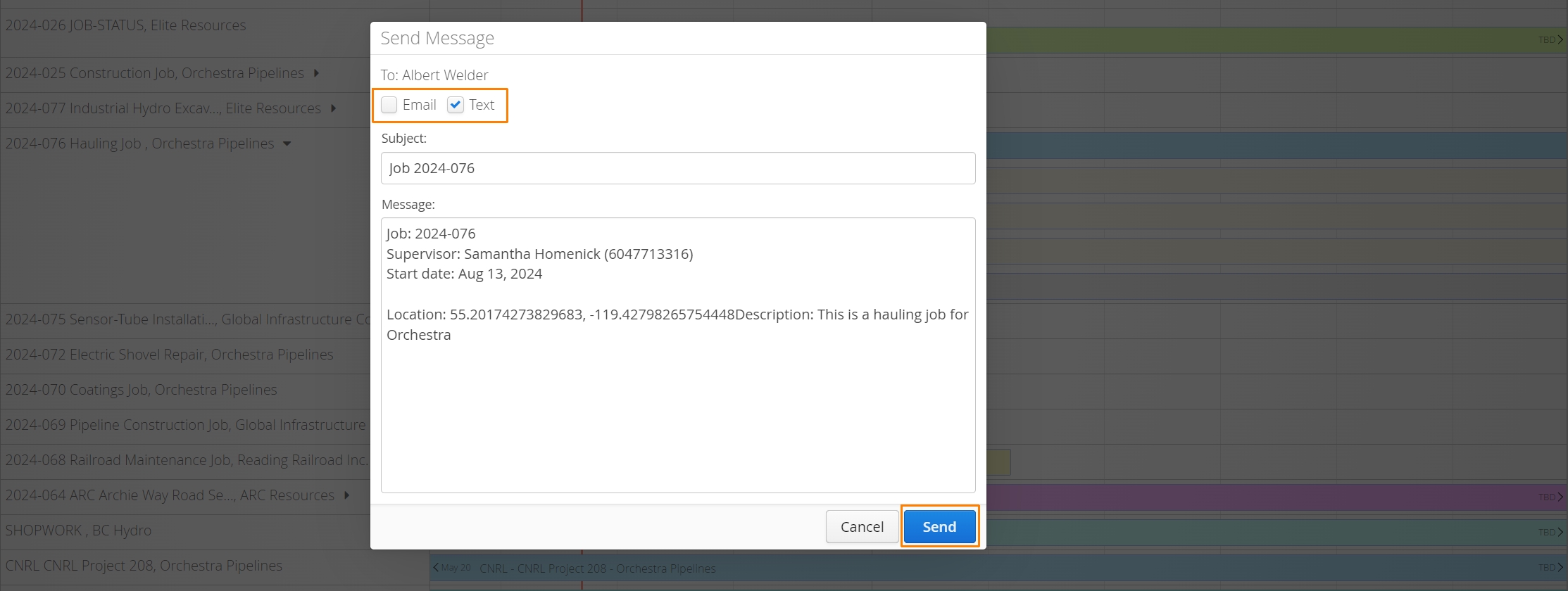
The following window will provide the option to send an Email, or Text (SMS) notification. Once your message is ready, click on Send.
Click here to learn more about Aimsio Notifications.
How to Change the Start/End Dates of a Resource using the Job Timeline
There are two ways to adjust the Start and End date of a scheduled resource. If you prefer to make adjustments on the Gantt chart, click on the resource you’d like to move, then drag your mouse left and right or, hover your mouse on either edge of the resource box to “resize” it in accordance with the start or end dates required.
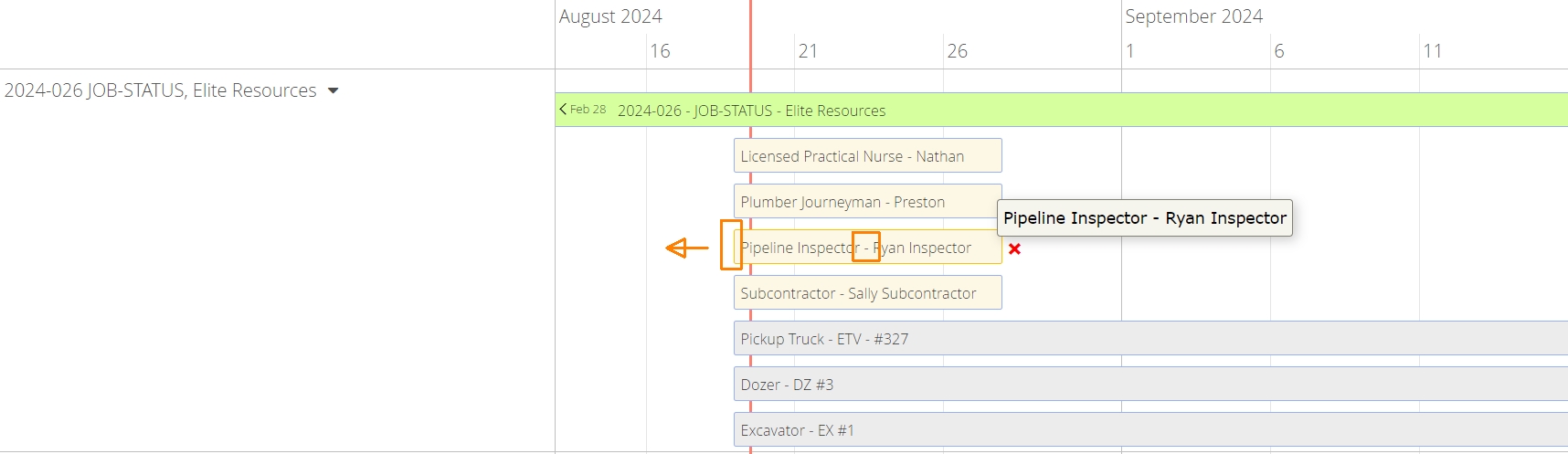
Compatibility for dragging and resizing an assignment box varies per web browser. Try the solution below if this workflow is unreliable.
Alternatively, right click on the resource you’d like to adjust and click Edit.
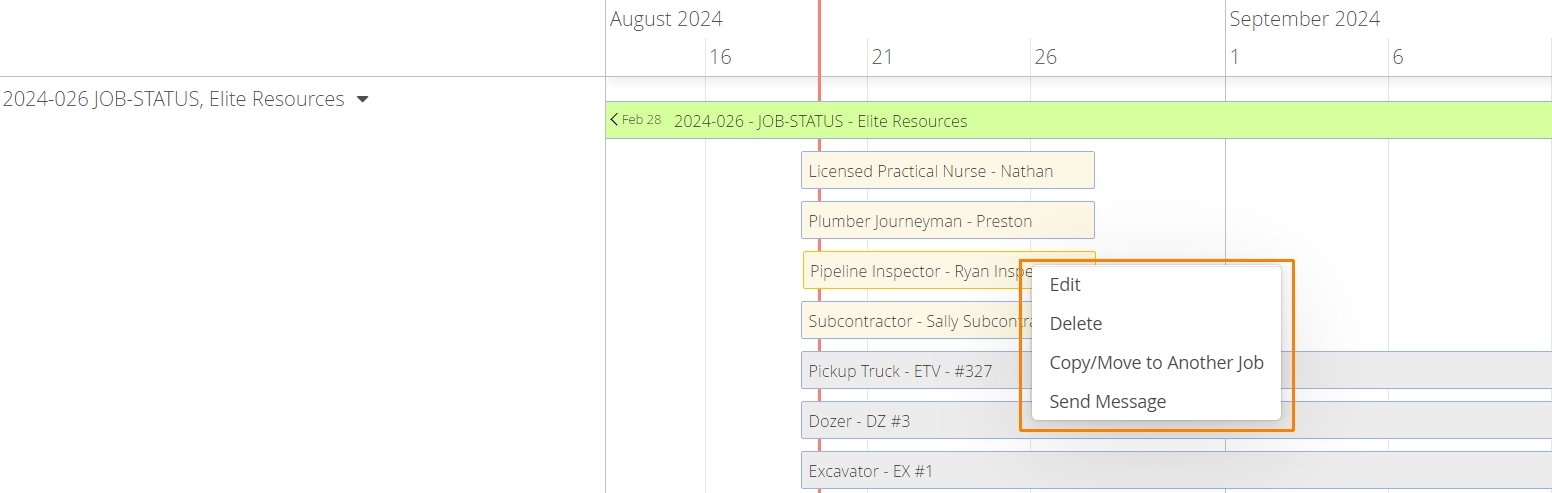
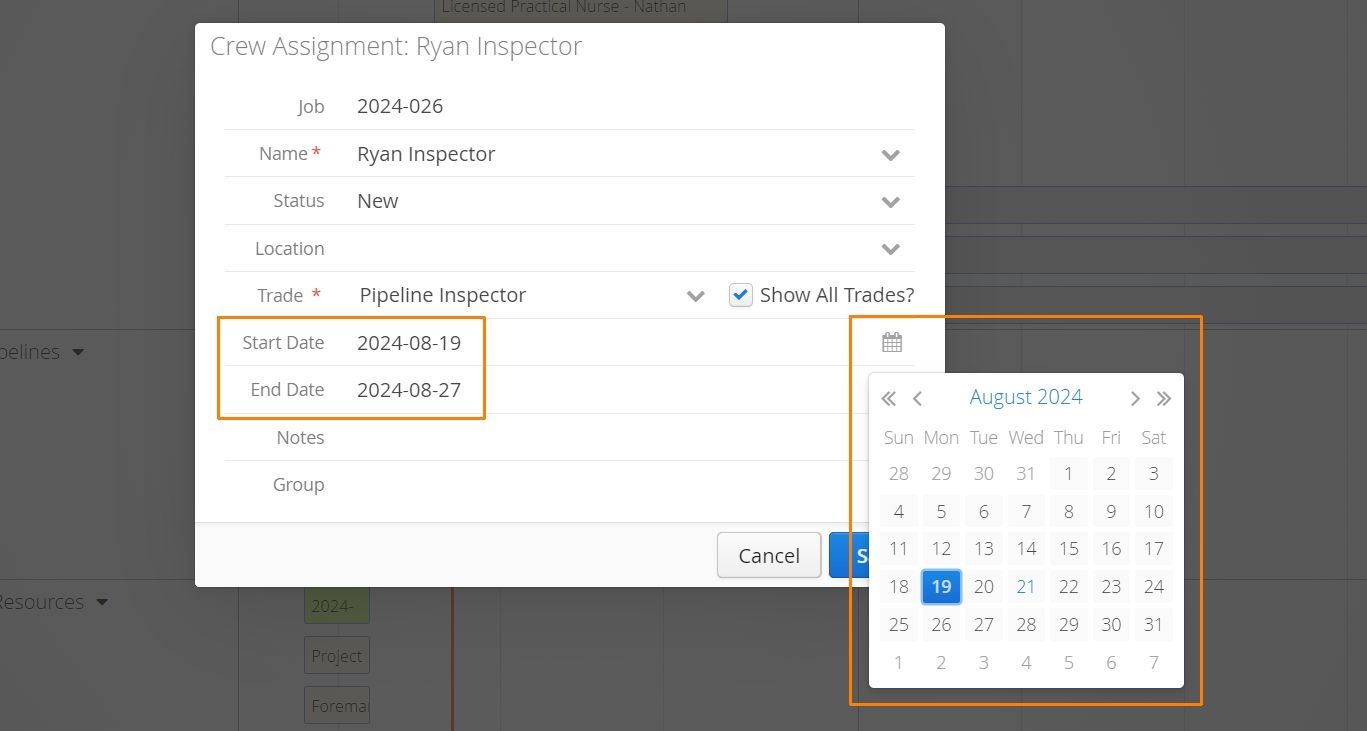
The following window will appear, allowing you to adjust the assignment dates using a calendar.