Billable Items are a collection of chargeable items that can store up to three rates. These items can be used to prepare Estimates, Tickets, Timesheets and Change Orders.
Billable Item Types
There are item ‘Types’ like Labor, Equipment, Materials and Service that contain different properties suited for different approaches to billing.
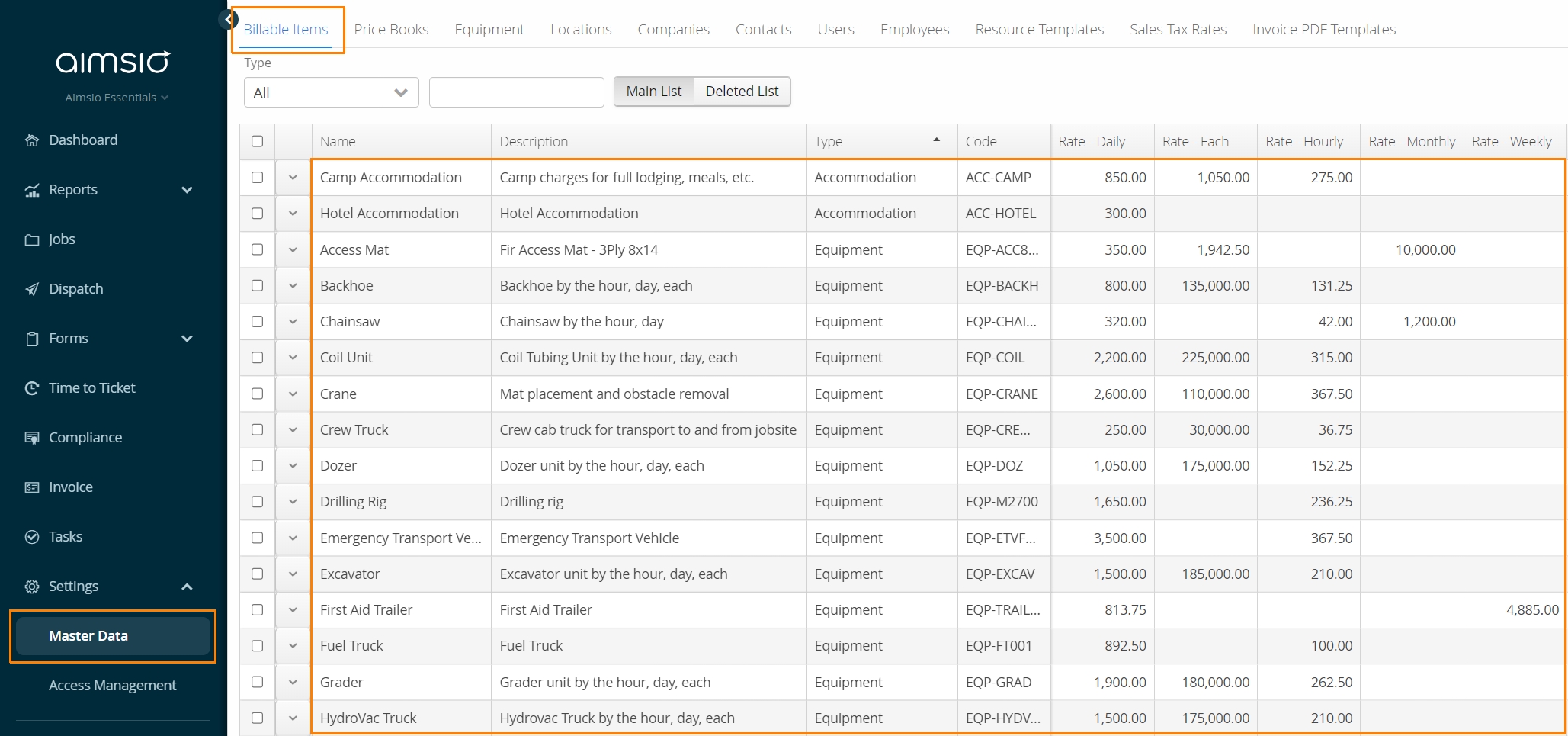
How to Choose the Correct Billable Item Type
There are different types of Billable Items, the most common being Labor (Trades), Equipment (Classes) and Materials. Other types, such as Mileage, Per Diem and Accommodation, are often billed together with other items, as they may represent additional fees on top of work being charged
Only Labor and Equipment Billable Items can be used with our Dispatch tool.
Let’s take a quick look at how Equipment is typically managed:
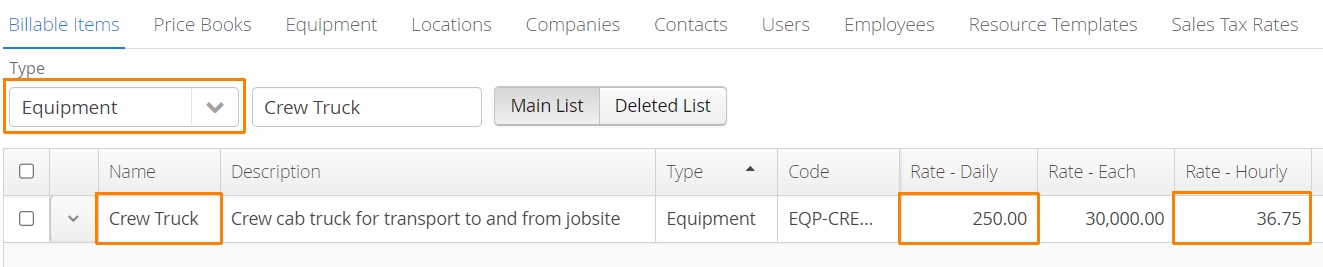
You may charge clients an hourly or daily rate for a piece of equipment (ie: a Crew Truck), you may also manage a fleet of crew trucks. Your Billable Item represents what you charge for the equipment, not the specific piece of equipment. By having one Billable Item controlling the charge-out rate, Aimsio will let you associate it to multiple pieces of equipment, instead of having to store the same rate on each truck you manage. As such, the Equipment type of Billable Item is also known as a Class.
Your actual individual equipment assets are managed separately, generally for the purposes of Dispatch or tracking cost. For more information see our Master Data - Equipment guide.
Labor items follow a similar approach. You don’t charge your clients for the work of a specific employee, you charge them the type of work being completed (ie: the cost of a Foreman for the day). This is also why we refer to Labor Billable Items as Trades.
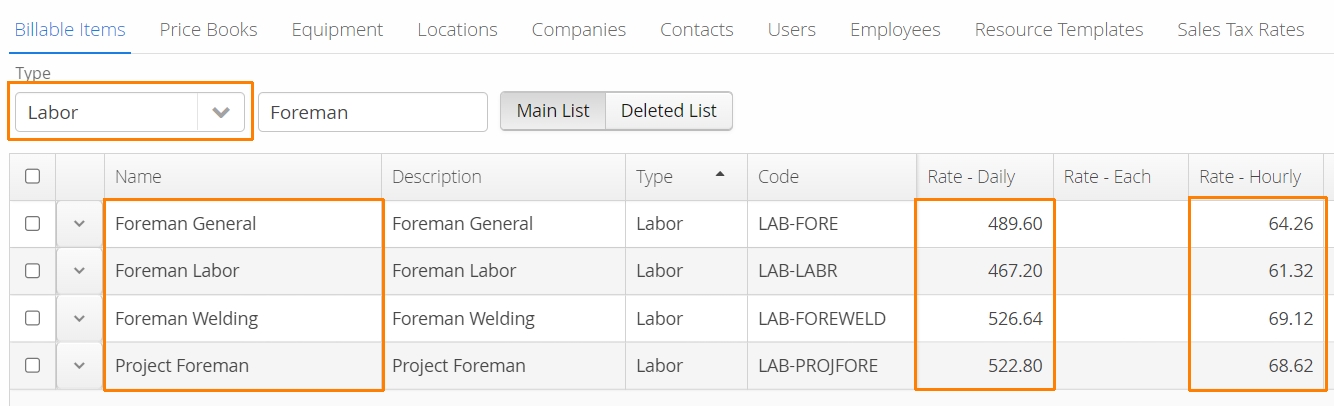
Employees may work as multiple Trades, but only one Trade can be associated at a time. Users completing Tickets and Timesheets can change the Trade of an Employee, so long as the Labor Item exists in the Price Book for that Job.
Billable Item Category
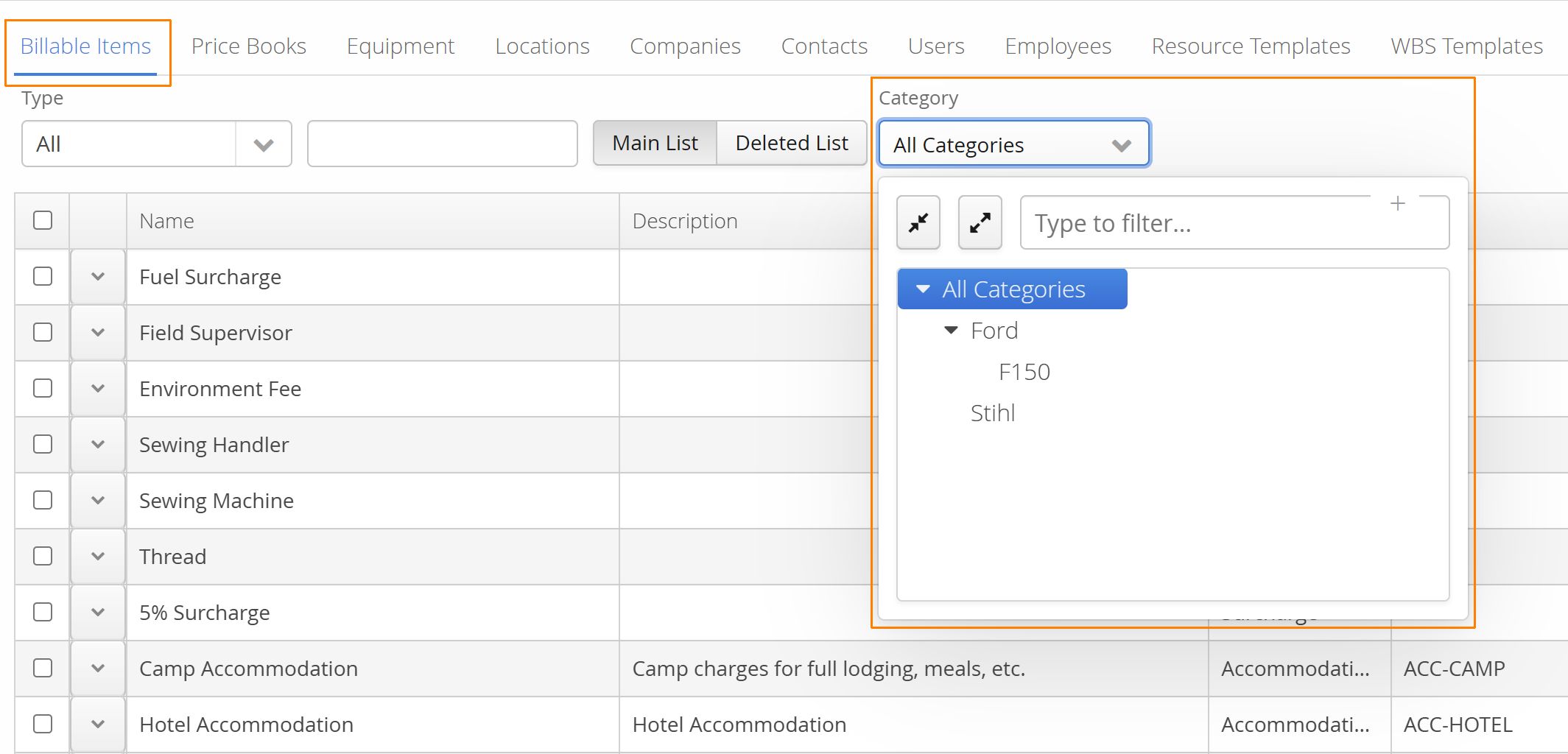
Accounts needing additional categorizations for their Billable Items will have a field available when editing, or creating a new Billable Item: Category.
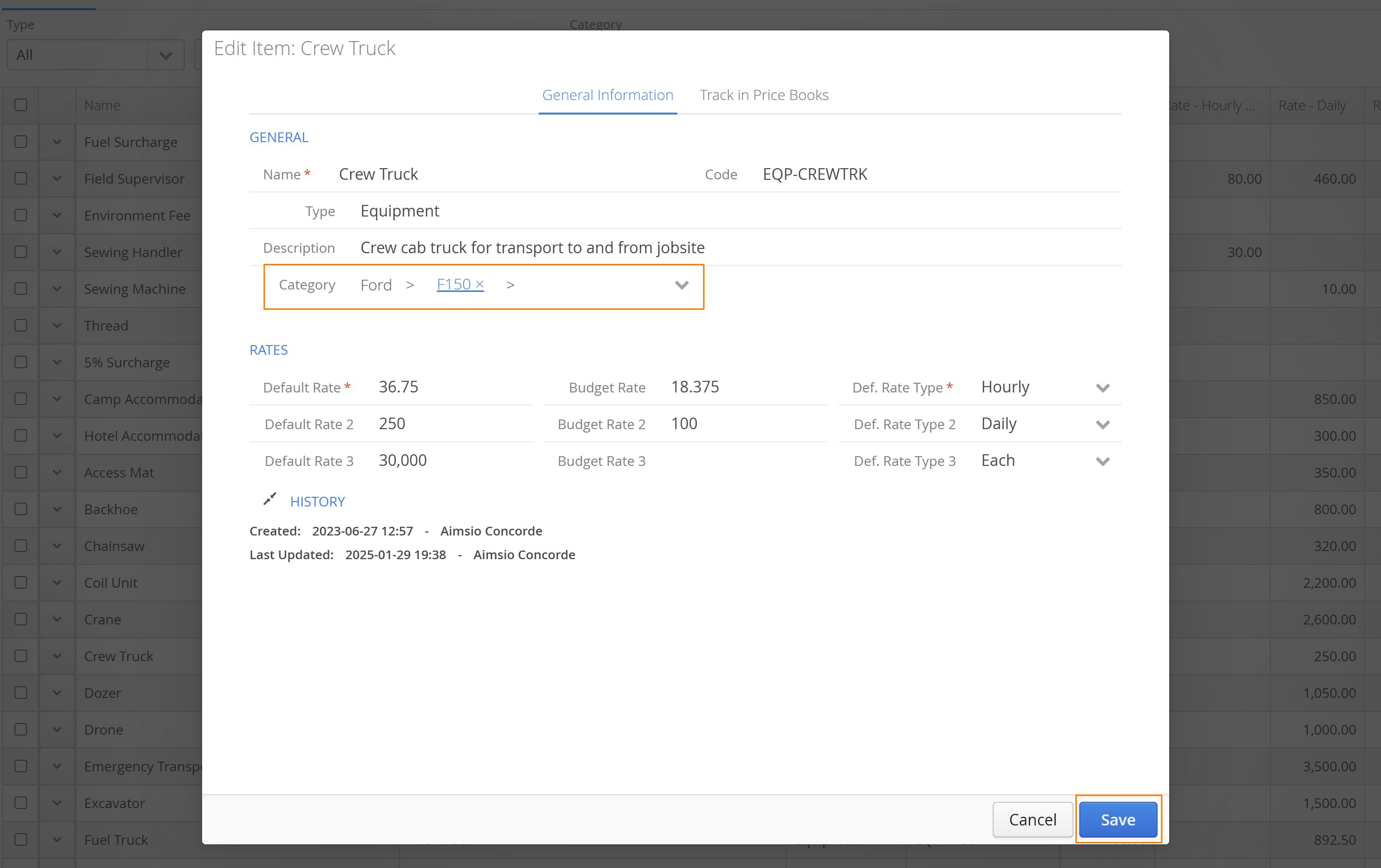
This is a free text field that will store whatever category name you choose when saving the Billable Item. We’ve included a filter on the Billable Items page to quickly locate your items by category.
How to Add a Billable Item
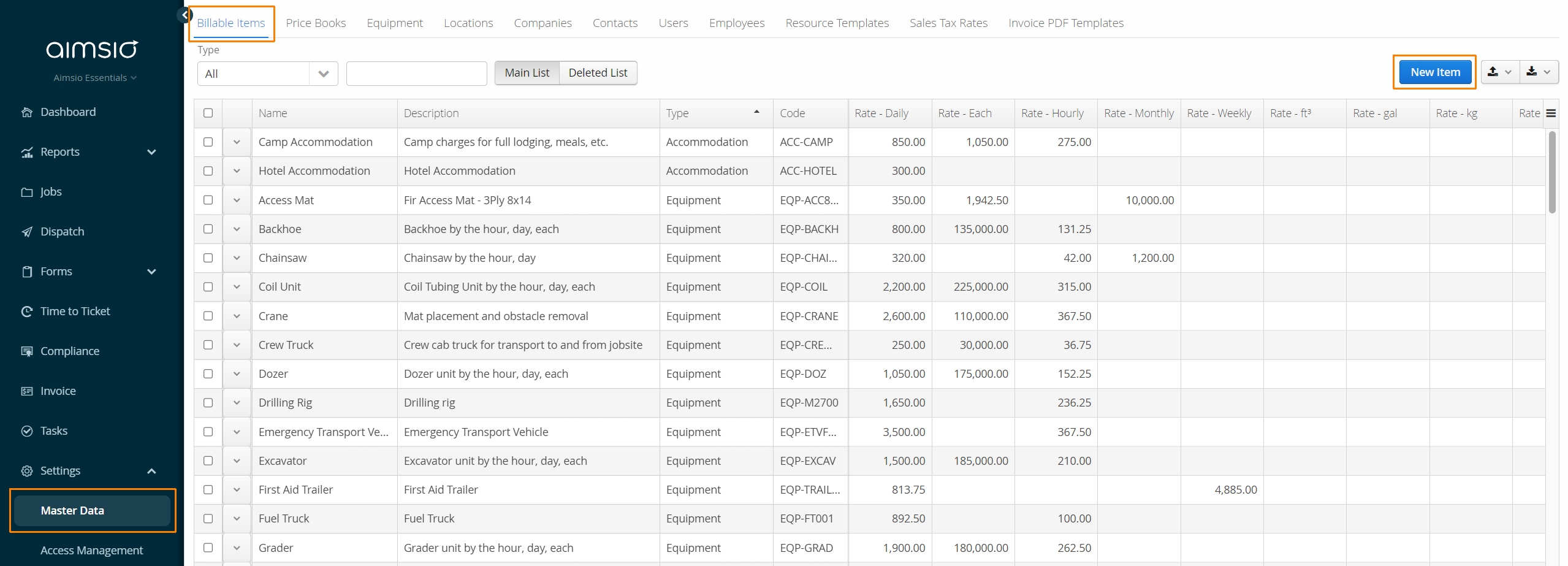
Billable items can be created by clicking on the New Item button on the far right.
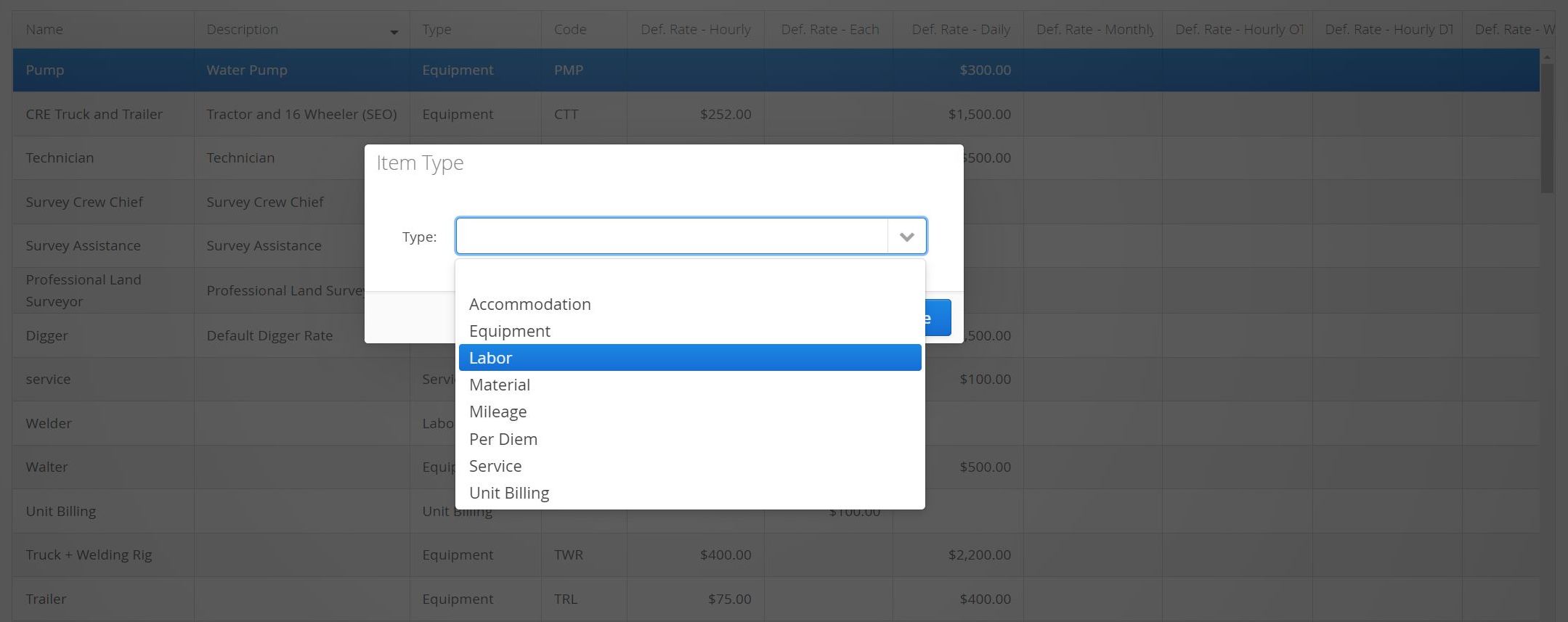
- First, select the Billable Item Type.
- Each Billable Item must include a Name, Default Rate and Default Rate Type.
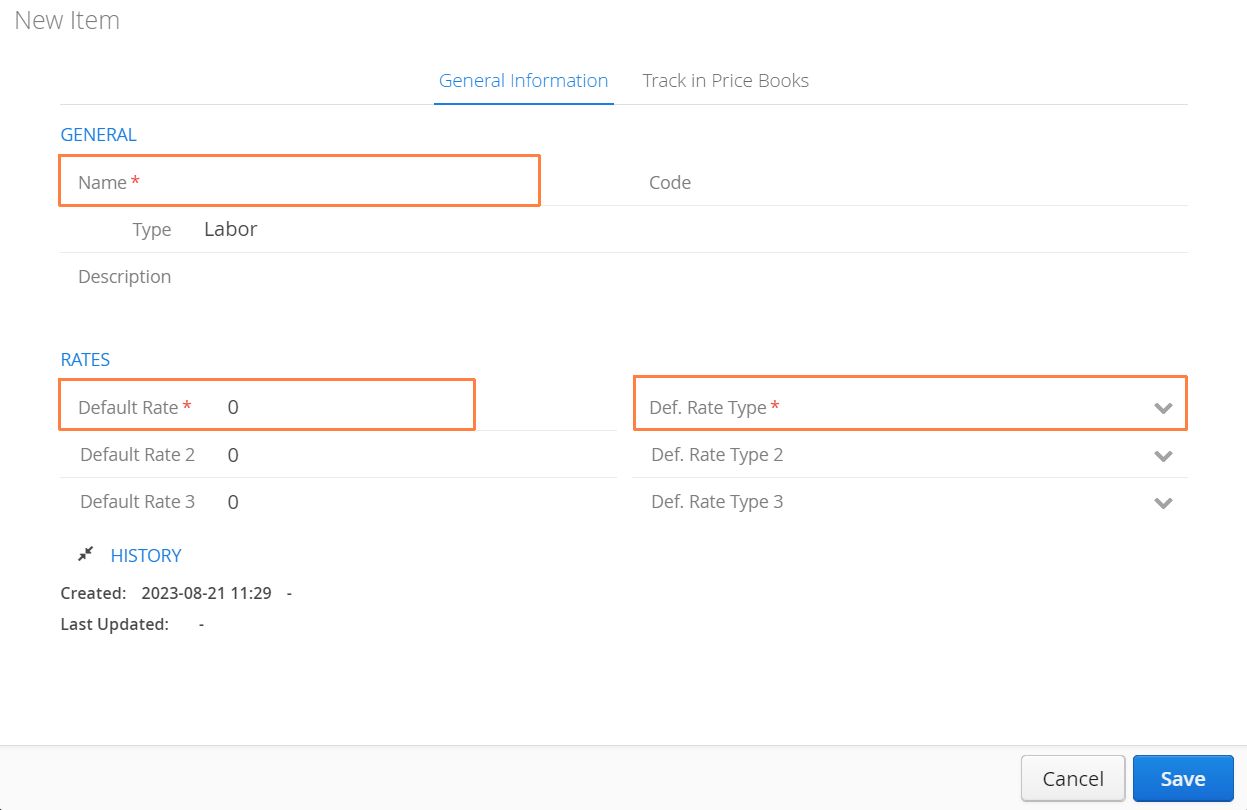
Other Billable Item fields:
-
Code: Used for an internal code or tracking number.
-
Description: Can be used to populate additional text on forms (billable tickets, estimates, etc.)
-
Default Rate: Dollar value associated with the selected Rate Type
-
Default Rate Type: The rate types associated with the item (hourly, daily, each etc.). When rate type is selected within a form or ticket, the rate will populate automatically.
Rate Types
Rate Types allow Billable Items to be charged out in different ways. This can be useful when you have a hourly rate for a crew member, as well as an daily and weekly rate.
- A Billable Item can have up to three separate rates. Each rate can use the same Rate Type or a different Rate Type. Rates can be managed using Price Books or adjusted when the Billable Item is included on a Ticket.
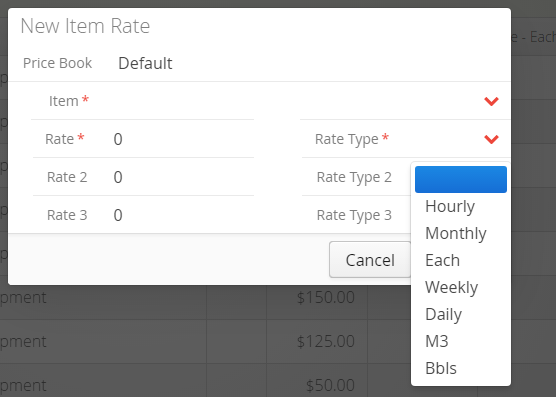
If you require a new Rate Type, please reach out to our support team. We can help you add a new Rate Type for your Billable Items.
What if a Billable Item has more than 3 Rate Types?
If you require more than 3 rate options on a single Billable Item, we recommend splitting it into more than one item. For example, you may have a granular breakdown of how Labor rates are charged for a Supervisor, so you may consider making 2 billable items:
-
Supervisor - Monthly (Rate 1, 2, 3)
-
Supervisor - Weekly (Rate 1, 2, 3)
On a Ticket, Estimate or Change Order, users will choose both the relevant Billable Item and Rate Type.
Understanding Billable Items and Price Books
This article is focused on managing your Billable Items list, which can be thought of as your ‘master’ rate sheet. Before any item can be charged to a Ticket, it needs to be added to a Price Book.
-
Once an item is added to a Price Book, the original item is duplicated and its rate is managed independently from your Billable Items list. Users will need to get comfortable with managing both the Billable Item rate, as well as the rate of these items in all Price Books. We cover this in more detail in our Master Data - Price Books guide.
-
Price Books inform our system what Billable Items and rates are available on Estimates, Tickets, Timesheets and Change Orders. If an item (ie: Trade) is missing, authorized users will need to add it to a Job’s Price Book.
Surcharge Billable Items
Aimsio provides a solution to add surcharges to Estimates, Tickets, Change Orders. Examples of surcharges may include a Fuel Surcharge, Environmental Surcharge or any charge applied in the form of a percentage on top of your billing rates.
The process involves creating a new Surcharge Billable Item type, then adding that Surcharge item to a Price Book. Once the Surcharge Billable Item is added to a Price Book, users will indicate which items on that Price Book the surcharge applies to.
For a detailed walkthrough on using Surcharges in Aimsio please review: How to Add Surcharges
How to Edit Billable Items
To edit a Billable Item, navigate to Master Data and locate the Billable Item you’d like to change, click on the Action button to the left of the item and select Edit.
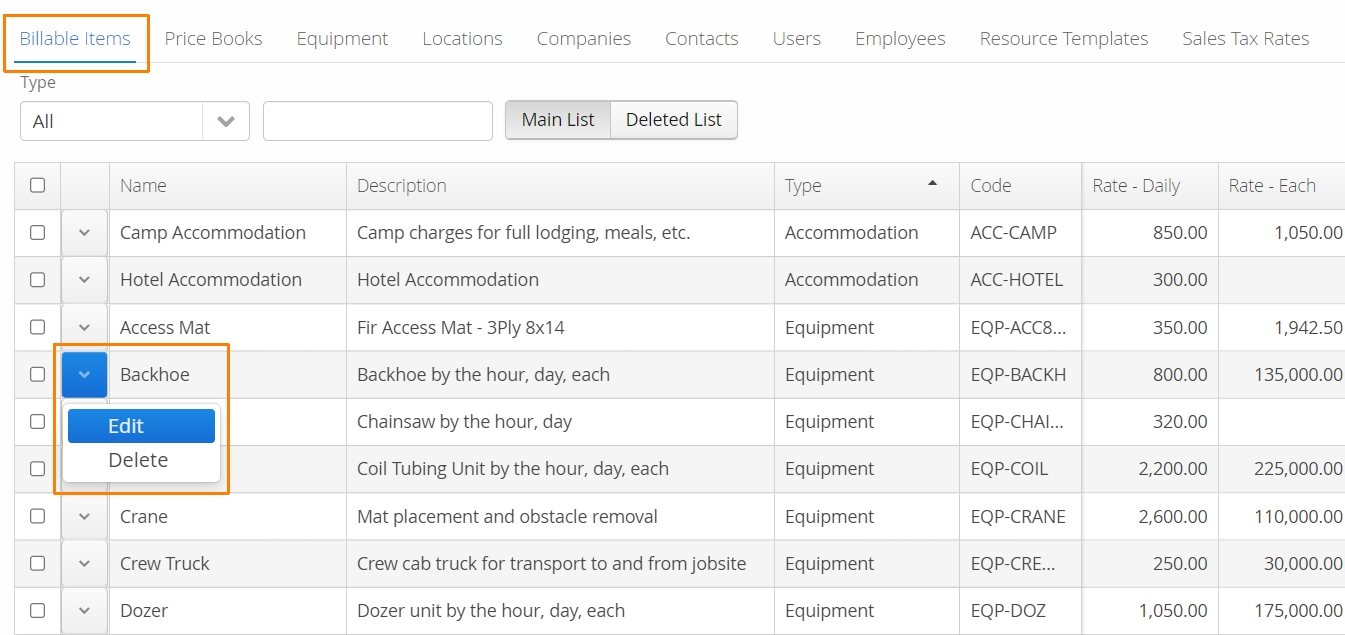
Only the Name, Description, Code and Rate of a Billable Item can be changed. It’s not possible to change the Billable Item Type. A new Billable Item will have to be created with the correct type and the previous item can be deleted.
Changing the rates of a Billable Item will not automatically update the Price Book(s) that the item belongs to. Price Book rates need to be updated separately.
- For more information on managing Billable Item rates on Price Books see: How to Update Billable Item Rates on Multiple Price Books
How to Edit Billable Items in Bulk
All Master Data pages support the export and import of data for bulk processing. Data can be exported and edited in Excel, then reimported back into Aimsio.
- For more information please review the following article: How to Export and Import the Data in Your Account.