To complete some Forms in Aimsio, Companies are a required field. Aimsio organizes Companies into three types:
-
Client - Required before creating a Job.
-
Vendor - Required before creating a Purchase Order.
-
Subcontractor - Can be associated to subcontracted Equipment or subcontracted Employees
How to Add, Edit or Delete Companies
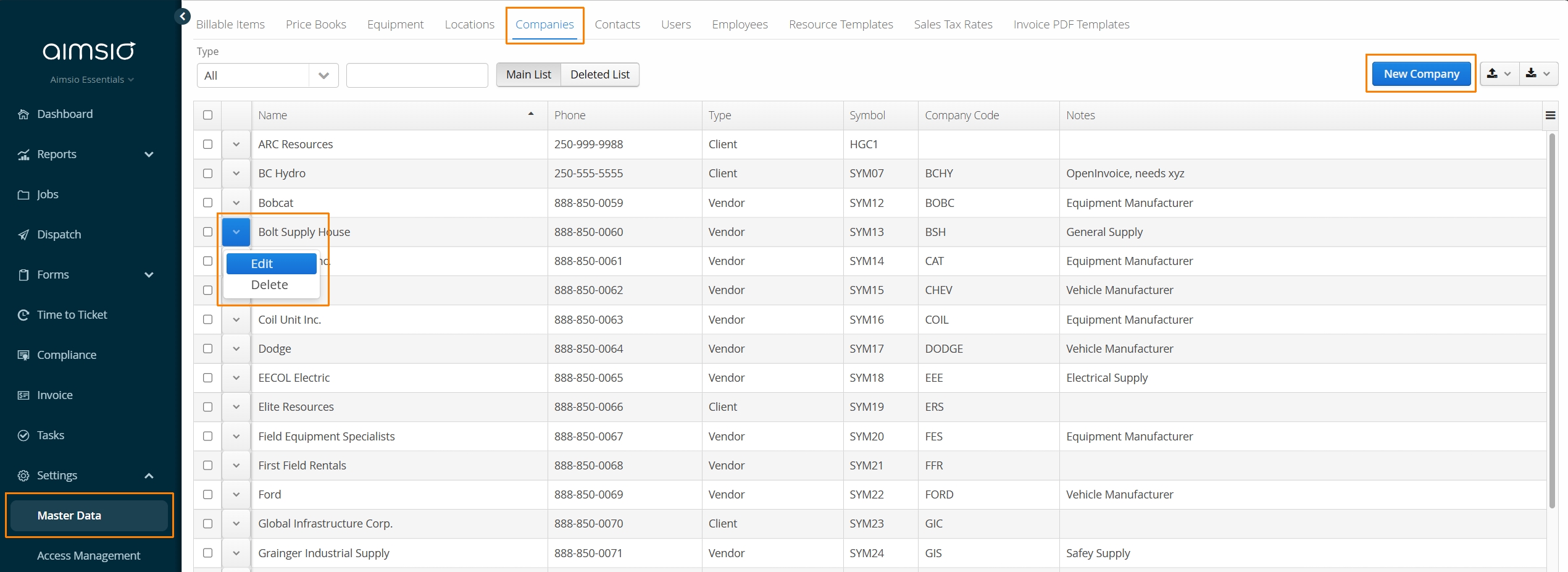
To add a new Company, navigate to the Master Data → Companies tab.
-
Use the New Company button to add a new Company Type.
-
Edit or Delete a Company using the Action button on the left.
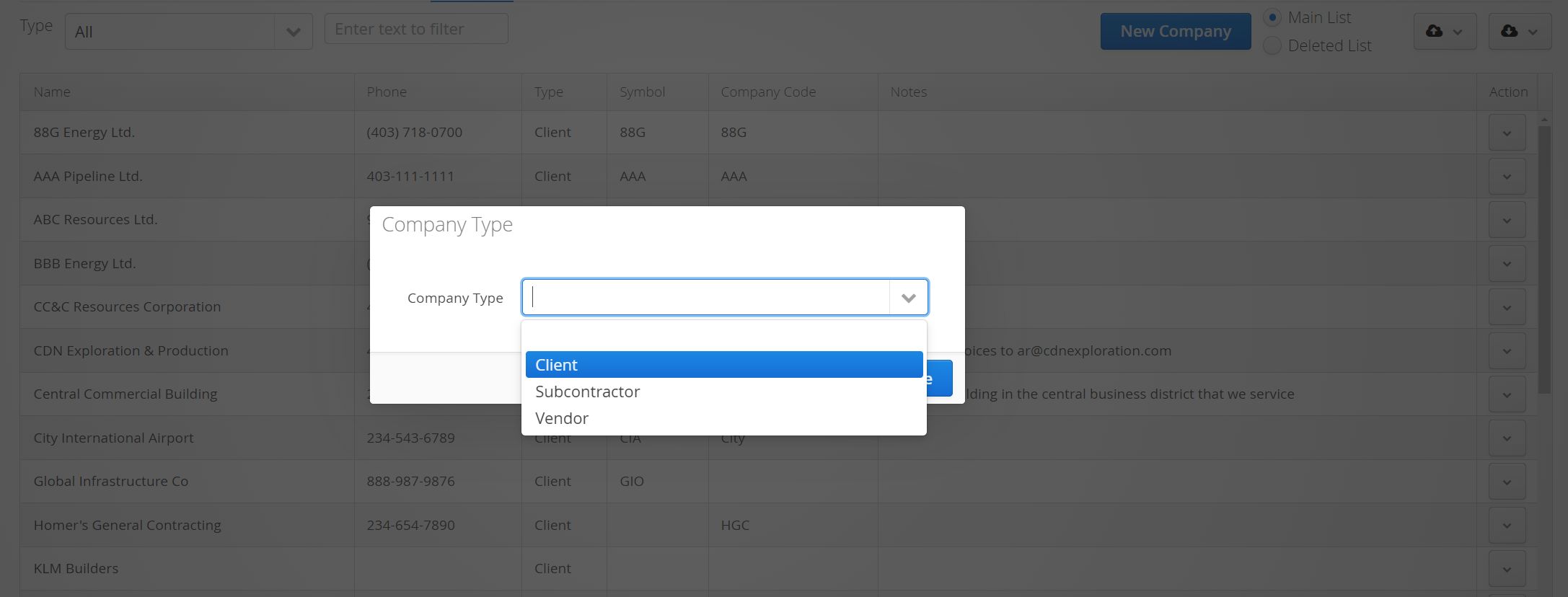
- When adding a new Company, you’ll be asked to select the appropriate Company Type. A Company must be added as a Client before it can be associated to a Job.
Check to ensure you are selecting the appropriate Company Type before continuing. Accounts can also add Vendors or Subcontractor companies this way.
In rare cases, a Company may need to be added twice if they exist as more than one Company Type.
Optional Company Fields
-
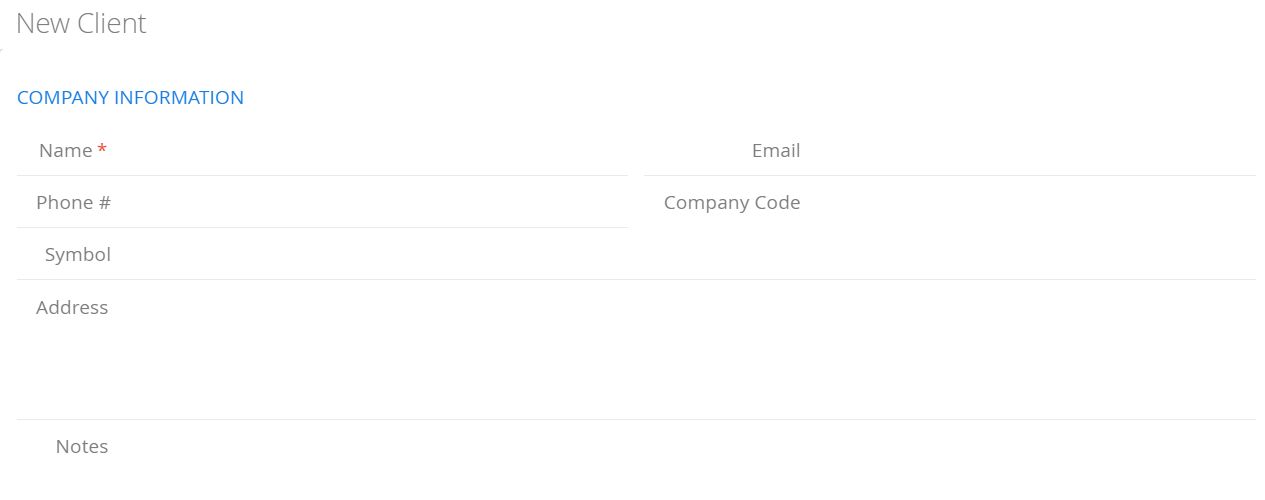
Email: Main contact email for the company.
-
Symbol: The company reference, this can be up to 10 characters long.
-
Company Code: Company code, this can be up to 10 characters long.
-
Address: The company’s billing address. Can be referenced on billable Tickets and Invoices.
-
Notes: Internally accessed notes regarding the company.
How to Add a Company Contact
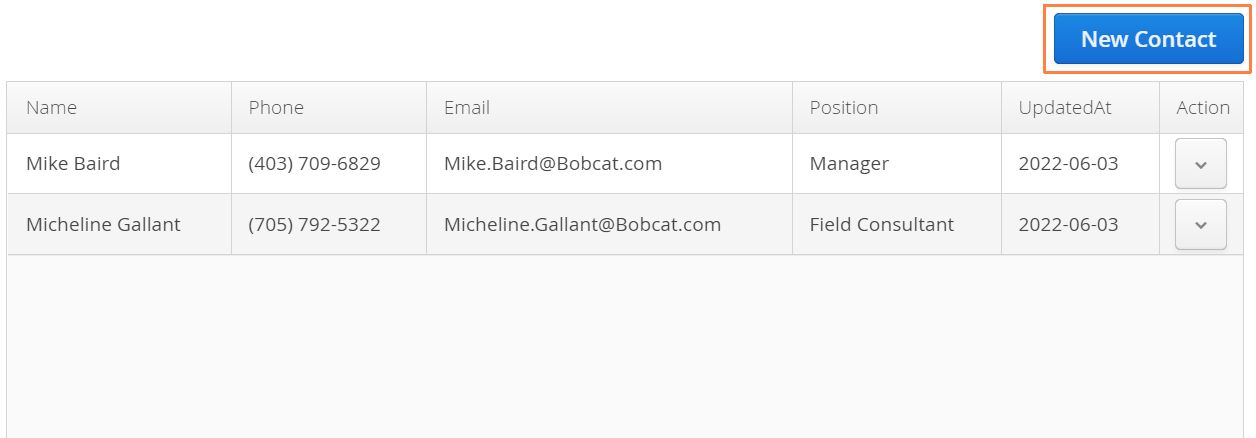
Companies can have any number of associated Contacts. Most Contacts in Aimsio are stored under a Company. Any Contacts that exist under a Company can have their information easily associated to a Job or accessed when sending a document for signature.
-
The New Contact button is used to create contacts under a company. A newly created Company must be saved first, before a contact can be added**.**
-
Contacts can also be created separately and associated to a Company later.
How to Add, Edit or Delete a Contact
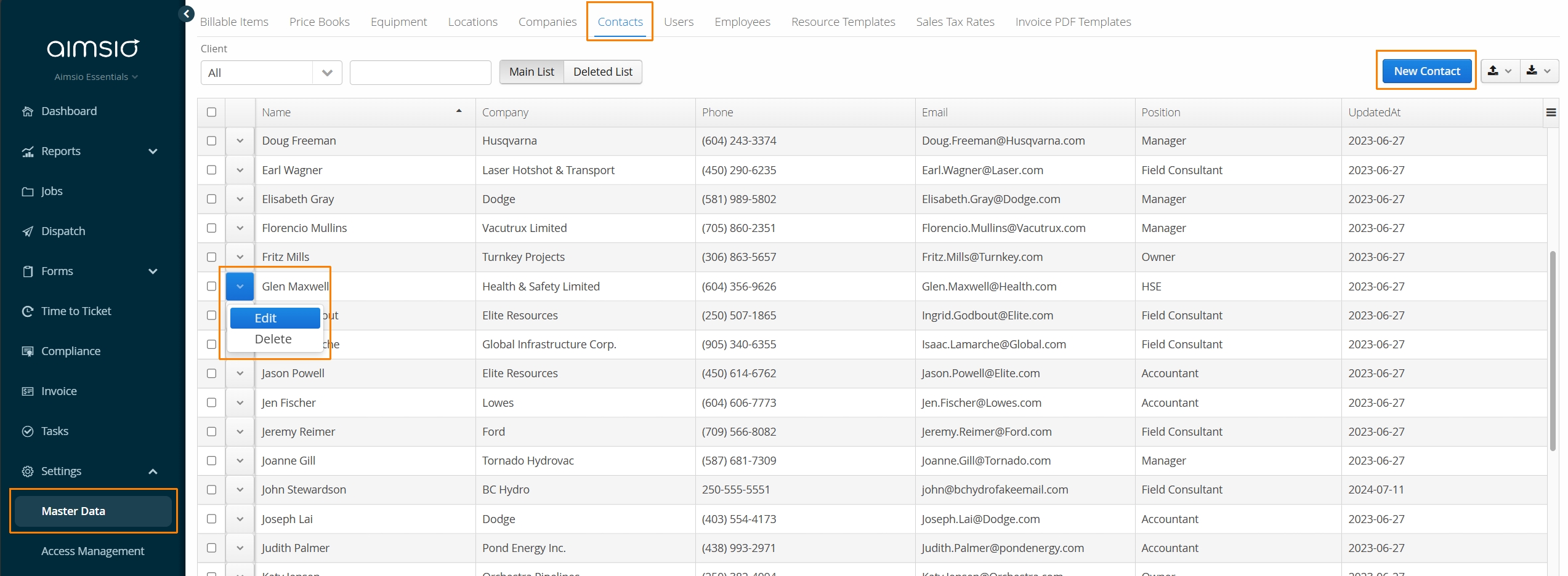
Navigate to the Master Data → Contacts tab.
-
Use the New Contact button to add a new Contact.
-
Edit or Delete a Contact using the Action button on the left.
Contact Information
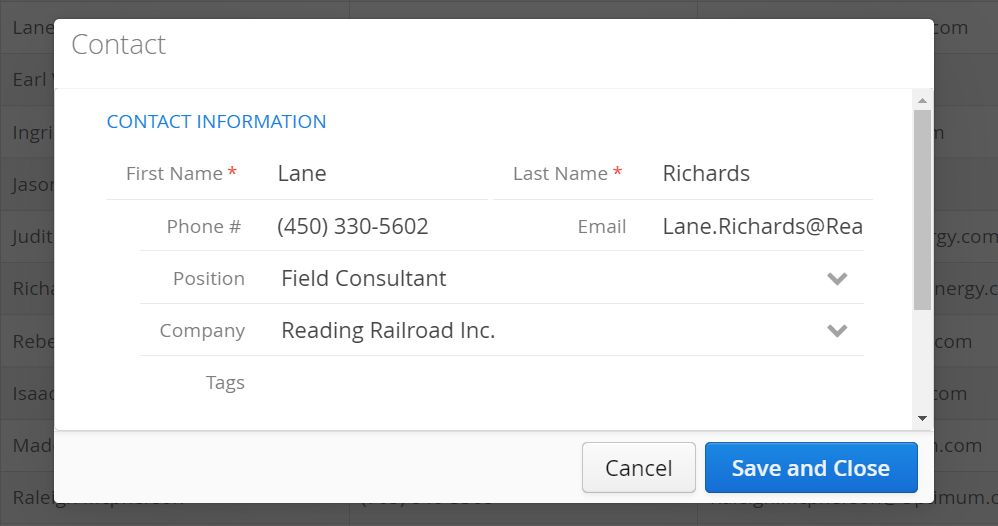
First and Last Name are the only required fields when adding a Contact. Contacts can also be associated to a Company by editing the Contact and using the Company dropdown field provided.
-
Position relates to the Contact’s title at their Company.
-
The Tags field allows any additional information to be stored to the Contact. Tags are only available when exporting Contacts to csv.