When users receive an approval request from our Client Portal, they’ll be invited sign up for a free Aimsio account. It is not a requirement to create an Aimsio account to review documents.
Users that create an account will have access to features not available to guest approvers, including the ability to receive daily reminders of their outstanding approvals.
Receiving a Document Approval Request
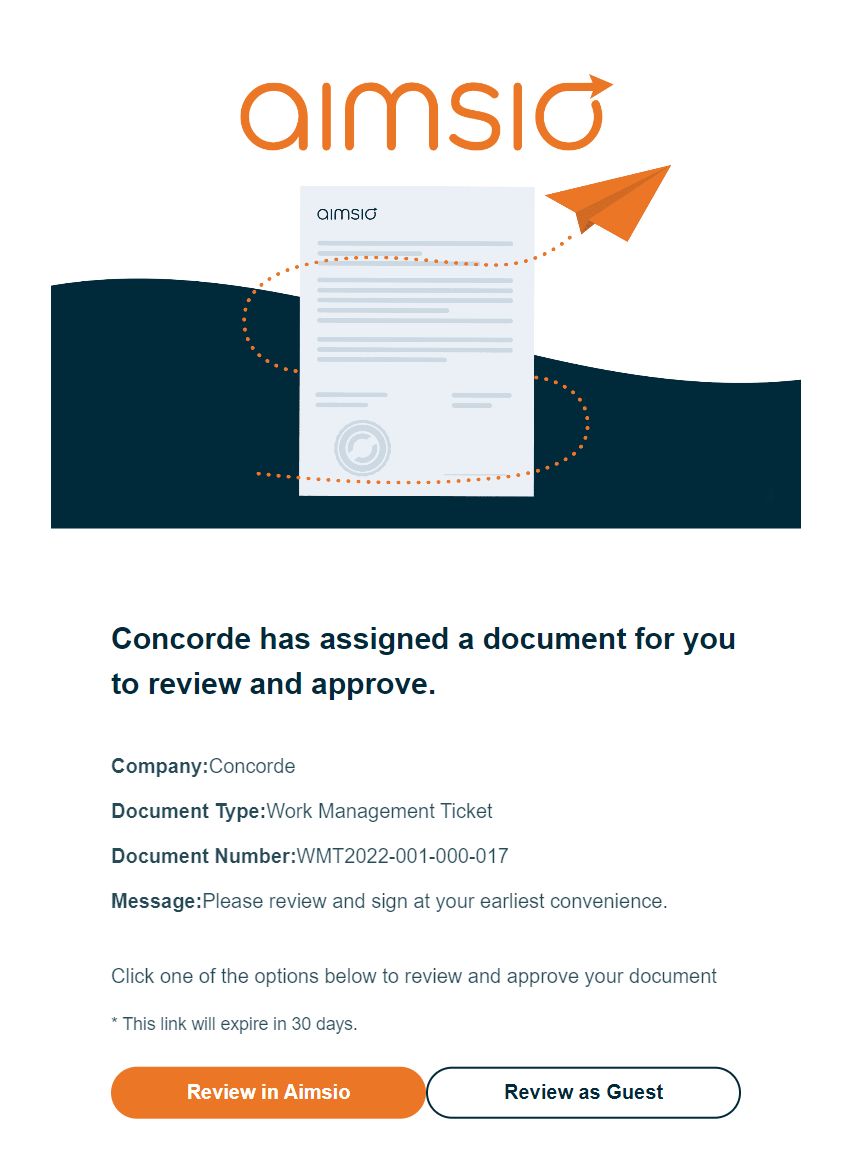
When a document is sent for signing (approval), all approvers receive an email with the following options:
-
Review in Aimsio
-
Review as Guest
Choosing Review as Guest will open the user’s browser and bring them to a signing page where they can complete their review. For more on ‘Review as Guest’ see our Client Portal guide.
How to Sign Up for an Approver Account
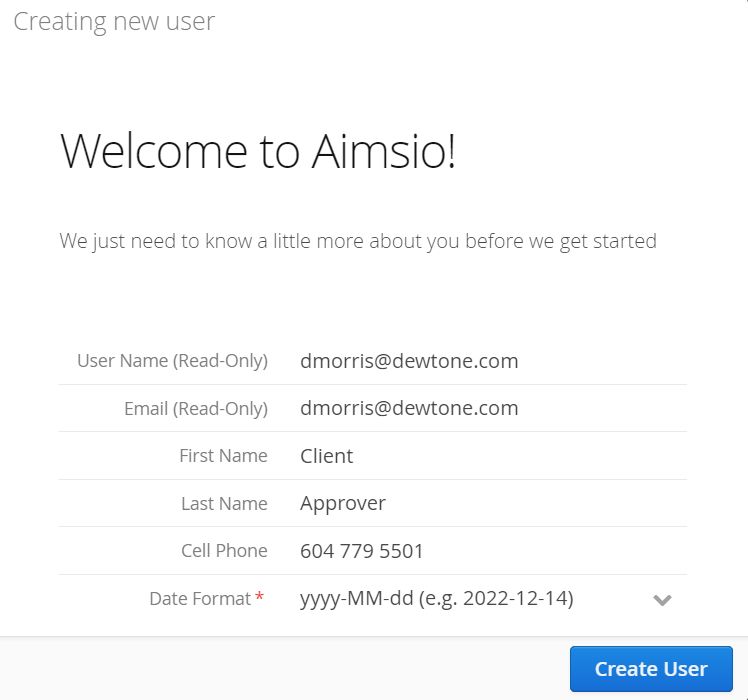
When approvers select ‘Review in Aimsio’, they are invited to create an account. Aimsio provides approvers access to a history of all pending and reviewed documents, as well as a convenient way to perform reviews and download documents without managing these requests with email.
If your clients select Review in Aimsio, they will be brought to a signup screen with their information displayed. They have the ability to change their First Name, Last Name, Cell Phone and preferred Date Format for their account.
- Once they are set they will click on Create User on the bottom right.
Make note of the User Name selected as that will be required for for accessing Aimsio’s Approval Portal in the future.
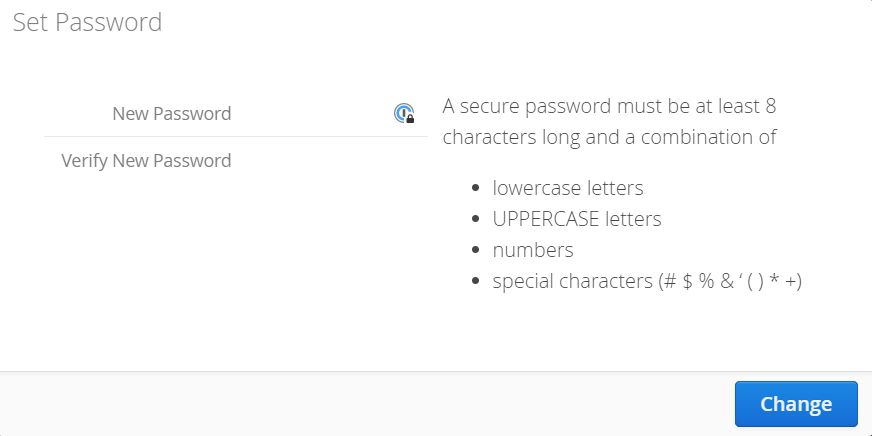
- They will be required (and encouraged) to create a strong password before logging in.
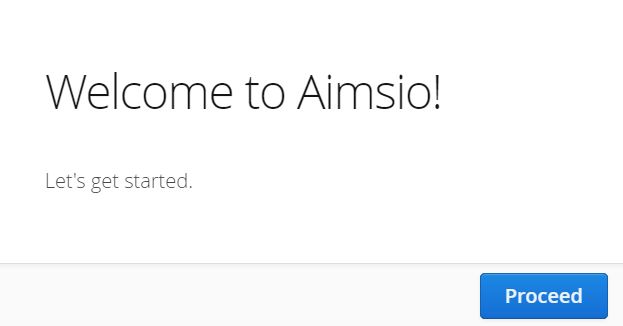
- After the password has been accepting they’ll be presented with a brief welcome message and the ability to log in by clicking Proceed on the bottom right.
How to Review Documents in the Aimsio Approver Portal
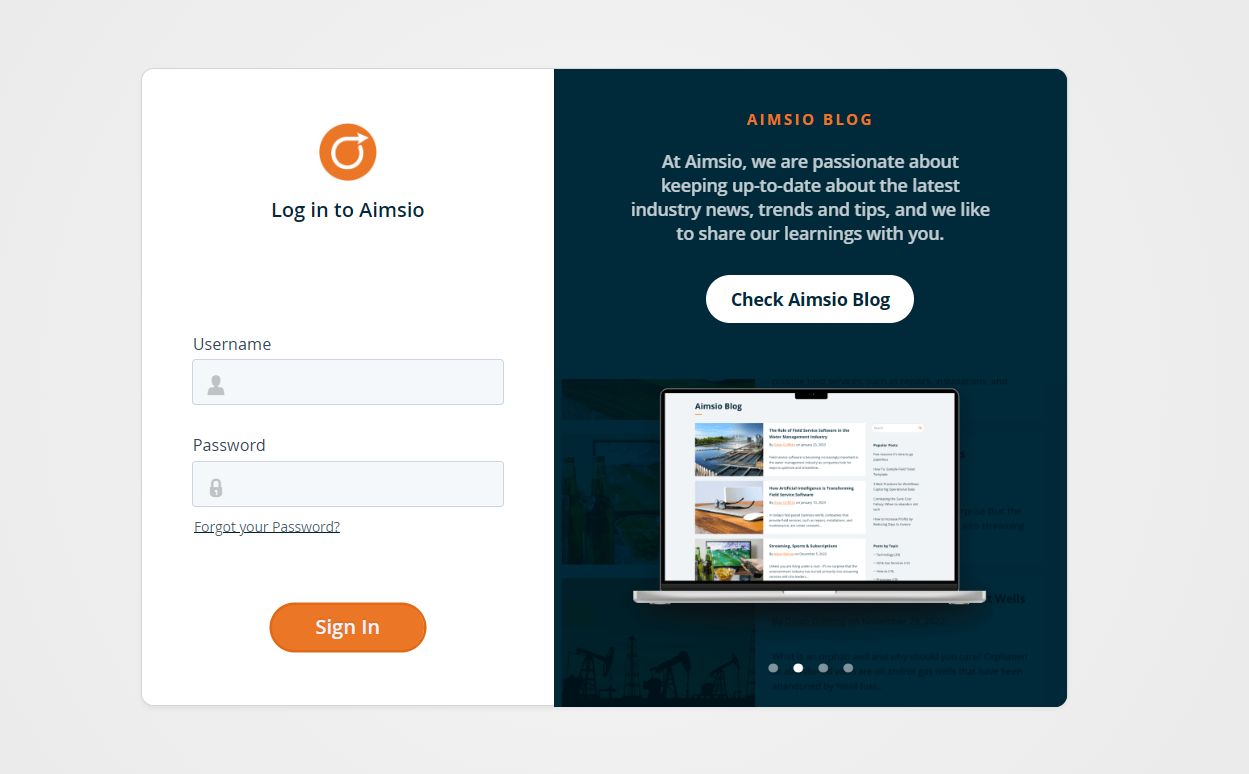
Log into Aimsio’s Approver Portal at https://portal.aimsio.com with the User Name and Password used when creating your approver account.
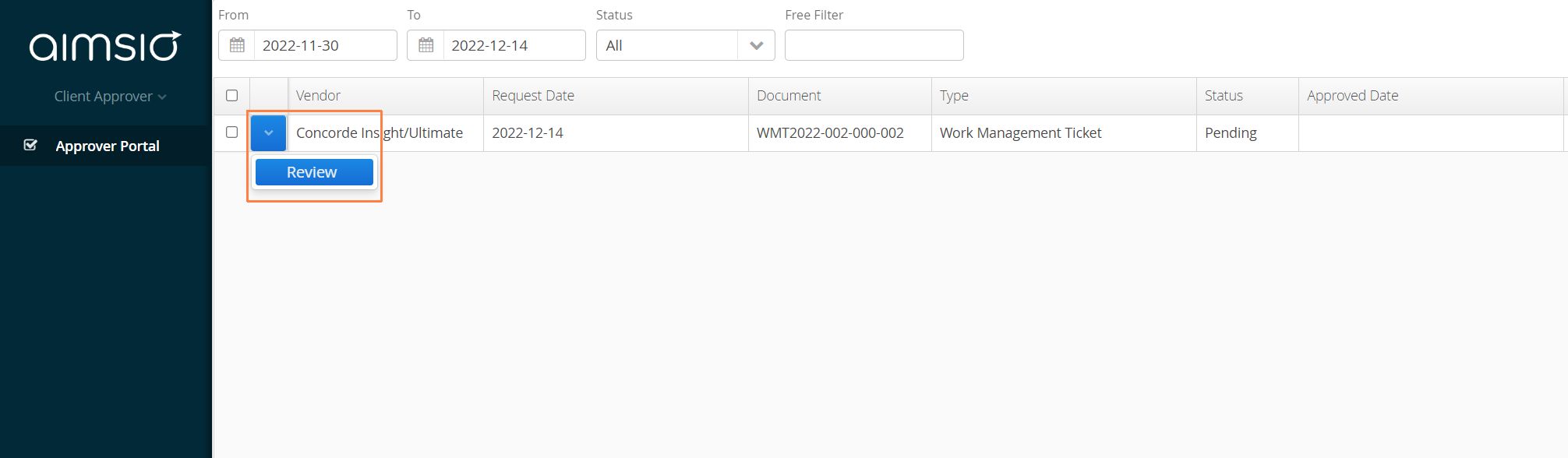
Once an Approver has signed up for a new account, they will be automatically logged into Aimsio. Here, they’ll find a list of all documents that have been shared with them via Aimsio’s Client Portal.
- Approvers that are ready to review a document can use the Action button located on the left of the document and select Review.
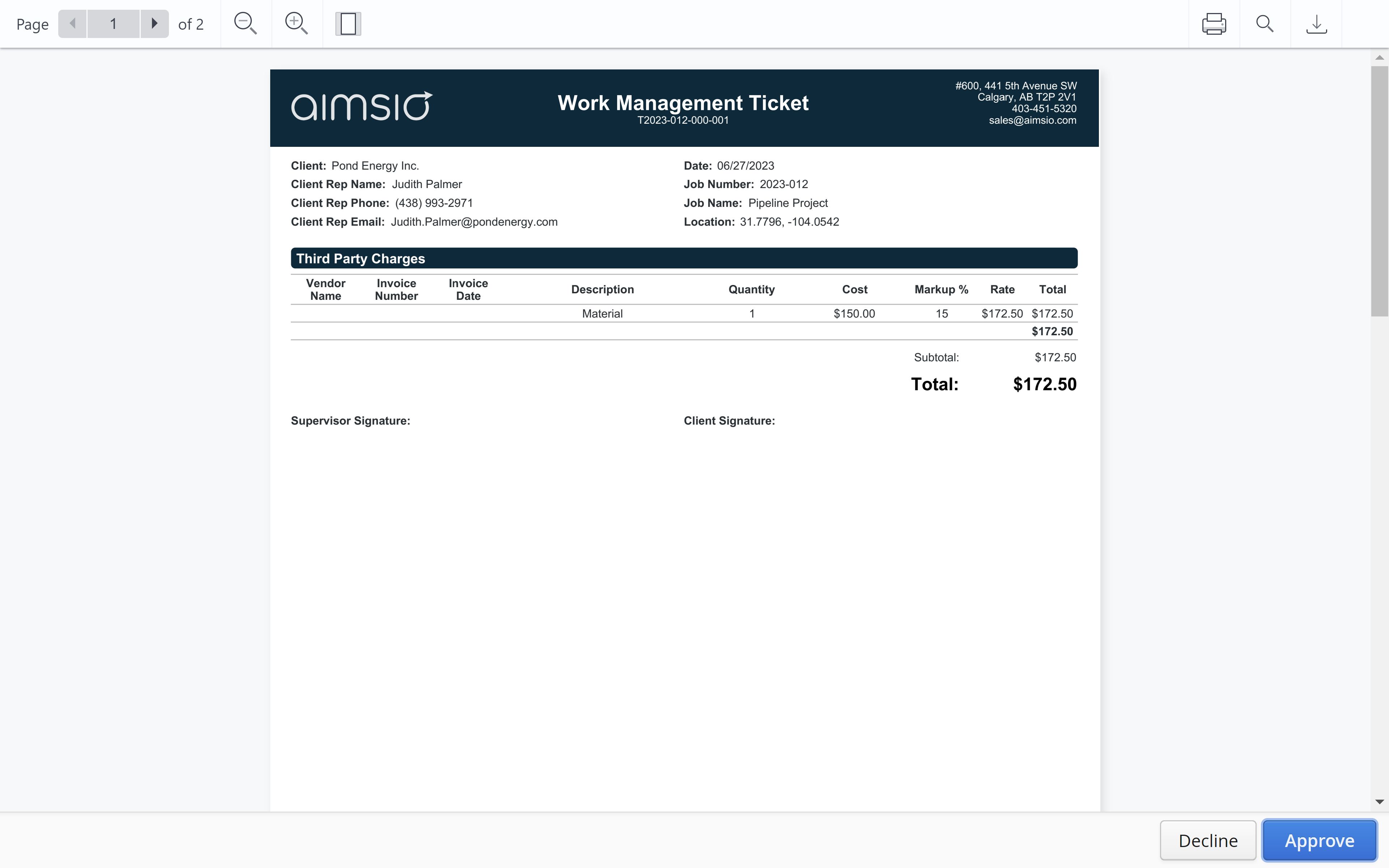
- Aimsio will open a window and present the approver with the document to review. There may be multiple pages, depending on the number of tickets included in the request. There will be options to Zoom, Print or Download on the top navigation bar. From here, Approvers can Approve or Decline (Reject) the request using the buttons on the lower right.
-
The final page of the document will includes their name, today’s date, the document number and date the document was created. A document will need to be digitally stamped or signed before it can be approved.
-
The Notes field to leave additional comments (or Codes).
-
The Stamp field is used to upload an image.
-
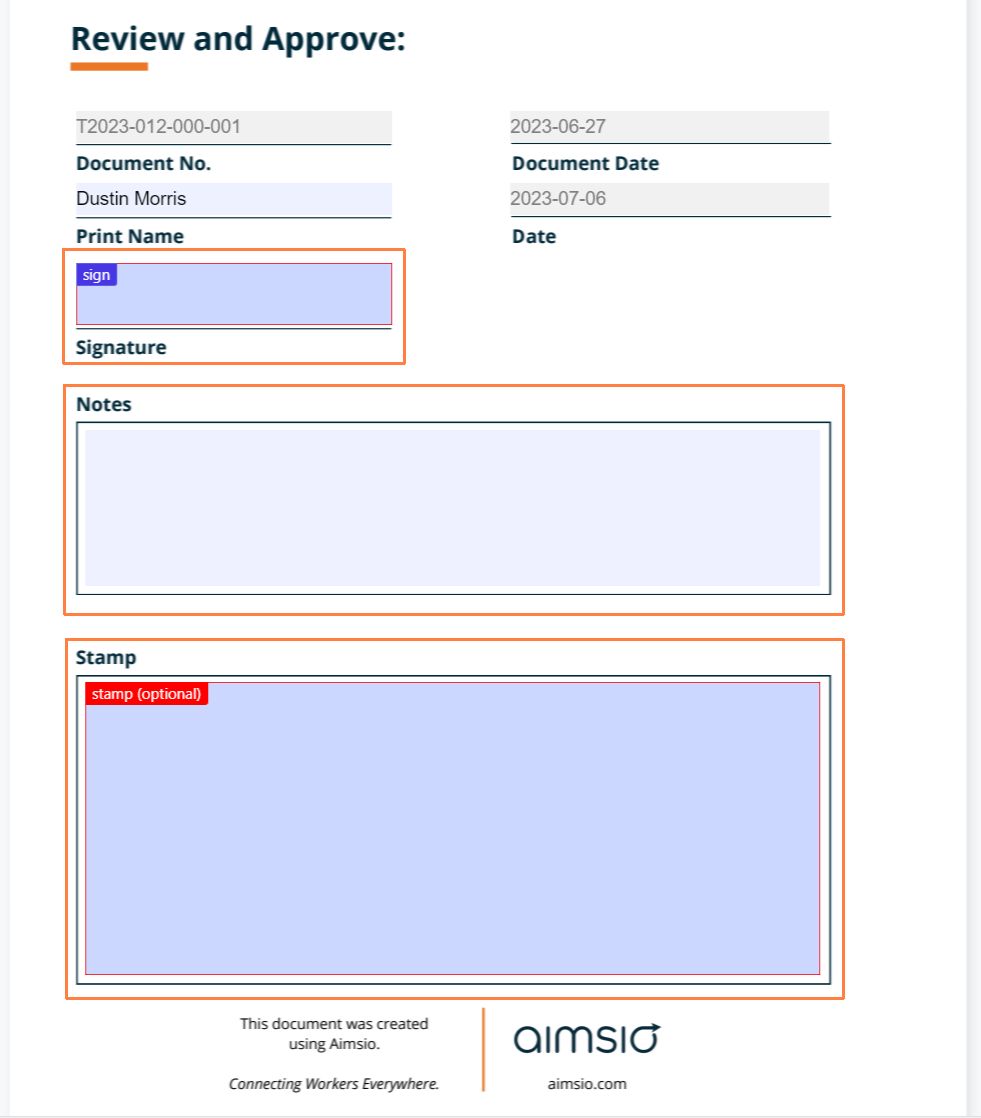
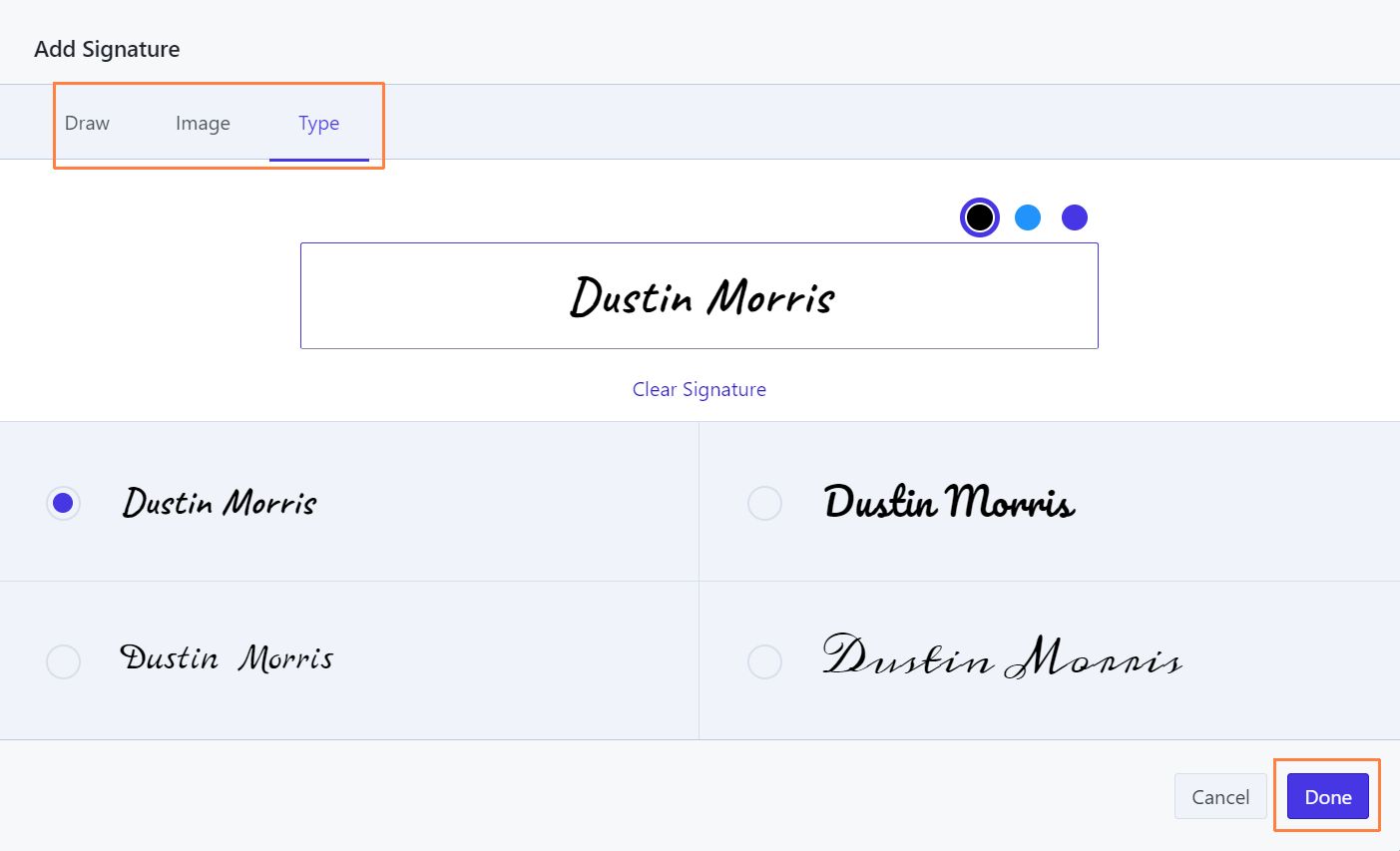
- Click on the Signature (Sign) field to begin signing. Users can type their name and inject a generated signature, or draw their signature using a mouse or touchscreen device. Once finished, select Sign on the lower left.
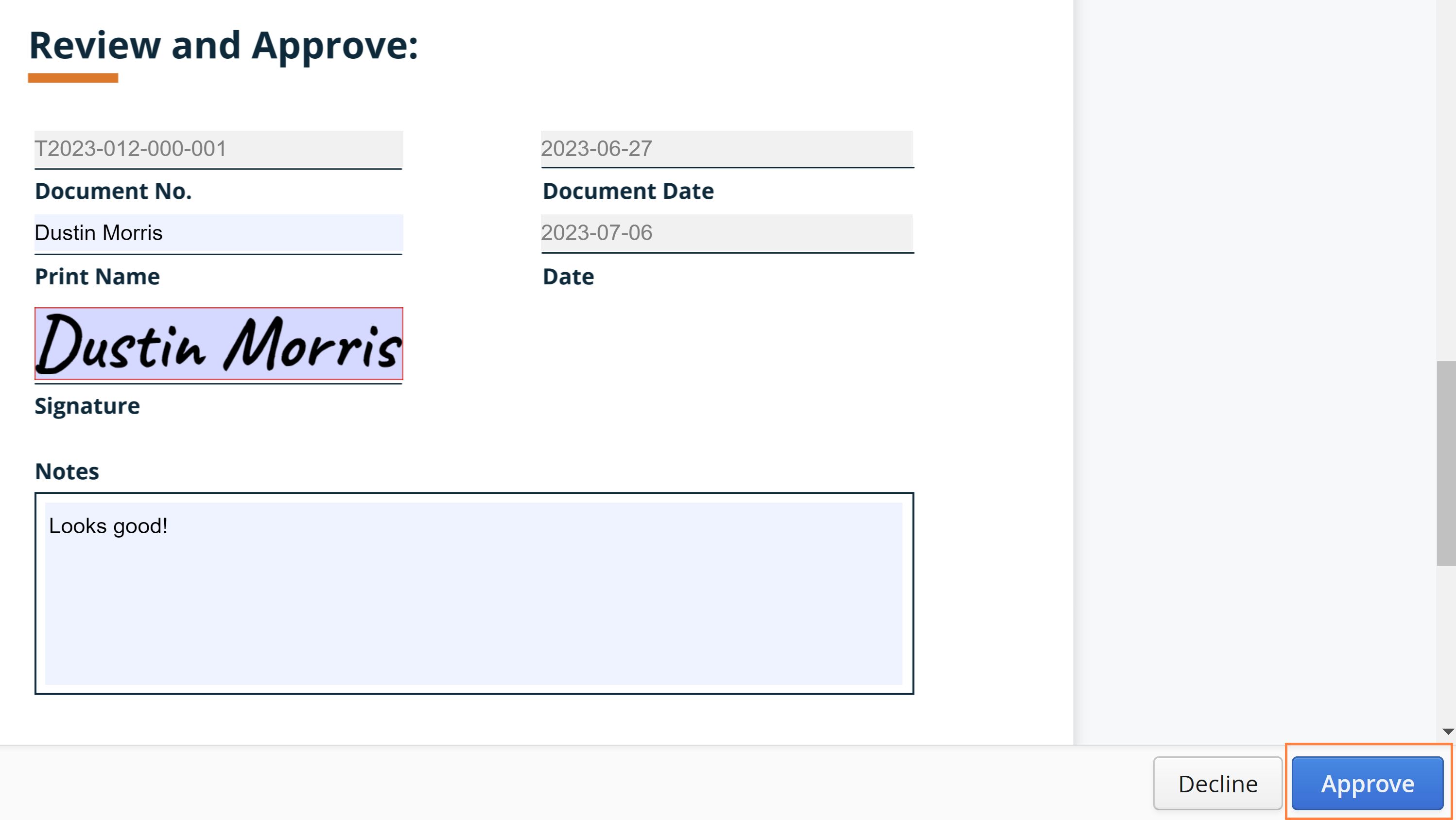
- The signature will be visible on the page and users will be directed to the bottom right-hand side of the screen to Approve and complete the signing process.
- Once complete users will be provided with the option to download the document to their device. This is not a requirement, as the ability to download documents from Aimsio’s Approver Portal at a later date will always be possible.
How to Upload an Externally Signed PDF
For approvers that are using an external application (ie: Adobe Acrobat, Blue Beam, etc.) to mark up and sign documents, users can use the Upload My Own PDF button on the lower right when viewing a document.
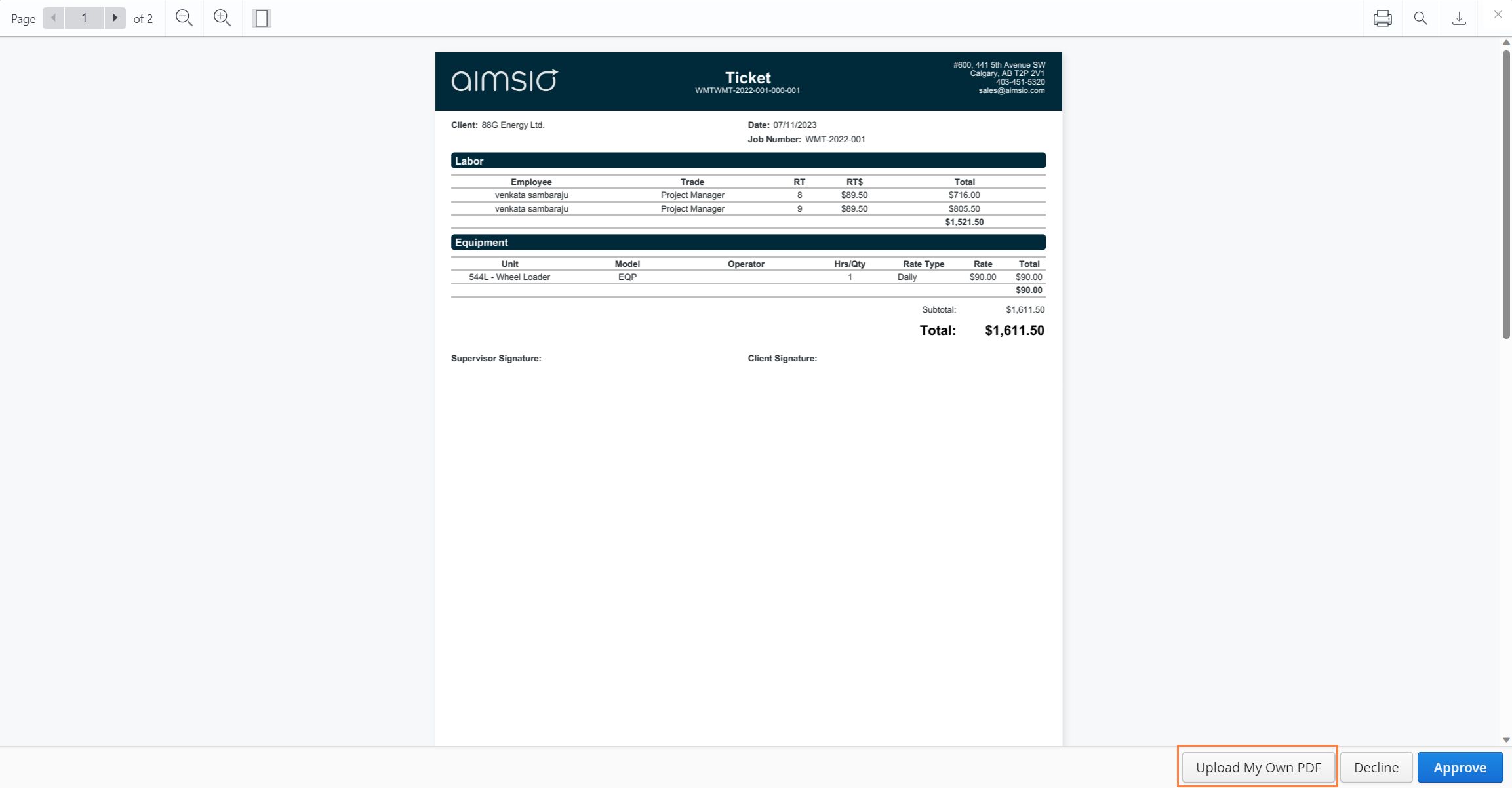
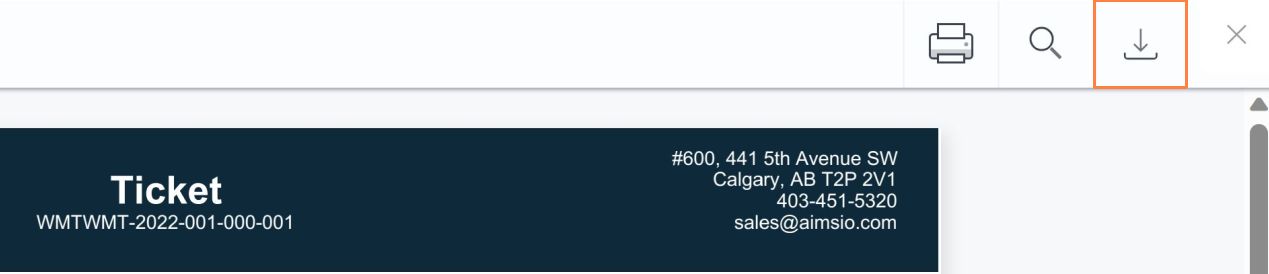
- Users must first download the document using the download button located on the top right hand corner when viewing the document.
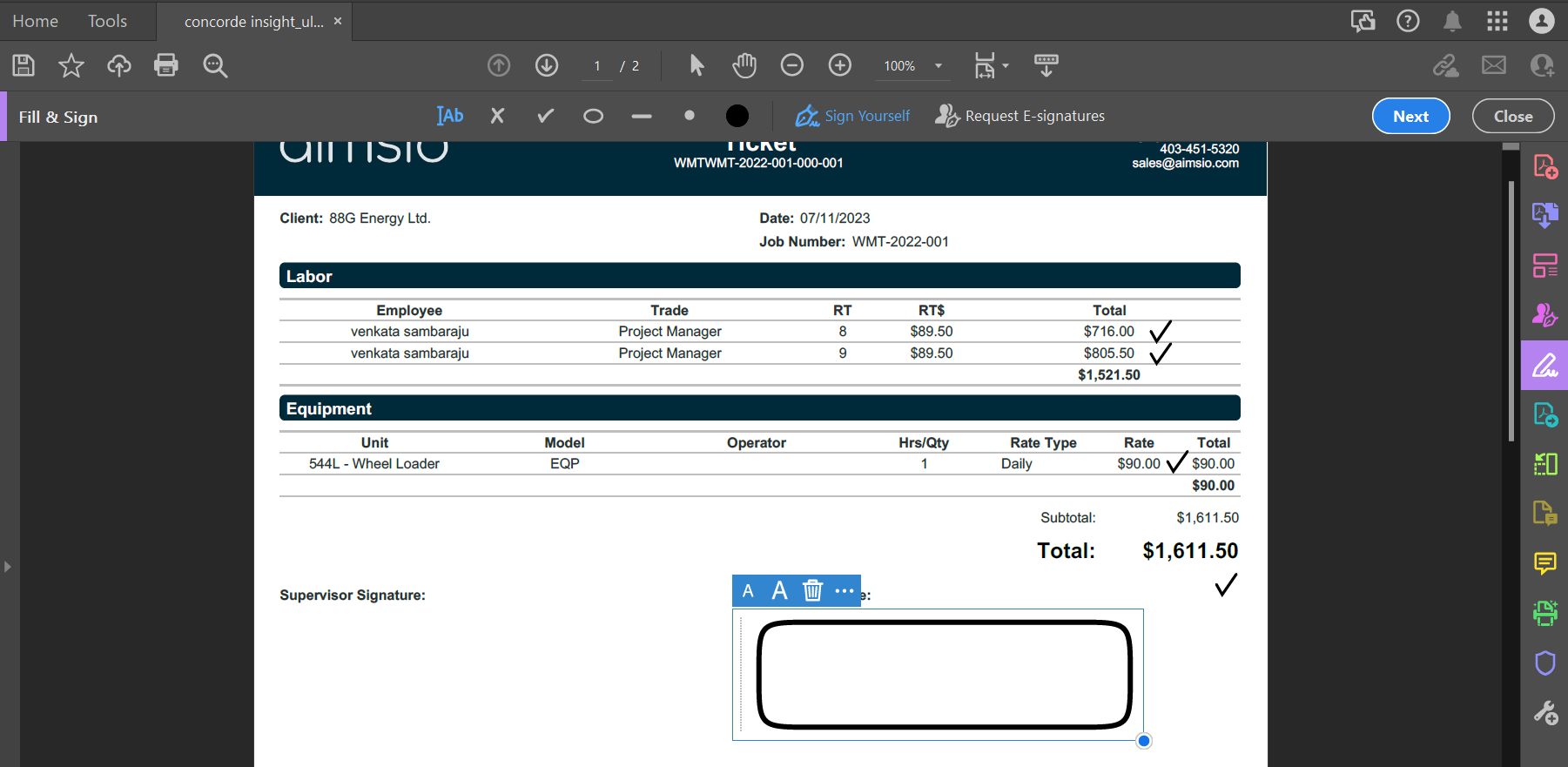
- The PDF is then signed and noted with an external application.
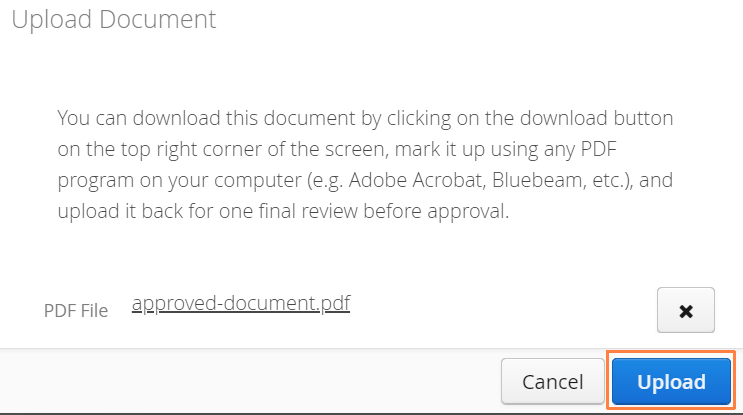
- Back in Aimsio, users will click on the Upload My Own PDF button, find the file on their device and click Upload.
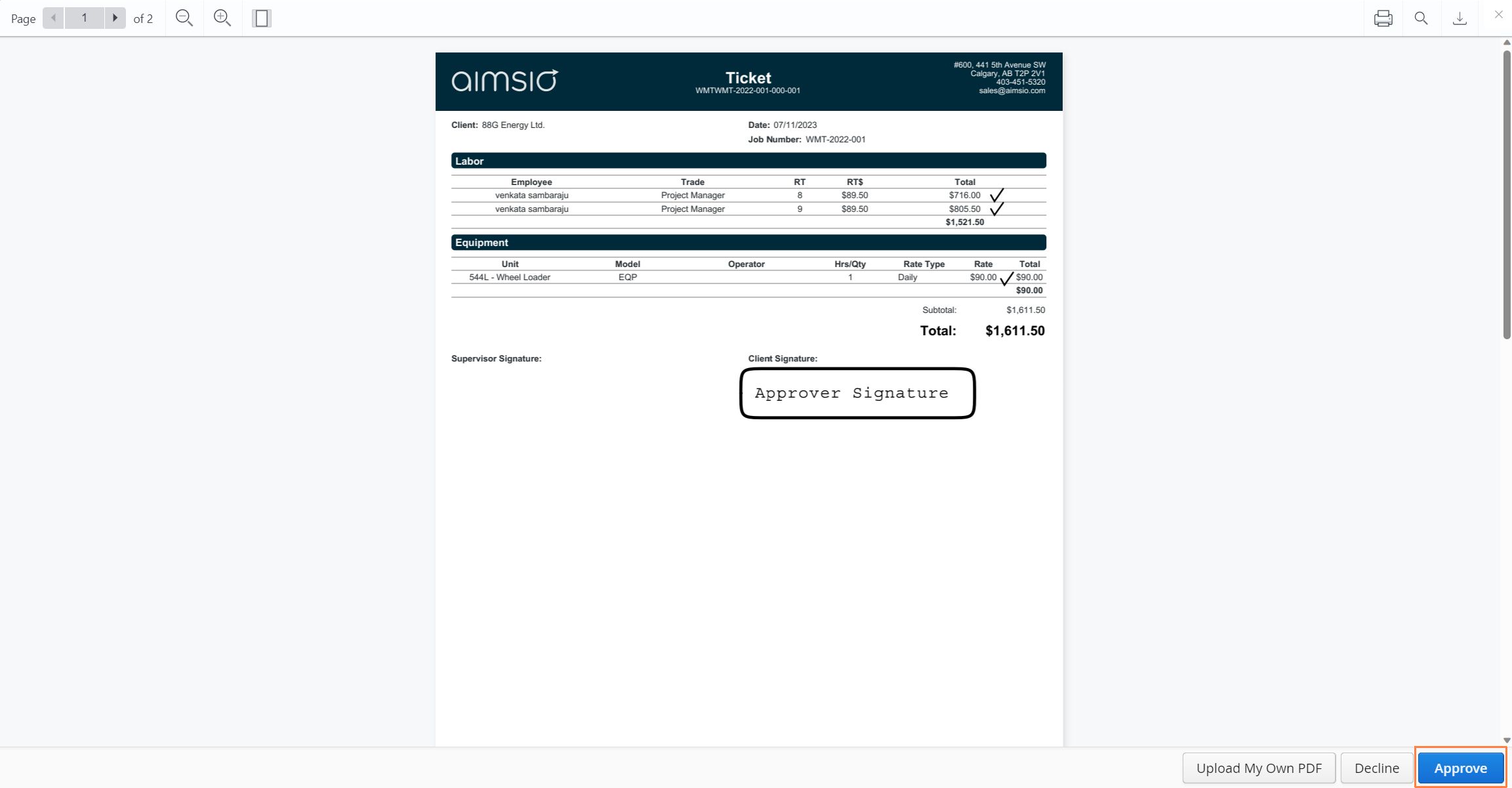
- Approvers will have one final opportunity to review the uploaded PDF. By clicking Approve on the lower right, the document will be replaced and uploaded back to sender’s account.
Document Status
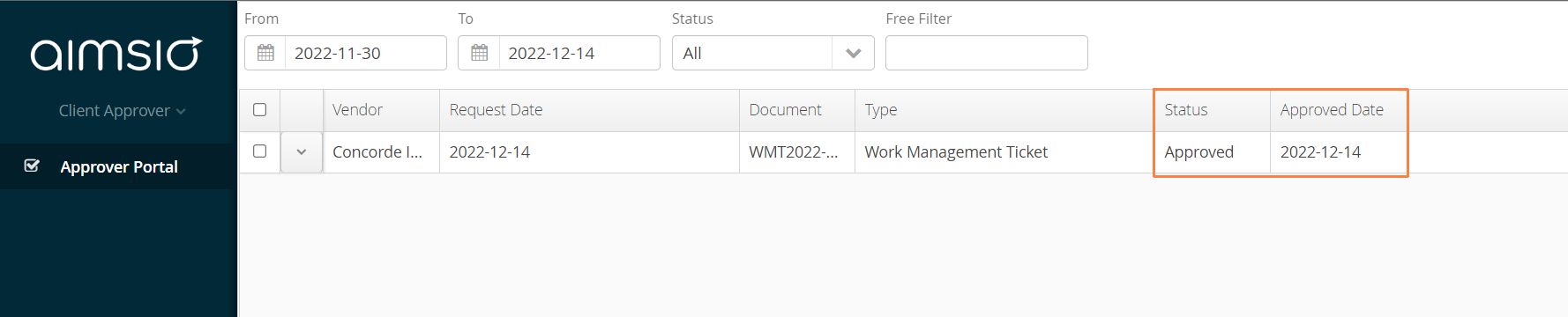
After a document is signed, users will be brought back to the main Approver Portal page where a list of the available documents will be presented. Note the Status of a document will change to Approved, along with the Approved Date.
How to Download Approved PDFs
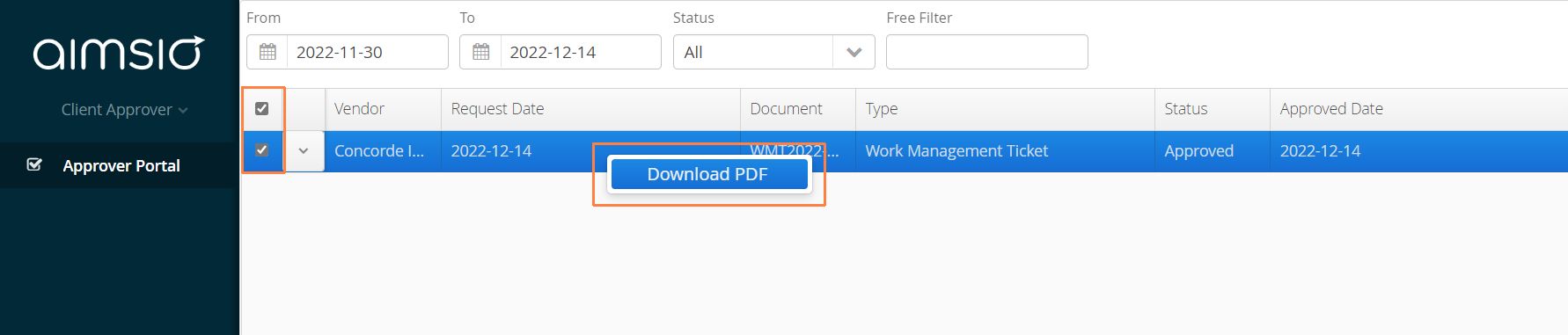
At anytime, users can download a copy of the approved PDF by select the checkbox on the right, then using a right-click action to Download PDF.
Approver Email Notifications
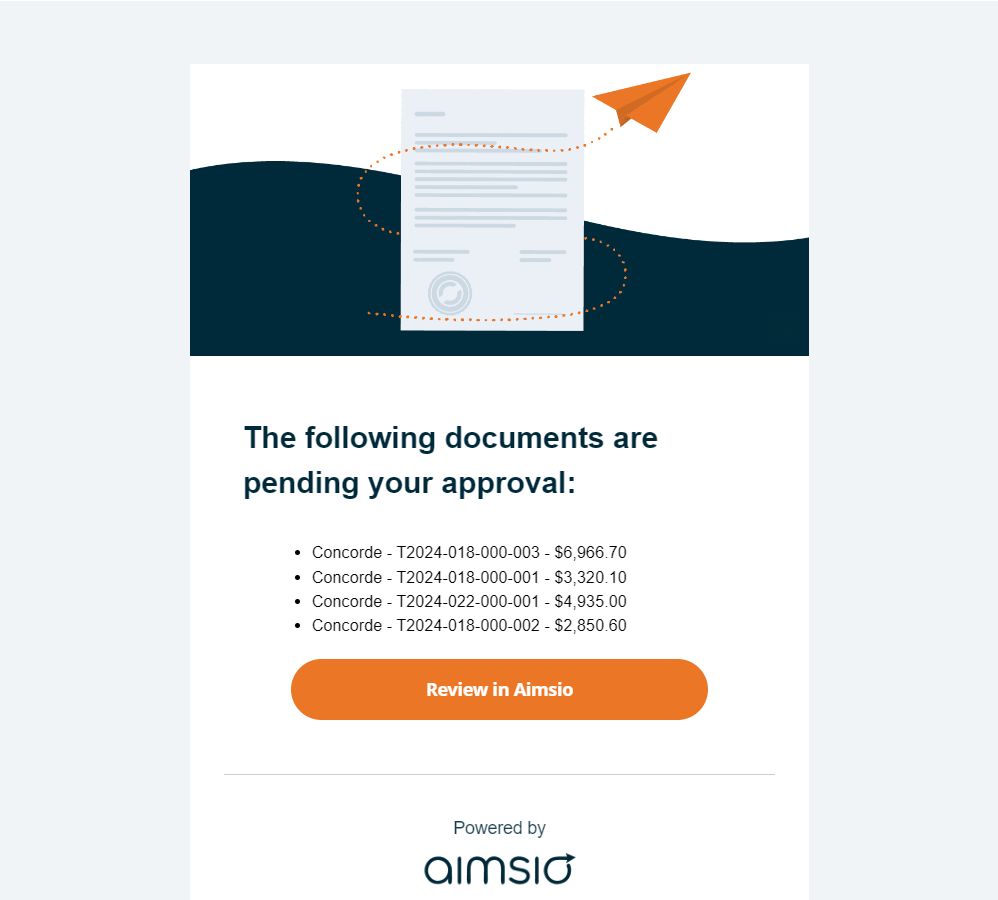
Client Portal Approvers that have created an account to review documents in Aimsio have access to a daily digest summarizing all of their pending approval requests.
Daily Digests emails will be delivered each morning at 6am MST. The summary includes all pending requests over the last 30 days, the dollar amounts of each document and a call to action button enabling approvers quick access to log into Aimsio and perform their review.
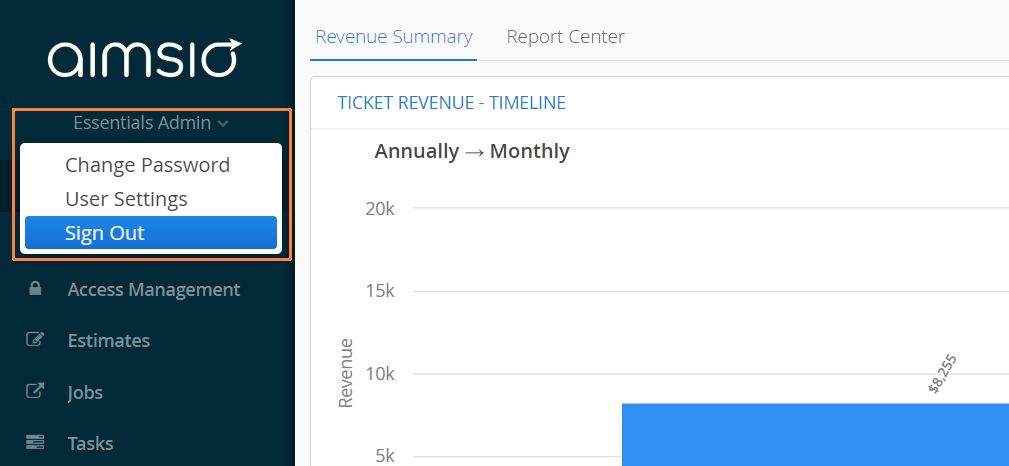
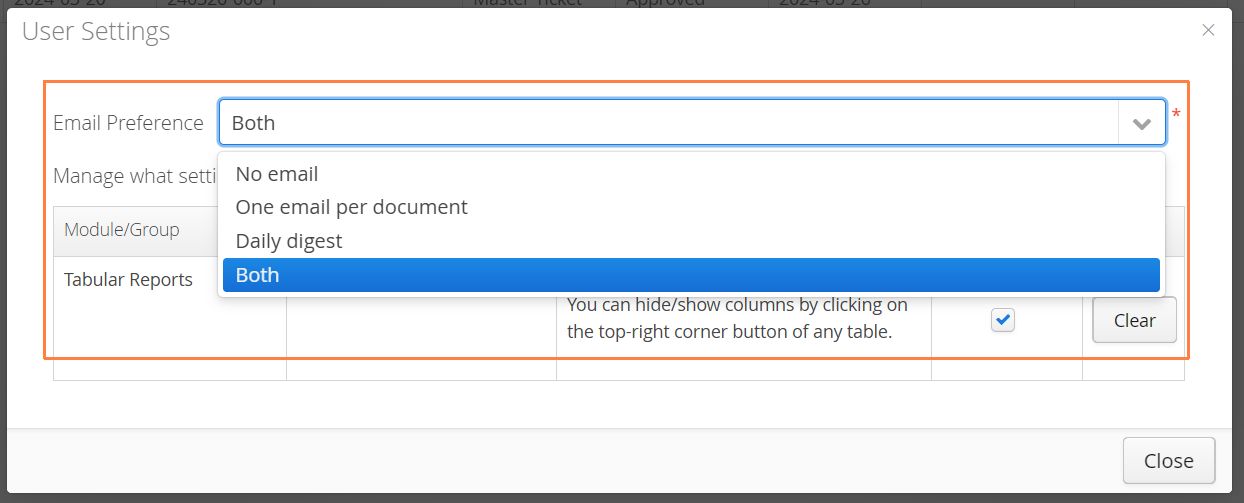
Approvers with an Aimsio account have the ability to change their email preferences after logging into the Approval Portal. By clicking their name and selecting User Settings
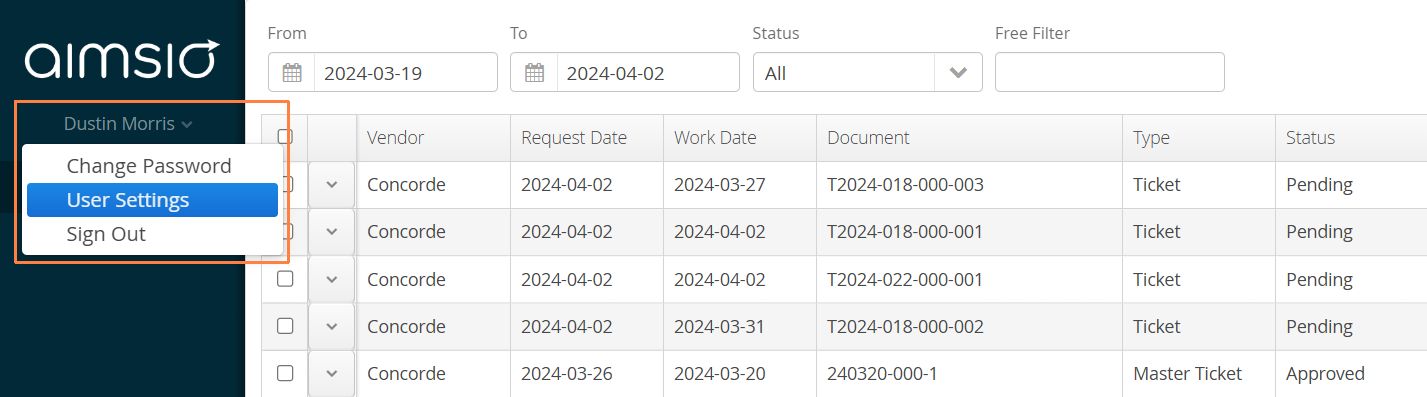
Approvers can opt out of receiving emails reach time they receive a document approval request and simply rely on the daily digest to inform on approvals. Alternatively, approvers logging into Aimsio daily can opt out of receive emails all together.
Bookmark Aimsio’s Login Page
We recommend bookmarking Aimsio’s login page for quick access to your document approval requests. Aimsio’s login page can be found at https://portal.aimsio.com
Remember to use the same credentials when setting up your approver account for the first time.
If you are an approver that also has another Aimsio account, you will need to log out of your Aimsio account prior to logging into the Approver Portal.