When billing for the work of subcontractors, accounts can conveniently parse subcontracted hours from the work of your own staff. Follow the steps below to ensure your account can effectively reconcile costs.
Add Subcontractor Companies
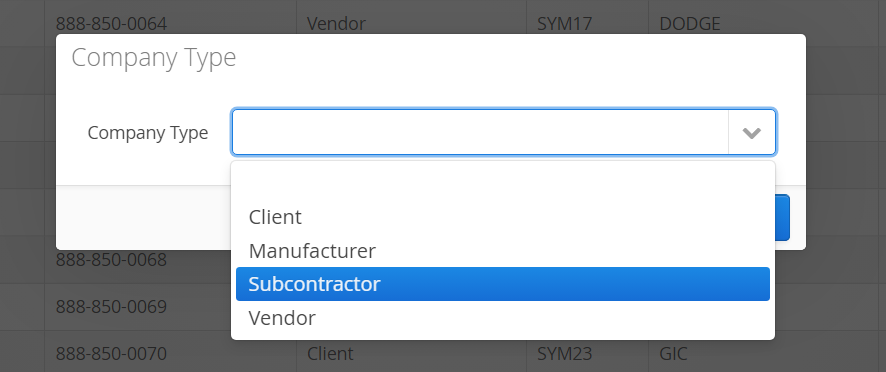
From the Master Data > Companies tab, add one or more Subcontractors by using the Company Type dropdown. Subcontractor Companies can be directly associated with personnel and equipment.
Add a Subcontractor Employee
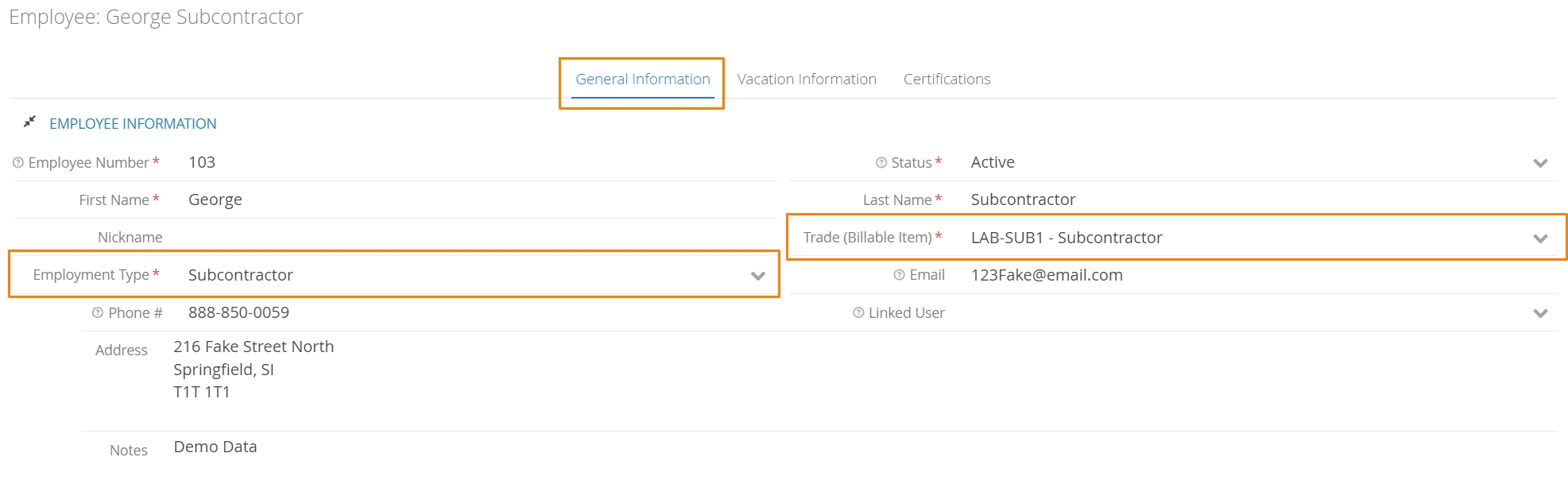
If you work with a consistent roster of subcontracted personnel, you can add them directly to Aimsio as a Subcontractor Employee. Subcontractor Employees can be dispatched and billed just like any of your direct-hires.
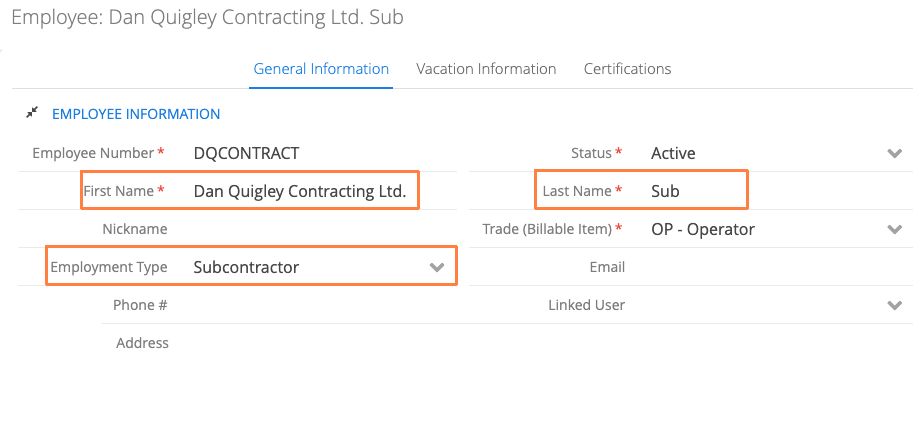
From the Employee profile, ensure the Employment Type is set to Subcontractor. Select the Trade that will control the subcontractor’s billing rate.
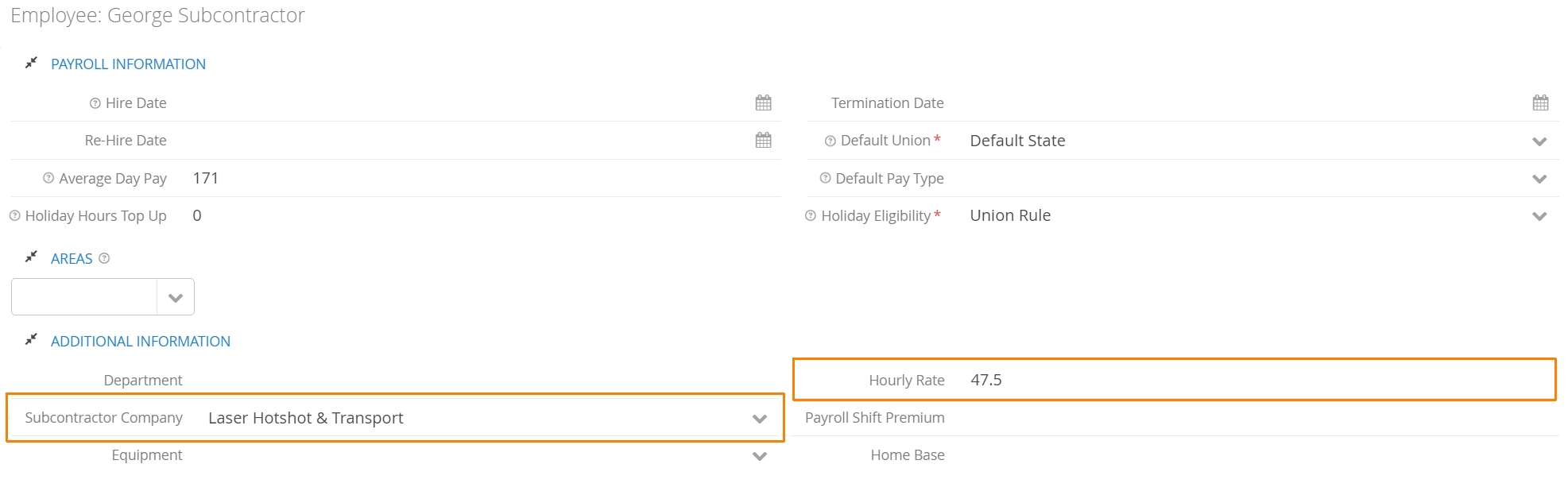
Under the Additional Information section, associate the Subcontractor Company so the Employee’s hours can be directly linked to the company they work for. Include an Hourly Rate so the cost of the Employee can be separated from the rate their time is being billed for.
Add a Subcontractor Company to Equipment
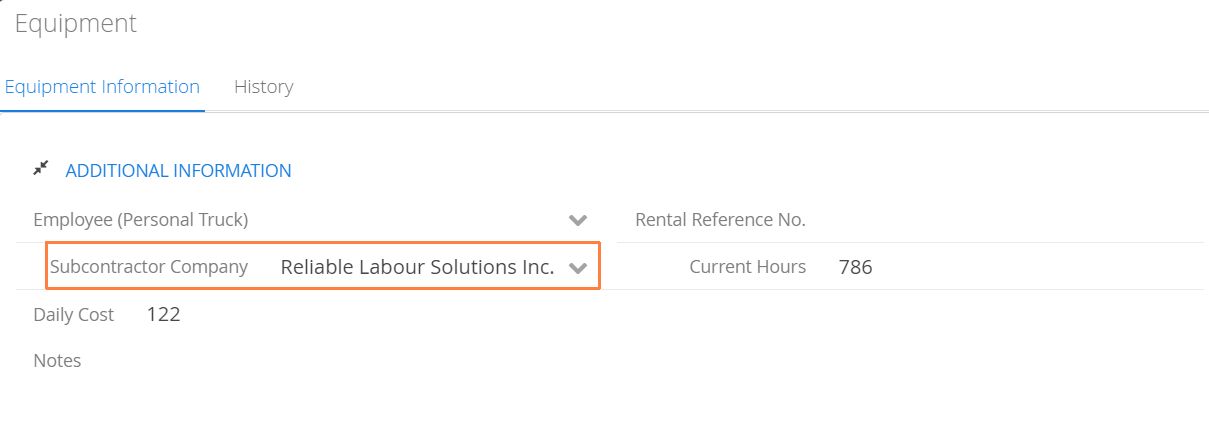
If you work with subcontracted Equipment, adding that Equipment to the Master Data > Equipment tab will allow the resources to be dispatched and billed just like any of your own assets. We can help you pull reports on all subcontracted equipment.
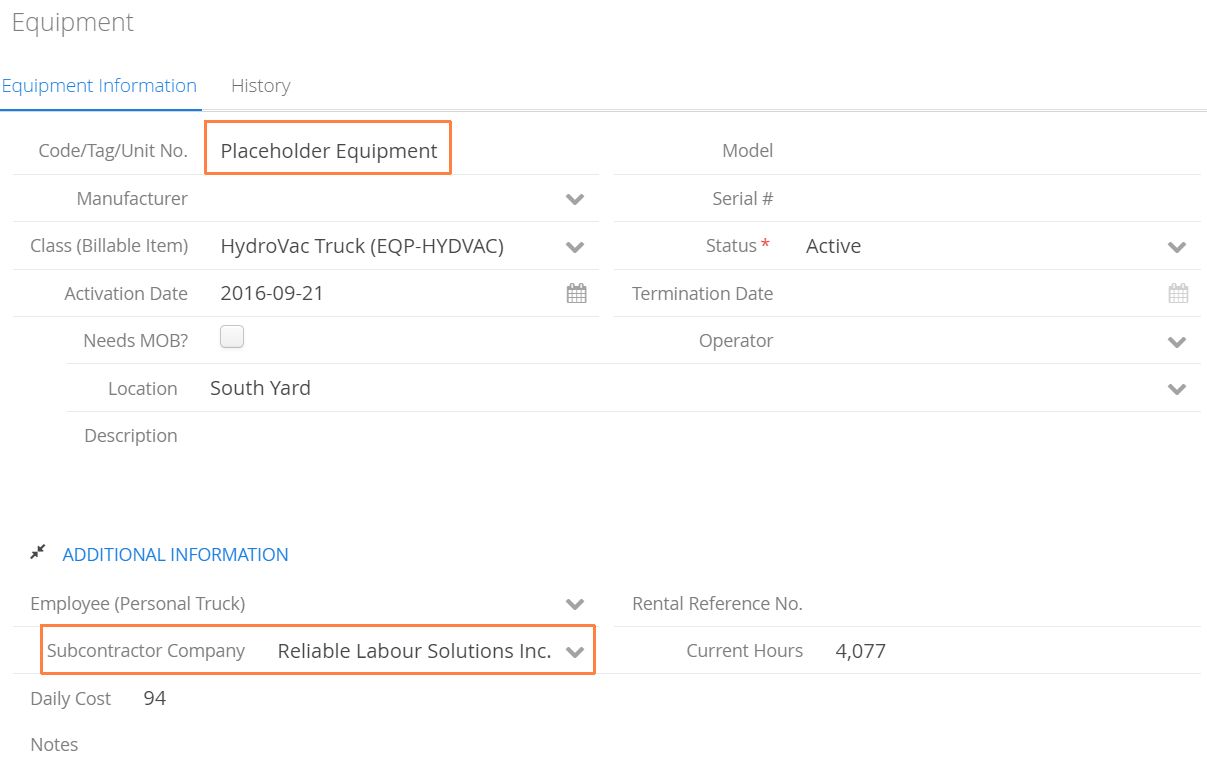
From the Equipment profile, select which Subcontactor Company it belongs to.
If you don’t know your subcontracted resources in advance
In the event you don’t know which personnel or equipment you’ll be provided with, or you aren’t required to maintain a list of specific subcontracted assets, accounts can create a Employee or Equipment placeholder instead.
When creating a new Employee, list the First and Last name as the company you subcontract for. Ensure the Employee Type is also set to Subcontractor.
When adding Equipment, use the Code/Tag/Unit No. field for your placeholder name. Ensure the Subcontractor Company is also set.
Subcontractor Billing
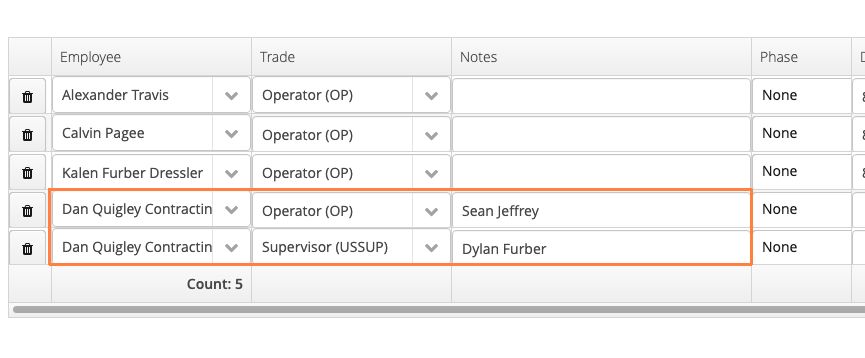
When completing an Aimsio Ticket or Timesheet, select the Subcontractor Employee, Subcontractor Equipment or Subcontractor Placeholder and record any hours completed by the subcontracted asset, exactly as you would when recording the work of direct-hires or company-owned equipment.
Employee Trades or Equipment Classes will determine the billing rate for the type of work done that day.
An additional field can be provided on a Ticket or Timesheet, if accounts are required to capture employee names as you learn them.
Reporting on Subcontractor Hours
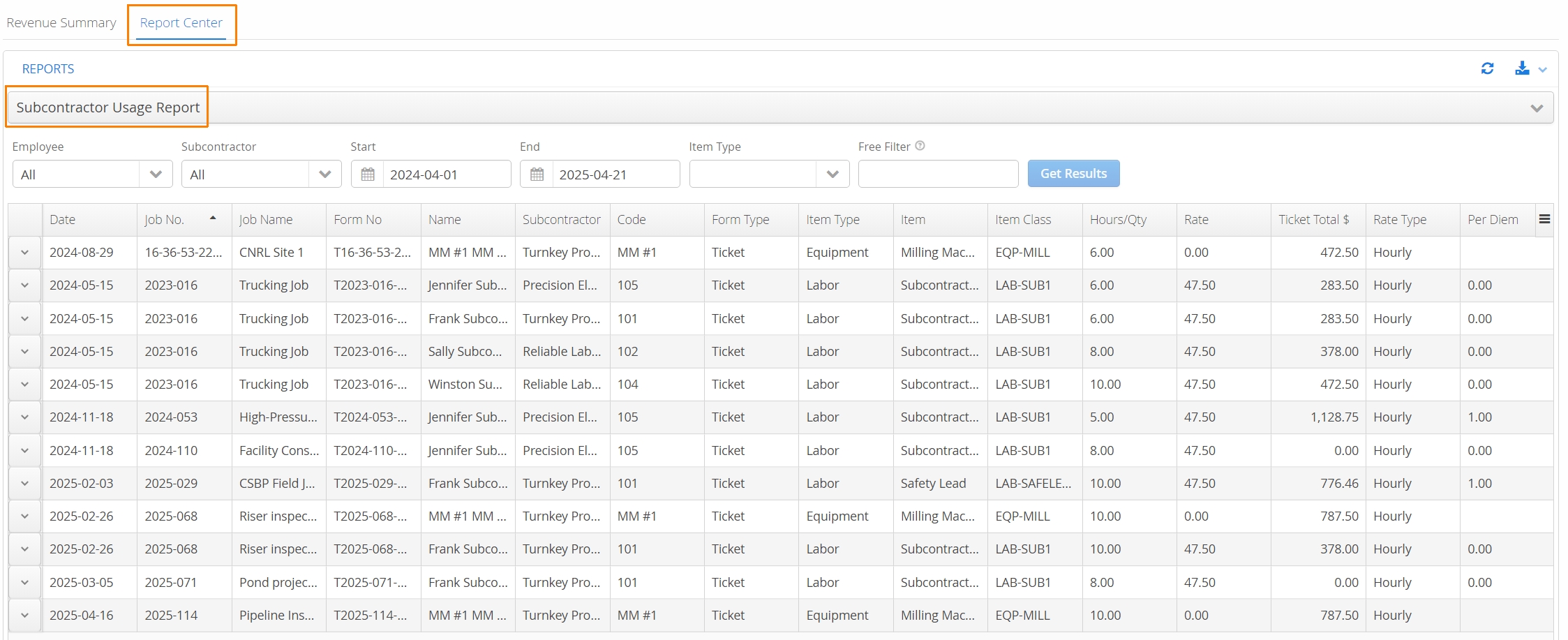
Authorized users can access the Subcontractor Usage Report available in our Report Center. This report can be exported to csv and cross-referenced with any invoice provided by your subcontractor.
Click here for more information on the reports in your Aimsio account.