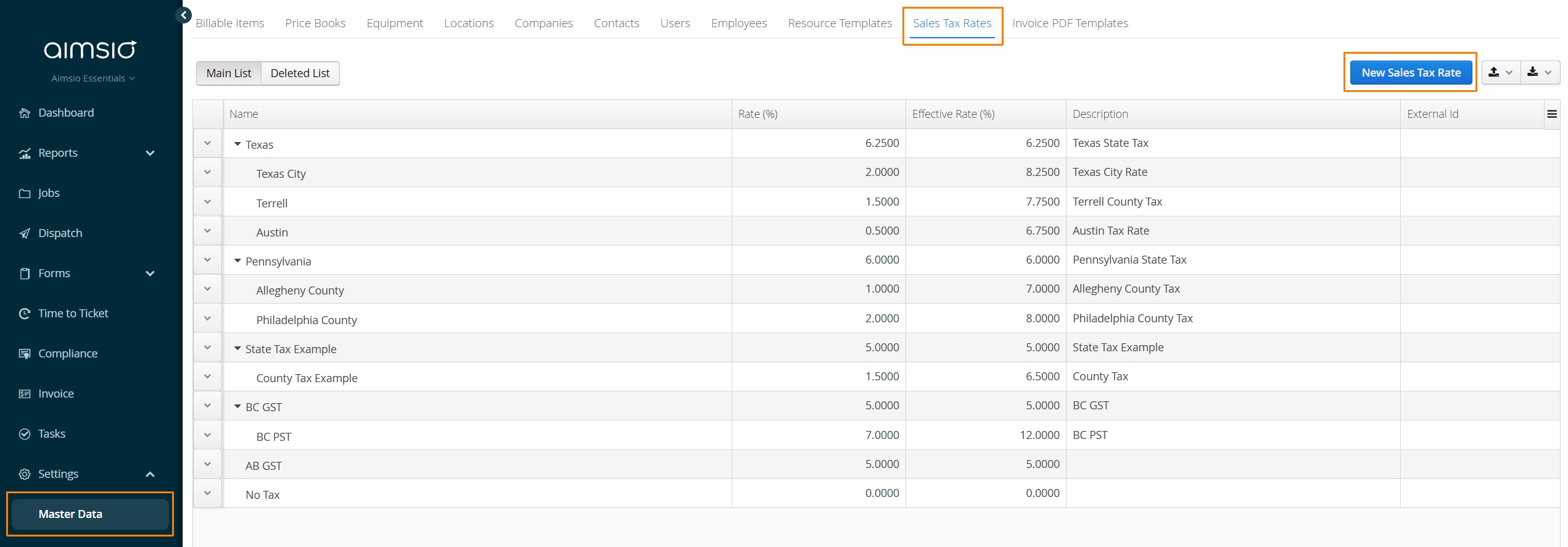
Aimsio supports hierarchical sales tax requirements for both US and Canadian customers. Authorized users can define rates in the Master Data > Sales Tax Rates page. Tax rates are then referenced at the Job level and will be visible and editable on all Invoices.
How to Add a New Sales Tax Rate
- Navigate to the Sales Tax Rates tab in Master Data, locate the New Sales Tax Rate button on the right.
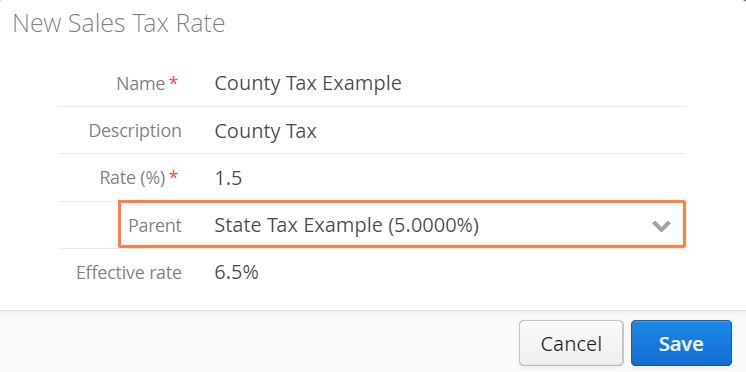
A window will appear asking for the Name, Description, Rate and Parent of the Sales Tax Rate. The Effective rate will be influenced by whether a rate is associated to a Parent Sales Tax Rate.
- If this is the first Sales Tax Rate in your account, it will not be possible to nest it under a parent. Start with the State or Federal tax rate to act as the parent for any City/County/Provincial rates to be added under it.
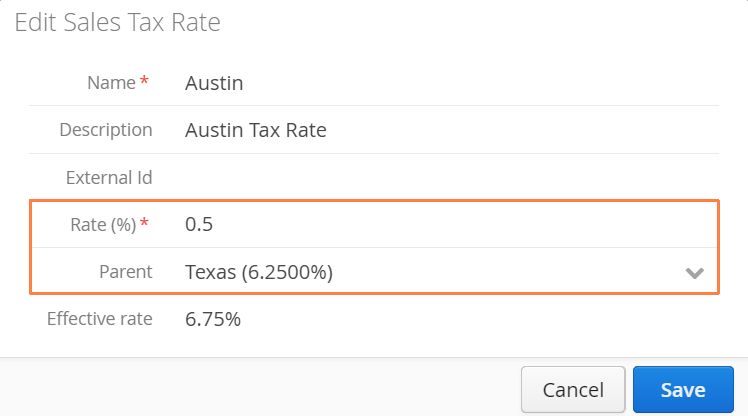
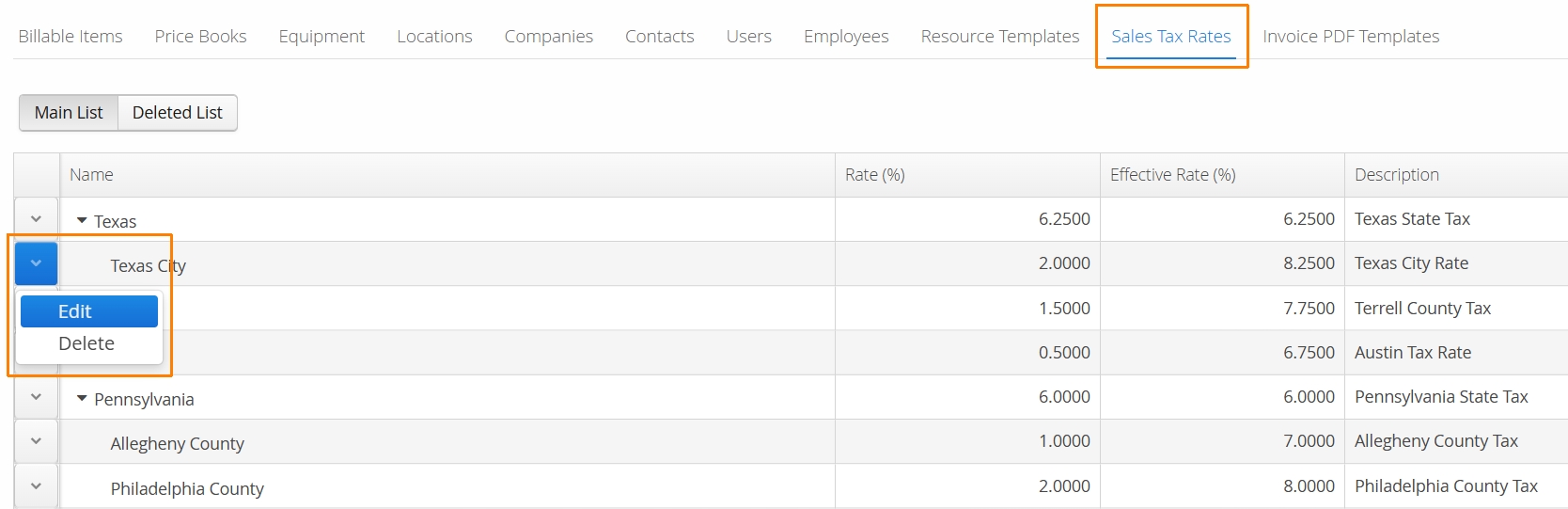
- For US Customers, an example would include having the State Tax Rate (Texas) act as the parent at 6.5%. A new sales tax rate can be added for the county/city (Austin) at 0.5%.
- For Canadian customers, an example would include having GST (5.0%) as the parent tax rate and the provincial PST (7.0%) nested under it. This would allow users to only tax GST on select items when required.
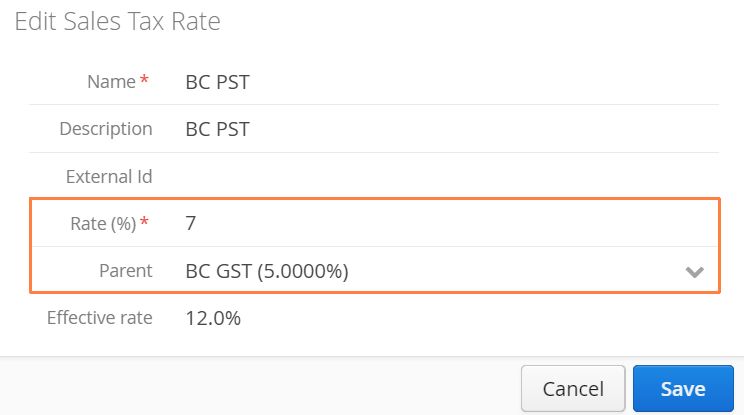
- Sales tax rates can be adjusted anytime by using the Action button located on the left. The benefit of nesting city and county rates under a state tax rate will allow Aimsio to automatically make the appropriate adjustment to all child rates when a parent rate is changed.
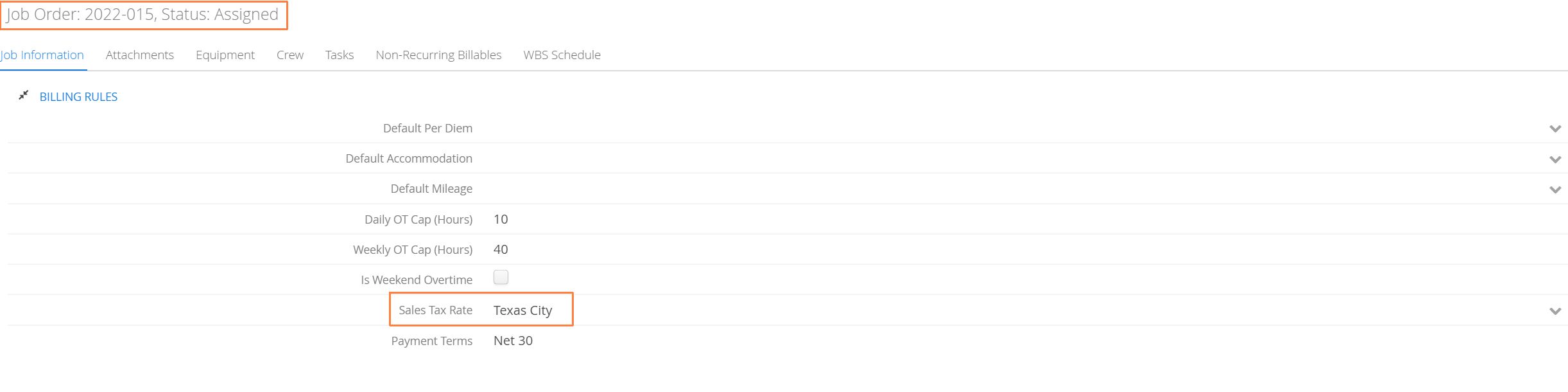
How to Apply Sales Tax Rates to a Job
- Under the Billing Rules section of any Job, use the Sales Tax Rate field to select one of the available rates in your account.
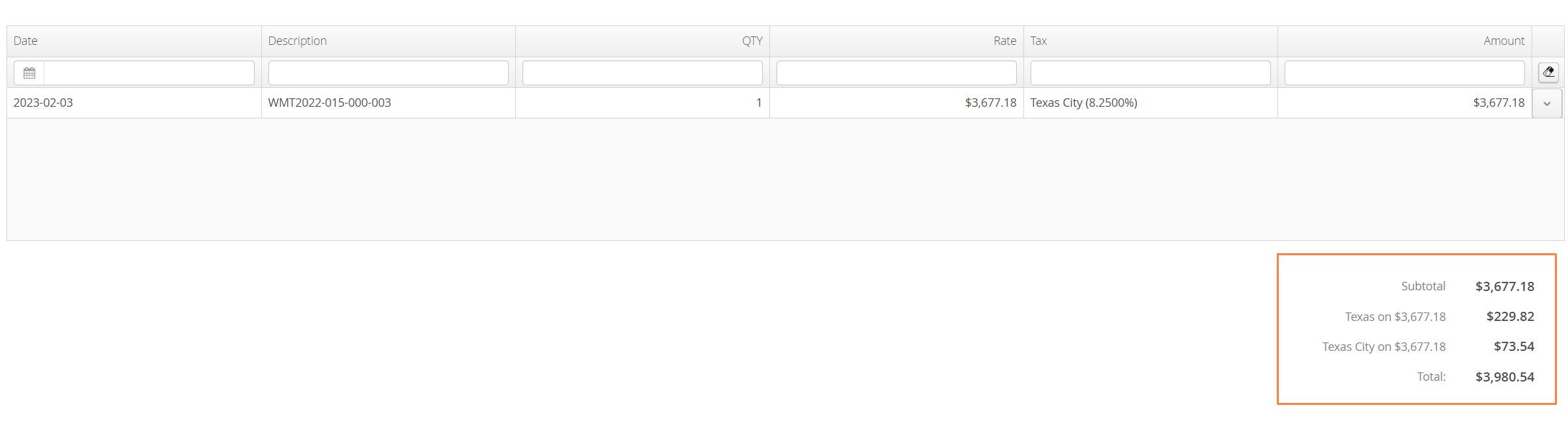
Viewing Sales Tax on an Invoice
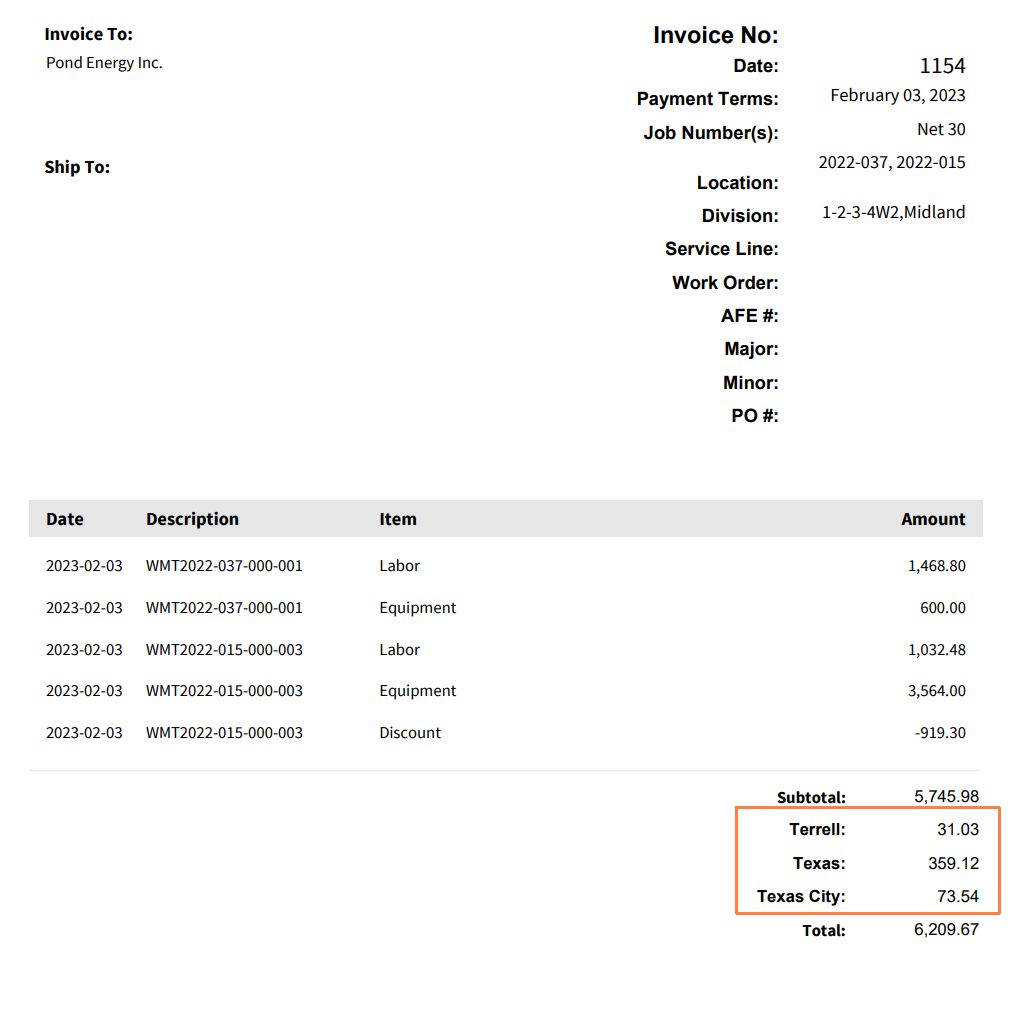
- When a child Sales Tax rate is selected for a Job, the parent and child tax totals will be broken down separately on the invoice.
How to Restrict Sales Tax Rates on Price Books
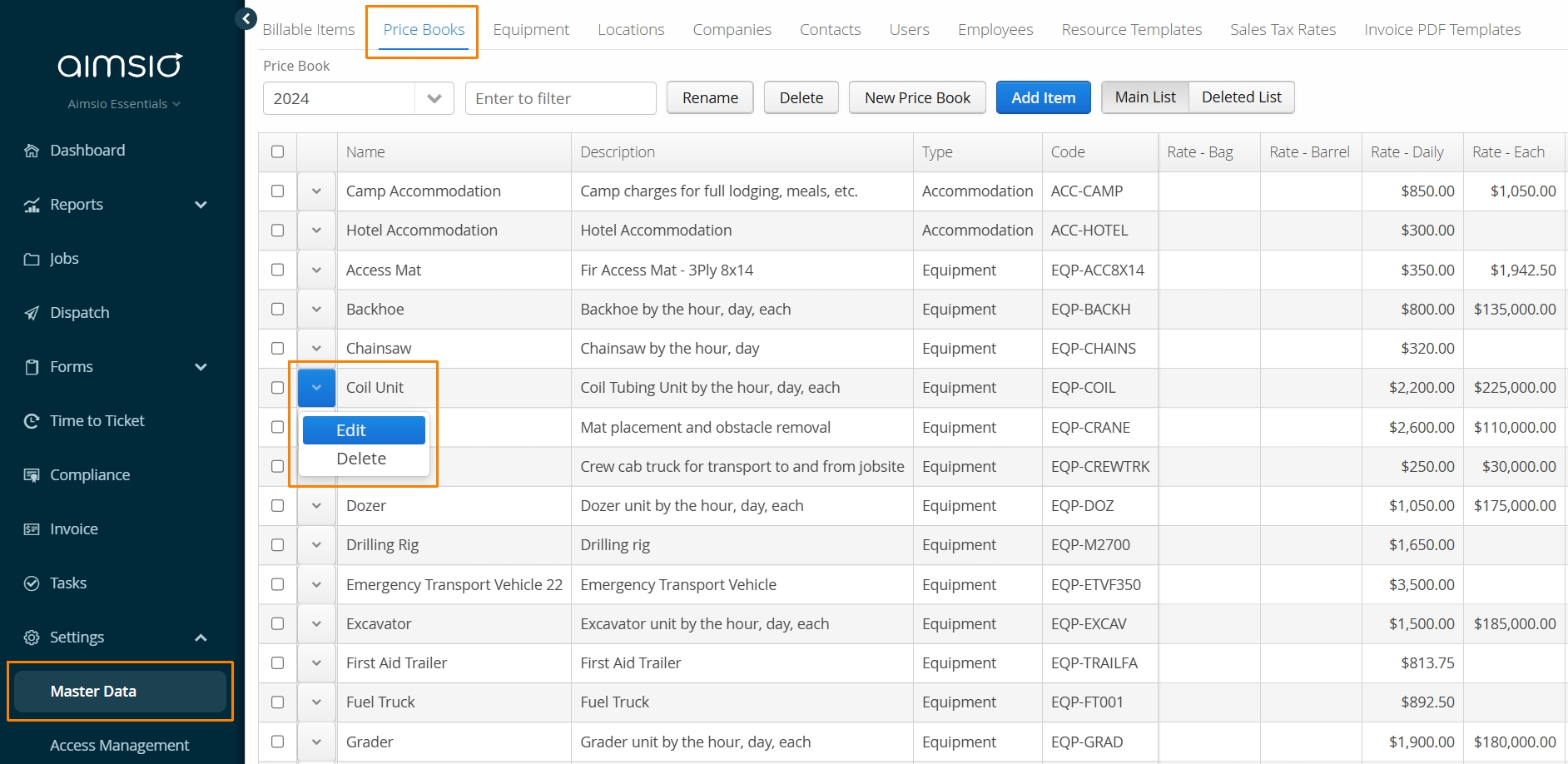
It’s possible to control how Sales Tax is applied to specific Billable Items in a Price Book. First, Edit any item in a Price Book.
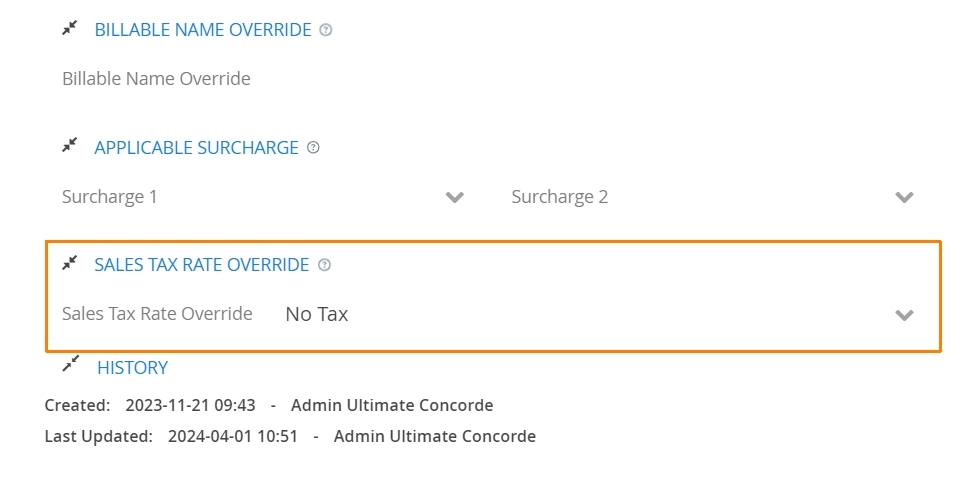
Locate the new Sales Tax Override section. This field allows users to select a specific tax rate that will take precedent over any default tax rate applied when invoices are created. If a 0% entry exist in your Sales Tax Rates settings, users could use a ‘No Tax’ option to exempt the item from having any tax applied.
How to Control Sales Tax Rates on Non-Recurring Billable Items
On Job forms, users can select a specific tax rate (or ‘No Tax’) to be applied to all Non-Recurring Billables under the Billing Rules section.
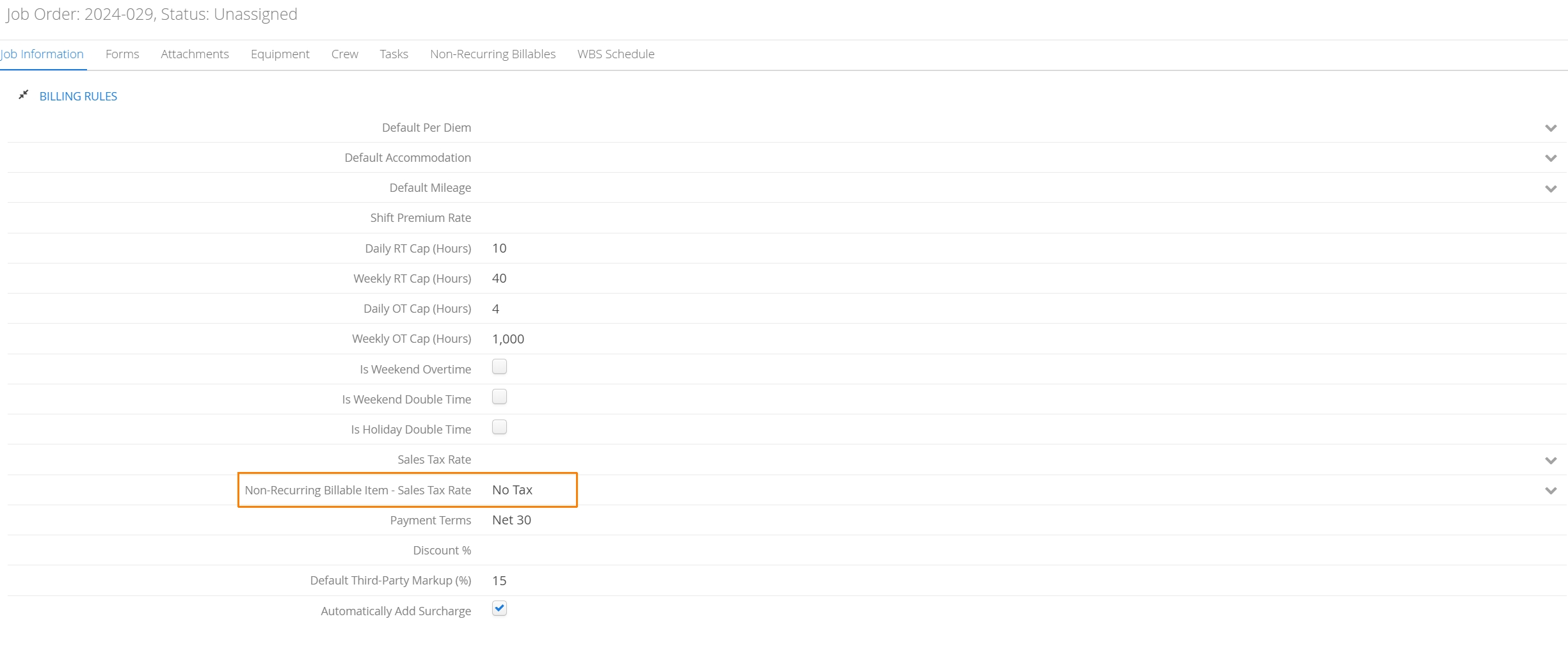
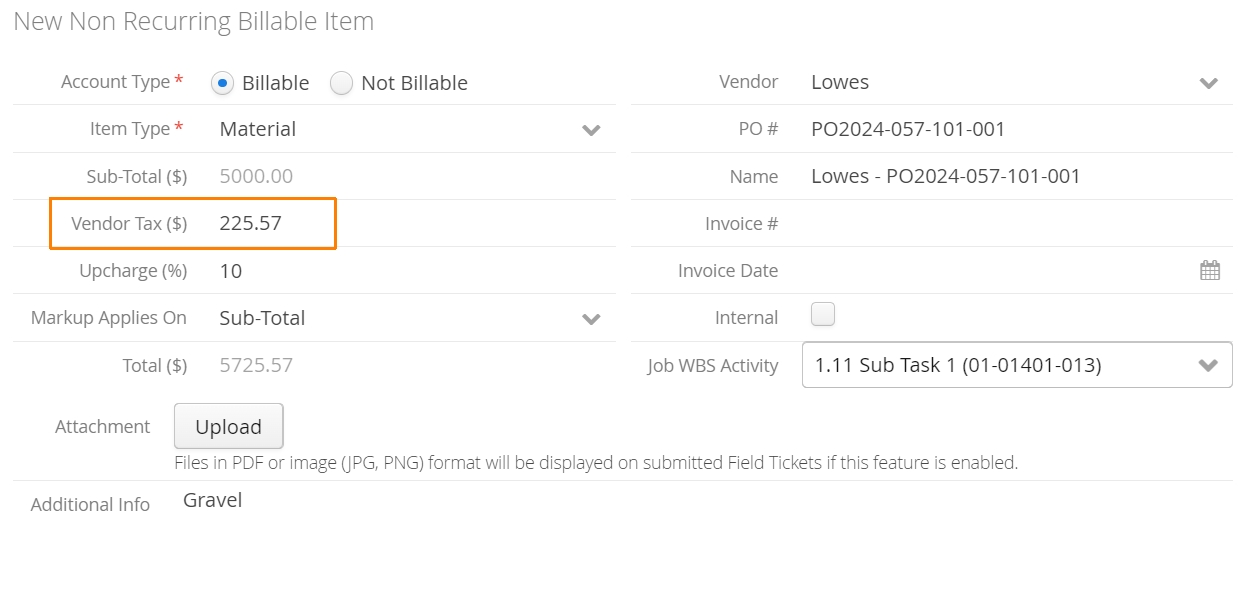
Any Sales Tax Rate preferences will be applied in addition to any ‘Vendor Tax’ added when NRBs are created.