Each Aimsio account provides access to a substantial amount of data. Some of this information may not be pertinent to every user. Our platform makes it easy to adjust how this data is presented and can store your preferences the next time you return.
Depending on your browser (e.g. Chrome, Firefox, Edge, etc.) and browser settings, you may need to manually log out of Aimsio for your preferences to be saved.
Reordering Columns
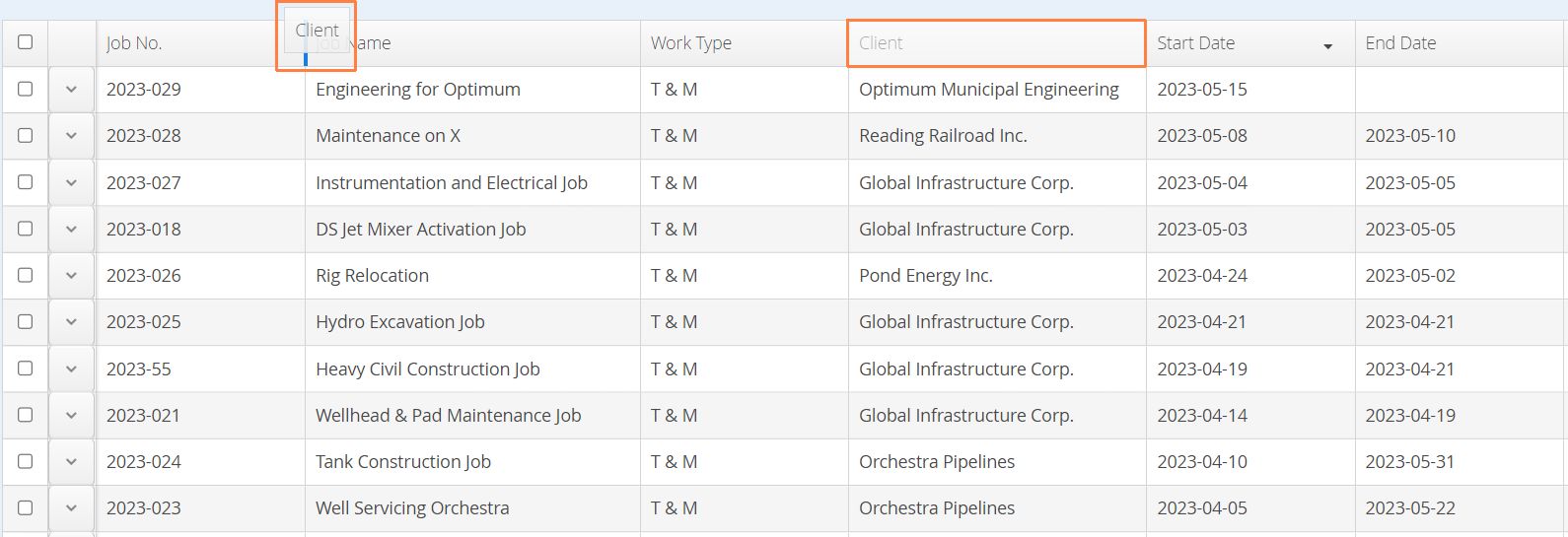
Users can rearrange report columns by clicking and dragging the column header and placing it in their preferred order. Any changes to the column order will be saved, ensuring a user’s layout preferences are applied the next time they login.
- This feature is compatible with the majority of reports in Aimsio, but select reports will prevent the first few columns from being moved (ie: Master Data reports).
Resizing Columns
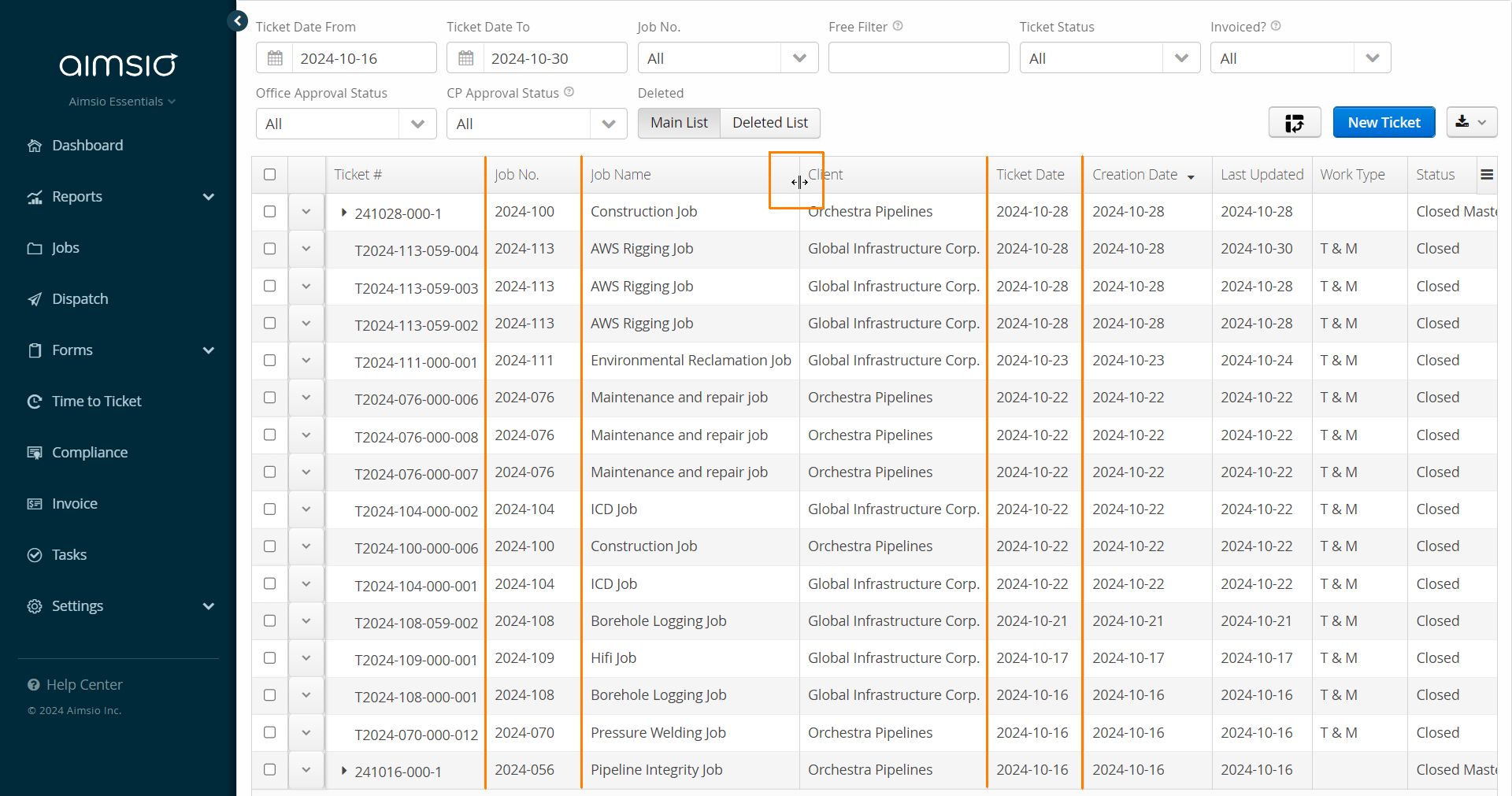
Users can adjust the width of any column on a listing page (or report) and Aimsio will store that preference the next time you navigate to that page.
Hiding Columns
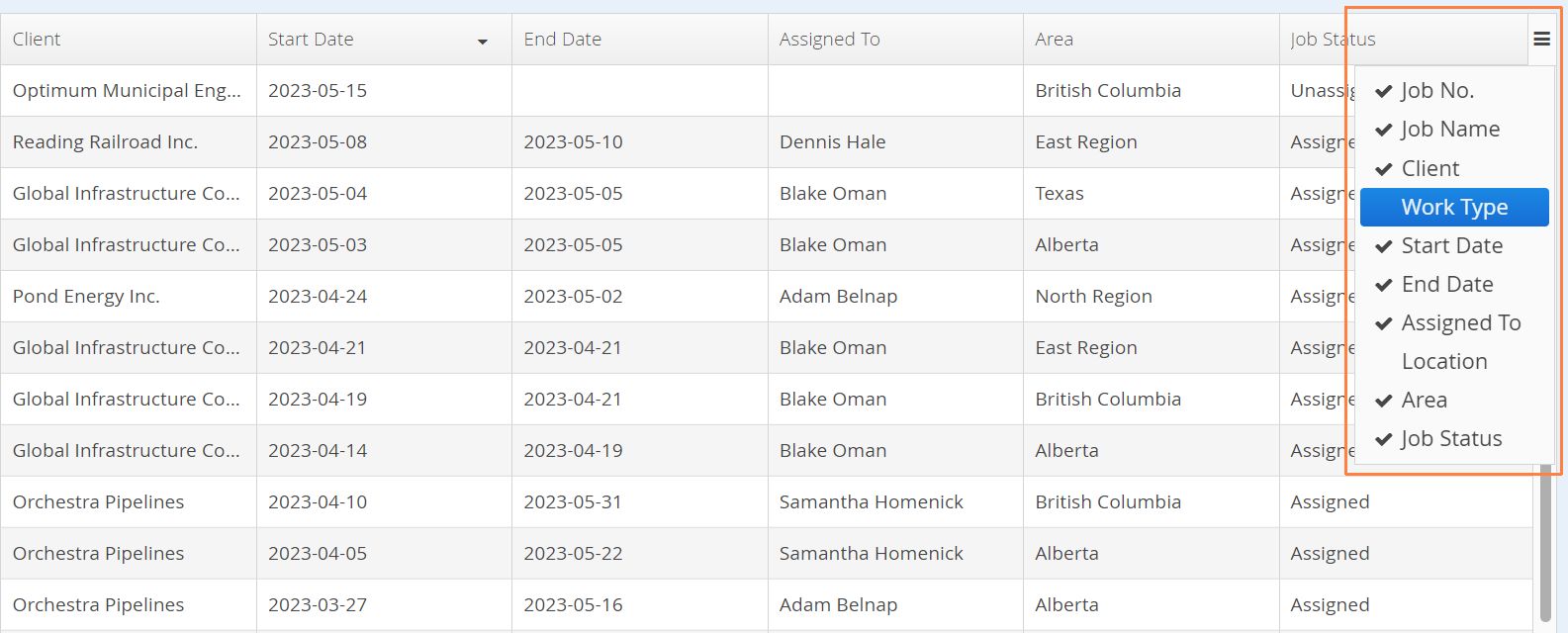
Click the hamburger icon located on the far right of any report to pull up a list of the available columns. Click on any column name to hide that column from the report. By default, all columns are made visible.
- Note: Too many columns hidden at one time may result in unused screen space. Typically, a refresh of the page will ensure Aimsio allocates the available space evenly among the remaining columns.
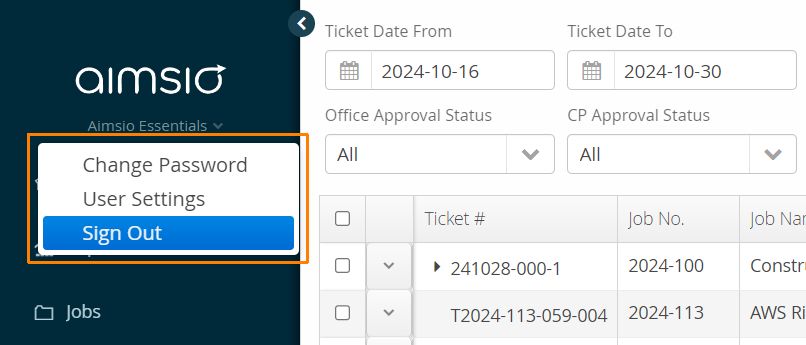
To ensure your report preferences are saved, be sure to sign out at the end of your Aimsio session.
Report Filters
Most pages in Aimsio provide a number of filters that can quickly influence which data is in front of you. These parameters are only stored for the currently active session and will reset to their default state when a user logs out and back in.

Pivot Tables
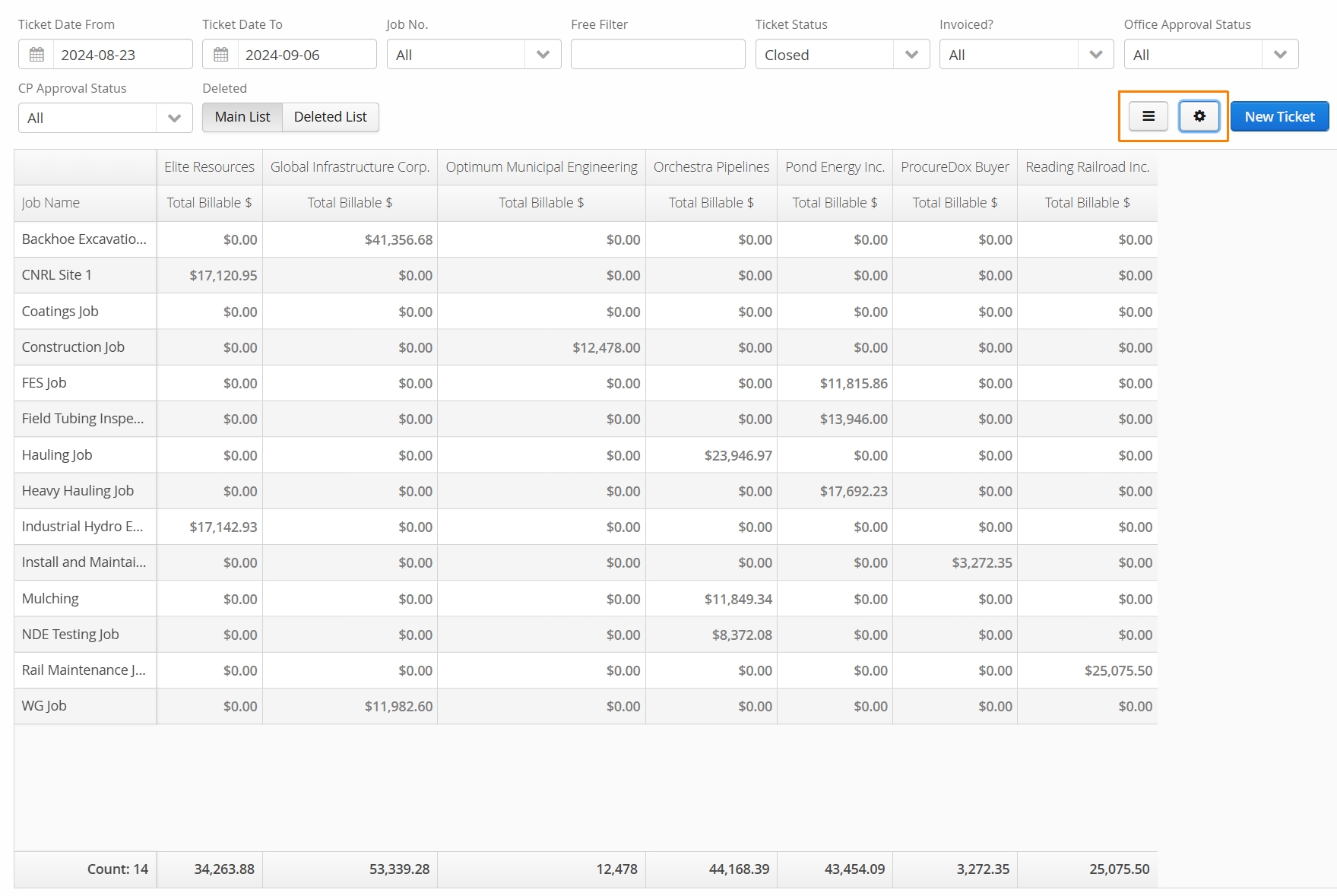
Select pages and reports will support organizing visible data into pivot tables. This is useful for users looking to quickly total numerical amounts by a common value (ie: Client).
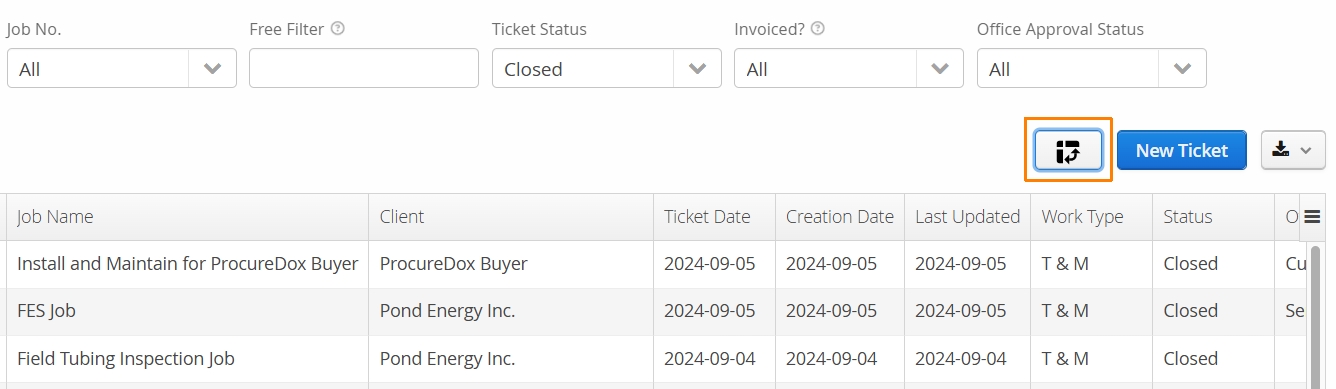
- If the listing page or report you are viewing supports a pivot table, you’ll find the icon located near the top right.
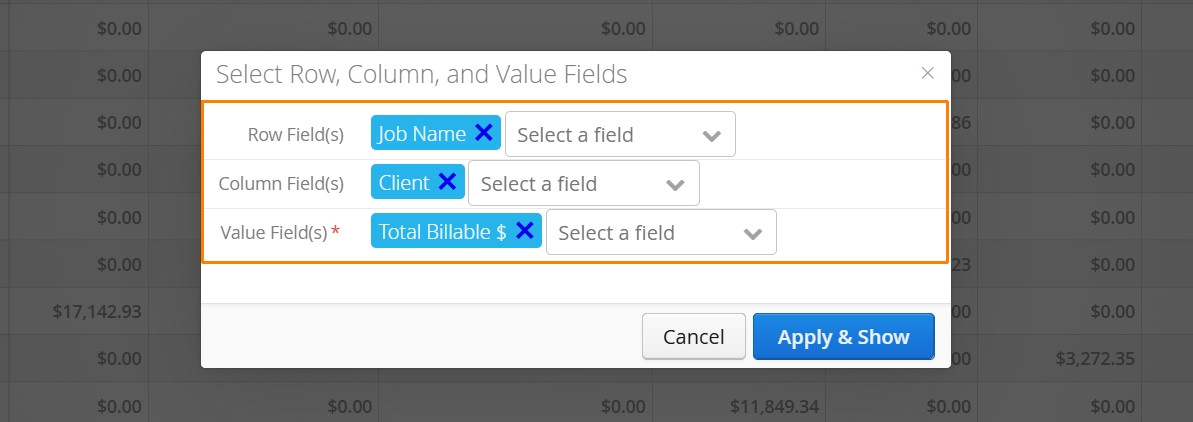
- Select your desired Row Field(s) followed by the available Column Fields(s) in the report. Currently, Aimsio supports aggregating Total Billable $ or Total Non-Billable $ values. Once your preferences are set, click Apply & Show.
- After users have applied their pivot table settings, they can toggle between the pivot view or change the settings of their pivot table anytime by using the icons on the top right.
Report User Settings
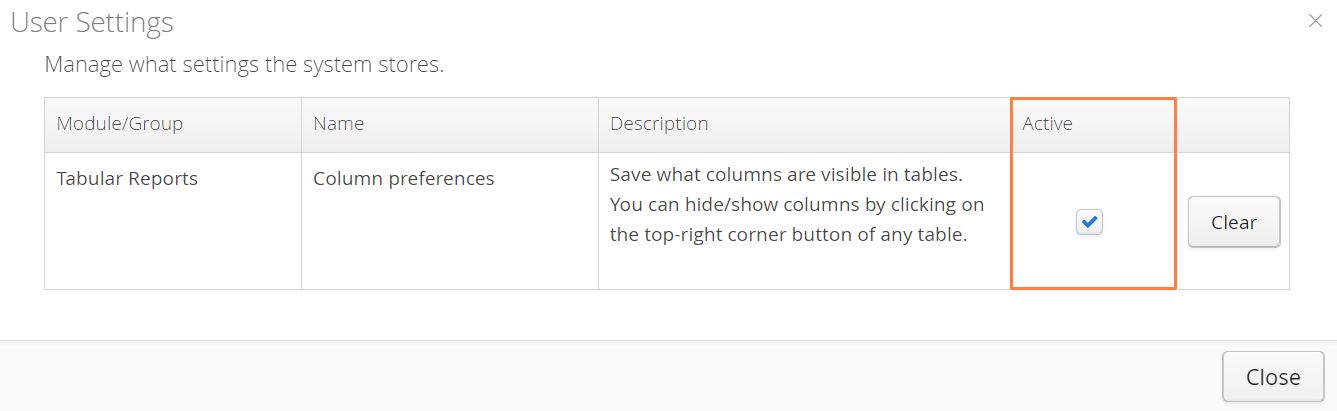
If, for whatever reason, a user does not want their display preferences stored, they can click on their username under the Aimsio logo and select User Settings.
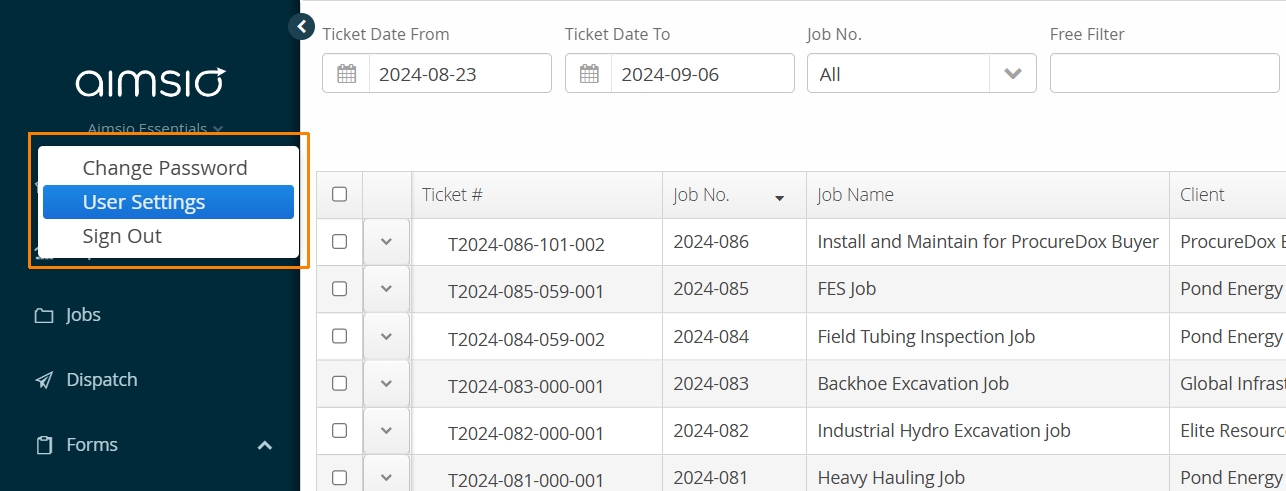
Uncheck the box under Active to prevent Aimsio from storing any preferences made from that point forward. Click on Clear to do a full reset of any preferences currently stored.