Aimsio provides a comprehensive set of budgeting features that can scale to meet the needs of most heavy industrial projects. Used in conjunction with Aimsio’s Work Breakdown Structure, Project Managers can set cost projections at the highest level of a Job, or prepare detailed bids that breakdown the planned line item costs for every billing category of each deliverable.
WBS Budgeting Metrics
Accounts that use Aimsio’s budgeting features will have access to the follow metrics in their WBS Schedule:
Metric | Definition |
|---|---|
Contract Value $ | Total planned Billable revenue. |
Remaining Contract $ | Calculated by subtracting Billable $ from Amended Contract $ |
Realized Contract % | Calculated by dividing Billable $ by Amended Contract $ |
Budget $ | Value of all ‘Planned’ expenditures. |
Remaining Budget $ | Calculated by subtracting Budget $ minus Cost $. |
Budget Spent % | Calculated by dividing Cost $ by Amended Budget $ |
Planned Margin % | Calculated by taking the value of Amended Contract $ divided by Budget $ and dividing that by Amended Contract $. |
Earned Value $ | Calculated by multiplying Budget $ and % Complete. |
Contract Unit Rate $ | Calculated by dividing Amended Contract $ by Amended Quantity only for terminal (leaf) WBS items. |
Planned Unit Cost | Calculated by dividing Budget $ by Amended Quantity, only for terminal (leaf) WBS items. |
For a complete list of all Job Performance reporting metrics, review our Job Performance (WBS) page.
Job Requirement
Before budgeting information can be entered, an Aimsio Job must exist to allow for a WBS Schedule to be created. For users inputting budget parameters from an external source (ie: for a Job that’s been previously awarded), this article expects that the process of creating a Job has already taken place in your account.
If you are not familiar with how a WBS Schedule is created, please review the following article: How to Create a WBS Schedule
For accounts that are preparing a bid, it’s still a requirement to create a Job in Aimsio first. If the bid is unsuccessful, the status of a Job can be changed to Cancelled and a record of that bid can be preserved inside your account.
Budget & Contract Entry Configuration
Determining how users enter budget and contract amounts takes place in the WBS Configuration settings under every Job**.** Configuration settings are accessed by clicking on the gear icon under the WBS Schedule tab.

How to Enter Contract Values
The Contract Value Entry configuration option defines where a Job’s Contract Value is stored. Contract Values are treated independently from Budget Values and represent how much billable revenue is to be recorded by the end of a job. Contract Values are typically calculated using the billing rate of your resources, or whatever your budget rate is plus markup.

Users can either add the total Contract Value to the parent activity of the Job (Contract value is entered per Job), or split the value up per WBS Activity (Deliverable / Phase). Aimsio can also calculate the Contract Value for a Job automatically, as budget information is entered (more on that below).
Contract Values can be entered by editing a deliverable and locating the Financials section.
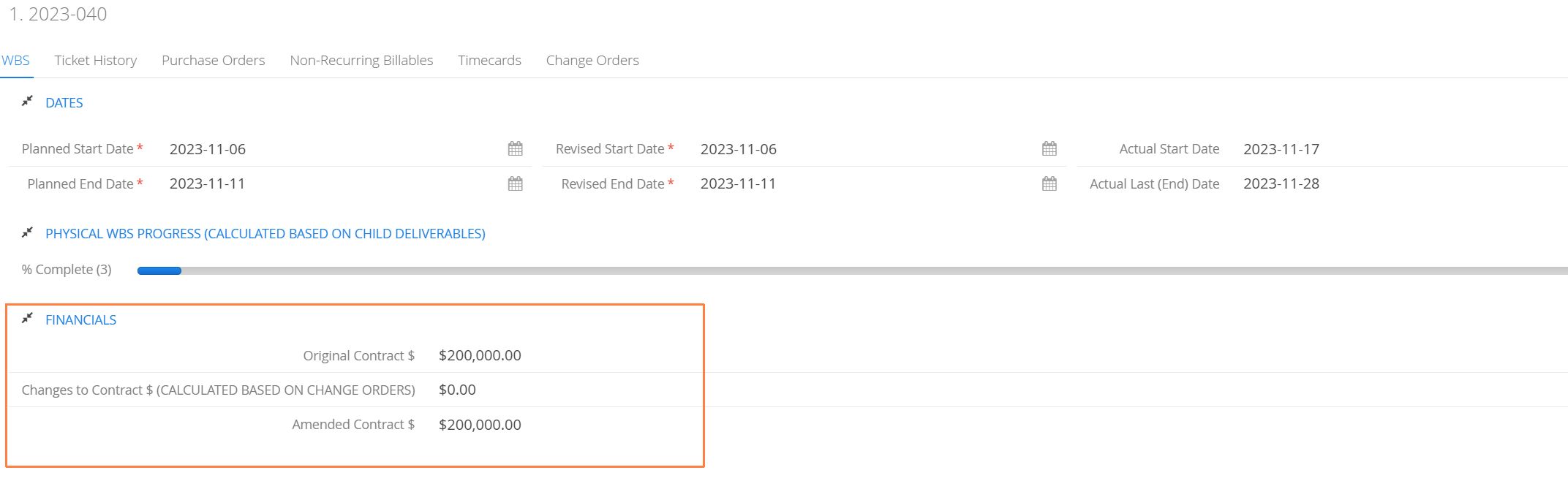
Typically, jobs will start with an Original Contract Value. As a job progresses, the customer may ask for additional work outside of original contract scope. Aimsio uses three fields to track this: Original Contract Value, Changes to Contract Value, and Amended Contract Value, the latter equaling the sum of the other two.
You can configure a job to manually enter the change values or have Aimsio automatically calculate them using approved Change Orders. Aimsio users can document changes, get them approved and have the the values carry over and update a WBS Schedule.
For more information please read our article on Change Orders, which allows accounts to capture additional charges and get them approved by the customer.
Budget Entry Configuration Settings
Under the Budget Entry section, users are given three options:

-
Budget is entered per Detailed Line Item
- Budget amounts are entered as a lump sum amount for each billing category (ie: Labor, Equipment) on every WBS Phase / Deliverable / Activity.
-
Budget is Entered per WBS Activity
- Amounts are not broken down by billing category. Budget amounts are entered as a lump sum dollar amount at the top level of a WBS Phase / Deliverable.
-
Budget is entered in the Budgeting Tab
- This option is specifically tailored to users intended to use Aimsio to prepare a bid. Budget amounts are entered under a separate tab found inside each phase that allows for a detailed breakdown of every projected resource (sorted by billing category) that will be required to complete each phase.
All 3 options support the input of Planned resource quantities (ie: Labor or Equipment hours) under each Deliverable. In addition to financial metrics, Aimsio will track and compare the projected number of ‘planned’ quantities vs the ‘actual’ billable or non-billable quantities recorded on Tickets.
How to Enter Budget Information
All budget information is entered from within a Deliverable. It is not possible to enter any budget information directly onto a parent if there are child deliverables nested under it. Aimsio will automatically tally all child budget amounts at the Parent level.
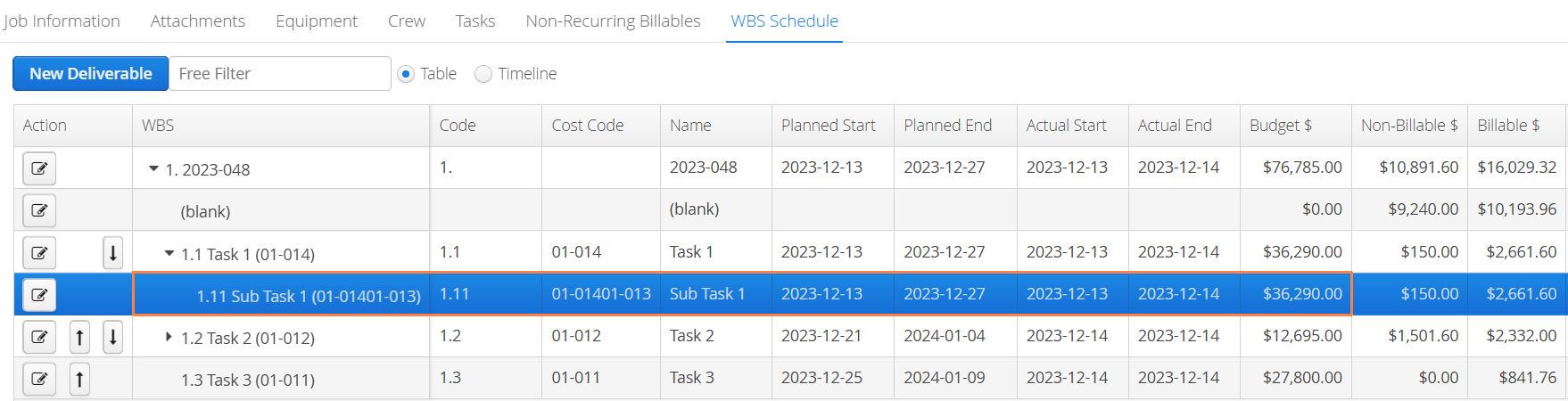
- To begin entering budget information, locate the relevant child deliverable and click on the Edit button located on the far left.
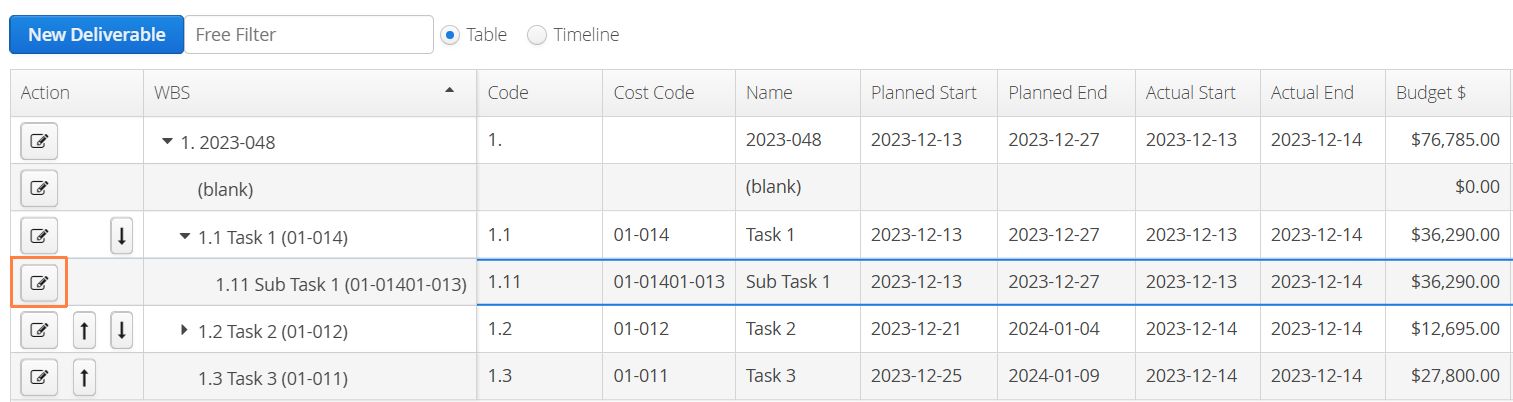
Budget is Entered per WBS Activity
If the WBS Configuration is set to Budget is Entered per WBS Activity, there will be a Financials section under the deliverable’s information that will allow users to enter the total budgeted amount as a fixed sum.
Under the Detailed Breakdown table**,** users only be capable of entering Planned quantities (ie: number of planned hours).
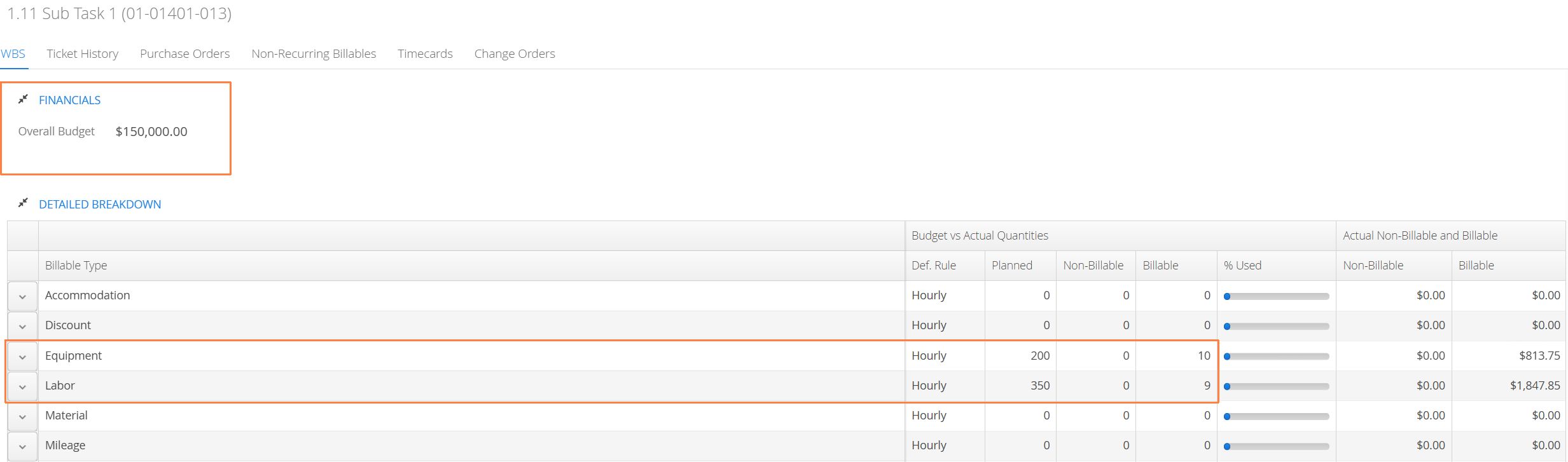
- To enter quantities, either double-click on the corresponding line-item, or use the action button located on the left and select Edit. Once finished entering quantities, click Save on the lower right.

Budget is entered per Detailed Line Item
When the WBS Configuration is set to Budget is Entered per Detailed Line Item, all budgeted amounts will be entered in the Detailed Breakdown table located at the bottom of a deliverable’s information.
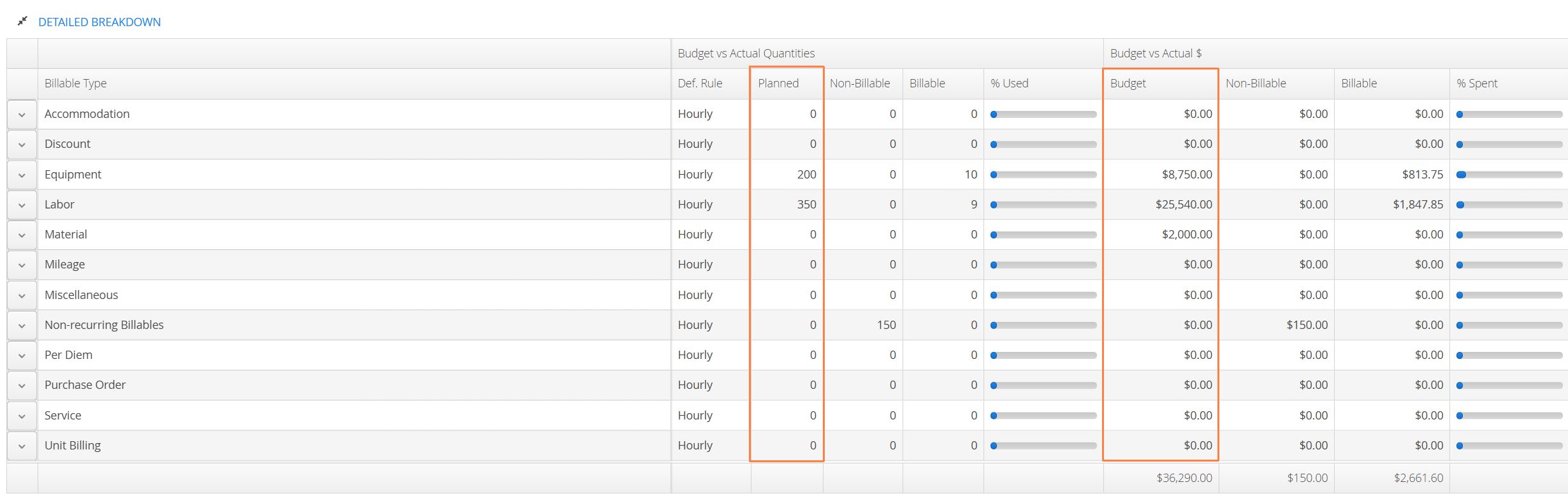
- Locate the relevant line item and either double-click the line or use the Edit action located on the far left. Enter your Planned quantities and Budget amounts, then click Save.

Budget is Entered in the Budgeting Tab
When the WBS Configuration is set to Budget is entered in the Budgeting Tab, there will be a Budget tab located on the far right inside a deliverable.
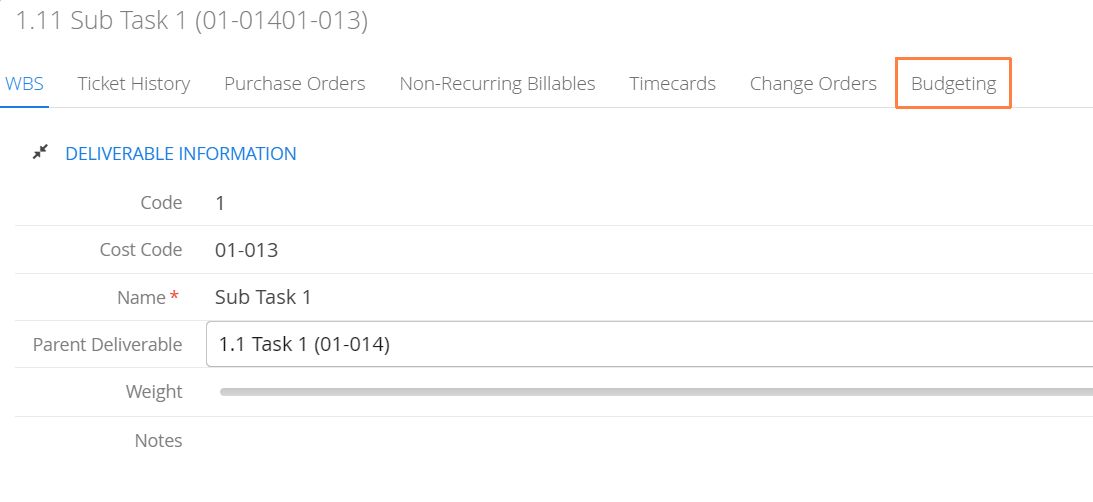
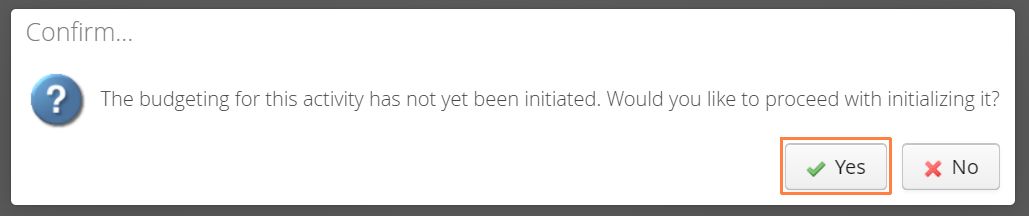
- Clicking the Budgeting tab for the first time will prompt the user to initiate the budgeting tables for the deliverable they are editing.
Budgeting Tab Overview
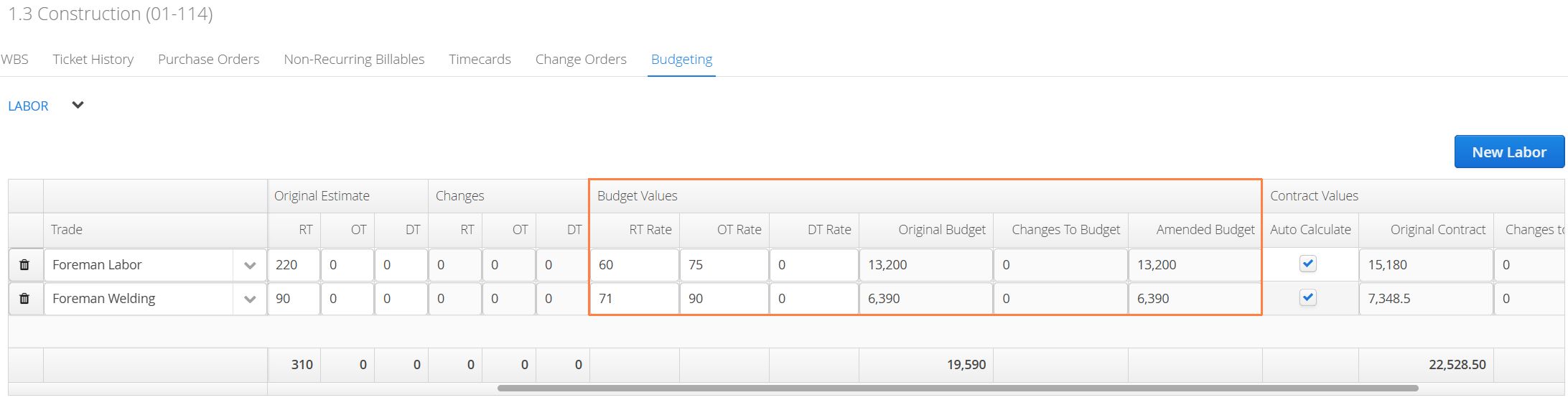
The budgeting tab provides users with the ability enter a full breakdown of all the resource required per deliverable. This includes entering their estimated quantities (RT, OT, DT, Daily, etc.) and budgeted cost.
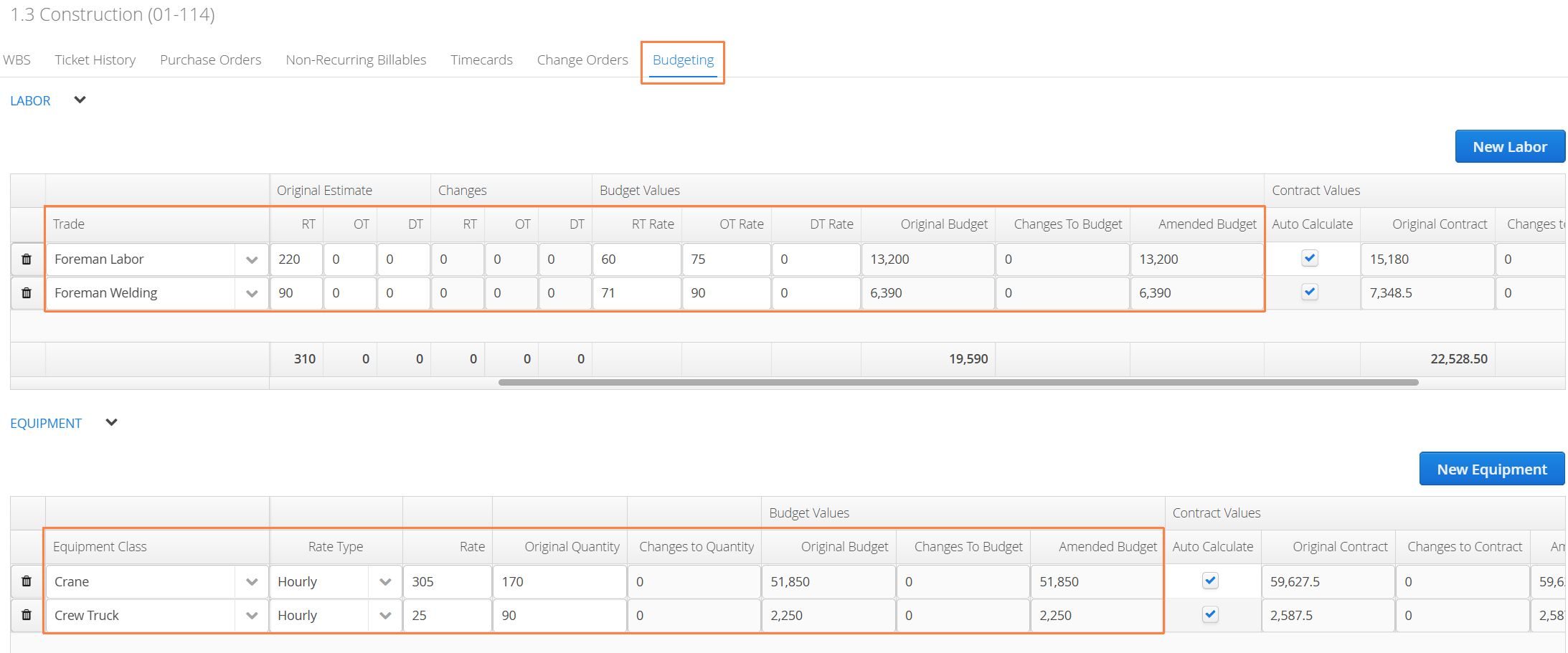
Aimsio can also leverage this information to automatically calculate the Job’s Contract Value. By having the checkbox selected under Auto Calculate, Aimsio will use the information entered to generate contract values in real-time.
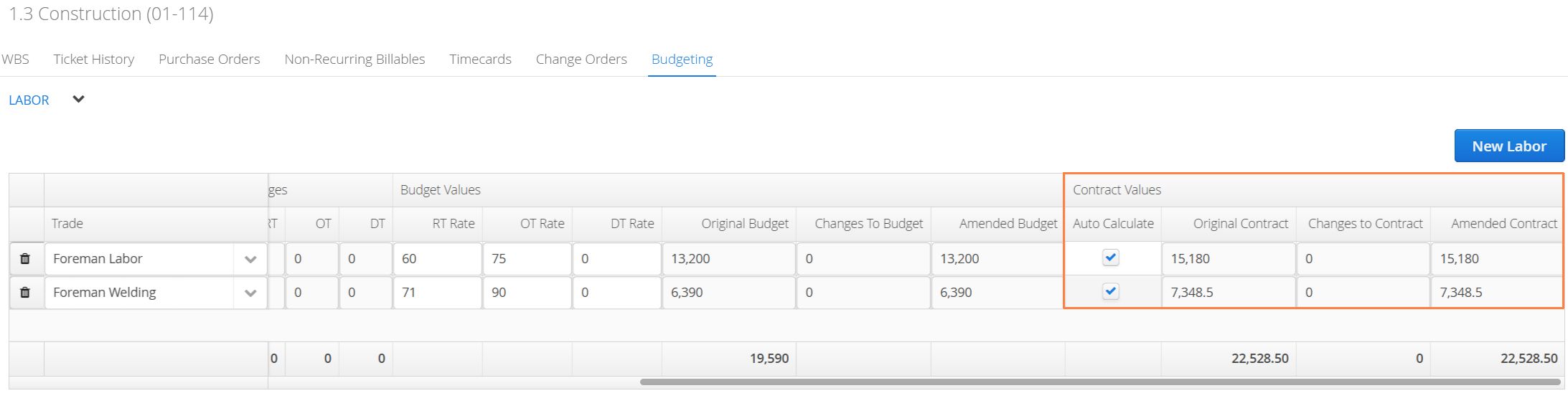
Back in the WBS Configuration, users can set how Aimsio will calculate Contract Values. Contract Values can either use a standard markup percentage or the Price Book item’s Billing Rate.
Under the Contract Value Option column, select a preference by double-clicking a line item and choosing one of the two options available in the drop-down. If using the Markup % option, enter the percentage in the Contract Markup % column.

Budget Values
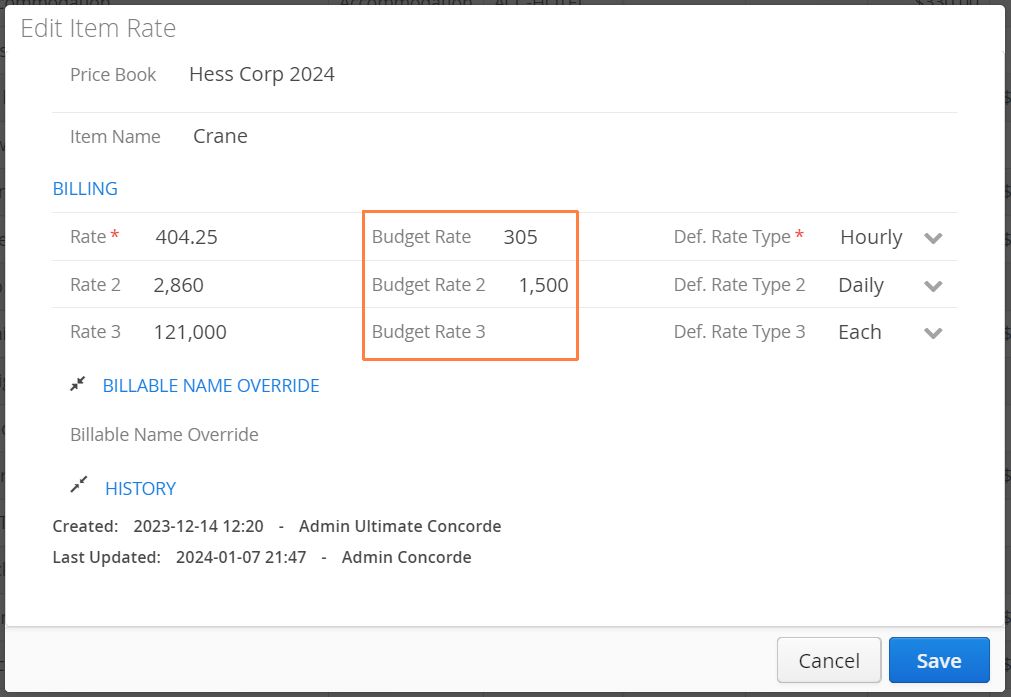
In order for Budget Values to appear when entering information in the Budgeting Tab, Billable Items must have their Budget Rate available in the Job’s Price Book.
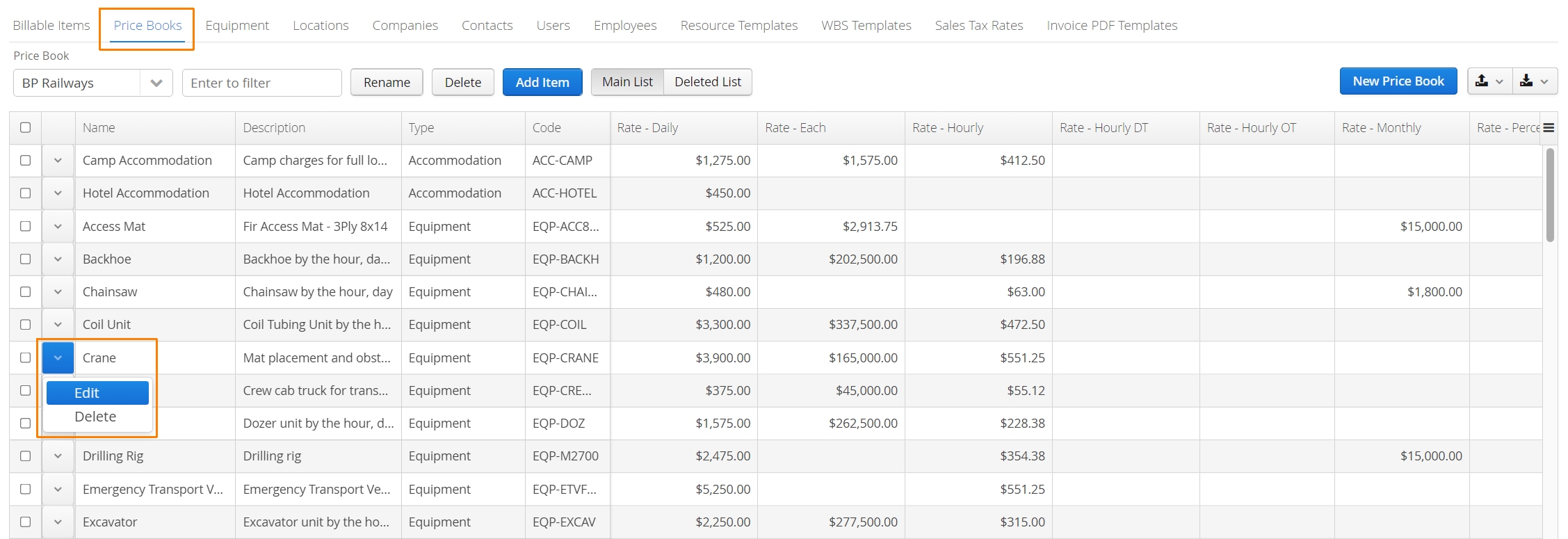
- To access this information, navigate to the Master Data > Price Book tab. Locate your Billable Items and use the Edit button to access.
- Verify your items have the Budget Rate set alongside its standard Billing Rate.
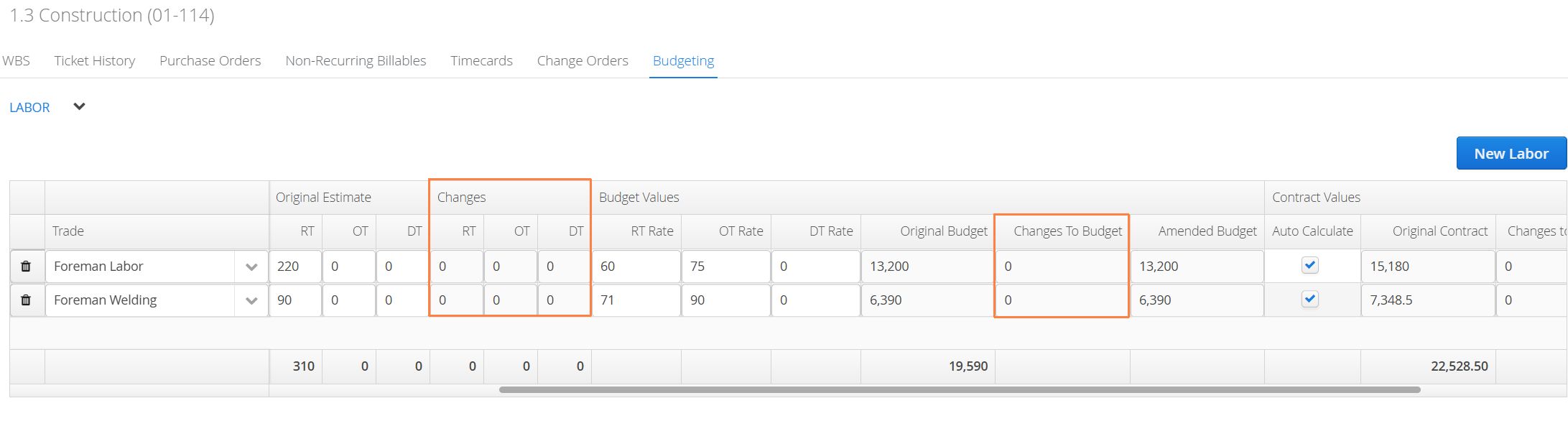
Changes to Budget
Aimsio supports the ability to track changes to the Original Estimates using completed and approved Change Orders.
Users will select the relevant deliverable when completing a Change Order form and the updated values will be tracked via the Changes column. Changes to Budget will be calculated automatically and Contract Values will also be updated.
Exporting Budget Information
To export information entered in the Budgeting tab, navigate back to the WBS Schedule tab, use the export button located on the far right and select Export with Budgeting Data.
