Resource Templates are a Dispatch function that enables authorized users to create groups of resources that can be assigned at the same time. This would include specific team members that commonly work together, services, or Employees and their personal vehicle. Resource Templates can only be used from the Dispatch Job Board.
How to Create a Resource Template
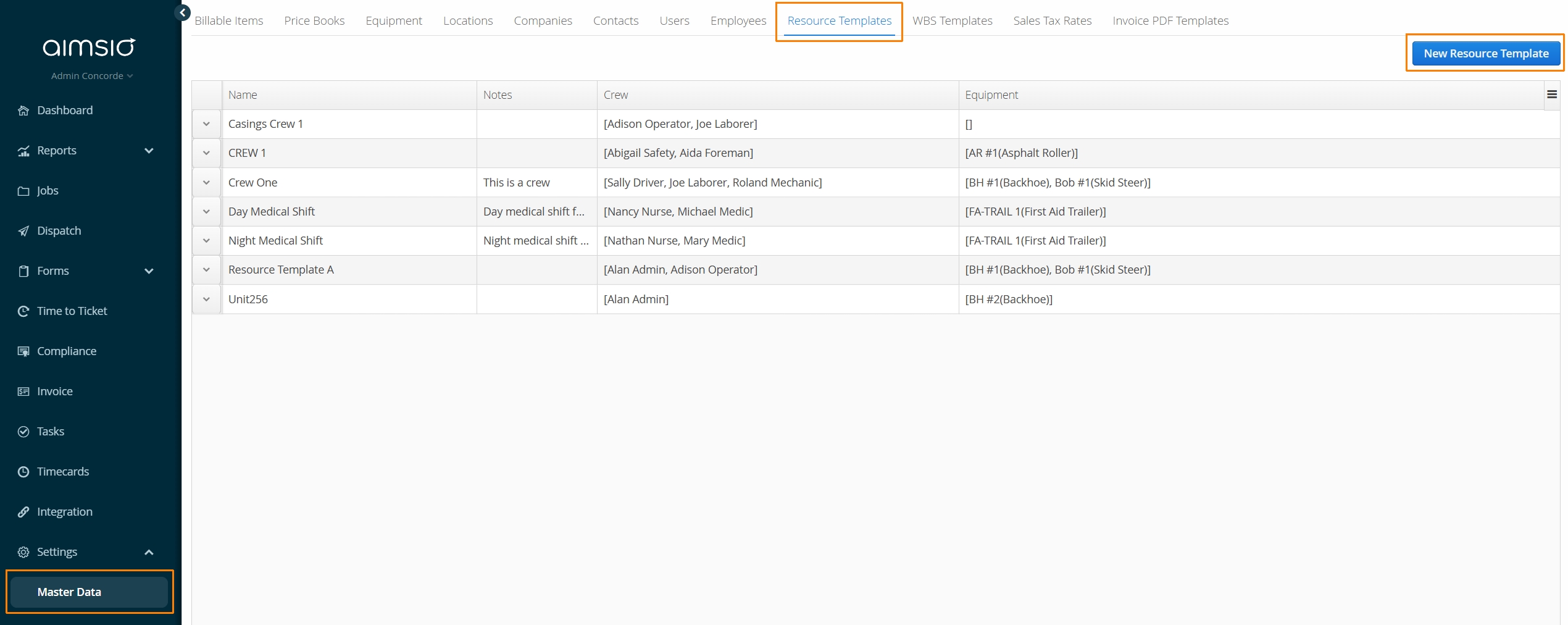
Users with access to Master Data can create Resource Templates by navigating to the Master Data > Resource Templates tab.
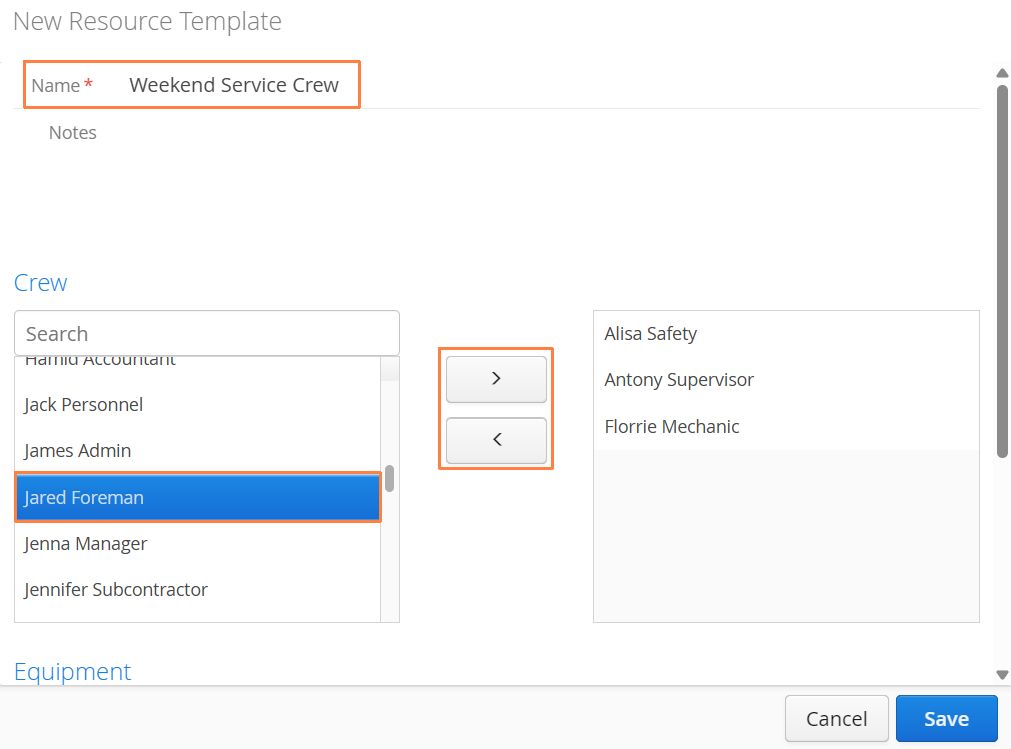
Give the Resource Template a Name. Locate the available resources (Crew or Equipment) located on the left. Move selected resources to the right use the arrow buttons located between the two lists. When finished, click Save on the lower right.
How to Edit or Delete a Resource Template
To Edit or Delete a Resource Template, navigate to the Master Data > Resource Templates tab. Locate the Resource Template you’d like to Edit or Delete and select the relevant option from the action menu located to the left of the template.
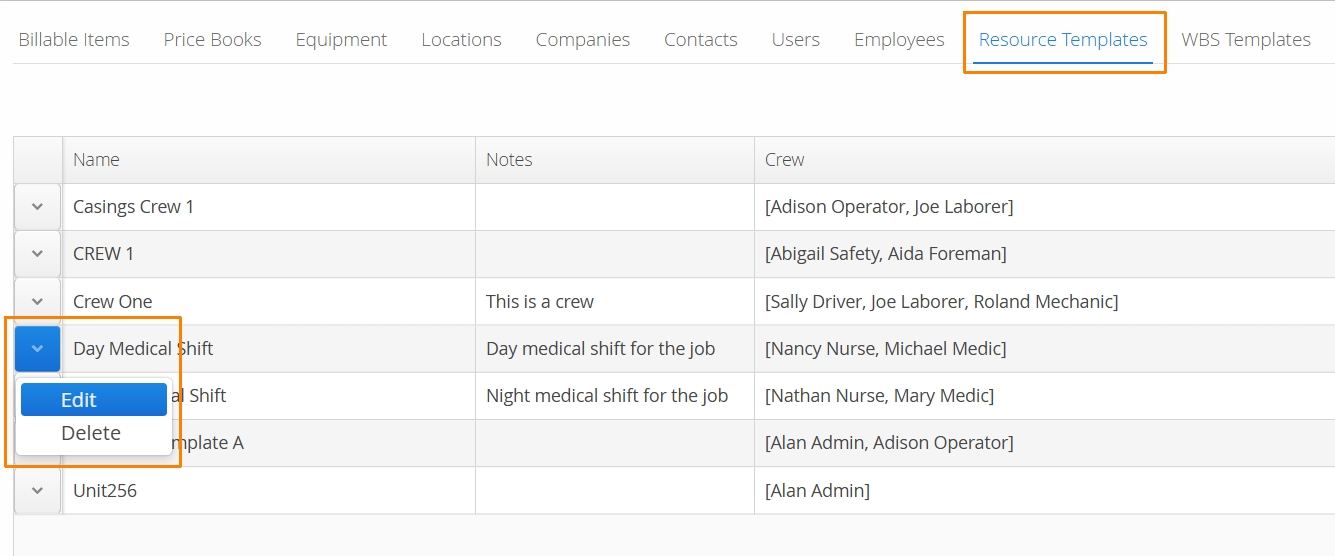
Deleted Resource Templates cannot be restored. Authorized users will receive a prompt before deletion.
How to Use Resource Templates
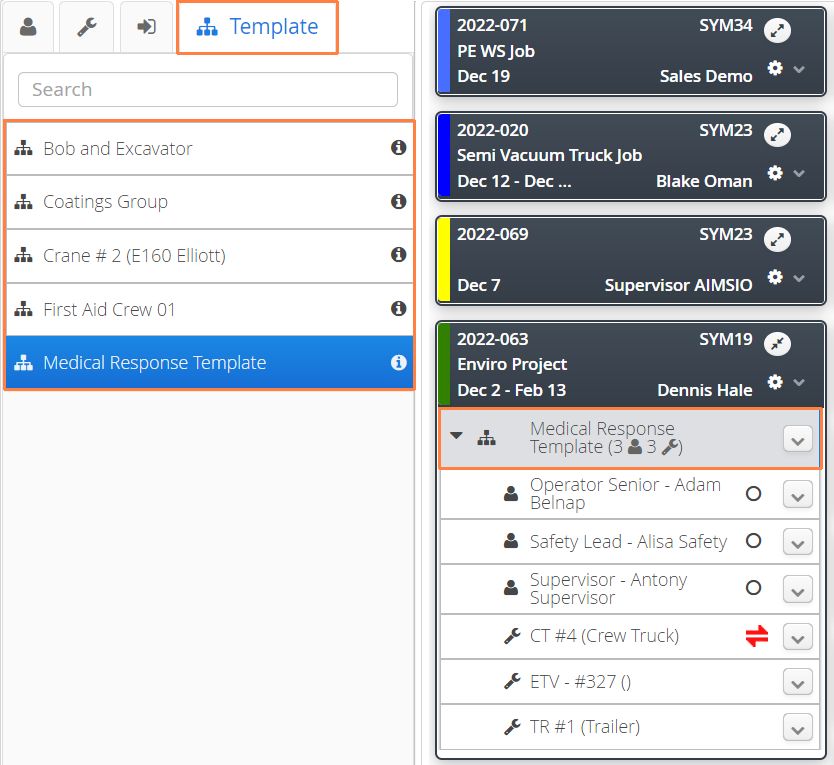
To assign a Resource Template to a Job, click on the Template tab using the left resource menu while viewing the Job Board. This will display a list of all premade groups. Drag and drop a group to a Job Card.
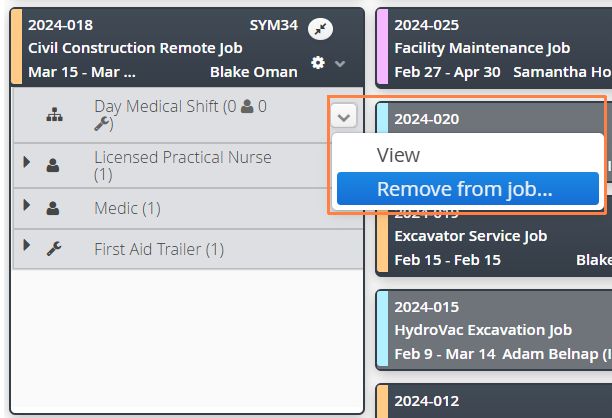
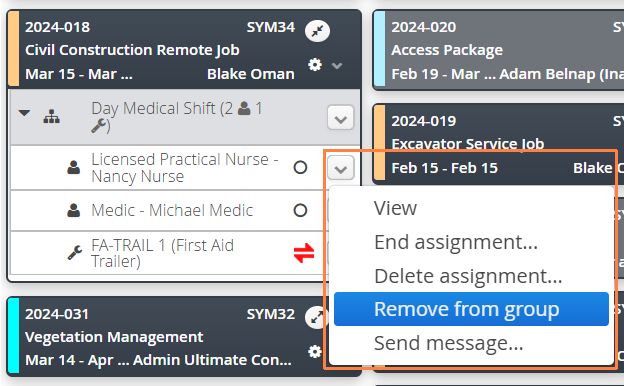
- To delete a Resource Template, all resources must be removed from the group first. Use the action menu located to the right of a Crew resource and select Remove from Group or Delete Assignment.
- Once the group is empty, use the action menu and select Remove from Job.