Aimsio provides a solution to add surcharges to Estimates, Tickets, Change Orders. Examples of surcharges may include a Fuel Surcharge, Environmental Surcharge or any charge applied in the form of a percentage on top of your billing rates.
The process involves creating a new Surcharge Billable Item type, then adding that Surcharge item to a Price Book. Once the Surcharge Billable Item is added to a Price Book, users will indicate which items on that Price Book the surcharge applies to.
We’ve also built in flexibility for how this surcharge is presented, so when you’re completing your Estimate, Ticket, Change Order or Invoice, you’ll have the flexibility to display a detailed breakdown of these charges to your customers, or simply a single (summarized) charge.
Surcharge Billable Items are available for clients joining us after the release of 24.13 (June 2024). Existing customers may require the assistance of our Professional Services team to implement this in your account. Please reach out to our Support team for more information.
How to Add a Surcharge Billable Item
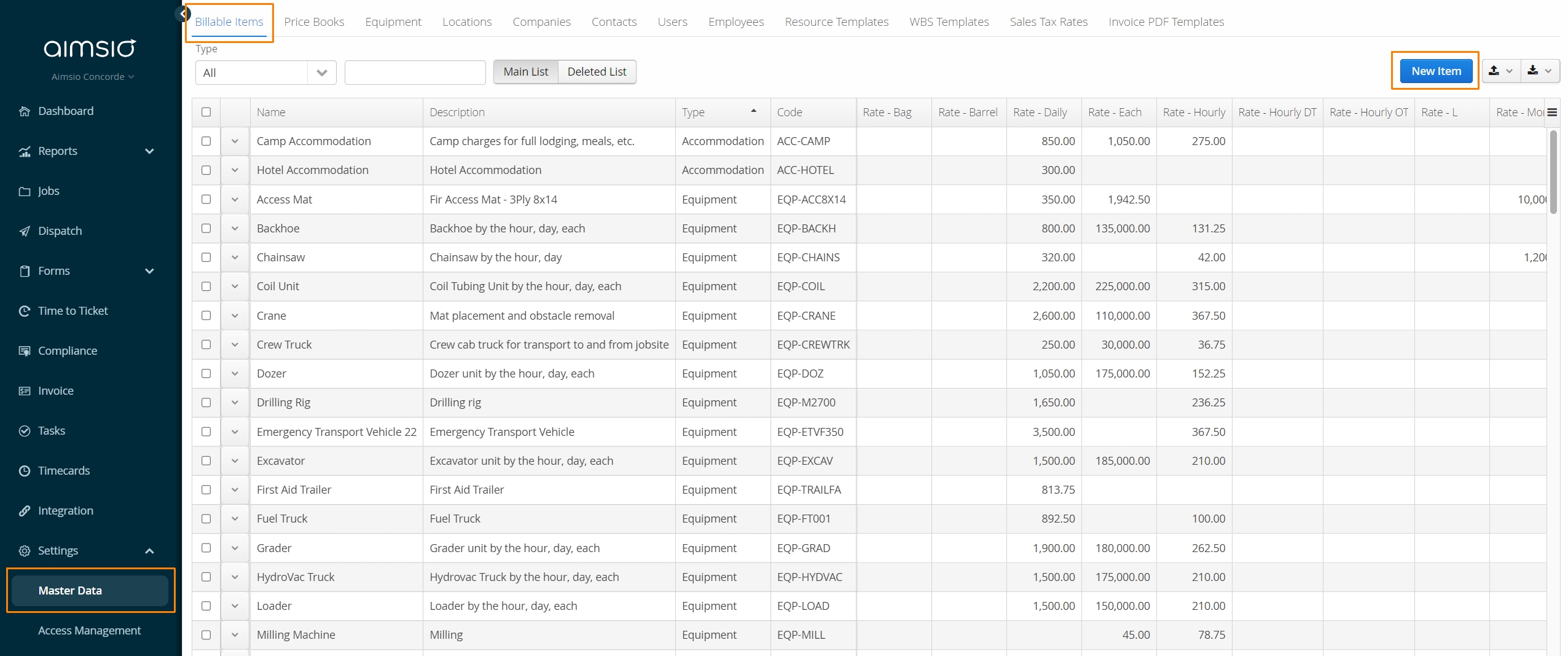
Navigate to the Master Data > Billable Items page and click on the New Item button on the far right.
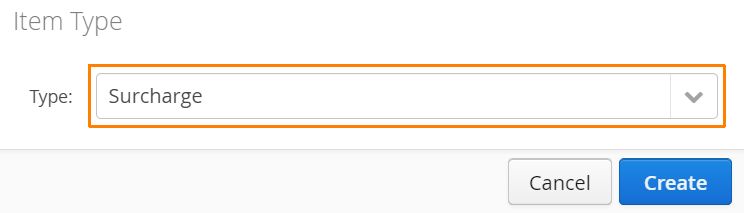
- Select the Surcharge item Type then click Create.
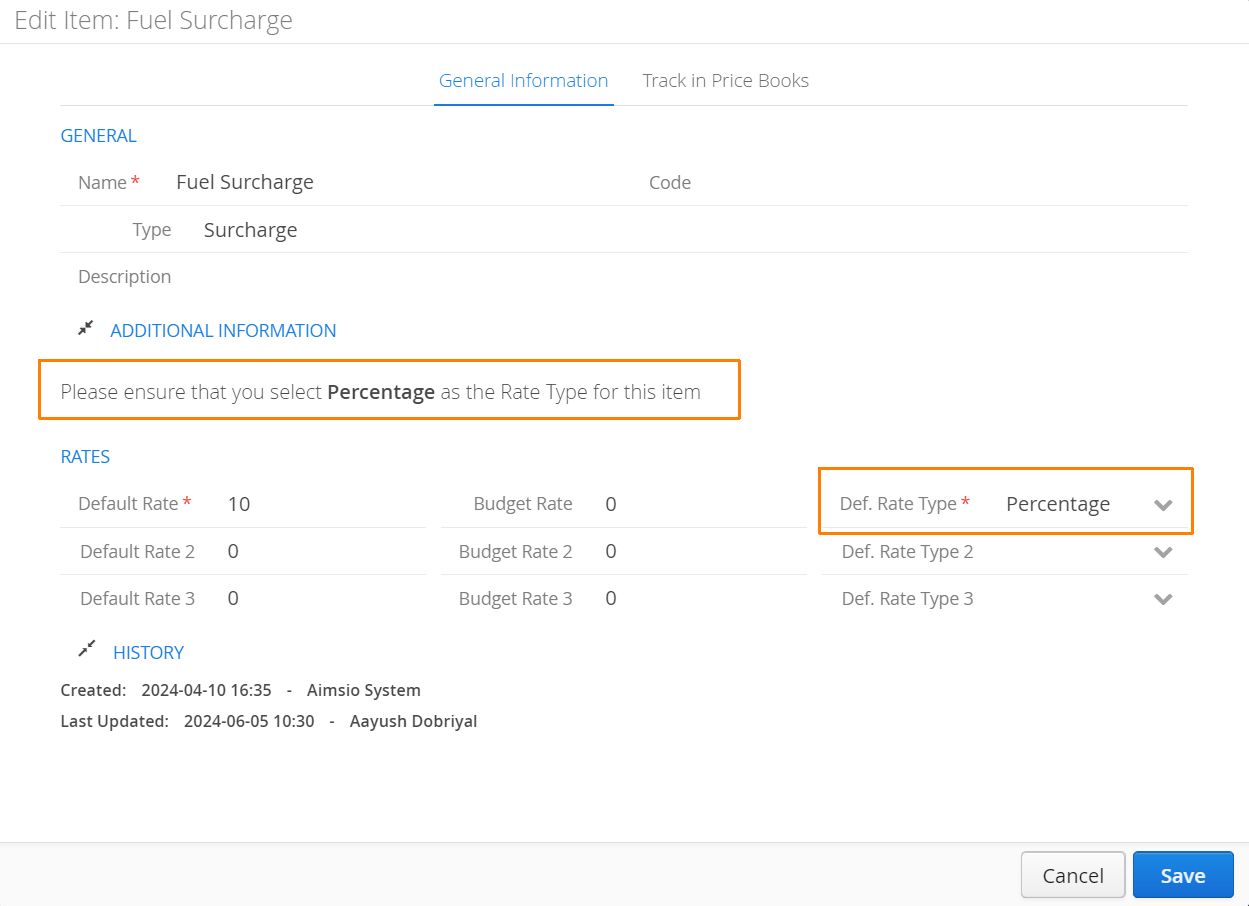
- Ensure the Rate Type on the Billable Item is set to Percentage. This Billable Item type will not work with any other rate type. Once you are done click Save.
If you require a new Rate Type, please reach out to our support team. We can help you add a new Rate Type for your Billable Items.
How to Add Surcharges to a Price Book
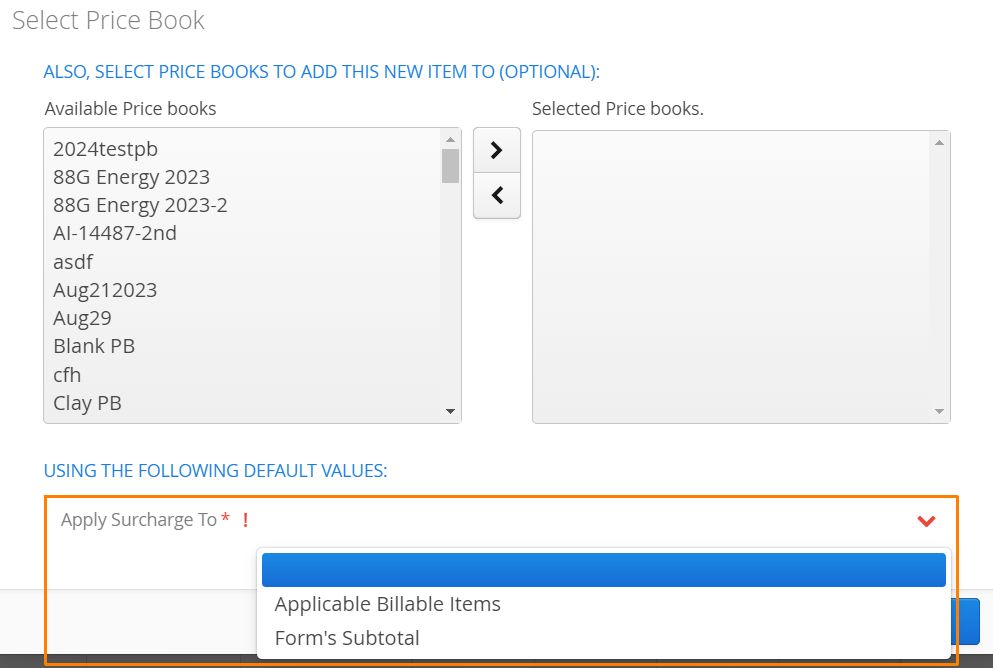
If you’re creating a Surcharge Billable Item for the first time, you’ll be asked to select which Price Books to include it in. Users will also be required to select one of two surcharge behaviors:
-
Apply Surcharge To Applicable Billable Items
- Select this option if the surcharge percentage will only apply to select items in the Price Book. This option also provides users more control over the specific rates of an individual item while completing a form.
-
Apply Surcharge to Form’s Subtotal
- Select this option if the surcharge will be added as a single line item to the billing total of a form. This option acts more like a flat rate charge and users will not have control over the surcharge rates of specific items.
How to Apply Surcharges to Specific Items
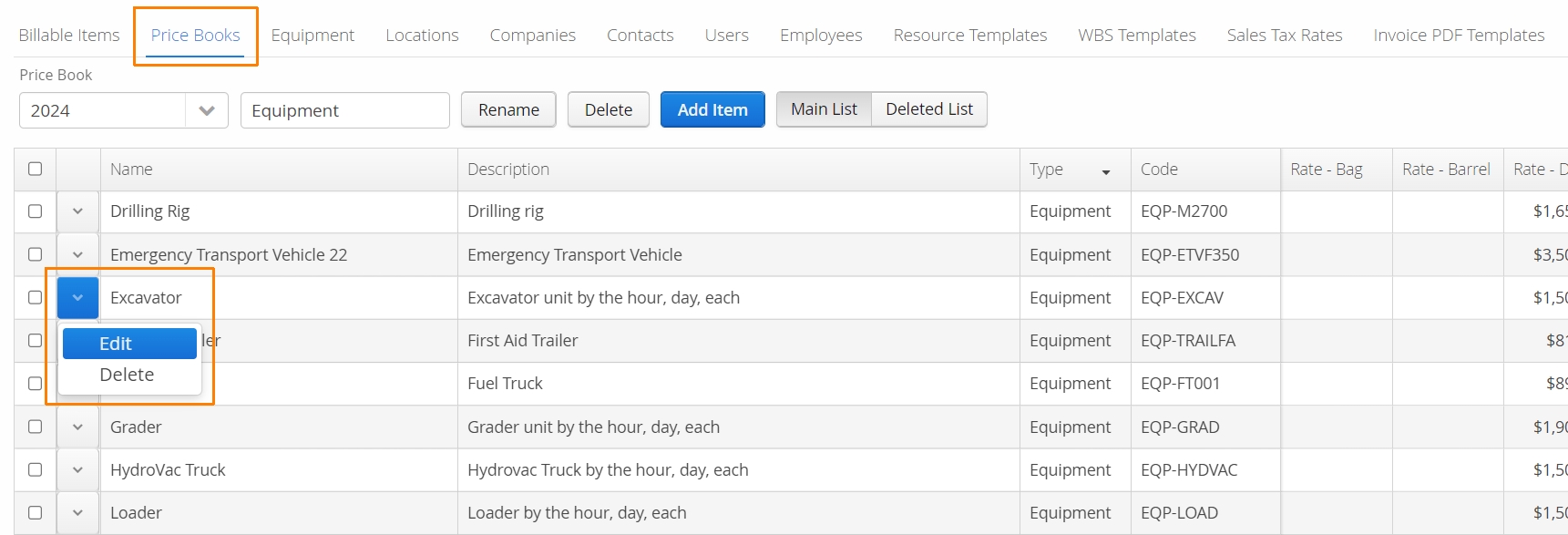
If your surcharge will only apply to select items in a Price Book, users will need to edit each item in that Price Book and ensure the Surcharge Billable Item is applied.
For example, if I am introducing a Fuel Surcharge that will only apply to Equipment items, I’ll navigate to the Price Book tab in Master Data and Edit the relevant Equipment Items.
- While editing an item, locate the Applicable Surcharge table and select the surcharge that will apply. Up to 5 surcharges can apply to a single item.
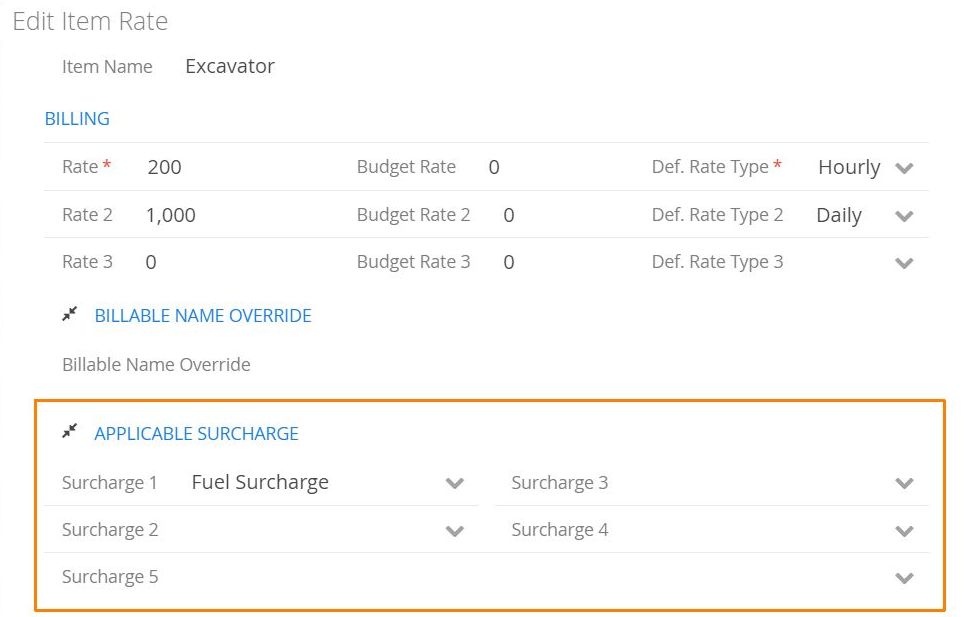
Surcharge items must exist in the same Price Book that your items belong to in order for the surcharge to be applied on forms.
How to Apply Surcharge While Completing Forms
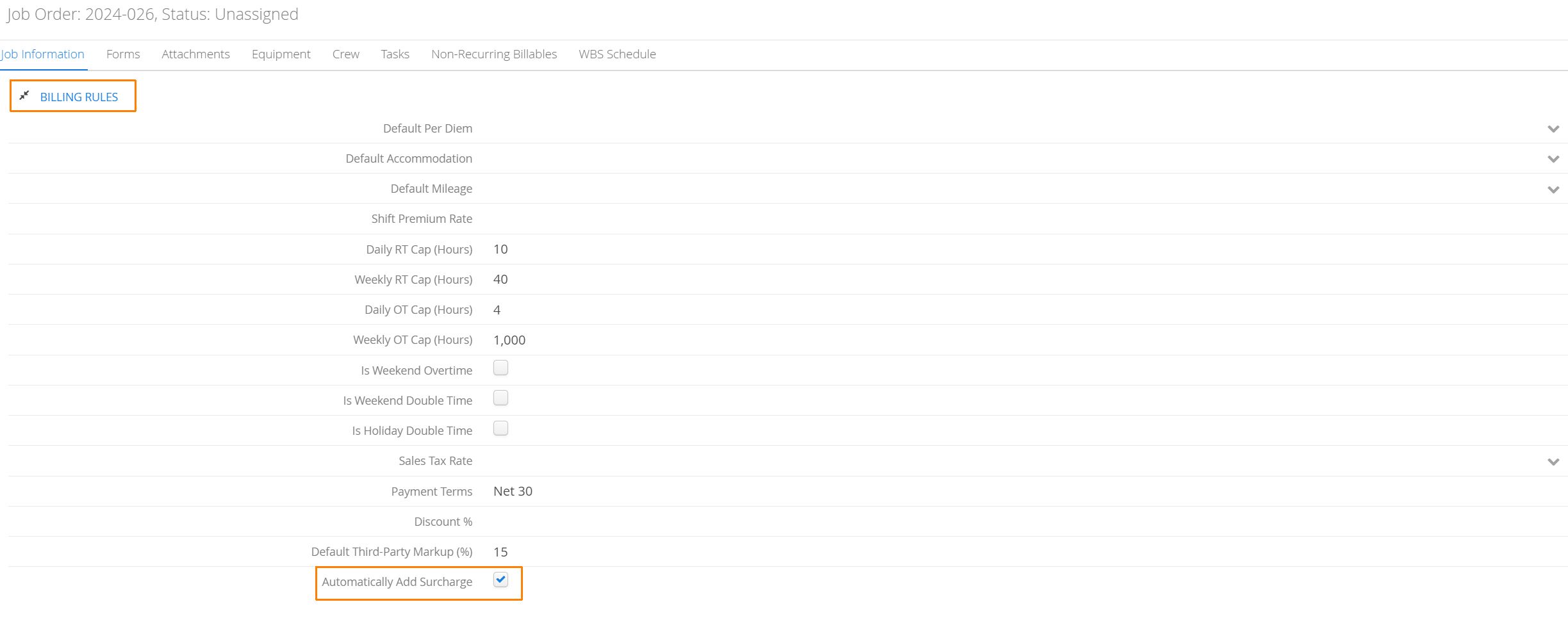
To speed up the process of managing surcharges on forms, locate the Automatically Add Surcharge checkbox under the Billing Rules table on a Job form. Checking this box will preload each available surcharge that exists in the Job’s Price Book when a form is started.
On supported forms (Estimates, Tickets and Change Orders), locate the Surcharges section**.** If the Automatically Add Surcharge checkbox is checked on the Job form, any available surcharges will be visible in the first table.
If the box isn’t checked, it’s still possible to manually add surcharges to the form by using the New Surcharge button on the right.
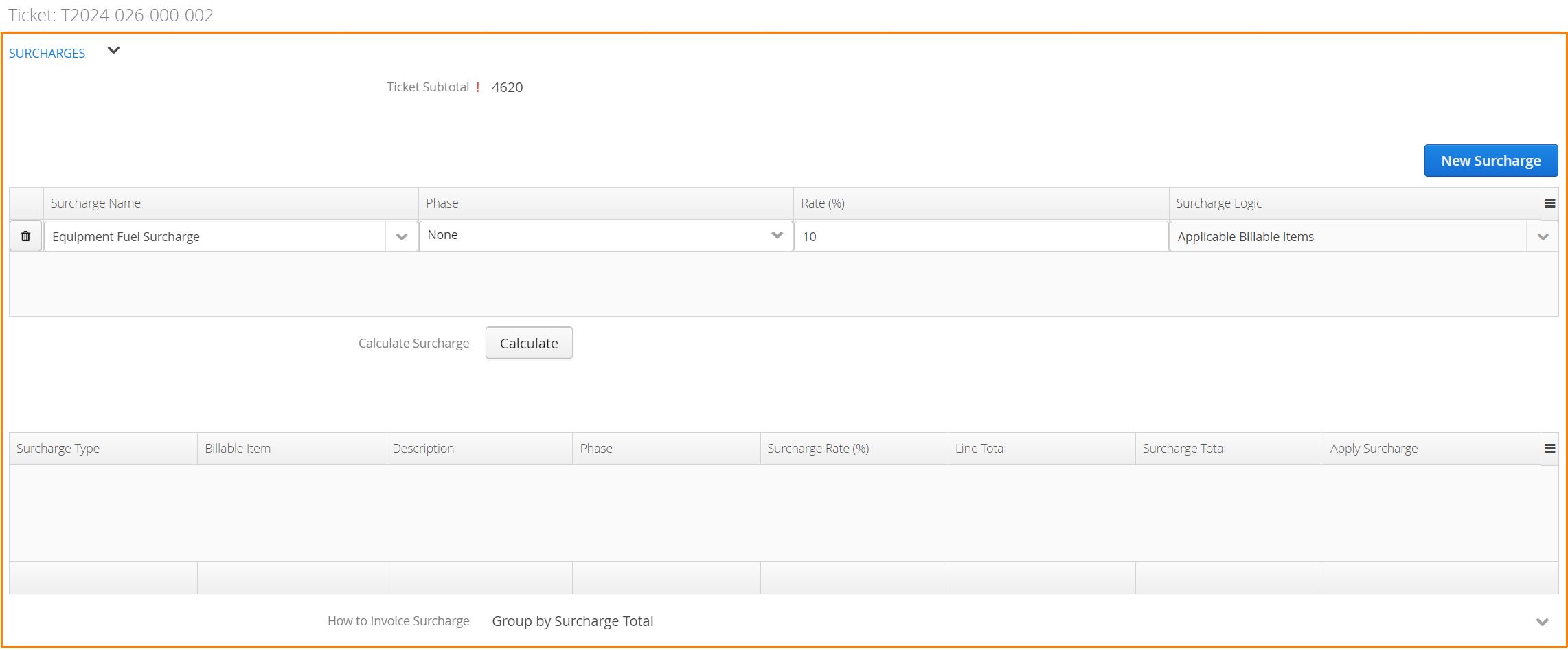
If you do not see any surcharges available, double check that the Surcharge Billable Item exists in the same same Price Book for the Job.
- First, Aimsio will need to calculate what surcharges to apply by assessing what Billable Items have been added to the form. This should always be the last step before completing a form. This process will need to be repeated if there are additional items added to the form later. Click on the Calculate button and the applied surcharges will appear in the table below.
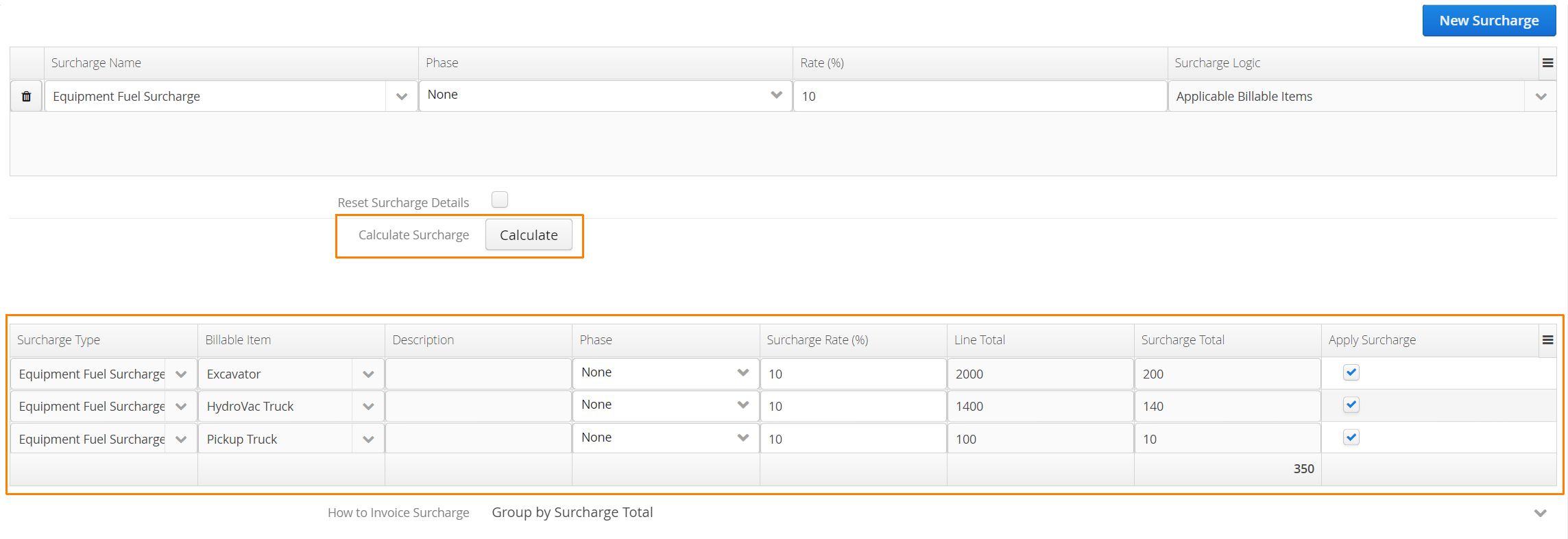
In the example above we have a 10% Equipment Fuel Surcharge that only applies to the Equipment Type Billable Items on this form.
It’s possible to make adjustments to any of the surcharges after they have been added to the form. Adjusting the Surcharge Rate (%) field will automatically calculate a new Surcharge Total for that item. Uncheck any Apply Surcharge checkbox to omit the surcharge for a specific item.
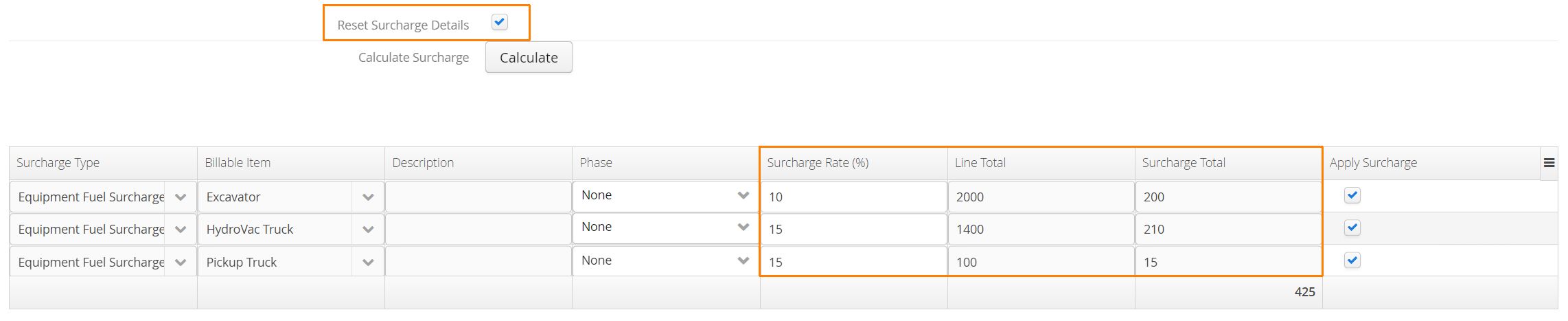
If for any reason users need to start over, they can use the Reset Surcharge Details checkbox and click on the Calculate Surcharge button. This will take the original rate of the Surcharge and calculate all surcharges again.
Lastly, there are options for how to display these surcharges on the client-facing version (PDF) of the form, as well as the invoice.
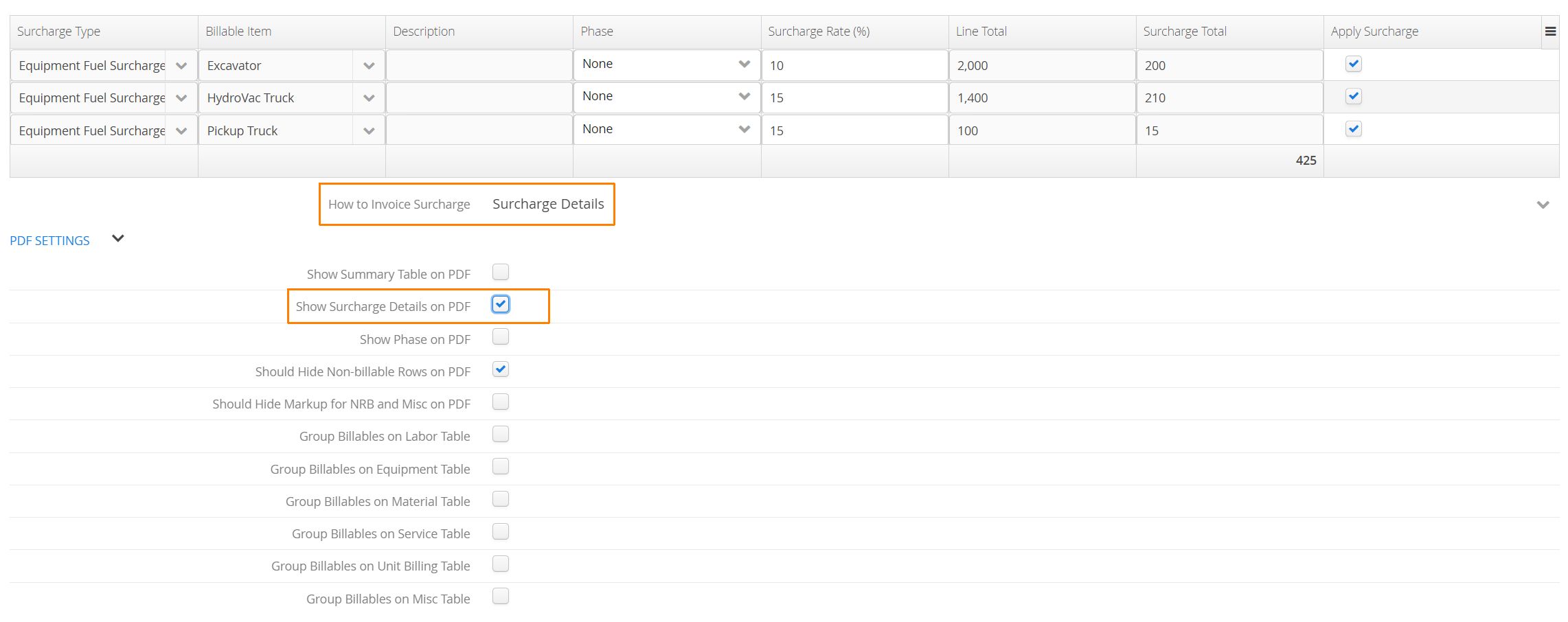
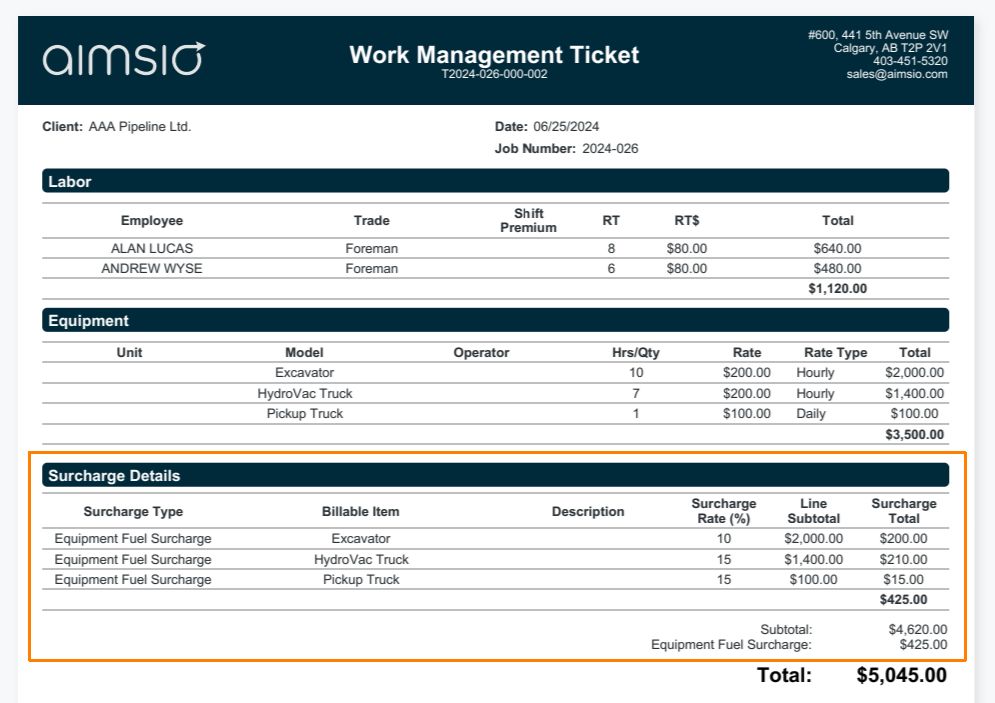
- Checking the Show Surcharge Details on PDF checkbox will include the Surcharge Details table which breaks down each surcharge charge by Billable Item on the form.
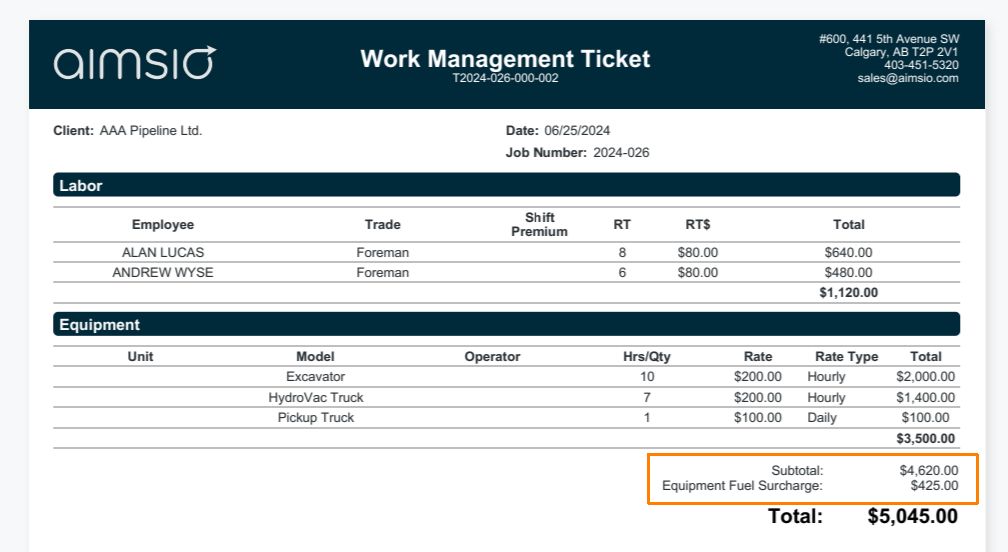
- If Surcharge Details are hidden, Aimsio will simply display the total surcharge above the form total.
How to Invoice Surcharges
There are two options for how surcharges will appear on invoices. These options appear on the form where the surcharge is being applied.
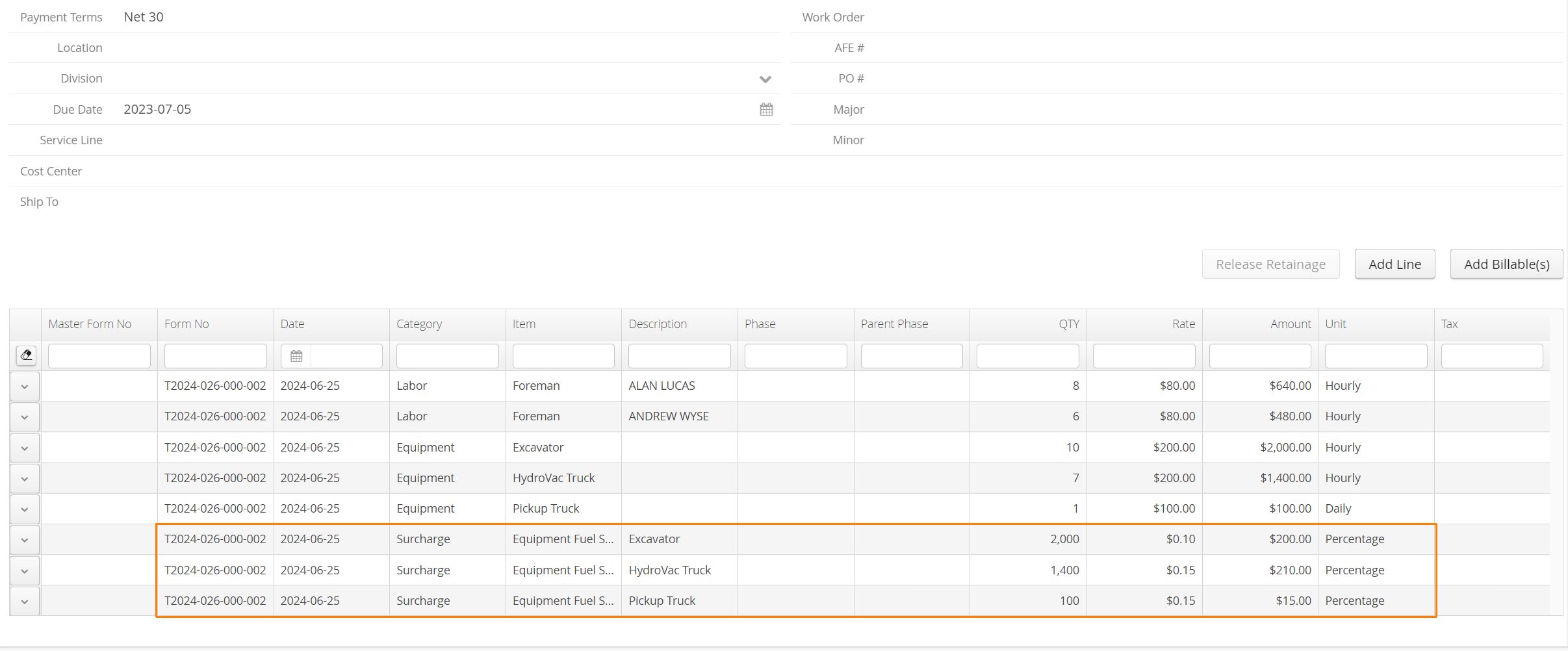
Invoicing the Surcharge Details will bring each surcharge onto the invoice as its own line item. These items can be grouped using an Invoice PDF Template.
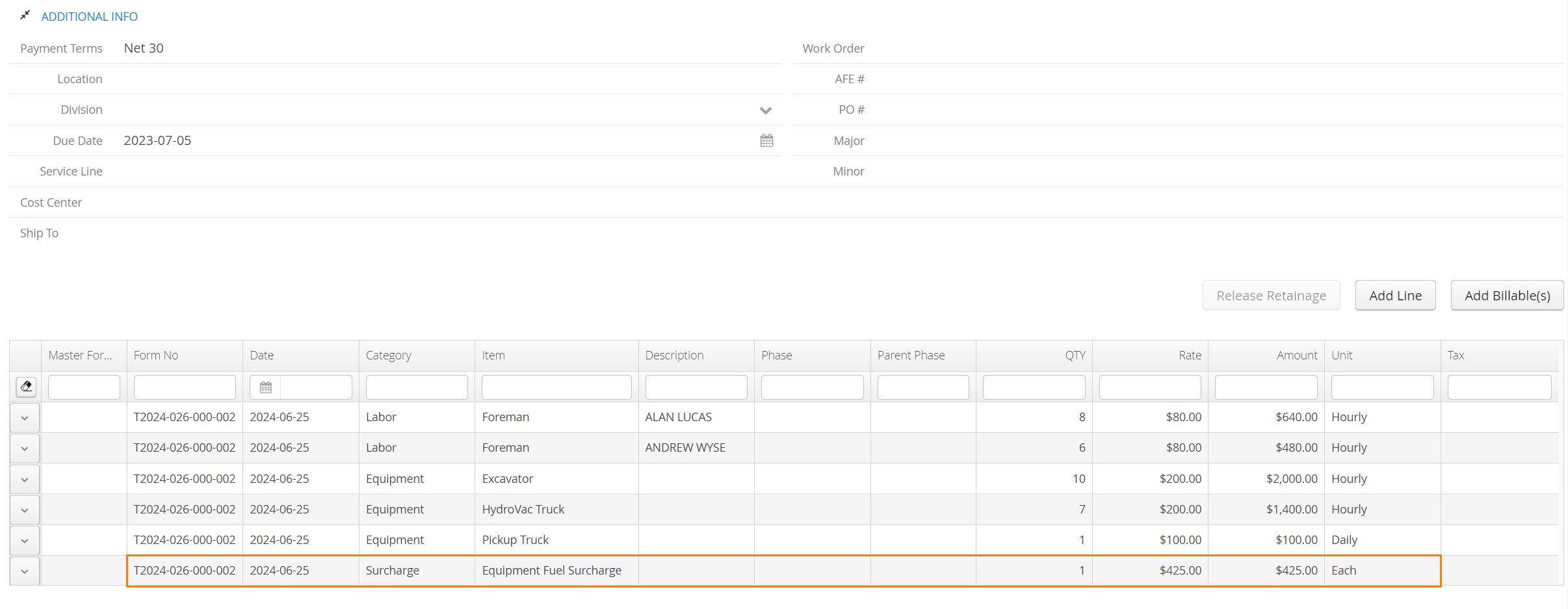
- If the ‘How to Invoice Surcharge’ field on the form is set to Group by Surcharge Total is selected. Aimsio will consolidate the surcharges to a single line item on the invoice (one line item per surcharge type).

How to Report Surcharges
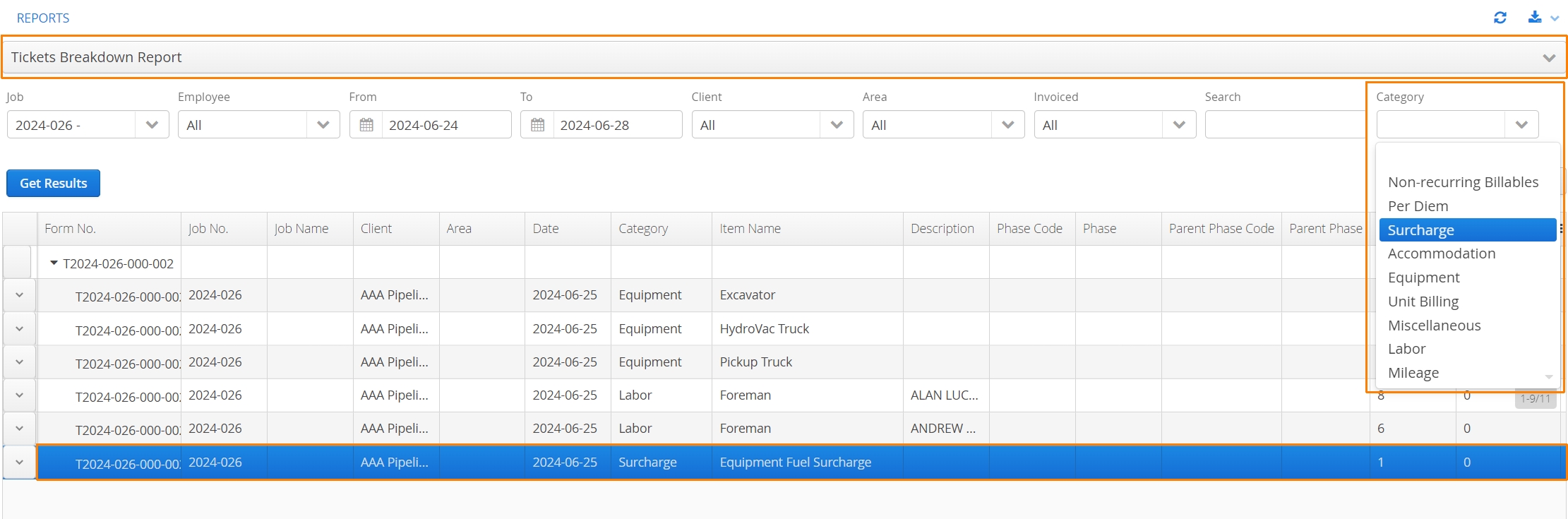
Aimsio’s Ticket Breakdown Report available in the Report Center will provide authorized users with the ability to report all surcharge line items included on Tickets. Users can filter the report by the Surcharge category, as well as the Job number and whether the line items have been invoiced.
How these surcharges appear in the report will be dependent on the invoice grouping option selected on the form. Much like the invoice, surcharge line items will either be grouped by their parent surcharge type, or each surcharge line item will be visible if users choose to display all Surcharge Details.