A Work Breakdown Structure Schedule may represent a simple set of deliverables, or an intricately cascading set of activities and budget projections. While Aimsio provides a convenient set of tools to build charts, including reusable Templates, some users may want to convert an existing structure or make edits using Excel.
Aimsio’s detailed WBS CSV files will provide users with the the required fields necessary for import, therefore we always recommend users start by building out a small chart/template in your account. This will enable users to perform a detailed CSV export containing an example of how fields should be formatted. This will also provide the maximum number of available fields for import.
If you’re working with a pre-existing spreadsheet, one that hasn’t been generated from Aimsio, please carefully review this article for an understanding on what is required for a successful import.
Exporting a Detailed CSV
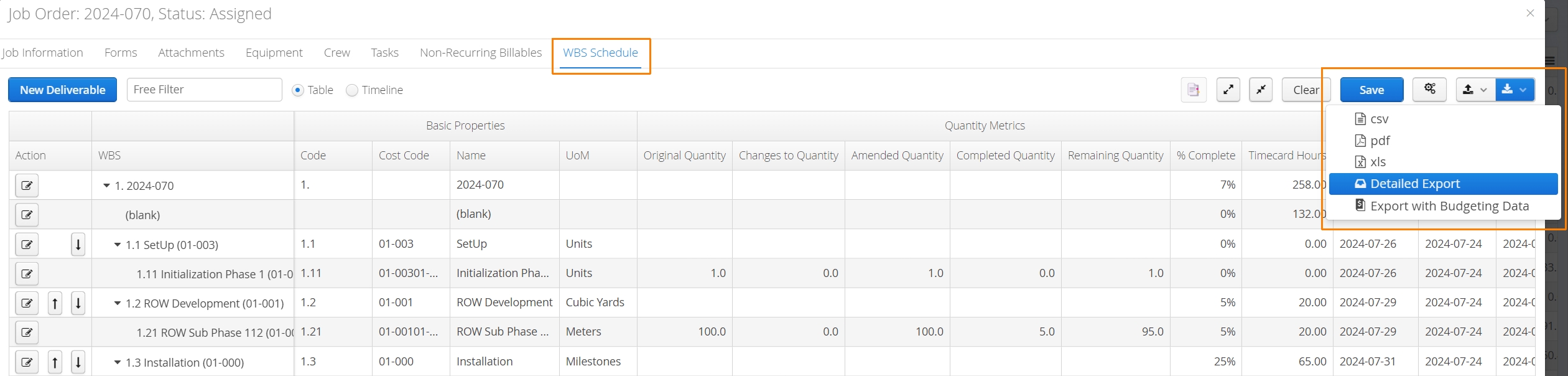
If you plan to start out with a chart created in Aimsio, locate the export button on the far right of the WBS Schedule tab and select Detailed Export.
CSV Column Order
The order of columns in a CSV is not a requirement when performing an import.
Both the columns on a CSV and in Aimsio can be set to a user’s preference. Consider rearranging these in a way that feels comfortable to work with.

For more information on customizing report layouts in Aimsio, please see: How to Customize Report Layouts.
Hierarchy & Unique Identifiers
Let’s breakdown this simple WBS Chart and compare it with the CSV.
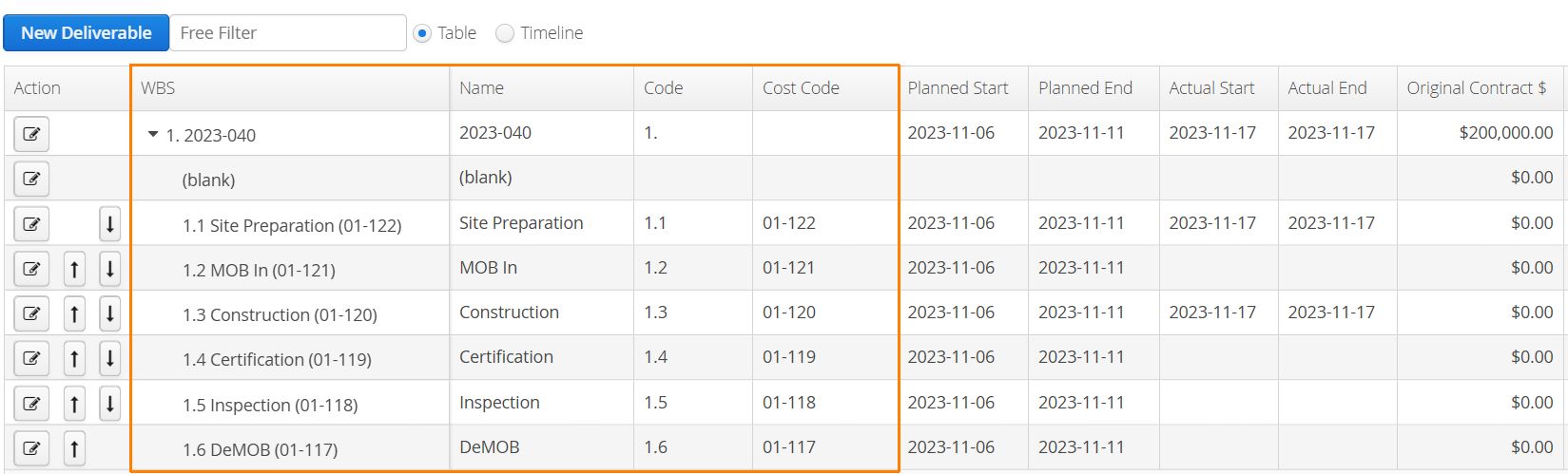
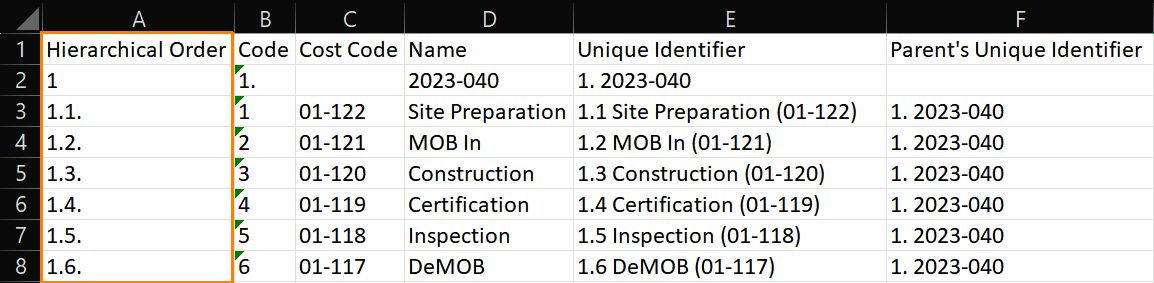
Hierarchical Order is a hidden and required field. It directly influences the way a chart is structured. The top of your hierarchy (ie: the Job) is represented by 1. Each subsequent phase/deliverable is nested under the top of the hierarchy, as represented by decimals (1.1., 1.2. etc.).
Nested activities are also referred to as children or child phases/deliverables**.**
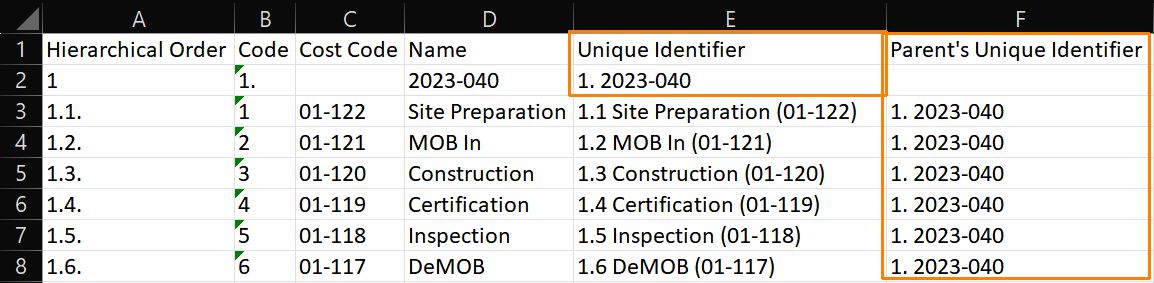
The Unique Identifier is another hidden and required field. Technically, it be anything a user wants. In the example above, the unique identifier used is a combination of the Hierarchical Order value (column A), followed by the Name (column D).
Whichever naming convention you choose, all child deliverables require their Parent’s Unique Identifier to match with the corresponding Unique Identifier, otherwise the import will fail.
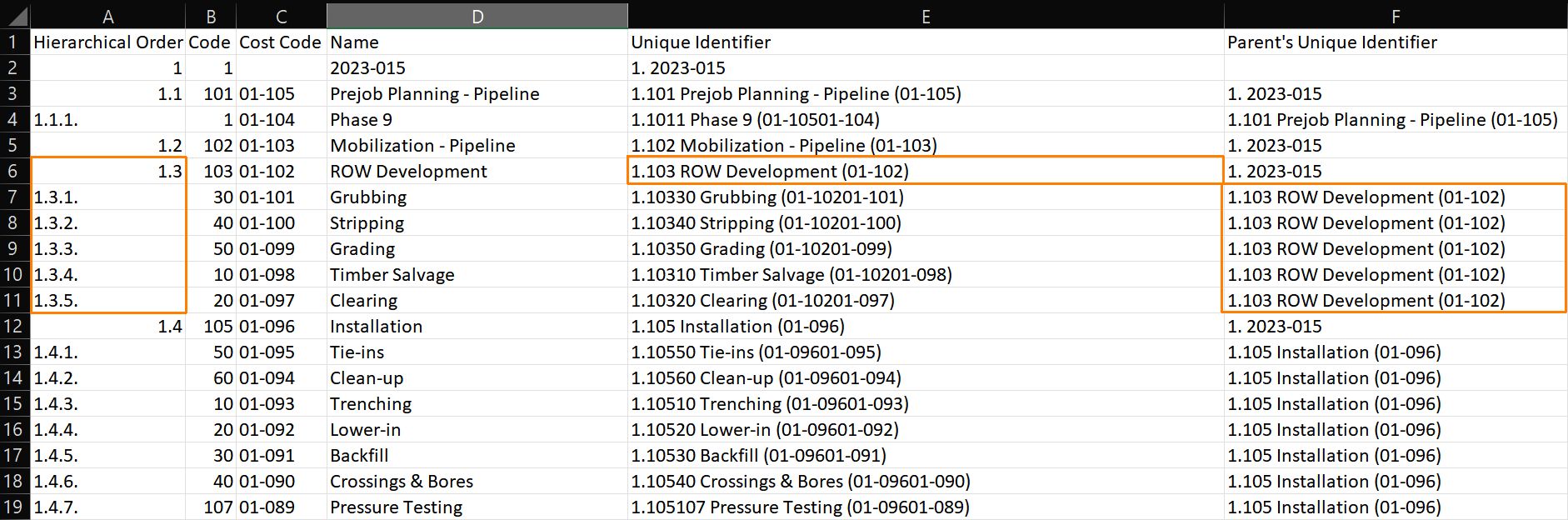
In more complex hierarchal structures, additional child deliverables can be nested under parent deliverables for the job. In the example above, children of the hierarchical parent 1.3 are represented by 1.3.1, 1.3.2, etc.
Note the relationship between the Hierarchical Order, Unique Identifier and Parent’s Unique Identifier. The hierarchy is reinforced by assigning the Unique Identifier (column E) to the Parent’s Unique Identifier (column F), directing Aimsio to relate the child deliverables to its corresponding parent.
Aimsio does not limit the number of hierarchy levels in a WBS Chart.
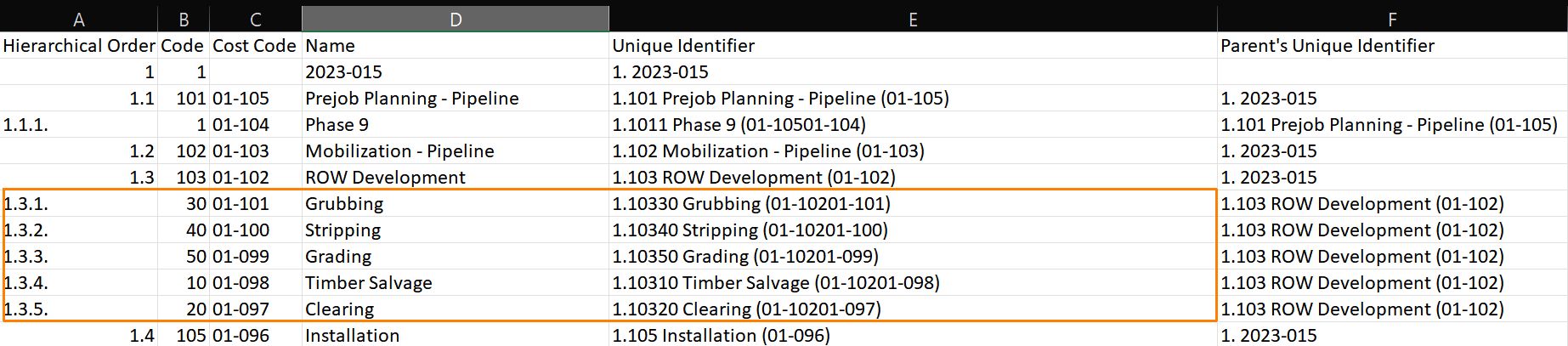
Unique Identifiers are required for any parent or child, but the naming convention only comes into play when a user is attempting to associate it with a child deliverable. It won’t be visible in Aimsio, but it must match for a successful import_._
Deliverable Information
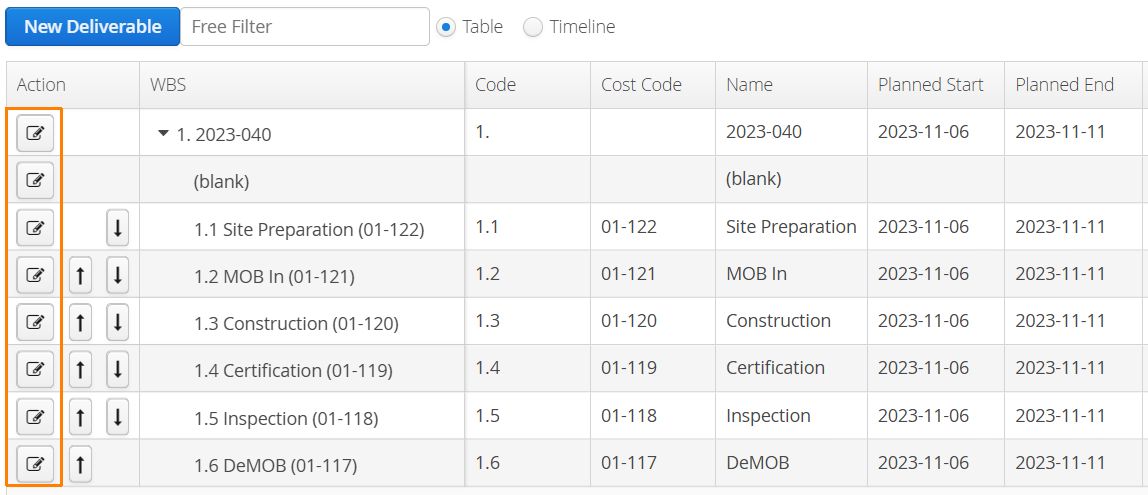
The remaining fields that are mappable during import exist within each deliverable/phase. This can be accessed via the Edit button to the left of any deliverable in the chart.
Name, Code & Cost Code
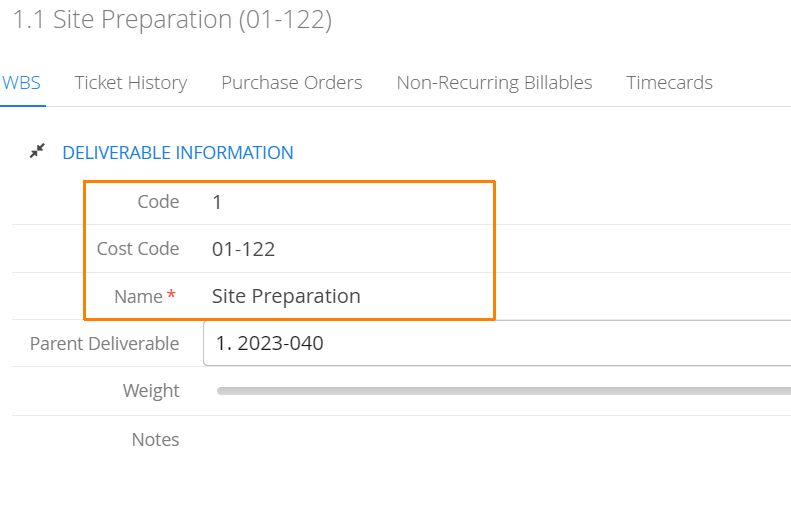
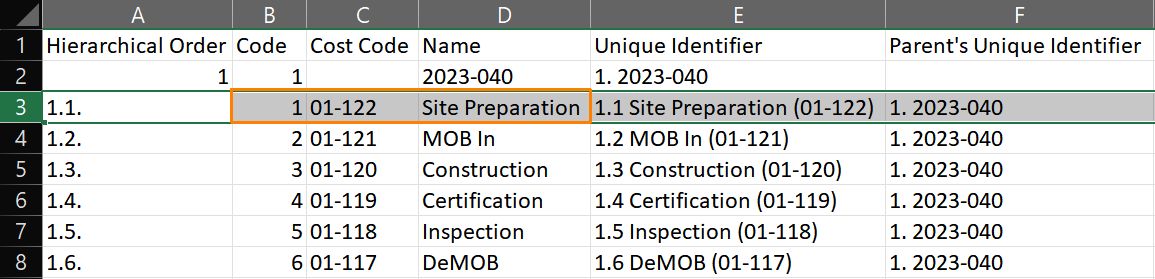
In the example above, Code (column B), Cost Code (column C) and Name (column D) relate to the identically named fields under Deliverable Information.
-
Codes are also referred to as Activity Codes. This can be a unique internal code that your team uses to identify an activity. It’s also possible have Aimsio Auto Generate Activity Codes on import. This option is set in your WBS configuration. For more information see: How to Create a WBS Schedule
-
Cost Codes typically relate to your client’s billing codes.
-
Name can be anything, but will often describe an activity or phase of the Job.
Caution: Importing Codes
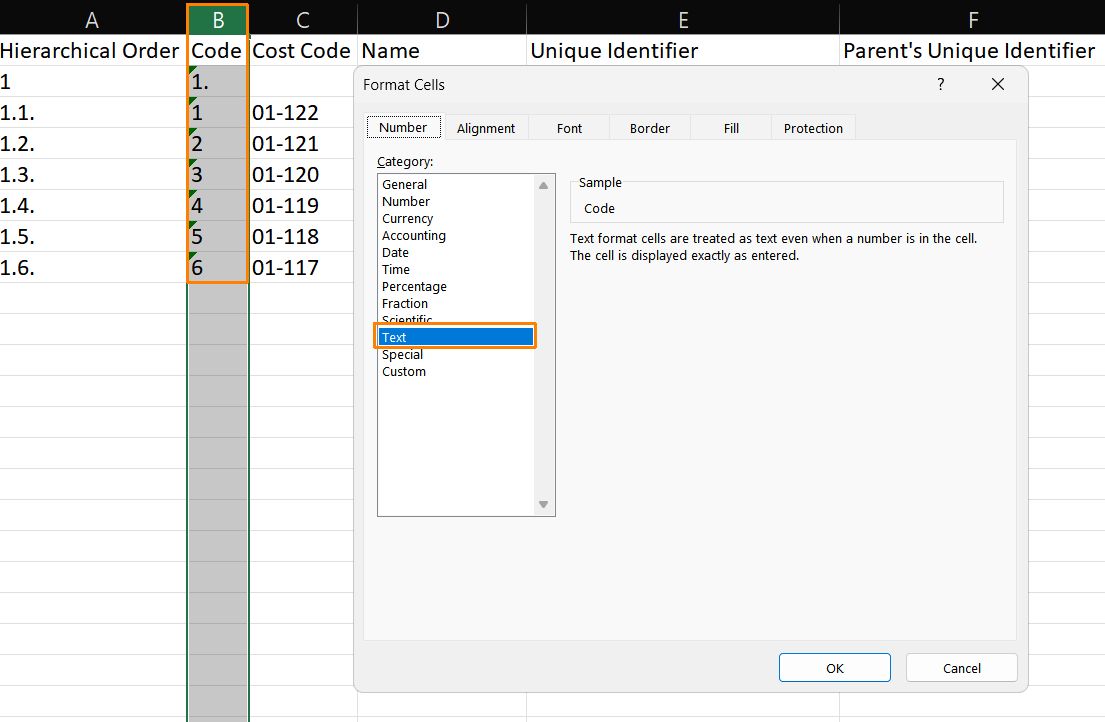
When working with a CSV file in Excel, it’s possible for a change of formatting to occur when re-saving the file again.
We strongly recommend formatting the Code column cells to Text if you’re experiencing failures importing.
Planned Dates
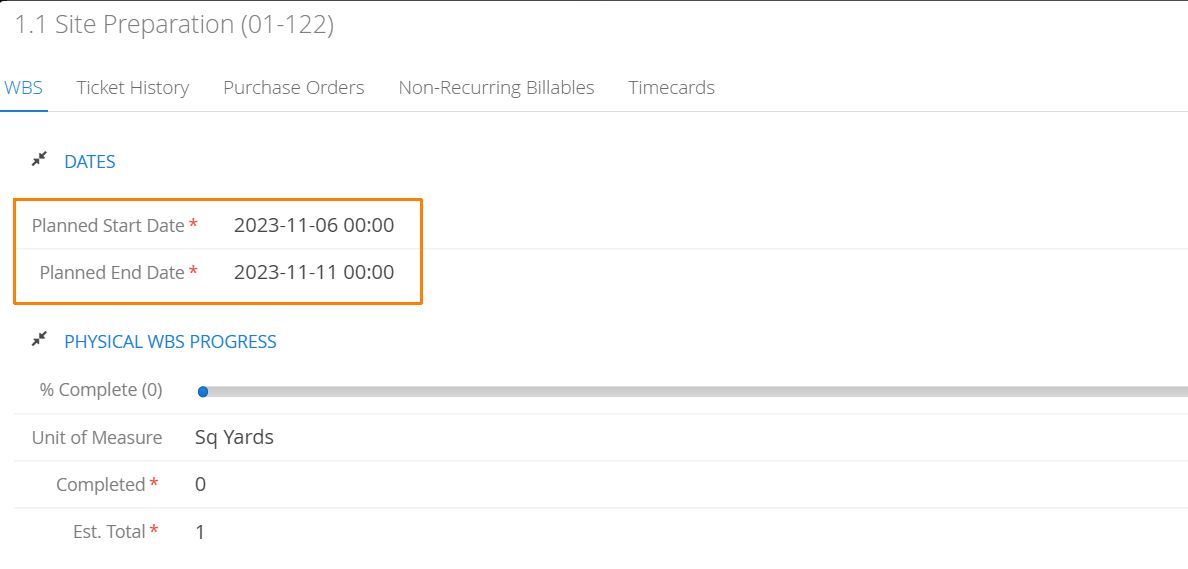
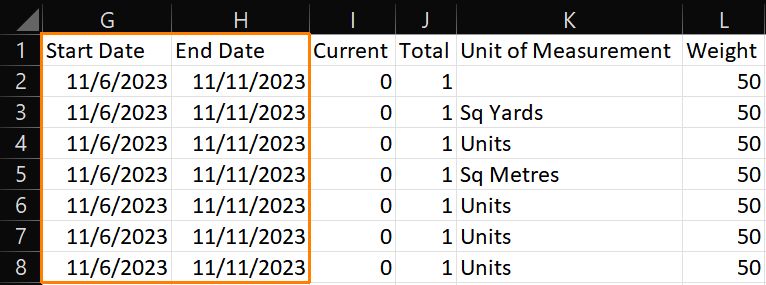
It’s possible to import the Planned Start Date and Planned End Date of each deliverable using date columns. Take note of the date formatting used, as you’ll be asked, during import, to parse the date information using the exact same format as it appears in your csv.

Physical WBS Progress
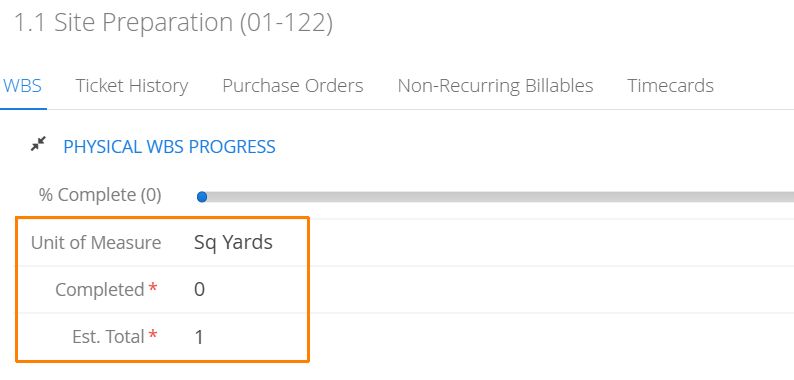
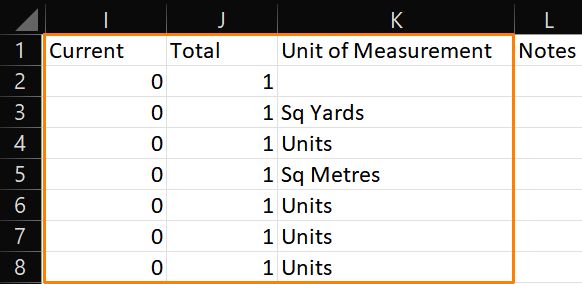
Aimsio enables the tracking of physical progress of each deliverable using any declared Unit of Measurement. 100% completion of a deliverable is represented by a numerical Total value. In the example above, 100% completion is represented by 1 and the Current field represents how much progress has been completed to date. 0.1 would indicate 10% completion.
-
A pipeline project might use Kms or Miles as a unit of measurement, while the Total value would indicate the total distance to completion.
-
Some projects may simply use “Percentage” as a unit of measurement and the Total value would be changed to 100 (or 100% completion).
Financials
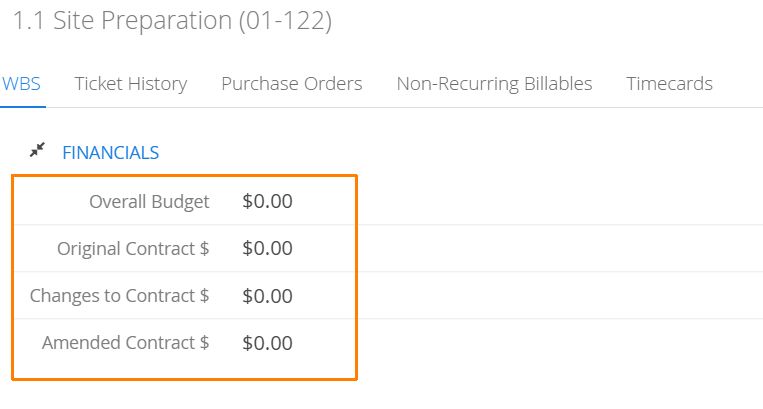

The way financial information for each deliverable is inputted isdependent on the WBS Configuration for the Job.
When entering financial information, do not include a $ symbol or format the cell to currency.
Contract Values can either be inputted at the top of the hierarchy, or calculated according to each child deliverable.
Budget Values may be inputted as a fixed amount per deliverable, or by Billable Item category (ie: Detailed Line Item Budgeting). See below for more information.
Any deliverable that contains at least 1 child must have the Contract and Budget values entered on the child.
Detailed Line Item Budgeting
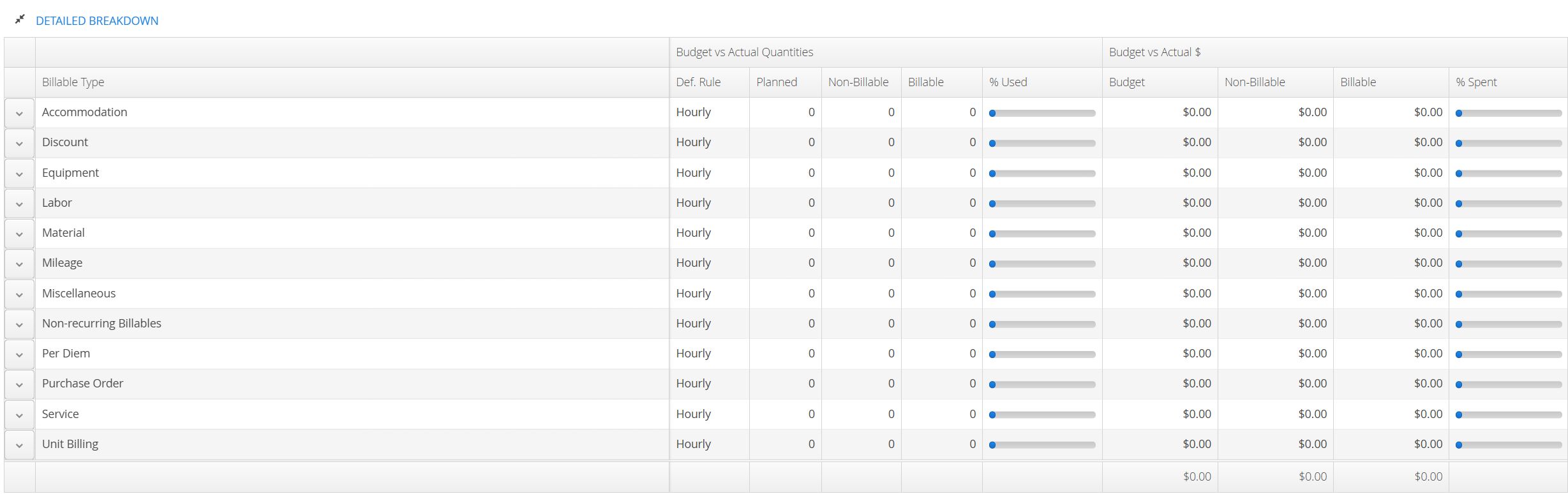

Detailed Line Item Budgeting for each child deliverable is broken down by Planned Quantity and Planned Budget.
-
By default, Quantity represents the number of planned recorded hours for each category. This can be adjusted in your WBS Configuration.
-
Budget represents the total monetary amount being allocated to each category.
Importing a WBS CSV
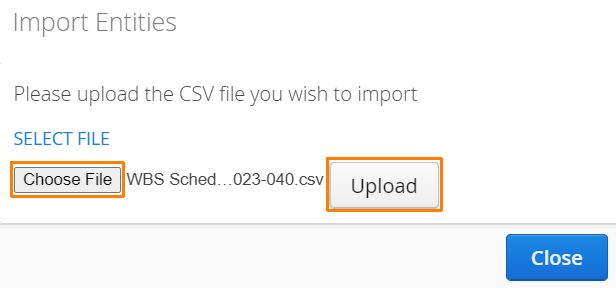
Navigate to the WBS Schedule tab, locate the import button on the far right and select csv.

Locate the file on your computer and select Upload.
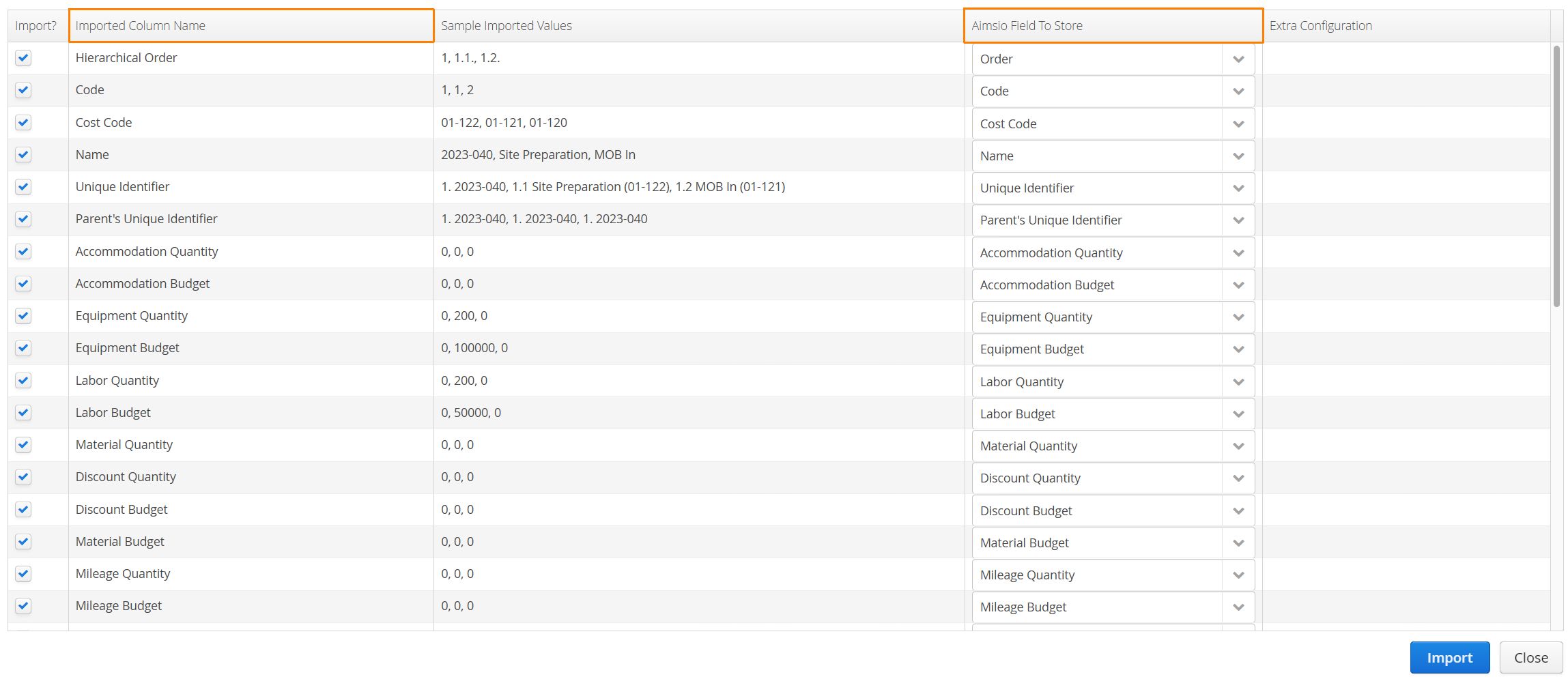
Aimsio will attempt to scan the file and automatically map any column headers (Imported Column Name) that match with the fields available in your account (Aimsio Field To Store). If you are using your own csv file, you will need to manually map your columns to the relevant Aimsio fields.
There are hidden fields, as defined in this article that are required and may not currently exist on your CSV. The Hierarchical Order, Unique Identifier and Parent’s Unique Identifier are all required and will need to exist in some form on your own CSV. This is why we recommend starting with an export from Aimsio to ensure you have a relevant example of how a file should be formatted.
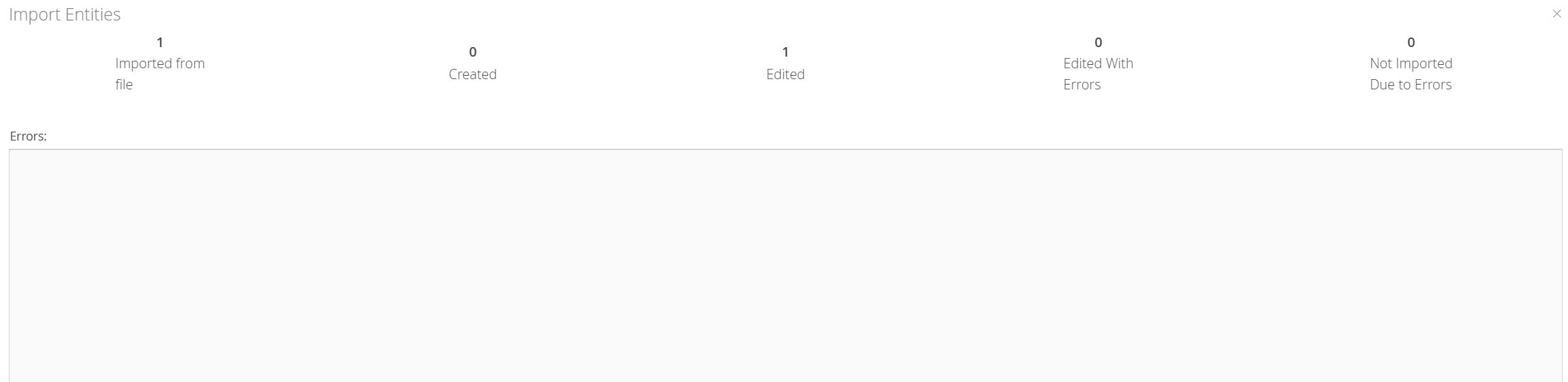
A window will appear and indicate whether the import was successful. If there are any errors found during the import, the import will fail.