The most efficient way to get your client’s approval is to use our Client Portal. Send any completed form from Aimsio’s web portal directly to your client. They’ll be prompted via email to review and sign. Aimsio will automatically approve the form and replace the current PDF in your account.
For a walkthrough on using our Client Portal please see our Client Portal guide.
How to Sign a Form In the Field Using a Mobile Device
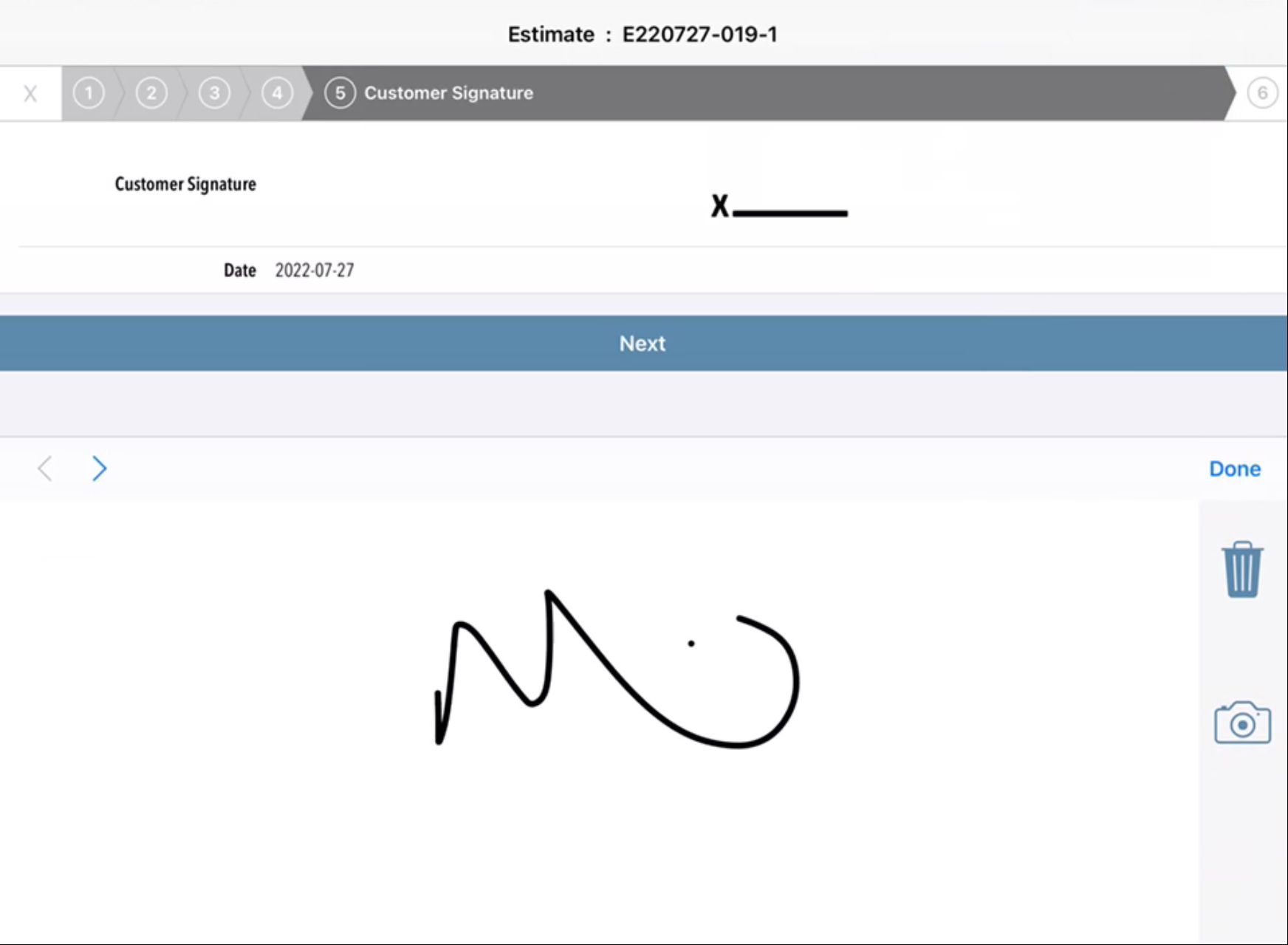
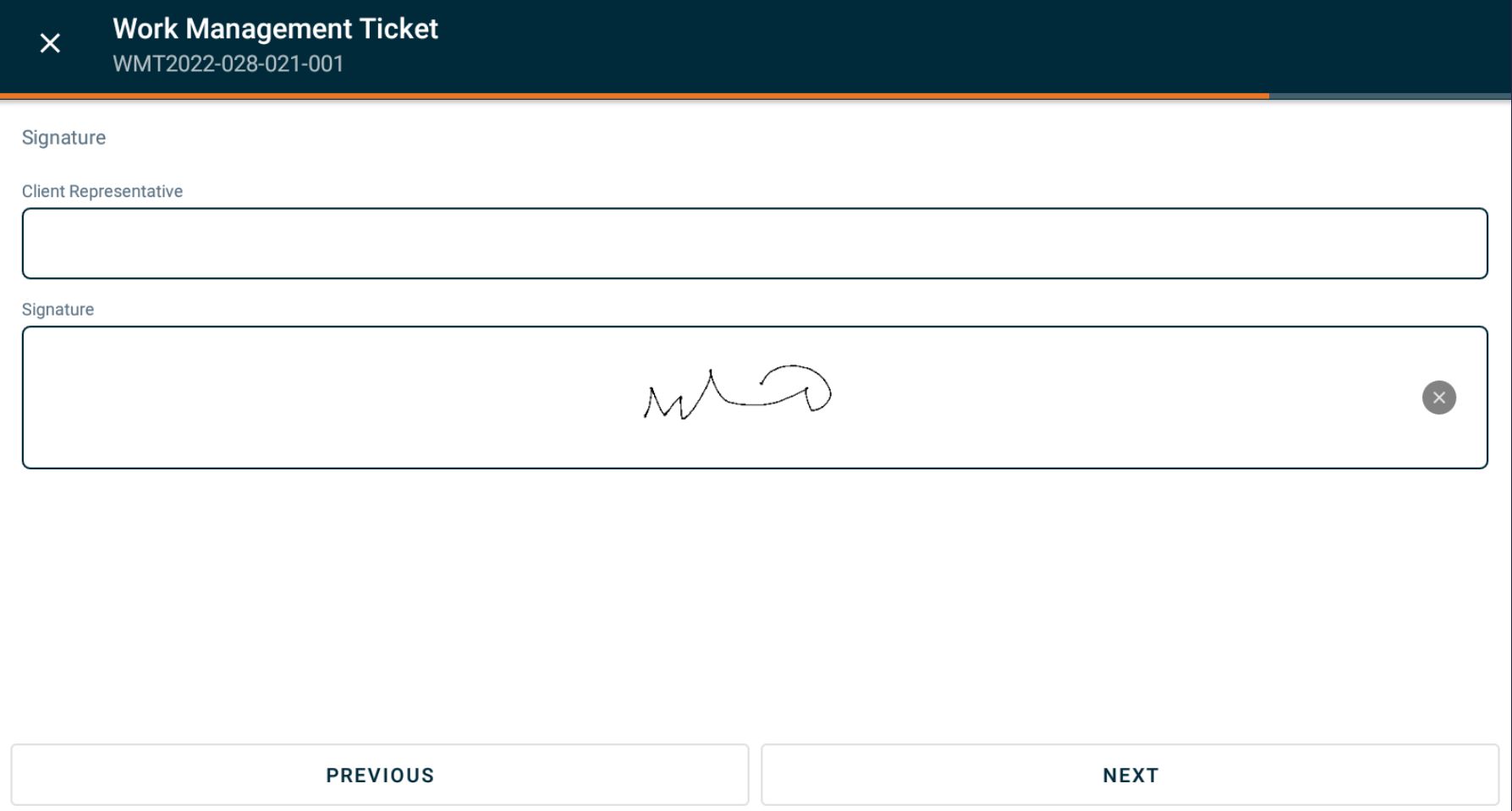
Tickets, Purchase Orders and Estimates can all be signed in the field directly on our mobile app. If your client is with you at the time a form is being completed, you’ll be provided the option to hand-draw the signature directly onto your device. This signature will be automatically appended to your final PDF.
How Can Clients Sign the Document Themselves?
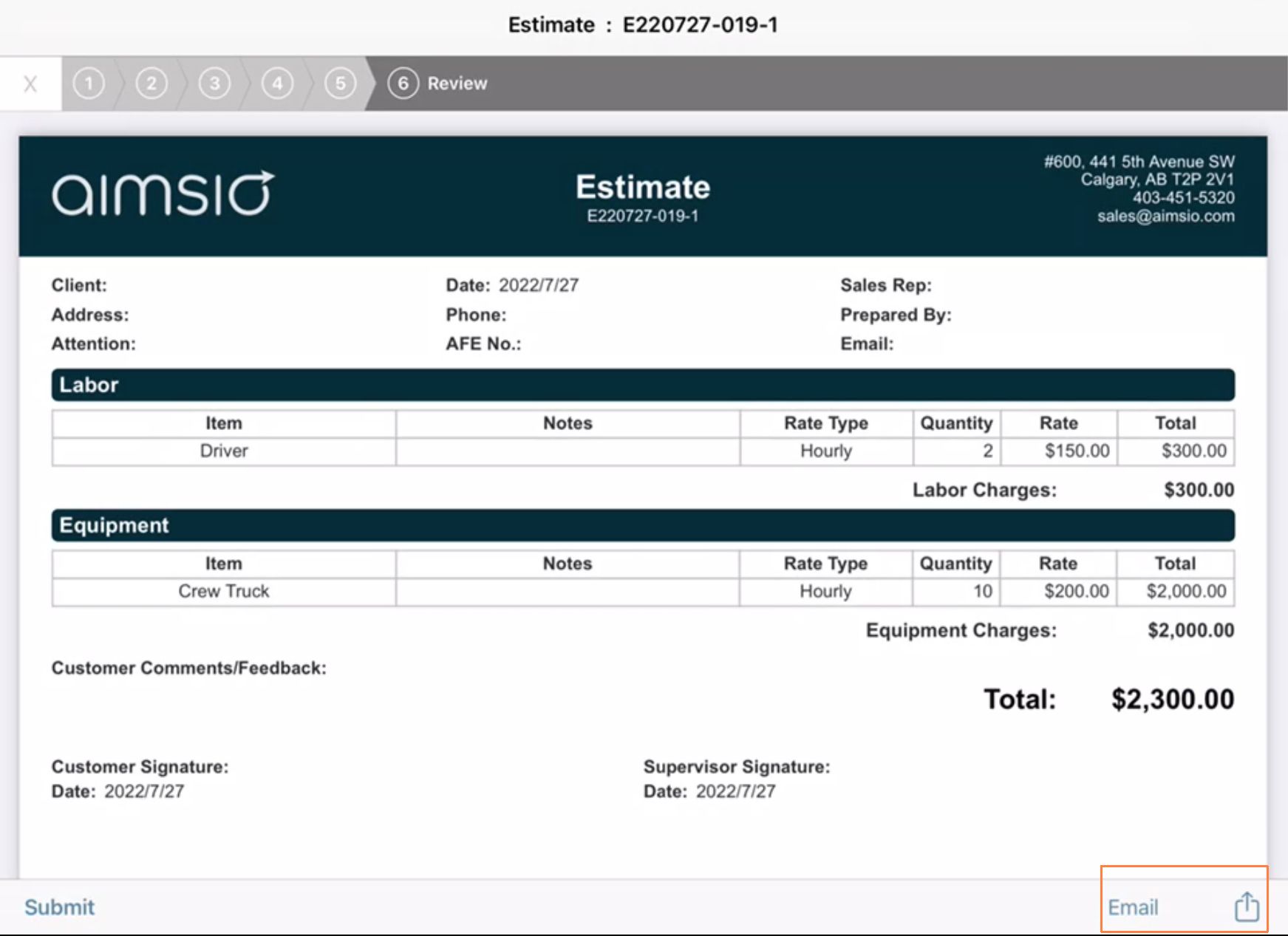
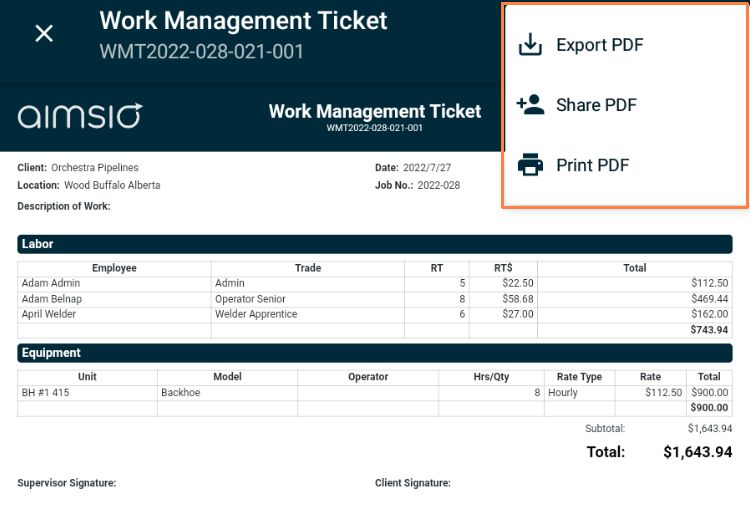
On a mobile device, once you’ve completed your form, you’ll be given the option to Email or Share the PDF. Use this feature to send your clients a copy for their external approval.
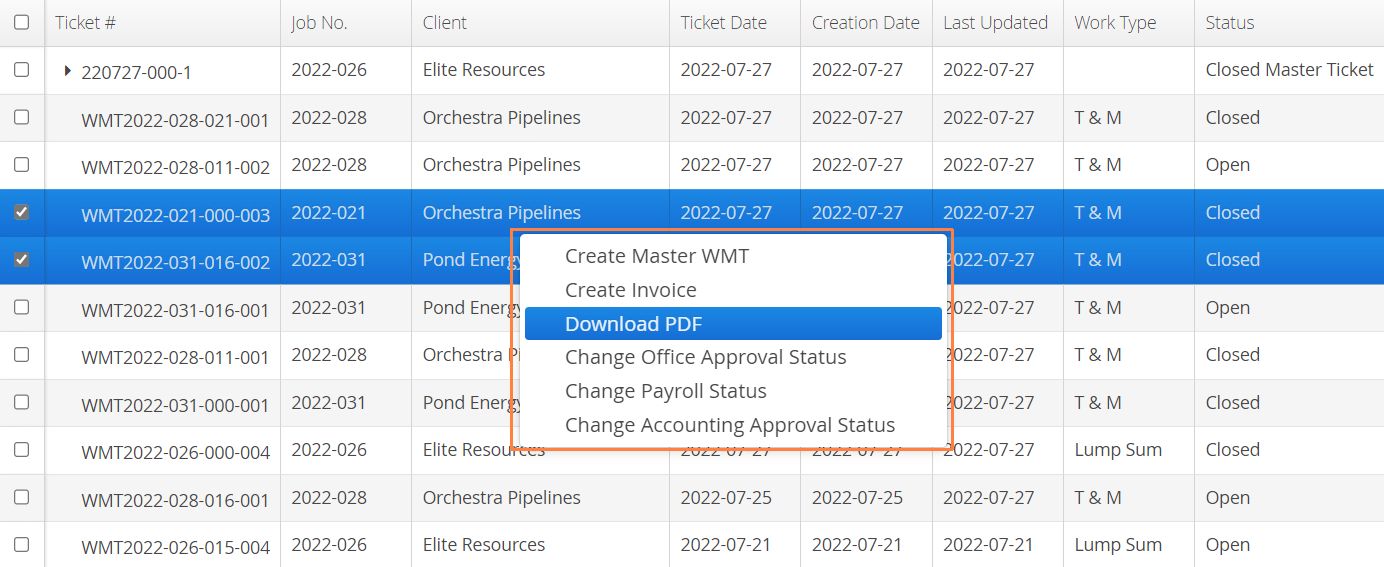
If you’d like to send your clients a copy of a PDF from Aimsio’s web portal, locate the completed form(s) you’d like to download. Use the left checkbox to select the forms, right-click and choose Download PDF. Users will need to locate the downloaded file on their device and email to the client using their own email client.
How to Upload an Externally Signed PDF
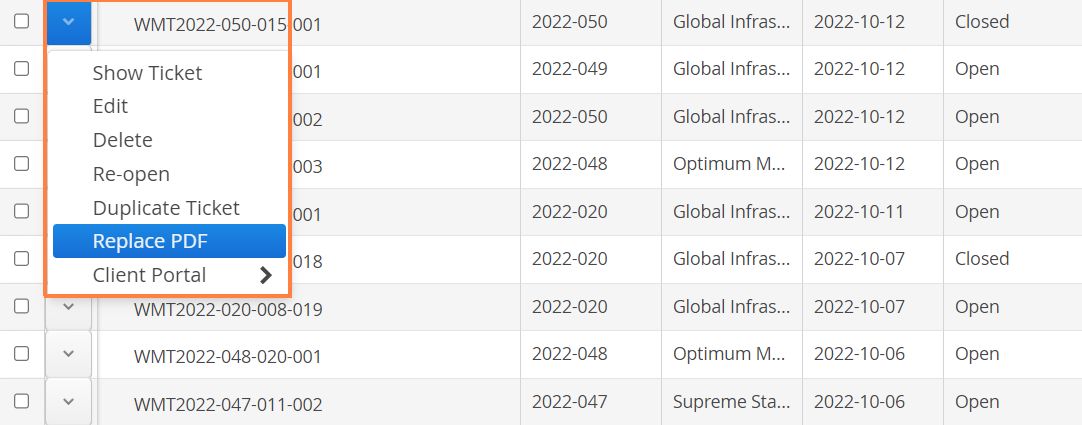
Once a signed / approved copy of the PDF has been sent back to you, locate the form on Aimsio’s web portal. Click on the Action button to the left of the form and select Replace PDF.
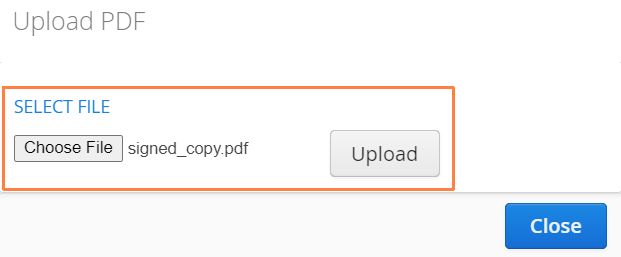
- Select Choose File, locate the signed copy on your computer and select Upload. This will replace the original PDF inside your Aimsio account with the externally signed PDF.
Any changes made to the form, after replacing the PDF with your client’s version, will override the current PDF with a new unsigned Aimsio PDF. Users of our Client Portal can provide your clients to automatically upload their own PDF, skipping this process entirely. For more information read more about our Client Portal and Approver Portal.