Aimsio’s Sage Intacct integration currently allows accounts to:
-
Import Customer, Vendors, Employees, Projects and Items into Aimsio
-
Imports can be set to run each morning automatically at 5 AM MST or triggered manually.
-
Data is imported but not synced. In other words, if information is changed in Aimsio after it’s imported, a re-import from Sage Intacct will take precedence and overwrite the information stored in Aimsio.
-
-
Push Aimsio Jobs, WBS, Purchase Orders, Non-recurring Billables, Invoices
-
Entries can be sent individually or in bulk.
-
Exported status is given to Aimsio entities after they’ve been successfully pushed.
-
For Jobs and WBS, we support data updates in Sage after initial export:
- For example, if the Progress % for Aimsio WBS activity reaches 100%, trigger the export action will update the task status to Completed
-
Integration Overview
Below is a chart demonstrating the data flow between Aimsio & Sage Intacct.
Aimsio | Sage Intacct | Status | |
|---|---|---|---|
Employee (Direct-Hire) | ← | Employee | ACTIVE |
Employee (Subcontractor) | ← | Vendor | ACTIVE |
Company → Client | ← | Customer | ACTIVE |
Company → Vendor | ← | Vendor | ACTIVE |
Billable Item (Default Type: Service) | ← | Item | ACTIVE |
Job | ← → | Project* | ACTIVE |
Work Breakdown Structure (WBS) | ← → | Tasks* | ACTIVE |
Non-recurring Billables | ← | Credit Card Transactions | ACTIVE |
Non-recurring Billables | ← | AP Invoices (Purchase Orders) | ACTIVE |
Invoice | → | Invoice; or Sales Order Entry | ACTIVE |
Timecard | → | Timesheet (Time & Expense) | ACTIVE |
Purchase Order | → | PO Transaction (Purchase Order) | ACTIVE |
Non-recurring Billables | → | PO Transaction (Vendor Invoice) | ACTIVE |
* Support update export after initial export
Connecting Your Sage Intacct Account
Currently, we will handle the connection of your Aimsio account to your Sage Intacct account for you.
-
For connecting to the API, we require a Sage Intacct Web Services sender ID and a password provided by the Sage team. Customers are required to create a special user for Aimsio in their Sage environment (typically, this will be a Web Services user account, which does not include UI access).
-
Ensure your Sage Intacct account has enabled Web Services by navigating to Company → Subscriptions, finding ‘Web Services’ and click to subscribe.
-
Add Aimsio’s Sender ID to your account’s allowed list: ‘aimsioMPP’
-
Create User with Role-Based Security with permissions for each applicable module:
-
Account Payable:
- Vendors: List - View
-
Account Receivable:
-
Customers: List - View
-
Invoices: List - View - Add - Edit
-
Tax Details: List - View
-
-
Projects:
-
Customers: List - View
-
Projects: List - View
-
Items: List - View
-
Employees: List - View
-
Tasks: List - View
-
-
Time & Expenses
- Employees: List - View
-
-
Once your integration is connected, authorized users can access the integration options by navigating to the Integrations page using Aimsio’s left sidebar.
Importing Sage Intacct Data
-
Aimsio supports the importing of Customers, Vendors, Employees, Projects and Items.
-
Customers are imported as Companies (Client).
-
Vendors are imported as Companies (Vendor) or Employees (Subcontractor).
- This option can be defined on our end relative to your requirements.
-
Items are imported as Service Billable Items by default.
- We may be able to assist with setting conditions to allow Items to import as other Billable Items types (ie: Equipment, Labor, etc.)
-
-
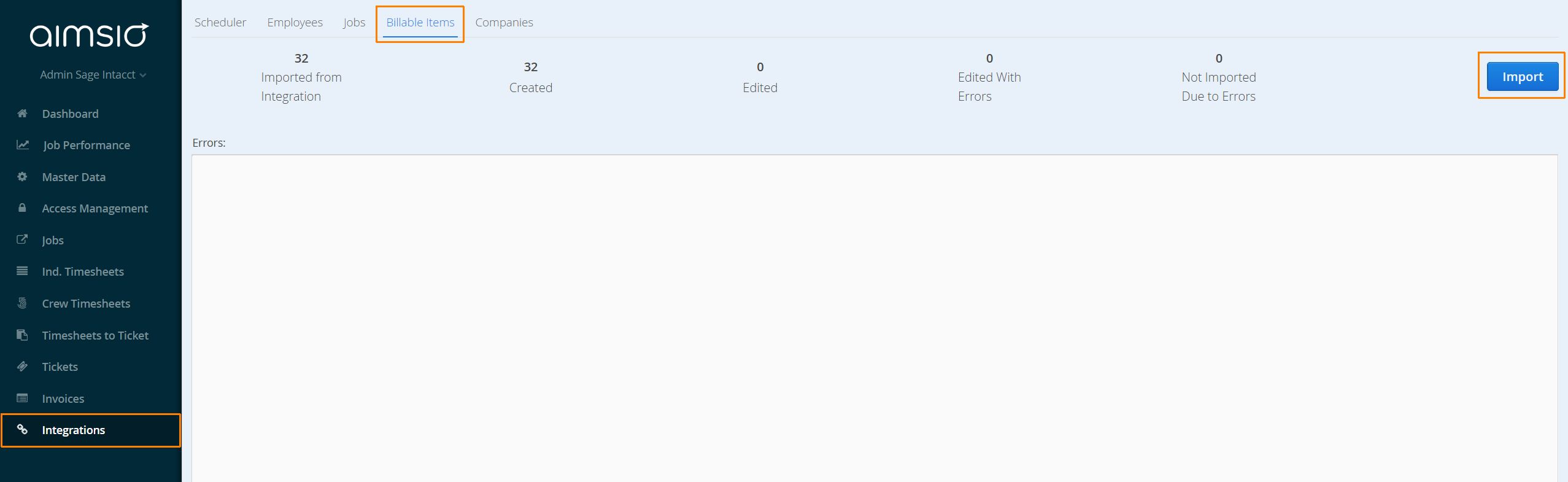
On the Aimsio Integrations page, navigate to the tab of whichever dataset you’d like to import and click the Import button on the right.
Scheduling your Import
-
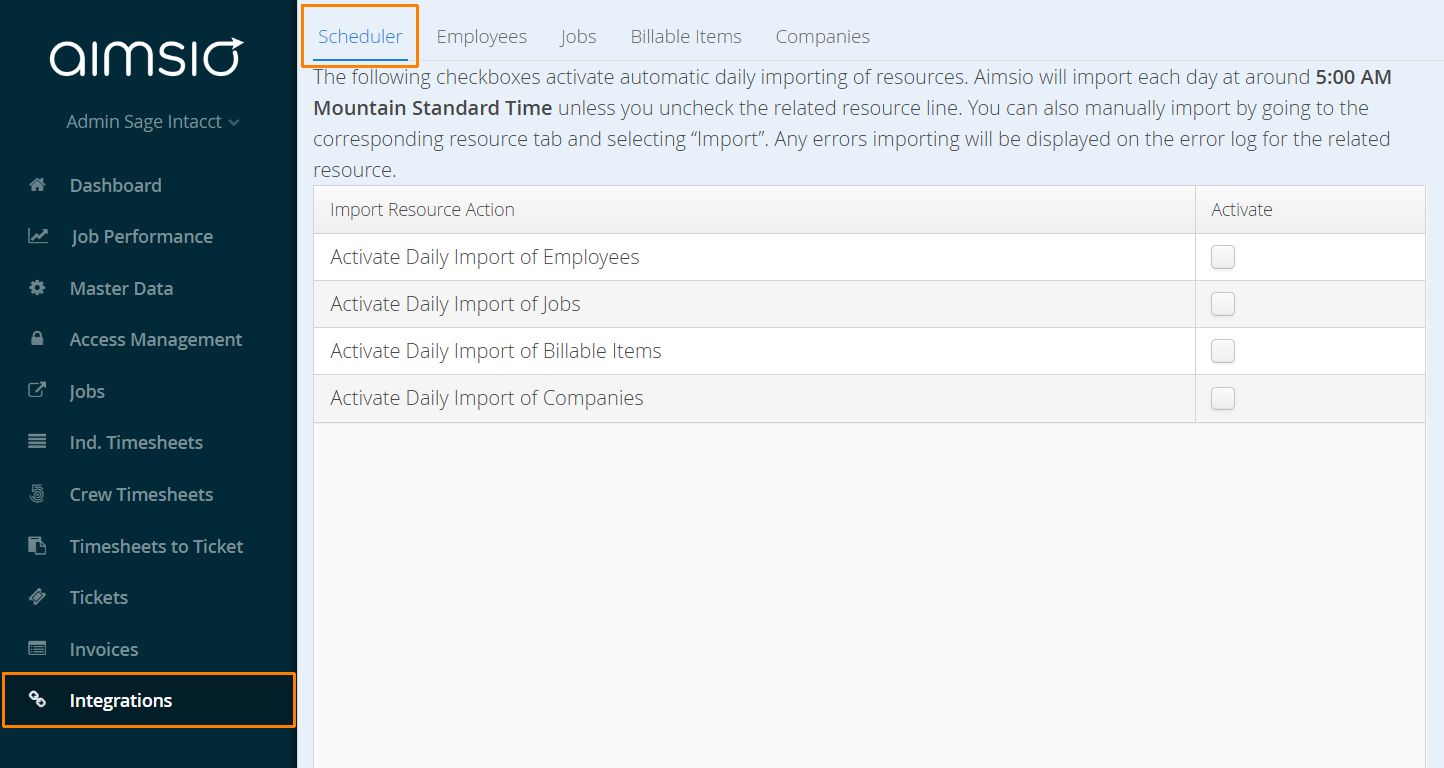
It is possible to set Aimsio up to perform an import of selected data types each morning around 5AM Mountain Standard Time.
-
Please use care when adopting this feature. If data is changed in Aimsio, after it’s imported, a re-import from Sage Intacct will take precedent and replace the information stored in Aimsio.
Sending Jobs to Sage Intacct
-
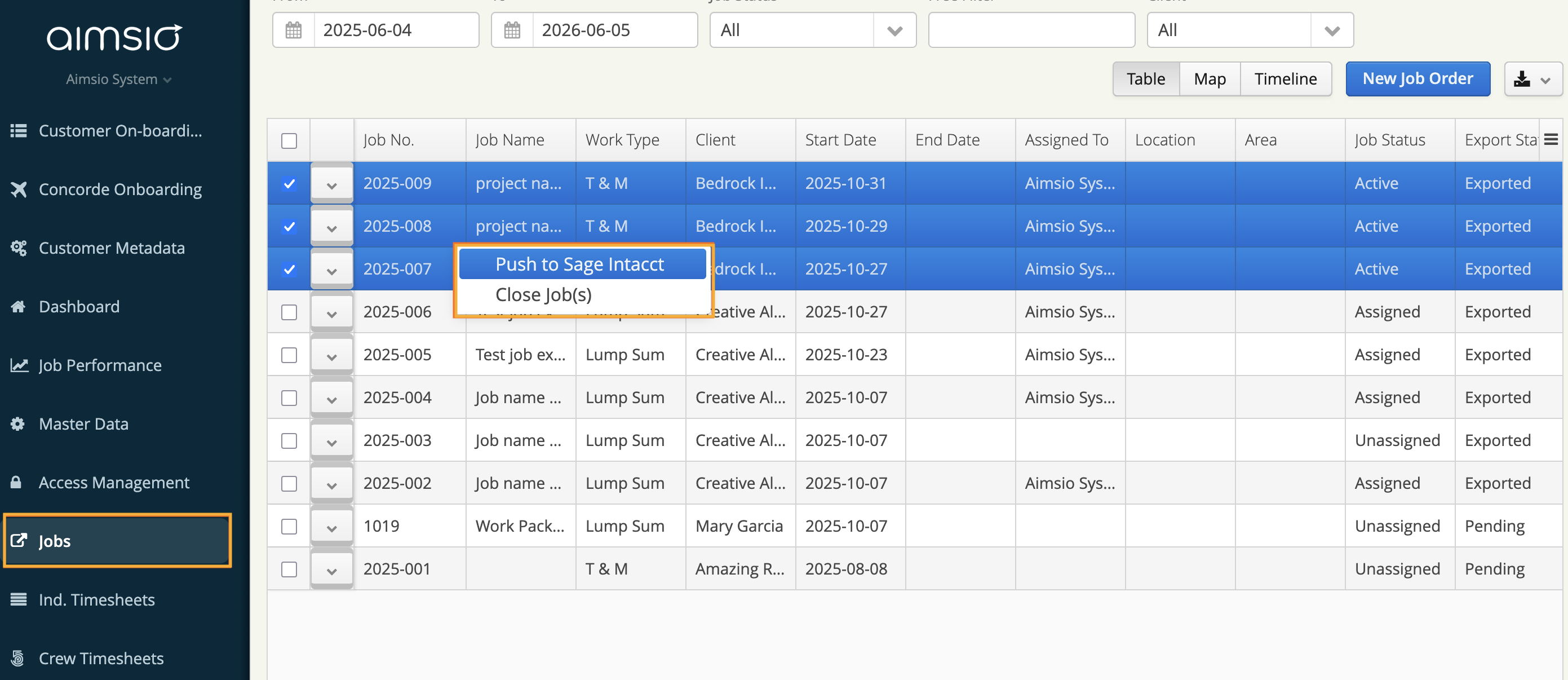
Navigate to the Job page in Aimsio. Select all invoices you would like to export, right-click and select Push to Sage Intacct.
-
If your account supports exporting WBS activities as Tasks, the action will also export the WBS.
-
Once a job and its WBS activities have been exported, the Export Status column will update to “Exported”.
-
If you trigger the Push action again after the initial export, status updates such as task progress will be posted to Sage Intacct.
Sending Invoices to Sage Intacct
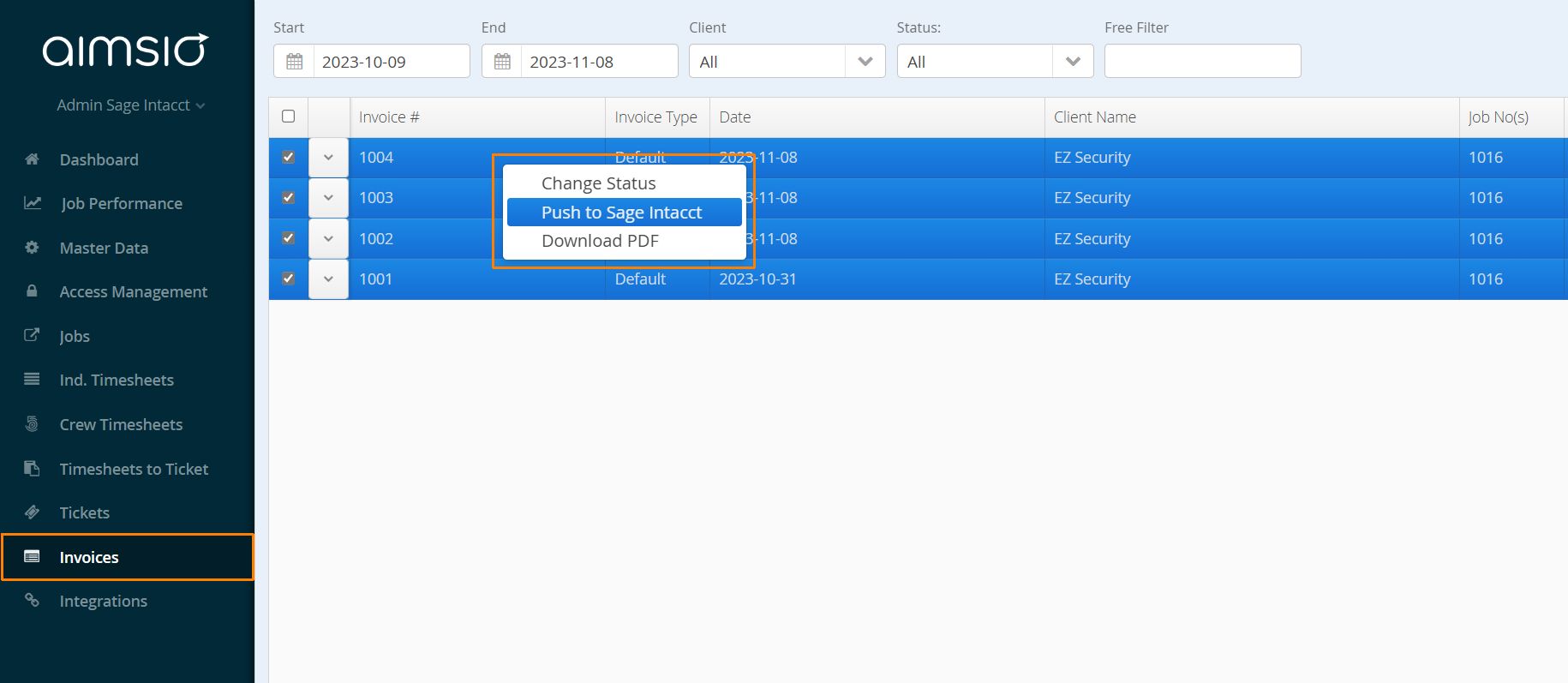
- Navigate to the Invoice page in Aimsio. Select all invoices you would like to export, right-click and select Push to Sage Intacct.
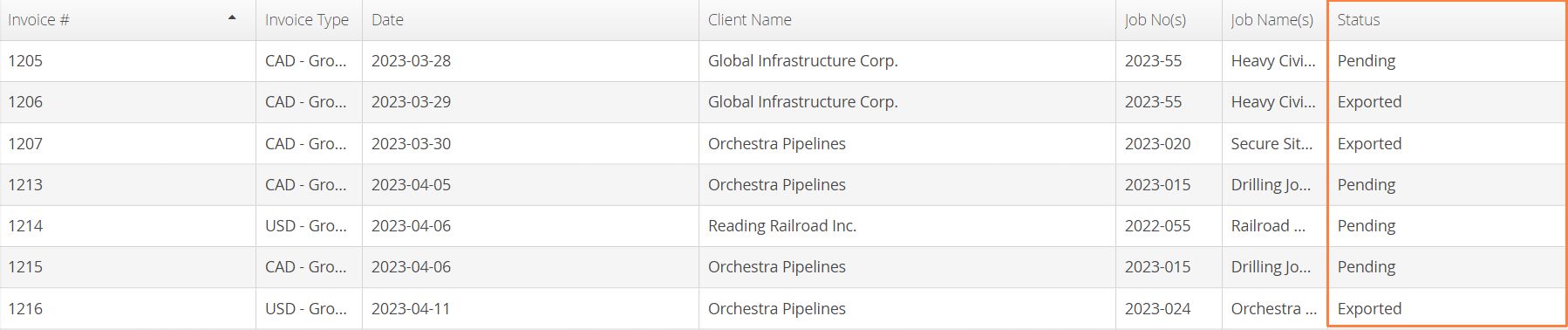
- Invoices that have been successfully sent to Sage Intacct will have their status changed to Exported.
Reviewing invoices in your Sage Intacct Account
- Information changed in Sage Intacct will not automatically reflect back in Aimsio. When possible, make your changes in Aimsio prior to exporting to Sage Intacct or a manual change on both platforms will be required.
Sending Timecards to Sage Intacct
-
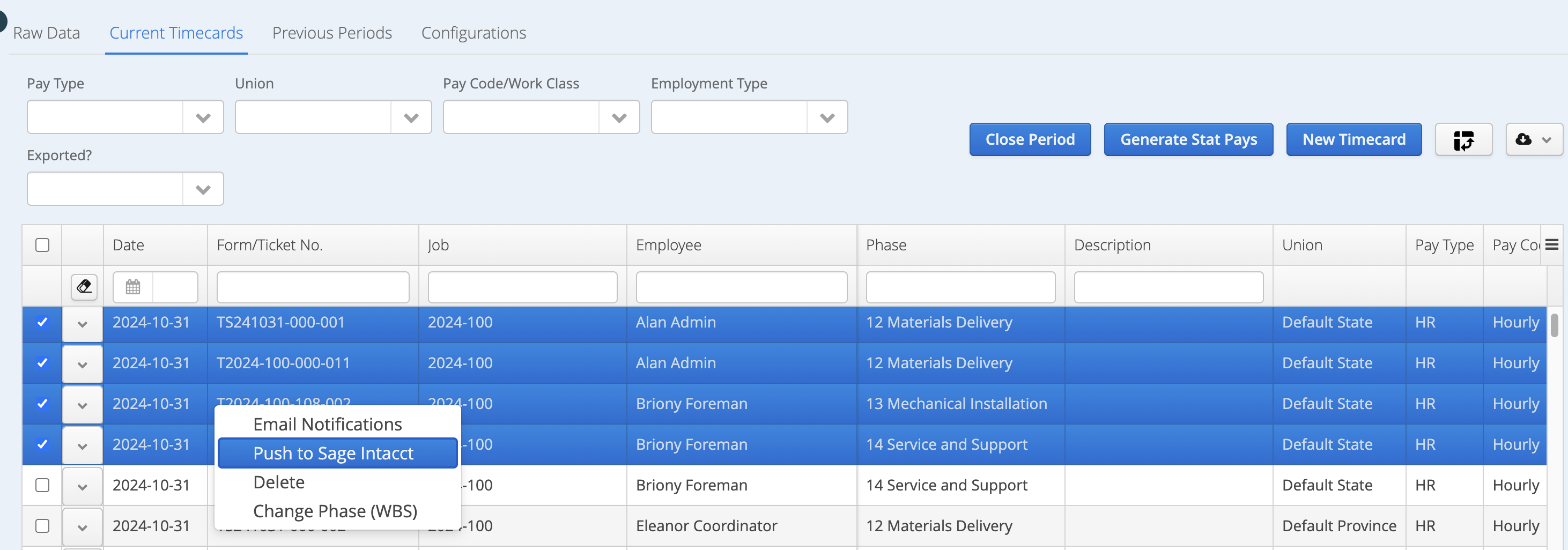
You can also send the timecards in Aimsio to Sage Intacct > Time module.
-
Time type needs to be configured to recognize RT/OT/DT/ST in Aimsio.