What’s new in version 25.08
Our latest release is live! We’re giving dispatchers more control over how their Equipment is billed and letting accounts specify markups for each item when creating a Purchase Order. We also now support the export and import of User and Employee Areas. Read on to learn more.
Questions about our latest updates? Contact our support team.
Dispatch
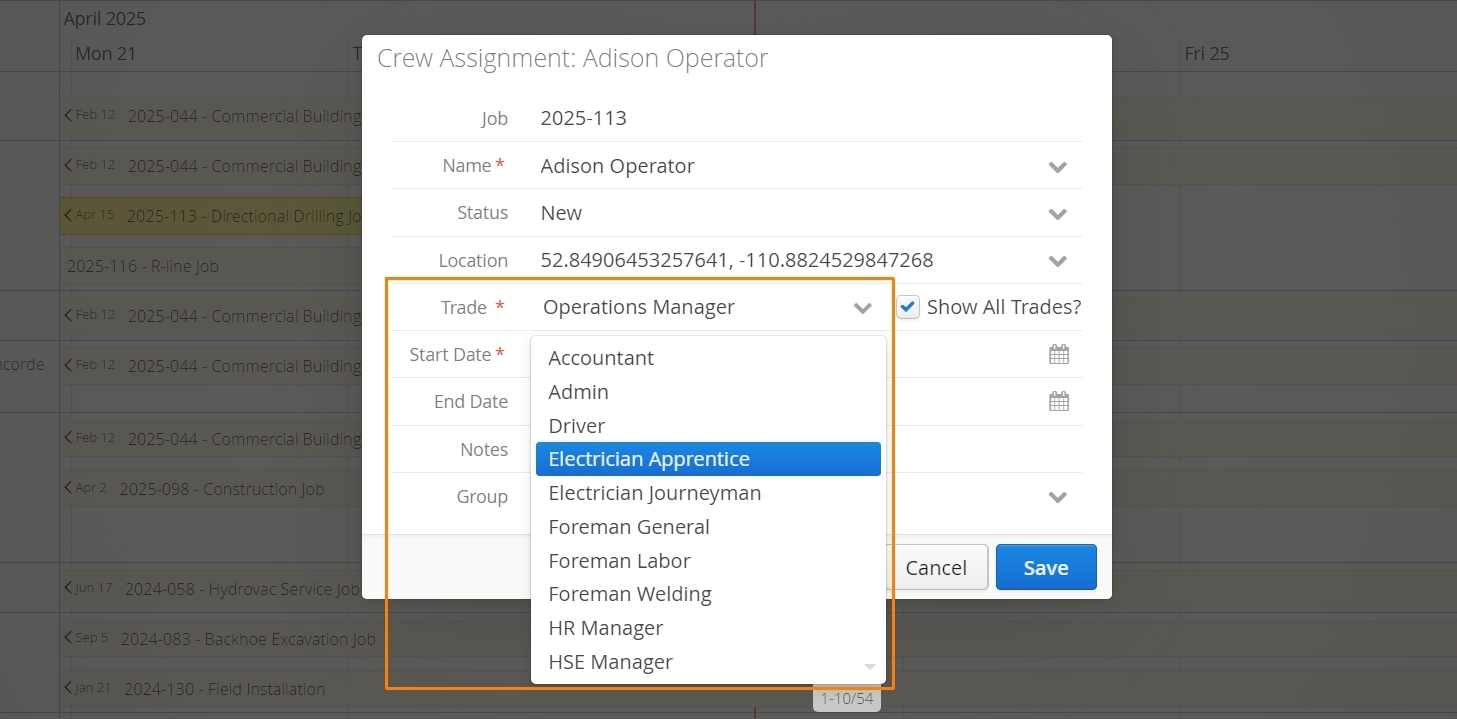
A popular feature in our suite of Dispatch tools is the ability to change the Trade of a Employee for a specific Job assignment. This helps accounts automate how billing rates are pulled onto a form and provides flexibility over how your crew’s work is charged per-job.
Prior to this week, it was not possible to do this for your Equipment resources. We’ve now deployed support for this feature. Equipment resources can now have their ‘Equipment Class’ changed, if the same piece of Equipment needs to be billed at a different rate.
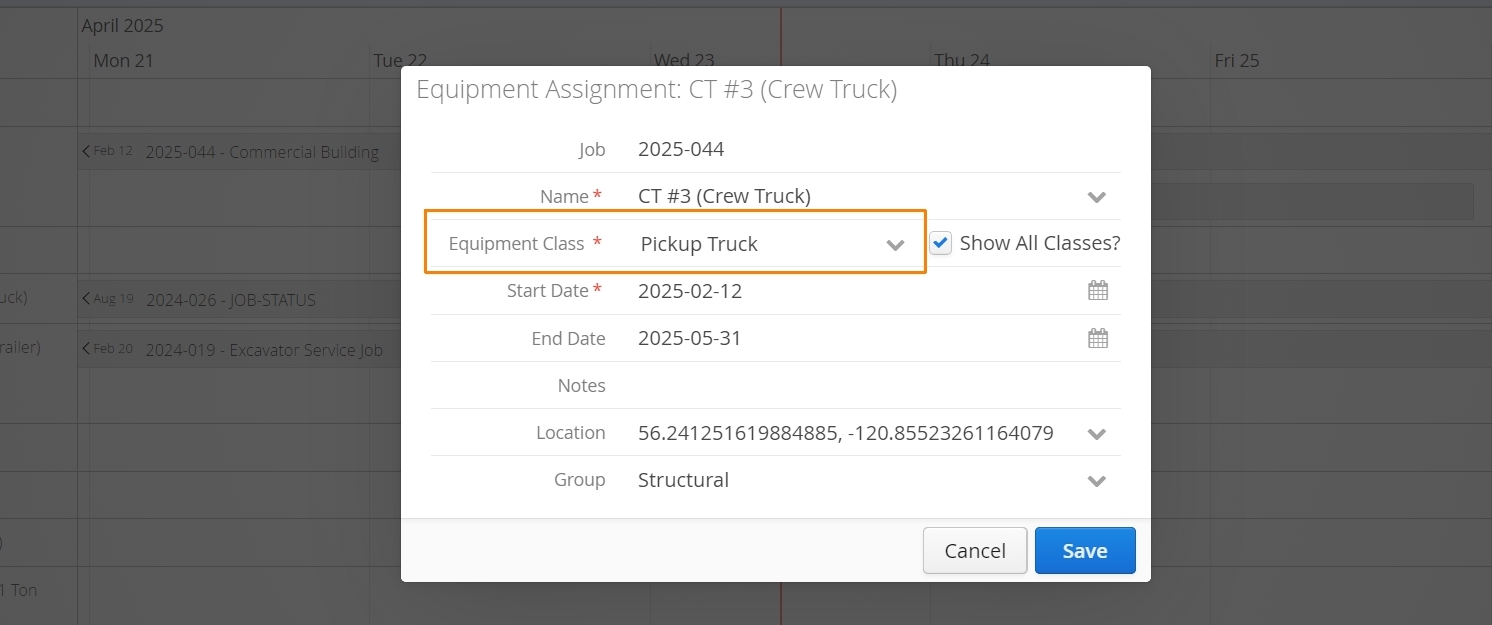
Equipment Class can be changed from any Dispatch view (Job Board, Job Timeline, Resource Timeline), by viewing or editing the individual assignment and locating the Equipment Class field.
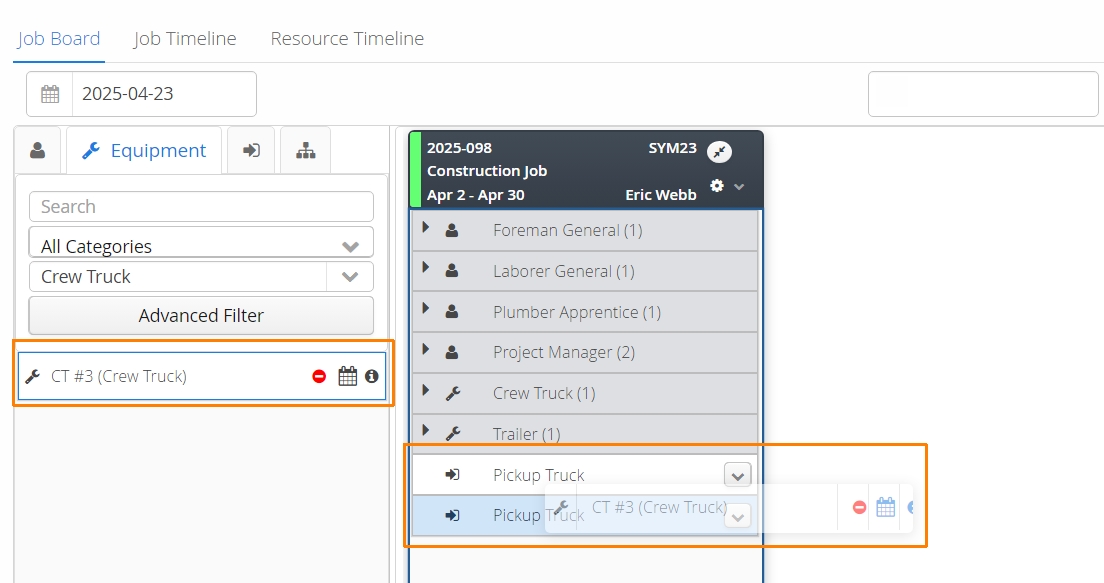
We’ve also included support for Placeholders. Allowing a Placeholder to be filled by an Equipment resource of an alternate Equipment Class.
Purchase Orders
Accounts that require more control over the Markup (Upcharge %) of their Vendor purchases can now indicate those percentages per line item when completing a Purchase Order.

If items on a Purchase Order have different Upcharge % values, they must be Received Partially.
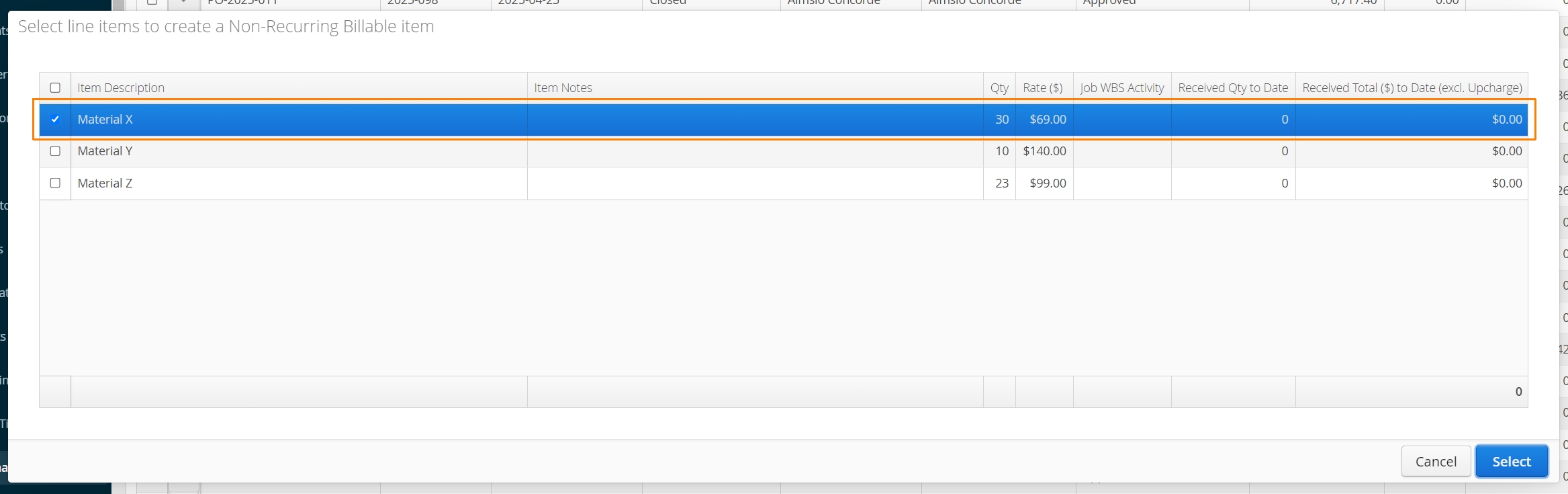
It will not be possible to receive more than one item at the same time, if the items have different markups.
When the NRB is created, the Upcharge % on the Purchase Order will take precedent over any value stored at the Job level.
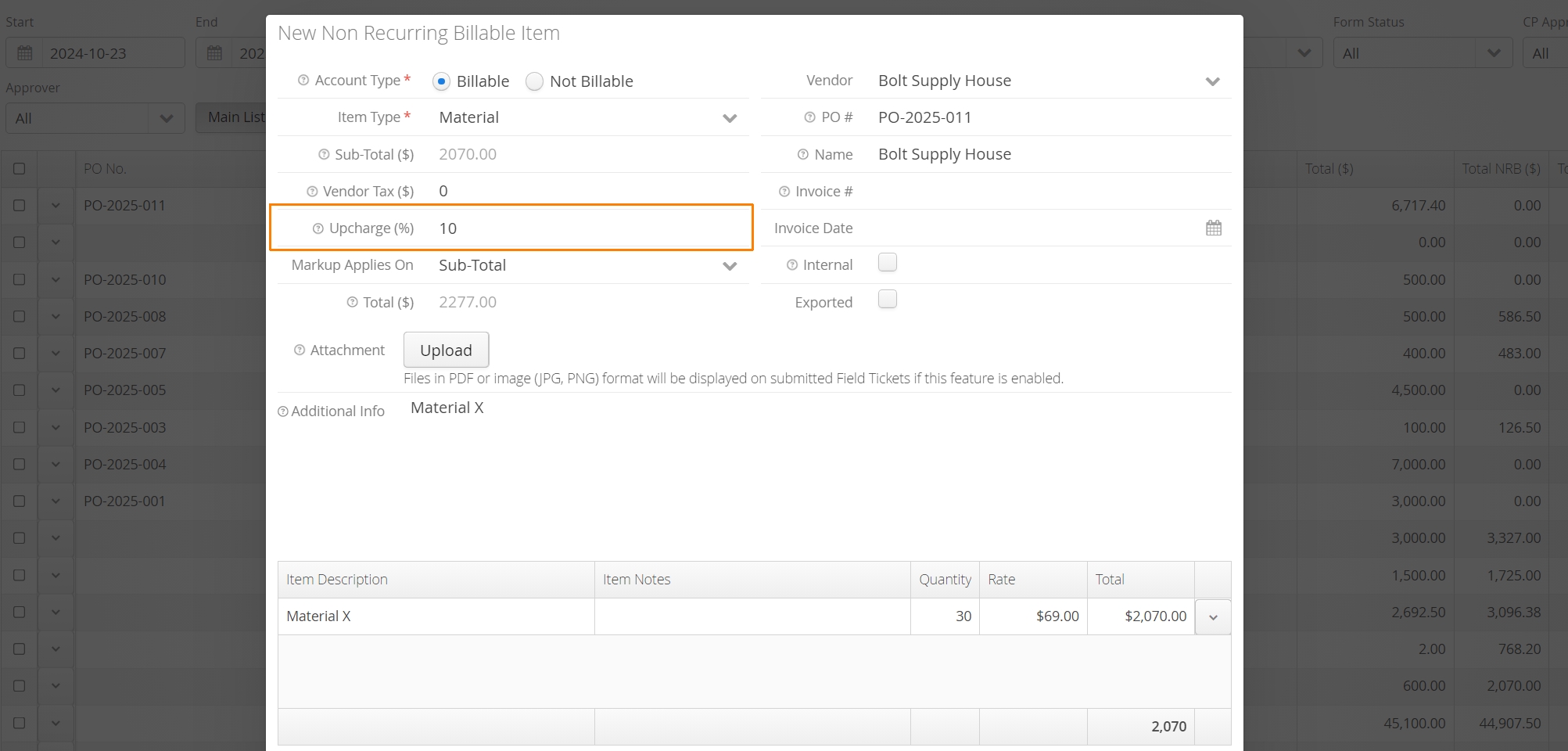
Accounts interested in this feature will need to get in touch with our Support team to have it deployed to your account.
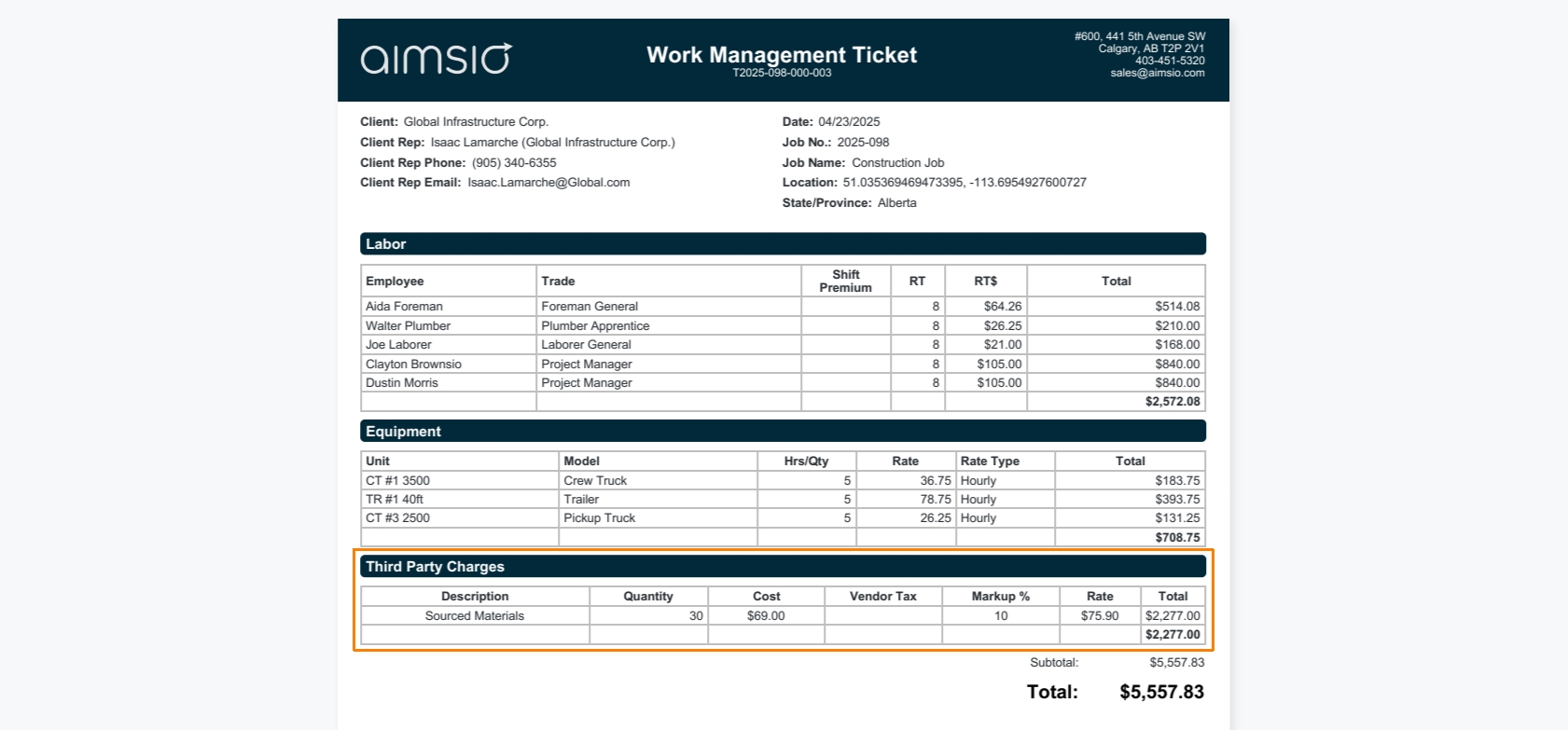
We’re also including the ability to Hide Vendor information on a Ticket, when a NRB is charged.
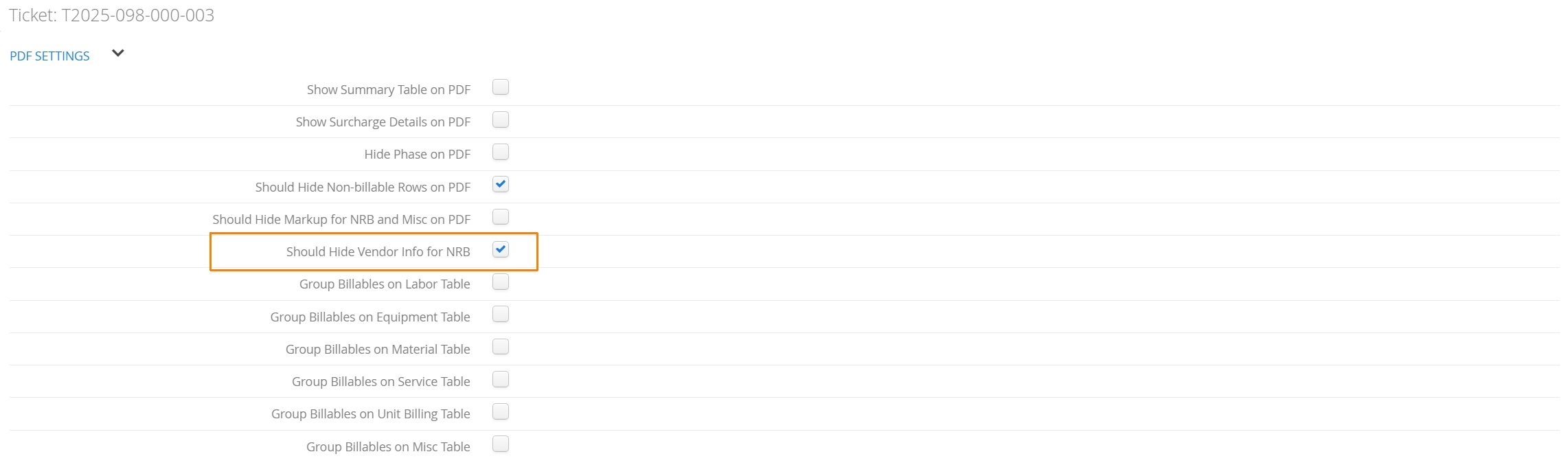
Note that the Vendor Name, Invoice No. and Invoice Date are no longer visible.
Areas
We now support the export and import of Areas for User and Employee profiles.
In order to accommodate this change, we’ve included a new ‘Code’ field that accounts will see when adding or editing their Locations. This field acts as a unique identify and will be required to successfully import Areas when they are associated to Users or Employees on a csv file.
If necessary, Codes can be set as required before any Location can be saved. Codes must be unique and commas are not permitted in a Location Code.
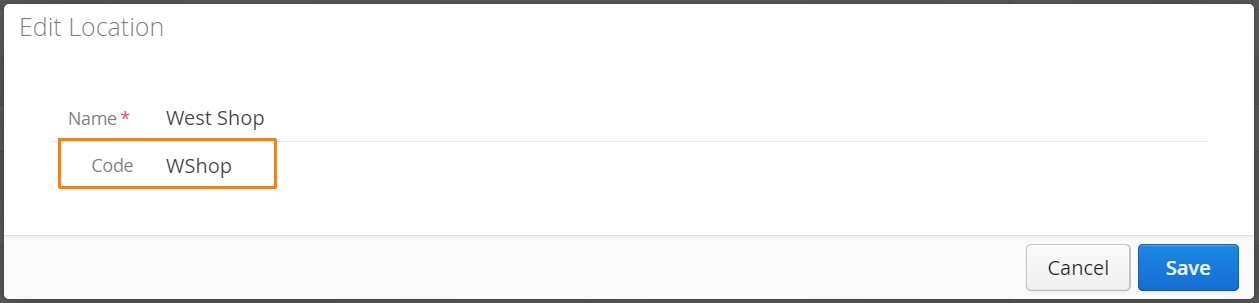
After your Location Codes have been entered. Accounts can export their User or Employee profiles to csv from their Master Data page.

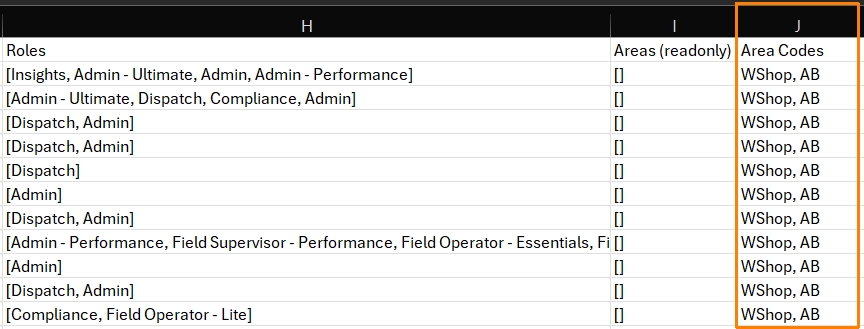
When editing the csv file, locate the Area Codes column and enter the corresponding Location codes, separated by a comma.
Once the csv have been imported back into Aimsio, the User or Employee profile will contain all Areas that have been associated.
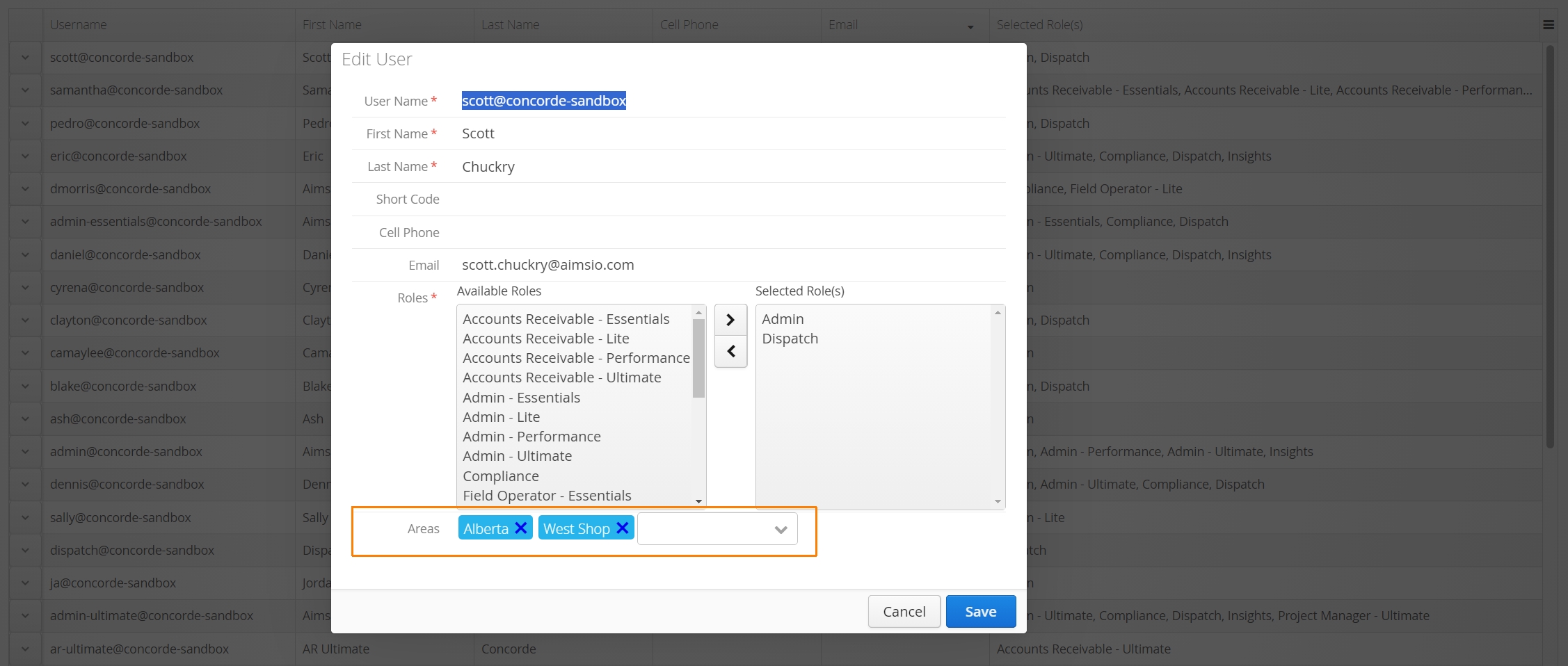
csv imports will fail if any of your account’s Locations do not have a Location Code. If accounts are not updating Areas on a User or Employee profile, the Area Codes column can be removed from the csv file before importing.
Insights
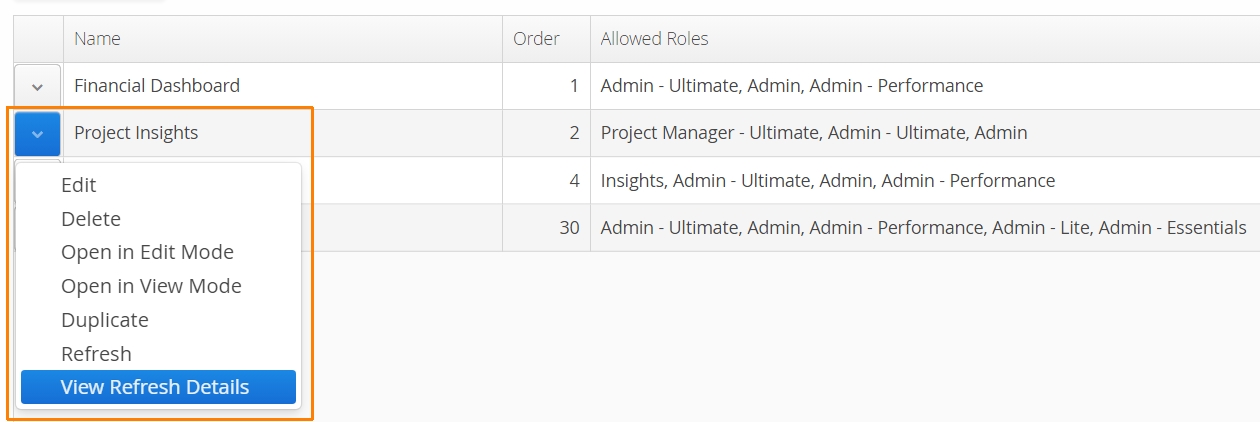
Accounts using Insights, will now see two new columns in their Access Management tab that shows the last time their dashboards were refreshed and the average refresh time. This can help accounts identify whether the data they are viewing in their reports is up to date.

Accounts can also get more detailed information about their report by clicking on View Refresh Details.